7 Free Image Enhancement Tools That Actually Work in 2026
You’ve taken the perfect shot. The lighting is right. The composition works. But somewhere between your camera and the final output, things go sideways — wrong brightness, off colors, a cluttered background nobody noticed on location.
You don’t need Photoshop. You don’t need to pay $30 a month. You need the right free tools that actually do the job.
Here are 7 image enhancement tools available right now, all free, all browser-based, and all genuinely useful.
#
Remove Image Background
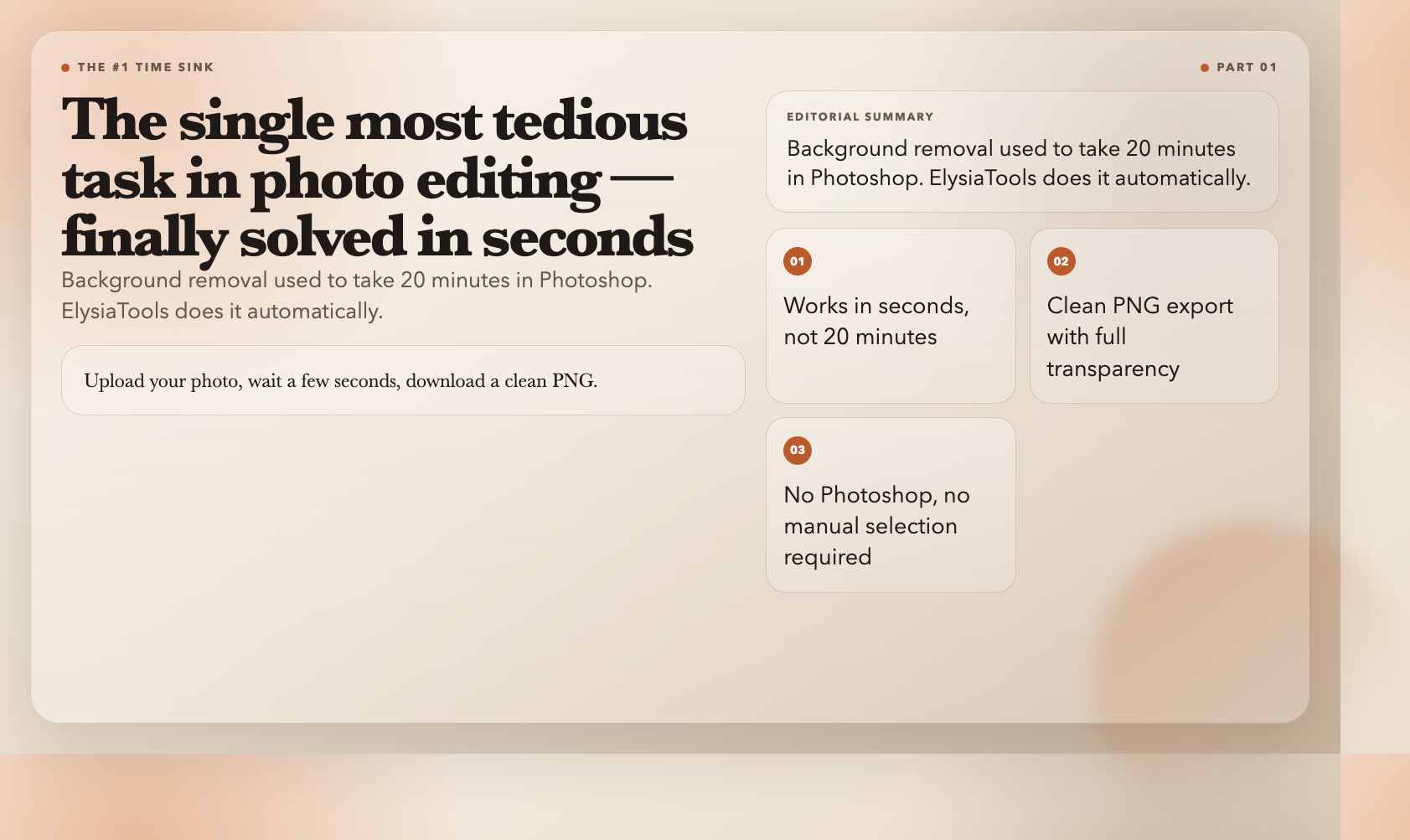
This is the single most tedious task in photo editing.
Doing it manually in Photoshop takes 20 minutes if you know what you’re doing, longer if you don’t. Free online tools often produce jagged edges or muddy transparency. ElysiaTools’ Remove Image Background works differently: upload your photo, wait a few seconds, download a clean PNG with the subject perfectly isolated against full transparency.
The export format matters. PNG with transparency is what makes the result actually usable — no white residue, no halos, no jagged cutout lines. Apply that isolated subject to any background you want.
This tool is indispensable for three common scenarios. Product photography on Amazon or Etsy demands a clean white or transparent background — it’s literally a listing requirement on many platforms. A clean LinkedIn headshot with a removed background looks dramatically more professional than the original snapshot. Presentation slides where the stock photo’s background clashes with your design are instantly salvageable.
#
Image Brightness Adjustment
Overexposed. Underexposed. Neither is a lost cause.
Most free editors give you a single brightness slider and call it done. The Image Brightness Adjustment tool works differently: set a precise brightness value, preview the result in real time, export at your chosen quality level. No overshooting. No highlight blowout. No guessing.
The real advantage is precision. A crude slider either over-corrects or under-corrects. A numerical brightness value gives you repeatability — if you need to apply the same brightness correction to 10 photos from the same shoot, you set the value once and apply it consistently across all of them.
Common scenarios: recovering details in a photo taken in harsh midday sun. Lifting shadows in a shot that came out too dark. Brightening a scanned document that reads as nearly black. In each case, one precise adjustment fixes what a crude slider destroys.
#
Image Blur
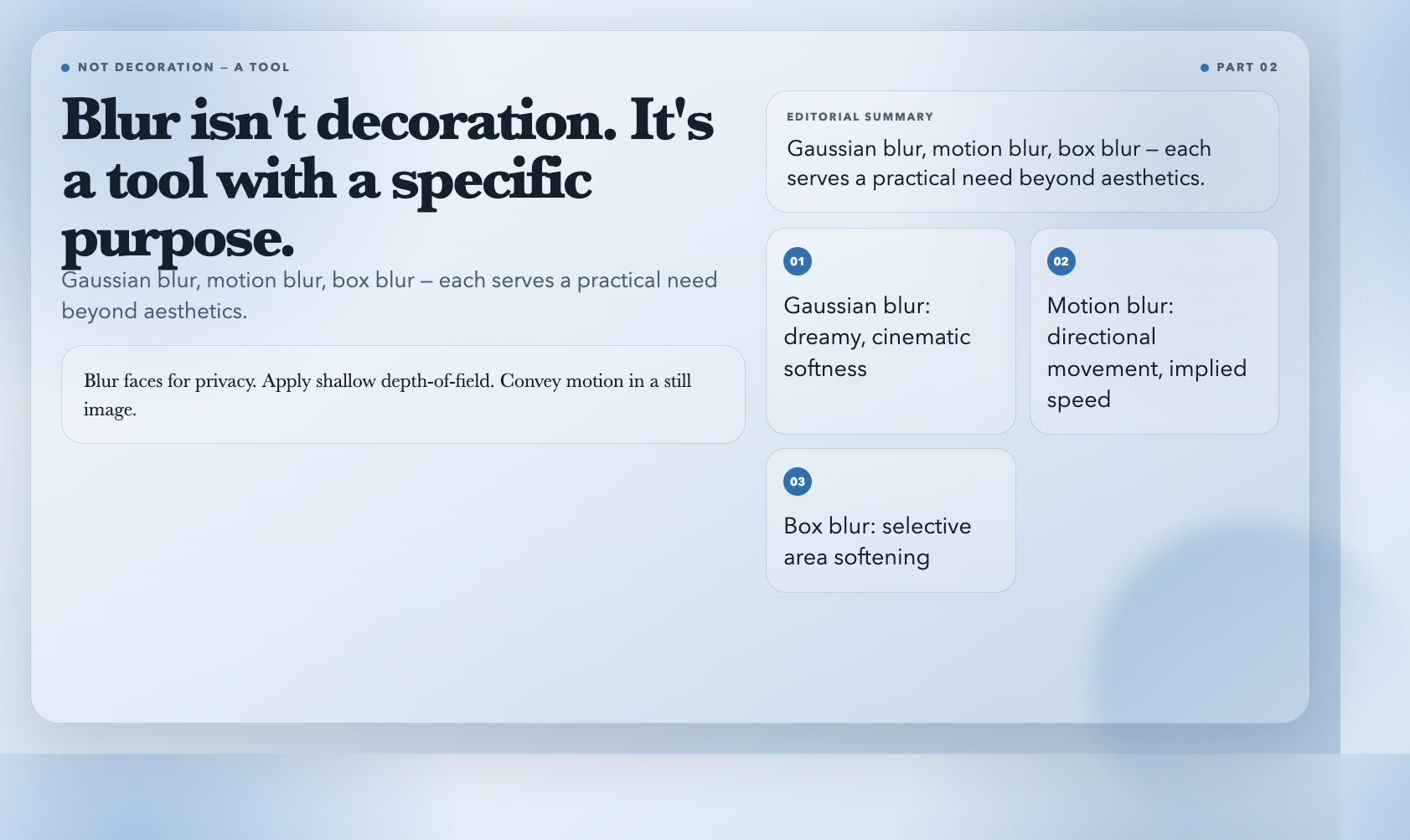
Blur isn’t decoration. It’s a tool with a specific purpose.
The Image Blur tool offers multiple blur types: Gaussian blur for a soft, dreamy finish; motion blur for directional movement that implies speed or elapsed time; box blur for selective area softening. You control strength, type, and coverage area.
Practical applications are immediate. Blur faces in photos before sharing publicly — a requirement in many journalism and documentary contexts. Obscure license plates in accident or traffic documentation. Draw focus to your subject by blurring the background, replicating the shallow depth-of-field effect that normally requires an expensive f/1.8 lens.
Creative applications expand from there. A Gaussian blur transforms a busy background into something cinematic. Motion blur turns a static car photo into a sense of motion. These aren’t gimmicks — professional photographers and filmmakers use these techniques daily.
#
Image Color Balance
Every camera sees color differently. Shoot indoors under tungsten lighting and your whites look orange. Shoot outdoors on an overcast day and everything shifts toward blue. The human brain corrects for this automatically. Digital files don’t.
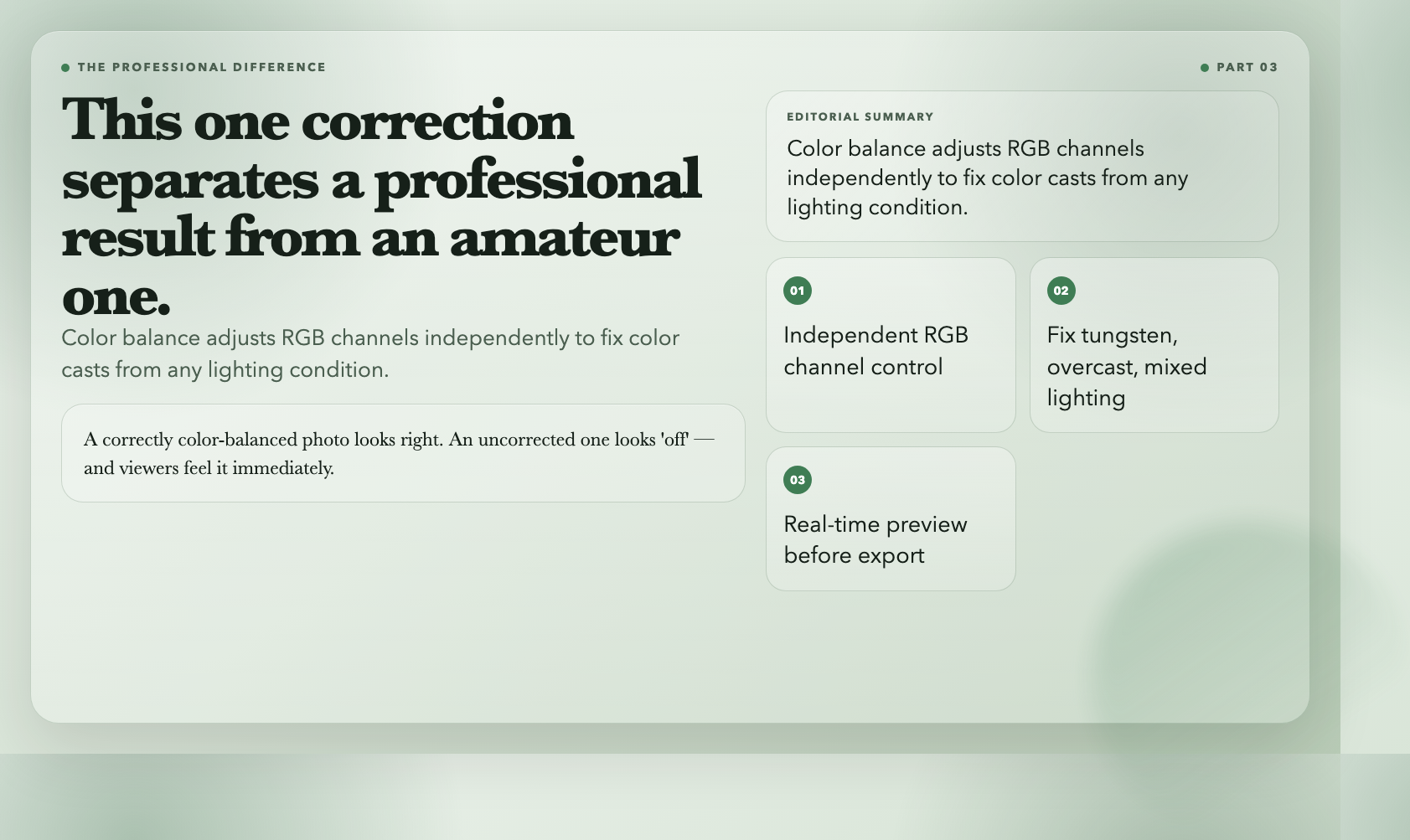
The Image Color Balance tool adjusts RGB channels independently. Add red where there isn’t enough warmth. Reduce blue where the lighting cast too much cold. Set the exact mood your image needs — all with immediate visual feedback so you see the change before you commit to it.
This is the correction that separates a professional result from an amateur one. A correctly color-balanced photo looks right. An uncorrected photo looks “off” — and most viewers can’t articulate why, but they feel it immediately.
#
Auto-Orient Image
This sounds like a niche concern. It isn’t.
Phones and cameras write orientation data into the EXIF metadata of every photo they take. Most modern image viewers and browsers read this and display the photo correctly rotated. But many editing tools, older software, social media platforms, and content management systems ignore it — and your photo arrives sideways or upside-down.
The Auto-Orient Image tool reads the EXIF orientation tag and physically rotates the image data to match. The result displays correctly everywhere, regardless of what software opens it. One click. Done.
If you’ve ever uploaded a photo to a website only to find it rotated 90 degrees on the live page, you know exactly why this one-click fix is worth having.
#
Image Contrast Adjustment
Brightness adjusts how much light is in an image. Contrast adjusts how that light is distributed across the tonal range.
High contrast gives an image punch — bright areas brighten further, dark areas deepen, the image feels alive. Low contrast flattens everything into mid-tone gray. The Image Contrast Adjustment tool gives you precise numerical control, with real-time preview.
The workflow matters here. Adjust brightness first, then evaluate the contrast. Adjust contrast, then reconsider brightness. The preview makes this back-and-forth practical instead of frustrating — you see the combined effect of both adjustments before exporting.
This is one of the most-used adjustments in photo editing, and most free tools either over-simplify it or hide it behind an intimidating histogram interface.
#
Image Colorspace Converter
This is the most technically demanding tool on the list — and the one that rewards understanding it most.
Colorspaces describe how colors are represented numerically. RGB is what screens use. CMYK is what print presses use. LAB represents what the human visual system perceives. HSV and HSL are useful for intuitive color adjustments during editing. Converting between them requires the conversion to preserve color relationships — not just swap numbers.
The Image Colorspace Converter tool handles RGB, CMYK, LAB, HSV, and HSL conversions with rendering intent control. A naive RGB-to-CMYK conversion produces dull, oversaturated colors when printed. A proper conversion with the right rendering intent preserves the visual relationships that make the photo look right on screen and on paper.
Photographers preparing files for commercial printing. Designers working across digital and physical media. Developers building color management pipelines. This tool makes colorspace conversion accessible — no $500 Adobe Creative Cloud subscription required.
#
The Real Problem These Tools Solve
Most people assume a badly exposed or poorly composed photo is ruined. It’s not.
A cluttered background, a brightness that’s slightly off, a color cast from the wrong lighting — these are all fixable. The issue isn’t that the problems are unsolvable. The issue is that the tools to solve them have historically been expensive, complicated, or both.
These 7 tools eliminate both barriers. They’re free. Browser-based. No account required. No watermarks. No credit card.
Which photo in your library have you been treating as a lost cause?