7 Free Data Visualization Tools That Replace $50K Analytics Software
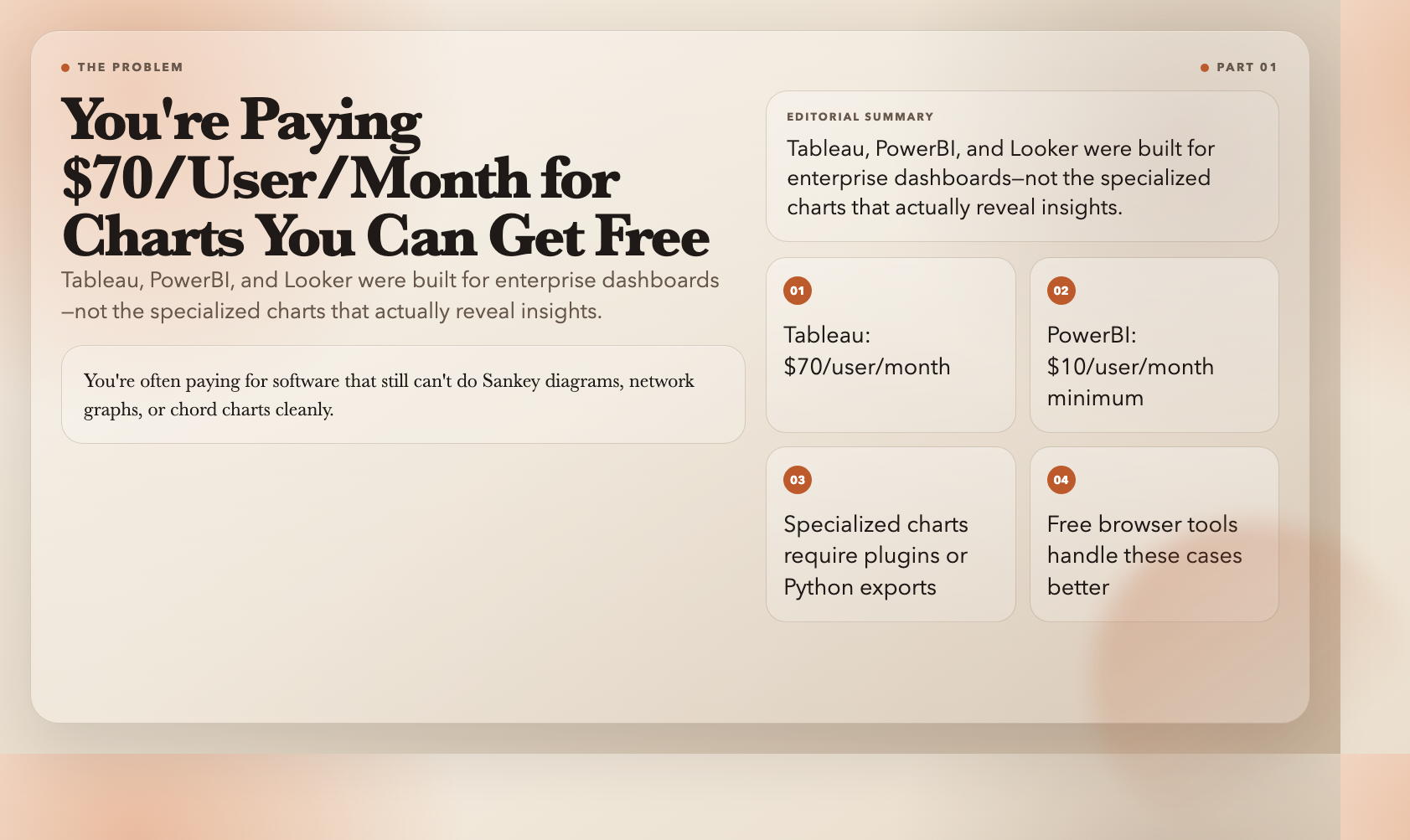
Most teams are overpaying for visualization tools. Tableau runs $70/user/month. PowerBI starts at $10/user/month. And if you’re doing specialized work—like Sankey diagrams, network graphs, or chord charts—you’re often paying for software that still can’t do it cleanly.
The alternative is a growing collection of free, browser-based tools that handle specific visualization problems better than any general-purpose BI platform. Here’s what actually works in 2026.
The Problem With General-Purpose BI
Tableau, PowerBI, and Looker were designed to connect to databases and generate dashboards. They handle the 80% of common chart types well. But when a data scientist needs a Sankey diagram to show energy flow through a system, or a researcher needs a chord diagram to visualize migration patterns, these platforms hit walls.
You end up paying for plugins, spending hours massaging data into proprietary formats, or exporting to Python just to get one chart right.
The tools below skip the enterprise overhead entirely. They run in a browser, accept clean JSON or CSV data, and output publication-ready visualizations in seconds.
1. Sankey Diagram Generator — Trace How Anything Flows
The Sankey diagram is one of the most powerful (and least used) chart types in data visualization. It shows flows—energy transfers, budget allocations, migration patterns—with width proportional to quantity. The result is a diagram where you can immediately see where most things come from and where they go.
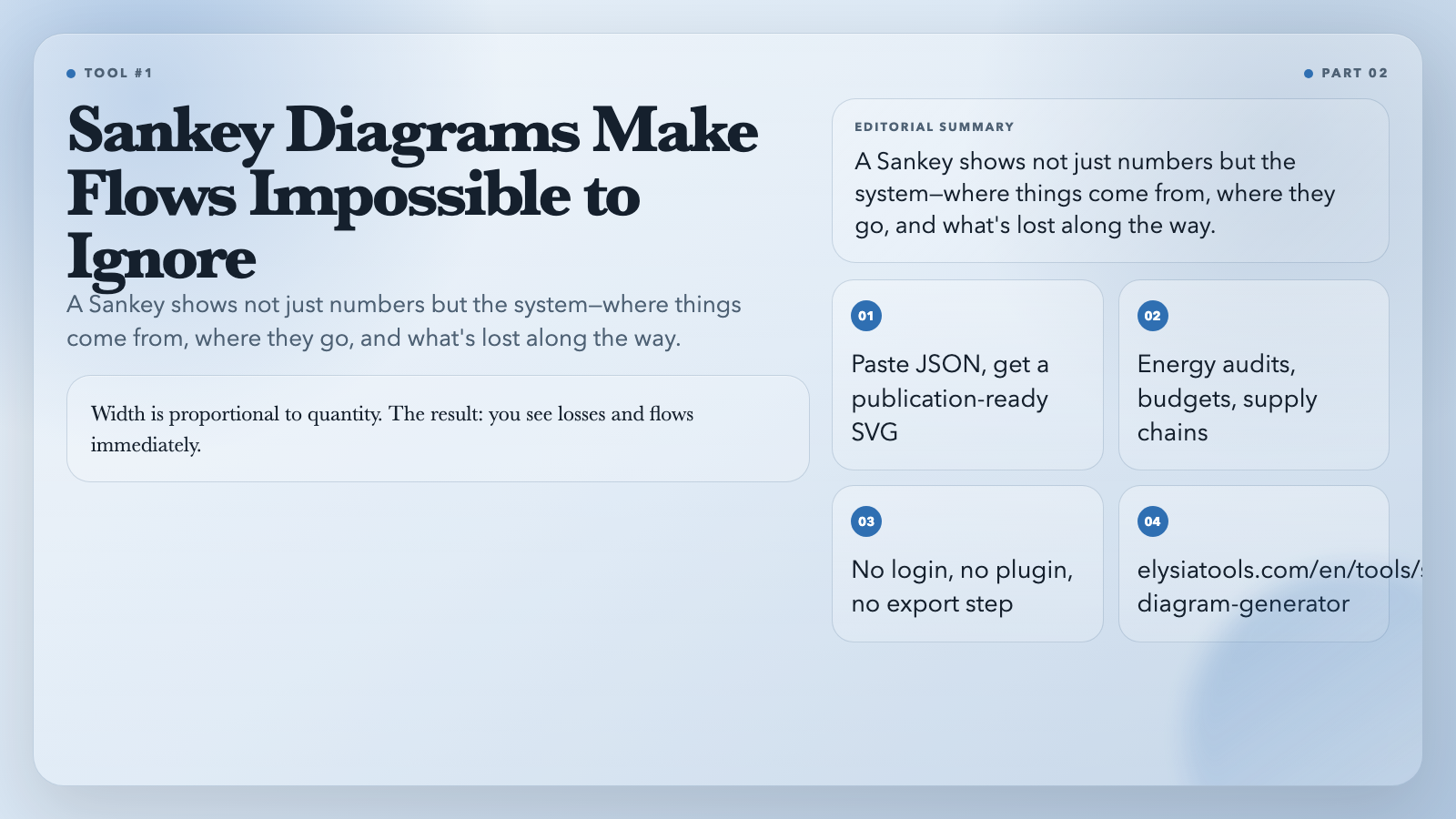
The Sankey Diagram Generator handles the full workflow: paste in a JSON structure with nodes and links, choose colors, and get an SVG-based diagram with optional animations. No login, no plugin, no export step.
What it’s for: Energy audits, website traffic flows, budget breakdowns, supply chain visualization.
How it works:
“
{
  "nodes": [
    {"id": "coal", "name": "Coal", "value": 100},
    {"id": "plant", "name": "Power Plant", "value": 85},
    {"id": "grid", "name": "Electric Grid", "value": 60},
    {"id": "loss", "name": "Heat Loss", "value": 25}
  ],
  "links": [
    {"source": "coal", "target": "plant", "value": 100},
    {"source": "plant", "target": "grid", "value": 60},
    {"source": "plant", "target": "loss", "value": 25}
  ]
}
Drop this in and you get a diagram showing how 100 units of coal energy become 60 units of grid electricity and 25 units of waste heat—visually, in seconds.
Try it: Sankey Diagram Generator
2. Chord Diagram Generator — See Bidirectional Relationships
Where Sankey shows flow in one direction, chord diagrams show bidirectional relationships. Each entity gets a segment of a circle, and arcs connect related entities with width proportional to relationship strength.
The Chord Diagram Generator on ElysiaTools lets you visualize matrix data as an interactive chord chart. It’s particularly useful for migration data, trade relationships, or any dataset where you need to show that A connects to B and B also connects back to A.
What it’s for: Migration patterns, international trade, gene flow between populations, communication networks.
The insight it surfaces: Chord diagrams reveal reciprocity. If country A sends 10,000 migrants to country B, but country B sends 50,000 back to A, a simple Sankey would miss the asymmetry. A chord diagram shows it immediately.
3. Network Chart Generator — Map Complex Relationships
Most business data is relational: employees report to managers, products belong to categories, users belong to cohorts. Relational data doesn’t render well on pie charts.
The Network Chart Generator creates force-directed network graphs that make relational structure visible. Nodes are positioned by connection density—highly connected nodes cluster at the center, peripheral nodes spread to the edges. You can customize node sizes, colors, and labels to encode additional dimensions.
What it’s for: Organizational charts, social network analysis, supply chain mapping, recommendation engine visualization.
The use case nobody talks about: Debugging microservices architecture. Drop your service dependency graph into a network chart and immediately see which service is the critical hub—and which is an orphan with no connections. Both are things engineers waste time hunting in log files.
4. Box Plot Generator — Show Distribution, Not Just Averages
The average is one of the most misleading statistics in common use. Two datasets can share the same mean while having completely different shapes—one normally distributed, the other heavily skewed by outliers.
The Box Plot Generator renders statistical box plots showing quartiles, medians, and outliers. It accepts raw number data and handles the statistical computation internally—you don’t need to calculate quartiles manually.
What it’s for: Comparing distributions across categories, identifying outliers, A/B test analysis, quality control.
The number worth knowing: A box plot shows the interquartile range (IQR)—the middle 50% of data—along with whiskers extending to 1.5× IQR and individual outlier points beyond that. If your outliers are important, box plots make them impossible to miss.
5. Heatmap Generator — Find Patterns in Dense Data
A heatmap uses color intensity to encode values across two dimensions. The result is something that can reveal patterns invisible in tabular data—like which hours of the week a server sees peak load, or which product combinations appear most frequently in transactions.
The Heatmap Generator produces customizable heatmaps from CSV or JSON data. You control the color scale (sequential, diverging, or categorical), cell sizing, and label placement.
What it’s for: Website analytics, calendar activity patterns, correlation matrices, inventory density maps.
Where it beats tables: A table with 168 cells (24 hours × 7 days) is unreadable. The same data as a heatmap makes the weekly usage pattern instantly obvious within 2 seconds of looking.
6. Gantt Chart Generator — Plan Projects Without MS Project
Microsoft Project costs $550/user for a license. It’s also notoriously complex—a simple project plan shouldn’t require a 2-hour onboarding session.
The Gantt Chart Generator creates clean Gantt charts from a simple task list. Define tasks, start dates, durations, and optional dependencies between tasks. The chart renders with a timeline axis, progress bars, and milestone markers.
What it’s for: Project planning, sprint planning, production schedules, event timeline visualization.
The feature that matters: Dependencies between tasks render as arrows. When task B depends on task A completing, the arrow makes the constraint explicit. Change task A’s end date and you immediately see which downstream tasks are affected.
7. Funnel Chart Generator — Track Conversion Without a CRM
Funnel charts are the standard visualization for conversion tracking—each stage narrows as prospects drop off. But if you don’t have a dedicated analytics platform, building one usually means exporting to Excel and manually calculating drop-off rates.
The Funnel Chart Generator takes stage names and values, calculates conversion rates between stages automatically, and renders a clean funnel with percentages labeled at each stage. Drop-off between stage 2 and stage 3 becomes impossible to miss.
What it’s for: Sales pipeline analysis, marketing conversion tracking, onboarding flow analysis, recruitment funnel visualization.
The Pattern Behind All of These
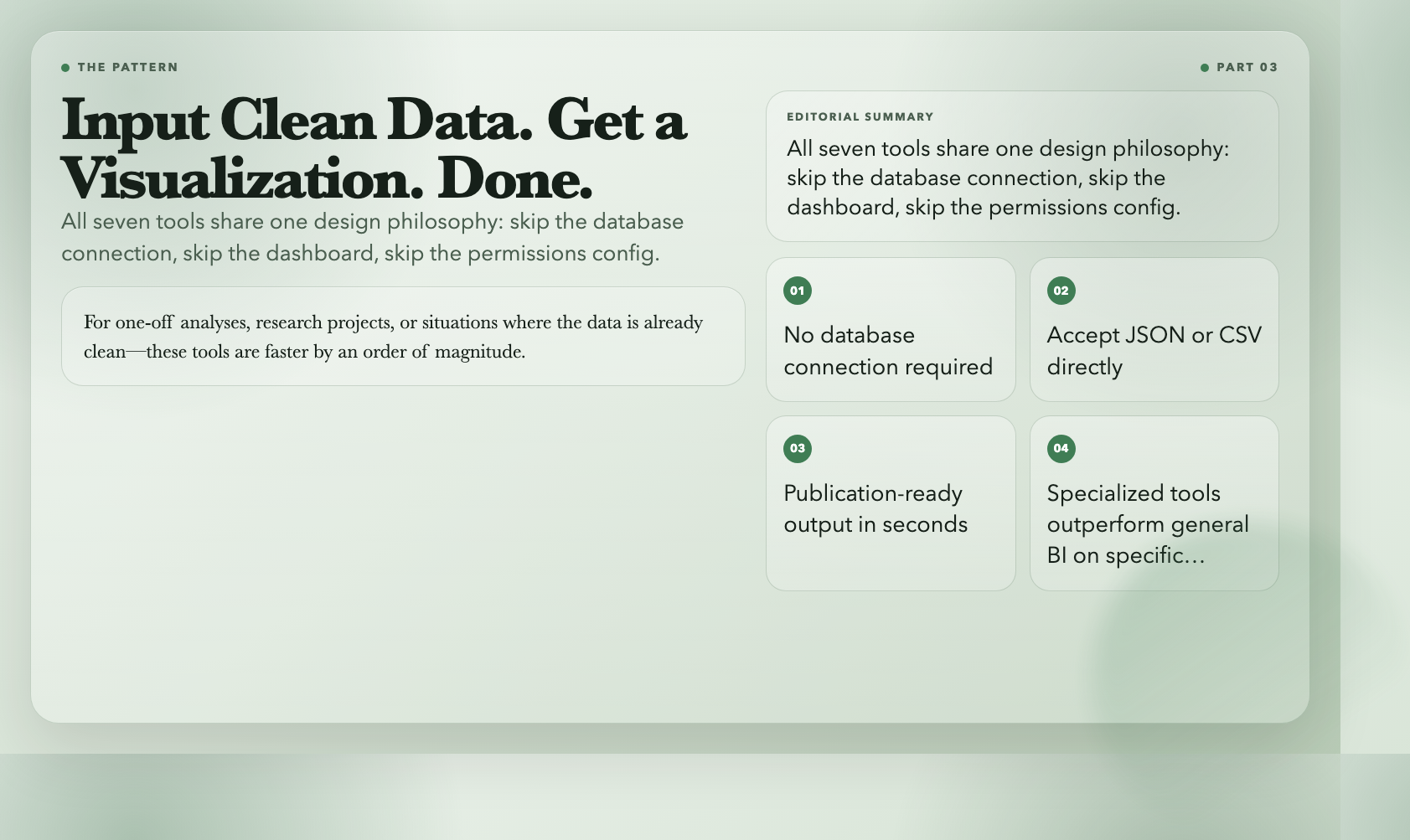
All seven tools share a design philosophy: input clean data, get a publication-ready visualization. None of them require a database connection, a login, or a CSV upload wizard. They accept structured JSON or simple tabular data and handle the rendering logic internally.
This is the opposite of the BI platform approach, where you spend the first hour configuring data sources, refresh schedules, and permissions for a dashboard you’ll only use once.
For one-off analyses, research projects, or situations where the data is already clean, these tools are faster by an order of magnitude.
One Thing BI Platforms Still Do Better
None of these tools replace a real BI platform for ongoing monitoring. If you’re tracking KPIs daily across 50 business units, a live Tableau dashboard with scheduled refreshes still beats a static chart you manually update.
The specialized tools shine when:
– The chart type isn’t well-supported in your BI platform
– You need a publication-quality graphic for a report or presentation
– The data is already clean and you need one visualization, not a dashboard
– You’re working with a team that doesn’t have BI tool access
For everything else, the free tools are simply better designed for the specific problem they solve.
The Question Worth Sitting With
Visualization tools shape what questions get asked. A bar chart makes you think about categories and totals. A Sankey makes you think about flows and losses. A box plot makes you think about distribution and outliers.
What question are you not asking—because your current tools don’t make it easy?
Explore all data visualization tools on ElysiaTools →
All tools are free, run in the browser, and require no account.