The CSS Property That Makes Web Interfaces Feel Alive (And How to Generate It in Seconds)
Open any polished web app today and you’ll notice something: things move. Buttons press down when you click them. Cards slide in when a page loads. Modals fade rather than just appear. This isn’t decoration — it’s communication. Good animation tells users where they are, what changed, and where to look next.
The problem is writing the CSS keyframes and animation properties by hand. It’s tedious, error-prone, and most developers end up copy-pasting the same three animations from Stack Overflow from 2014.
There’s a better way. Let me show you a free tool that generates production-ready CSS animation code in seconds, with full control over timing, easing, and behavior.
What the Tool Does
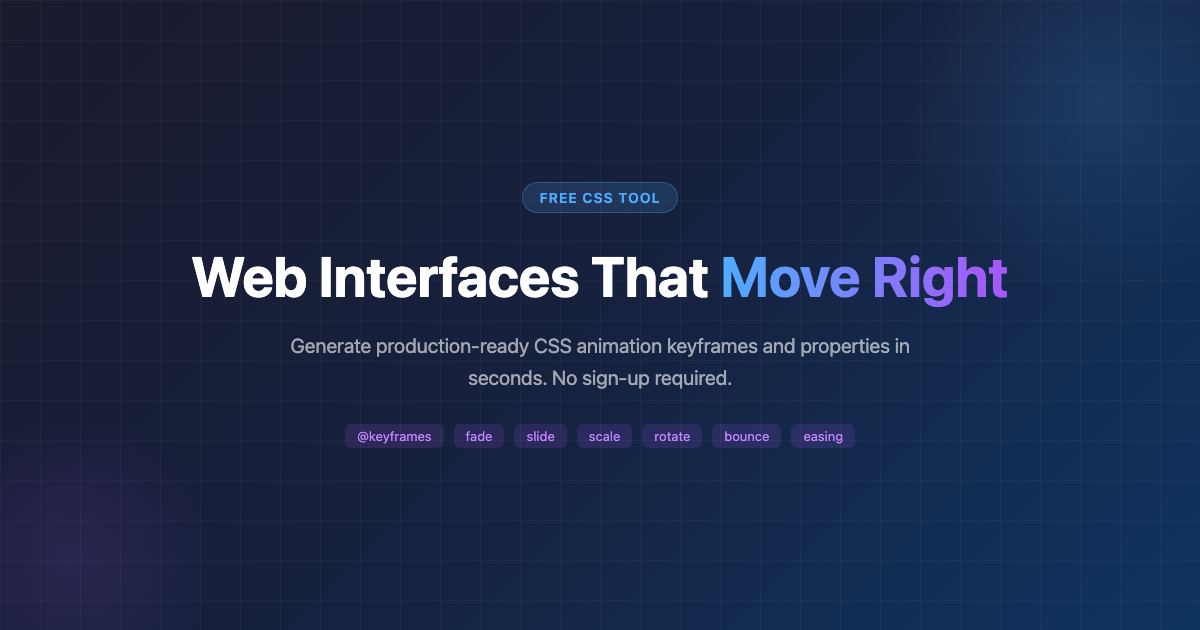
The CSS Animation Generator takes the pain out of writing @keyframes and animation properties. You pick your animation type, dial in the duration and timing function, and the tool spits out clean, copy-paste-ready CSS.
What you can customize:
- Animation Name — your custom identifier
- Animation Type — fade, slide, scale, rotate, or bounce
- Duration — 0.1 to 60 seconds
- Timing Function — ease, linear, ease-in, ease-out, ease-in-out
- Delay — how long before the animation starts
- Iteration Count — 1, 2, 3, 5, or infinite
- Direction — normal, reverse, alternate, alternate-reverse
- Fill Mode — none, forwards, backwards, both
No sign-up. No credit card. Just instant CSS.
The Five Animation Types
Here’s what each animation type produces:
Fade — opacity transitions from 0 to 1. The classic “appeared out of nowhere” to “now you see it” transition. Good for loading states, modal appearances, and anything that needs to feel smooth rather than abrupt.
Slide — translateX(-100%) to translateX(0). Elements slide in from the left. Natural, directional, and easy to follow. Good for sidebars, notification toasts, and drawer menus.
Scale — starts at scale(0), peaks at scale(1.2), settles at scale(1). The slight overshoot makes things feel physical, like they’re landing with a small bounce. Good for icons, buttons, and any element that should feel clickable.
Rotate — rotate(0deg) to rotate(360deg). A full spin. Good for loading indicators, refresh buttons, and any “working” state.
Bounce — a five-keyframe sequence that mimics a bouncing ball: up 30px at 40%, up 15px at 60%, then settles. The kind of animation that makes a UI feel playful without being distracting.
Timing Functions: The Secret Sauce
The timing function is where most developers either give up or just use ease and move on. But choosing the right easing curve is what separates animations that feel mechanical from animations that feel physical.
Here’s the practical difference:
ease— starts slow, accelerates, then slows at the end. Good for most UI transitions.linear— constant speed. Rarely looks natural, but useful for progress bars or opacity fades.ease-in— starts slow, ends fast. Makes things feel like they’re accelerating into view. Good for elements arriving from off-screen.ease-out— starts fast, ends slow. Good for elements that need to land softly.ease-in-out— slow at both ends. Good for elements that need to feel deliberate, like a modal dialog.
The default is ease, which works for most things. But if an animation feels “off,” the timing function is usually why.
The Fill Mode Question
This is the one property that trips up most developers. Fill mode controls what happens before the animation starts and after it ends.
none— the element behaves normally before and after. Good for looping animations.forwards— after the animation ends, the element keeps the final keyframe state. Good for one-shot transitions like “click to expand.”backwards— the element applies the first keyframe state during the delay period. Good for elements that should “already be in position” before they animate in.both— combines backwards and forwards. The most commonly useful setting for entrance animations.
If you’ve ever had an element flash to its starting position before animating, that’s a fill mode issue. Use forwards or both.
Real-World Example: Animated Card Entrance
Here’s a practical use case. Say you have a grid of cards that should animate in when a page loads:
/* Generated by the tool */
@keyframes cardEntrance {
0% { opacity: 0; transform: translateY(20px); }
100% { opacity: 1; transform: translateY(0); }
}

.card {
animation: cardEntrance 0.4s ease-out 0.1s both;
}
The delay is staggered — each card gets a slightly longer delay so they cascade in rather than all at once. With both fill mode, they start at opacity: 0 and translateY(20px) immediately, even during the 0.1s delay.
When Not to Animate
A word of caution: animation done wrong is worse than no animation at all. The rule is simple: animate to communicate state changes, not to decorate.
Good uses:
- Button press feedback (scale down, color change)
- Page transitions (something came in, something left)
- Loading states (progress, indeterminate motion)
- Error states (shake on invalid input)
- Focus indicators (help users find where they are)
Bad uses:
- Animating decorative elements on every view
- Long animations that block user flow
- Motion that repeats unnecessarily
- Anything that causes vertical scroll to jump
The tool’s 60-second maximum duration exists for a reason. Most UI animations should complete in under 500ms.
The Easiest Way to Test
You can copy the generated CSS directly into your project, or you can open the live tool and interact with the sliders to see how each parameter affects the result. The generated code includes both the @keyframes block and a ready-to-use .element class with all the properties set.
No account needed. No build step. Just CSS.
Stop Copy-Pasting
The next time you need a bounce effect or a slide-in animation, resist the urge to Google “CSS fade in animation” and open the first CodePen you find. Open the CSS Animation Generator instead. Pick your type, set your timing, copy the code.
Your users will notice the difference even if they can’t name what they’re noticing. That’s the point.