The Single Number That Decides Whether Your Audio Clips or Cuts
Every audio engineer has felt that stomach-drop moment: you export your track, play it on another system, and the first note hits like a hammer. Clipping. Distortion. Ruined.
The culprit is almost always the same: peak level. And there’s exactly one tool that prevents it — a two-pass peak normalization that measures first, adjusts second.
What Peak Normalization Actually Does
Most people think “normalizing” means “making audio louder.” That’s not quite right.
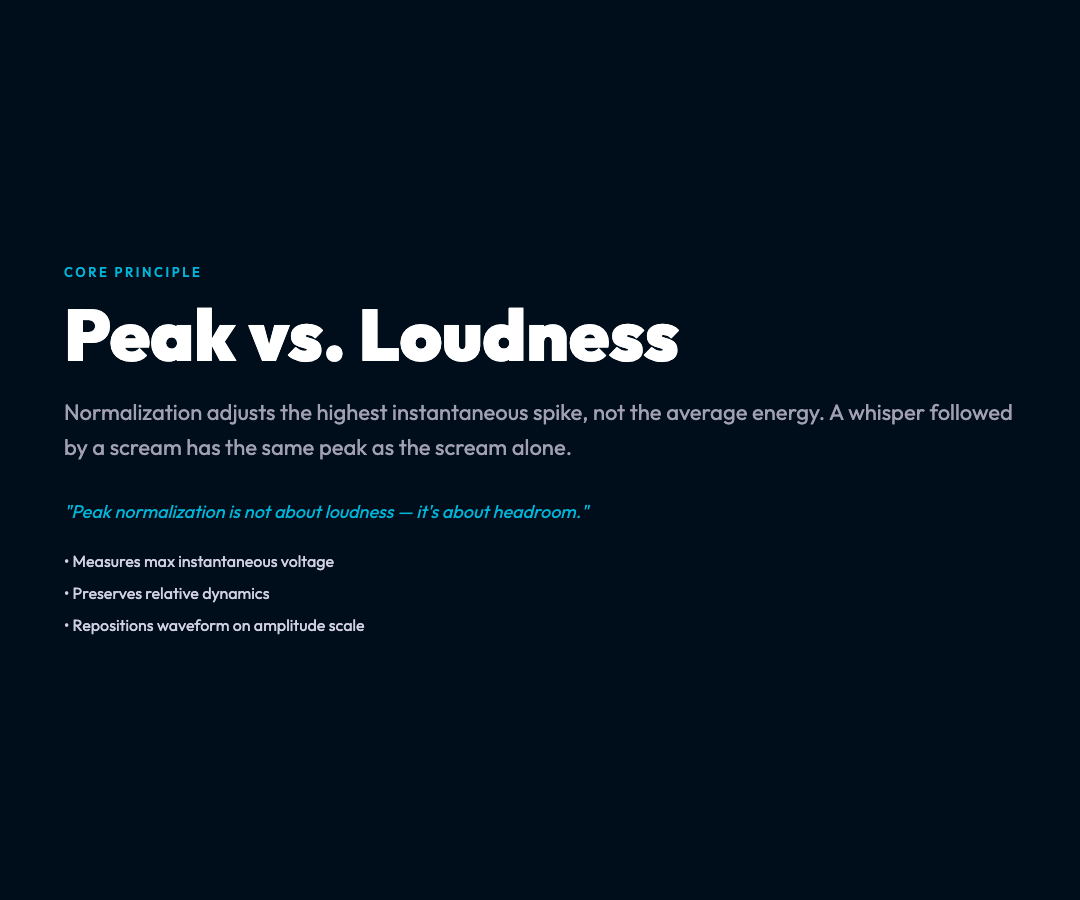
Peak normalization adjusts an audio file so its highest瞬时 peak reaches a specific target level — typically -0.1 dB. It doesn’t change the relative dynamics within the audio. It just ensures the loudest moment sits at a safe ceiling.
The key word is peak — not average, not perceived loudness, but the single highest瞬时 voltage in the waveform.
Why -0.1 dB Is the Industry Standard
Digital audio clips when a signal tries to exceed 0 dBFS (decibels relative to full scale). At 0 dBFS, the digital converter has no headroom — any signal above it gets chopped off, creating harsh distortion.
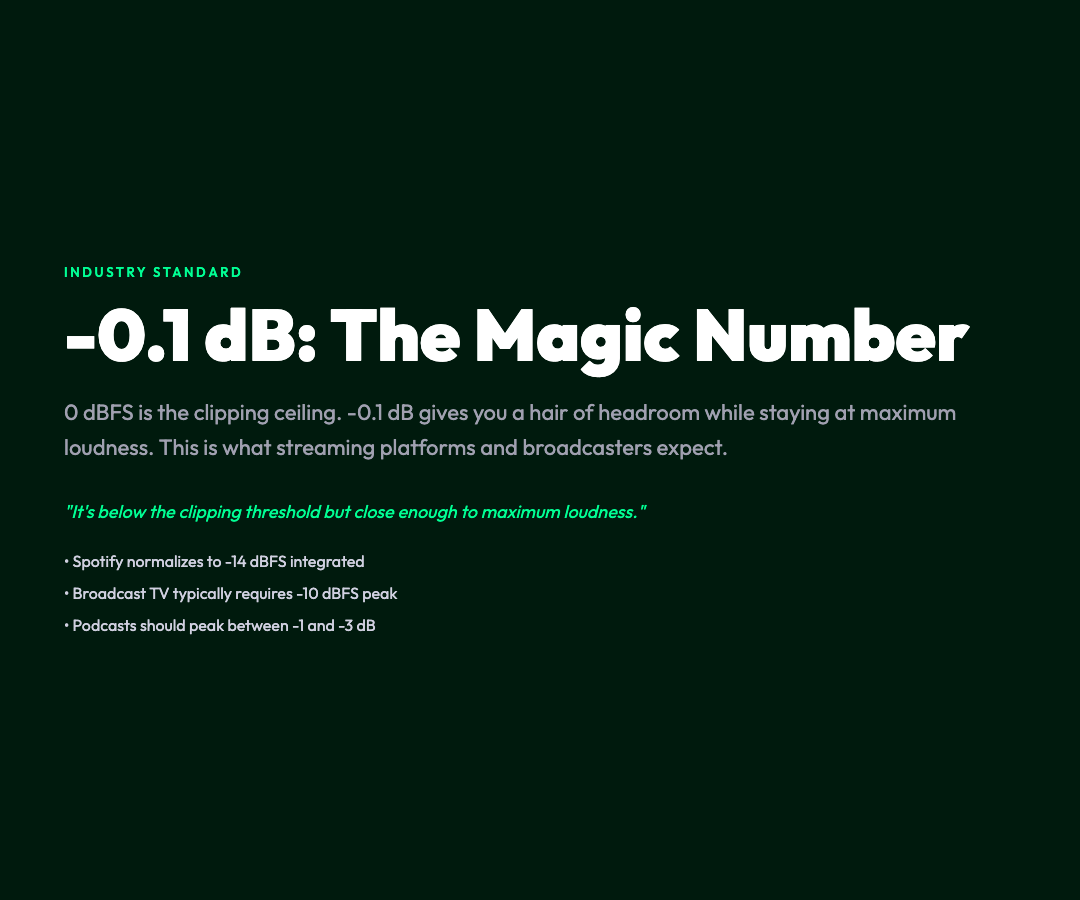
Setting your target at -0.1 dB gives you a hair’s worth of headroom. It’s below the clipping threshold but close enough to maximum loudness. This is why:
- – Spotify and streaming platforms apply their own normalization to -14 dBFS integrated, but they expect source files to peak safely below 0
- Broadcast TV typically requires -10 dBFS peak for regional feeds, -24 dBFS for some international standards
- Podcast RSS feeds should peak between -1 and -3 dB to survive multiple transcodes
The Two-Pass Approach: Measure First, Then Adjust
Here’s what makes peak normalization smarter than simple volume boosting:
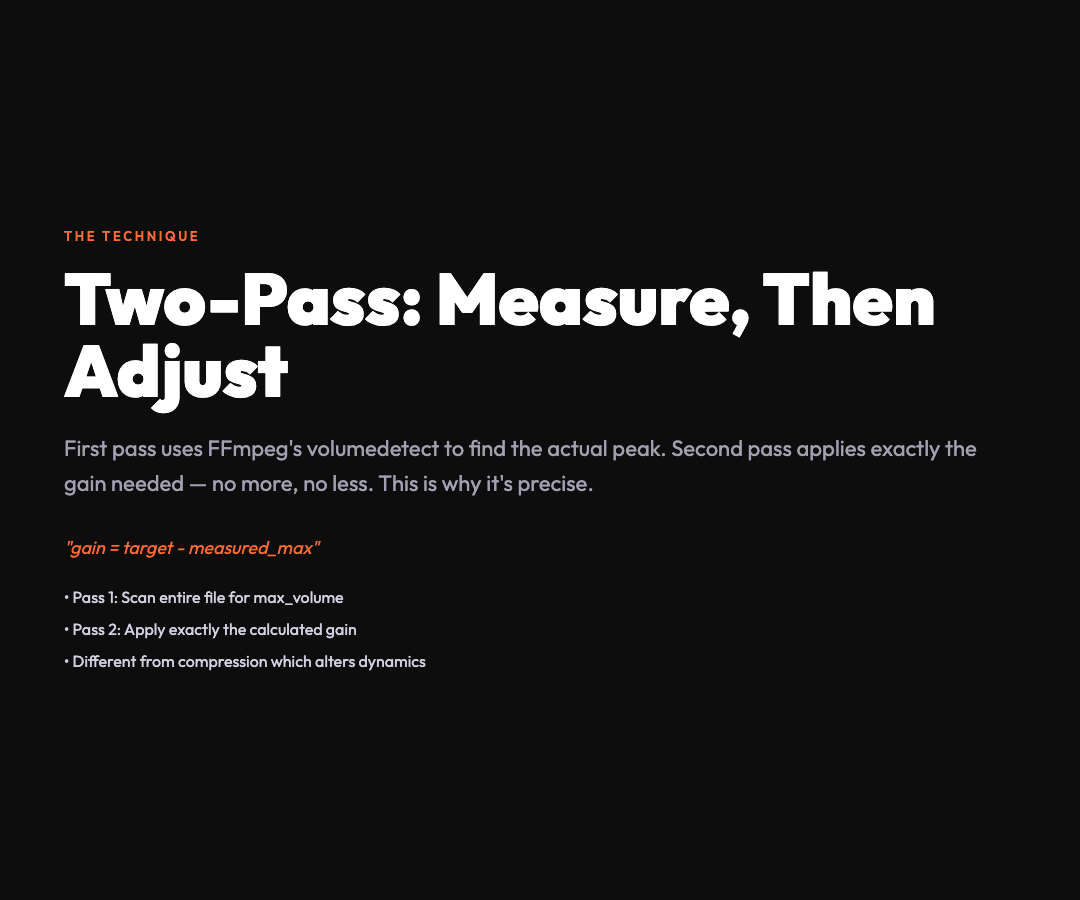
Pass 1: FFmpeg‘s volumedetect filter scans the entire file and finds the maximum peak level. It outputs something like max_volume: -6.4 dB.
Pass 2: The tool calculates the gain needed: gain = target − measured_max. If you want -0.1 dB and the file peaks at -6.4 dB, you need +6.3 dB of gain. FFmpeg applies exactly that, and only that.
This is fundamentally different from compression, which reduces dynamic range. Normalization preserves dynamics — it just repositions the entire waveform on the amplitude scale.
Why Your MP3s Might Be Quiet on Other People’s Speakers
If you’ve ever wondered why your track sounds fine in your DAW but quiet or distorted on a friend’s system, peak normalization is likely the answer.
Consumer speakers and headphones often have limited gain staging. A track that peaks at -3 dB on your studio monitors might play at half the perceived loudness on a phone’s built-in speaker. Conversely, a track peaking at 0 dB in your DAW will clip on any system running hotter gain.
The fix isn’t compression or limiting — those alter dynamics. The fix is ensuring your peaks sit at -0.1 dB before you export.
Formats and When to Use Them
Peak normalization works across formats, but your output format matters:
- – MP3/AAC — Most common for distribution. Normalize before encoding to preserve headroom
- FLAC — Lossless archiving. Normalize to -0.1 dB and store; re-encode to MP3/AAC later without quality loss
- WAV — Broadcast interchange format. Many TV facilities require specific peak levels in WAV headers
- OGG Opus — Speech-optimized. Normalize to -1 dB for voice recordings to survive packet loss
How Audio Normalize (Peak) Works in ElysiaTools
The ElysiaTools Audio Normalize tool implements two-pass peak normalization using FFmpeg:
1. Upload your file — any common format (MP3, WAV, FLAC, AAC, OGG, Opus, M4A) 2. Set your target peak — default is -0.1 dB, but you can adjust from -30 to 0 dB 3. Choose output format — re-encode to any supported format, or keep the original 4. Download the normalized file — peaks precisely at your target, dynamics untouched
The tool returns metadata showing the original peak, target, and applied gain — so you can verify exactly what happened.
The Bottom Line
Peak normalization is not about loudness. It’s about consistency and safety.
Every audio file you distribute should peak between -1 and -0.1 dB. This isn’t a stylistic choice — it’s a technical requirement for compatibility across playback systems, streaming platforms, and broadcast chains.
The next time you export a track, run it through peak normalization first. Your listeners’ speakers will thank you.
Try it now: Audio Normalize (Peak) on ElysiaTools