The Five-Field Time Bomb
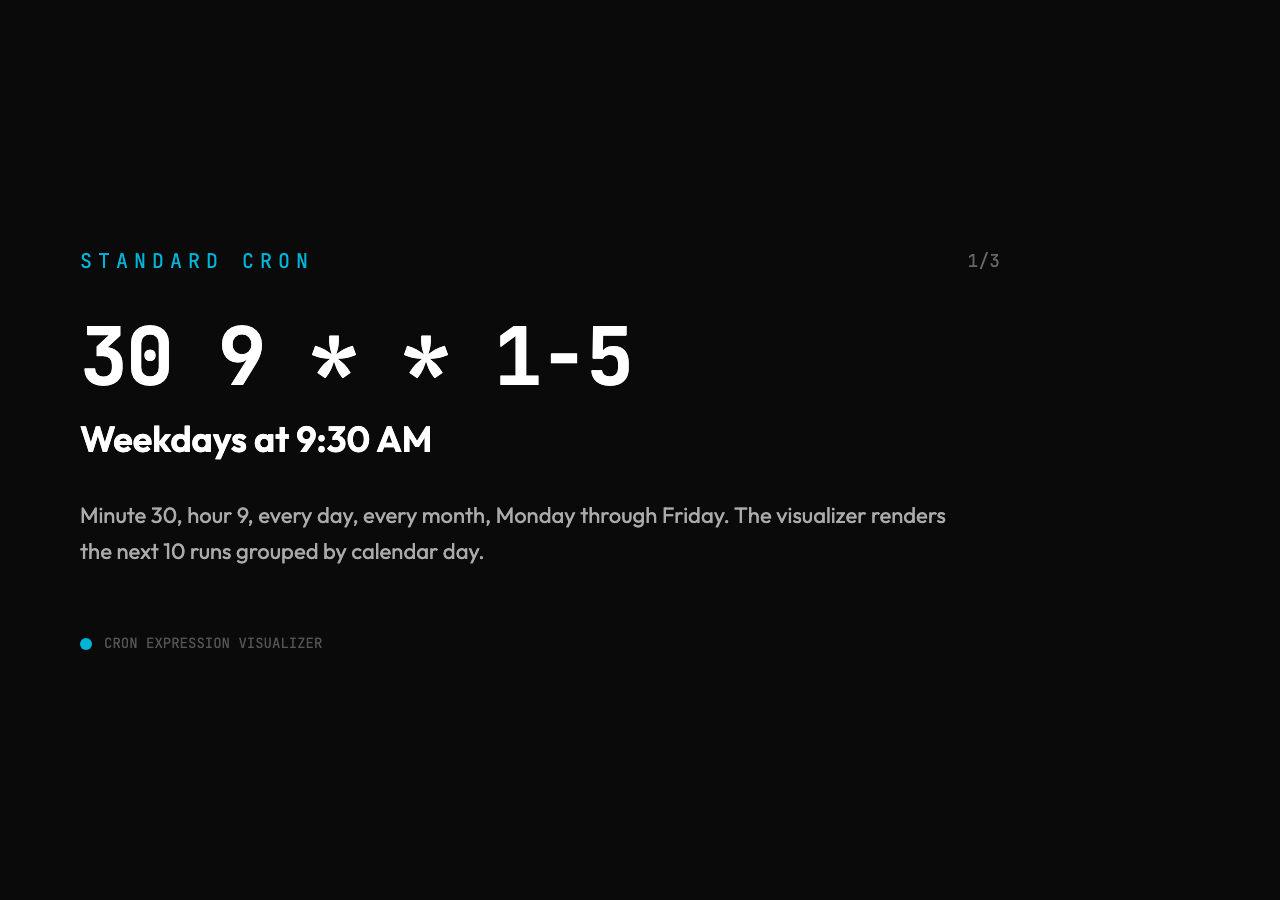
Five fields. That’s the whole cron syntax — minute, hour, day of month, month, day of week. A schedule that looks like 30 9 1-5 is not “something at 9:30.” It is a tightly-scoped declarative sentence: at minute 30 of hour 9, every day, every month, but only on weekdays 1 through 5.
The Cron Expression Visualizer unpacks that sentence into a calendar. You verify your read of it before it ships to production. No more guessing what the asterisks mean.
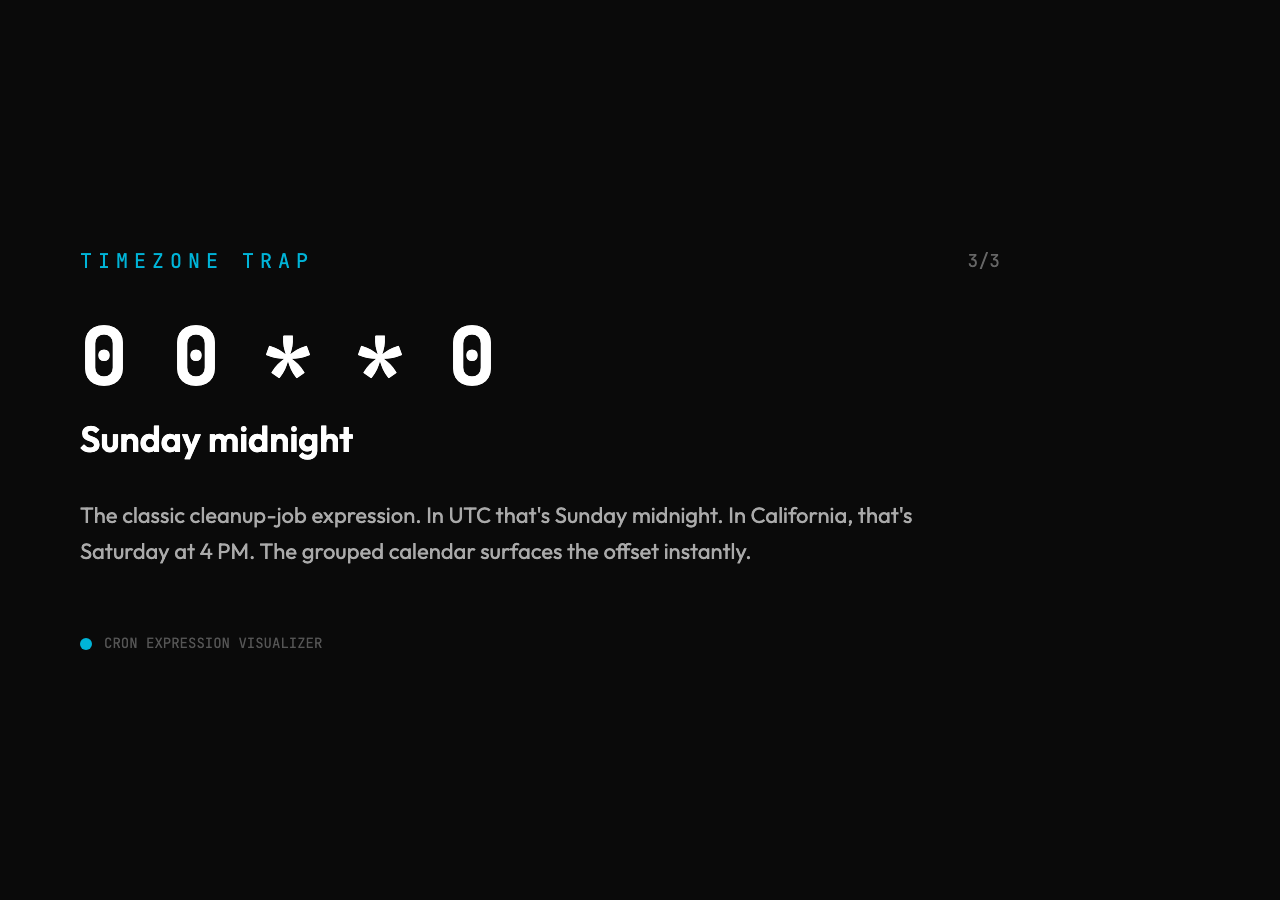
Most cron misreadings come from the same root: developers learn the syntax by example, not by grammar. They see 0 0 0 and assume “Sunday.” But field 5 in cron is day-of-week, with both 0 and 7 representing Sunday. In Quartz the same slot parses differently, and an extra year field sits at the end. That off-by-one in your mental model stays invisible until the visualizer forces the wrong day onto the calendar.
One widely-reported pattern across cron incident postmortems: teams that schedule replication, cleanup, or compaction jobs with terse expressions like 0 0 0 and forget to test the schedule in their production timezone. The expression that means “Sunday midnight UTC” can mean “Saturday night in California” once it crosses a timezone boundary. A cleanup job that fires six hours early on a Saturday will look like a successful weekly run — until it deletes something the Monday team needed. The off-by-timezone bug stays invisible in code review and surfaces only in the calendar. The visualizer’s per-day grouped view makes the day boundary obvious before you push.
What a Cron Expression Actually Says
Every cron expression is parsed left-to-right, and every field accepts a small vocabulary:
– * — every valid value for this field – n — exactly this value – n-m — the range from n to m inclusive – n,m,k — a list of values – */k or n-m/k — every kth step, starting at the given anchor – ? — Quartz-only “no specific value” placeholder, used in day-of-week or day-of-month to make the expression unambiguous
These operators are deceptively compact. A real production schedule like "30 9 1-5" — quoted because that is literally the value sitting in your config file — packs four operators (, , *, 1-5) into 9 characters. Every developer who has scheduled a job has typed that string and moved on.
The visualizer uses these rules to compute the next ten runs from a given start date. Paste 30 9 1-5 with a start date like 2026-03-22T08:00:00+08:00. It returns a grouped calendar showing each of the next ten weekday 9:30 AM executions. You no longer need to run crontab -l and date in three different time zones to figure out whether your scheduler fires on Monday or Sunday in production.
Standard vs. Quartz: The Field That Trips People Up
The biggest source of bugs is the silent difference between standard UNIX cron and the Quartz scheduler. Standard cron is five fields. Quartz is six, with the extra field sitting in different places depending on the configuration. Most Quartz implementations use 6 fields: second minute hour day month weekday. They require ? in either day-of-month or day-of-week to disambiguate “I don’t care which.”
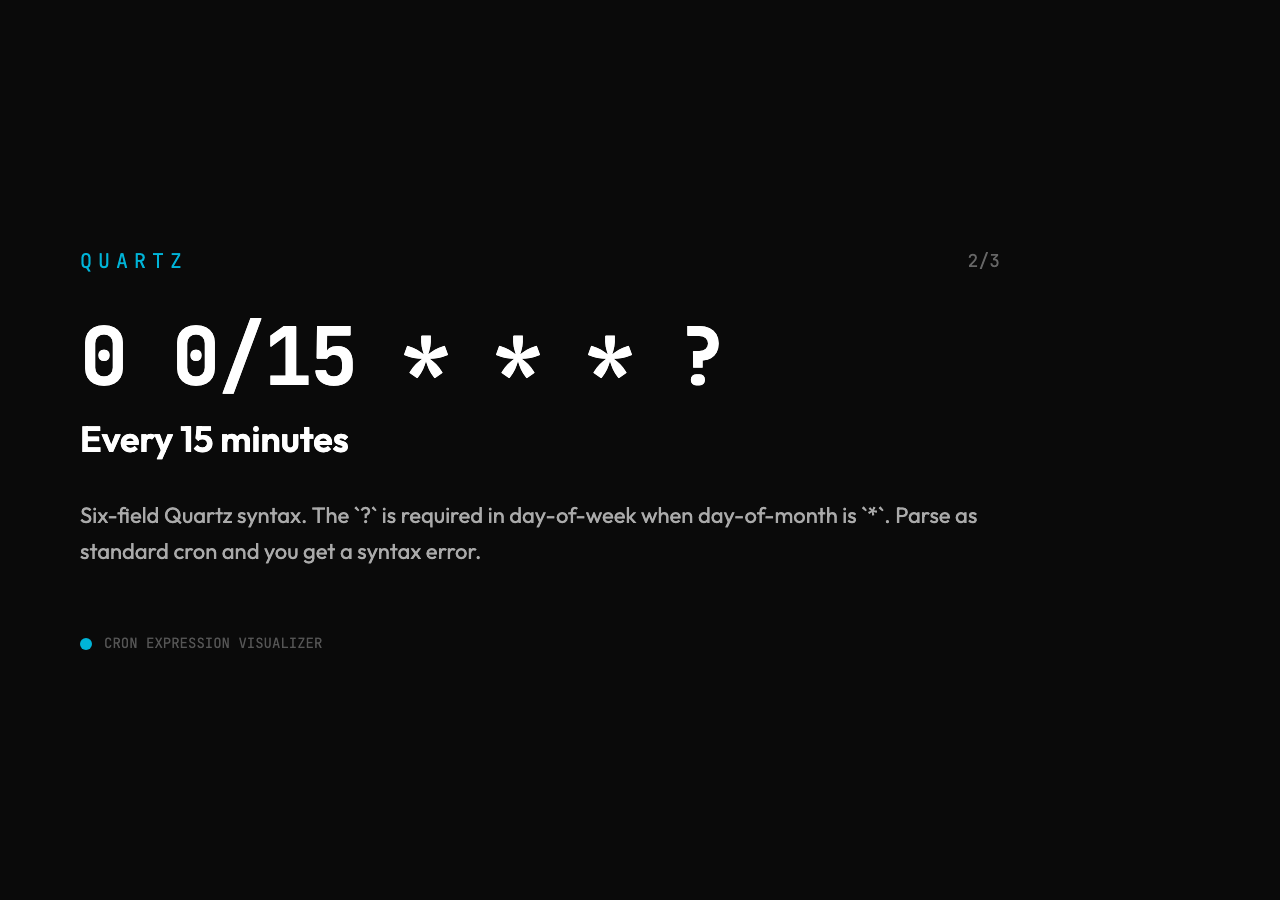
Parse 0 0/15 * ? as standard cron and you get a syntax error. Parse it as Quartz and you get “every 15 minutes starting at minute 0, every hour, every day, every month, no specific weekday.” The Cron Expression Visualizer explicitly accepts both formats. It labels the timeline accordingly. You see whether your intended Quartz expression actually means “every 15 minutes” or “every 15 seconds — you have a problem.”
The Calendar Grouping Catches What the Timeline Hides
A flat timeline of the next ten runs helps you sanity-check cadence — “yes, this fires every 15 minutes” — but a grouped calendar view is what catches the “wait, why is this firing on Saturday?” bugs. The visualizer renders runs grouped by calendar day, so a schedule that should be “weekday mornings” obviously skips weekends instead of silently including them.
This is the kind of thing the human eye catches faster than any test suite. If your grouped calendar shows 10 weekday-only executions in a row, your schedule is correct. If it shows Saturday 4 AM lurking in slot 7, you have a bug in your day-of-week field before you push.
Another data point: a CI pipeline that schedules its nightly integration run with 0 0 * will fire at midnight UTC by default, but teams in PT/ET/IST will see it fire in the late afternoon or evening of the previous calendar day. The job succeeds locally, fails intermittently in production, and the symptom reads like a flaky test rather than a schedule misalignment. A visualizer configured with a start date in the production timezone surfaces the calendar offset in under ten seconds.
Why Pre-Deploy Cron Review Matters
Cron jobs are part of the system’s executable spec, and like all specs they drift, get mis-copied, and get parsed by the wrong engine. The cost of a wrong cron expression rarely surfaces in code review — most reviewers look at * and nod. The cost shows up at 3 AM when the wrong job fires.
A visualizer in your pre-deploy checklist changes that. Instead of trusting the syntax, you trust the calendar. Paste the expression, eyeball the grouped runs, confirm it matches the intent. The whole review takes ten seconds and catches bugs that would otherwise take three months of intermittent production failures to track down.
The Cron Expression Visualizer also exposes its parsing and timeline-generation as an MCP-server-style API, so you can wire the same validation into a CI check. A bot that fails the build when 0 0 0 would fire on the wrong day is a much cheaper insurance policy than a 3 AM page. The pattern repeats in postmortem after postmortem: the most commonly cited root cause for “the wrong job fired” incidents is a cron expression whose day-of-week or timezone was misread, and the second most common is a step (/k) or range (n-m) edge case. The fix is the same in every incident — render the next ten runs and let a human eyeball them before the deploy goes out.
Try It Before You Deploy
If you have a cron expression in a config file right now and you have never actually seen its next ten runs, that is the bug. Paste it into the Cron Expression Visualizer, pick standard or Quartz, set a start date in your production time zone, and look at the grouped calendar. If the visualizer shows the day you expected, your job will run as you think. If it shows a different day, you just saved yourself a 3 AM incident.
The point is this: cron is not a string you write. It is a schedule you declare, and the difference between those two framings is the difference between “I think it runs at 9:30 weekdays” and “I have seen the calendar prove it runs at 9:30 weekdays.” Whether your next deploy ships a 3 AM page or a quiet weekend comes down to ten seconds in a visualizer. In the end, the cheapest insurance in DevOps is a check that costs nothing and proves what you already believe. Explore more developer utilities at Elysia Tools.