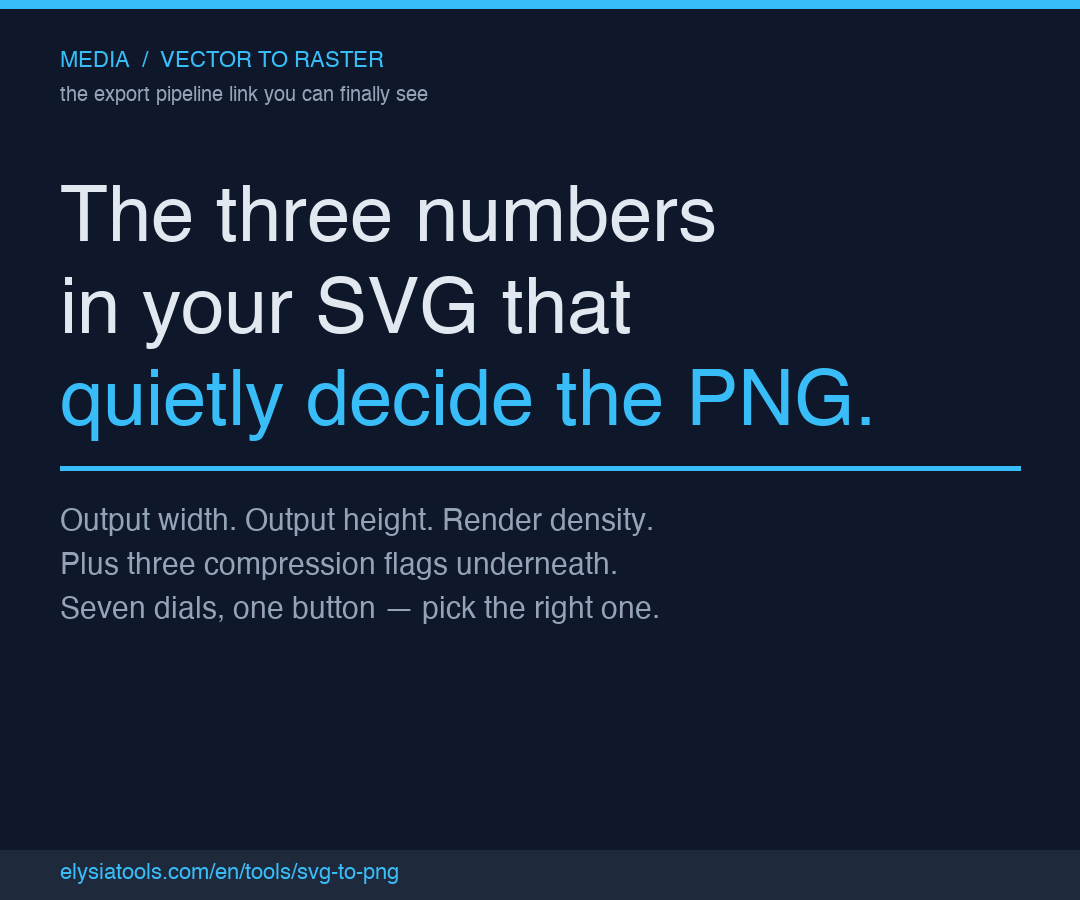
The Three Numbers in Your SVG That Quietly Decide What the PNG Looks Like
You shipped a logo as an SVG, embedded it in three emails, pasted it into a PDF, and exported the PDF as a PNG for the slide deck. The PNG in the slide deck is fuzzy around the curve of the “S”. The PNG in the email is sharp. The PNG in the PDF is somewhere in between, and the user on the Windows box with the high-DPI display says the entire icon looks like it was shot through gauze. Same source file, three different files. None of the three were generated by hand. This is the moment an SVG to PNG converter earns the second slot in your export pipeline — and the moment you discover that three numbers in the conversion request quietly decide everything that follows.
The job of an SVG to PNG converter is to take the vector source and rasterize it at a specific resolution, with a specific density, and with a specific set of compression flags, then hand back a flat PNG that displays the same on every browser, every slide deck, and every email client. The vector is resolution-independent. The PNG is not. The three numbers — width, height, density — are the conversion that takes one and produces the other. Get them wrong and the result is a fuzzy curve, a 14-megabyte file, or a transparent background that suddenly grew a white box behind it.
You can hit this with a headless browser, a CLI tool, or an online converter. They all ask for the same three numbers. The difference is whether they tell you what the numbers are doing, or whether they hide them behind a “high quality” preset that means three different things on three different days. A Convert SVG to PNG tool that exposes the three numbers — and the compression flags underneath them — is the version that survives contact with the design team.
Why the source SVG is not enough
An SVG file describes shapes. The shapes are defined by paths, the paths are stroked and filled with paint, and the paint has colors. Every browser, every PDF reader, and every email client is supposed to render the same SVG into the same picture, but in practice the renderer is doing the math at a specific resolution, with a specific font fallback, and against a specific background. SVG is resolution-independent in theory, and SVG is resolution-dependent in practice. The PNG exists to freeze that resolution dependency in place.
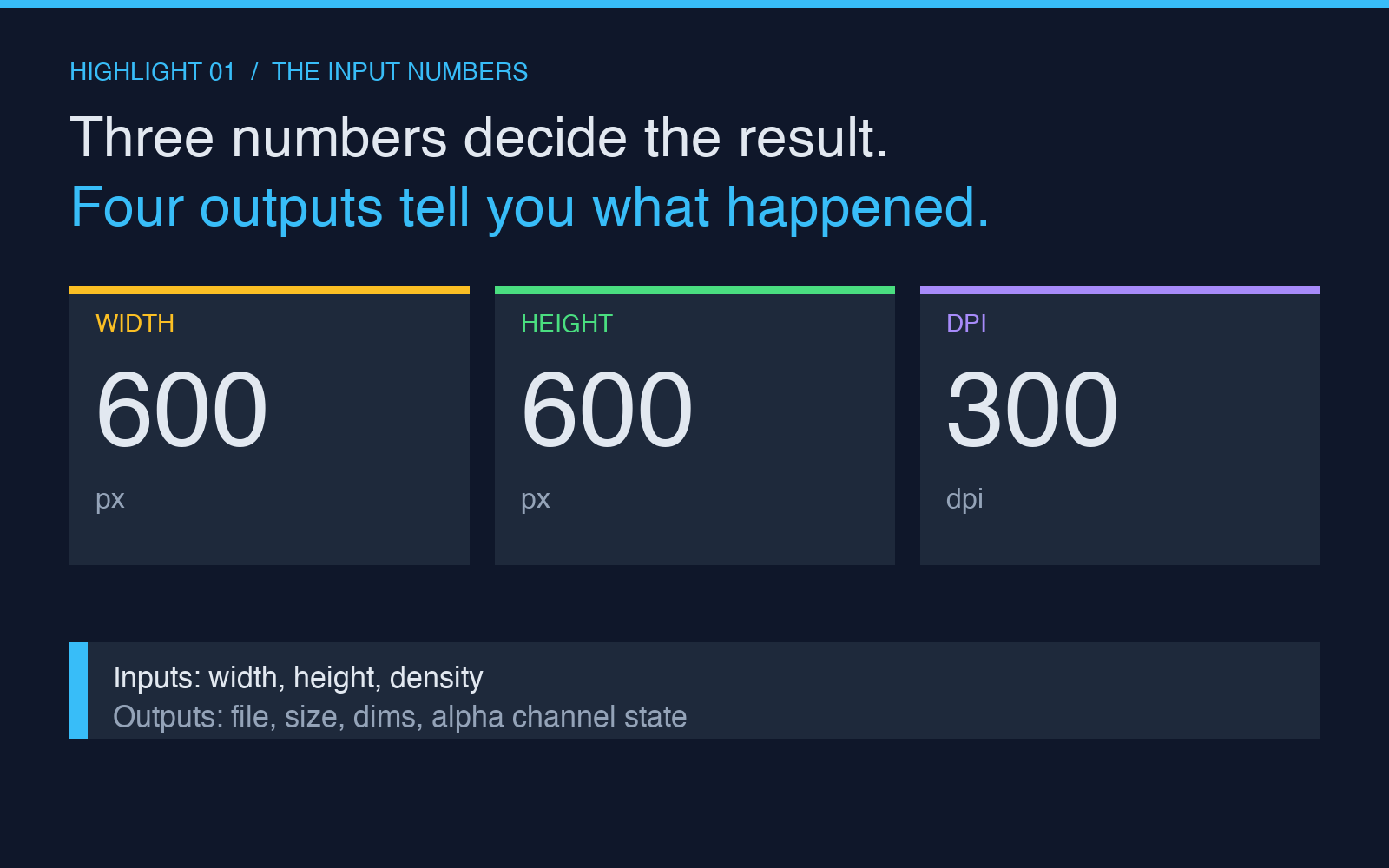
The three numbers that decide the resolution are the output width, the output height, and the render density, usually expressed as DPI. The width and height are the pixel dimensions of the resulting PNG. The DPI is the density at which the SVG is rasterized before it is resampled to fit those dimensions. The two numbers interact. A 600×600 PNG rendered at 72 DPI is one file; the same 600×600 PNG rendered at 300 DPI before being resampled down is a sharper file, because the resampler had more pixels to work with. The third number, the DPI, is the one most tools hide behind a preset called “high quality,” and “high quality” on a 72-DPI-default converter means “the same as low quality, but with the word high on the button.”
A converter that exposes all three numbers — and lets you set them independently — gives you three dials instead of one button. That is the difference between “the PNG is fuzzy on the curve” and “the PNG is sharp at the size the design team approved.”
The output dimensions are not what they look like
The output width and output height in pixels are the dimensions of the PNG file. They are not the dimensions of the SVG. The SVG has a viewBox that defines its coordinate system, and the converter maps that coordinate system into a grid of pixels defined by the output width and the output height. When the aspect ratio of the viewBox does not match the aspect ratio of the output, the converter has to decide what to do with the gap. Most converters stretch. The right converter preserves the aspect ratio, fits the SVG into the output box, and either centers it or aligns it to a corner you specify.
The reason this matters: if the SVG is a 24×24 icon and you export it at 1024×1024, the converter is taking 24 pixels of source geometry and stretching it across 1,048,576 pixels of output. The stretching is mathematically clean — the renderer uses the same vector paths — but the rasterizer has to invent the pixels in between. The anti-aliasing on the curve of the “S” depends on how much density the rasterizer had at the moment it made up those pixels. A 72 DPI rasterizer at 1024×1024 produces a softer “S” than a 300 DPI rasterizer at the same 1024×1024, because the 300 DPI rasterizer had 4× more source pixels to anti-alias from before being resampled down.
The DPI is the third number, and it is the one that quietly decides whether the curve is sharp.
The compression flags are the second quiet decision
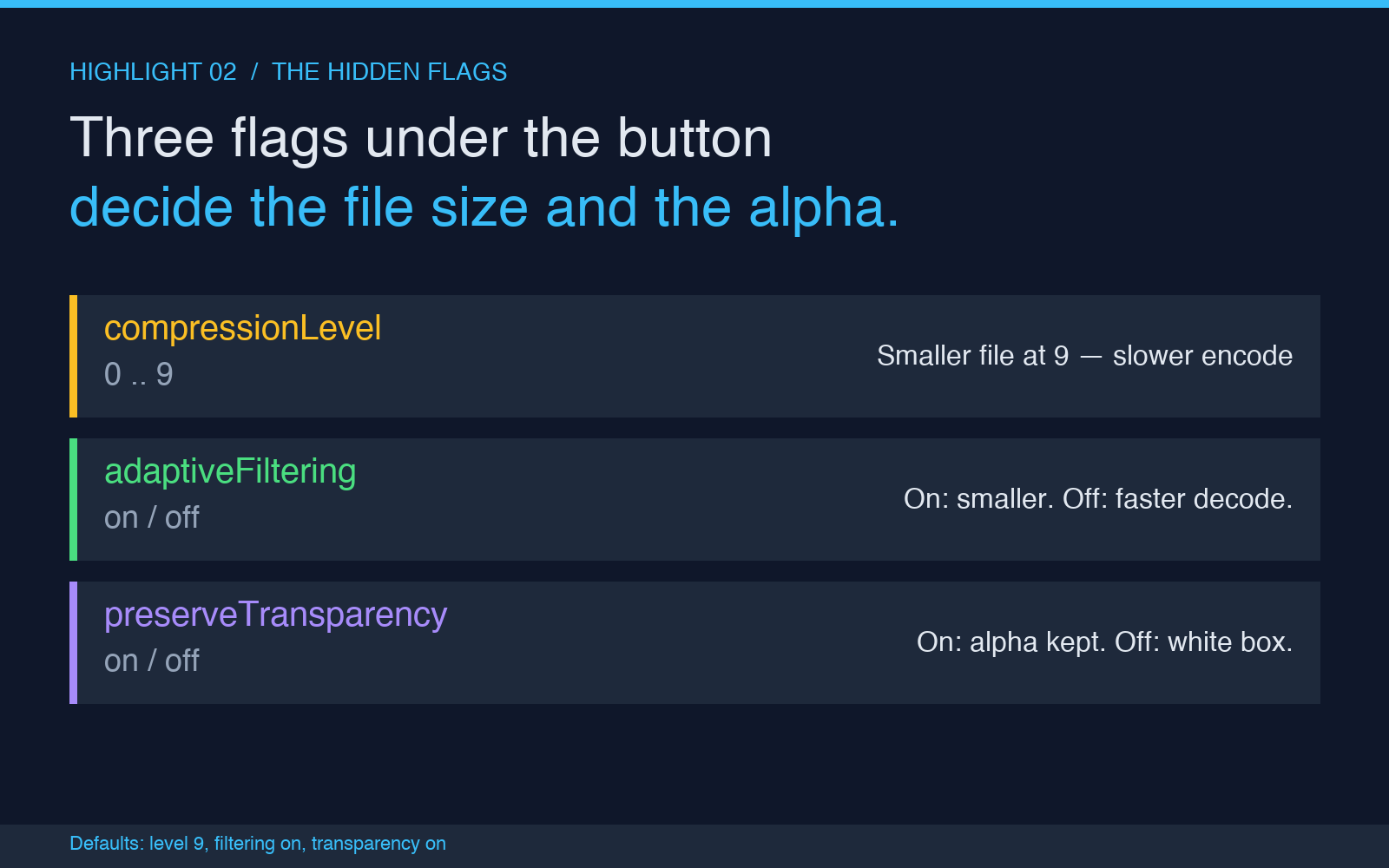
The PNG format supports lossless compression. The compression level, the adaptive filtering flag, and the background color together decide whether the PNG is 2 megabytes or 200 kilobytes, and whether the PNG preserves transparency or grows a white box behind it. A converter that exposes all three flags gives you control over all three. A converter that picks for you picks one of two combinations: maximum compression with adaptive filtering on, which produces the smallest file but is slower to encode, or default compression with adaptive filtering off, which produces a larger file but is faster to encode and decodes faster in every browser.
The preserve-transparency flag is the one with the worst failure mode. PNG supports an alpha channel — a transparency layer that lets the pixels be see-through. SVG supports transparency by default; the parts of the SVG that are not painted are see-through. A converter with preserve-transparency on keeps the see-through pixels see-through. A converter with preserve-transparency off flattens the see-through pixels against the background color. If the background color is white, you get a white box behind the logo. If the background color is the page color, you get a page-colored box behind the logo. If the background color is the design team’s intended canvas color, you get a flat-looking logo on every surface the logo does not match.
The right default is preserve-transparency on, background color transparent. The right override is preserve-transparency off with a background color that matches the destination surface, when the destination surface is not transparent.
Where the converter sits in the export pipeline
The export pipeline for a logo or an icon is usually a chain: design tool produces SVG, SVG is exported to PNG for embedding, PNG is resized for each context, PNG is uploaded to the asset CDN. The SVG-to-PNG conversion is the second link in the chain, and it is the one that takes the source of truth — the SVG — and freezes it into the artifact the rest of the chain will not touch. Once the PNG is committed, every later step is operating on a rasterized image, and the only way to recover the vector quality is to re-export from the SVG.
The right place to convert is at the moment the PNG is needed, not at the moment the SVG is designed. If the conversion is at design time, the PNG is locked at the design-time resolution, and every later consumer either re-uses that locked PNG (and accepts the lock) or re-exports from the SVG (and re-runs the conversion). If the conversion is at consumption time, each consumer can request the resolution, density, and compression profile that fits the destination. A high-DPI screen needs a 2× or 3× PNG. A slide deck needs a 300 DPI PNG for printing. An email client needs a small, heavily compressed PNG that downloads quickly on a phone.
The converter is the link that lets each consumer ask for what it needs without re-touching the SVG.
What the resulting PNG actually looks like
Three inputs and four outputs. The three inputs are the output width, the output height, and the render density. The four outputs are the PNG file itself, the file size in bytes, the displayed dimensions in pixels, and the alpha channel state. A Convert SVG to PNG tool that surfaces all seven values — three inputs plus four outputs — is the version that lets you see what the conversion did, not just what the conversion produced.
The file size is the easiest output to miss. A 600×600 PNG with adaptive filtering on, compression level 9, and preserve-transparency on is one size; the same 600×600 PNG with adaptive filtering off, compression level 6, and preserve-transparency off is a different size, sometimes 3× larger. The size difference matters when the PNG is going into an email or a web page, and the difference comes from flags the converter exposes, not from the source SVG.
The displayed dimensions are the dimensions the browser will allocate to the image, regardless of the file’s pixel dimensions. The CSS rule width: 300px; height: 300px overrides whatever the PNG says, but the PNG says what it was made for. A 600×600 PNG displayed at 300×300 looks sharper than a 300×300 PNG displayed at 300×300, because the renderer has more pixels to resample from.
The alpha channel state decides whether the PNG looks right on a colored background or on a transparent background. A PNG with alpha on is the universal format. A PNG with alpha off is the format that will look broken on any background you did not predict.
The five-step workflow that keeps the PNGs consistent
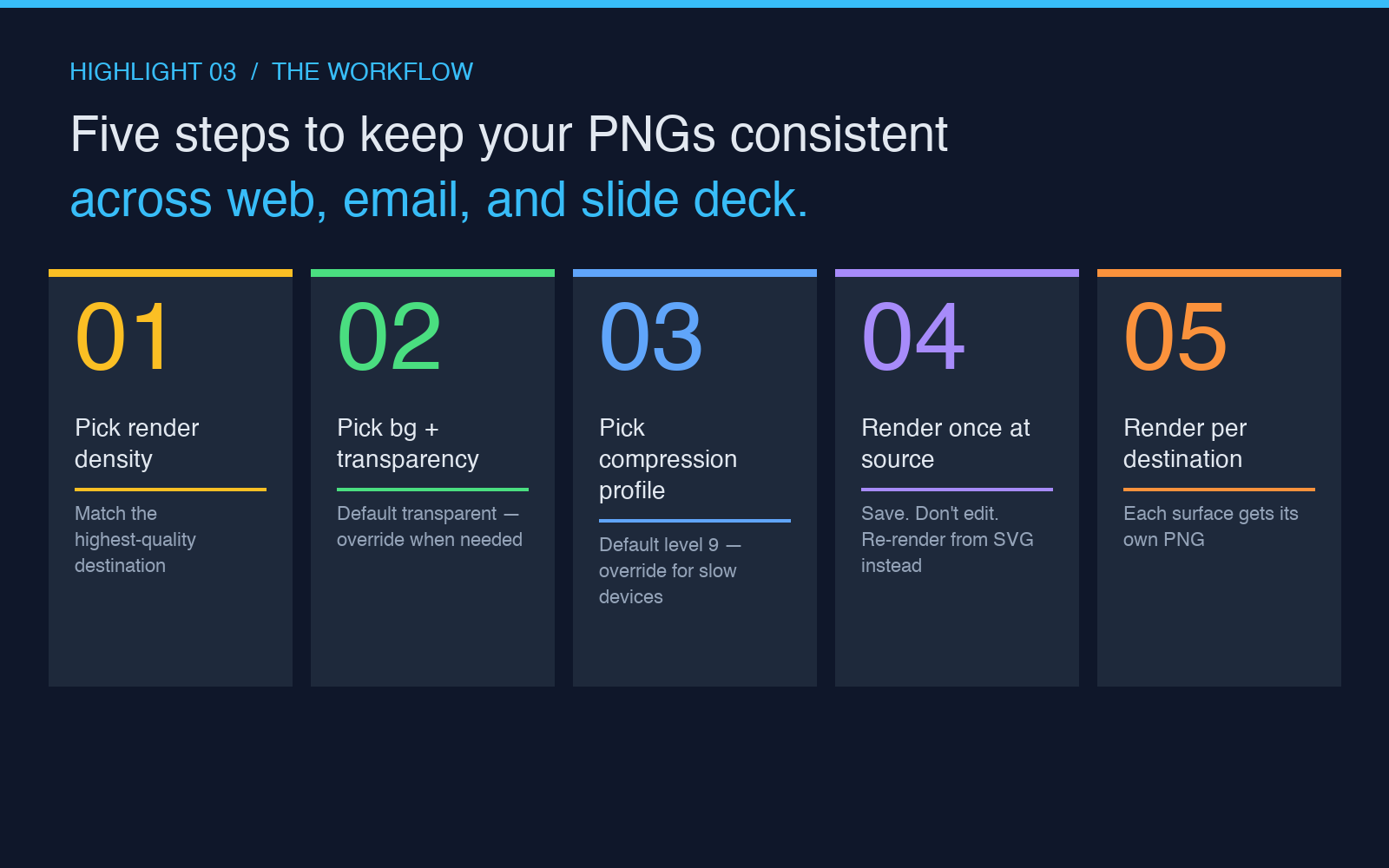
A team that ships logo PNGs in three sizes and two contexts — web, email, slide deck — needs a conversion workflow that produces the same PNG every time. The workflow is five steps.
Pick a render density that matches the highest-quality destination. For most teams, that is 300 DPI. The other destinations will be re-rendered at their own density, but the source-of-truth render is at 300 DPI.
Pick a background color and a transparency policy. The default is transparent. The override is a specific color when the destination surface is not transparent.
Pick a compression profile. The default is adaptive filtering on, compression level 9, preserve transparency on. The override is level 6 for faster decode on slow devices.
Render once at the source-of-truth dimensions and density. Save the PNG. Do not edit the PNG after this step. If the PNG needs to be different, re-render from the SVG.
Render again at each destination’s required dimensions and density. Save each result. Distribute from the asset CDN.
The five steps run in a CI step on every SVG change. The CI step produces the source-of-truth PNG and the destination PNGs. The destination PNGs are uploaded to the CDN automatically. The design team never touches a raster editor.
What the converter does not do
The converter does not change the SVG. The paths are the paths, the colors are the colors, and the fonts are the fonts (assuming the fonts are available on the rendering machine). If the SVG uses a font that is not on the rendering machine, the converter will substitute a fallback font, and the fallback font will render in the PNG, not the source font. The fix is to embed the font in the SVG or to render the text as paths in the design tool before exporting the SVG.
The converter does not validate the SVG. A malformed SVG will produce a malformed PNG. The validation is the responsibility of the SVG editor. The converter is the link in the chain that freezes the validated SVG into the rasterized artifact.
The converter does not optimize the SVG. A bloated SVG with redundant paths, embedded raster previews, and unused gradients will produce a bloated PNG. The optimization is the responsibility of the SVG optimizer (svgo is the standard tool). The converter is downstream of the optimizer.
The Convert SVG to PNG tool on Elysia Tools runs in a browser, in a CI step, and in a curl. Pick the surface that fits your team. The three numbers and the four outputs are exposed in every surface.
The PNG is the universal format that the rest of the chain accepts. The SVG is the source of truth that the chain converts from. The converter is the link that decides whether the PNG matches what the design team intended, and whether the PNG matches the surface the design team intended it for. Three numbers, four outputs, five workflow steps. The rest is anti-aliasing.