Most audio tools answer one question at a time. The Audio Non-Silence Detector answers the opposite question: given an entire audio file, which parts of it actually contain sound? That distinction sounds trivial until you try to slice a 90-minute podcast into spoken-word clips, extract the dialogue from a noisy interview, or recover every word your recorder caught during a four-hour outdoor shoot. In each case, what you need is not a transcript and not a waveform — you need a list of the moments where the file stops being silent.
Detecting non-silence sounds like a job for a complex model. It is not. The tool does the whole thing with three numbers you supply, and it returns a JSON array of time ranges that you can pipe into anything from audio trimming to silence truncation workflows. Understanding those three numbers — and how the file itself fights back when you set them wrong — is the difference between a useful segment list and a useless one.
The Three Numbers You Hand It
Open the tool and you see exactly three controls. None of them are optional in the sense that matters; the defaults will work, but they will not work for your specific file.
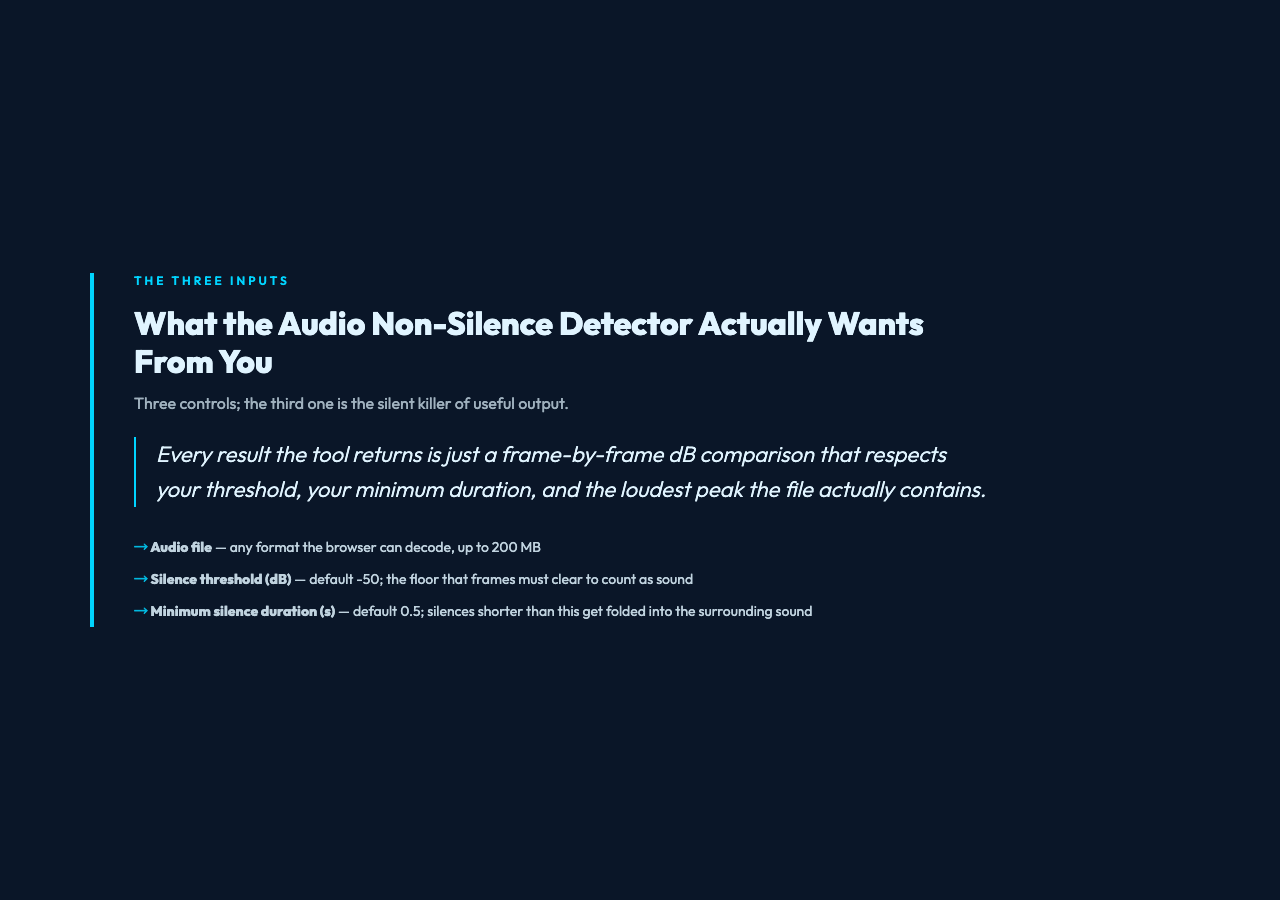
The first control is the audio file itself. Any format your browser can decode works: MP3, WAV, AAC, OGG, FLAC, M4A. The size ceiling is 200 MB, which is large enough for most interview and podcast material; if you are working with multi-hour field recordings, slice them before upload rather than letting the tool time out.
The second control is the silence threshold, measured in dB. The default is -50 dB, which is a reasonable starting point for clean studio audio but a poor choice for almost everything else. The threshold is a floor: any frame whose peak volume sits below this value is treated as silence. Lower the value (e.g., -60) and the tool becomes more permissive about what counts as sound — it will catch breathing, mouse clicks, and the room tone your microphone never knew it was recording. Raise the value (e.g., -30) and the tool becomes stricter — quiet speech gets cut, but you also get clean cuts between segments.
The third control is the minimum silence duration, in seconds. The default is 0.5 seconds. This is the time the tool waits before deciding that a quiet patch is actually silence and not just a pause between syllables. Drop it to 0.1 and the tool reports every micro-pause as a separate segment — useful for phoneme-level analysis, useless for chapter markers. Raise it to 2.0 or higher and only deliberate pauses register, which is what you want when slicing a lecture into chapters.
Why the Default Threshold Quietly Fails Most Files
The -50 dB default is a middle-of-the-road choice that does not actually serve any specific recording style well. It works for podcasts recorded with a decent USB microphone in a treated room. It fails everywhere else.
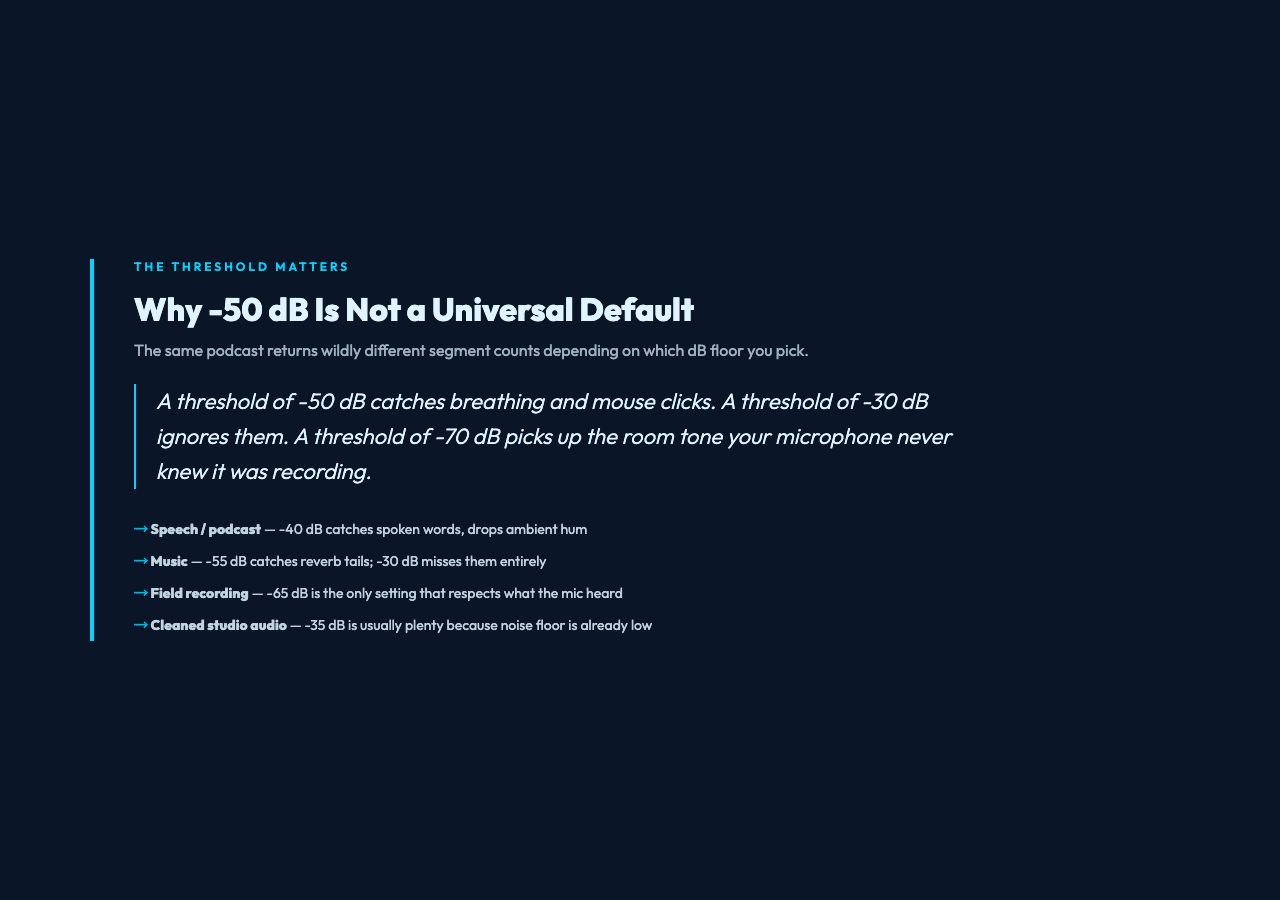
For speech and podcast material, -40 dB is almost always the right starting point. Spoken words sit well above -30 dB at the peak, so a threshold of -40 catches every spoken word while ignoring the constant low-level hum of computer fans, HVAC systems, and laptop microphones. Push the threshold up to -30 and you start losing the ends of words that trail off into breath; push it down to -55 and your segment list fills with the soft sounds your audience never consciously heard.
For music, the dynamics depend entirely on the genre. Acoustic recordings and classical music have wide dynamic ranges with quiet passages that sit below -50 dB for legitimate musical reasons; for those, -55 dB or even -60 dB is appropriate. Compressed pop and electronic music rarely goes below -30 dB by design, so a threshold of -35 dB works fine and produces clean segment boundaries.
For field recording and outdoor audio, the threshold almost always has to be lower than you would guess. Wind, distant traffic, and rustling leaves produce sustained low-level sound that a -50 dB threshold will treat as continuous non-silence. -65 dB is usually the only setting that respects what the microphone actually heard during a quiet patch.
For cleaned studio audio where the noise floor is already low, -35 dB is often plenty. The threshold does not need to chase the noise floor when the noise floor is already below it.
What the JSON Output Actually Tells You
The detector returns a JSON array of segments, where each segment marks the start and end of a contiguous block of sound. The gaps between segments are the silences the tool decided were long enough to matter, given your threshold and minimum-duration settings.
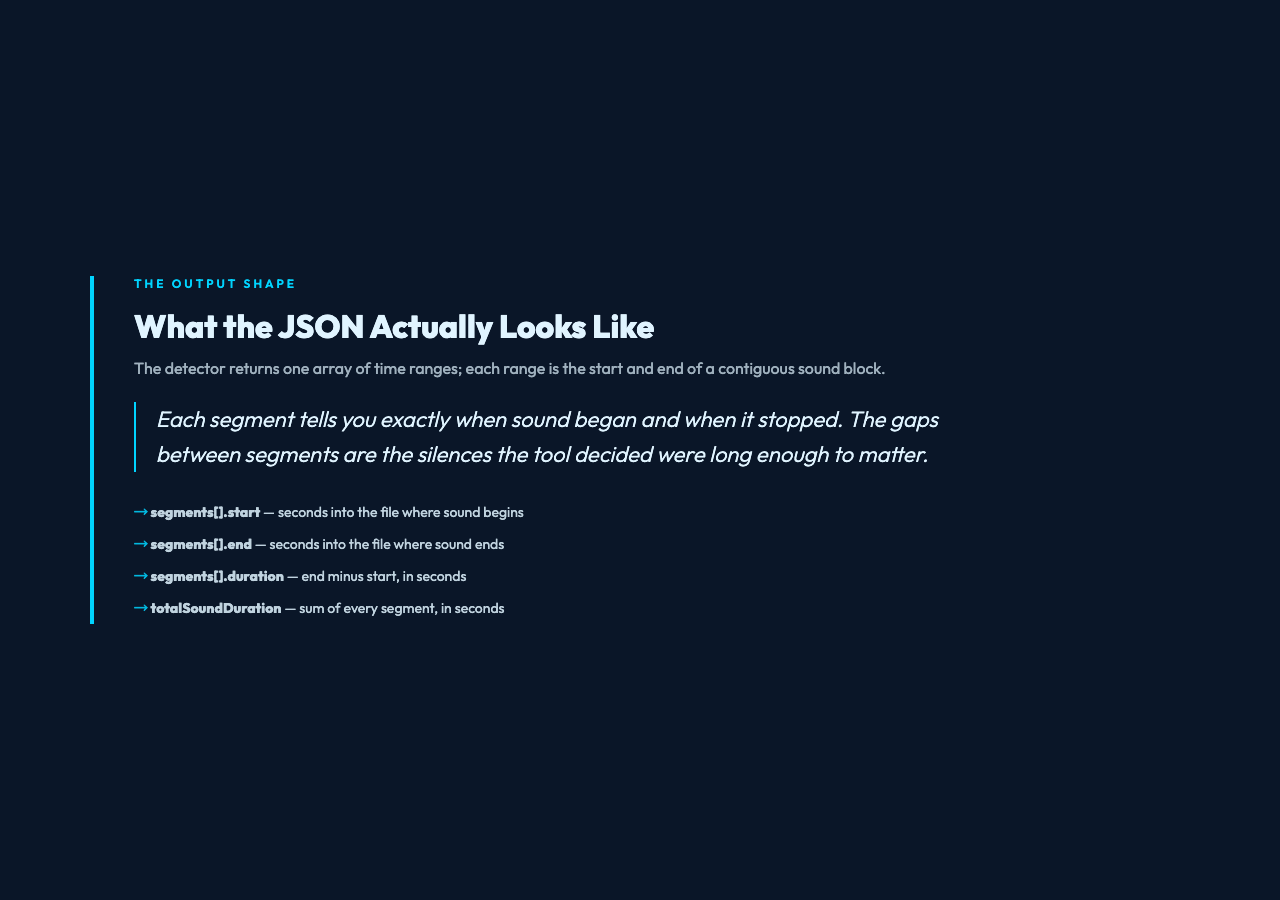
Each entry has four fields you actually use. The first is start, the timestamp in seconds where sound begins. The second is end, the timestamp where sound stops. The third is duration, the length of the segment, which is just end - start. The fourth is totalSoundDuration, the sum of every segment’s duration across the whole file.
That last field is the one most people overlook. It tells you, in a single number, how much of your file actually contained sound versus how much was silence. A 90-minute interview with totalSoundDuration of 4200 seconds (70 minutes) had 20 minutes of silence, which is suspiciously high for an interview and probably indicates the recorder captured ambient pauses while no one was speaking. A 10-minute podcast with totalSoundDuration of 580 seconds had 20 seconds of silence, which is also suspiciously low and probably means the threshold is set too aggressively.
The Practical Workflow That Makes This Useful
The detector’s output is most useful when you feed it into a downstream tool. Three workflows come up repeatedly.
The first is chapter extraction for podcasts. Run the detector with -40 dB and a minimum silence of 2.0 seconds on a finished podcast episode. The output is a list of natural pause points where chapters could begin. Those timestamps can be piped into an ID3 chapter tag generator or used to drive a video chapter timeline.
The second is interview cleanup. Run the detector with -45 dB and 0.3 seconds on a raw interview recording. The output marks every breath, every false start, every extended pause where the interviewer was waiting for the subject to gather their thoughts. Those segments are candidates for trimming, but not every gap should be cut — some pauses are where the speaker is letting a point land. The detector tells you where they are; the editorial decision is yours.
The third is field-recording triage. Run the detector on a four-hour outdoor recording with -65 dB and 0.5 seconds. The output is a list of every moment the recorder actually captured meaningful sound — a bird call, a voice, a splash. Everything outside those segments can be discarded before archival, which shrinks the file and makes later review much faster.
The Failure Modes Worth Knowing
Three failure modes catch people out. The first is threshold mismatch with content. A clean studio voice recording with a -65 dB threshold will return one enormous segment covering the entire file, because the room tone never dropped that low. The fix is to set the threshold to roughly 10 dB above the file’s measured noise floor.
The second is minimum duration too short. A 0.1 second minimum on a speech file returns dozens of segments per sentence, which is almost never what you wanted. The fix is to start at 0.5 and only drop lower if you have a specific reason to need phoneme-level resolution.
The third is compressed audio with silence pre-removed. Some podcast publishing workflows strip silence from audio before distribution. Running the detector on the published version returns one continuous segment, because there are no longer any silent patches to detect. If you need to find segment boundaries in already-cleaned audio, the detector is not the right tool — look for a chapter-marker or transcription-based approach instead.
The Audio Non-Silence Detector is one of those tools that looks like a single-purpose utility until you realize it is the front end of a much larger workflow. The segments it returns are the raw material for chapter markers, edit decisions, archival triage, and downstream analysis. Get the three inputs right and the rest of the pipeline gets easier. Get them wrong and you will spend hours second-guessing a result that was always going to be garbage. Run it once with the defaults, look at the output, adjust the threshold by 5 dB in the direction that feels right, and run it again. Two passes is usually enough to know whether you are working with a usable segment list or a noise pile.
Explore the tool and run it against your own audio at Elysia Tools. If you are processing the output further, the trim and silence-truncate tools take timestamp ranges directly, so the segment list flows straight into the next step without manual editing.