Contrast failures are the silent accessibility bug. A heading passes a quick squint test, the body copy looks fine in code review, and the only place the failure shows up is the seventh axe-core rule on a real screen reader user’s machine. The Accessibility Heatmap Generator turns that “trust the eyeball” workflow into something you can see: feed it a screenshot or raw HTML, and it overlays a thermal layer on every low-contrast region so designers and engineers argue about the same map instead of the same hunch.
This is not another contrast ratio calculator. The heatmap tool reads your design the way a low-vision user does — it groups adjacent pixels by contrast against their actual neighbors, scores each cluster against WCAG 2.1 AA and AAA thresholds, and ships back a visual proof along with a suggested replacement color per patch. That last detail is what changes the workflow: instead of opening Figma, picking a new shade, eyeballing it, repeating, you get a one-click patch.
What a contrast heatmap actually measures
WCAG 2.1 defines contrast as a single number: the luminance ratio between two sRGB colors. The formula is the same one your browser’s accessibility inspector uses, and most online calculators will give you the same answer for the same input pair. The heatmap’s job is not to recompute that formula — it’s to apply it across an entire design surface at once.
Take a typical SaaS landing page. The hero has a 12% opacity overlay over a hero image, white headline text on top, a translucent CTA button, and a footer with light-grey links against a dark navy background. Run each pair through a contrast checker and you get seven different ratios, most of them passing. Run the heatmap and you see that the 12% overlay creates a gradient region where the contrast falls below 4.5:1 in the lower half of the hero — exactly where the CTA lives. The headline is fine. The button isn’t. The eyeball test missed it because the gradient hides the failure.
Why screenshots beat raw HTML for visual audits
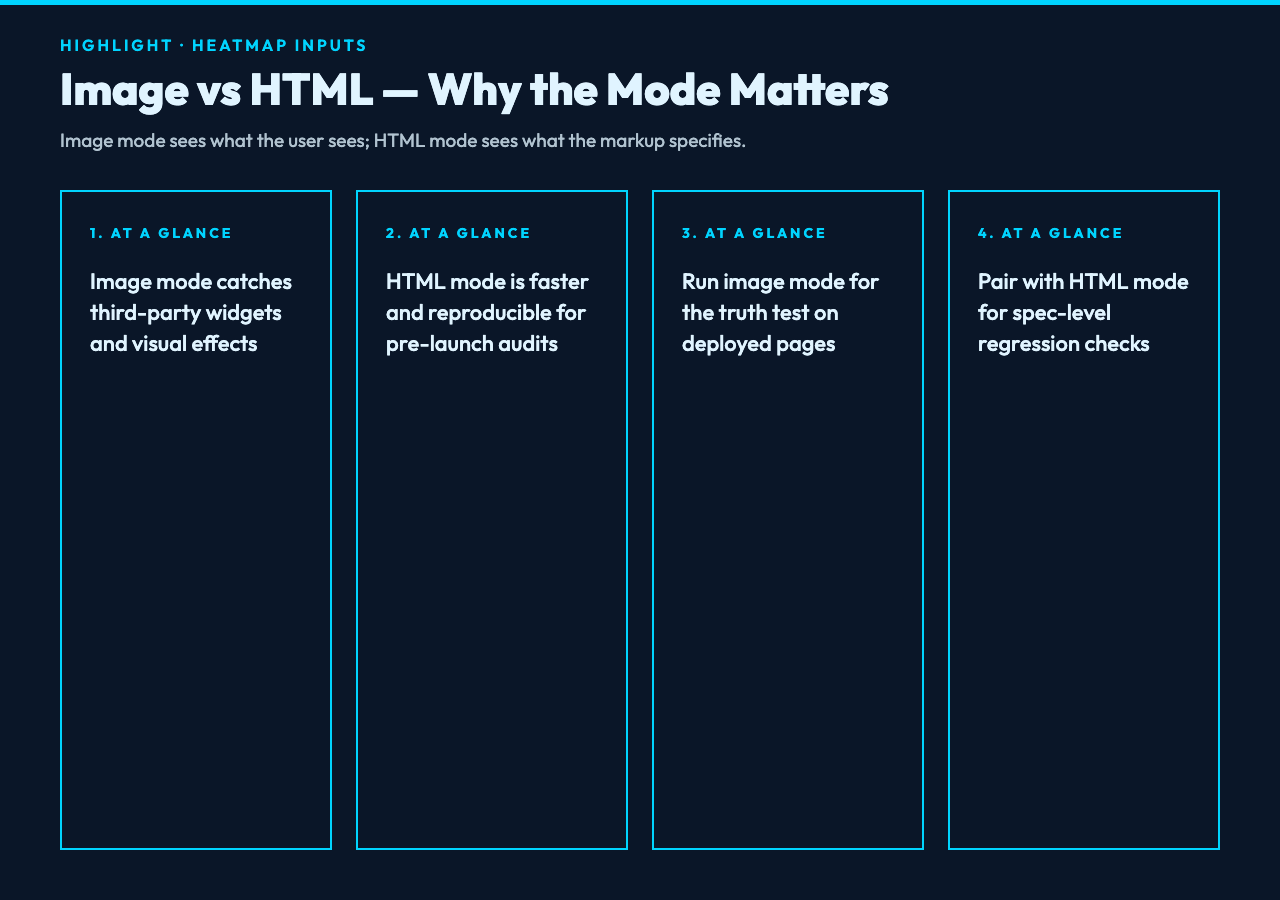
The tool accepts two input modes: a rendered image (PNG, JPG, WebP) or raw HTML. They are not equivalent. HTML input gives you pixel-perfect analysis of your markup’s actual colors as the browser renders them, including gradients, pseudo-elements, and inherited `color` properties. Image input gives you what the user actually sees, including third-party widgets, browser extensions, and any visual effects that HTML parsing can’t reach — shadows, blurs, overlay states, image-on-image text.
For a pre-launch audit, HTML mode is faster and reproducible. For a post-deploy audit, image mode is the truth test. If you only have time for one, image mode catches more failures because it sees the design as composed, not as specified.
Reading the heatmap colors
The output uses a fixed color scale that maps to contrast ratio, not to your design’s palette. Hot red is anything below 3:1 (WCAG fail for normal text and large text), amber is 3:1 to 4.5:1 (passes for large text, fails for normal text), yellow-green is 4.5:1 to 7:1 (AA pass for normal text), and cool blue-green is 7:1 and above (AAA pass).
The heatmap is additive, not destructive: it doesn’t replace your design, it overlays. Designers often ask whether the overlay shifts the perceived contrast of the regions it covers. Yes — but only on the heatmap. The source screenshot is preserved alongside, and the overlay alpha is configurable from 30% to 70% if you need a cleaner view.
The patch-suggestion step is where the tool pays for itself
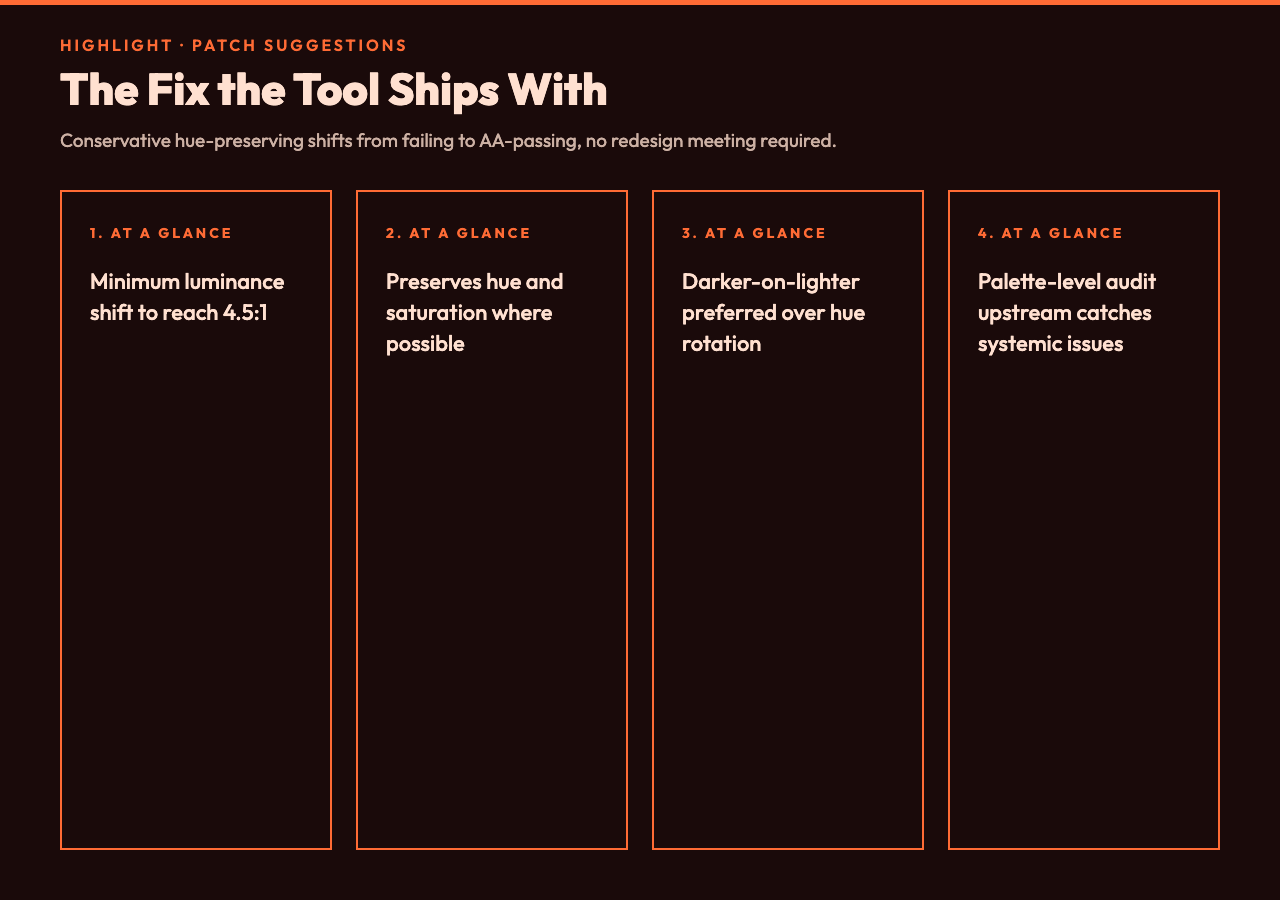
Once a failing region is identified, the tool does not just report the ratio. It calculates the minimum luminance shift needed to bring the failing pair to AA (4.5:1) and proposes a replacement color that preserves hue and saturation as much as possible. The proposal is conservative — it prefers darker-on-lighter or lighter-on-darker shifts over hue rotation — because the goal is to ship a fix that doesn’t trigger a redesign meeting.
This is where the tool earns its place next to a dedicated palette-level contrast checker. The checker audits every pair in a palette before you commit to it; the heatmap audits the live composition. Run both in sequence — palette first, then heatmap on the rendered output — and you catch both systemic palette problems and one-off composition failures.
WCAG 2.1 vs 2.2: what the heatmap covers
The current build scores against WCAG 2.1 AA and AAA thresholds, including the enhanced focus-visible indicator rule and the new 2.2 minimum target size (24×24 CSS pixels for pointer inputs). It does not yet cover 2.2’s redundant entry points (a 2.2 AAA criterion), but that’s rarely the failure that gets reported in a screenshot audit.
If you need to simulate a specific color-vision deficiency — protanopia, deuteranopia, tritanopia — pair the heatmap with the color vision accessibility checker. That tool runs the same source through the three major CVD simulations and reports which regions collapse to identical luminance for affected viewers. The combination — heatmap for contrast failures, CVD checker for color blindness — covers the two failure modes that account for roughly 80% of real-world accessibility complaints.
Where heatmaps fit in a design-system pipeline
The pattern that works in production: run the heatmap against every release candidate in the staging environment, before the design review. Catch the contrast failures when they’re a 15-minute fix. The tool runs in seconds on a 1920×1080 screenshot, so the cost is negligible compared to a single round of QA.
For component-level audits, the single-pair contrast checker is still the right tool — faster, no render required, and gives you a numeric ratio you can pin in a unit test. The heatmap is for the composition-level view that the per-component checks can’t see: two passing components next to each other on a low-contrast background create a failing composition, and only a spatial tool catches that.
Common false positives to watch for
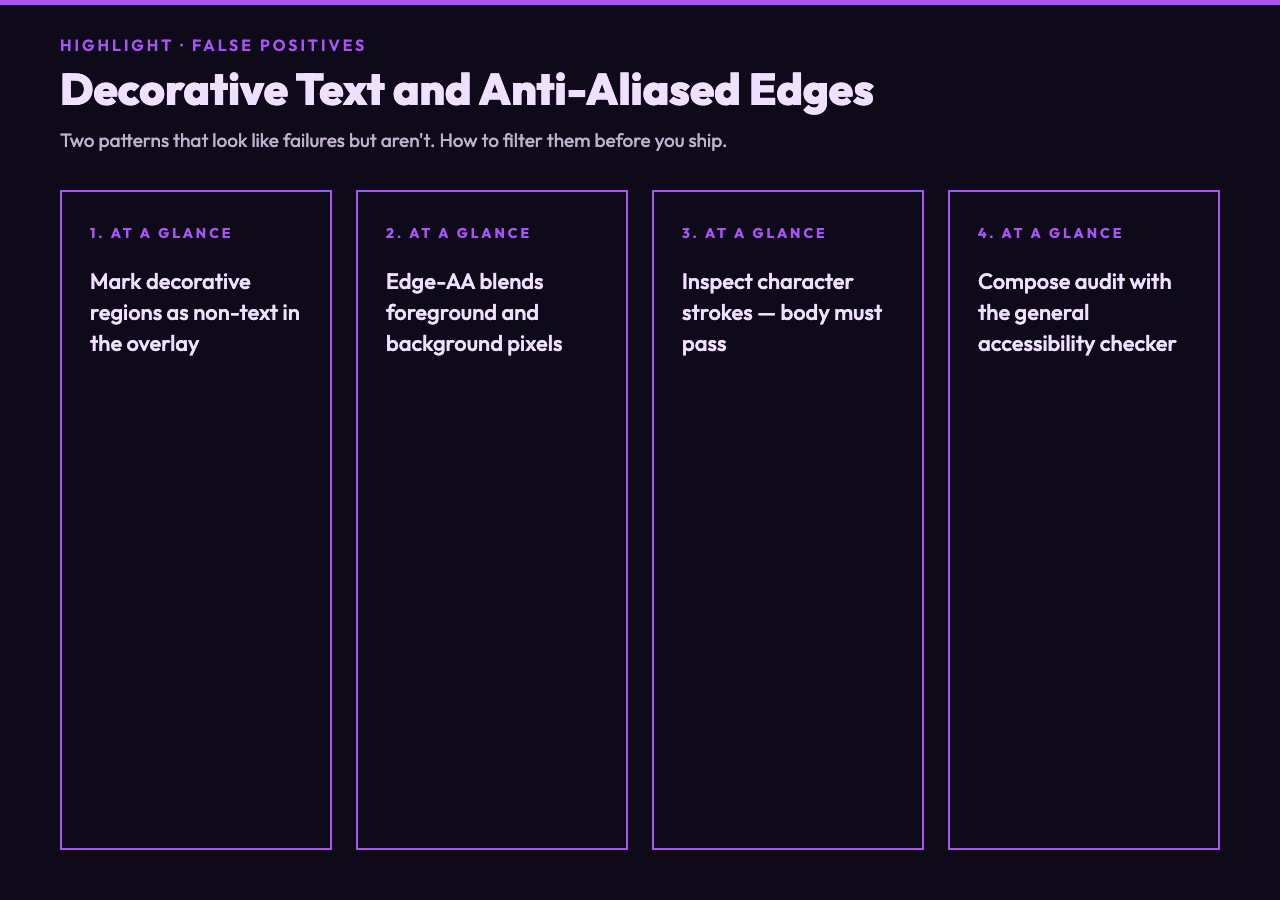
Decorative text — large display headlines, watermarks, background labels — is scored as text by the heatmap, even when it’s purely visual. The output lets you mark regions as decorative and exclude them from the score, but the default view includes everything. If your score looks bad, check the overlay against the design intent before you fix it.
Anti-aliased text on gradient backgrounds can also produce false failures near the edges, because the AA renderer blends foreground and background pixels, and the heatmap’s region detector picks up the blend zone. Zoom in on the actual character strokes — if the body of the letter is passing, the edge AA is a rendering artifact, not a content failure.
Putting it together
Contrast is the most-measured, least-visualized accessibility property in web design. The ratio is a number, the failure is a region, and the fix is a patch. Tools that only give you the number force you to find the region manually; tools that only flag the region force you to compute the number. The Accessibility Heatmap Generator closes the loop by overlaying the score on the region and proposing the patch in one pass.
Run it on your next release candidate. The output is one PNG, one suggestion list, and a very short list of fixes that used to take a full accessibility audit to find. For broader audits, start with a general accessibility checker to catch the non-contrast issues (semantic HTML, ARIA misuse, focus order), then layer the heatmap on top for the visual layer. The two tools cover orthogonal surfaces, and using both on every major release is the cheapest insurance you can buy against the late-stage “we shipped a button nobody could read” bug.