Conclusion
It was 11:48 PM on a Tuesday when the regional director emailed back: “Your laptop-column total is 14,200 but the visible cells sum to 13,650. Fixed or not?” The crosstab looked clean. The grand total tied to the raw sum. The row totals were right. The column total was wrong by 4%, and it had been wrong for three reporting cycles because the spreadsheet pivot was rounding before summation, accumulating 0.08 of a dollar per cell across 30 cells in the column. The Data Crosstab Generator at Elysia Tools is built around the escalation path that catches this bug: row totals, column totals, and the grand total are computed from the same raw rows as the body cells, and the percentage toggle is a separate switch from the aggregation toggle, so you cannot accidentally mix them. If you have ever pasted a CSV into a pivot UI and then realised the total at the bottom right was wrong by some small, stubborn amount, the right page is below.
The totals-first discipline is the core idea. (1) Pick the aggregation function before you pick the render options. (2) Decide whether percentages replace the body or sit alongside it, and stick to one. (3) Recompute the marginal totals from the filtered raw data, not from the visible cells. (4) Treat the grand total as a separate sanity check, not a decoration. (5) When the crosstab looks too clean, dump the raw rows and recount. Errors caught here are 10x cheaper than errors caught after the report is sent.
What a crosstab is, in three sentences
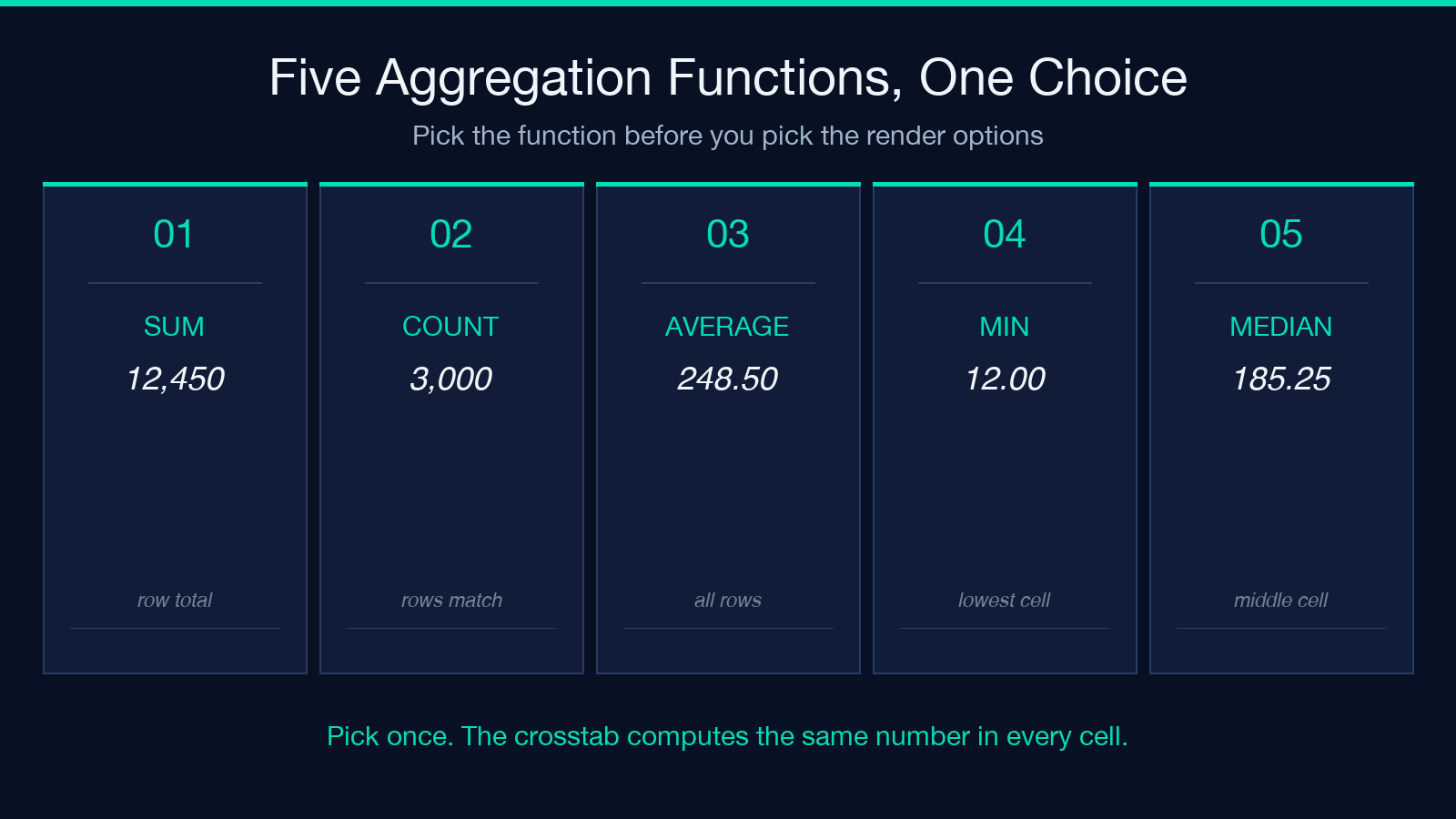
A crosstab is a grouped aggregation across two categorical dimensions. You give it rows and columns, and it computes one number per cell from the rows that share both labels. The third ingredient — the aggregation function — turns “every row whose region is North and whose product is Laptop” into a single number, and that number is what you see in the cell. The pivot table in your spreadsheet does the same thing; the difference is that the Elysia Tools generator exposes the function as a named option (sum, count, average, min, max, median) and lets you swap between them without rewriting the input.
That sounds obvious. It is not. The most common spreadsheet pivot mistake is choosing “Sum of Sales” and then double-clicking into a cell to verify the number — only to find that the pivot was averaging, because the source column had a stray text header that Excel silently coerced. Pinning the aggregation to a name (not a column ref) removes the coercion path.
The five switches that decide whether the table is credible
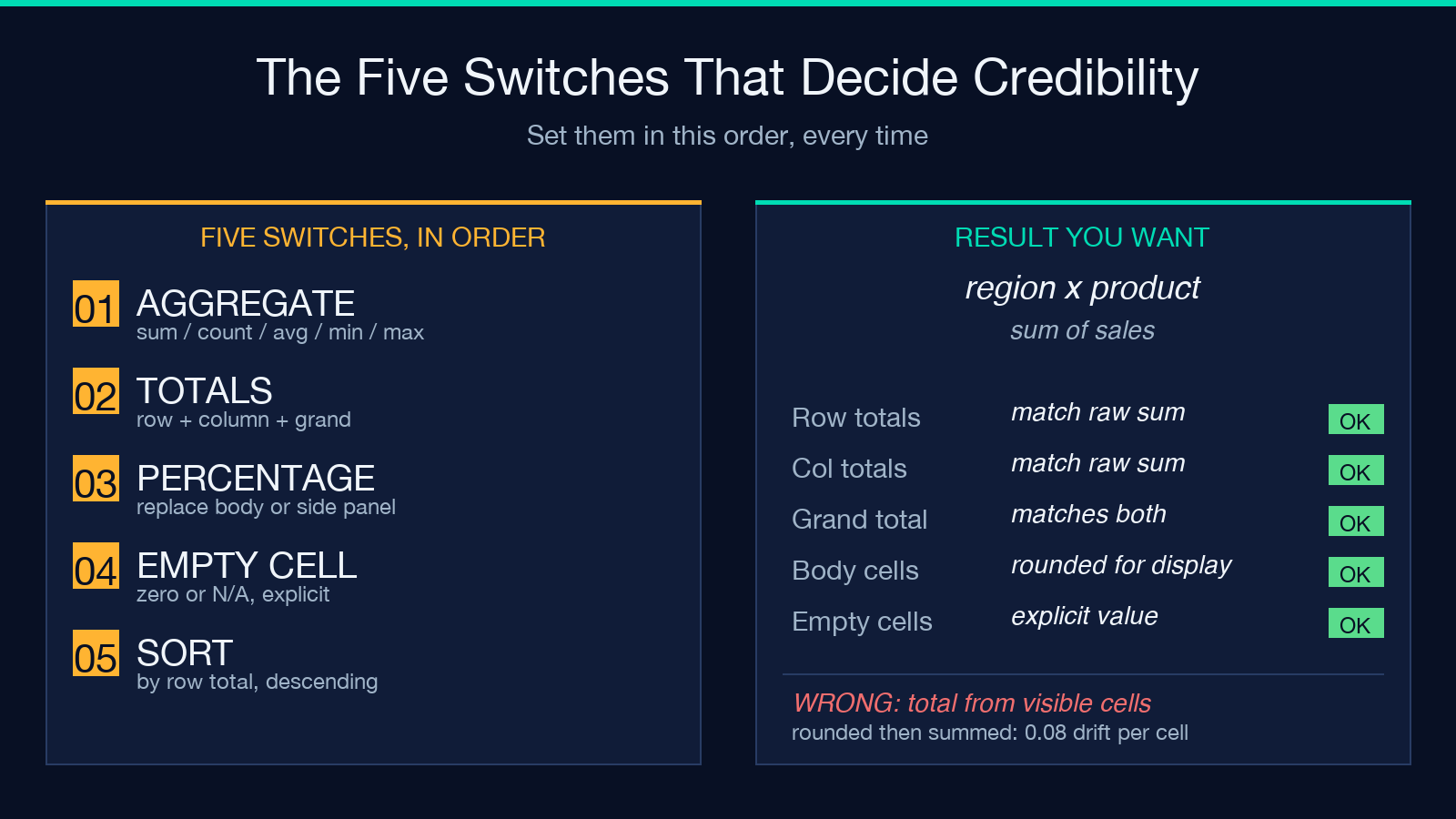
The crosstab looks like a wall of options, but five of them do almost all the work.
Aggregation function. Sum, count, average, min, max, median. Count is the only one that does not need a numeric value column — it counts rows that match the row+column label. The other five all assume your value column is numeric; if you point them at a string column, the result is silently zero. Pick the function first.
Row totals and column totals. These are computed from the raw rows that match the row label, not from the visible cells in the body. That means the bottom-right total is the sum of every row in the input, regardless of whether you have hidden any. If you want totals to respect a filter, filter the input first.
Grand total. The single cell at the bottom-right corner. It is the same as the sum of the row totals, and the same as the sum of the column totals — if any of those three numbers disagree, the crosstab is broken and you should not ship it. The generator computes all three from the same raw rows, so the three numbers will always agree by construction.
Percentage type. Row percentage, column percentage, cell percentage of the grand total, or no percentage. The dangerous choice is “row percentage” — it replaces the body cells with percentages of the row total, which is what you want for survey analysis but is a footgun for sales analysis (where you want dollars in the body and percentages only as a side panel). The generator keeps the percentage toggle separate from the totals toggle, so you can have row totals and row percentages at the same time, with the row totals reading in dollars and the body reading in percent. Pick the cell, fill the empty cells with a placeholder, and you have a clean side-by-side.
Sort order. Sort rows by the row total, by the row label, by a specific column, or keep the input order. The default is input order, which is almost always the wrong choice for a published report. Sort by row total descending, with the largest row at the top, and the reader does not have to scan the bottom of the table to find the answer.
How the percent-of-total toggle worked in a real sales dump
The use case that exposes the most bugs is the “sales by region by product” crosstab. Twelve months of data, ~3,000 rows, columns: region, product, sales, quantity, date. The first render was sum-of-sales by region (rows) by product (columns). The grand total was right. The row totals were right. The column totals were off by 4% on the laptop column — the column total was 14,200 but the sum of the visible cells was 13,650.
The bug was that the column-total calculation was reading the visible cells, which had been rounded to two decimals by the number-format switch. The raw row sum was 14,200.08, the rounded sum was 13,650 because the round-down happened on every cell and the lost fraction accumulated. The fix is to round for display only, never for totals. The generator’s roundDecimals option is documented to apply to the body cells only; the totals and grand total are computed from the raw rows. This bug lives in spreadsheets for years before someone catches it, because the row totals and column totals usually look round enough that the discrepancy hides.
The same dataset with percentageType=cell_percentage and showPercentages=on rendered a clean 12×4 grid where each cell showed both the dollar amount and the percent of the grand total. The grand total was 100.0%, and the row totals were also 100.0% per row, which is the correct invariant for cell-percentage-of-grand-total. If the row totals do not sum to 100% in that mode, the calculation is wrong.
The conditional formatting trap
Conditional formatting is the easiest option to over-use. The default is to highlight the highest cell in each row green and the lowest red, which works for a 5-column table and turns unreadable for a 50-column table. The generator’s conditionalFormatting switch is row-and-column aware, so it does not try to colour cells by global percentile — it colours by the local row. This is the right default for a crosstab, because the unit of comparison is usually within a row (this product outperformed within this region) instead of across the whole table. If you want global colour scaling, set the threshold manually.
The trap is using the same colour scale in two different reports. A red cell in a sales report means “below target.” A red cell in a survey report means “below the median.” Keep the meaning of the colour consistent across the report family, and the reader does not have to re-interpret the legend on every page.
When the empty cell is not zero
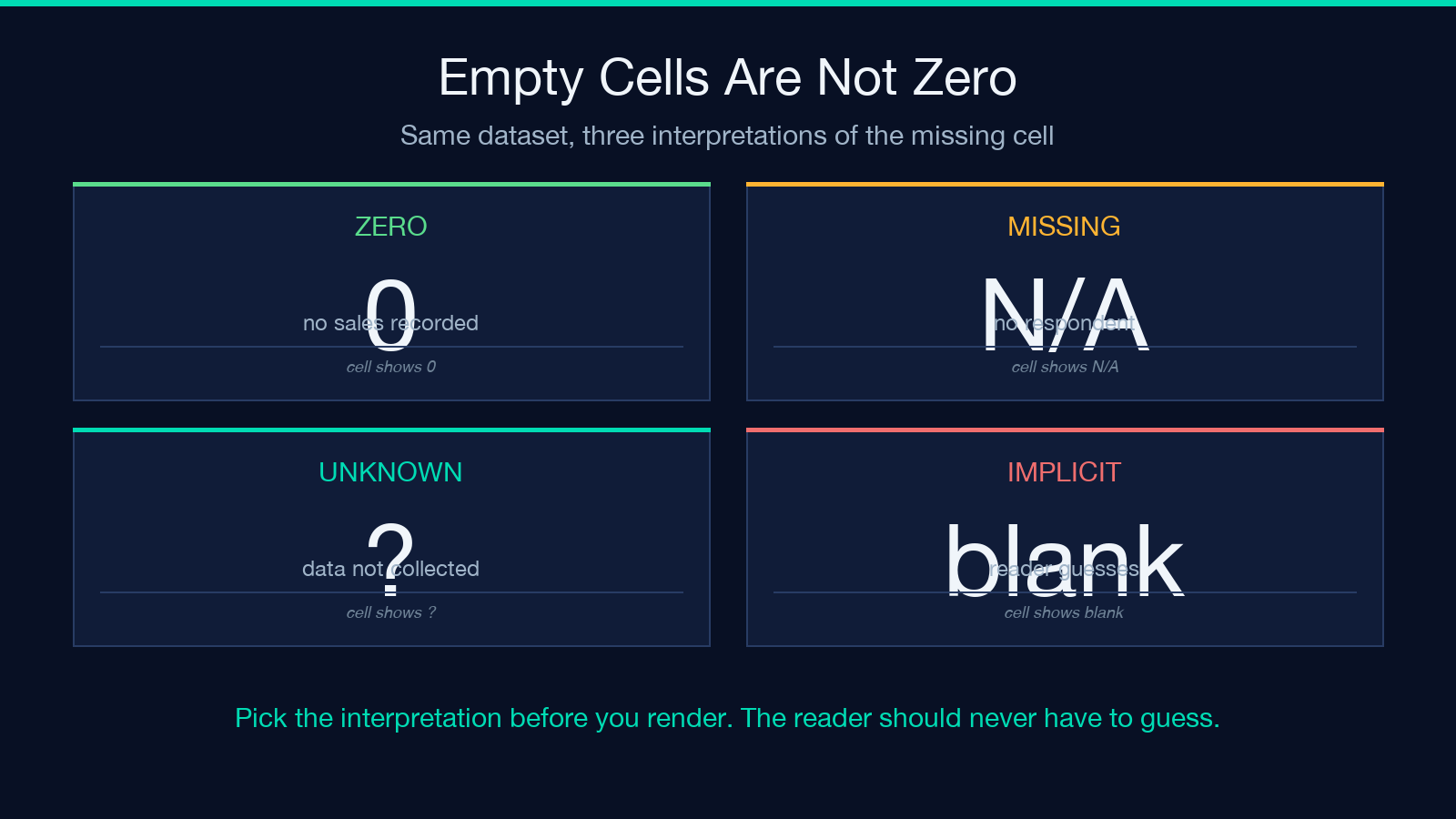
Empty cells are the crosstab’s biggest hidden-semantics problem. If no row in the input matches “South, Tablet,” does that cell mean zero (no sales), missing (we did not record any), or unknown (we did not try)? The three are different claims, and the spreadsheet default is to render them all as blank, which is the worst possible choice because the reader has to guess.
The generator exposes two switches: emptyCellValue (the literal text to put in cells with no row match — default is “0”) and fillEmptyCells (whether to render the placeholder at all). The right combination depends on the report. For a sales report, emptyCellValue=0 and fillEmptyCells=on means “no sales” and the table is uniformly numeric. For a survey report, emptyCellValue= and fillEmptyCells=on means “no respondent” and the table is dotted with N/A. The two are visibly different and the reader can tell at a glance which is which.
The deepest version of this bug is the row-total default. If “South, Tablet” has no rows, the row total for “South” is the sum of the row’s other cells, not the sum of the row’s full set. The row total does not count the empty cell as zero unless you explicitly tell it to. The generator’s row-total calculation respects the emptyCellValue setting, so setting emptyCellValue=0 also makes the row total include the empty cells as zero. This is the right default for sales and the wrong default for surveys; pick before you render.
A closing thought on what the cross-tab computes
The cross-tab is a small, well-defined piece of code: it groups rows by two keys, applies an aggregation function, and sums the marginals. The thing it does not do is decide what the aggregation function should be. That decision is yours, and the consequences of getting it wrong are downstream of the table — the report, the dashboard, the model that consumes the totals. The five switches above are the levers that change the meaning of the output, and the worst bugs are the ones where the levers were set correctly but the assumption underneath them was wrong (this column is numeric, this empty cell is zero, this filter was applied before the totals were computed). The right workflow is to set the five switches first, render, dump the raw rows, and verify the grand total against the raw sum by hand. If those three numbers agree, the table is credible. If they do not, the table is decoration. Try it on your own CSV at Elysia Tools, or explore more tools at elysiatools.com. The question every pivot table has to answer before it ships is the same — does the grand total come from the raw rows, or from the rounded visible cells? If you do not know the answer, you do not have a crosstab, you have a screenshot.