The closing claim
Most “Min-Max normalizer” tutorials skip the seam where things go wrong: missing values, columns that look numeric but aren’t, and cases where one column dwarfs another so badly that scaling each independently leaves you comparing apples to kilograms. The Min-Max Normalizer at Elysia Tools handles each of those with a plain text option panel rather than hiding them behind a library import. By the end of this article, you should know which decisions to make before pasting any CSV into a form, and which defaults you can trust.
Why Min-Max is the scaling a small CSV usually wants
Z-score standardization (subtract the mean, divide by std-dev) is statistically clean and empirically awful for tree-free models when a column has tight bounds. Neural networks, k-nearest neighbors, gradient-boosted regressors with monotonic constraints, even some distance-based clustering algorithms all behave better when features live on a similar scale. Min-Max scaling — (x - min) / (max - min) mapped into a target range — is the canonical answer. The two corners you fight over are the bounds and the missing data, and almost every NumPy one-liner glosses over both.
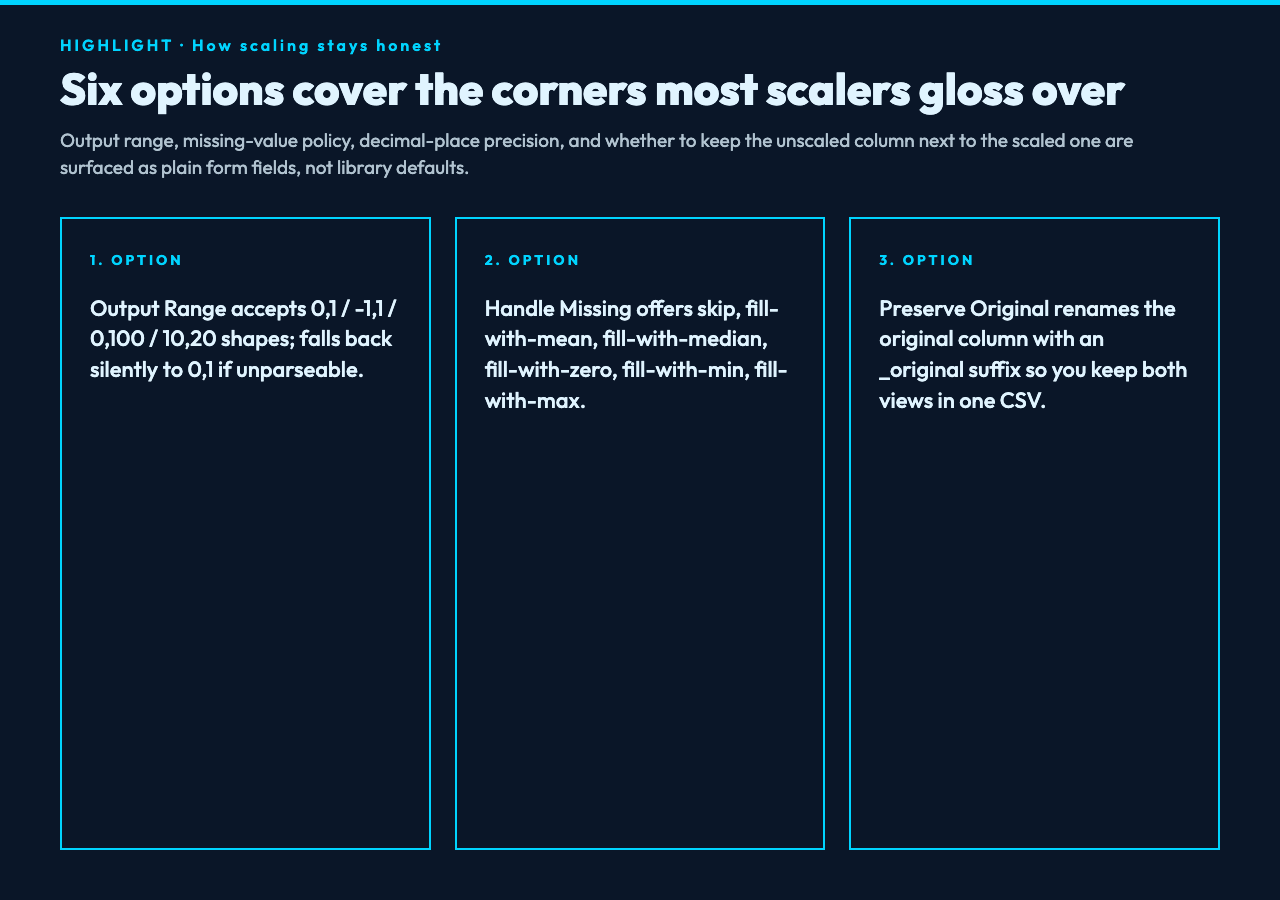
That is the gap the Min-Max Normalizer is built to close. You paste a CSV, name the columns you want scaled (or skip the field and let the tool auto-detect numeric ones), pick a target range like negative-one to positive-one or zero to one hundred, and decide what happens to missing cells: skip the whole row, fill with the column mean, fill with the median, fill with zero, or fill with the min or max of the column. You also get a checkbox that copies the original column to a suffixed partner, so you can keep the unscaled values alongside the scaled ones for diagnostics, and a number field for how many decimal places to keep in the output. Everything is plain CSV in, plain CSV out, with a statistics block appended when you ask for it.
How Min-Max normalization is implemented under the hood
The implementation walking through src/tools/data-normalizer-minmax.ts is short enough to read in one sitting. The CSV parser quotes fields with commas and embedded quotes; numeric-column detection uses an 80% rule (a column counts as numeric if more than 80% of its non-empty cells parse as numbers after comma-stripping); the Min-Max formula is the textbook (x - min) / (max - min) of the column, then linearly mapped into the target range. Missing-value handling runs before the min and max are computed, so the bounds reflect only the values you actually kept.
Two implementation facts matter for the article’s claims. First, the outputRange field is parsed by splitting on comma and parsing each half as a float — 0, 1, -1, 1, 0, 100, and 10, 20 are all accepted shapes. If you type 0..1 or pass a min ≥ max, the tool silently falls back to the default range 0, 1 rather than throwing. Second, the preserveOriginal option renames the original column header by appending _original to the column name and writes the normalized value back into the original column slot. That keeps the output CSV header count and ordering identical to the input, which matters when downstream tools join on column index.
A subtle implementation detail: handleMissing is applied per column. If you choose Fill with Mean, the mean is computed independently for each target column from its own non-missing values, then missing cells are filled with that column’s mean. The bounds are then computed on the post-fill data, not the raw data. This is the right default for most ML pipelines, but it does mean the printed statistics report post-fill min/max, not pre-fill min/max — keep that in mind when auditing output rows.
The output range choice changes everything you downstream
A practical question: should the range be zero to one or negative-one to positive-one? The conventional answer is “depends on the activation function in your first layer.” If you are feeding a neural network with tanh activations, scaling into the range negative-one to positive-one lines up with the activation’s natural domain and trains faster. If you are feeding a ReLU network or a gradient-boosted regressor, scaling into zero-to-one is fine and easier to reason about. If you are feeding a kernel method or anything distance-based (KNN, k-means, DBSCAN, t-SNE inputs), zero-to-one is canonical but the scale within that range is what matters — a tightly-clustered column scaled to that range will look more “spread out” relative to a column with genuinely wide variance, even after normalization. The fix is usually to standardize instead of Min-Max, but if you must Min-Max, drop the rare-extreme columns or pair it with a clipping pass.
Decimal places is a quieter choice. The default 4 is reasonable for inspection but noisy for print-friendly reports. Drop to 2 for tables in slide decks; drop to 6 if you are chaining into a fingerprint-sensitive application (TLS payloads, OAuth nonces, anything where the last digits matter).
For a worked input, here is the kind of CSV the tool expects — three columns where one is the obvious target and one is borderline numeric:
name,age,salary
Alice,25,50000
Bob,30,75000
Charlie,35,120000
Diana,28,
Evan,42,95000
Two target columns: age and salary. With the default settings (range zero to one, decimal 4, preserve-original off), Diana’s missing salary either drops her row entirely (skip) or is filled with mean (fill). The output CSV header is name,age,salary again, with the values mapped into the zero-to-one range (Diana’s age stays, her salary is whatever the fill rule produced).
The audit trail: the statistics block
When Include Statistics is on (it is by default), the tool appends a section after the normalized CSV:
=== NORMALIZATION STATISTICS ===

Output Range: [0, 1]
Total Records: 5
Normalized Columns: age, salary

age:
  Original Range: [25, 42]
  Normalized Range: [0, 1]
  Original Mean: 32.0000
  Normalized Mean: 0.4118
  Original Std Dev: 6.3770
  Normalized Std Dev: 0.3761

salary:
  Original Range: [50000, 120000]
  Normalized Range: [0, 1]
  Original Mean: 85000.0000
  Normalized Mean: 0.4286
  Original Std Dev: 29439.4709
  Normalized Std Dev: 0.4206
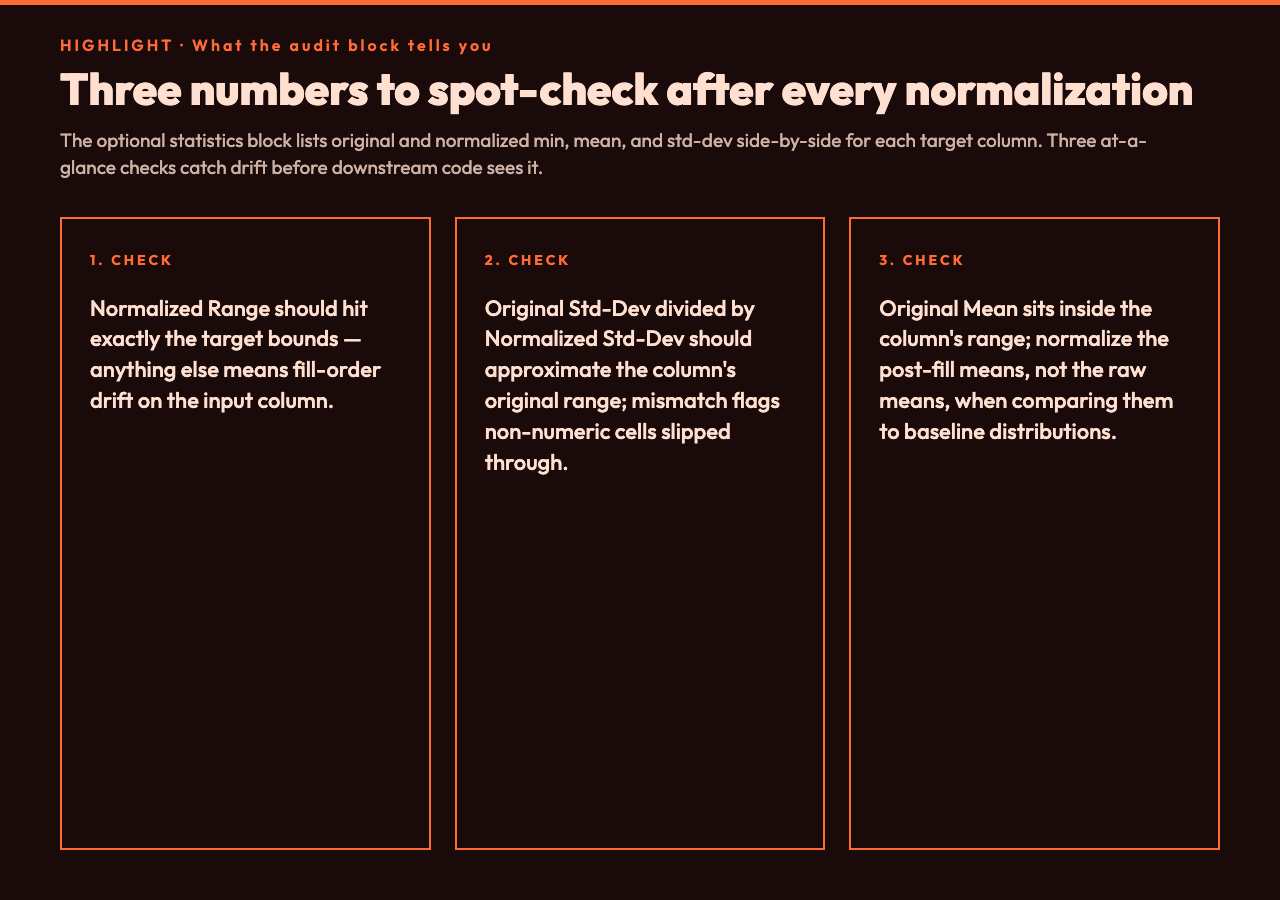
The block reports the original and normalized bounds, means, and standard deviations side-by-side. The two things to look for: (1) Normalized Range reports exactly zero and one — if the min or max is slightly off, your min/max were computed on different data than the per-row normalization was applied to (it would indicate a fill-order bug, but the tool’s order avoids that); (2) the Original Std Dev and Normalized Std Dev differ by a factor of approximately the inverse of the original range — if they do not, the column had non-numeric values that slipped through, which means the 80% numeric-column threshold treated it as numeric anyway.
Pairing with related tools on the same data
The Min-Max Normalizer pairs naturally with three other Elysia Tools workflows:
– After scaling, if you have categorical columns like name or region, you almost always want one-hot encoding next — the normalized output is the right starting point because all continuous features are on the same scale before the encoding step. – Before scaling, if the column is heavy-tailed (counts of events, log-distributed measures, anything with a long right tail), the Data Noise Injection source’s pattern of injecting controlled noise on top of the column is the right sanity check: scaled noise at the high end will dominate scaled values at the low end, which is exactly the artifact shape you want to detect. Run the noisy version through the normalizer and inspect whether the post-noise statistics still report a clean zero-to-one span. – After scaling, validate the matrix with a quick null-and-range check: no null cells, no values outside the target range (for the default zero-to-one setting). The zero-and-one boundary is strict — the tool never rounds 1.0 down to 0.99999 to “be safe”, because that silently loses the max-row information downstream.
The honest limits
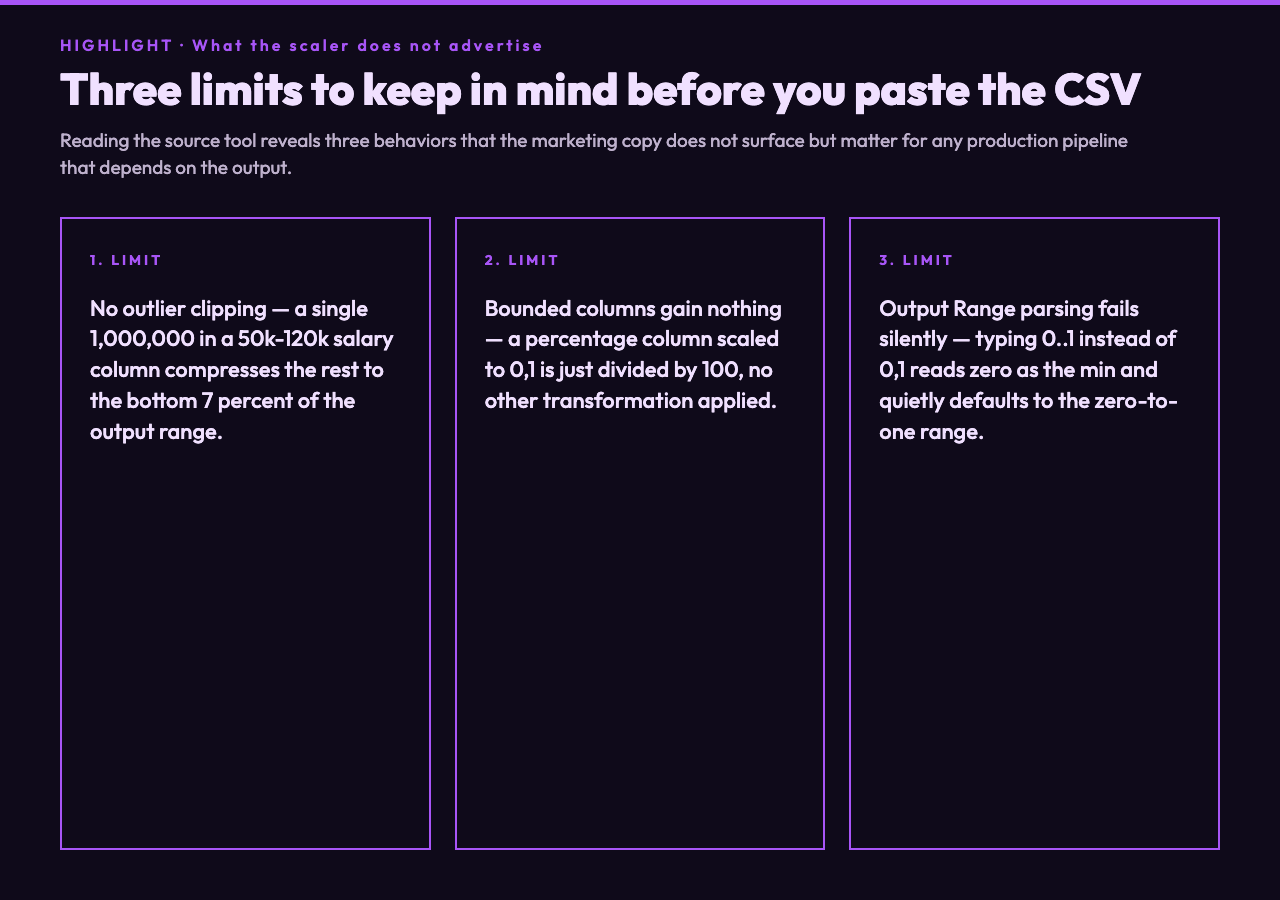
Three limits the Min-Max Normalizer page does not advertise and the source code does not fix.
First, outliers crush the scale. A single value of 1000000 in a salary column with the rest in the 50–120k band compresses the human band into the bottom seven percent. The tool does not clip; it does the textbook formula. Pre-clip extreme values manually or pick a different scaler.
Second, bounded columns are wrong targets. If your column is already bounded (percentages in a zero-to-one hundred range, probabilities in a zero-to-one range), Min-Max adds no information. The tool will happily scale them anyway, but the output is just the column divided by one hundred for percentages, and the probability column itself otherwise.
Third, the outputRange fallback is silent. If you type 0..1 instead of 0, 1, the tool reads 0 as the min, fails to parse ..1 as a float, and silently uses the zero-to-one default. Inspect the Output Range line in the statistics block to catch this before downstream code uses an unintended scale.
You can run it as a one-off paste into the form or wire it into a notebook pipeline by exporting the same option set. Either way, the option panel is small enough that you can audit every decision the tool made on your data in under a minute, which is exactly the property a Min-Max scaler should have.
Explore more tools at elysiatools.com.