
Estimated reading time: 7 min.
The Label Sheet Is the Bottleneck
Open any warehouse, retail back-room, or small e-commerce operation and you will find a printer, a stack of adhesive sheets, and someone — usually the same person who is supposed to be picking orders — hunched over a spreadsheet, copy-pasting SKUs, hunting for the right QR generator, fighting the barcode font on a Word template, and praying that the column widths will line up.
It is 2026. We are still doing this.
The job looks simple. A label sheet needs three things on every cell: a human-readable title, a QR code (for scanners and phones), and a CODE128 barcode (for the legacy scanner pistol that the warehouse lead refuses to give up). The complication is not any single piece — it is the co-ordination between them. The QR encoder produces one image stream. The barcode font produces another. The layout grid needs to know how many cells fit per page. And the output has to be a single PDF, because that is the only format the printer driver, the label stock supplier, and the operations manager all agree on.
Three streams. One page. One click. That is the whole point of Elysia Tools’ PDF QR Barcode Labels.
This guide is a field manual for that one click — when it saves the afternoon, when it bites back, and how to set the inputs so it never bites twice.
What the Tool Actually Does
The tool takes a single JSON array describing the labels you want, mixes in page-layout parameters, and returns a print-ready PDF. Under the hood it stitches together three generation passes:
- A QR encoder (per cell, using the
qrTextvalue — usually a URL, but any string up to ~700 characters works). - A CODE128 barcode renderer (per cell, using the
barcodeTextvalue — keep it alphanumeric; CODE128 supports the full ASCII set but the scanner pistol reads digits and capital letters fastest). - A label-sheet layout engine that places each
title/subtitlepair, each QR image, and each barcode image into the grid defined by columns, rows, page size, and gaps.
The result is one PDF. Open it, print it on adhesive A4 (or Letter), peel, stick.
The input is JSON because it forces a discipline that copy-paste into a spreadsheet never does: every label is a row with the same four fields. There is no “I forgot the subtitle on row 14” failure mode.
[ { "title": "SKU-AX-001", "subtitle": "Warehouse A / Rack 03", "qrText": "https://example.com/inventory/SKU-AX-001", "barcodeText": "AX00193018" }, { "title": "SKU-BX-204", "subtitle": "Warehouse B / Rack 12", "qrText": "https://example.com/inventory/SKU-BX-204", "barcodeText": "BX20488271" } ]
That is a complete payload. Everything else is layout.
The Five Layout Knobs That Actually Matter
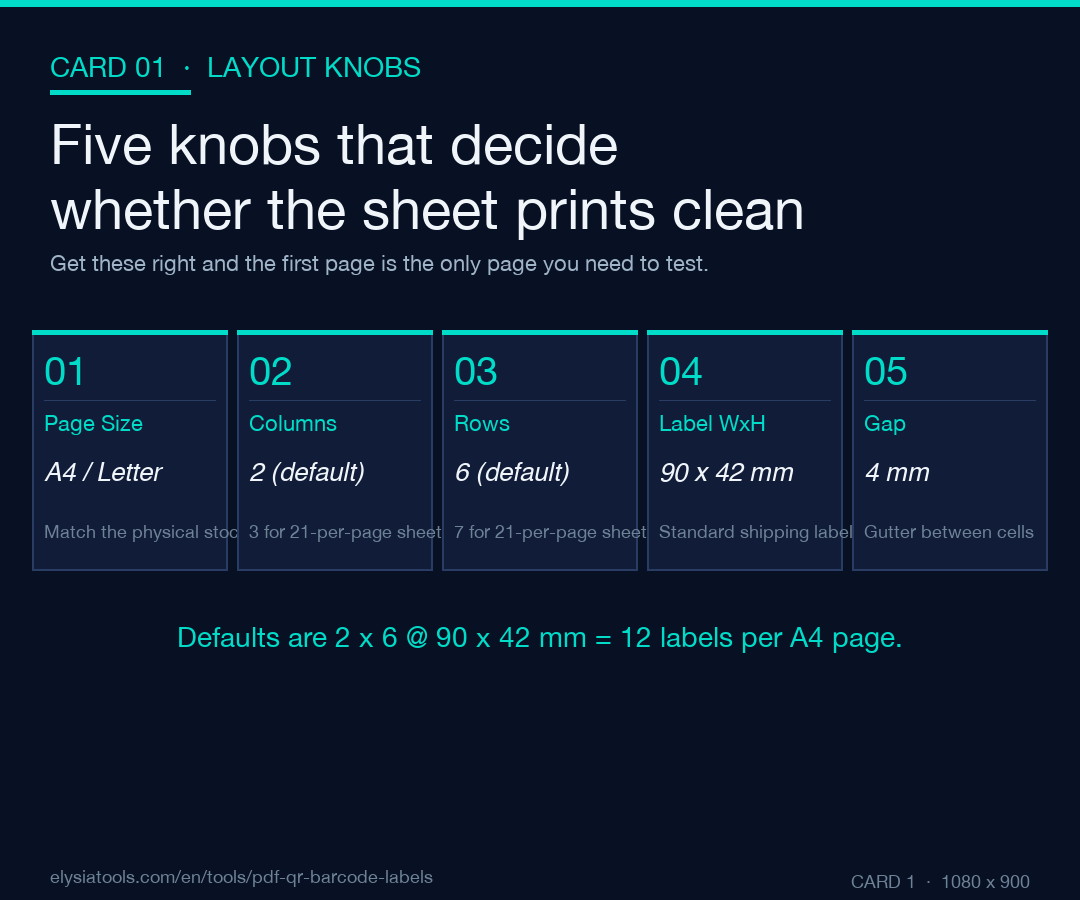
The tool exposes nine options, but most label failures trace back to the same five. Get these right and the print comes out clean on the first try.
Page Size. Default is A4. Switch to Letter only if your printer stock is US-origin; mixed stock is the single most common cause of “the last column falls off the page” reports.
Columns and Rows. Defaults are 2 × 6 = 12 labels per page. Most adhesive A4 sheets are sold as 21-per-page (3 × 7) or 65-per-page (4 × 13 mini-labels). Match the column/row pair to your physical sheet — do not eyeball it. A 2 × 6 grid on a 65-per-page sheet gives you five wasted cells per page and an empty row at the bottom that the printer driver helpfully centres for you.
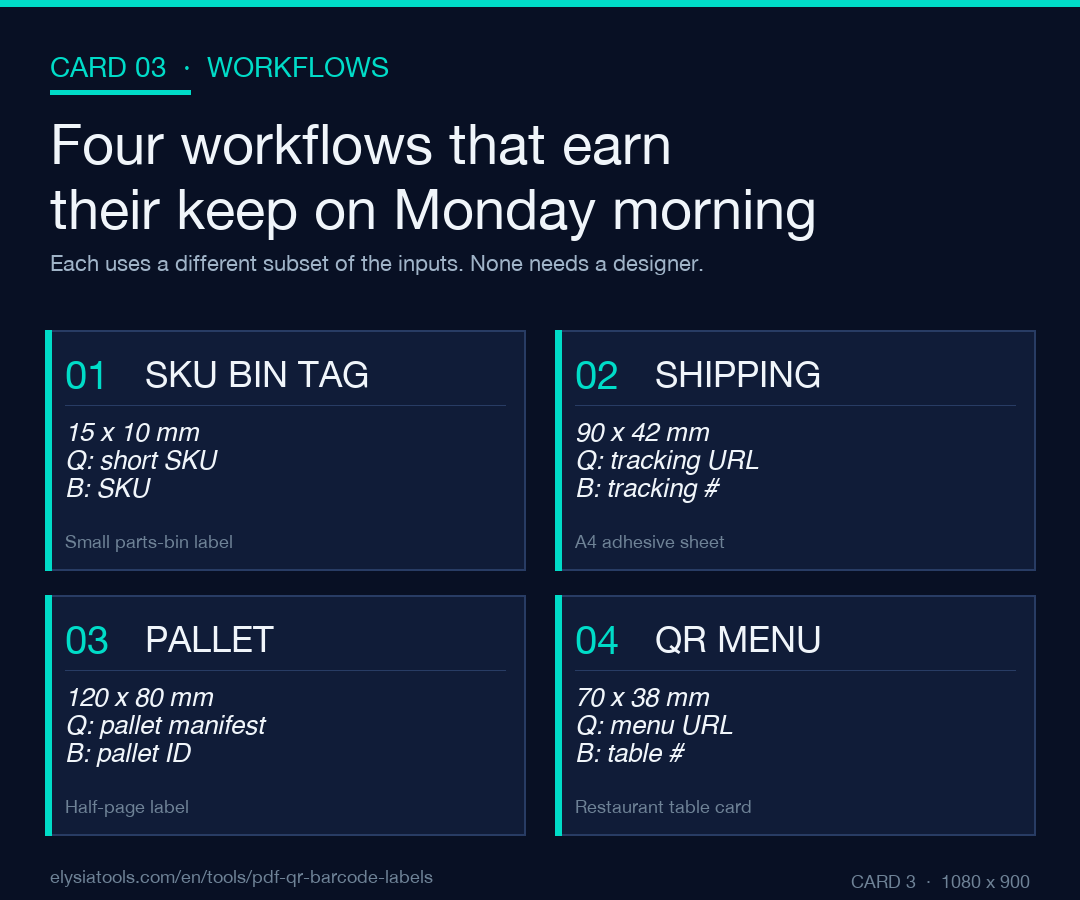
Label Width / Height (mm). Defaults are 90 × 42 mm — a standard shipping-label size. The maximum is 120 × 80 mm (a full half-page label for a pallet). The minimum is 35 × 18 mm (a small parts-bin tag). Going below the minimum will cause the QR code to silently drop its error-correction level — the codes still scan, but a wrinkled label will fail.
Gap (mm). Default 4 mm. This is the gutter between cells. Too small (1–2 mm) and thermal printers with even minor paper-feed skew will clip the edge of the next QR code. Too large (10+ mm) and you waste 15–20 % of every page.
The remaining options — landscape, page margin — are fine to leave at default unless your printer has a non-printable margin larger than ~8 mm (Brother and older HP lasers do; check the printer spec sheet, not the driver dialog).
When QR and CODE128 Disagree on the Same Label
This is the failure that costs the most time, because nobody suspects it.
A QR code is forgiving. It has four error-correction levels (L, M, Q, H), and the encoder picks one based on the data length and the available square. A CODE128 barcode is not forgiving. It has a fixed-width-per-character ratio, and the printed bars must hit a minimum module width — usually 0.25 mm — for a laser-printed barcode to scan reliably on a cheap handheld.
So you can ship a label sheet where every QR scans and every barcode refuses. The cause is almost always one of:
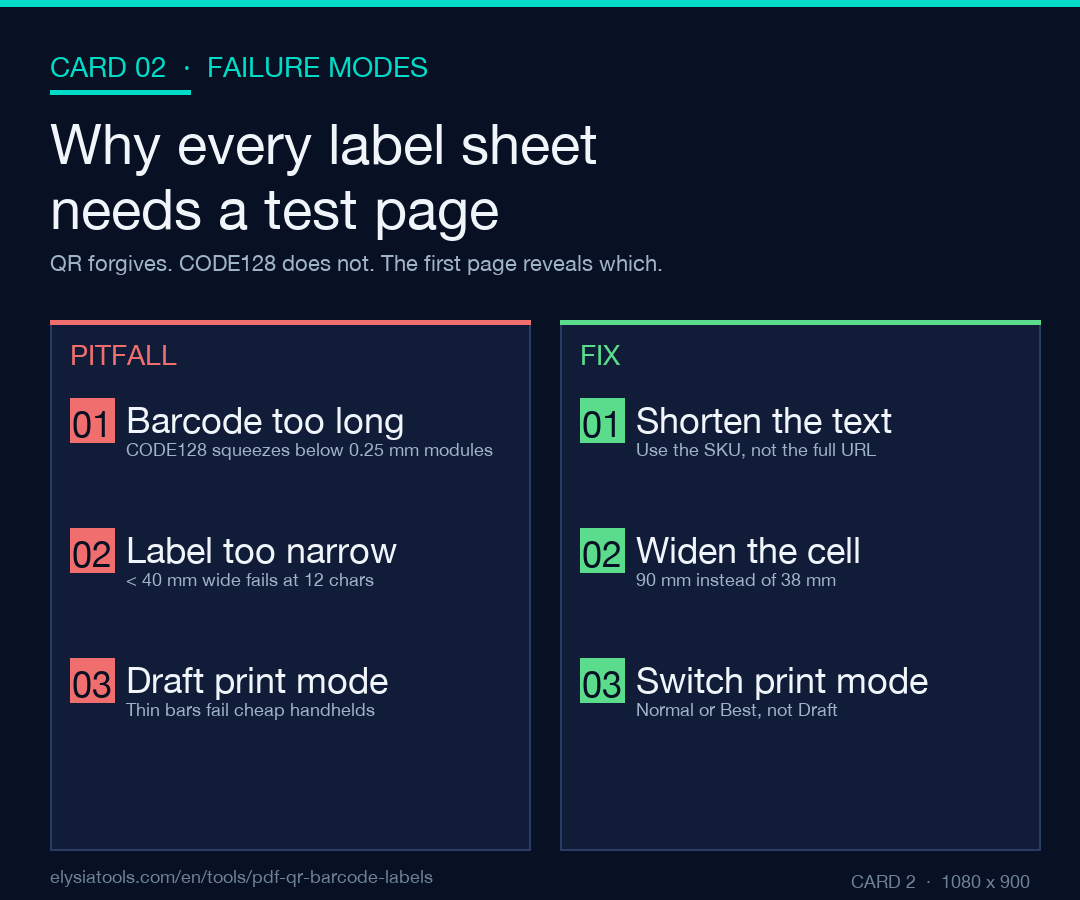
- The barcode text is too long. CODE128 is dense but has a hard ceiling; once the encoder has to squeeze the bars into a 30 mm label, the module width drops below scan threshold.
- The label is too narrow. Width below ~40 mm with a 12-character barcode is the danger zone. Use a wider cell or shorten the text.
- The print is at “draft” quality. Most laser printers default to a toner-save mode that thins the bars. Switch to “Normal” or “Best” for label sheets.
The tool does not warn you about this in advance, because it cannot know your scanner. The discipline is: the first page of any new sheet is a test page. Print one, scan every barcode with the actual handheld, then commit to the remaining 200.
Encoding the URL vs. Encoding the SKU
Two design choices, both common, both wrong in different ways.
Encoding the full URL in the QR code (e.g. https://example.com/inventory/SKU-AX-001) is what every consumer expects. The phone opens it, the inventory page loads, the warehouse worker sees the photo. The downside: the QR is denser, the label is bigger, and if your URL scheme ever changes (HTTP → HTTPS, domain migration, /inventory/ → /stock/) every printed label is obsolete.
Encoding the SKU in the QR code (e.g. SKU-AX-001) keeps the code short and stable, but the scanner needs an app that knows what to do with the raw string. Most modern warehouse apps do; most consumer phones do not.
The pragmatic answer is to do both — put the URL in the QR and the SKU in the CODE128. The barcode is the legacy path (the 2015 scanner pistol at Receiving Dock 2); the QR is the new path (every new scanner app the company has deployed since 2023). One label, two readers, no migration debt. This is the pattern the tool’s placeholder JSON demonstrates, and it is the one to copy.
A Reasonable Workflow for a Real Sheet
Putting it together for a 200-label print run on a typical 21-per-page adhesive A4 sheet:
- Export your SKU list from the inventory system as JSON (or as CSV and convert — JSON to CSV and CSV to JSON are the round-trips you will live in).
- Build the four-field rows. Title = SKU. Subtitle = location. QR = URL. Barcode = SKU. Strip whitespace and quotes.
- Set layout to 3 columns × 7 rows. Page size
A4. Label width 70 mm, height 38 mm. Gap 3 mm. - Drop the JSON into the PDF QR Barcode Labels tool. Generate.
- Print page 1 only. Scan every barcode with the real handheld. Scan at least three QRs with a phone. If anything fails, fix the inputs and regenerate — do not “fix it in the printer driver”.
- Print the remaining ~9 pages. Peel, stick, ship.
The whole loop — JSON, layout, generate, test print, full run — is about ten minutes once the inventory export is scripted. The first time you do it, allow an hour, because step 5 always reveals one label dimension that is off by 2 mm.
When Not to Reach for This Tool
It is not the right answer if:
- You only need five labels today and you will not print more for six months. Use a Word mail-merge template; the tool is overkill.
- The labels need colour (e.g. a colour-coded hazard sticker). The tool emits monochrome output by design — thermal printers and CODE128 do not mix with colour.
- You need GS1-128 or DataMatrix barcodes (the supply-chain standards with embedded application identifiers). The tool ships CODE128 only. For GS1, you need a different pipeline.
For everything else — the long tail of “I need 200 identical labels with a QR and a barcode, and they have to be on the same sheet” — there is no faster path.
Closing
A label sheet is a tiny artifact. It sits at the end of a long chain of inventory, fulfilment, and shipping decisions. But because it is the last artifact, it is the one that absorbs every upstream mistake — wrong SKUs, swapped locations, missing URLs. The right tool does not eliminate that pressure; it just collapses the layout step from an afternoon of fiddling into a ten-minute loop, so the time you save gets spent on the things that actually matter, like making sure the inventory export was right in the first place.
If you batch-print barcode labels often, bookmark PDF QR Barcode Labels and pair it with the QR Code samples and PDF samples libraries for quick reference inputs.
Explore more tools at elysiatools.com.
