
A PDF is rarely just the pages. It carries metadata about who created it, when, on what software. It carries comments the original reviewer left. It carries bookmarks that map the document’s structure. It carries form fields with values you might have meant to delete. Before you hand that file to a client, a court, a regulator, or a stranger on the internet, you have to decide which of those layers still belongs to them. PDF Clean at elysiatools.com/en/tools/pdf-clean gives you four checkboxes to make that decision explicit, one layer at a time. The full audit trail below walks through each layer, what it leaks, and when to strip it.
Why a PDF is rarely just the pages you see
Open any PDF in a hex editor and you will find more than the page content stream. The %PDF-1.7 header sits at the top, but underneath it are four document-level dictionaries and an XMP packet that together describe how the file was made, who touched it last, and which software produced it. None of this appears on a printed page. All of it travels with the file.
This hidden metadata is useful while a document is in active review. It is a liability the moment you redistribute it. PDF sanitization is the default state for legal discovery, FOIA release, journal submission, and any external vendor handoff.
The PDF Clean tool at Elysia Tools treats sanitization as a four-layer decision rather than a single destructive pass. You toggle metadata, annotations, bookmarks, and form fields independently, then download a cleaned copy. That separation matters because each layer leaks a different kind of information, and the right answer for a court filing is not the same as the right answer for a press kit.
Metadata is the part that travels before you do
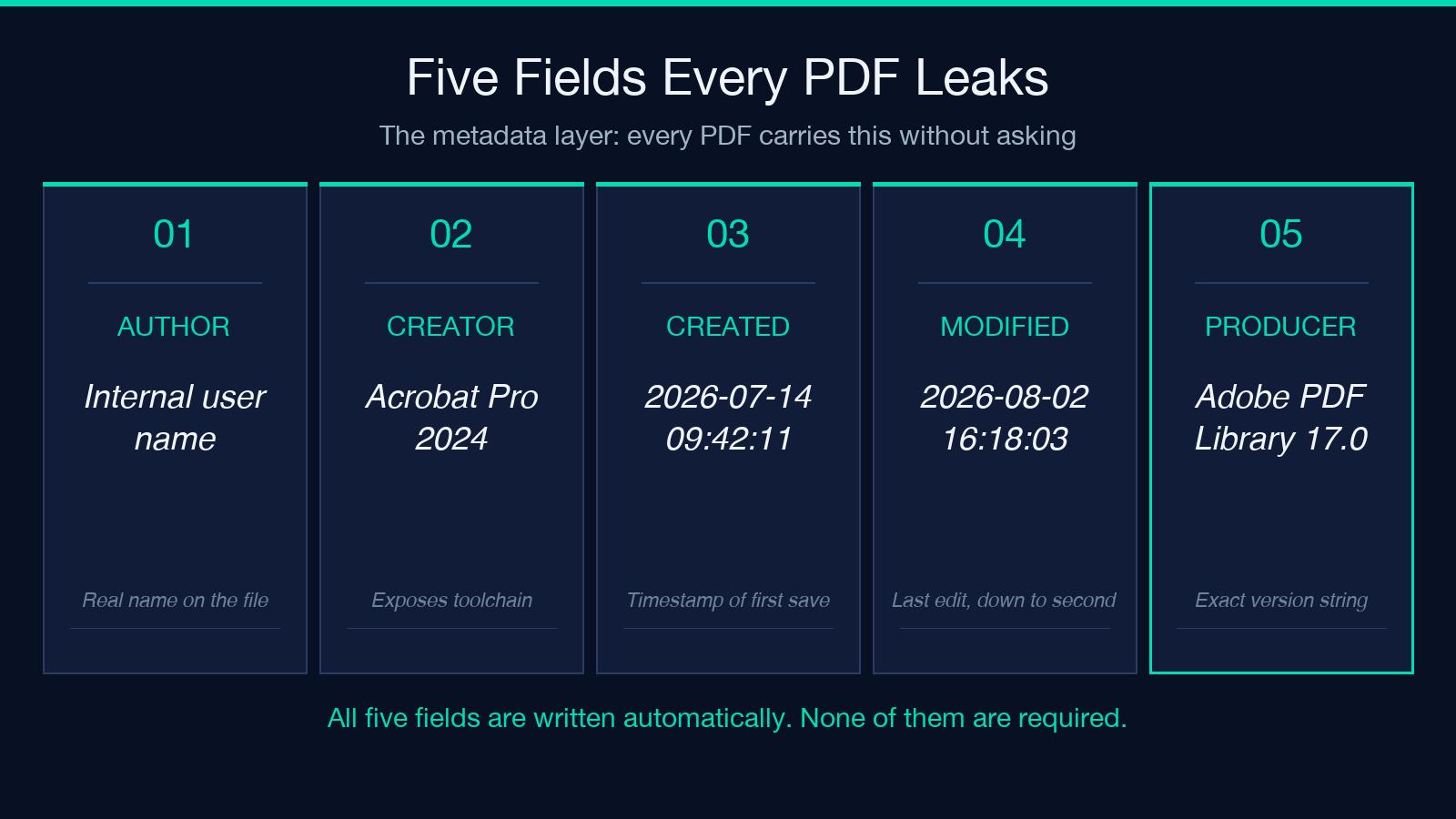
Every PDF carries an /Info dictionary and an XMP packet. Together they expose the document title, author, subject, keywords, creator application, producer, creation date, modification date, and trapped-font flags. None of these fields is required to render the file. All of them are written automatically by Acrobat, Word, InDesign, Chrome, and every browser print-to-PDF button. They are the digital equivalent of writing your name on the back of a photocopy.
For an internal draft this metadata is harmless. For a document that leaves the building, it leaks the name of the drafter, the precise timestamp they saved the file, and which version of which software produced it. That last field tells an attacker the exploitation surface for any embedded JavaScript or action. It also tells a competitor which toolchain you use.
Stripping metadata is a one-checkbox operation in PDF Clean. The tool rewrites both the legacy /Info dictionary and the XMP packet in the same pass, so the cleaned file carries no traceable creation history. If you need to keep the title for archival purposes, set it explicitly after the clean — never rely on the original.
For a walkthrough of metadata leakage patterns, see the broader PDF Anonymizer Report tool, which produces a side-by-side cleaned vs. uncleaned comparison.
Annotations carry someone else’s voice, still in your file
PDF annotations are not the same as the text on the page. They are a separate object layer — sticky notes, highlights, strike-throughs, free-text callouts, stamps, drawing markup. Reviewers leave them in Acrobat, Preview, Foxit, and every browser PDF viewer. Most readers see them. The author often forgets they exist, because the printed page does not show them.
What annotations leak depends on who wrote them. A comment that says “Check with Sarah before sending to vendor” contains the name of an internal stakeholder and the workflow state of the document. A highlight over a paragraph contains no content, but the surrounding timestamp tells the reader how long the reviewer spent on the section. Redaction markup may itself leak the original text if it was applied as an annotation rather than a true content removal.
PDF Clean removes every annotation in one pass — sticky notes, highlights, stamps, free text, drawing markup, pop-ups. It does not affect the underlying page content. If you have an annotation that is part of the document’s design (a published stamp, a watermark drawing), copy it into the page content first before running the clean.
If your workflow also needs the visual content of annotations converted to flat page content, pair PDF Clean with the PDF Compress Optimize tool, which flattens annotation layers during recompression.
Bookmarks and the outline describe structure you did not draw
A PDF’s outline tree — the bookmarks panel in the sidebar — is built from /Outlines objects and /Names dictionaries. They let a reader jump to a specific section, but they also describe the document’s structure in a way the printed page does not. The label on each bookmark is free text, written by whoever saved the file last. Bookmark targets include named destinations that may reference page coordinates outside the visible content.
For a contract or a regulatory filing, the outline often contains internal section labels that the external recipient was never meant to see — “Internal Notes”, “Do Not Publish”, “Draft 4 — reject if Sarah pushes back”. These are not metadata in the legal sense, but they are authorial intent that disappears when the file is printed.
Toggling the bookmark-removal checkbox in PDF Clean deletes the entire outline tree and the named-destinations dictionary. The pages themselves remain navigable by scrolling; only the jump targets disappear. If the outline is part of the intended reader experience (a technical manual, an e-book), uncheck this option and clean only metadata and annotations instead.
Form fields and AcroForm data is the part that listens back
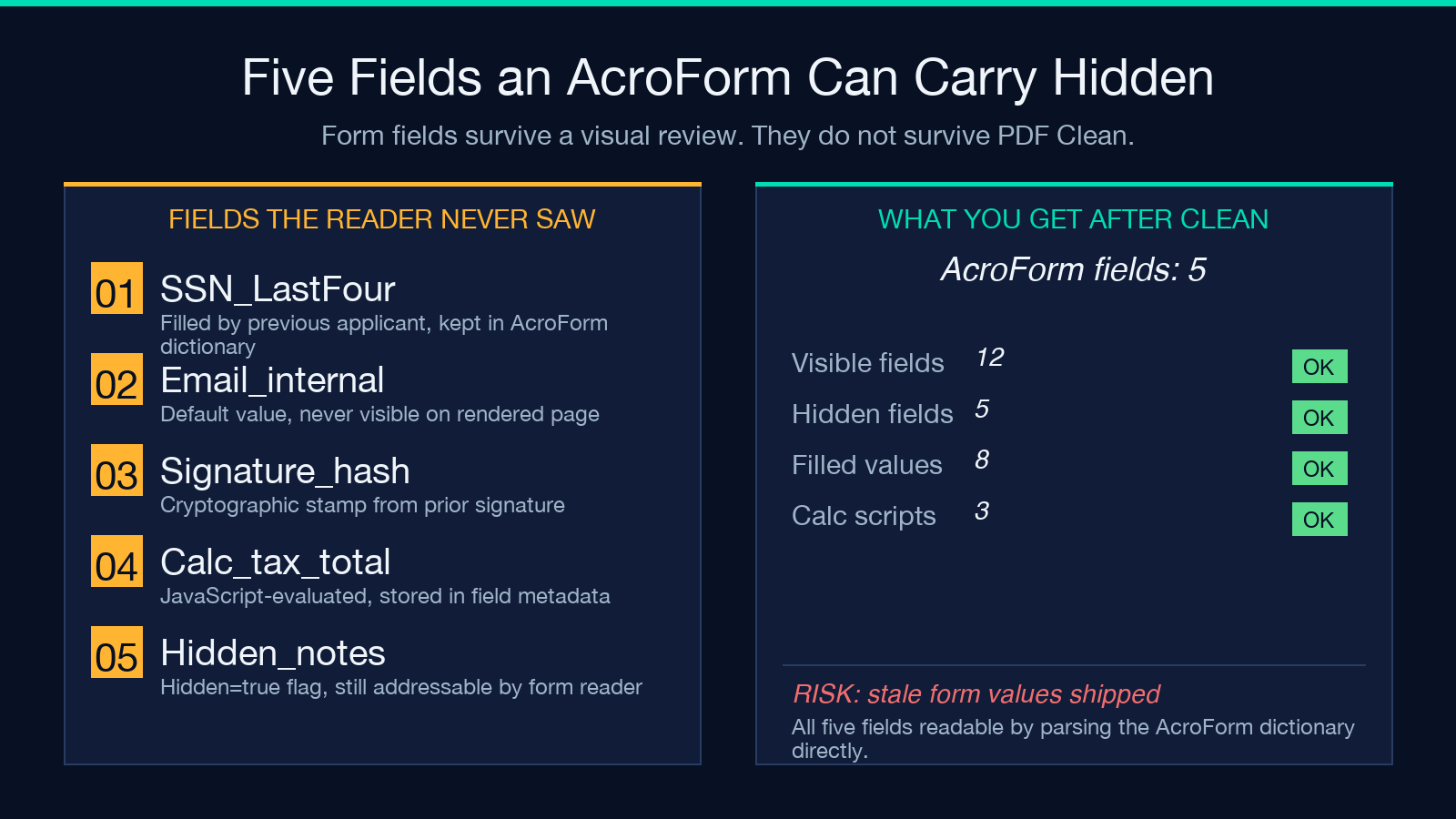
An interactive PDF form — the kind built with Acrobat’s form wizard — carries field definitions, current values, calculation scripts, and validation logic in an /AcroForm dictionary. When the recipient fills the form, those values are written back into the file. The cleaned copy without form-field stripping will contain every value the previous reader typed, including names, addresses, signatures, and any field the form designer marked as hidden but still addressable.
The risk is structural. A form designed for a vendor onboarding flow may carry the field SSN_LastFour with a default value the previous applicant filled, even if the visible page only shows a signature line. Stripping form fields in PDF Clean deletes the /AcroForm dictionary entirely. The resulting file has no interactive elements — no fillable text boxes, no submit buttons, no calculation logic — but it preserves the visual layout.
For documents that mix fillable and read-only sections, run two passes: first with form-field stripping enabled to get a flattened recipient copy, then with only annotation stripping to get a copy that keeps the form for your own use.
PDF Clean handles both passes without re-uploading — just toggle the checkboxes between runs.
Redact, clean, or anonymize: pick the right workflow
PDF Clean is one of three overlapping operations. Knowing which one you need is the difference between a file that is safe to distribute and one that looks safe but still leaks.
Redaction is the irreversible removal of visible text or images from the page content stream. It is done before PDF Clean and requires a true content rewrite — not just an annotation overlay. Once a section is redacted, the underlying glyphs are gone. PDF Clean does not redact.
Cleaning is the removal of the four non-content layers: metadata, annotations, bookmarks, form fields. The visible page is unchanged. This is what PDF Clean does.
Anonymization is the replacement of identifying fields with non-reversible tokens — replacing author names with hash IDs, replacing timestamps with date-only precision, removing IP addresses from XMP. The PDF Anonymizer Report tool handles anonymization with a side-by-side report; PDF Clean handles the destructive cleanup after.
The order matters: anonymize first (replace values), then redact visible content (remove the text), then clean (strip the layers). Running them in the wrong order leaves traces in the metadata of the partially-processed file.
Sequencing the four checkboxes in the right order
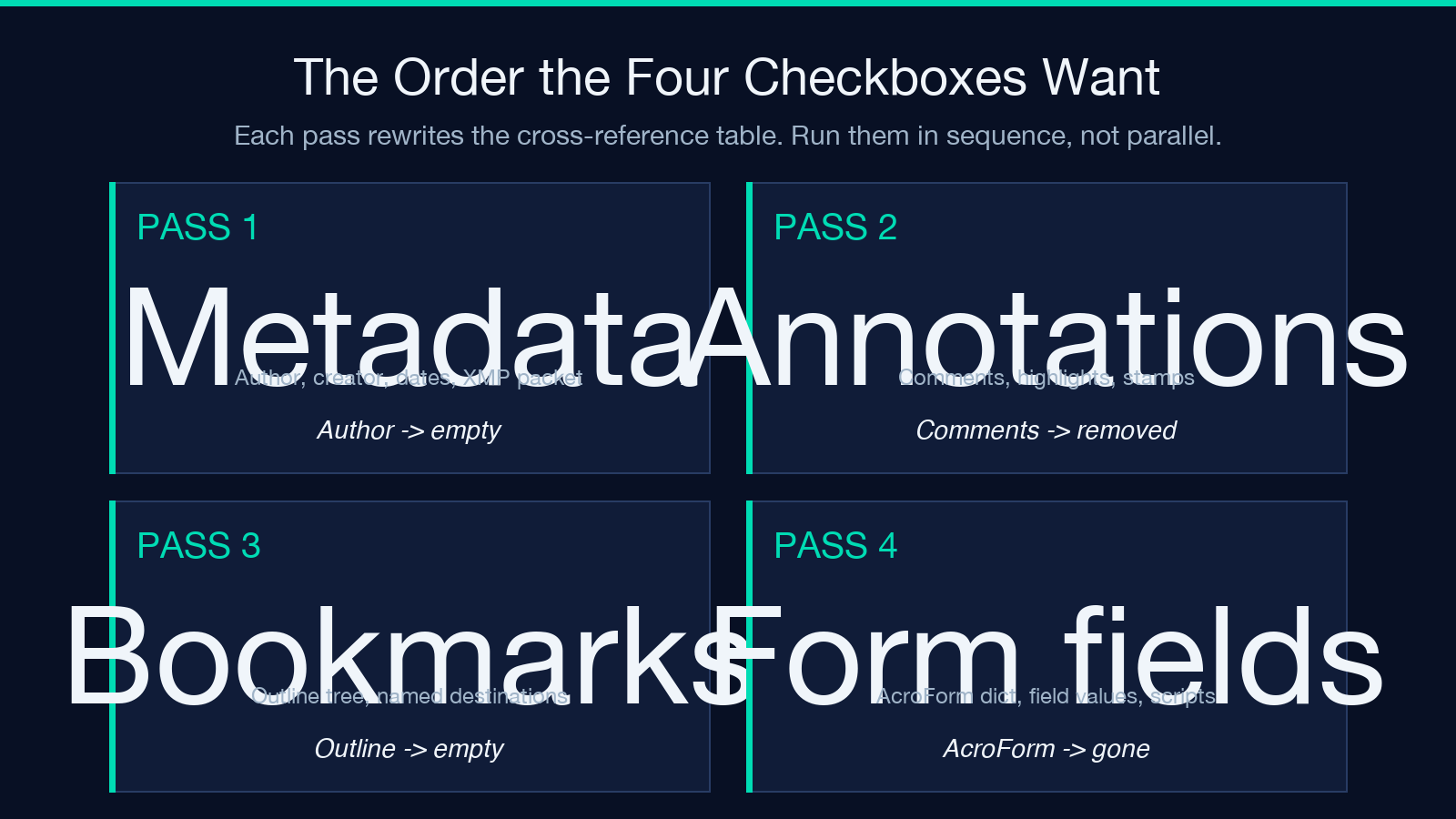
PDF Clean’s four checkboxes look symmetric but they are not. Metadata is written first by the producing application, then annotations, then form values, then bookmarks as the document is finalized. Cleaning in any order produces a functionally identical file, but cleaning in the wrong order can leave orphan references that some PDF parsers flag as malformed.
The safe sequence is: metadata first, then annotations, then bookmarks, then form fields. Each pass rewrites the cross-reference table, so subsequent passes see a clean pointer table. The tool’s UI shows the checkboxes in this order for a reason.
If you are cleaning a batch of files with the same source application, do a single dry run on one file with all four checkboxes on, then inspect the metadata of the output with a PDF info tool. If the output is empty as expected, batch-process the rest. If the output still carries a specific field, you have a custom XMP namespace that needs an extra pass.
For scanned documents with no metadata layer at all, the four-checkbox sequence is mostly a no-op except for any annotation stamps added during the scan. If your scans have OCR text overlay, use the PDF Denoise tool first to remove speckle, then PDF Clean to strip the OCR-trail metadata.
When PDF Clean is not enough: scanned images and embedded objects
PDF Clean works on the four document-level dictionaries. It does not touch the page content stream. If your PDF was assembled from scanned images and the scans still contain visible text in the image pixels — a name on a printed signature line, a watermark, a header in a photo of a document — those pixels survive every checkbox in the tool.
For those cases, run an image-redaction pass on the scans before the clean. The PDF Denoise tool flattens the scanned image and removes speckle, but it does not redact. For true visual redaction of scanned content, build the redacted image separately and reassemble the PDF before the clean.
Embedded files, JavaScript actions, embedded fonts, and OCR data are not part of the four-checkbox surface. If your security review requires removing embedded JavaScript or external file references, pair PDF Clean with a full PDF structure audit. The cleaned file is safe for normal distribution, but it is not the same as a fully flattened PDF/A archival copy.
For most legal, regulatory, and external-distribution use cases, however, the four-checkbox clean is sufficient. The remaining attack surface is small, auditable, and orthogonal to the metadata-leakage problem the tool is designed to solve.
Explore more field guides and tooling at elysiatools.com.
