
A great ASCII tree starts in the markdown you already wrote, not the drawing tool you wish you had open. Paste a copyable directory tree from any indented list and ship the result in a README, ticket, or chat reply without rebuilding it by hand.
Anyone who maintains a project, writes documentation, or answers a teammate’s “where do I put this file?” question eventually needs a tree. Most of the time that tree is hiding inside something they already have: a bullet list in a design doc, an outline in a meeting note, or a README where someone wrote src followed by an indented run of children. The Indented List to ASCII Tree tool turns that run into a real, copyable, indentation-faithful tree, in either Unicode box-drawing or classic ASCII. The rest of this guide is the field notes on how to feed it well, what to do when the input is messier than a textbook, and how to read the output so the tree matches the project on disk.
What “indented” actually means to a parser
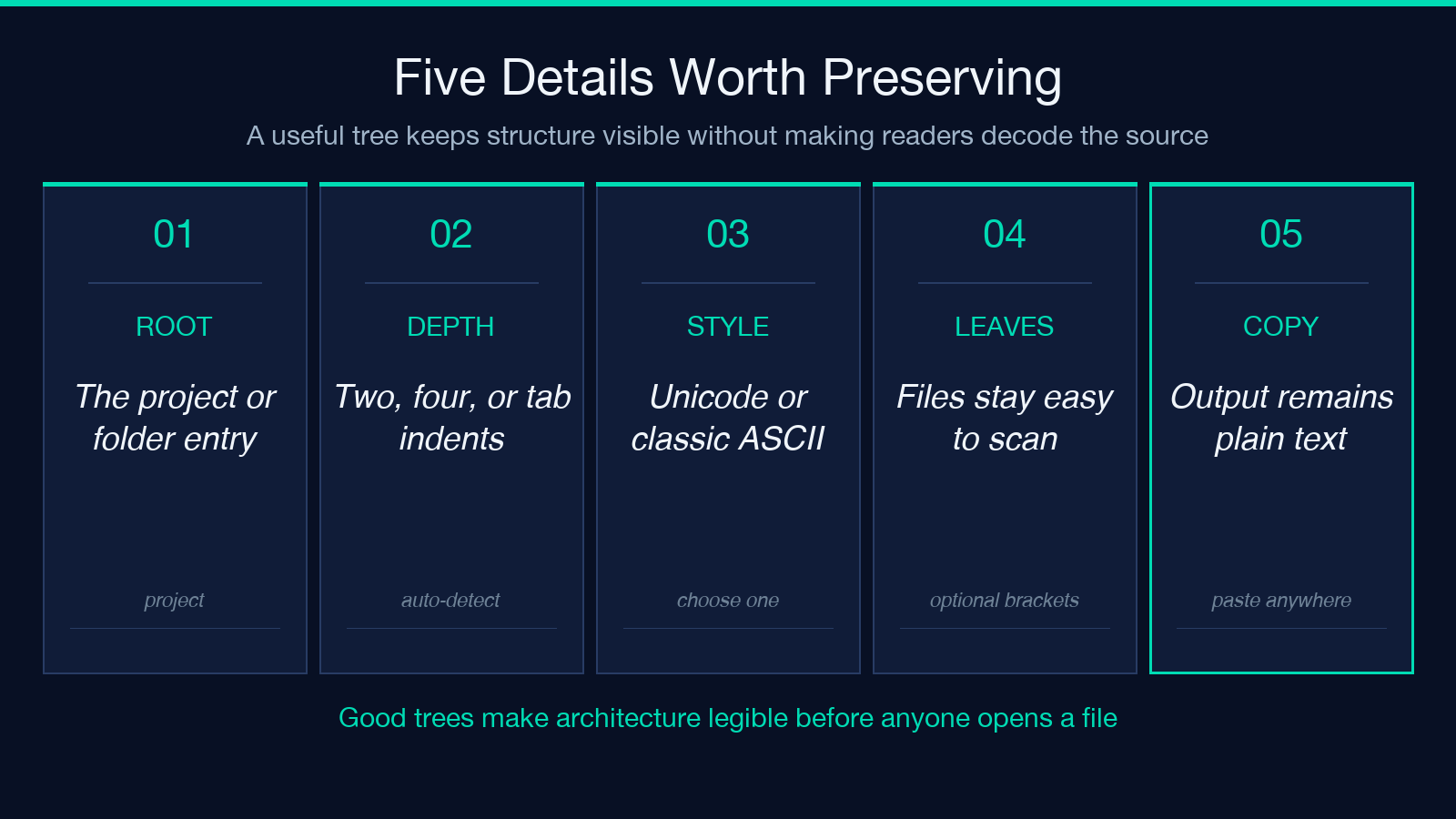
A list is indented when a child line starts further to the left than the first non-space character on its parent. The depth comes from the change in leading whitespace, not from a magic column. The parser therefore has to do three things before it can draw anything:
Detect the indent unit — 2 spaces, 4 spaces, a tab, or auto. Auto means the first non-empty nested line teaches the converter; the rest of the file is read in that rhythm.
Recognise optional markers — -, *, or 1. prefixes can be stripped or kept. Markdown-style bullets usually want to disappear; meeting notes sometimes want to keep 1. so the outline reads as a list.
Find the root — the first line with no leading whitespace sets the root, and every other line is relative to it.
The output style — Unicode (├──, └──, │) or ASCII (|--, --, |) — is just a font choice. The structure does not change, so you can switch styles to match where the tree will live without rebuilding the input.
A close-first look at the tool surface
Before getting into patterns, it helps to see what the Indented List to ASCII Tree input area actually offers. There are six toggles in the form, and the defaults get most projects right:
Style — Unicode Box Drawing for README and docs, Classic ASCII for terminal and email output.
Indent Unit — Auto-detect reads the first nested run and uses that rhythm everywhere; 2 spaces, 4 spaces, and Tab are explicit overrides.
Full guide lines — Draws the vertical │ between sibling rows. Leave on for trees with two or more children at the same depth; turn off for the simplest one-child-per-parent chains.
Bracket leaf nodes — Wraps file names in [ ... ] so the leaf is visually distinct from the path.
Trim trailing spaces — Always leave on. Trailing whitespace is invisible in the source but breaks alignment in the output.
Most runs are Auto-detect + Unicode + Full guide lines + Trim trailing spaces, with the other two toggles off. That is the version the rest of this guide assumes.
From markdown bullets to a project map
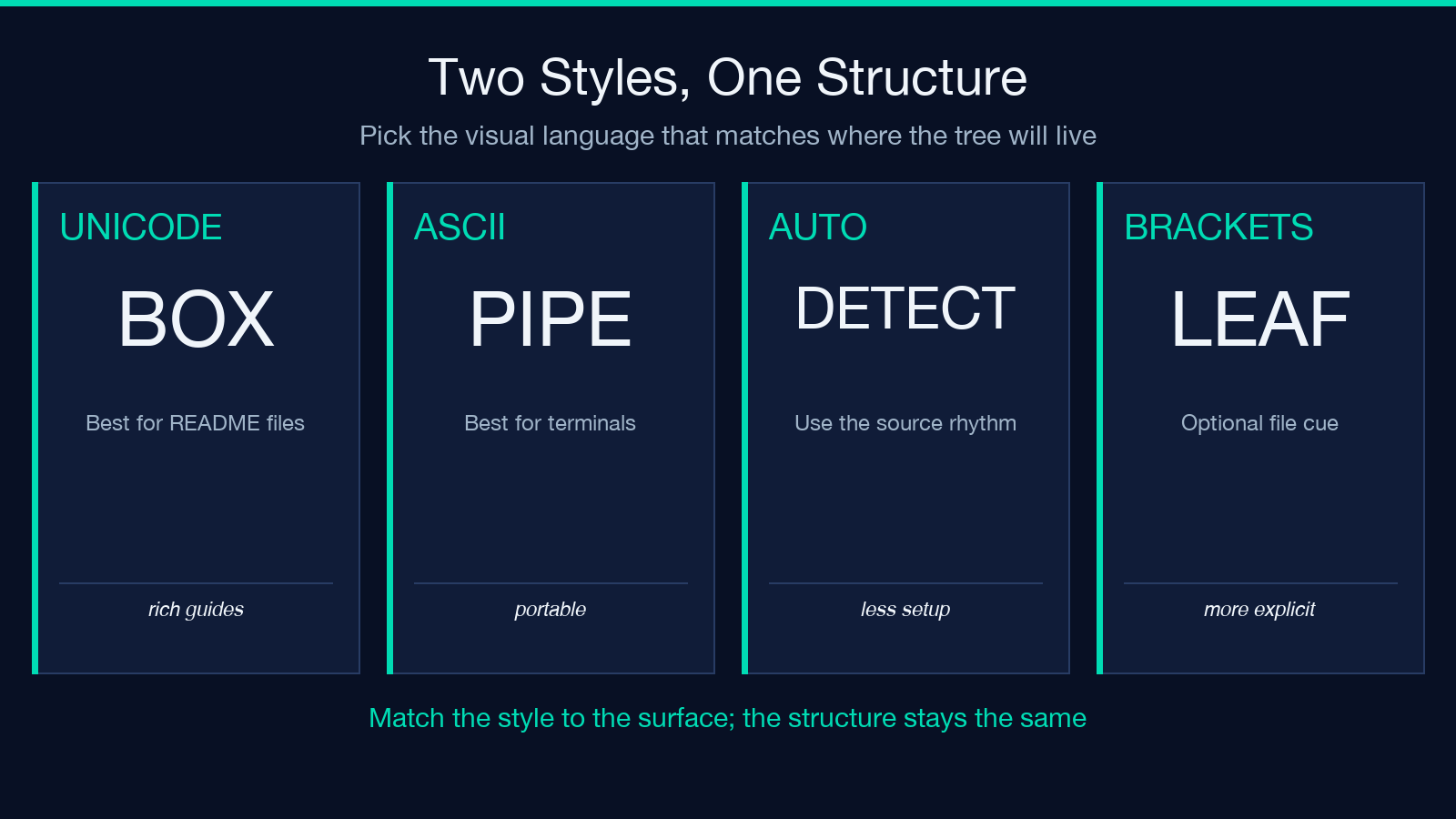
The most useful input is the one that already exists. Take a README that starts with a list like:
src
  index.ts
  tools
    ascii-tree-from-indented-list.ts
    json-formatter.ts
  utils
    indent.ts
  package.json
Pasting that into the converter with the Unicode Box Drawing style and the Auto-detect indent unit produces:
src
├── index.ts
├── tools
│   ├── ascii-tree-from-indented-list.ts
│   └── json-formatter.ts
├── utils
│   └── indent.ts
└── package.json
That tree is the same shape the project actually has on disk, and the same shape a reader can copy into a chat reply. Switching the style dropdown to Classic ASCII turns it into the version that survives being pasted into a terminal that does not understand box-drawing characters:
src
|-- index.ts
|-- tools
|   |-- ascii-tree-from-indented-list.ts
|   -- json-formatter.ts
|-- utils
|   -- indent.ts
-- package.json
Both are equally correct. The point of the Indented List to ASCII Tree tool is that you do not have to choose at writing time — the source list stays the same and you repaint it when you know where it is going.
When the source is messier than a textbook
A real document does not always arrive in the ideal shape. Three patterns are common and each has a clean handling:
- Mixed markers —
*,-, and1.interleaved in the same outline. The converter’sstyleandindentUnitoptions keep the tree stable; the markers are stripped consistently and the depth comes only from leading whitespace. If the outline is genuinely mixed, the answer is to make the markers consistent first, then convert. - Tabs vs spaces — A line that mixes tab-indented and space-indented children is almost always a copy-paste accident. Pick one indent unit for the whole document, or run the converter in Auto-detect mode and let the first nested run decide.
- Numbers with trailing dots —
1. root,2. childoutlines look like lists, but the dot is the marker and the digit is decoration. The tool handles this when you treat the digit as a label rather than a hierarchy. For deeper structures, the safest path is still to convert the outline to plain bullets first, then run it through the converter.
The fastest way to check the parser is doing what you expect is to compare the output against the on-disk tree with find . -print | sed 's|[^/]*/| |g'. When the two match line-for-line, the converter has read your intent.
Reading a tree you did not write
A tree that arrived without a source list still follows the same rules. The connectors tell the story before the names do:
– ├── means a sibling, with more siblings after it. The vertical line continues on the next line. - └── means the last sibling. The vertical line stops with this row. - │ and | are the guide lines that connect siblings into a column.
When the connectors are correct, the names almost do not matter. When the connectors are wrong, no amount of label tweaking fixes the structure. Reading the connectors first is the fastest way to spot a misplaced indent in someone else’s tree.
What the output is and is not
The output is plain text. That is its superpower and its only real limitation. A plain text tree:
Copies into anything — Markdown, Slack, Discord, Notion, Confluence, email, terminal, code comments. The Unicode style works in modern interfaces; the ASCII style works everywhere, including older code-review tools.
Does not track the filesystem — it is a snapshot. If the project grows, you have to run the converter again. There is no live sync.
Does not encode metadata — there are no file sizes, no permissions, no hidden markers, no last-modified dates. If you need those, the tree is the start of the document, not the whole thing.
Knowing that boundary is what makes the tree useful in a doc: it is a quick map, not a substitute for the file listing itself.
Patterns worth memorizing
Five small choices make a tree read well wherever it lands:
Lead with the root, not the leaves — start the input with the project or folder name. Readers see the scope first and the detail after.
Keep the depth shallow in the snippet — anything past four or five levels usually wants a sub-tree in its own block. A 12-level tree in chat is unreadable.
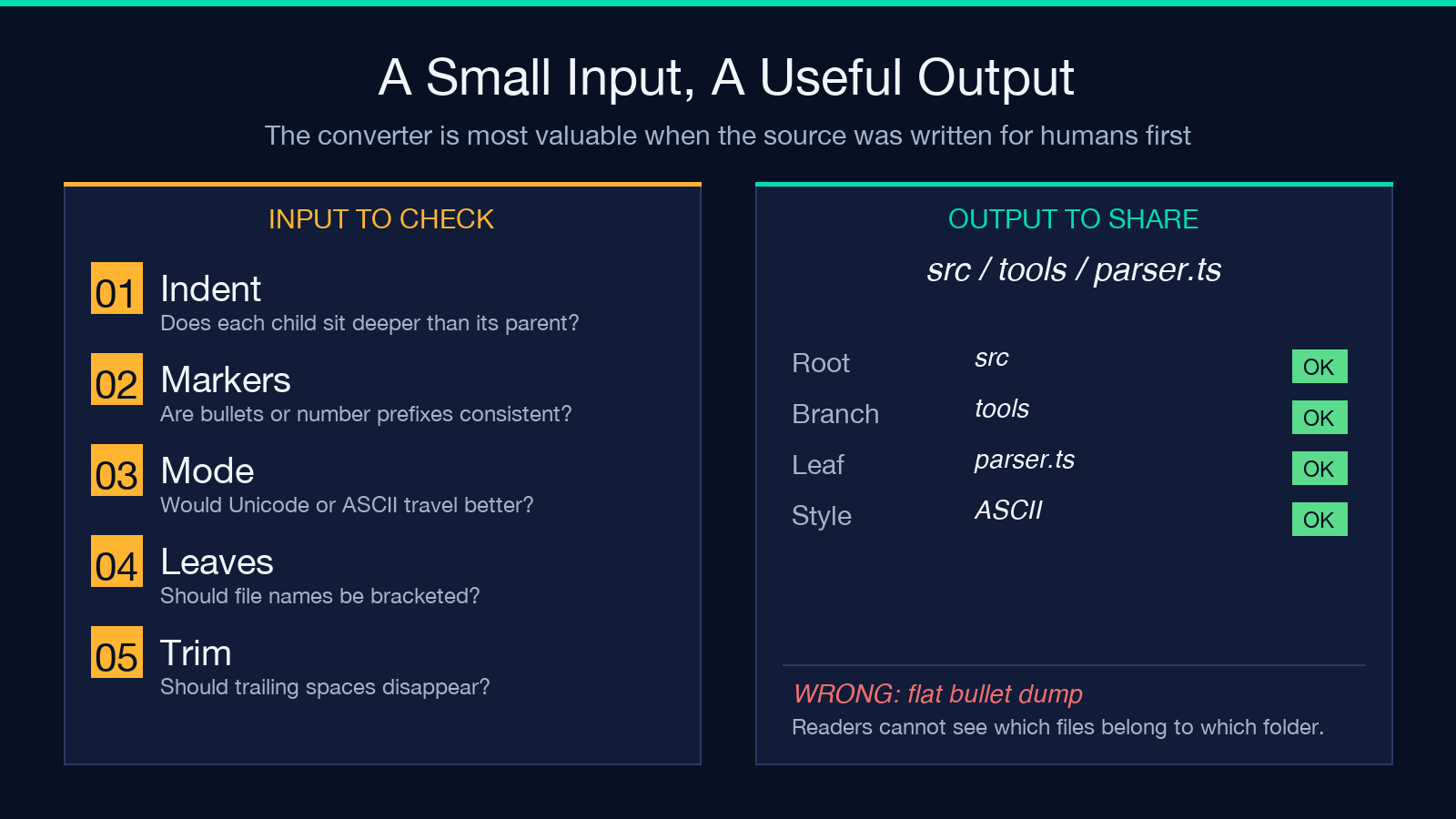
Strip trailing whitespace — the converter has a trimTrailing toggle for a reason. Trailing spaces look identical in the source but break the alignment of the output. - Match the style to the surface — Unicode for README and docs, ASCII for terminal output and email. The structure is identical, only the glyphs change. - Bracket the leaves when the meaning matters — the leafBracket option turns parser.ts into [parser.ts]`, which is useful when the file is the topic of the paragraph that follows.
Those five choices cover most of the “why does this look wrong?” moments without ever touching the source list again.
A small workflow that holds up
The reason the tool earns a permanent place in the toolbox is that the workflow is short and forgiving. A typical run looks like this:
- Open the source — a
README, a meeting note, a chat log. - Copy the indented section, including the blank lines that bracket it.
- Paste into the Indented List to ASCII Tree input, pick Unicode or ASCII, and let it run.
- Copy the output. The output is plain text, so it pastes cleanly into the destination.
- If the destination renders boxes instead of tree characters, switch to ASCII style and re-copy.
There is no build step, no plugin, no theme to install. The converter is a one-shot read of a small piece of text, and the output goes wherever plain text goes. That is the entire point.
When the project on disk outgrows the snippet, the next step is not a fancier tool — it is a fresh copy of the source list. The parser will keep reading the same way every time, so the only thing that changes is the project.
For more ideas on turning prose into artefacts you can paste anywhere, browse the rest of the Elysia Tools text utilities. Trees, lists, and structured notes all live in the same place, and the same workflow applies to each of them.
