
The job is not to convert a PDF to an image; the job is to produce a folder your downstream script can pick up without a human in the loop. When most teams need PDF pages as images, they reach for whatever their OS offers, get a Downloads folder full of cryptically named PNGs, and begin the manual renumbering and re-encoding step. The Elysia Tools PDF to Image Converter exists for the moment you decide exactly which pages you want, in what format, and at what quality, before any of them hit disk. Treat it less as a converter and more as a policy tool: per-page output, batch output, size-aware output, and dim-preserving output, all driven from the same control surface.
Why PDF-to-Image Is Its Own Job, Not a Side Effect of a PDF Reader
The naive path is to open the PDF in a viewer, take a screenshot, paste into an image editor, and save. This works for one page. For ten pages, the loop is a tax on attention. For a hundred pages drawn from monthly reports, screenshots become a denial-of-service attack on whoever is supposed to write the captions.
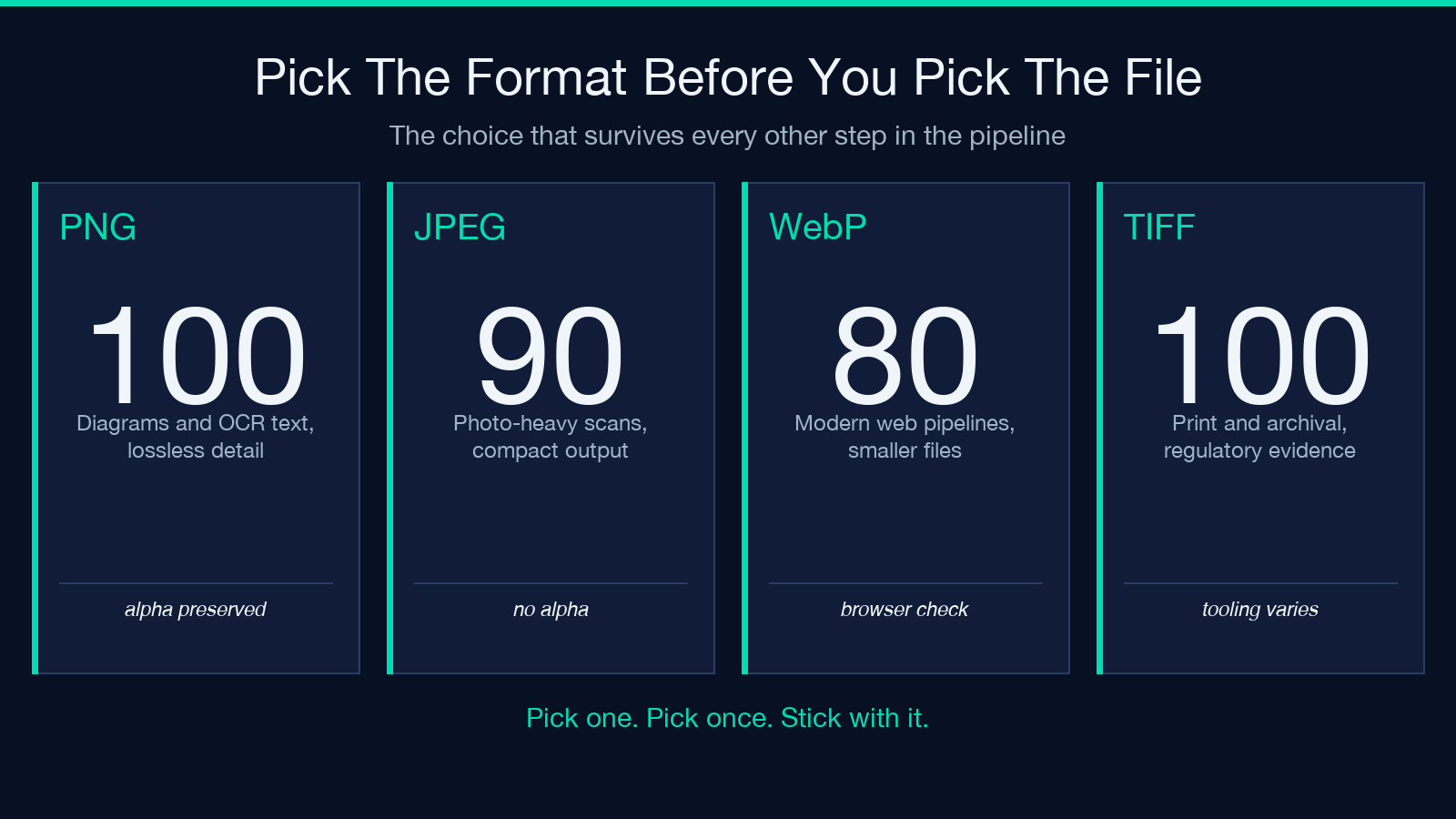
A dedicated converter shifts three decisions left. First, which pages: a contiguous range, a list, or every page. Second, at what size: full resolution, scaled to a width, scaled to a fixed height, or capped to a maximum edge. Third, in what format: PNG for transparency and lossless detail, JPEG for compact photo-heavy pages, WebP for modern web pipelines, and TIFF for archival and print. Once those three answers are in place, the conversion is mechanical; the converter’s only job is to be predictable and to never lose a page in the middle of a batch.
The Two Output Modes That Matter
In practice you will use one of two configurations more than any other: single page export, which chooses one page and emits one image with a sensible filename based on the source PDF; or whole-batch export with a folder name pattern, which selects a range or every page and produces a folder of consistently named files. Use the first when you need a chart for a slide or a diagram for a doc; use the second when the PDF is a 50-page contract pack, a regulatory filing, or any document that has to be searched as separate assets.
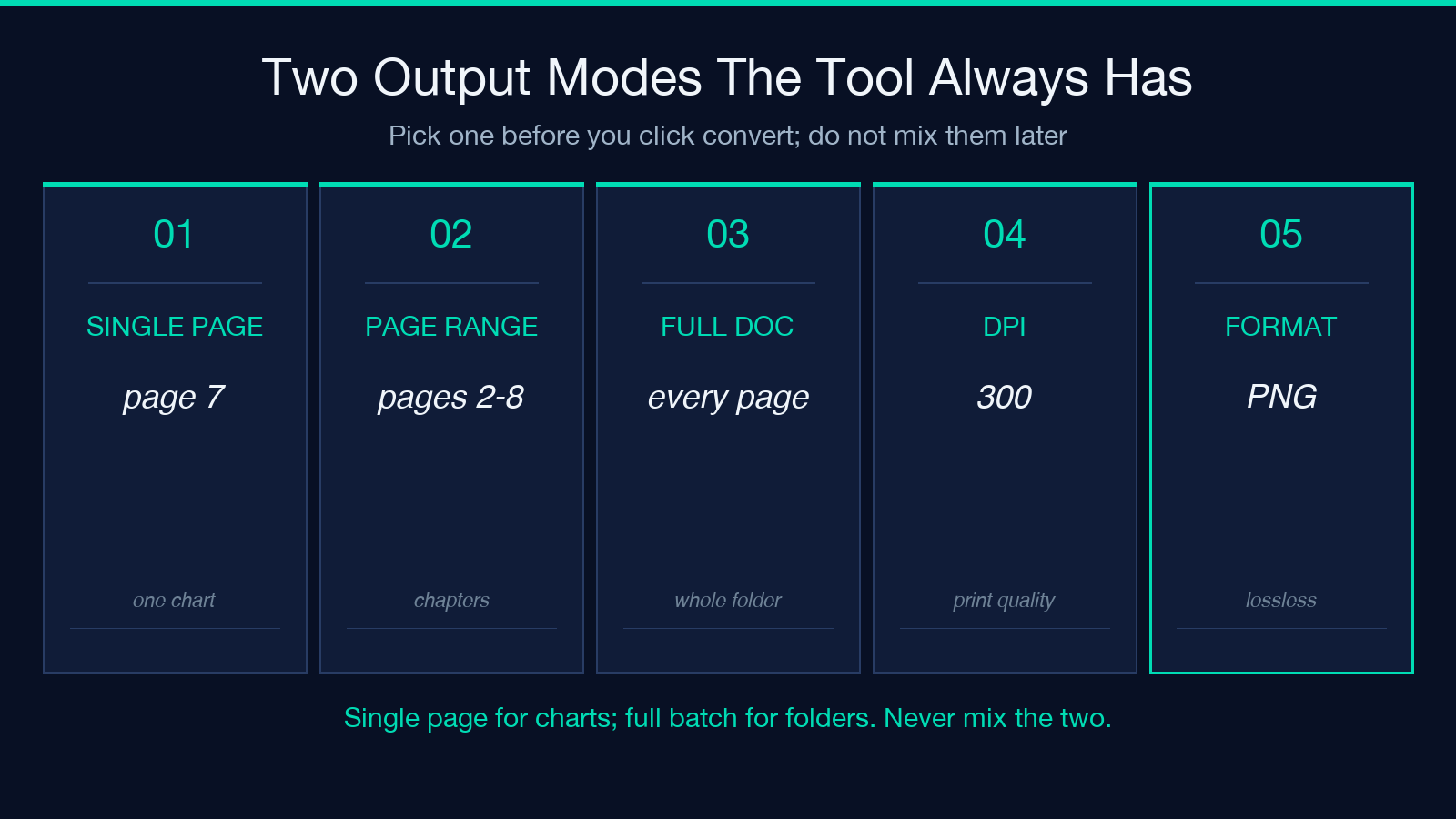
The mistake to avoid is mixing modes. If you ask for “page 1” but the PDF is 200 pages, you do not want the tool to silently assume you meant “all pages.” Predictability means the output exactly matches what you typed, in count, in naming, and in dimension. If the conversion produced seven files when you asked for ten, the tool is broken even if every individual file is technically correct.
Format Choice and the Quality/Size Knob
The output format trade looks like this:
- PNG for diagrams, screenshots, anything with text you might OCR later. Watch out for file size; a 50-page deck at full PNG can run into the gigabytes.
- JPEG for scans, photo-heavy PDFs, slide decks where size matters. Re-encoding the same image later compounds artifacts, so pick JPEG once and stop touching it.
- WebP for modern web pipelines and image CDNs. Older viewers may not display it inline, so prefer it when the destination is also modern.
- TIFF for print, archival, and regulatory compliance. File size and tooling support vary by OS, so do not use it casually.
A DPI/dimension setting drives how sharp the image is. 72 is screen quality, 150 is general print, 300 is high-fidelity print and OCR-critical scans. The relationship between DPI and file size is non-linear: doubling DPI roughly quadruples pixel count and triples or quadruples file size. Decide once whether you actually need 300, or whether 150 plus a single re-encode at the end is enough.
What a Good Batch Export Solves
When the conversation changes from “I need page 7” to “I need a folder of consistent assets the team can hand around,” three issues become real, and a predictable converter solves all three in one step. Order, because a folder named cover, page-002, page-003, ..., page-050 sorts correctly in every viewer, while a folder named page-1, page-10, page-2 requires a downstream script just to fix lexicographic order. Naming collision, because if the PDF has an internal file path that includes a colon, dropping it into a Windows-friendly filename can collide or break. And re-runnability, because if the PDF is updated, you can re-run the same batch config and re-emit the folder with the same naming, then diff outputs without sorting noise. The PDF to Image Converter handles all three with a width-padded numeric prefix and OS-aware filename normalization.
Common Failure Modes and How to Defuse Them
A PDF that prints fine may not convert fine. The most common reasons are: embedded fonts stripped on export, where some viewers export pages as if fonts are present but the conversion renders them as raw glyph shapes or boxes; transparent overlays collapsing unexpectedly, where PDF supports layered transparency and not every image format preserves it, so PNG preserves alpha and JPEG does not; and mixed-page sizing getting normalized away, where a PDF that has one landscape page and 49 portrait pages sometimes gets exported as 50 landscape images because the converter picked the longest page edge rather than each page’s native size.
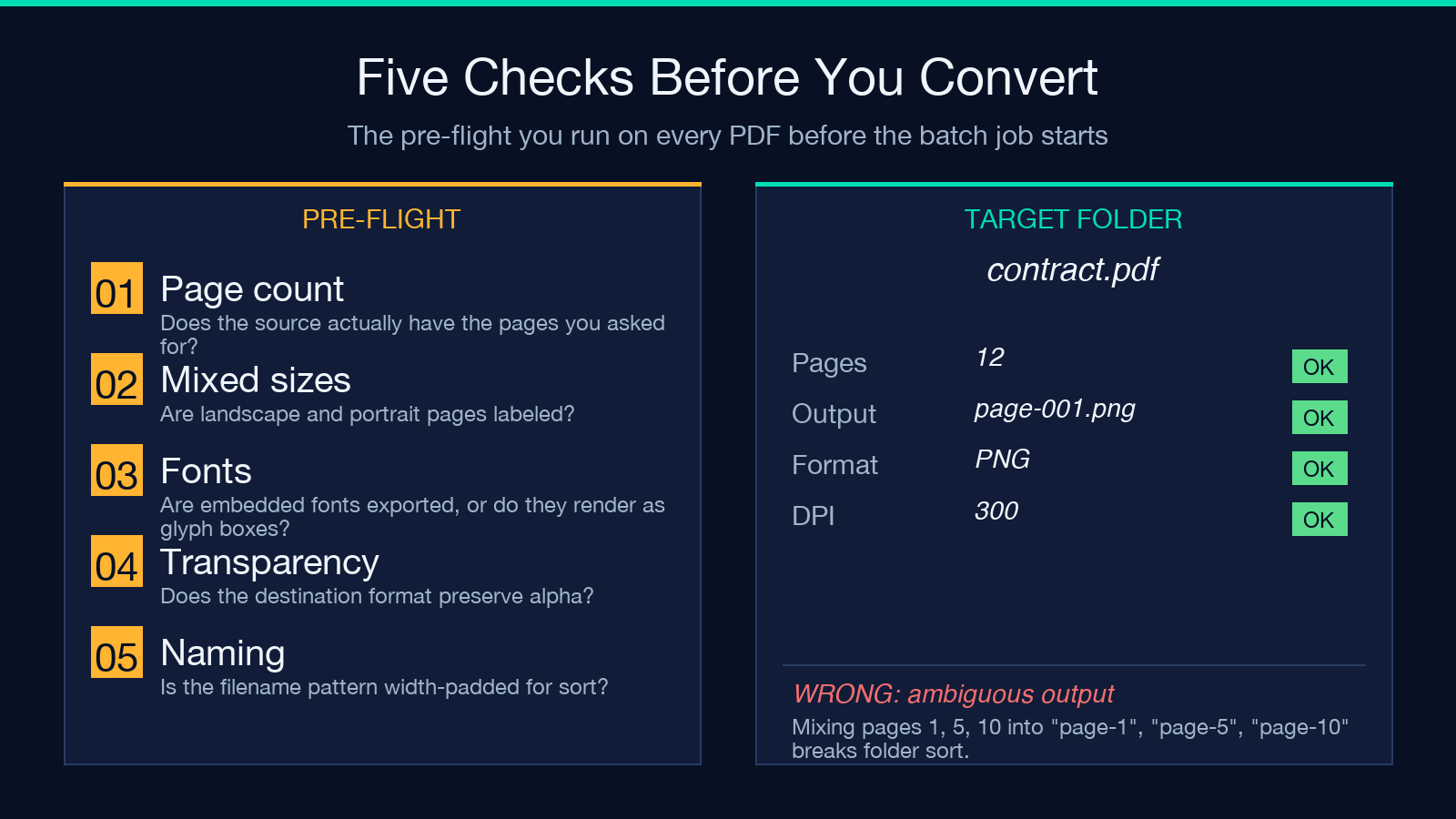
When something goes wrong, the diagnostic is almost always one of these three. Pick the right format, the right DPI, and the right page-by-page sizing, and most pipeline failures disappear.
How to Wire It Into a Pipeline
The most useful way to deploy this is just before an upload step. Assume you have a script that receives a PDF and returns an asset folder. The script calls the converter, gets a folder, zips or uploads the folder, and logs which pages were emitted. If the conversion produces a different page count than expected, the script aborts before the upload — because a partial upload is worse than no upload. This is the same workflow you would adopt for any “this file might not be what I think it is” step in a pipeline: confirm before you commit.
A Note on Privacy
PDFs are often sensitive — contracts, medical records, financial statements. The convention I prefer is to run the conversion locally and inspect the output folder before any upload step. The Elysia Tools version of PDF to Image Converter runs in your browser, so the file does not leave your machine during conversion. For teams handling regulated data, this matters more than any feature list: the privacy property is structural, not a setting.
Closing
The worth of a PDF-to-image tool is not in how fast it can convert a 200-page deck; that is a solved problem. The worth is in how unfailingly it produces a folder that another script can pick up and process without a human in the loop. Set the format once, set the DPI once, set the page range once, and the output is whatever your downstream step expects. Explore more conversion tools at elysiatools.com.
