
You do not need a terminal to read a certificate anymore. Paste a PEM block from a server, a CSR your customer emailed, or a .crt file your CA portal just delivered, and the X.509 Certificate Decoder hands back a structured, navigable breakdown: subject, issuer, validity window with an explicit expired-or-valid verdict, public-key algorithm and bit length, signature algorithm, serial, Subject Alternative Names, Key Usage / Extended Key Usage extensions, and the SHA-1, SHA-256 and SHA-512 fingerprints, all without a single shell command, all without uploading the cert to a third-party scanner. If you have ever wished openssl x509 -text -noout were a web page that updates as you paste, this is the tool.
The reason it earns its place in a security toolbox is that it solves the readability gap between raw PEM and openssl. The text dump is exhaustive, technically complete, and visually impenetrable for the 90% of questions you actually have: is this expired, who signed it, what hostnames does it bind to, and what fingerprints do I whitelist in my CDN or known_hosts-style blocklist. The decoder answers those four questions in the first scroll, then layers the full extension tree below.
Why a Browser-Based Decoder Is a Real Productivity Win
The first time you work a certificate incident from a coffee shop, you discover the second-floor limitation of openssl: the command is everywhere, but the human hours are at your laptop, and pulling a cert out of an S3 bucket to paste into a terminal often costs more than reading it. The decoder closes that loop. Copy the PEM from your CA’s download page, paste, read.
The second reason is reproducibility. When you share a finding with a teammate, you can paste a link to the decoded view with the cert already loaded. When you file a ticket with your CA support, the decoded view tells you exactly which field they need to see. When you audit a fleet of hundred-of-certs Let’s Encrypt output, the decoder’s fingerprint field is the only piece you actually need to diff, and it is at the top.
If you operate a staging pipeline that generates throwaway certs, the decoder also doubles as a teaching artifact for new engineers who have never seen a CSR. They paste the example, see the public-key modulus line, and learn what those bytes actually mean.
The Five-Field Reality Check
When a certificate fails validation somewhere downstream — your CDN returns 403 on a webhook, your reverse proxy refuses a mutual-TLS handshake, your monitoring tool flags a cert for rotation — start the investigation with five fields:
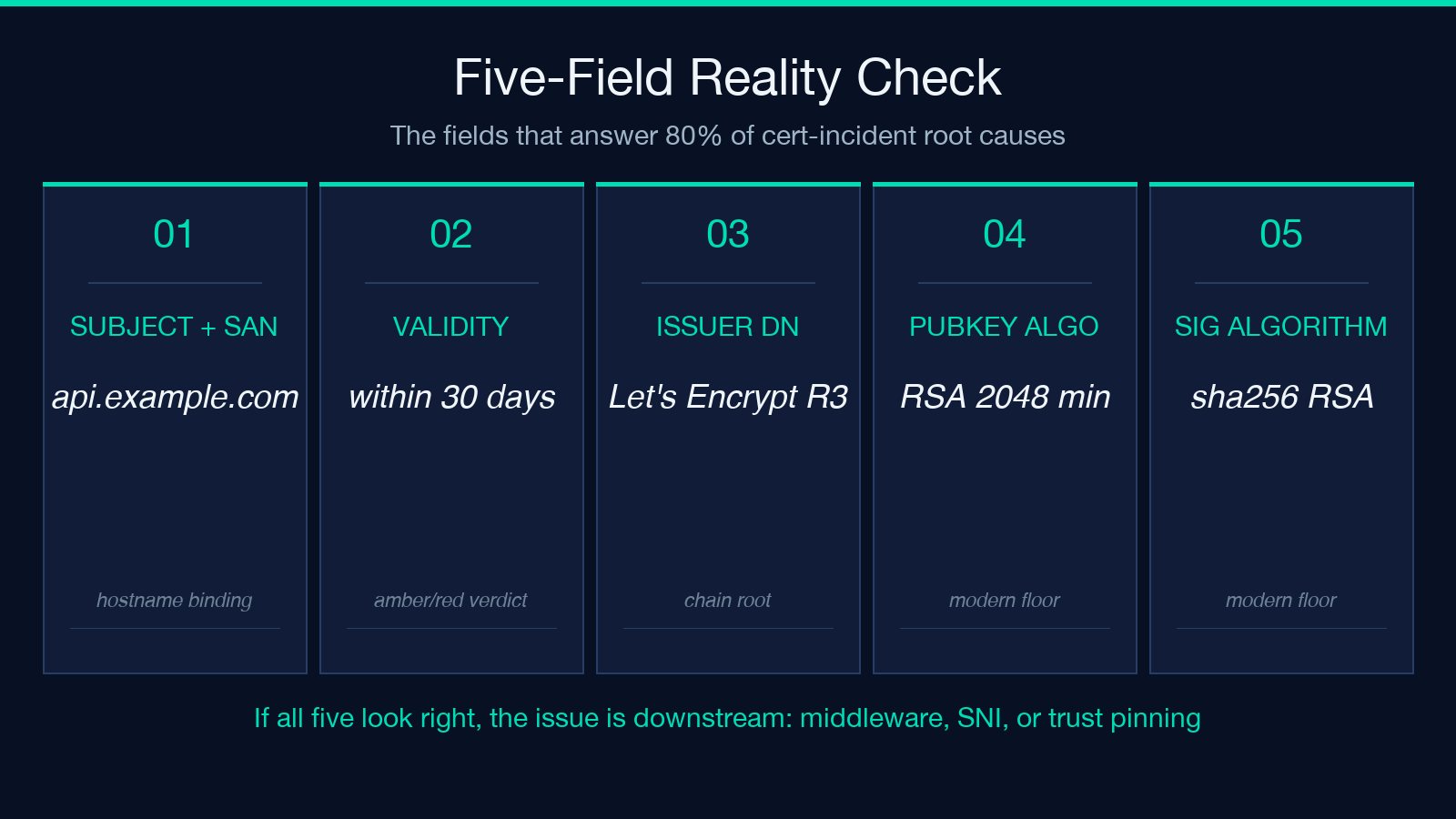
- Subject Common Name + SAN list — confirm the cert is actually for the hostname you are testing. A perfectly valid cert for
api.example.comis a perfectly invalid cert forwebhook.example.com. - Validity period (Not Before, Not After) — paired with the current timestamp, the tool highlights expired certs in red and certs expiring within 14 days in amber. This is the most common failure mode for production incidents.
- Issuer DN — confirms the cert chains to a CA your trust store accepts. Self-signed certs in production are the second most common failure mode.
- Public-key algorithm and bit length — RSA 2048 is the 2026 floor; RSA 1024 is rejected by every modern TLS 1.3 client. ECDSA P-256 is the modern preferred choice for new certs.
- Signature algorithm —
sha256WithRSAEncryptionandecdsa-with-SHA256are the modern minimums.sha1WithRSAEncryptionis rejected by browsers and CDNs since 2017.
If all five look right, the issue is downstream: middleware, header validation, SNI mismatch, or trust-store pinning.
How to Read the Output, Field by Field
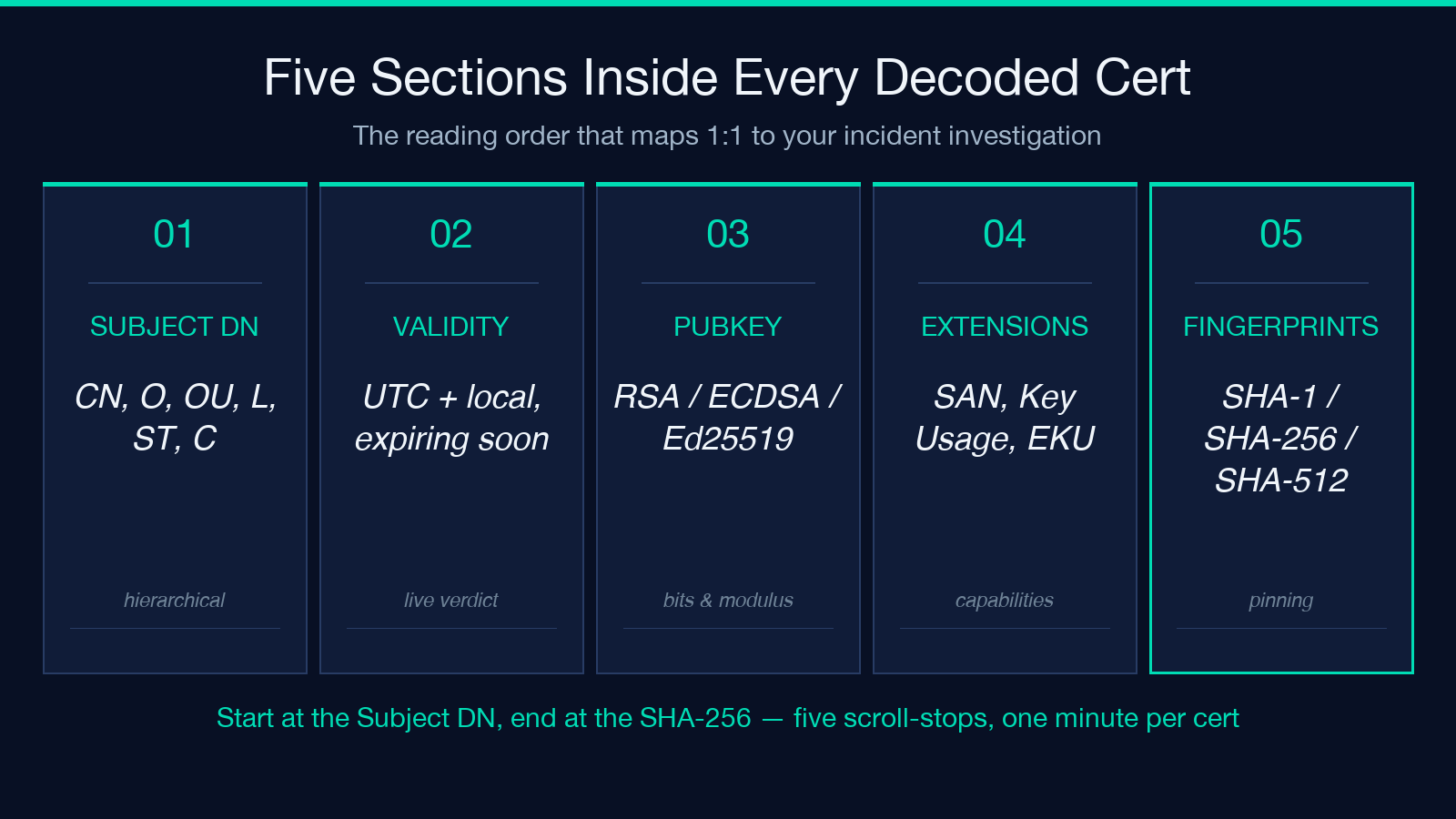
The decoder breaks the certificate into five sections, each one answering a different question about the cert’s identity and trust path.
Subject and Issuer
The first two blocks are the Distinguished Name (DN) of the cert owner and the DN of the signing CA. Both render as a tree of relative distinguished names: CN, O, OU, L, ST, C. Read top to bottom to get the full hierarchical name.
For the issuer, the deepest signal is whether it matches a public CA you trust (Let’s Encrypt R3, DigiCert, Sectigo) or an internal CA from your own PKI. Internal CA certs require the CA chain to be installed in every client’s trust store, which is why staging certs often fail when promoted to production.
Validity Window with Expiry Verdict
The validity window is the cert’s Not Before and Not After timestamps, displayed in UTC and your local timezone. The tool renders a green check if the cert is currently valid, an amber warning if it expires within 30 days, and a red cross if it has already expired. The expiry verdict is computed at decode time, not at cert-issuance time, so it always reflects the current moment.
This is the field that catches 80% of incident root causes. Production certs should be rotated before the amber threshold, ideally with a 60-day buffer so you have time to handle revocation, CA-side delays, and CDN propagation.
Public Key, Signature Algorithm, and Fingerprints
The cryptographic identity of the cert. The public-key block shows the algorithm (RSA, ECDSA, Ed25519), the bit length (2048, 3072, 4096 for RSA; 256, 384, 521 for ECDSA), and the modulus or curve point. For RSA, the modulus is rendered as a colon-separated hex string with the standard 4-character grouping.
The fingerprint block shows SHA-1, SHA-256, and SHA-512 fingerprints, all as colon-separated uppercase hex. The SHA-256 fingerprint is what goes into your CDN’s cert pinning config, your .well-known-based caa-policy records, and your known_hosts-style SSH-equivalent trust files.
Extensions: SAN List, Key Usage, Extended Key Usage
The extensions block is the longest section and contains the cert’s actual capabilities:
- Subject Alternative Name (SAN) — every hostname and IP the cert is valid for. Modern certs ignore the Subject CN entirely; only the SAN list matters.
- Key Usage —
digitalSignature,keyEncipherment,keyAgreement. Certs withkeyCertSignare CA certs; certs withoutkeyEnciphermentcannot do RSA key exchange (TLS 1.2 and earlier). - Extended Key Usage —
serverAuth,clientAuth,codeSigning,emailProtection. Web server certs needserverAuth. Mutual-TLS certs need bothserverAuthandclientAuth.
Reading PEM vs. DER vs. CSR
The decoder accepts three input formats:
- PEM — the base64-encoded ASCII block with
-----BEGIN CERTIFICATE-----and-----END CERTIFICATE-----markers. The most common format for cert delivery via email or download portals. - DER — the binary form. Paste it as a base64 blob without the BEGIN/END markers; the decoder auto-detects and decodes.
- CSR — Certificate Signing Request, the format you send to a CA to request a new cert. Same PEM wrapper, but
-----BEGIN CERTIFICATE REQUEST-----instead of-----BEGIN CERTIFICATE-----. The decoder shows the public key and requested Subject, but no validity period (CSRs are not yet signed).
If you have a .crt file from your CA portal, it is almost always PEM. If you have a .cer file from Windows, it is either PEM or DER depending on the export wizard. If you have a .pfx or .p12 file, that is a PKCS#12 archive containing the cert plus the private key — extract the cert first with openssl pkcs12 -in your.pfx -clcerts -nokeys -out extracted.crt before pasting.
Common Use Cases
Validating a Let’s Encrypt Renewal
After certbot renew runs, copy the new fullchain.pem from /etc/letsencrypt/live/your-domain/, paste it into the decoder, and confirm:
- The new Not After is ~90 days out.
- The SAN list includes every hostname you expected.
- The Issuer is still
Let's Encrypt R3(or your staging CA). - The SHA-256 fingerprint matches the one in your CDN pinning config.
If any of those four are wrong, your CDN will start returning 403 within minutes, and you want to know before your monitoring catches it.
Reading a CSR from a Customer
When a customer emails a CSR for a cert you are about to sign with your internal CA, paste the CSR into the decoder and confirm the Subject DN matches what they requested, the public-key algorithm is at least RSA 2048 or ECDSA P-256, and the SAN list contains every hostname they will serve the cert on. Signing a CSR with typos is recoverable; rotating a deployed cert after you discover the typo is not.
Auditing a Fleet of Staging Certs
For internal PKI, paste each staging cert into the decoder in batch. The five-field reality check above catches expired certs, missing SAN entries, and self-signed-in-production mistakes. Most staging environments have a 5-10% cert-expiry failure rate that nobody notices until the staging env goes down on a Friday afternoon.
What This Tool Does Not Do
Honest scope notes, because the decoder’s edges matter:
- It does not validate trust chains. The decoder tells you the Issuer DN; it does not walk the chain to a root CA. Use
openssl verifyor your language’s TLS library for chain validation. - It does not check revocation (CRL or OCSP). Use your TLS client’s OCSP stapling config or a dedicated revocation checker.
- It does not decrypt PKCS#12 archives. You need
openssl pkcs12for that step. - It runs locally in your browser. The cert never leaves your machine; this is a feature for high-sensitivity certs (production roots, internal CAs) where uploading to a third-party decoder is not acceptable.
The Fingerprint Diff That Catches a Rogue Cert
The single highest-value operation in any cert workflow is comparing two fingerprints to confirm they match. When certbot renew succeeds, you want to know the new cert’s SHA-256 matches the one your CDN config references. When a vendor emails you a new cert, you want to confirm the SHA-256 you received matches the one in their public CT logs. When a security incident flags a possible rogue cert, the only safe response is to compare the fingerprint against your CA’s published set.
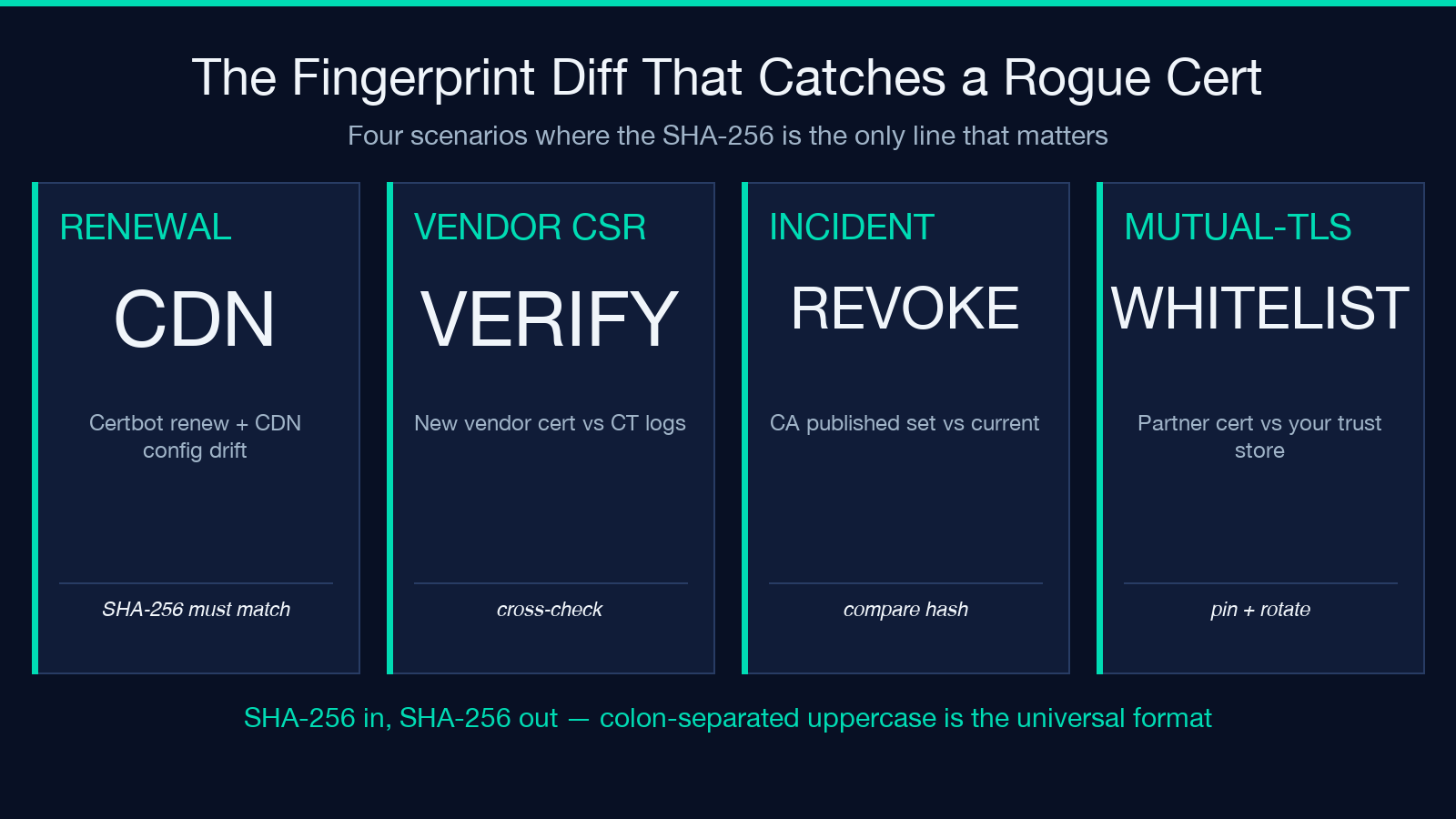
The decoder’s fingerprint block is positioned for this exact comparison: copy the SHA-256 from the decoder, paste into your CDN config or known_hosts-style trust file, and the diff is one command away. The colon-separated uppercase format matches what every tool on the receiving end expects, including openssl x509 -fingerprint -sha256 -noout, every CDN pinning UI, and every Java KeyStore import flow.
For high-trust certs, the SHA-512 fingerprint is a defense-in-depth option: SHA-256 collisions are not yet practical, but having the SHA-512 in your audit log means a future collision event still leaves you with a hash to cross-check.
Why Local Decoding Matters for High-Sensitivity Certs
Production root CAs, internal CA hierarchies, code-signing certs, and partner-shared mutual-TLS certs are exactly the ones where uploading to a third-party decoder is unacceptable. The cert content reveals hostname patterns, infrastructure topology, and CA trust relationships that you do not want in a third party’s logs.
The decoder runs entirely client-side: the cert is parsed in your browser, the output is rendered in your browser, and no network request leaves your machine with the cert content. This is the workflow you want for production root CA inspection, internal CA debugging, and partner mutual-TLS troubleshooting. The URL-shareable output is for read-only views of cert content you have already decided is safe to share, not for certs that have not yet been reviewed.
For the broader cryptography and TLS workflow, browse the related samples at Cryptography and Encryption Samples and the Git Branch Name Samples for adjacent validation patterns.
Quick Reference Workflow
- Copy the PEM block from your CA’s download portal, your
certbotoutput, or your customer’s CSR email. - Paste into the X.509 Certificate Decoder.
- Scan the five-field reality check: Subject CN, Validity verdict, Issuer DN, Public-key algorithm, Signature algorithm.
- Confirm the SAN list includes every hostname you expect.
- Copy the SHA-256 fingerprint into your CDN pinning config or trust store.
- For fleet audits, repeat across all staging certs and flag any expired or expiring-soon entries.
The whole investigation takes 30 seconds per cert, and the URL is shareable so your teammate can see exactly what you saw.
Explore more security and validation tools at elysiatools.com.
