
The extractor is most useful when you treat it as a documentation habit, not a one-off inspection. Pick one option profile (markdown output, flatten nested keys, include data types, alphabetical sort), run it on every JSON payload your team produces, and paste the resulting table into the wiki. The table stays accurate because it’s generated from real output, not from the team’s memory of what the API returned three months ago. Every JSON-driven codebase eventually needs the same thing: a flat list of every key in a payload, with its type and where it lives. That work is mechanical, but the shape of the output you ask for decides whether the next script is a one-liner or a hundred lines of bespoke traversal. The JSON Key Extractor on Elysia Tools collapses the recursion, the formatting, and the type-stamping into a single paste-and-copy, with four output formats (plain list, JSON array, Markdown table, hierarchical tree) that cover most of the workflows you’ll actually want.
This field guide walks through when each format earns its keep, how the eight options interact (and where they conflict), and the patterns that turn the extractor from a one-off inspection tool into a repeatable documentation habit. By the end you’ll know which knob to turn for OpenAPI schema reverse-engineering, which combination produces a usable diff between two JSON shapes, and why “Include Data Types” is the single switch that makes the output worth generating in the first place.
Why Extract Keys in the First Place
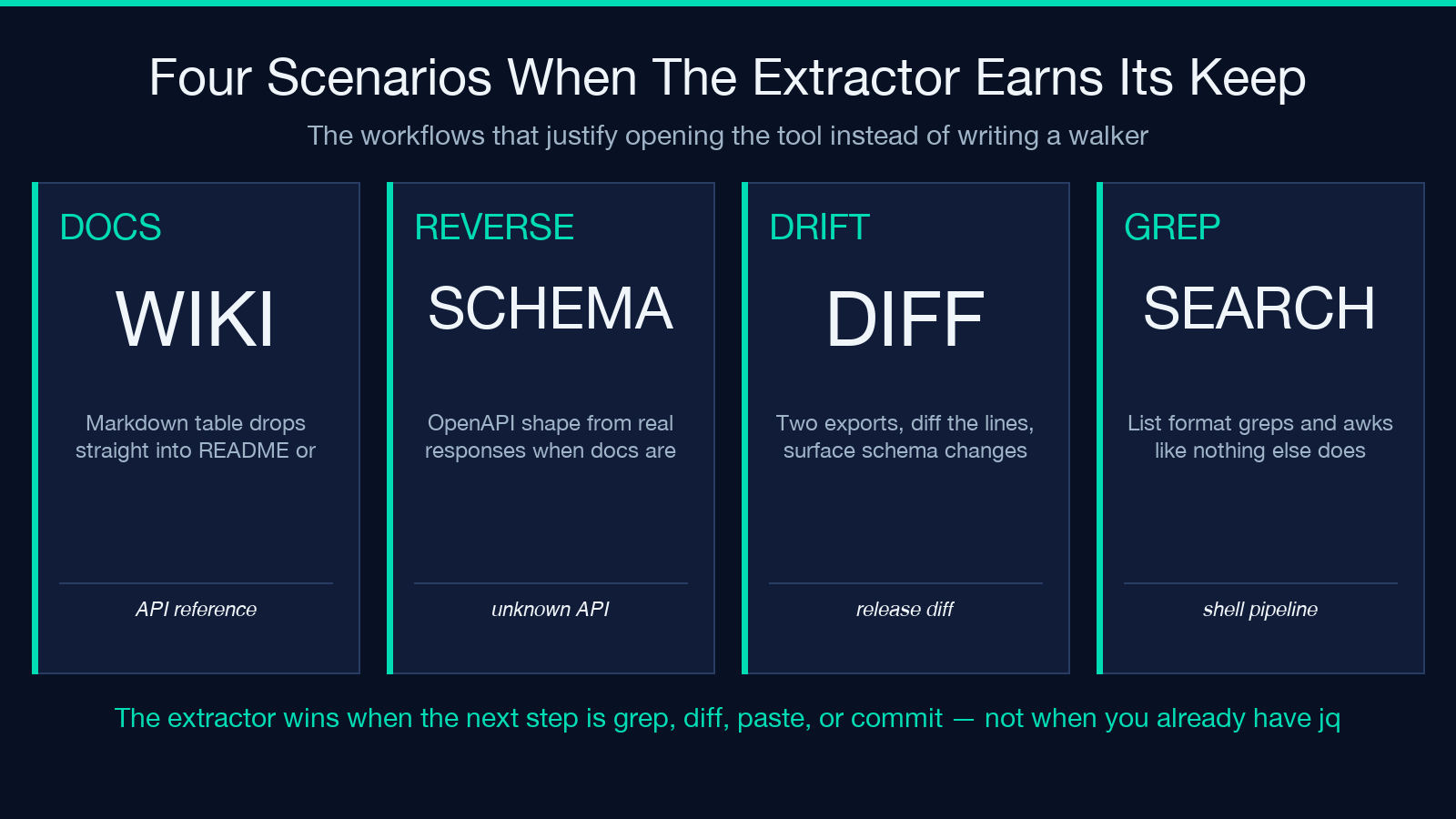
The most common reason to extract keys is documentation. A REST API returns a deeply nested object, the team needs a Markdown table of fields for the wiki, and the only honest answer is to read the actual response. Pasting the JSON into the extractor with outputFormat=markdown and flattenKeys=true gives you a table that can be dropped straight into a wiki page — key, type, depth, no manual cleanup. For reverse-engineering a public API whose schema is unpublished or stale, this is often the fastest path to a working reference.
The second reason is sanity-checking. A test fixture loads a JSON config, the test fails with “undefined is not a function”, and you need to know whether the field is user.profile.name or user.profile.displayName. The extractor’s full-path mode (includePath=true, outputFormat=list) prints one line per key — user.profile.name followed by the type and the full path — which is far easier to grep than the original JSON.
The third reason — and the one most people don’t expect — is schema drift detection. Export the keys from production on Monday, export again on Friday, diff the two lists. Any new field or removed field becomes a candidate for a migration note. The extractor doesn’t diff for you, but it produces the canonical input that any text-diff tool can consume.
For all three workflows, the tool itself lives at JSON Key Extractor. It’s free, runs entirely in-browser, and accepts payloads up to whatever the browser textarea can hold.
The Four Output Formats — When Each One Earns Its Keep
The four output formats aren’t redundant — they map onto four downstream consumers, and choosing the wrong one wastes the work the extractor did.
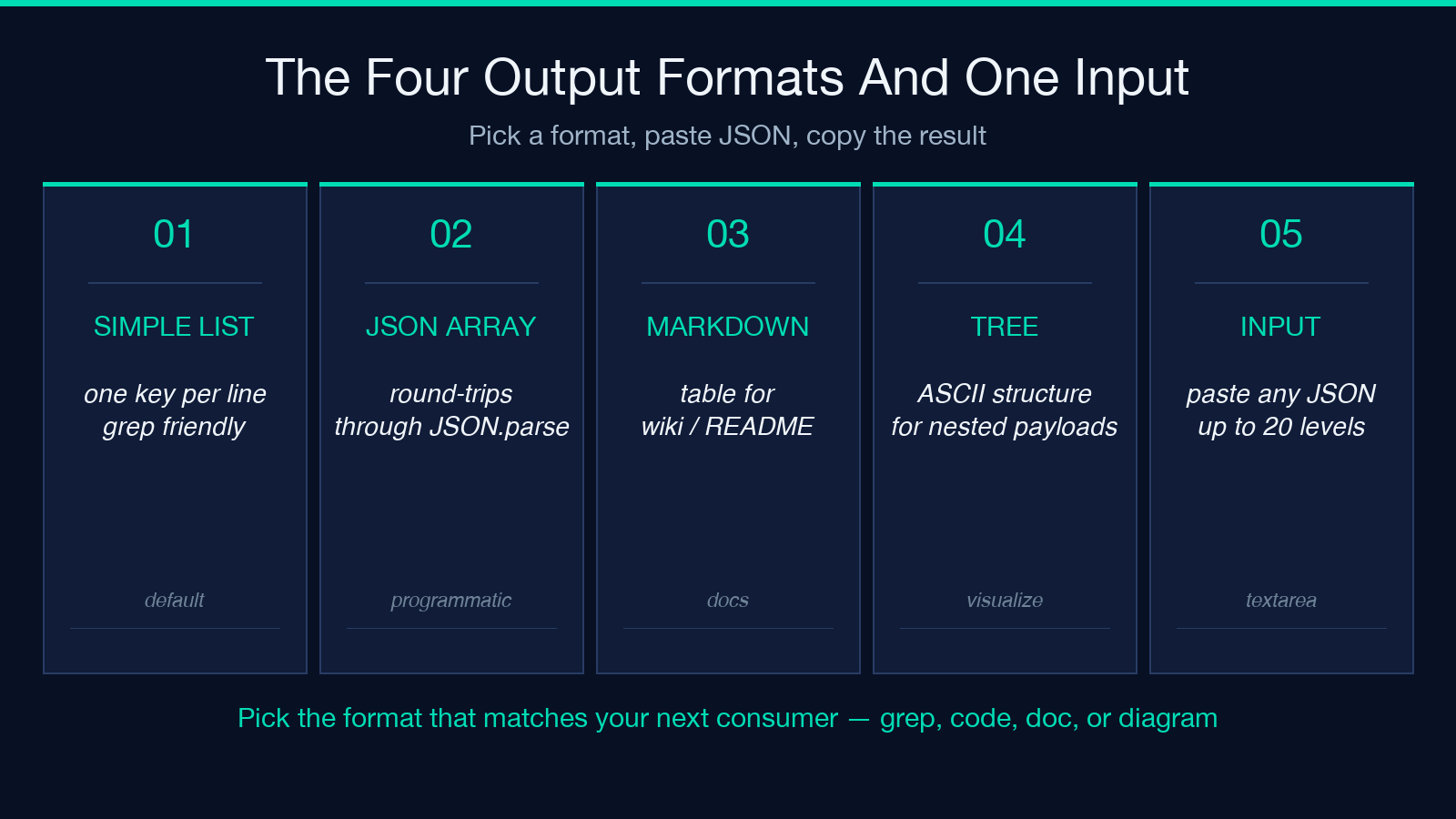
Simple List (outputFormat=list) is the default, and the right choice for grep. One key per line, optionally suffixed with (type) and [path]. If your next step is grep, awk, or a shell pipeline, this is the format. It also survives copy-paste into Slack, Notion, and GitHub comments without escaping issues.
JSON Array (outputFormat=json) is the right choice for programmatic consumption. The output is a JSON array of {key, type, depth, path} objects, pretty-printed. If your next step is feeding the keys into another script, this is the only format that round-trips through JSON.parse without a custom parser. Pair it with includePath=true to preserve the full dot-path.
Markdown Table (outputFormat=markdown) is the right choice for documentation. The output is a GFM-compatible table with columns Key, Type, Path, Depth. Drop it directly into a wiki, README, or design doc; it renders cleanly on GitHub, Notion, and most static-site generators.
Hierarchical Tree (outputFormat=tree) is the right choice for visualizing nested structure. The output uses ASCII indentation to show parent-child relationships. If you’re trying to understand a 5-deep payload where flat output feels overwhelming, this is the format.
The Eight Options and How They Combine
The extractor’s eight options are independent in principle but interact in practice. Here’s the practical cheat sheet.
The three format-defining options — outputFormat, flattenKeys, and includePath — control shape. Set flattenKeys=true to get dot-notation paths (user.profile.name); set flattenKeys=false to get one entry per nested object, with parent keys listed separately. Set includePath=true to print the path alongside the key (only useful when paths and keys differ, i.e. when nested).
The two type-defining options — includeTypes and removeDuplicates — control content. includeTypes=true adds the JSON type as a parenthetical or table column. removeDuplicates=true collapses repeats (the same key appearing at multiple depths into a single entry); turn it off when you want to count occurrences.
The three behaviour-defining options — sortBy, maxDepth, and the input itself — control scope. sortBy can alphabetize, group by depth, group by type, or leave insertion order. maxDepth (1-20) caps how deep the recursion goes; the default 10 handles almost every realistic payload, but bump it down to 1 if you only want top-level keys.
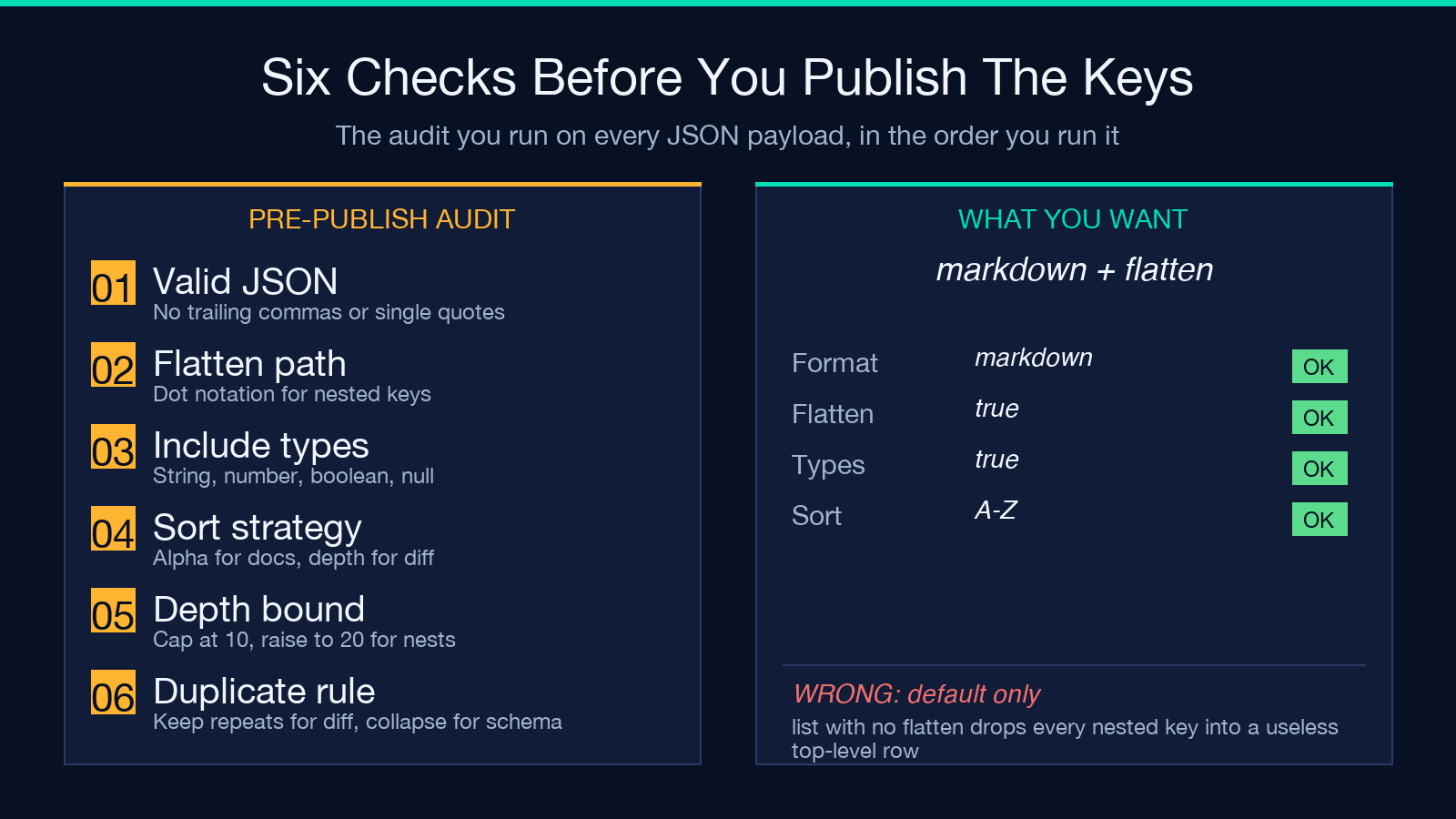
The single most useful combination for documentation is outputFormat=markdown + flattenKeys=true + includeTypes=true + sortBy=alphabetical. This produces a clean table where rows are sorted A-Z and every key is annotated with its JSON type. For diff workflows, swap sortBy to depth so the diff shows structural changes before naming changes.
Worked Example: Reverse-Engineering a Public API
Suppose you’re integrating with a third-party API that returns user objects like this:
{
  "id": "usr_123",
  "email": "[email protected]",
  "profile": {
    "name": "Jane Doe",
    "avatar": "https://cdn.example.com/a/123.jpg",
    "preferences": {
      "language": "en-US",
      "timezone": "America/Los_Angeles",
      "notifications": {
        "email": true,
        "push": false,
        "sms": null
      }
    }
  },
  "roles": ["admin", "billing"],
  "createdAt": "2025-01-15T10:30:00Z"
}
Paste that into the extractor with outputFormat=markdown, flattenKeys=true, includeTypes=true, sortBy=alphabetical. The output is a 9-row Markdown table:
| Key | Type | Depth |
|-----|------|-------|
| createdAt | string | 1 |
| email | string | 1 |
| id | string | 1 |
| profile.avatar | string | 2 |
| profile.name | string | 2 |
| profile.preferences.language | string | 3 |
| profile.preferences.notifications.email | boolean | 4 |
| profile.preferences.notifications.push | boolean | 4 |
| profile.preferences.notifications.sms | null | 4 |
| profile.preferences.timezone | string | 3 |
| roles | array | 1 |
The same payload with outputFormat=tree produces an ASCII tree that emphasizes structure over enumeration — useful when you want to show a colleague “here’s how nested this thing is” without making them read 12 lines of curly braces.
Two things jump out from this output that wouldn’t be obvious from the raw JSON: roles is the only field with an array type at depth 1, and notifications.sms is the only field with a null type. The first observation tells you the API returns a flat list of role names; the second tells you the field exists but is optional. Both are facts you’d have to read carefully to extract from the original payload.
Worked Example: Spotting Schema Drift Between Releases
Suppose your team owns a JSON config that’s versioned alongside the application. To detect schema drift between two releases, export the keys from each version and diff them. The extractor doesn’t have a diff mode, but it produces the canonical list that any text diff tool can consume.
Version 1 (Monday) — outputFormat=list, flattenKeys=true, sortBy=alphabetical:
apiKey string
endpoints.primary string
endpoints.secondary string
retries number
timeoutMs number
Version 2 (Friday, after a feature shipped) — same options:
apiKey string
endpoints.primary string
endpoints.secondary string
endpoints.tertiary string
retries number
retries.backoffMs number
timeoutMs number
A diff between these two lists immediately surfaces three changes: endpoints.tertiary was added, retries got a new nested backoffMs child, and the rest is unchanged. That diff is the input to your changelog, your migration guide, and your test-fixture update. The same diff against the original JSON would have produced the same three changes but buried inside 30 lines of value noise.
For this workflow, keep removeDuplicates=false — you want to see every occurrence, because duplicates themselves are signal (the same key appearing at multiple depths suggests the schema is being inconsistent about where it puts fields).
Edge Cases and Common Mistakes
Empty input or invalid JSON — the extractor returns an error message rather than crashing. If you see an empty list and expected results, your input probably has a trailing comma or a single-quote string; both are common when copying from a JavaScript console.
Arrays of objects with no shared keys — the extractor walks arrays the same way it walks objects, so each array element’s keys appear with their numeric index in the path. For users: [{name: "a"}, {email: "b"}], the output includes both users.0.name and users.1.email, even though no single element has both keys. This is the correct behavior for a generic extractor; if you want a “schema union” view, post-process the output with awk or a one-liner Python script.
Maximum depth exceeded — the default maxDepth=10 covers almost every realistic JSON, but if you have a payload where one key nests inside itself recursively (think org-chart data or comment threads), you’ll see “Maximum Depth Reached” in the output. Bump the depth up to 20 and re-run.
Include Full Path is mostly redundant when flattenKeys=true. When both are set, the path appears as both the key name and the bracketed suffix. Pick one: flattenKeys=true is enough for nearly every downstream use case; includePath=true is useful only when flattenKeys=false.
How the Extractor Compares to Writing It Yourself
A developer with two minutes and node can write a 10-line recursive walk that produces a list of keys. So why use a tool?
The first reason is type annotation. Adding the type of each key — string, number, boolean, null, object, array — is another 10 lines, and another 20 to handle arrays. The extractor does it for free.
The second reason is format selection. Writing four output formats — list, JSON array, Markdown table, tree — is 50+ lines of string-building. The extractor gives you all four as a dropdown.
The third reason is edge-case handling. The extractor already handles JSON parse errors, depth limits, empty inputs, and Unicode keys correctly. A hand-rolled walker usually doesn’t, and you’ll find out the first time someone tries to extract keys from a payload with a Cyrillic field name.
The fourth reason is shareability. If a colleague asks “what fields does the API return?”, you can send them the extractor URL with the input pre-pasted, or send them the output table. If you wrote it yourself, you’re sending them your script.
For teams that produce JSON-driven documentation as part of every release, the extractor becomes a habit, not a one-off. The tool itself is at the same URL every time; the workflow is the same every time; the output is the same shape every time. That’s the point of a tool.
Build It Into Your Documentation Workflow
The single highest-leverage habit is this: every time you add a new endpoint or change a response shape, run the extractor on a representative payload, paste the resulting Markdown table into the design doc, and commit it alongside the code. The doc stays accurate because it’s generated from real output, not from the team’s memory of what the API returns three months later.
A close second: when reviewing a PR that touches a JSON-emitting function, paste a sample payload into the extractor and check the table against the PR description. If the description says “adds a preferences.locale field” but the table doesn’t show it, the PR is incomplete. The extractor turns a 10-minute code-read into a 30-second table-read.
For schema-drift workflows, store the extracted key list alongside the versioned config. A pre-commit hook that runs the extractor on the current config and fails the commit if the list changed without a corresponding schema-version bump is a single shell-script away, and it catches the class of bug where someone adds a field without bumping the version.
The Elysia Tools catalog has related tools for adjacent problems — check the JSON Key Renamer tool for renaming keys across a payload, the JSON Path Extractor tool for pulling values by path, and the JSON Path Visualizer for tracing how a value lives inside a nested structure. Together they cover the read-side of a JSON-driven codebase; the extractor is the index they all build on. Explore more field-tested utilities across the catalog at elysiatools.com.
