
PDF/A is not “save as PDF”. It is a family of ISO standards (19005-1, 19005-2, 19005-3) that locks a document into a self-contained, renderable-in-100-years shape, and the rules are stricter than they look. The PDF/A Validate tool from Elysia Tools runs the four pre-flight checks that decide whether a document will pass a real archival conformance test before you ever upload it to a validator: XMP metadata presence, encryption status, font embedding, and forbidden features like JavaScript actions or transparent objects. The rest of this field guide walks through what those checks actually mean, why each one trips people up, and how to fix the most frequent offenders.
What PDF/A is actually for
PDF/A is a constrained subset of PDF designed for long-term preservation. The ISO 19005 family (PDF/A-1 in 2005, PDF/A-2 in 2011, PDF/A-3 in 2012, PDF/A-4 in 2020) progressively relaxes rules while keeping the same goal: a file you can render on a vanilla PDF reader in the year 2126 without the original fonts, the original operating system, or the original creator application.
The standard cuts every feature that depends on external resources or runtime behavior:
– No external font references — every glyph must be embedded.
– No JavaScript actions, no embedded movies, no audio triggers.
– No encryption (the standard needs the bytes to be machine-readable).
– No transparency (some PDF/A-1 levels) or only ICC-tagged transparency.
– XMP metadata that names the conformance level (PDF/A-1b, -2b, -2u, etc.).
The “b” suffix means visually faithful (the most common target). The “u” suffix adds a Unicode requirement — every text string must map unambiguously to a Unicode codepoint, which matters for searchable text extraction. PDF/A-2 and -3 add support for JPEG 2000, layers, and embedded files; PDF/A-4 aligns the spec with PDF 2.0.
If you are submitting documents to a court, a regulatory archive, a national library, or any long-term records system, PDF/A conformance is usually mandatory. Pre-validating with the Elysia Tools PDF/A Validate tool before a formal submission saves a round trip.
Check one — XMP metadata
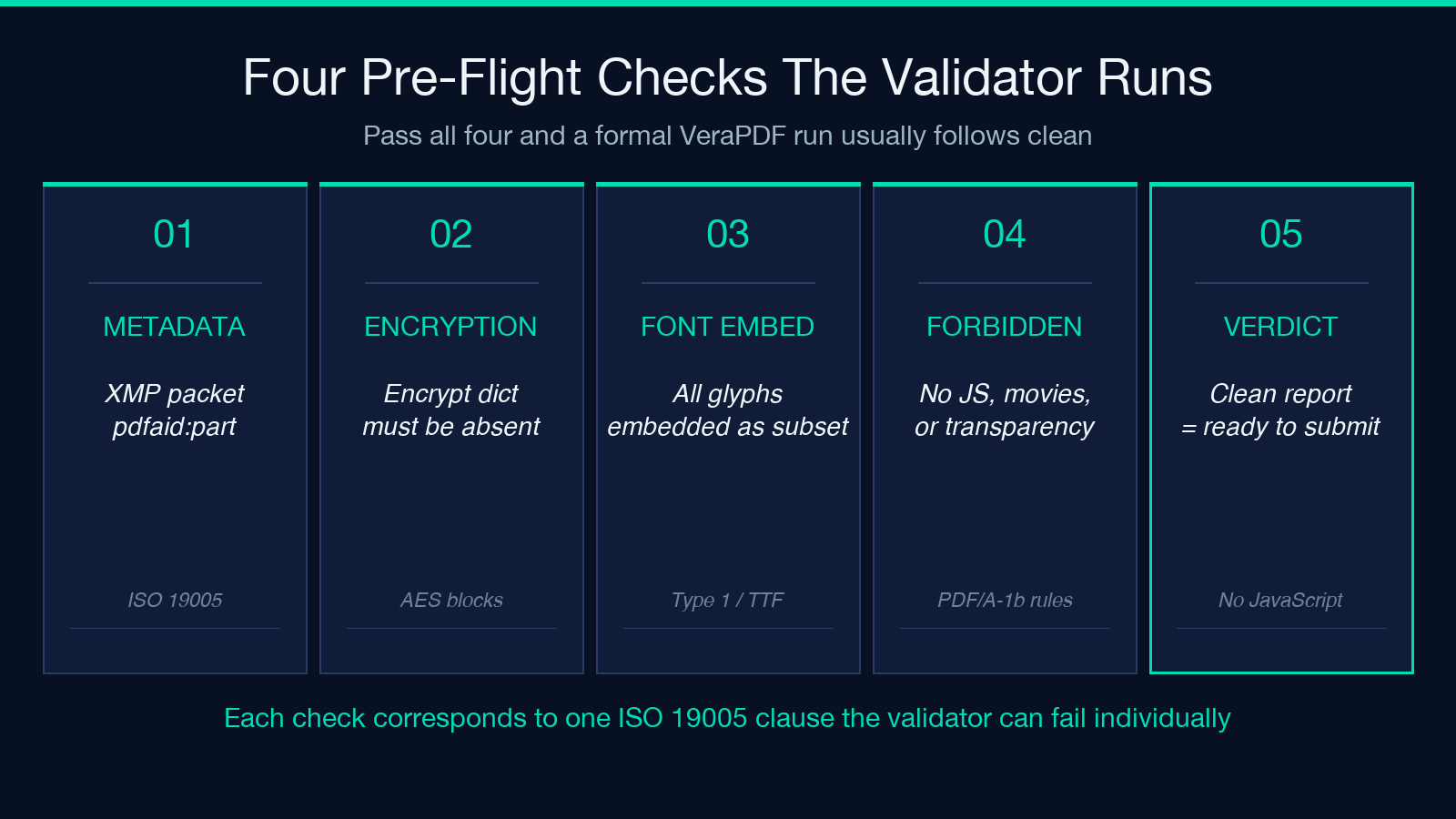
PDF/A requires an XMP (Extensible Metadata Platform) packet inside the PDF that declares the conformance level. Without it, no validator can confirm what level you are claiming to meet, so the document fails by default.
What the XMP packet must contain:
– pdfaid:part — the PDF/A part number (1, 2, 3, or 4).
– pdfaid:conformance — the conformance level (a, b, u, or f for PDF/A-4f).
The packet lives in the PDF’s metadata stream, usually as the first entry after the catalog. Many authoring tools (Microsoft Word’s “Save as PDF” without the PDF/A option, Chrome’s print-to-PDF, macOS Quick Look export) do NOT write this packet by default. The PDF/A Validate tool reads the metadata stream and reports whether both fields are present and well-formed.
A common false positive: the metadata block exists but pdfaid:conformance is empty. Some tools emit a partial packet when the user toggles a “PDF/A-1b compatible” checkbox but does not actually run the PDF/A export pipeline. The result is a PDF that LOOKS like it has metadata but fails on the conformance field. The tool flags this specifically.
Check two — encryption
PDF/A forbids encryption entirely. The reasoning is straightforward: an archived document must be readable by any future system, and encryption is a runtime decision tied to a specific user, password, or certificate that may not exist decades from now.
Encryption to flag:
– Standard PDF encryption (RC4, AES-128, AES-256) — set by the Encrypt dictionary in the trailer.
– Owner passwords — the PDF is encrypted but the owner password is empty (open access still works).
– Certificate-based encryption — usually visible only when opened in a certificate-aware reader.
If the PDF was encrypted by a scanner, a fax-to-PDF service, or a corporate “secure PDF” workflow, it will fail. Removing encryption in a compliant way means re-exporting the document with encryption disabled — not running a decryption tool on the bytes, because that often damages the XMP metadata and triggers a second failure.
Check three — font embedding
Every font used in the document must be embedded as a subset, meaning the PDF contains only the glyphs that appear in the document, but the entire font program (or the relevant subset) is included in the file. This is what guarantees the document renders identically on any future system that opens it.
The tool inspects the page resource dictionary and walks every font reference. For every font, it looks for:
– A FontDescriptor with an embedded font stream.
– For Type 1 fonts — the actual font program.
– For TrueType / OpenType — the font file or a CIDFont subset.
– For CIDFonts in PDF/A-2 — the embedded CMap must declare Unicode mapping.
Frequent embedding failures:
– Fonts with subset prefixes but missing glyph tables (a partial export crash).
– Fonts loaded by reference (/F1 0 R pointing to a font outside the PDF) — common in documents assembled by LaTeX or some print workflows.
– Fonts flagged “subset” but with the full font program stripped, leaving the PDF unable to render rare glyphs.
If the tool reports missing embeddings for a brand font (say, a corporate sans-serif), the fix is to re-export with the font set to “embed all glyphs” rather than “embed subset”.
Check four — forbidden features
PDF/A-1 forbids a long list of features that PDF/A-2 and later allow in restricted forms. The PDF/A Validate tool checks for the universally forbidden ones:
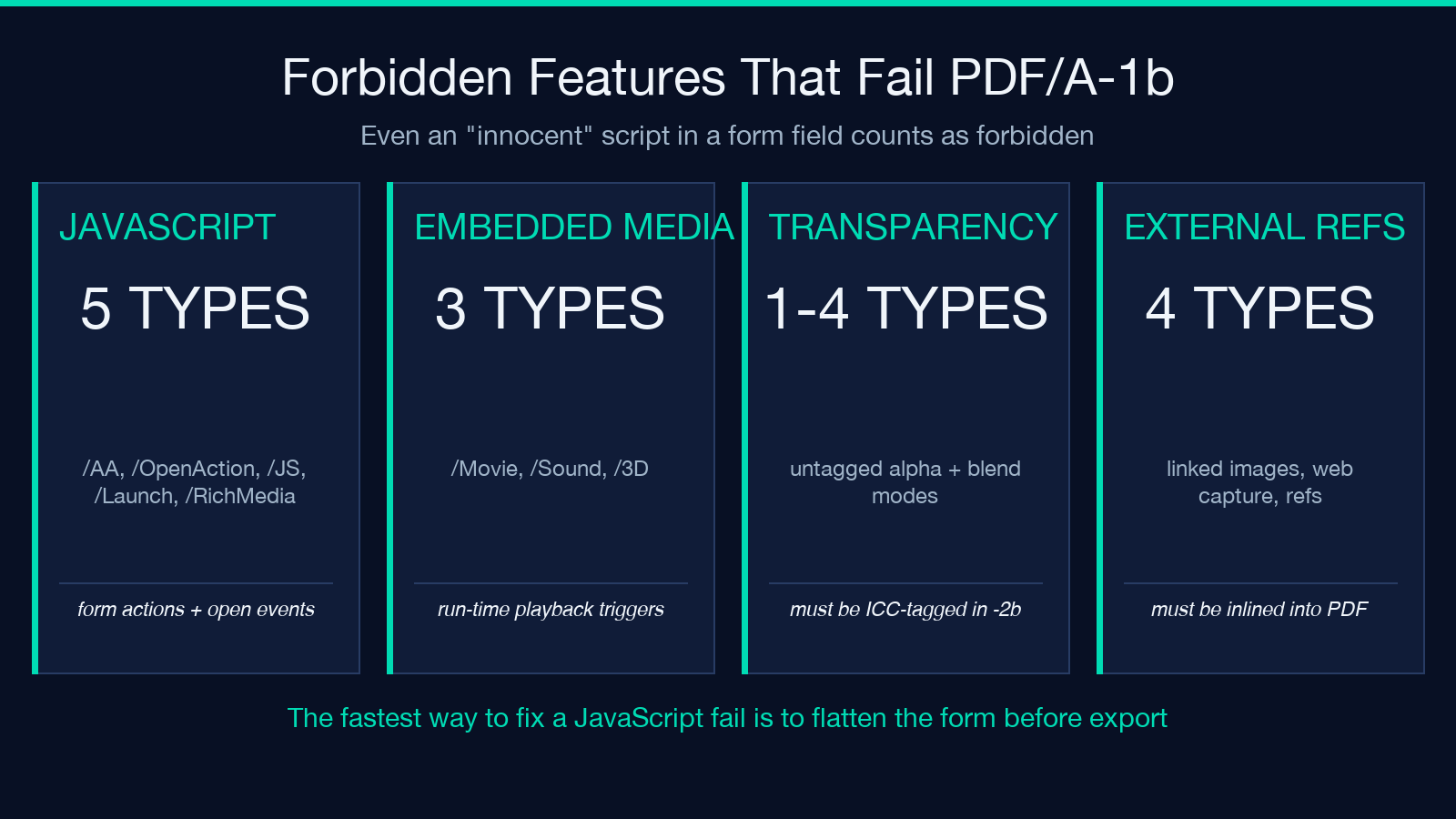
– JavaScript actions (any /AA, /OpenAction, /JS, or /Launch entries).
– Embedded movies, sound, or 3D content.
– Transparent objects in PDF/A-1b (PDF/A-2b allows them when tagged with ICC).
– External content references (linked images or files outside the PDF).
– Optional content groups used for non-structural reasons (PDF/A-1 only).
JavaScript is the most common offender. Many office documents and form PDFs contain scripts that fire on open, on click, or on field exit. Even a “harmless” script that just sets a default print setting counts as a forbidden feature. The fix is to flatten the form before export and disable any actions attached to fields.
How the validator reports results
The tool returns a JSON report with one entry per check: the check name, the pass/fail status, and a list of issues with their PDF object references. Object references matter — they let you open the PDF in a hex editor or a tool like iText RUPS and navigate directly to the offending object. A vague “your PDF has JavaScript somewhere” message is useless; a precise /Root/AcroForm/Fields[0]/AA/RC reference lets you fix the actual dictionary entry.
The report also surfaces a severity score. Encryption is a hard fail because no PDF/A profile allows it. A missing font subset for a single rarely-used glyph in the appendix is a soft warning that might be acceptable in some workflows. Use the severity to triage, not as an absolute truth.
Where PDF/A Validate fits in a real workflow
Run the tool as a pre-submission gate. The sequence that prevents archival rejections:
1. Export the document from your authoring tool with PDF/A enabled (Word’s PDF/A-1b option, LibreOffice’s PDF/A-1b selection, InDesign’s PDF/X-4 with PDF/A preset). 2. Run PDF/A Validate. Expect a clean report. 3. If there are failures, fix the source — re-export with the right options, embed the missing fonts, remove the script actions. 4. Run again. Iterate until the report is clean. 5. Submit to your destination: court e-filing, regulatory body, national archive, library deposit.
Skipping step 2 and going straight to a formal PDF/A checker (VeraPDF is the open reference; Adobe’s Acrobat Pro has a built-in check) is slower because formal validators give you line-level compliance against the ISO spec but do not always tell you WHY a check failed. PDF/A Validate is the triage layer between “I exported this as PDF/A” and “VeraPDF accepts it”.
The tool is intentionally a pre-flight check, not a full conformance validator. It runs in seconds on files up to 100 MB and does not require installing a Java-based PDF library. For 99% of document submissions, it tells you everything you need to know before you spend an hour debugging VeraPDF output.
When submissions require strict archival profiles (PDF/A-4f for factored files, or PDF/A-2u with Unicode mapping), the tool’s four checks are necessary but not sufficient. Additional checks that some validators run include color-space conformance (every color value must map to an output device profile), annotation structure (annotations must be tagged for accessibility), and form-field structure (AcroForm fields must have rich-text or plain-text entries). For those cases, validate with VeraPDF after a clean PDF/A Validate run. The two together give you both speed and depth.
Quick reference — the four checks
| Check | What it asks | Hard fail if | |—|—|—| | XMP metadata | Is pdfaid:part and pdfaid:conformance present? | Both fields missing or malformed | | Encryption | Is the document unencrypted? | Any Encrypt dictionary present | | Font embedding | Are all fonts embedded as subsets? | Any font with no FontDescriptor or no embedded stream | | Forbidden features | Are JavaScript / media / transparency absent (per part)? | Any /JS, /Launch, /Movie, /Sound, or untagged transparency |
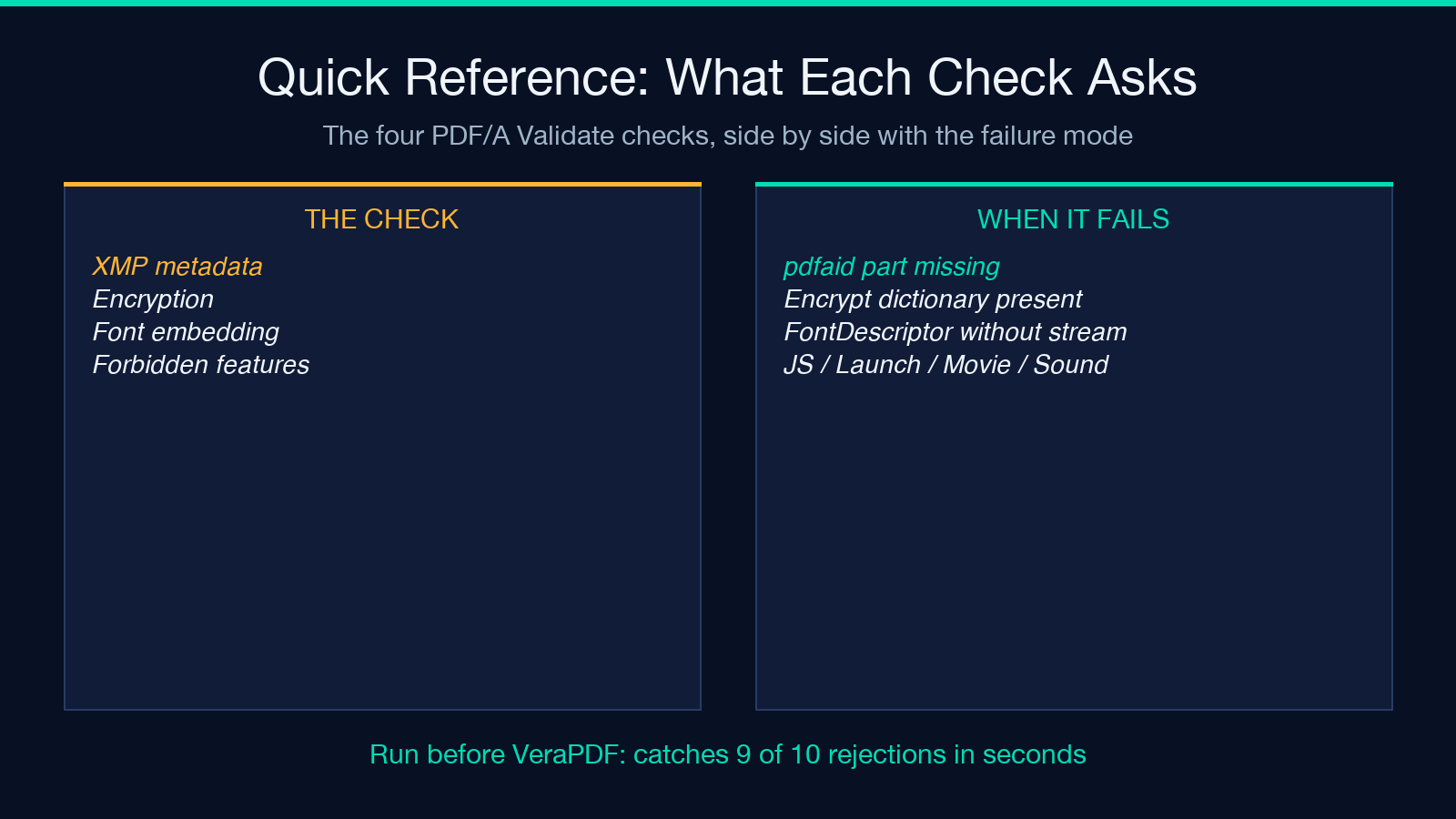
Run the PDF/A Validate tool on your next submission and read the JSON report top to bottom — most rejections come from one of these four lines, and the report tells you which one and where to look.
Explore more tools at elysiatools.com.
