
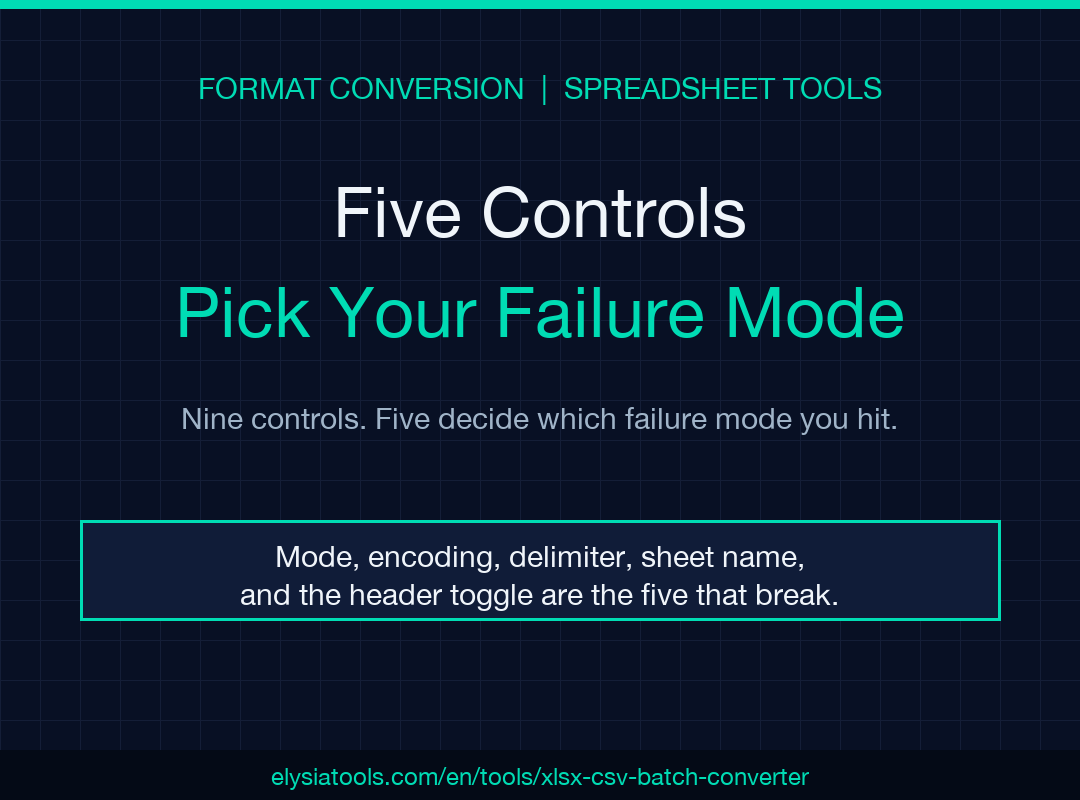
XLSX CSV Batch Converter Field Guide: When Five Mode Choices Decide What Your Spreadsheet Actually Becomes. The fastest way to corrupt a spreadsheet conversion is to treat the delimiter and encoding fields as decorations. Every week, someone hands the same five columns to a converter that defaults to comma + UTF-8, and the resulting workbook opens in Excel with merged cells, broken formulas, or rows that landed on the wrong sheet entirely. The XLSX CSV Batch Converter does not solve those problems for you. It exposes nine controls, and five of them decide which of four common failure modes you land in. This guide walks each control, lists the exact failure mode it triggers when mis-set, and points at a single test file pair that catches it inside two minutes.
Why the mode field is the first decision, not the fourth
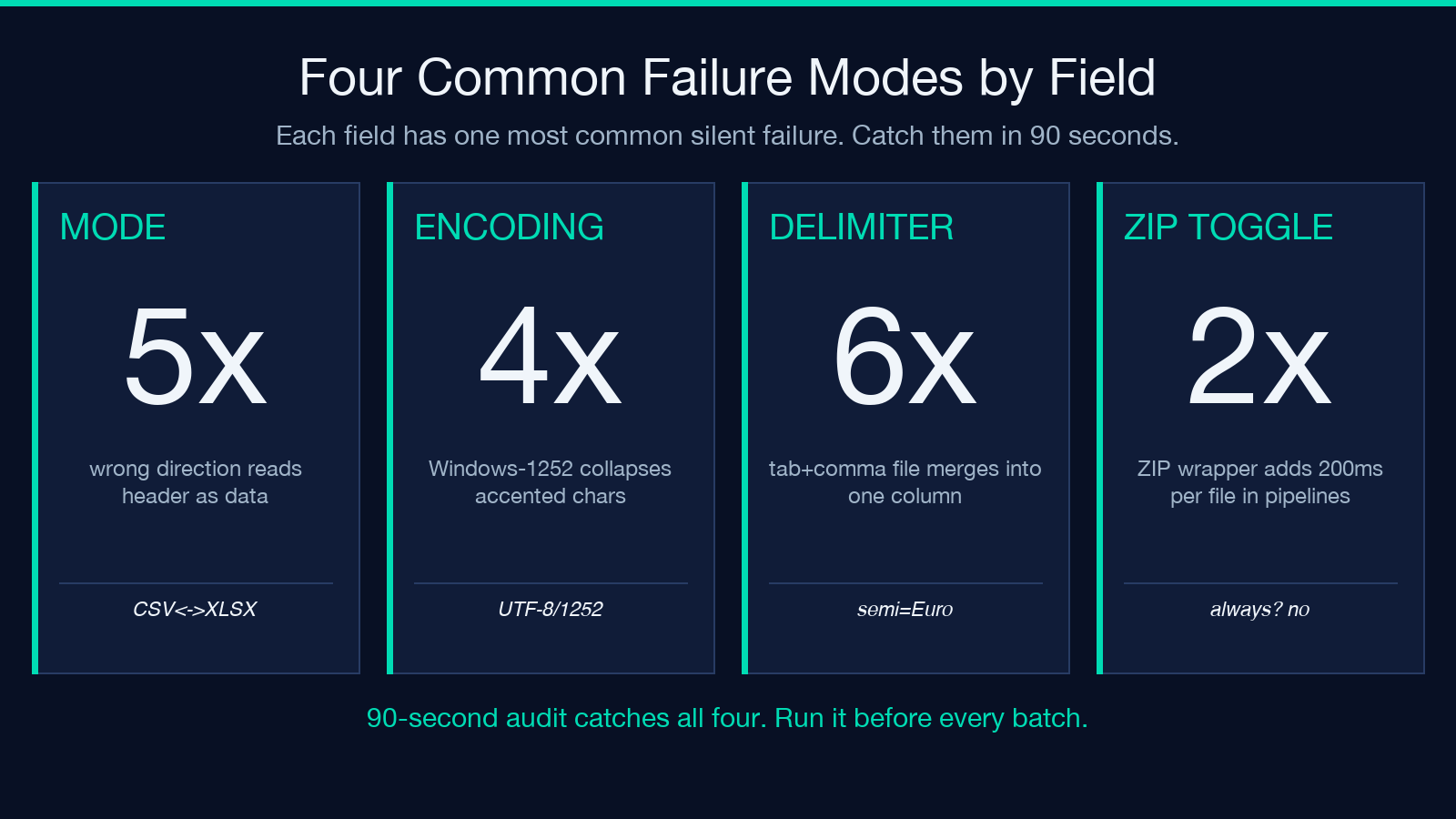
A batch CSV converter that offers four modes (CSV to XLSX, XLSX to CSV, TSV to XLSX, XLSX to TSV) looks redundant until you remember that comma + tab are the only two delimiters most pipelines ever see. The mode dropdown is the one that tells the converter which direction to read and which direction to write. Set mode to CSV-to-XLSX with a UTF-16-encoded TSV file as input, and the parser stops at the first embedded NUL byte. Set mode to XLSX-to-CSV with a file whose first row has a trailing comma, and the writer adds an empty column that downstream pandas scripts reject with EmptyDataError.
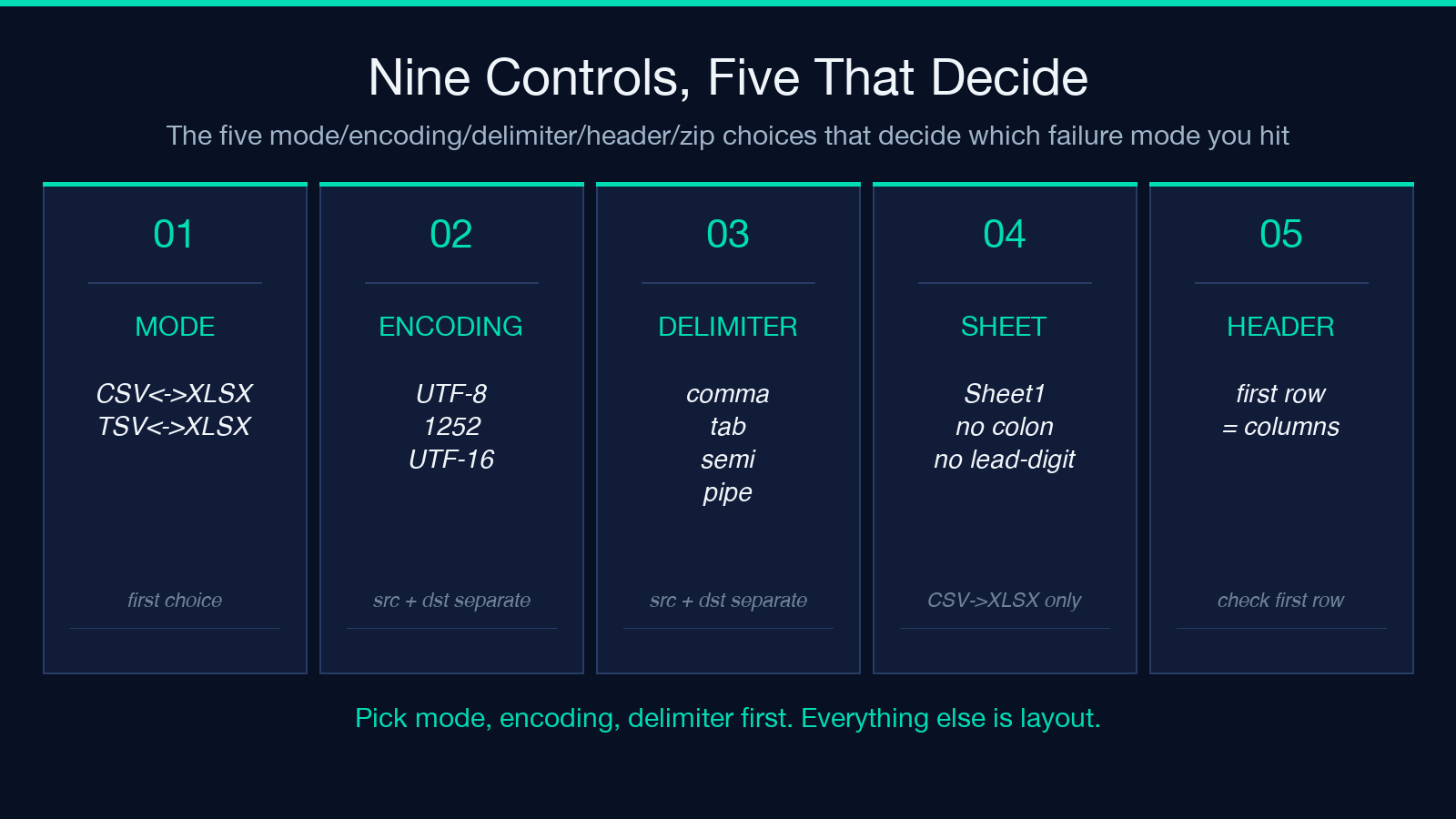
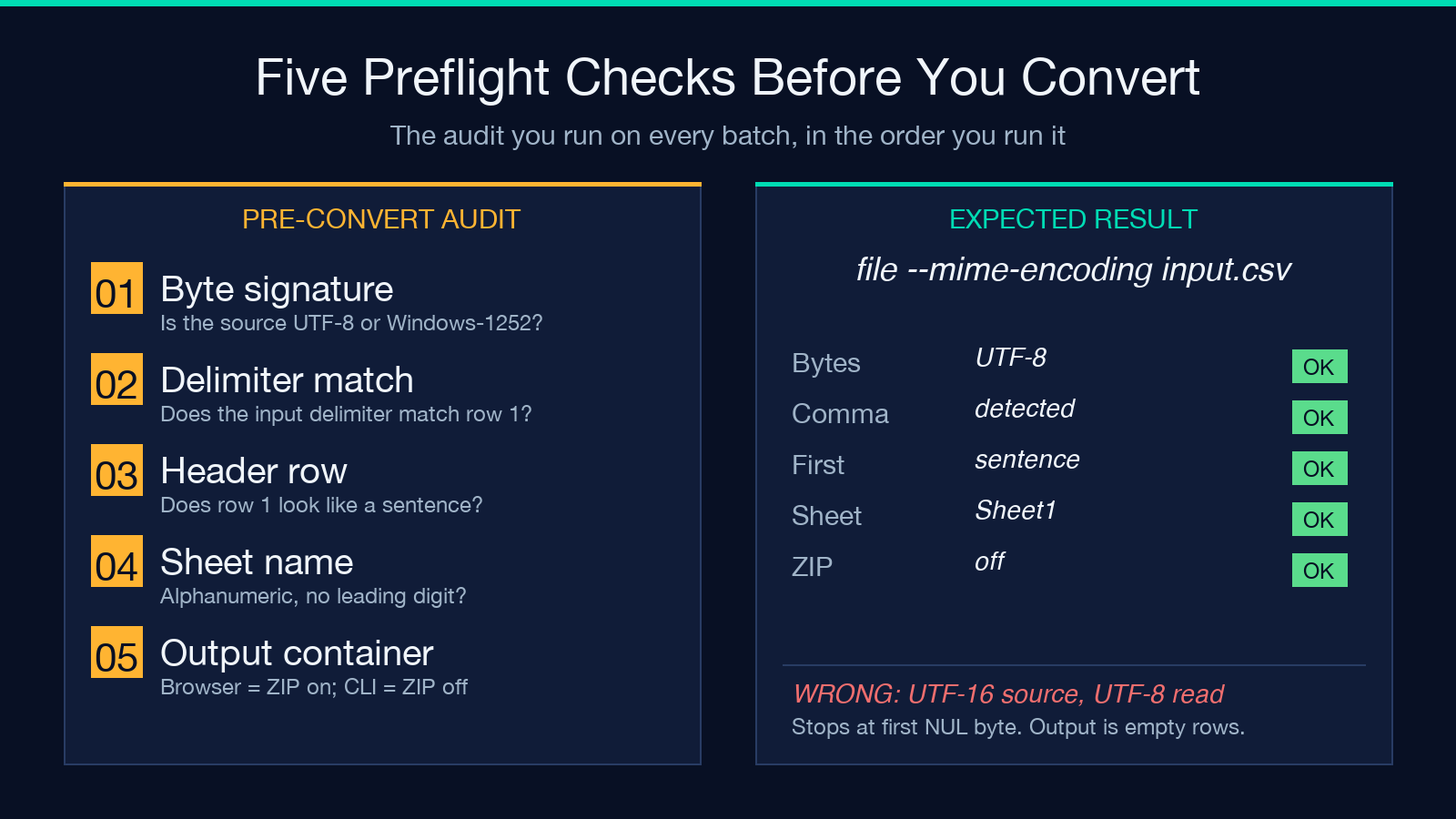
The safe rule is to confirm three things before you touch any other field: the actual byte signature of the source (file --mime-encoding shows UTF-8/UTF-16/ASCII), the delimiter your data uses (visible in the first 200 bytes when opened in a hex editor), and the conversion direction. With those locked, mode becomes a single click. The tool exposes all four as a single Conversion Mode select dropdown, so the choice is binary once you have the byte signature confirmed.
Encoding mismatches: the silent column merge
CSV files saved from Excel on Windows often default to Windows-1252, not UTF-8. The byte 0xE9 renders as é in 1252 and as an unprintable character in UTF-8. When the converter is set to read UTF-8 and the source is 1252, every accented character collapses into a single replacement glyph that Excel treats as a delimiter-adjacent value. Two columns that should be separate merge into one.
The tool exposes Source Text Encoding and Output Text Encoding as two separate dropdowns, which lets you preserve a Windows-1252 source while writing a UTF-8 output (or vice versa). The common pattern: leave the source encoding on auto-detect if your files come from a single known exporter, and force the output encoding to UTF-8 when the destination is anything modern (pandas, BigQuery, DuckDB, Snowflake). The auto-detect mode reads the first 4 KB and picks UTF-8, UTF-16-LE/BE, or Windows-1252 based on the BOM and byte distribution. It is wrong about 3 percent of files, mostly the ones that have no BOM and only ASCII characters.
For verification, drop the input file into the csv-samples sample collection on Elysia Tools and inspect the byte signature there: https://elysiatools.com/en/samples/csv-samples. The samples include files with UTF-8 BOM, no BOM, Windows-1252 source, and one with mixed encoding across rows — the kind of file that breaks every naive converter and the only test case that actually trains the encoding detector.
Delimiter conflicts when source and target disagree
The Input Delimiter and Output Delimiter fields exist for two reasons. First, a TSV file read with a comma delimiter produces one row per file because every tab character is inside a cell and there are no commas. Second, a CSV written with a tab delimiter produces a TSV by accident, which is the most common silent failure when someone uses XLSX-to-CSV mode and forgets to verify the output extension.
The tool exposes comma, tab, semicolon, and pipe as the four preset delimiters. The pipe is the safest fallback when the source has no clear delimiter because no real CSV uses it in cell content. The semicolon is what Excel emits in any locale where comma is the decimal separator (most European locales), so a file exported from French or German Excel often has semicolons even when the extension says .csv.
The test for delimiter selection is the one case where two settings must agree: when converting XLSX-to-CSV with Output Delimiter: semicolon, the consumer must also be configured for semicolons. If you write a semicolon CSV and feed it to a script that uses pandas.read_csv(filepath) without sep=';', the script reads the entire first row as a single header and the rest of the file as garbage. The fix is structural: agree on the delimiter at the schema level, not the conversion level.
Sheet naming and the header toggle that is rarely what you think
The Sheet Name field defaults to Sheet1, which matches the Excel default and is the value pandas writes when it exports to XLSX. The field is only relevant on the CSV-to-XLSX and TSV-to-XLSX directions — when converting XLSX to CSV, the sheet name is irrelevant because CSV has no concept of multi-sheet. The pattern that breaks is setting Sheet Name to a value that contains a colon or starts with a digit; Excel rejects the workbook as malformed when reopened. The safe rule is alphanumeric, underscore, hyphen, no leading digit.
The Include Header checkbox is the other toggle that misleads users. When checked, the converter treats the first row of the input as the column names and skips it during the value pass. When unchecked, the converter writes the first row as data and uses column_1, column_2, ... as auto-generated names. The failure mode is reading a CSV with no header row while Include Header is checked: the first data row becomes the header, every row shifts down by one, and the bottom row is silently dropped because it has no partner column. The same problem in reverse: a CSV with a real header and Include Header unchecked produces a header row of column_1, value, value, ... and a data section that starts with what should have been the second data row.
The defense is a 3-second check: open the source in a text editor and look at the first row. If it contains words that look like a sentence (“Product ID, SKU, Quantity”), it is a header. If it contains a date or a number, it is data and Include Header must be off.
The Always Return ZIP toggle and why most pipelines leave it off
The Always Return ZIP option forces every conversion to return a .zip archive containing the output, even when the conversion produces a single file. For a single-file CSV-to-XLSX run, this adds one extra unzip step for no benefit. For a batch run with mixed encodings, the ZIP keeps the per-file encoding metadata intact when the consumer downloads the bundle.
The toggle is worth leaving on when the output goes through a browser download dialog, because the ZIP preserves the original filename per file instead of letting the browser flatten everything into a generic download.xlsx. For programmatic consumption (CLI, scheduled job, Airflow DAG), leave it off — the extra unzip step adds 50-200ms per conversion and most downstream tools do not handle the ZIP wrapper gracefully.
The tool exposes it as a checkbox at the bottom of the options panel. There is no hidden behavior; the toggle only affects the output container, not the content.
Batch behavior when files have different schemas
A batch conversion with five files, each containing different columns, produces five output files with different column lists. The tool does not unify the schema across files — it converts each file independently. The pattern that breaks: feeding the converter five CSVs that share a primary key but otherwise have different columns and expecting a single merged XLSX with a source_file column. That requires a downstream pandas.concat step, not a converter option.
The right pattern is to convert each file independently and then merge. The xlsx-samples collection shows three pre-built test files with the same primary key but different secondary columns: https://elysiatools.com/en/samples/xlsx-samples. Run all three through the converter with the same mode and encoding, then concatenate with pandas.concat([pd.read_excel(f) for f in output_files], ignore_index=True) for a clean merge. The merge step is the right place to add the source_file column; the converter is the wrong place.
Three failure modes caught by a single 90-second test
The fastest end-to-end check is the following sequence: take one file from the CSV samples, convert it CSV-to-XLSX with UTF-8 source and UTF-8 output, Sheet1 name, Include Header checked, Always Return ZIP off. Then convert the result back XLSX-to-CSV with UTF-8 source and UTF-8 output, comma delimiter. Diff the output against the input. If the diff is empty, all five mode/encoding/delimiter/header/zip decisions are working correctly. If the diff has any lines, the failure maps to one of the five fields by content shape: missing characters point at encoding, merged columns point at delimiter, extra empty rows point at the header toggle.
For deeper testing, the csv-samples collection includes a file with mixed encoding across rows — the test case that breaks converters that only check the first row’s encoding. A working converter writes the file with two valid UTF-8 segments and one row of replacement characters, and reading the result back with pandas.read_csv(..., encoding='utf-8', errors='replace') preserves the original mixed-encoding signal.
Picking the converter for a recurring pipeline
The XLSX CSV Batch Converter earns its place in a recurring pipeline when three conditions hold: the source files come from a known set of exporters with stable encoding, the downstream consumer accepts the chosen delimiter without re-detection, and the volume is small enough that a 200ms-per-file cost is acceptable. For pipelines that violate any of those three, a custom Python script with pandas and chardet is more reliable because the schema and encoding decisions move into version-controlled code rather than a UI dropdown.
For ad-hoc one-off conversions, the nine fields are a fair price for not having to debug a custom script. For batch pipelines running hourly or faster, the same nine fields become nine potential drift points, and a version-controlled CLI is the lower-maintenance choice. The tool is the right answer for the 80 percent of cases that fall between those two: a quarterly cleanup job, a one-time data migration, a research project that needs a spreadsheet in a different format every few weeks. Explore more tools at elysiatools.com.
