
Two photos of the same dress, three different blues
The blue you sent to the print shop is not the blue the printer reproduced. The screenshot from your Mac is not the screenshot the designer opened in Photoshop. And the product photo you exported as JPEG is not the photo the photographer captured in RAW. Every one of those conversions crosses a colorspace boundary, and the boundary is doing more work than you think. The Image Colorspace Converter handles all nine target spaces plus the four rendering intents, and the gap between “I picked a target” and “the file looks the same everywhere” is exactly what this guide closes.
Five colorspaces that decide how a pixel renders
A colorspace is a coordinate system for color. Same RGB triple, different space, different visual. The five spaces that show up in production work:
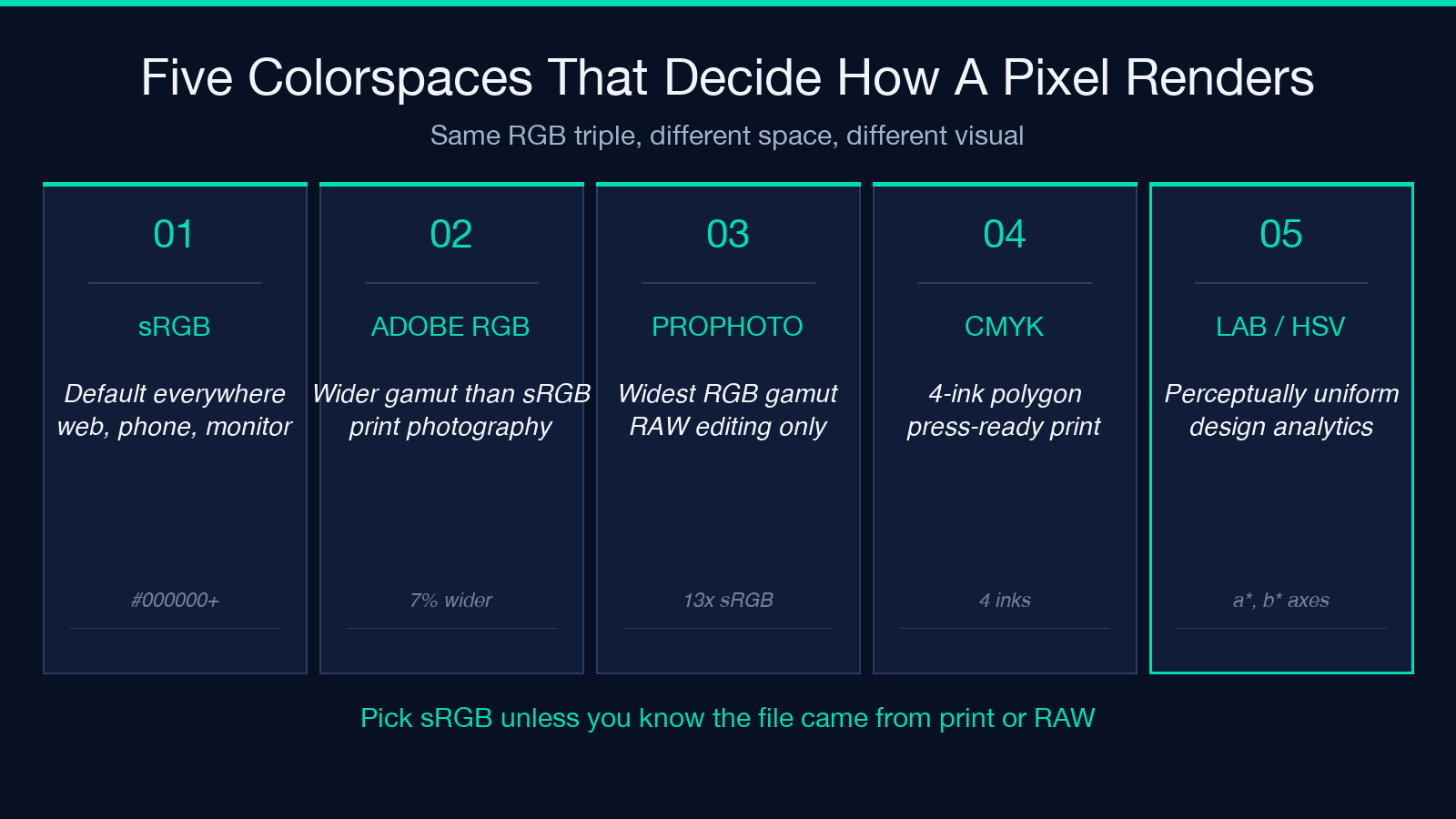
- sRGB — the default everywhere. Web browsers, phones, monitors, consumer cameras all speak sRGB first. Color values are written as if the screen is well-behaved and the room lighting does not exist. If you do nothing else, your file is in sRGB.
- Adobe RGB (1998) — wider gamut than sRGB, used by print and high-end photography. Same RGB values, larger color volume. The cyan in a landscape photo renders deeper on a wide-gamut monitor in Adobe RGB than in sRGB.
- ProPhoto RGB — even wider gamut than Adobe RGB, used inside RAW photo editors as a working space. Most files should not be saved to ProPhoto RGB for delivery; it is an editing space, not a delivery space.
- CMYK — the print space. Cyan, magenta, yellow, key (black). Used for offset printing, large-format inkjets, and any workflow that hands a file to a commercial printer.
- CIE LAB / HSV / HSL — analytic spaces. LAB is perceptually uniform (a one-unit change in
a*looks the same in red and in green). HSV and HSL are the spaces designers actually think in when picking a color from a wheel. They are great as intermediates, terrible as delivery formats.
Most people have two spaces in their head — RGB and CMYK. Real work has nine. When you tell the Image Colorspace Converter to convert from sRGB to CMYK, you are asking the converter to map a triangle into a four-ink polygon, and out-of-gamut colors have to go somewhere.
Source vs target: the asymmetry of the picker
The tool’s Source picker has four options (sRGB, Adobe RGB, ProPhoto RGB, CMYK). The Target picker has nine (the four above plus LAB, HSV, HSL, Grayscale, Sepia). The asymmetry is not an accident — you can only start from a colorspace that the file is actually in. A JPEG straight out of a phone is sRGB; it is not also secretly LAB.
Practical rule: if you do not know what colorspace your file is in, the answer is sRGB. That covers ~90 percent of consumer and web workflows. If you have a RAW file from a high-end camera, the RAW processor likely wrote it as ProPhoto RGB internally and you need to convert to sRGB or Adobe RGB before delivery. If you have a TIFF from a designer, it is probably Adobe RGB. If the file came back from a print shop with the wrong tone, it is probably in CMYK and you are trying to look at it as RGB.
For the inverse case — converting a CMYK proof back to RGB for web use — the CMYK to RGB Converter is the single-purpose version. The general tool handles it too, but a one-click CMYK-to-RGB flow removes one of the four dropdowns and makes the mistake rate drop.
The four rendering intents and when each wins
Once you pick source and target, the converter has to map out-of-gamut colors. Some of your source colors simply do not exist in the target space — a neon green that renders fine in sRGB has no CMYK equivalent. The rendering intent is the rule that decides what to do with those colors.
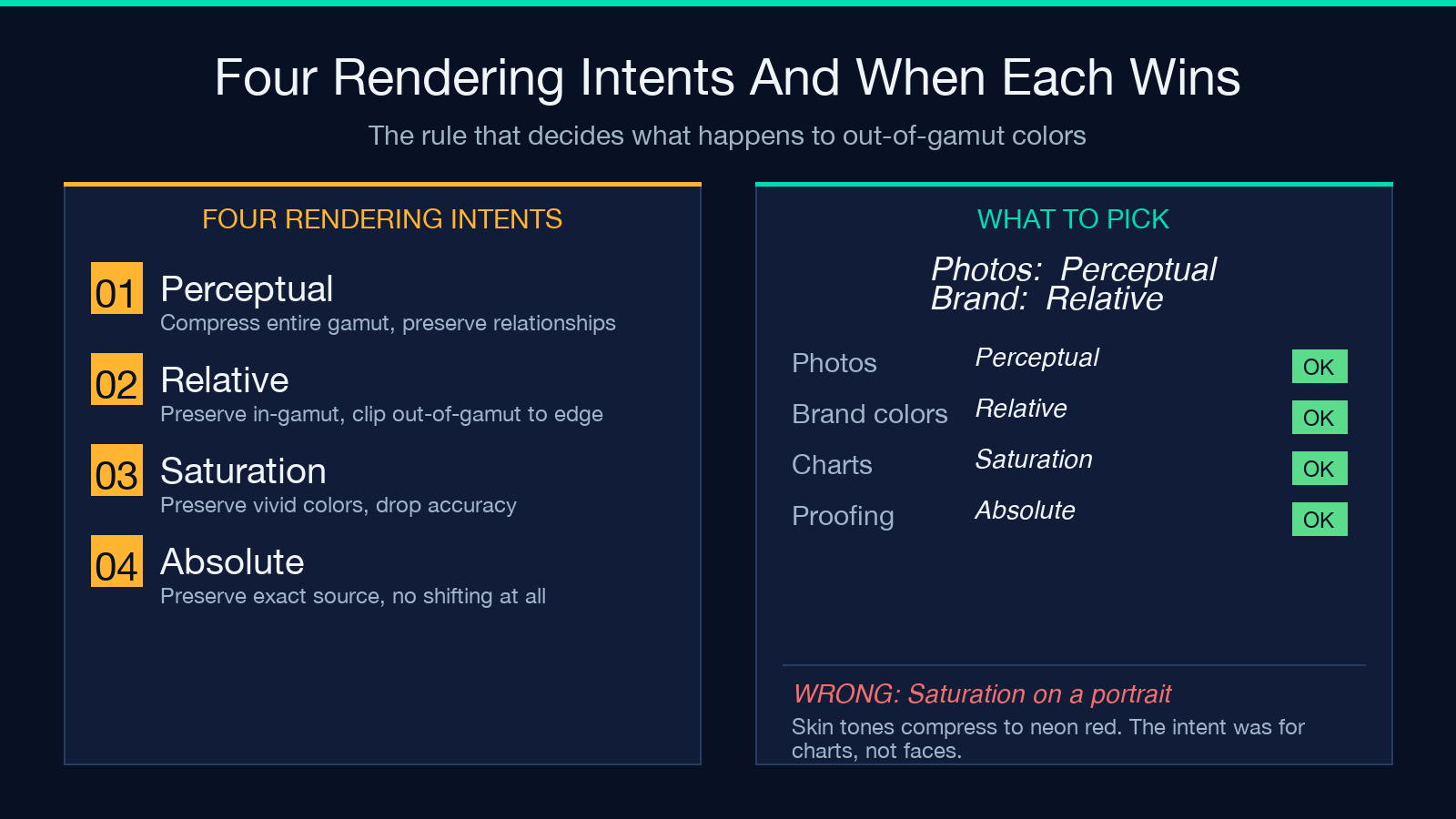
- Perceptual (Photographic) — the default for photos. Compresses the entire source gamut to fit inside the target, preserving the relationship between colors. Skin tones stay skin-toned even if the absolute color shifts. Pick this for product shots, portraits, anything photographic.
- Relative Colorimetric — preserves colors that are inside both gamuts, clips colors that are outside. Less shifting overall, but out-of-gamut colors flatten to the nearest in-gamut color (often to pure black or pure white). Pick this for logos and brand colors where the exact color matters more than the photo coherence.
- Saturation — preserves vivid colors at the cost of accuracy. Used for graphics, charts, and presentation slides where punch matters more than realism. Pick this when the file is a chart, not a photograph.
- Absolute Colorimetric — preserves the exact source color, no shifting, no clipping. Useful for proofing and for matching a specific Pantone swatch. The wrong choice for any file meant to be viewed on different screens.
If you remember nothing else from this section, remember that Perceptual is for photos, Relative Colorimetric is for brand colors, Saturation is for graphics, and Absolute is for proofing. The default of Perceptual is correct roughly 90 percent of the time, and the 10 percent where it is wrong is exactly when brand colors matter.
Black point compensation: the toggle nobody explains
The Black Point Compensation checkbox is the single most-misunderstood option in the converter. The short version: it adjusts the deepest black the target space can reproduce to match the source space’s deepest black.
Without black point compensation, a shadow that reads as RGB 5,5,5 in your sRGB file becomes a flat 0,0,0 in CMYK (because CMYK has a wider tonal range at the dark end and the converter is naively mapping 5 to “almost black”). The result is that all your shadows compress into pure black and the image loses contrast in the dark regions.
With black point compensation enabled, that same RGB 5,5,5 maps to CMYK 8,7,6,2 or similar — preserving the relative darkness. The image keeps its shadow detail.
The checkbox defaults to off. For photographic work, enable it. For brand colors where pure black is part of the brand (think: a black background), leave it off. The failure mode for “wrong” is visible in any side-by-side comparison.
Output formats and bit depth — JPEG, PNG, TIFF 16-bit
The Output Format picker has four options: Keep original format, JPEG, PNG, TIFF (16-bit). The choice is downstream of the colorspace decision but the two interact.
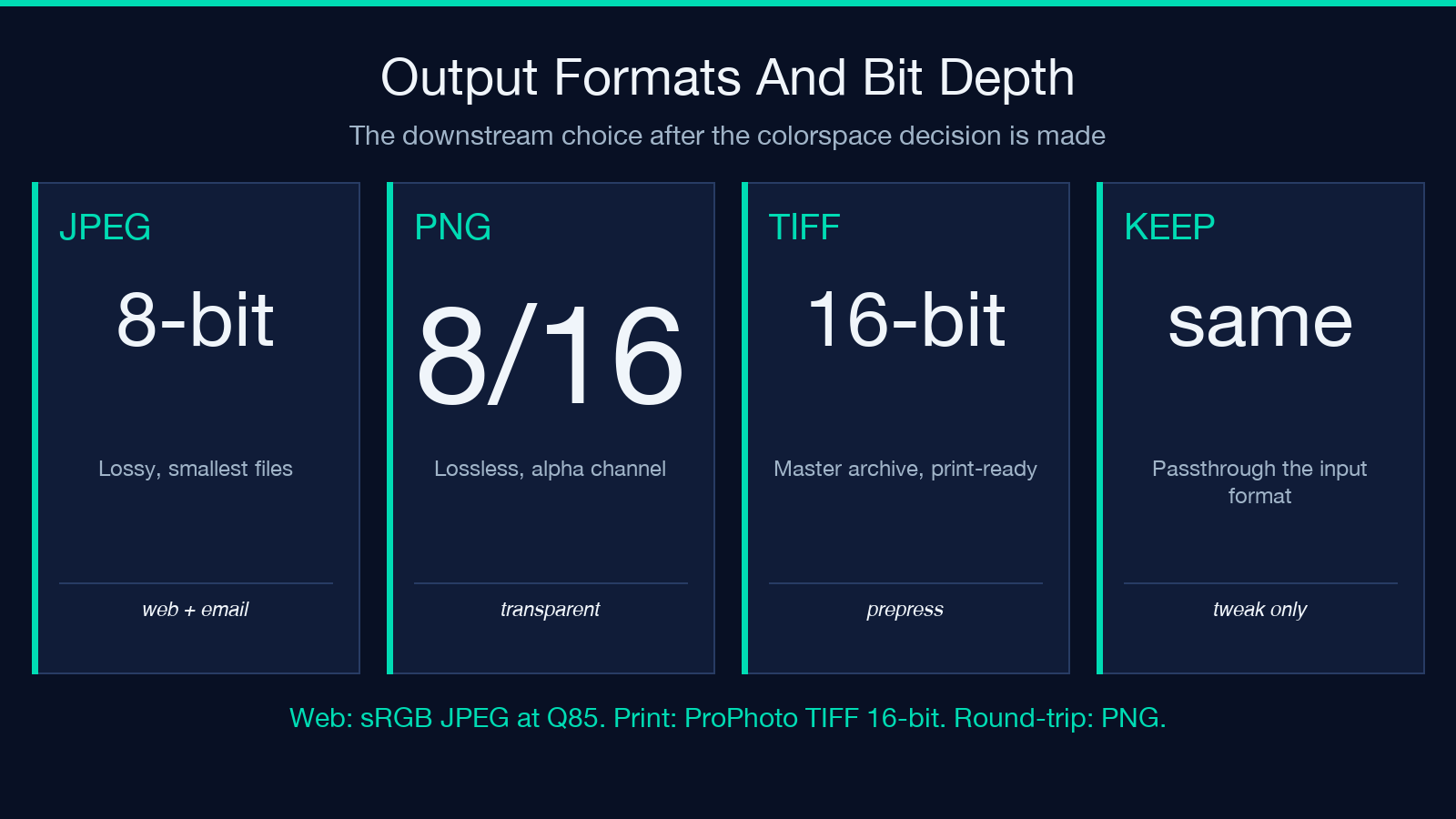
- JPEG — 8-bit, lossy, smallest files. The right choice for web delivery, social media, email attachments. sRGB is the implicit assumption. If you save as JPEG while in CMYK, most browsers will refuse to display the file correctly.
- PNG — 8-bit (or 16-bit), lossless, supports alpha transparency. The right choice when the image has transparency, or when the file needs to round-trip through edits without quality loss. Larger files than JPEG, smaller than TIFF.
- TIFF (16-bit) — 16-bit per channel, lossless. The right choice for archival masters, print-ready files, anything going to a commercial printer. File sizes are 3-5x larger than PNG. Not for web.
- Keep original format — useful when you only care about the colorspace conversion and want to keep the file shape the same. Note: if you convert from CMYK to sRGB and the file is JPEG, the JPEG container can hold sRGB data fine. If you convert from 16-bit TIFF to 8-bit JPEG, you do lose bit depth.
For most web workflows, the loop is: source TIFF (16-bit, ProPhoto RGB) → convert to sRGB, save as JPEG at Quality 92. The intermediate working copy can stay as PNG.
Quality 1-100: the number that hides a tradeoff
The Quality slider runs 1-100 and only matters for lossy formats (JPEG). PNG and TIFF ignore it.
- 1-50 — aggressive compression. Visible artifacts at edges, color banding in gradients. Use only for thumbnails where the file size matters more than the visual.
- 60-75 — web standard. Most photo-sharing sites store originals at this range. Files around 100-300 KB for a 2000-pixel-wide image.
- 80-90 — editorial / portfolio. Where the artifacts stop being visible on a normal monitor at normal zoom. This is the default for most photography workflows.
- 90-100 — overkill for web. Files balloon to 2-5x the 80-90 size with no visible benefit on a screen. Reserve for print previews.
The default of 95 is conservative. For a 2000-pixel-wide web photo, drop to 85 — you save 40 percent on file size with no visible difference. If you need the absolute smallest file, drop to 75 and check the gradients in your image; banding shows up first in skies and skin.
Putting it together — a real workflow from sRGB JPEG to CMYK print-ready
The five-step pipeline that actually shows up in production work:
Step one. Open the source sRGB JPEG in the Image Colorspace Converter. Pick sRGB as the source. The Source picker defaults to sRGB but confirm it — files saved by older versions of macOS Preview can be tagged as Generic RGB, which some converters misinterpret as a different space.
Step two. Pick CMYK as the target. Set the rendering intent to Perceptual. Enable Black Point Compensation. Output Format: TIFF (16-bit). Quality slider is ignored for TIFF, but the converter keeps the field for parity with JPEG runs.
Step three. Convert. Inspect the result — open the TIFF in an image viewer that respects the embedded ICC profile. Compare shadow detail against the original. If the shadows look crushed, the Black Point Compensation saved your image. If the colors look dull, your source was probably already a low-saturation photo and no converter can fix that.
Step four. For the web preview, run the same source file through a second pass with sRGB as the target and JPEG output at Quality 85. Two files: one print-ready TIFF, one web-ready JPEG. Keep both.
Step five. For color-critical brand assets, validate the converted file against your brand palette using the Accessible Color Palette Contrast Checker. If a brand color shifted perceptibly, the rendering intent was wrong — re-run with Relative Colorimetric for that specific file, override the pipeline.
For the analytic side (HSV / HSL extraction, channel isolation), the Image Channel Extractor handles the LAB/HSV/HSL outputs in a more focused way. Use the Colorspace Converter when the target is a delivery format; use the Channel Extractor when the target is a single-channel analysis.
For tone adjustment (vibrance, saturation, color balance) after the colorspace decision is made, the Image Vibrance Adjustment and Image Color Balance tools handle the post-conversion tweaks. The colorspace conversion locks the color volume; the tone tools move the file inside that volume.
The whole pipeline, end to end, is five tool calls and produces a CMYK print-ready TIFF plus a sRGB web-ready JPEG, both derived from the same source. That is the entire job of color management in production work, and it is not a Photoshop subscription.
For more on color theory and the math behind the spaces, the canonical reference is the Image Saturation Adjustment tool’s documentation page — the saturation explanation doubles as a colorspace primer. Explore the rest of the design toolset at elysiatools.com.
