
A funnel chart looks simple until you put real numbers on it. Real sales pipelines have drop-offs that don’t form a clean geometric series, conversion rates that depend on the segment you’re slicing, and percentages that read differently whether you compute them off stage 1 or off the previous step. The Funnel Chart Generator on elysiatools.com solves this by giving you control over data input, four bar styles, four color schemes, and three display toggles. This field guide walks through what each control actually does, where the math breaks if you treat stages like buckets, and the four-step pattern that turns a 30-second chart into a defensible conversion story.
Five Stages That Are Not Interchangeable
Every funnel chart has the same shape: wider at the top, narrower at the bottom. But the stages themselves are not interchangeable buckets. Stage names, count units, and ordering rules decide whether the chart reads as a real pipeline or a misleading bar comparison. The Funnel Chart Generator accepts a chartData textarea where each line is a stage name plus a count, separated by a tab or comma. The first stage is the entry point, and every later stage must be reachable from the previous one in your real workflow. If you put Visits at stage 1 and Revenue at stage 5, the chart’s drop-off ratio tells a story about your checkout, not your visit-to-lead funnel. The fix is to split the chart at the unit boundary.
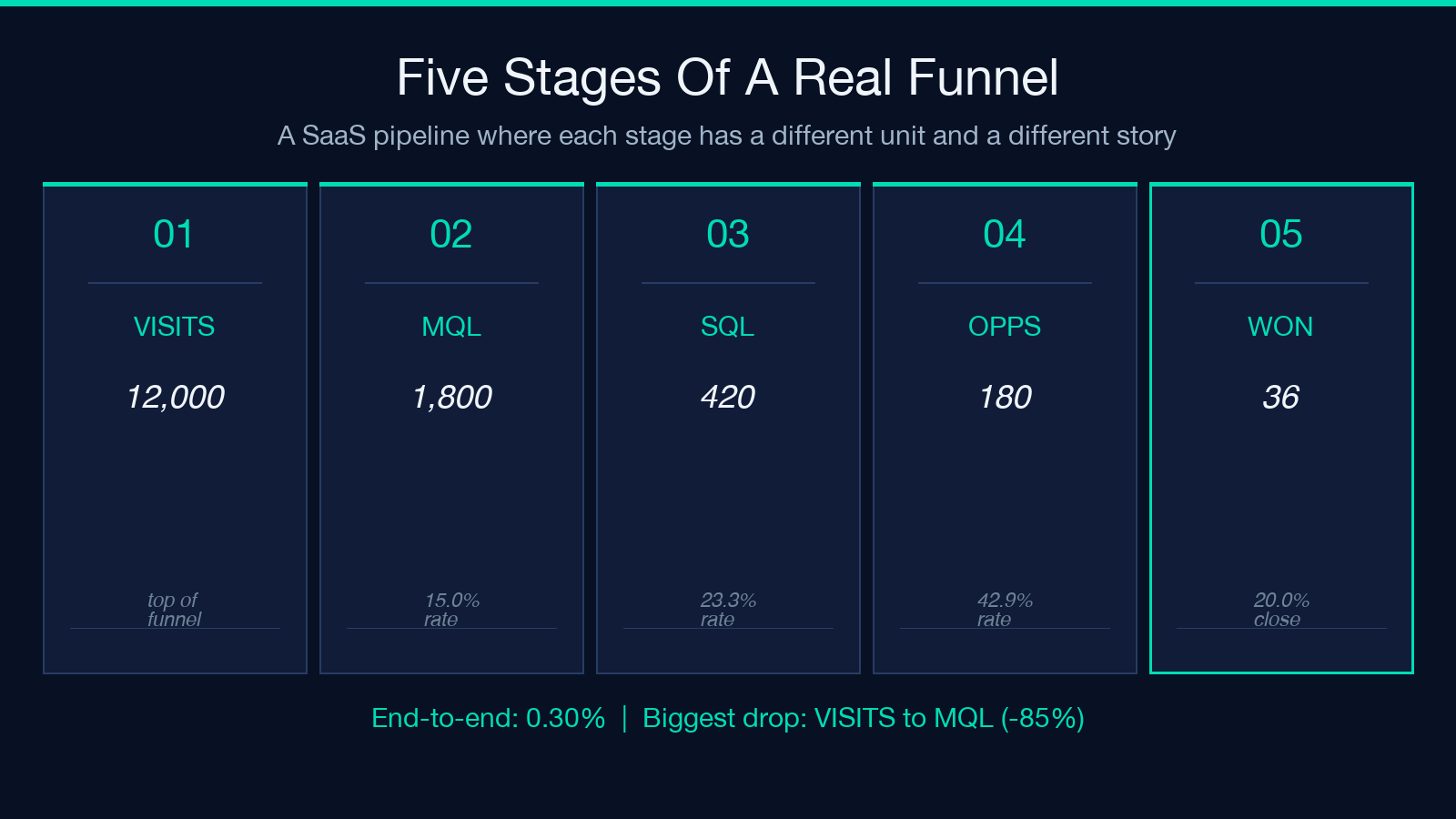
The four show toggles (default on) render stage labels, raw values, stage-1 percentages, and step-over-step rates. With all four on, the chart carries four numbers per bar — too dense for a slide. The default works for an analytics dashboard; for a deck, turn off showValues and keep showPercentages plus showConversionRate.
Three Number Formats That Decide What The Chart Actually Says
The funnel chart supports three implicit number formats, and which one you pick decides what the chart communicates. The default behavior displays raw counts, percentages of stage 1, and step-over-step rates simultaneously. Each format answers a different question.
Raw counts answer “how many users were at this stage?” — useful for absolute size, useless for relative performance. Percentages of stage 1 answer “what fraction of the original cohort reached this stage?” — useful for overall funnel efficiency, misleading for step-by-step diagnosis. Step-over-step rates answer “what fraction of the previous stage converted?” — useful for finding the leaky step, useless for end-to-end performance.
The Funnel Chart Generator lets you enable all three display modes simultaneously, but a single chart should answer one question. The pattern: one chart for absolute counts (dashboards), one for stage-1 percentages (marketing reports), one for step-over-step rates (optimization reviews). The three toggles are independent, so the same chart can be regenerated three ways.
Four Bar Styles And When Each One Misleads
The barStyle option has four values: standard, trapezoid, comparison, and flat. Each renders the same data with a different visual grammar, and each is misleading under specific conditions.
The standard style draws each stage as a horizontal bar centered on a shared axis, with bar width proportional to the count. This is the default and the most honest style — drop-offs are visible as the difference between adjacent bar widths. The trapezoid style connects each bar’s edges with diagonal lines, which exaggerates the drop-off between stages. A 30% step-over-step conversion can look like a 60% drop because the diagonal lines add visual weight. Use trapezoid only for marketing collateral.
The comparison style draws each bar in full width and shades only the proportion of the count, which makes absolute drop-offs invisible. Two adjacent stages with counts 1000 and 100 look identical in comparison mode, even though the absolute drop is 900. The flat style draws all bars at the same height — essentially a bar chart with a funnel label. Avoid comparison and flat unless you specifically need their non-funnel variants.
Four Color Schemes And When Background Color Matters
The colorScheme option has four values: default, gradient, monochrome, and pastel. The default scheme uses saturated brand colors that read well on white backgrounds but lose contrast on dark dashboards. The gradient scheme interpolates between two colors based on the bar position, good for showing progression but bad for distinguishing individual stages. The monochrome scheme uses a single color at different opacities, best for print and academic contexts where color is a distraction. The pastel scheme uses low-saturation colors that look soft but are illegible on light gray backgrounds.
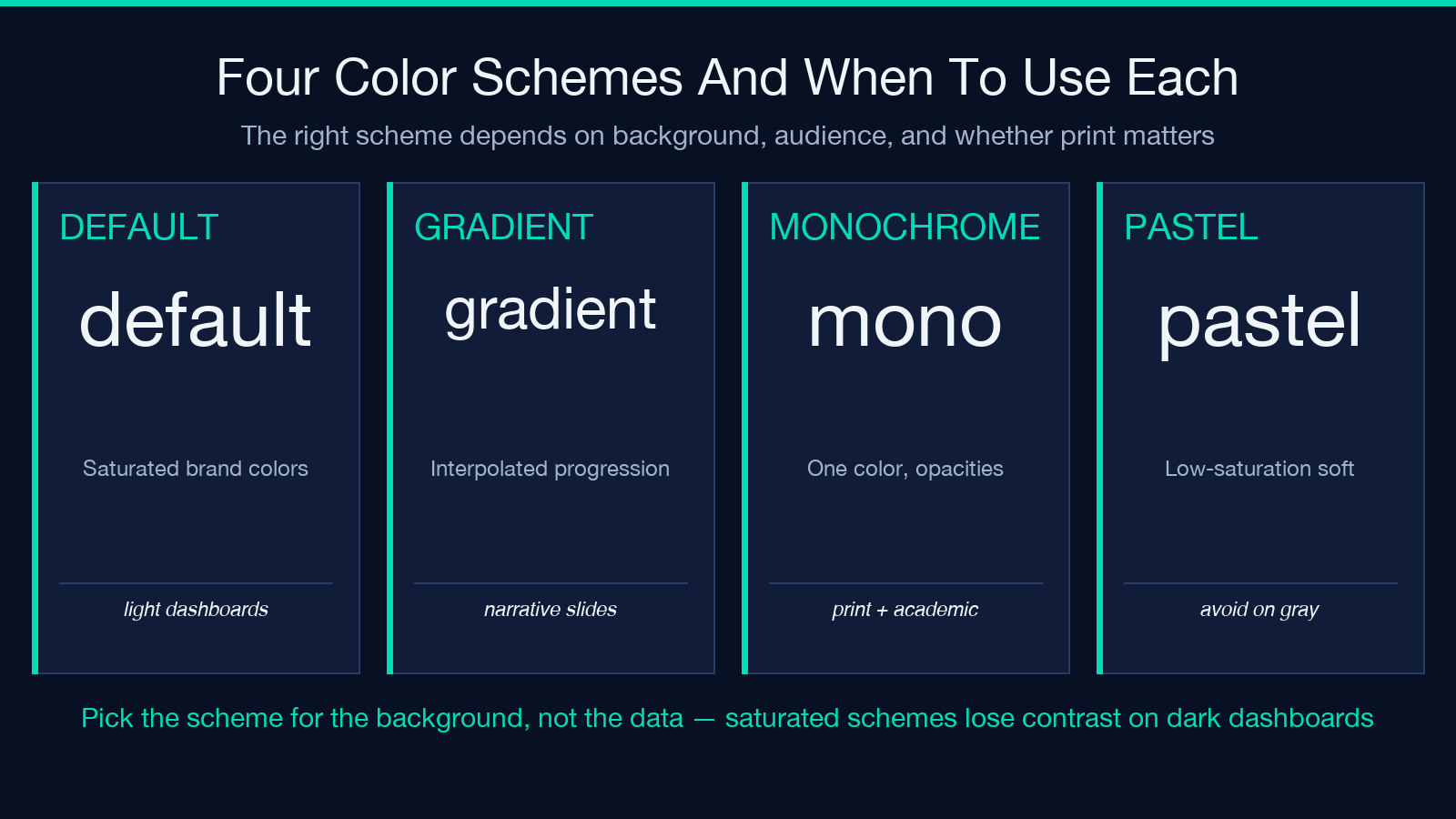
The backgroundColor option (default #ffffff) sets the chart’s background. For slides with a dark theme, set the background to a dark color like #1a1a2e and use the monochrome color scheme in light. The combination of wrong background and saturated colors is the most common reason a funnel chart looks “off” in a deck.
Three Display Toggles And The Information-Density Tradeoff
The four show toggles (showValues, showPercentages, showConversionRate, showLabels) each add a label to every bar. With all four on, a 5-stage funnel has 20 labels on a 600px-wide chart, which is unreadable. The tradeoff is information density versus legibility. The pattern is to pick a primary number format and a secondary, and disable the rest.
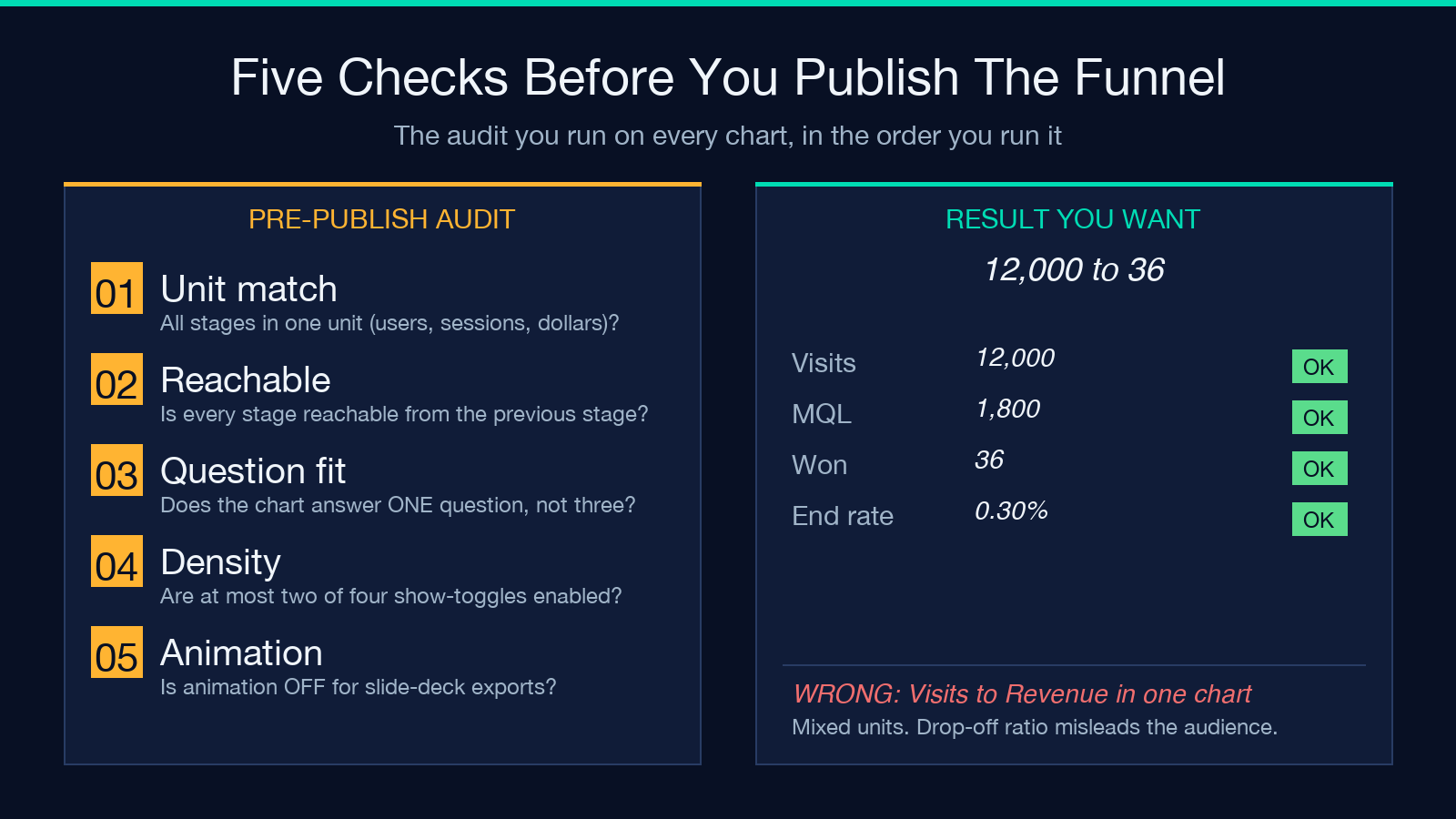
For executive dashboards, keep showPercentages and showConversionRate on, disable showValues and showLabels (use hover tooltips instead). For marketing reports, keep showValues and showPercentages on, disable showConversionRate and showLabels. For optimization reviews, keep showConversionRate and showValues on, disable showPercentages and showLabels.
The showLabels toggle is the densest because it adds a string to every bar, not a number. For stages with long names, disable showLabels and use a legend below the chart.
Animated Charts And When Animation Helps Or Hurts
The animated checkbox (default on) renders the funnel with a reveal animation as the chart loads. For dashboards, animation is fine and provides a sense of progression. For static reports and slide decks, animation is wasted — the chart is usually exported as a still image, and the animation is invisible. The pattern is to keep animated on for interactive web embeds and turn it off for export-heavy workflows.
Animation also affects how the eye reads the chart. A funnel with animation tends to be read top-to-bottom (the order of reveal), while a static funnel is often read by comparing the largest and smallest bars. If your chart’s story is the bottom stage (the conversion target), keep the chart static, since the generator does not yet support reversed reveal order.
The Custom Colors And Chart Height Controls
The customColors field accepts a comma-separated list of hex colors, one per stage. This overrides the colorScheme setting. Use customColors when the funnel needs to match a brand palette or when individual stages need semantic colors (red for drop-off, green for conversion). The chartHeight field sets the chart’s pixel height, and the bar widths scale to fit. For slide decks, set chartHeight to 400–500px. For dashboards, 200–300px is the sweet spot.
The pattern is to keep customColors empty for generic charts and fill it in for branded or semantic charts. The Funnel Chart Generator accepts both lowercase and uppercase hex, with or without the # prefix. If the color list is shorter than the stage count, the remaining stages use the colorScheme default.
The Four-Step Pattern For A Defensible Funnel Chart
A defensible funnel chart is one where every number is sourced, every stage is reachable, and the chart answers one question. The four-step pattern:
First, pick the question: end-to-end efficiency, step-by-step leak, or absolute scale. This decides which two toggles stay on. Second, run a stage-name audit: every stage name must be under 24 characters, must use the same unit (users, sessions, dollars, events), and must be reachable from the previous stage in the real workflow. Mismatched units are the most common reason a funnel chart misleads. Third, decide the number format: raw counts for dashboards, stage-1 percentages for marketing reports, step-over-step rates for optimization reviews. Fourth, set the export path: the chart renders as an HTML or SVG embed. For slide decks, set animated off and chartHeight to 400–500px.
When all four steps are followed, the funnel chart becomes a single-sentence story: “Of the X users who entered stage 1, Y% reached stage N, and the largest drop was at stage M.”
The Funnel Chart Generator gives you the controls to build that story without leaving the page. The defaults are good for first drafts; the toggles let you refine for the audience. For related tools, the Bar Chart Generator and Sankey Diagram Generator cover adjacent chart types. Explore more at elysiatools.com/en/tools.
