
Lead phrase. A podcast team dumped 240 mixed-format files into a transcription pipeline last Tuesday and watched half the queue fail. The reason was not a corrupt encoder — it was a missing batch. The transcoder took MP3 input; the queue handed it WAV, FLAC, and OGG. Each mismatched file blocked the line until a human rerouted it by hand. The fix was not a smarter transcoder. It was a single batch convert that turned every input into the format the downstream queue expected, with the bitrate and sample rate set once and applied to all ten files in a single upload. That kind of fix used to require a shell script and twenty minutes. Now it is a form, a select, and a download.
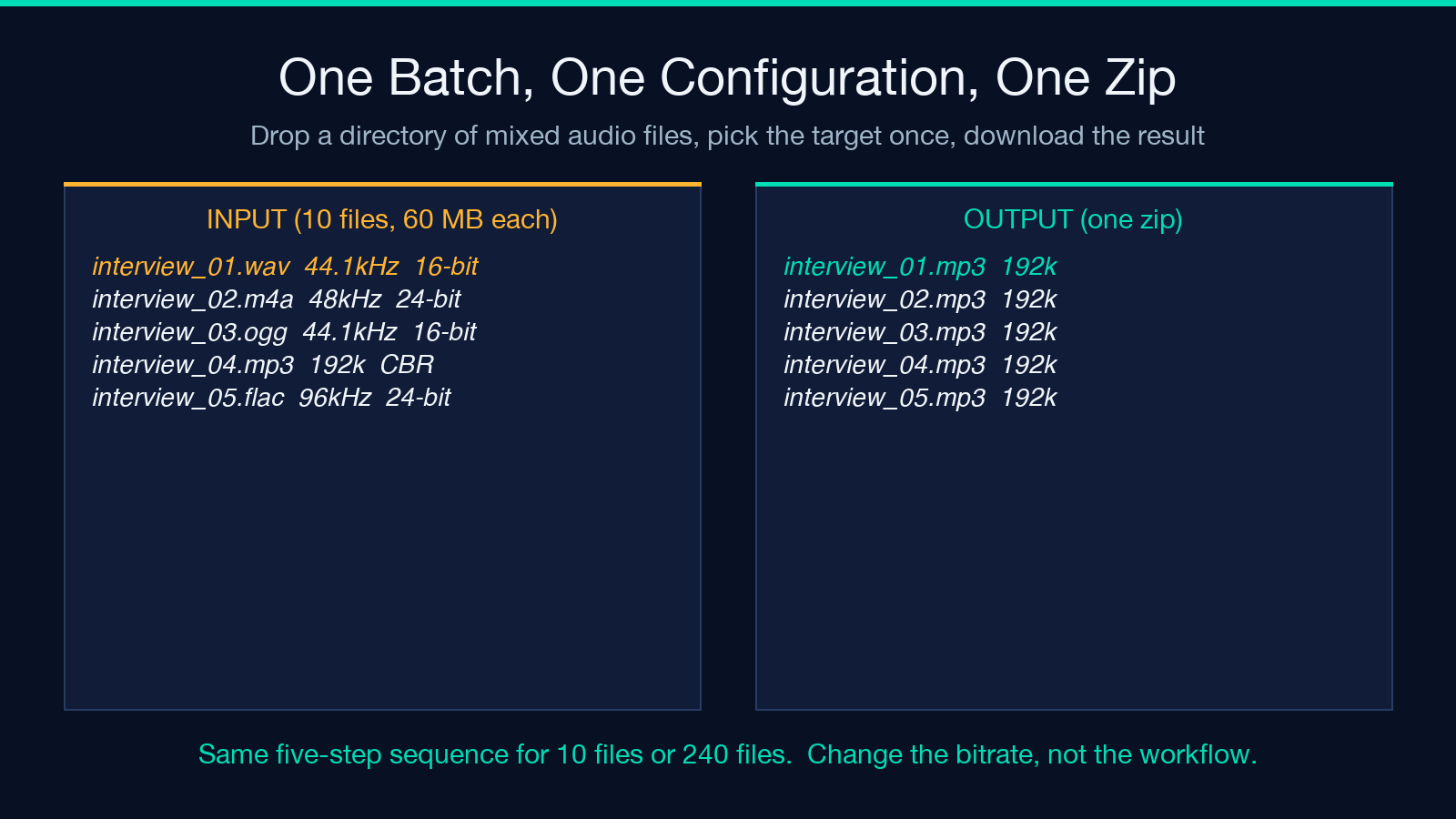
Most “audio converter” pages let you push one file at a time and ask you to download each result individually. That works for a single voicemail. It collapses when you have a directory of 200 field recordings, a backlog of 80 podcast interviews, or 10 master files that need to land in three different delivery formats at three different bitrates. A real batch tool accepts up to ten files in a single form, runs them through one shared configuration, and returns a zip of the converted results with the original filenames preserved. The configuration has seven output formats, six bitrates, a quality knob, a sample-rate choice, a channel choice, and a metadata toggle. Pick wrong on any one of those and the output plays back at the wrong speed, sounds tinny, has the wrong track count, or strips the ID3 tags your streaming host needs. Pick right and the queue clears in one pass.
Batch Audio Converter on Elysia Tools runs in the browser, accepts up to 10 files of up to 60 MB each, and exports the entire batch in a single zip. This guide walks through the seven configuration decisions that decide whether your audio lands clean or ships broken.
The seven output formats and where each one fits
The first decision is the output format. The tool exposes seven: MP3, WAV, FLAC, AAC, M4A, OGG Vorbis, and Opus. Each one is a different trade between file size, fidelity, licensing, and downstream player support.
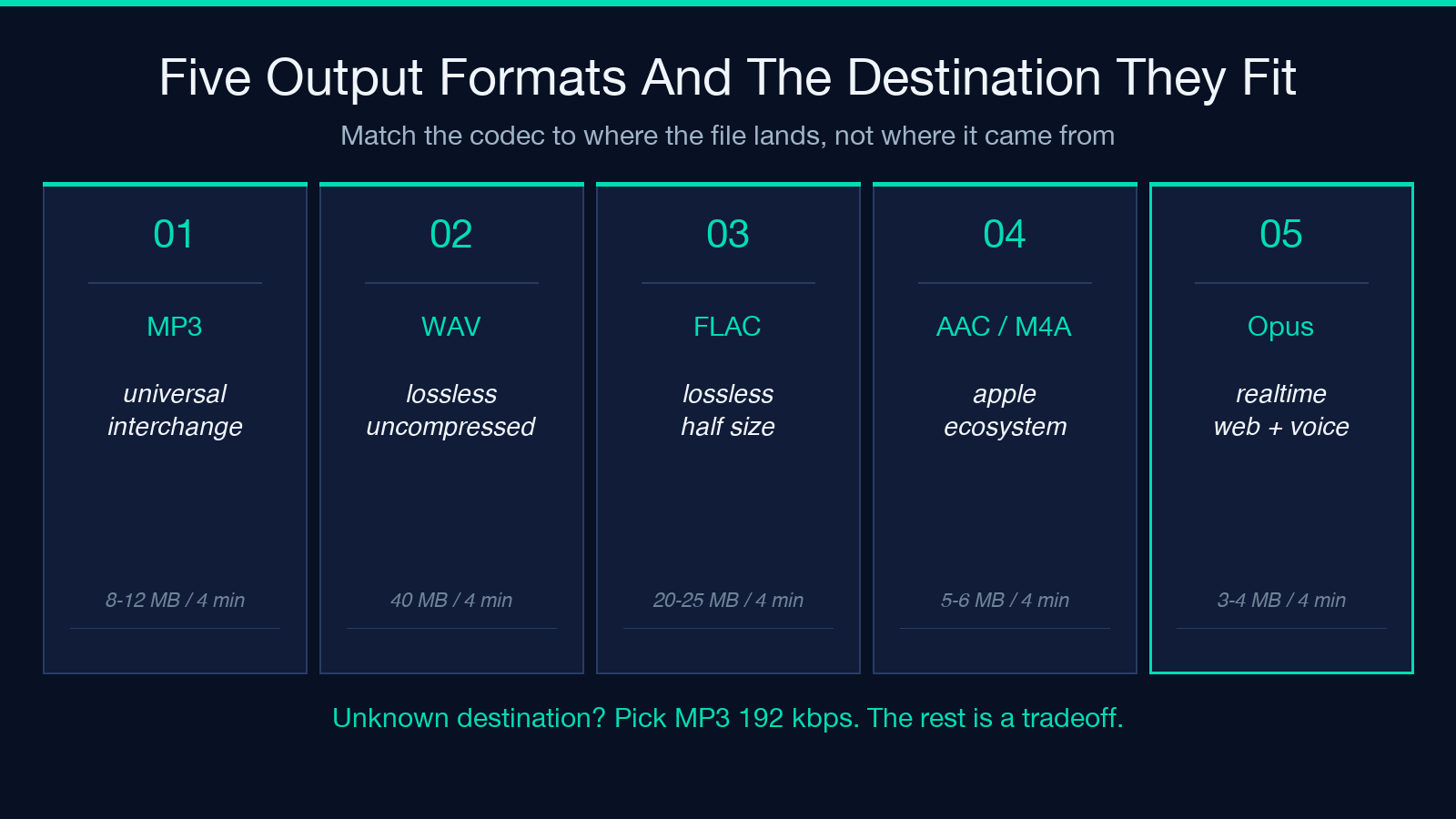
MP3 is the universal interchange format. Every browser, every phone, every car stereo, every DAW plays it. It is the format you pick when the destination is unknown, the audience is broad, or the file will be re-encoded later. The catch is that MP3 is lossy — every encode loses information, and re-encoding amplifies the loss. If your source is already MP3 at 128 kbps, transcoding to MP3 at 192 kbps does not recover the lost high end. It just produces a larger file that still sounds like 128 kbps.
WAV is uncompressed PCM audio. It is the format you pick when the next step is editing, analysis, or archival. WAV is lossless, byte-for-byte identical to the source, and the format every pro audio tool reads. The cost is file size — a 4-minute stereo track at 44.1 kHz and 16 bits is 40 MB. WAV is not for delivery; it is for transport.
FLAC is lossless compression. The audio is bit-perfect, but the file is roughly half the size of WAV. FLAC is the right format for archival storage and for any pipeline that does further lossless processing. Most consumer players do not support FLAC; pro tools and Linux desktops do.
AAC is the lossy format Apple platforms prefer. The encoding is more efficient than MP3 — a 128 kbps AAC file generally sounds comparable to a 192 kbps MP3 file. If the delivery target is iOS, Apple Podcasts, or any iTunes-driven workflow, AAC is the safe pick.
M4A is the container that holds AAC. Most iOS-recorded audio is M4A. If you are transcoding iPhone voice memos or recordings made on a Mac, the source is almost always M4A and the destination for further processing is usually AAC inside M4A.
OGG Vorbis is the open-source alternative to MP3. Quality at the same bitrate is generally better, and there is no patent royalty. The catch is player support — OGG plays natively on Linux and Android, but most browsers and many commercial players do not decode it without a plugin.
Opus is the modern lossy codec. It outperforms MP3 and AAC at every bitrate, has very low encode latency, and is the format WebRTC, WhatsApp voice notes, and most modern voice chat use. If the destination is real-time communication or modern streaming, Opus is the right pick.
The decision tree is short. Unknown destination → MP3. Editing or archival → WAV or FLAC. Apple ecosystem → AAC or M4A. Linux server pipeline → OGG. Real-time or modern streaming → Opus. Pick the wrong one and you spend an hour converting twice.
The six bitrates and why 128 kbps is the most common failure
The bitrate drop-down exposes six options: 64, 96, 128, 192, 256, and 320 kbps. Bitrate is the amount of data used to encode one second of audio. Higher bitrate means more data, more fidelity, larger file.
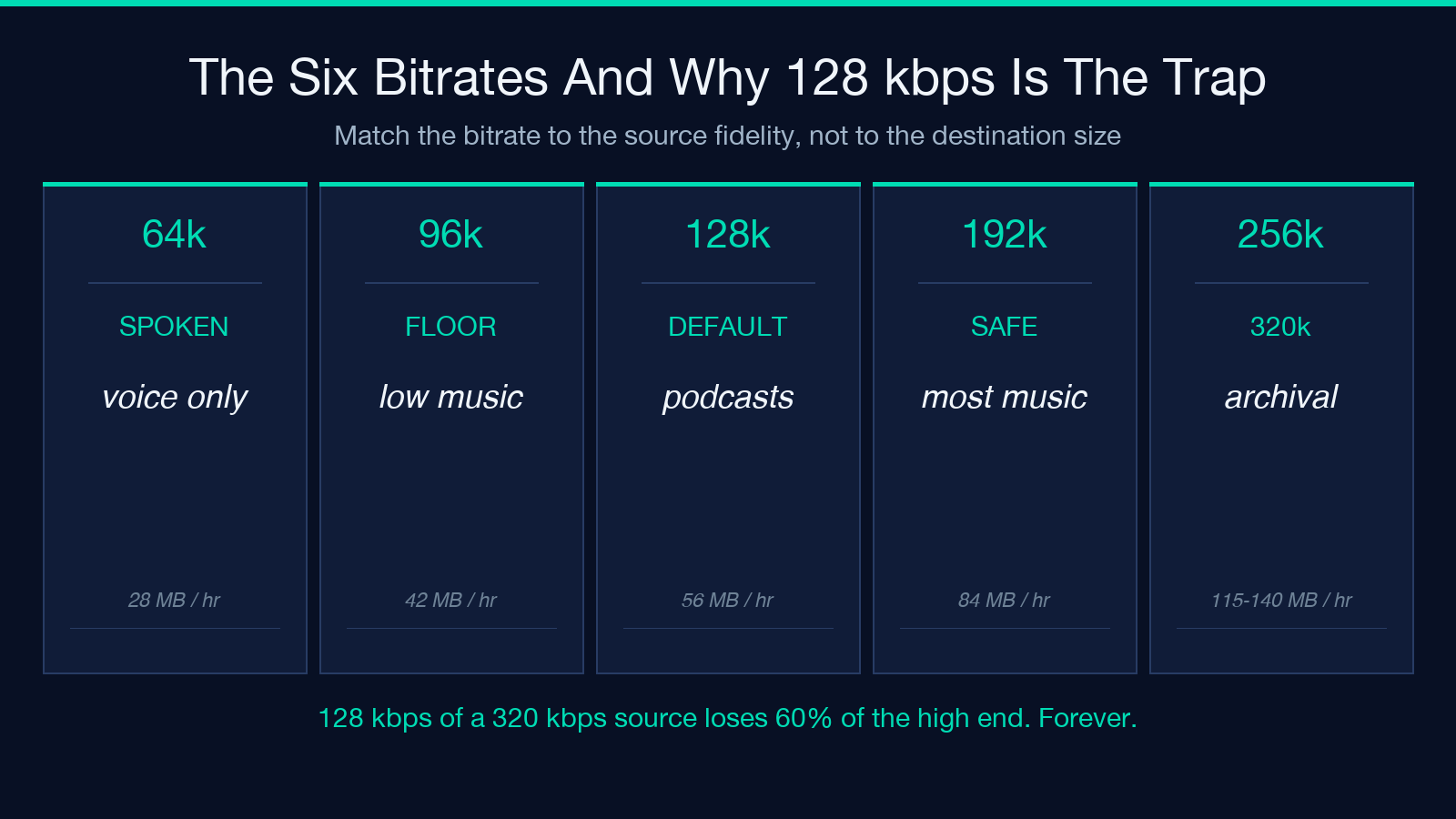
64 kbps is acceptable for spoken word. A 60-minute lecture at 64 kbps is around 28 MB and sounds like a clean AM radio. Anything musical at 64 kbps is unlistenable.
96 kbps is the floor for music. Streaming services used to use 96 kbps for low-quality mobile tiers. Avoid it for anything that needs to sound good.
128 kbps is the historical default. It is what iTunes sold for a decade, what most podcasts still encode at, and what most “audio converter” tools preset. The problem is that 128 kbps is the minimum for music that does not sound obviously bad — not the recommended setting. A 128 kbps transcode of a 320 kbps source is a destructive operation that loses around 60% of the high-frequency information. The result is a smaller file that sounds duller than the original.
192 kbps is where most listeners stop being able to tell the difference from the source in a blind test. It is the safe pick for music delivery when file size matters.
256 kbps is the audiophile floor. Useful for archival-quality music delivery, classical, jazz, anything with high-frequency content.
320 kbps is the practical maximum for MP3. Above 320 kbps you are in AAC or Opus territory, where the codec does more work per bit. Use 320 when the destination is critical listening and storage is cheap.
The 128 kbps failure mode is specific: a team transcodes a 24-bit 96 kHz studio master to MP3 128 kbps for “web delivery” and ships it as the final. The file is small, the upload is fast, the stream plays — but the master is gone, and anyone who hears the web version is hearing a destructively compressed copy. The fix is to pick 192 kbps for any music that started above 44.1 kHz, and to use 128 kbps only for spoken-word content that was already low-fidelity.
Quality, sample rate, channels, and metadata: the four knobs most users ignore
Below the bitrate drop-down are four more controls. Most users leave them at the defaults. That is usually fine, but the defaults hide four real decisions.
Quality is a VBR/CBR trade. The options are 0, 2, 5, 9, and auto. The numbers map to the LAME VBR scale — 0 is the highest quality variable bitrate, 9 is the lowest. auto lets the tool pick a sensible default based on the chosen bitrate. The trap is that auto and 0 are not the same — auto tends to pick somewhere around 2 or 3, which is a small but real quality drop from 0. If you are encoding archival music at 192 kbps or above, set Quality to 0 explicitly. If you are encoding spoken word for a podcast, auto is fine.
Sample rate is the number of audio samples per second. The options are 22050, 44100, 48000, 96000, and auto. 44.1 kHz is CD quality. 48 kHz is the standard for video, film, and most professional audio gear. 96 kHz is high-resolution audio — useful for editing and archival, wasteful for delivery. 22.05 kHz is the sample rate for AM radio and low-bandwidth voice. The default auto keeps the source rate, which is the safe choice for transcoding. The trap is upconverting — converting a 44.1 kHz source to 96 kHz does not add high-frequency information. It just produces a 96 kHz file that contains the same 44.1 kHz audio padded with zeros.
Channels is mono vs stereo. The options are mono (1 channel), stereo (2 channels), and auto. Mono is one channel, stereo is two. auto keeps the source. The trap is forcing stereo onto a mono source. If you record a podcast with one microphone, the source is mono. Converting it to stereo does not make it sound wider — it just duplicates the same audio into both channels, doubling the file size for no audible benefit.
Preserve metadata controls whether the tool copies ID3 tags from the source to the output. Tags carry the artist name, album, track number, cover art, year, and comment fields. Most audio players sort and search by tags; streaming services reject uploads without them. The trap is leaving it on and shipping the source’s tags verbatim when the source came from a different project. A common case: a podcast editor renames the working files manually but never strips the old show name from the ID3 tag. The batch convert copies the old name through, and the published episode credits a show that no longer exists.
The rule across all four knobs: change them only when you know why. If you are not sure, auto (and on for metadata) is the right answer for 90% of batch audio work.
The 10-file / 60 MB per file limit and how to work around it
The tool accepts up to 10 files per batch, with a per-file ceiling of 60 MB. This is a browser-side limit, not an arbitrary cap — the browser memory cost of decoding, transcoding, and zipping audio in JavaScript scales linearly with input size, and beyond 10×60 MB the tab starts to swap. The limit is generous for podcasts, voice memos, and short music clips. It is restrictive for full-length albums at high bitrate or for archival WAV batches.
To work around the limit, batch by purpose, not by date. Group 10 files that share the same output format, bitrate, and metadata policy. Run the batch. Download the zip. Run the next batch. If you have 240 files, that is 24 batches. Each batch takes about 30 seconds of upload plus the encode time. Total elapsed for 240 files at 4-minute average length: roughly 90 minutes, with most of that waiting on the encode rather than active work.
Alternative: split the source first. If the source files are very large (above 60 MB each), use a separate tool to chunk them, then run the batch on the chunks. For podcasts above 60 MB, the source is usually 96 kbps or 128 kbps MP3; transcoding to lower bitrate first often drops the file size under the limit, and the second pass can target the final delivery format.
The trap is trying to “optimize” by selecting all 240 files at once. The browser will reject the upload after the first 10, and the form will reset. Process in groups of 10.
The five-step batch workflow that does not break
A clean batch run follows the same five steps every time. The order matters — picking the format first lets the rest of the configuration match the destination, instead of the other way around.
- Pick the output format based on the destination. MP3 for unknown, WAV/FLAC for editing, AAC for Apple, Opus for real-time.
- Pick the bitrate based on the source fidelity and the destination’s quality bar. Spoken word at 96 kbps, music at 192 kbps, archival at 256-320 kbps.
- Decide on the four secondary knobs (quality, sample rate, channels, metadata). Default to
autounless you have a specific reason to override. - Upload, encode, download the zip. Verify the first file plays back at the expected bitrate and duration before running the rest of the batch.
- If the batch fails on a file, fix the configuration and re-run only the affected file — do not re-run the whole batch.
The verification step at the end is the one most users skip. Open the first converted file in your player of choice. Check the duration matches the source. Check the bitrate matches what you selected. Check the file size is in the expected range (a 4-minute MP3 at 192 kbps should be around 5.5 MB; at 128 kbps around 3.5 MB; at 64 kbps around 1.8 MB). If any of those are off, the rest of the batch is off in the same way — delete the zip, fix the configuration, re-run.
A worked example: 80 podcast interviews in one afternoon
A real-world batch that exercises every knob: 80 podcast interview recordings, each between 25 and 75 minutes, recorded by different operators on different devices. The source formats are a mix of M4A (iPhone), WAV (Zoom), and OGG (Linux laptop). The destination is a single MP3 archive at 128 kbps, mono, with the operator’s name in the ID3 artist tag and the interview date in the comment field.
The configuration:
– Output format: MP3 (universal playback in the archive viewer)
– Bitrate: 128 kbps (spoken word, file size matters more than fidelity)
– Quality: auto (no need for 0 on spoken word)
– Sample rate: auto (keep the source rate; most are 44.1 or 48 kHz)
– Channels: mono (force mono explicitly; the source mix is single-mic)
– Preserve metadata: on (the operator name and date tags need to come through)
Run the batch in groups of 10. Each group uploads in about 40 seconds, encodes in about 2-3 minutes, and downloads as a 50-80 MB zip depending on the source length. Eight groups total. Total elapsed: roughly 30 minutes of waiting, with maybe 5 minutes of active work spread across the eight upload clicks.
The trap to avoid: leaving the bitrate at the 192 kbps default because “higher is better.” For spoken word, 128 kbps is the right answer — at 192 kbps the files are 50% larger for zero audible improvement on voice content. The 60 MB per file limit also becomes a real problem at higher bitrates for long interviews, which forces you into more batches for no quality gain.
If the destination had been a music streaming service instead of a podcast archive, the same workflow would set bitrate to 192 or 256 kbps, leave channels on auto to keep the stereo mix, and set quality to 0 for the final VBR pass. The format and bitrate decisions are the only ones that change. The five-step sequence stays the same.
How the encode runs, the failure modes, and the closing thought
The tool runs the encode in the browser using WebAssembly-compiled FFmpeg. Each file is decoded from its source format, resampled if necessary, channel-mixed if necessary, encoded to the target format at the target bitrate, and written to the zip. The whole pipeline is single-threaded per file but parallel across files in the batch.
The practical consequence: the encode time is roughly proportional to the total audio duration, not the total file size. A 4-minute MP3 at 128 kbps encodes in about 3 seconds. A 4-minute WAV at 96 kHz encodes in about 8 seconds. A 60-minute interview at any bitrate encodes in about 30-45 seconds. The encode is rarely the bottleneck.
The bottleneck is almost always the upload. A 50 MB file on a 10 Mbps connection takes 40 seconds. A 500 MB batch of 10 files takes 6-7 minutes. The tool’s progress bar reflects the upload, not the encode — by the time the bar hits 100%, the encode is usually already 30% done. To minimize the upload bottleneck, transcode the sources to a smaller intermediate format first if the originals are very large. A 60-minute WAV at 96 kHz is about 1.1 GB; transcoding to MP3 at 192 kbps first drops it to about 165 MB, which uploads in 2 minutes instead of 15.
The failure modes are almost always configuration, not tool bugs. “The output plays back at the wrong speed” means sample rate was forced to an incompatible value — a 44.1 kHz source at 22.05 kHz plays back at half speed. “The output sounds tinny” means bitrate was set too low for the source fidelity. “One channel is silent” means channels were forced from stereo to mono. “The zip is much smaller than expected” means the format was set to lossless on a lossy source. “The tags show the wrong show name” means preserve metadata copied stale tags from a prior project. “The upload rejected at 9 files” means the 10-file limit was hit. In every case the fix is to back up one step, change one knob, and re-run only the affected file — not the whole batch.
A batch audio converter is not really about audio. It is about removing the 30 minutes of manual rerouting that sits between “files in mixed formats” and “files in the format the pipeline expects.” The seven formats, the six bitrates, the four secondary knobs, and the metadata toggle are the configuration surface. The real work is the decision sequence: pick the format for the destination, pick the bitrate for the source fidelity, leave the secondary knobs on auto unless there is a specific reason, decide on metadata based on whether the source tags match the destination’s expectations, then upload, encode, and verify the first file before running the rest. The pipeline clears. The 240 files that used to take an afternoon now take 30 minutes. That is what the tool is for.
When the batch tool is the wrong choice
The Batch Audio Converter is the right tool for: format changes, bitrate changes, sample rate changes, channel changes, and metadata pass-through. It is the wrong tool for: trimming silence, splitting long files, joining short files, applying EQ, applying compression, removing noise, removing clicks, or any other DSP operation. Those operations need a different tool — usually a desktop DAW or a specialized web audio editor. The 10-file / 60 MB per file limit is the other boundary. For a single 4-hour WAV master that needs to land as MP3 192 kbps, the file is too large to fit. Split the source first, then run the batch on the chunks.
Try the Batch Audio Converter on Elysia Tools and run a 10-file batch at MP3 192 kbps, quality 0, sample rate auto, channels auto, preserve metadata on. That single batch, against any mix of WAV, FLAC, M4A, and OGG sources, will produce a clean zip of MP3 files that all play back at the right speed, the right fidelity, and the right tag set. Once that first batch works, the second and third are just different configurations of the same five-step sequence.
Explore more audio and media tools at elysiatools.com/en/tools.
