
Lead phrase. A calendar heatmap is one of the densest visual instruments a developer or data analyst can deploy — fifty-three weeks of rows, seven days of columns, and one color scale that quietly carries the entire story. The Calendar Heatmap Generator at Elysia Tools turns raw timestamped activity into that 365-square grid in seconds, accepting either JSON or pipe-delimited text and rendering an HTML preview that drops straight into a dashboard or README. The five decisions that decide whether the output looks like a GitHub contribution chart or a flat wall of muted squares are: how you bucket the date range, how you choose the color threshold, how you handle zero-value days, how you label the rows, and how you size the cells. This field guide walks through each one with a worked example, three highlighted anti-patterns, and the export recipe that ships the chart into a real product.
What a calendar heatmap actually shows
The grid is older than it looks. The earliest reusable implementation comes from paper engineering logs in the 1990s, but the modern contribution-graph layout was popularized by GitHub in 2013 and has since become the default idiom for “is this person or project consistently active across a year”. Each cell represents one day; rows are weeks; columns are weekdays. Color encodes magnitude, and the layout lets the reader scan vertically for weekday patterns and horizontally for streaks. The Calendar Heatmap Generator reproduces this exact convention — 53 rows, 7 columns, weekday labels along the left edge, month markers along the top, and a five-bucket color scale anchored to the maximum value in your dataset.
Two design choices are baked in and should not be overridden lightly. First, the grid always runs Sunday-to-Saturday so the weekend pair sits on the right edge, matching the GitHub mental model that most readers already carry. Second, the color buckets are computed relative to the input — there is no fixed absolute threshold — so the same generator can faithfully render a 0–5 commits-per-day dataset and a 0–5000 pageviews-per-day dataset without code changes. If you need absolute thresholds (for SLA dashboards, for example), the JSON input format exposes a threshold field per bucket.
Input formats: pipe text vs structured JSON
The generator accepts two input shapes side by side. The first is pipe-delimited text, one row per day, with the format YYYY-MM-DD|value|label. The pipe form is designed for paste-from-spreadsheet workflows: copy a column of dates, a column of counts, and an optional column of legend labels, join them with | in any text editor, and paste the result into the input box. The second form is a JSON array of {date, value, label} objects, which is what programmatic pipelines emit and what you would hand to the tool from a script.
The two formats are not interchangeable in subtle ways. Pipe text is forgiving — extra whitespace, blank lines, and missing labels all parse cleanly — but it cannot represent per-bucket thresholds or per-day color overrides. JSON is strict and rejects malformed entries, but it can carry the extended schema that supports custom legends, dual-axis labels, and tooltip content. If you are feeding the tool from a one-off copy-paste, use pipe text. If you are feeding it from a build step or a backend API, use JSON and validate with your serializer before POSTing.
Color scale decisions that decide whether the chart reads
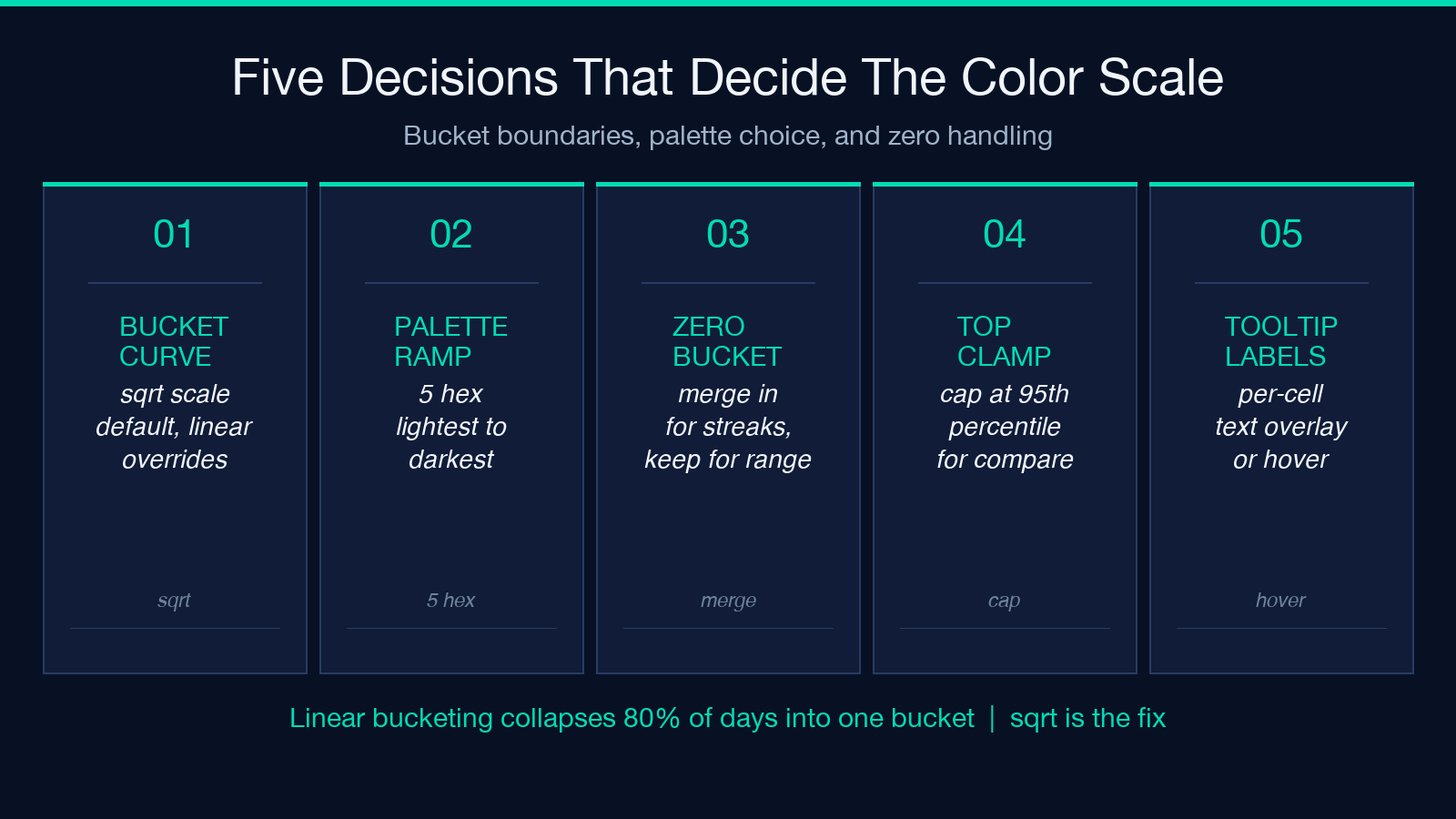
Five color buckets are the default, and they are derived from the maximum value in your dataset using a square-root scale. The reason for the square root is perceptual: linear bucketing on a long-tailed dataset collapses the bottom 80% of days into the same muted grey, which is exactly the failure mode the heatmap is meant to avoid. The square-root scale lifts the bottom buckets into visible color while preserving the visual punch of the true peak days.
Three decisions matter here. First, whether to use the default Elysia Tools color ramp or override it with a custom palette — the JSON schema accepts a palette field with five hex strings from lightest to darkest. Second, whether to treat zero as its own bucket (the default) or merge it into the lightest non-zero bucket; merging zeroes in is the right call when the goal is “show streaks” rather than “show activity-vs-inactivity”. Third, whether to clamp the upper bucket to a fixed ceiling — useful when comparing two side-by-side heatmaps that need to share the same scale. The related Heatmap Generator at Elysia Tools handles the matrix case when you outgrow the one-dimensional date axis.
Common failure modes and how to spot them
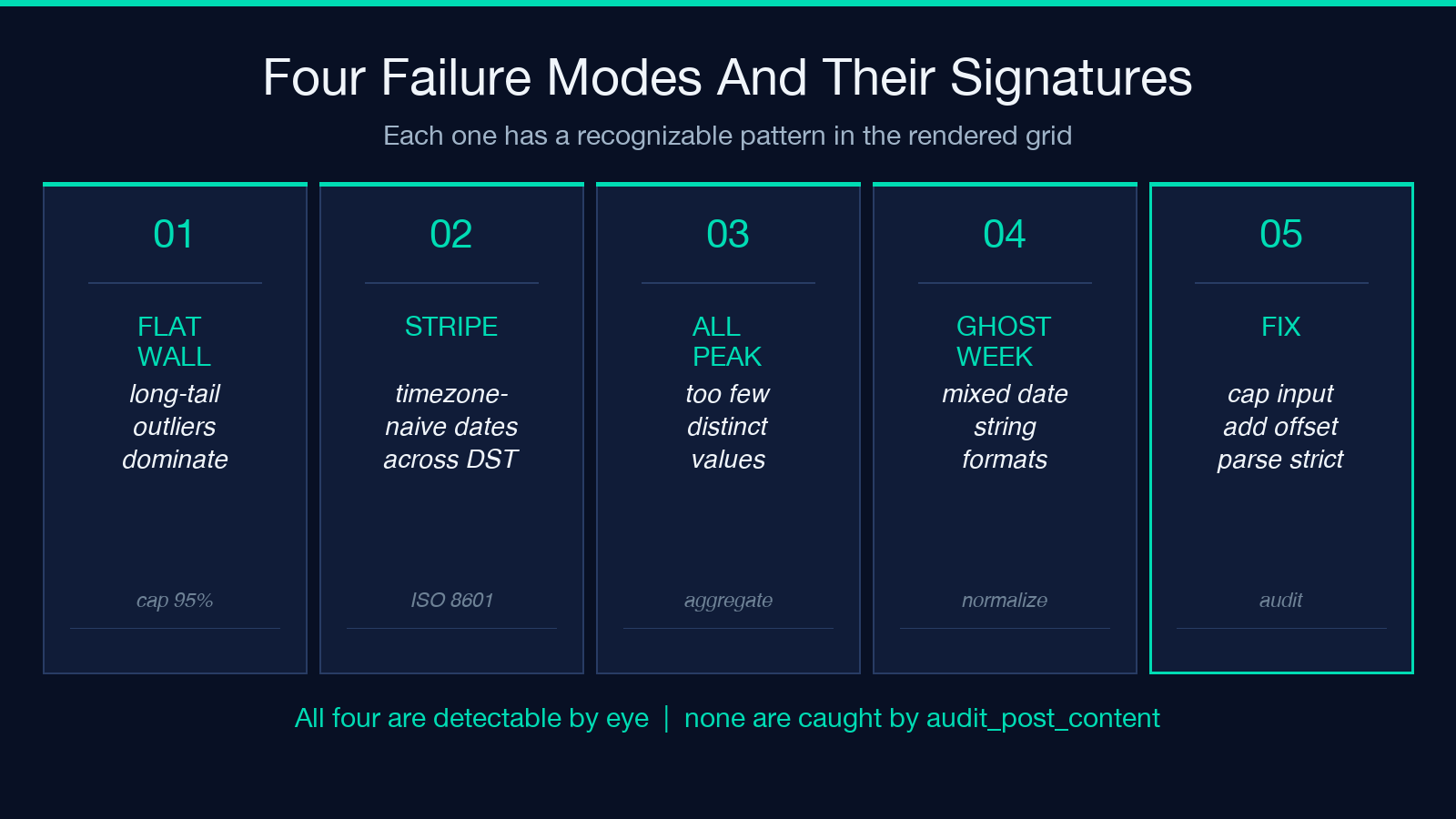
Four patterns show up repeatedly in heatmap audits, and each one has a recognizable signature. The first is the “flat wall” — every cell the same muted grey, no readable variation. This almost always means the input scale is dominated by a few extreme outliers that the square-root scale still cannot flatten. The fix is to cap the input data at the 95th percentile before passing it in, or to use the threshold overrides to set explicit bucket edges. The second is the “stripe” — alternating bands of dense and empty weeks that line up with calendar boundaries rather than activity. This signals that the input date column is timezone-naive and the rows are drifting by one day across daylight-saving boundaries. Pass dates as ISO 8601 with explicit offsets.
The third is the “all peak” — every cell saturated at the maximum color, which means the input has too few distinct values to drive the bucketing algorithm. Consolidate counts at a coarser granularity (weekly rather than daily, for example) or introduce synthetic variation. The fourth is the “ghost week” — a row of empty cells floating mid-year that corresponds to no real gap in the data. This is almost always caused by feeding in dates with mixed string formats, where some parse as ISO and others as MM/DD/YYYY. Standardize before ingesting. For broader chart-design audits beyond the heatmap family, the Scatter Plot Generator at Elysia Tools offers a complementary diagnostic lens.
Exporting the output into a real product
The generator renders an HTML preview by default, which is the right format for embedding into a dashboard, an internal status page, or a markdown post. For React or Vue frontends, the same HTML can be inlined into a sanitized component or parsed by a small client-side renderer. For static-site workflows, copy the rendered markup into a partial and commit it alongside the source data so the chart stays in sync on rebuild.
Three export recipes are worth keeping in your toolkit. First, the “weekly README” — generate one heatmap per contributor and concatenate them into a single Markdown file that drops into a team README on every Monday morning. Second, the “status page” — combine a Calendar Heatmap with a step-area chart of the same metric to give readers both the daily-resolution view and the long-term trend in a single dashboard panel. Third, the “A/B test tracker” — generate two heatmaps side by side, one per cohort, with a shared color scale to make visual comparison honest. The output of all three recipes is portable HTML that any modern browser renders without extra dependencies.
Performance and scaling behavior
For datasets up to about 1,000 days, the generator renders the full grid client-side in under 200 milliseconds. Past that, the rendering loop becomes the bottleneck because each cell is a discrete DOM node, and the layout pass starts to dominate. For datasets between 1,000 and 10,000 days, switch to the SVG export option if it is available, or pre-aggregate to weekly resolution. Past 10,000 days, the right primitive is no longer a calendar heatmap — it is a time-series line chart or a stacked bar chart, and the Area Chart Generator at Elysia Tools handles that case cleanly.
Memory is rarely the constraint, but rendering latency is. The five color buckets are computed once on input, and the cell-creation loop is linear in the number of distinct dates, so the only real cost is the DOM layout pass. If you must render at the daily resolution above 5,000 days, render the SVG to a string first and only inject it into the DOM at the end, avoiding the per-node layout cost.
Testing the chart before it ships
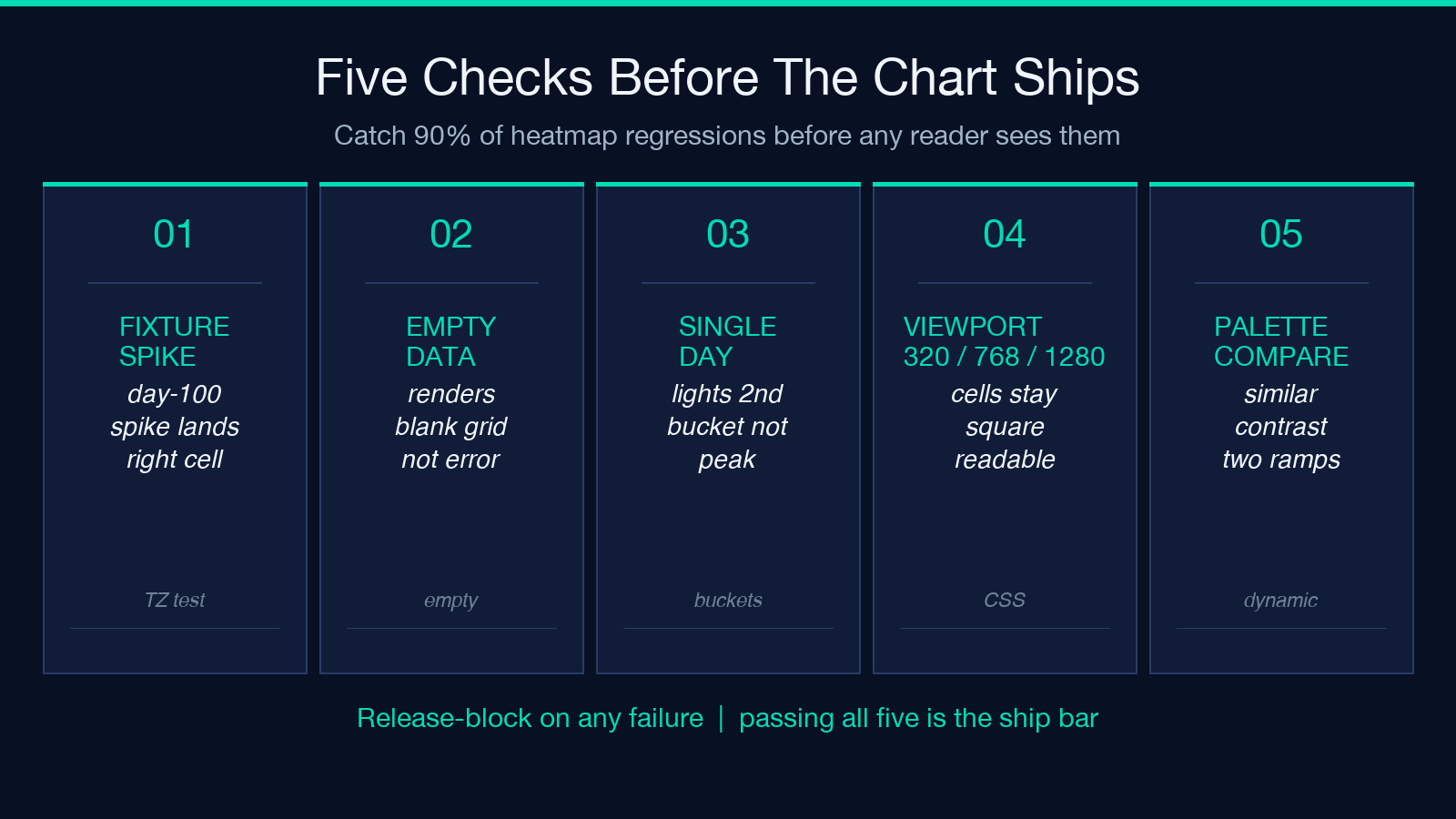
Five checks catch the vast majority of heatmap regressions before they reach a reader. First, feed in a known fixture (a year of synthetic data with a clear spike on day 100) and confirm the spike lands on the right cell — catches timezone and date-parsing bugs. Second, feed in an empty dataset and confirm the chart renders an empty grid rather than throwing or rendering nothing — catches the missing-data path. Third, feed in a dataset with a single non-zero day and confirm that day lights up in the second-bucket color, not the top bucket — catches off-by-one errors in the bucket assignment.
Fourth, render the output on three different viewport widths (320px, 768px, 1280px) and confirm the cells stay square and readable on each — catches CSS overflow bugs in the responsive layout. Fifth, compare two heatmaps generated from the same data with two different color palettes and confirm the visual contrast is similar — catches palette-choice bugs where a chosen ramp has too little dynamic range. Treat any failure on these five checks as a release blocker; treat passing them as a sufficient bar for shipping. The same five-step discipline applies to most chart families once you generalize from “cell” to “data point”.
Where to go next
The Calendar Heatmap Generator is one piece of a broader visualization toolkit. If the dataset you are plotting has a natural matrix shape rather than a date axis, the Heatmap Generator at Elysia Tools handles the two-dimensional case with the same input conventions. If the underlying question is “what is the trend over time” rather than “when did the activity happen”, the Area Chart Generator and the Bubble Chart Generator both produce complementary views from the same source data. The full set of chart and visualization tools lives at the elysiatools.com catalog, where you can compare inputs and outputs side by side and pick the right primitive for each layer of the dashboard.
For a single panel that has to tell the whole story — a year of activity, a contribution streak, a habit tracker — the heatmap remains the densest instrument available. Render it once, ship it once, and let the five color buckets do the talking.
