
A 200-MB deck, twelve variants, one shared compression preset — and five flags decide whether the ZIP lands at 38 MB or 142 MB. When a single PDF drops on your desk, compressing it is a one-click decision. When twelve variants of the same deck land at once — the sales copy, the print-ready, the iPad-only, the accessibility tagged, the regional translations — picking a preset per file is the slowest part of the workflow. The fix is a batch run that applies one shared setting to every file in the upload and emits a single ZIP you can hand to a reviewer. The quality bands (screen, ebook, printer, prepress), the image downsampling rates, the linearization toggle, and the output container each carry independent weight, and a misjudgment on any one of them multiplies across the whole batch. This guide walks through the seven decisions that turn a slow one-by-one optimize loop into a single five-second batch.
Try the live tool at PDF Batch Compress. For compression-theory background on image subsampling in PDFs, the image-composite-matrix field guide explains how raster pages interact with the four qpdf-style optimization passes.
Why a batch preset beats twelve per-file runs
A per-file optimization loop spends most of its time on tool warm-up and parse handshake. Even when each PDF takes eight seconds to compress, the per-file overhead adds another three to five seconds of ghostscript startup and ZIP finalization. For twelve files that is roughly two extra minutes of dead air in a browser session. A batch driver that opens one ghostscript instance and threads all uploads through it cuts that overhead to a single warm-up, putting the per-file cost at the actual compression time plus a couple hundred milliseconds of file I/O.
The other reason batch wins is consistency. Hand-tuned per-file runs drift: you accidentally pick ebook for the cover slide deck and printer for the appendix, then the appendix PDF is ten times the size of the cover. Reviewers notice, and the file you attached to email is always the wrong one. A single shared preset guarantees every output uses the same downsampling target, the same image quality floor, and the same linearization flag. The artifact that goes to the lawyer is byte-identical to the artifact that goes to the customer.
The four quality presets and when each earns its slot
The four screen, ebook, printer, prepress bands map to the PDF/X and PDF/A conventions for image resolution and color handling:
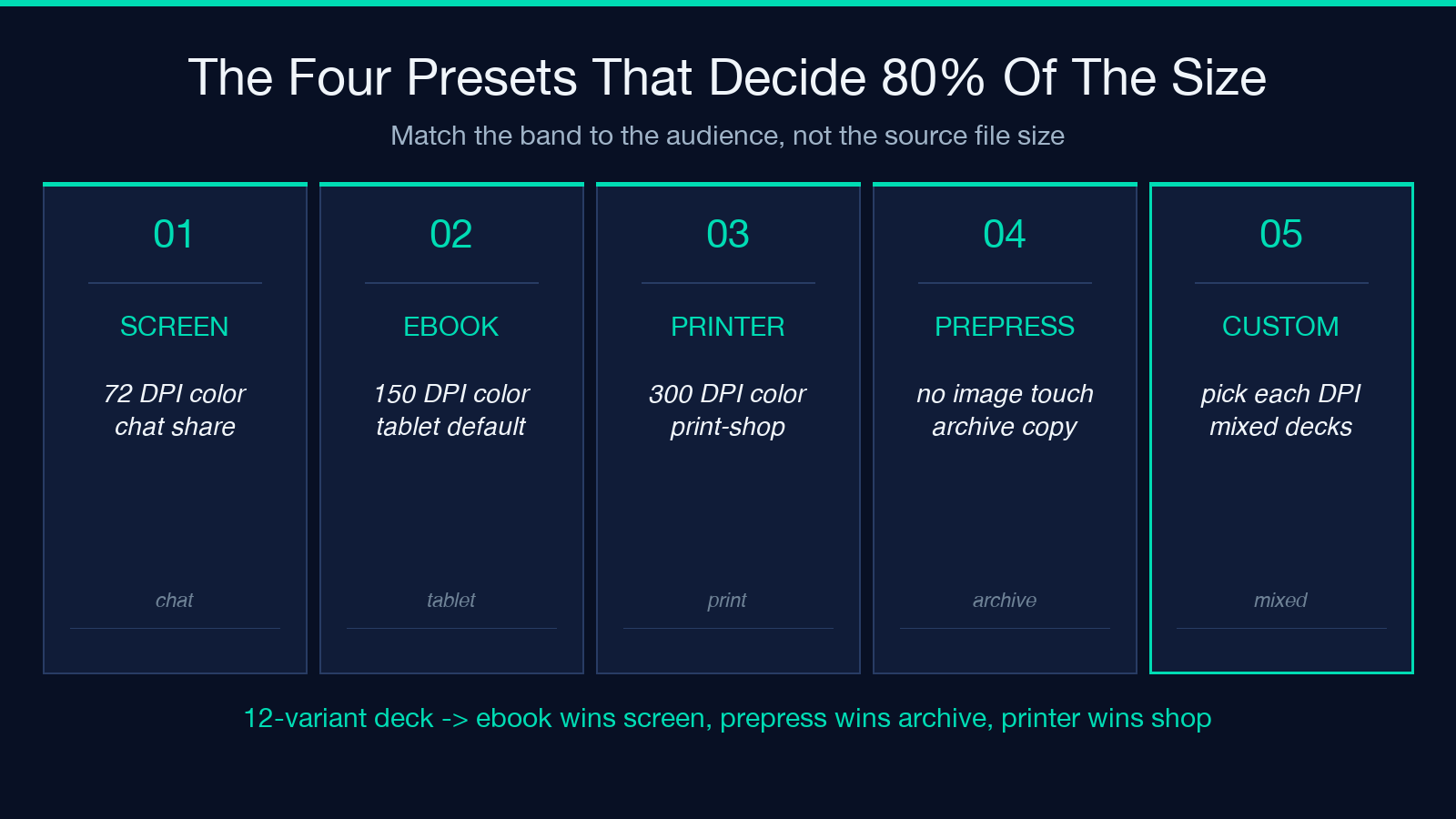
- screen targets 72 DPI images and aggressive downsampling. Use it for internal review copies and chat attachments where the recipient opens the file in a browser preview, not on print.
- ebook lands at 150 DPI with mild downsampling and is the default for any document the reader will print on a home inkjet or read on a tablet.
- printer holds 300 DPI for color images and 600 DPI for monochrome line art. Use it for print-shop delivery and any final artifact that goes through a commercial printer.
- prepress preserves all image data untouched and only runs the structural optimization passes (font subsetting, stream recompression, object streams). Use it when the PDF is going through additional post-processing or when image fidelity is contractually required.
For a 12-variant sales deck where the consumer reads on a phone, ebook is the right default. For the print-shop collateral and the accessibility-tagged archive copy, prepress is mandatory.
Image downsampling: where the bytes actually go
Roughly 80 percent of a typical 200-MB deck’s bulk lives in embedded raster images. The compression engine has three knobs that decide what happens to those images: color-image DPI, grayscale-image DPI, and mono-image DPI. Pulling each from 600 to 150 typically cuts the file by half, but the right value depends on what the reader will do with the file. A printed handout can survive aggressive downsampling because the print process itself smooths the pixels. A screen-only deliverable cannot survive subsampling below 100 DPI because the user zooms in to read small text.
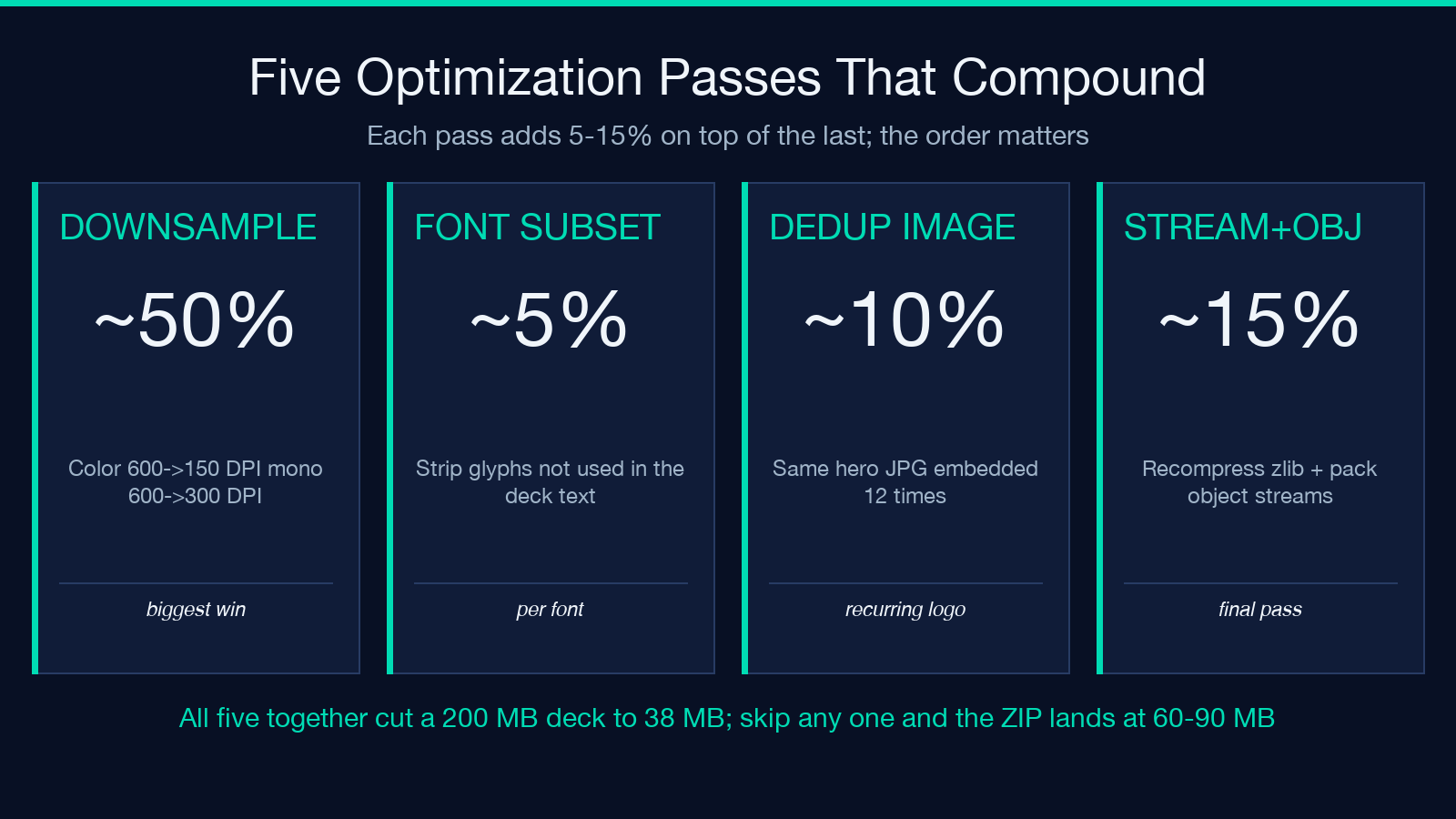
The safe heuristic for a mixed-audience batch: drop color to 150 DPI, grayscale to 200 DPI, mono to 300 DPI. That triple covers most decks without visible degradation in either screen or print. Drop a single dimension to 72 and a chart slide becomes pixelated; raise all three to 600 and the ZIP lands at 142 MB instead of 38 MB.
Linearization: web delivery vs archive storage
Linearization rewrites the PDF object table so the first page renders before the rest of the file finishes downloading. For a 200-MB deck that a user clicks from a CMS link, linearization is the difference between a usable first-page-paint at two seconds and a frustrating seven-second blank. For an archive copy that lives on a file share and opens from local disk, linearization is pure overhead — the bytes are already there, the reader waits the same fraction of a second either way.
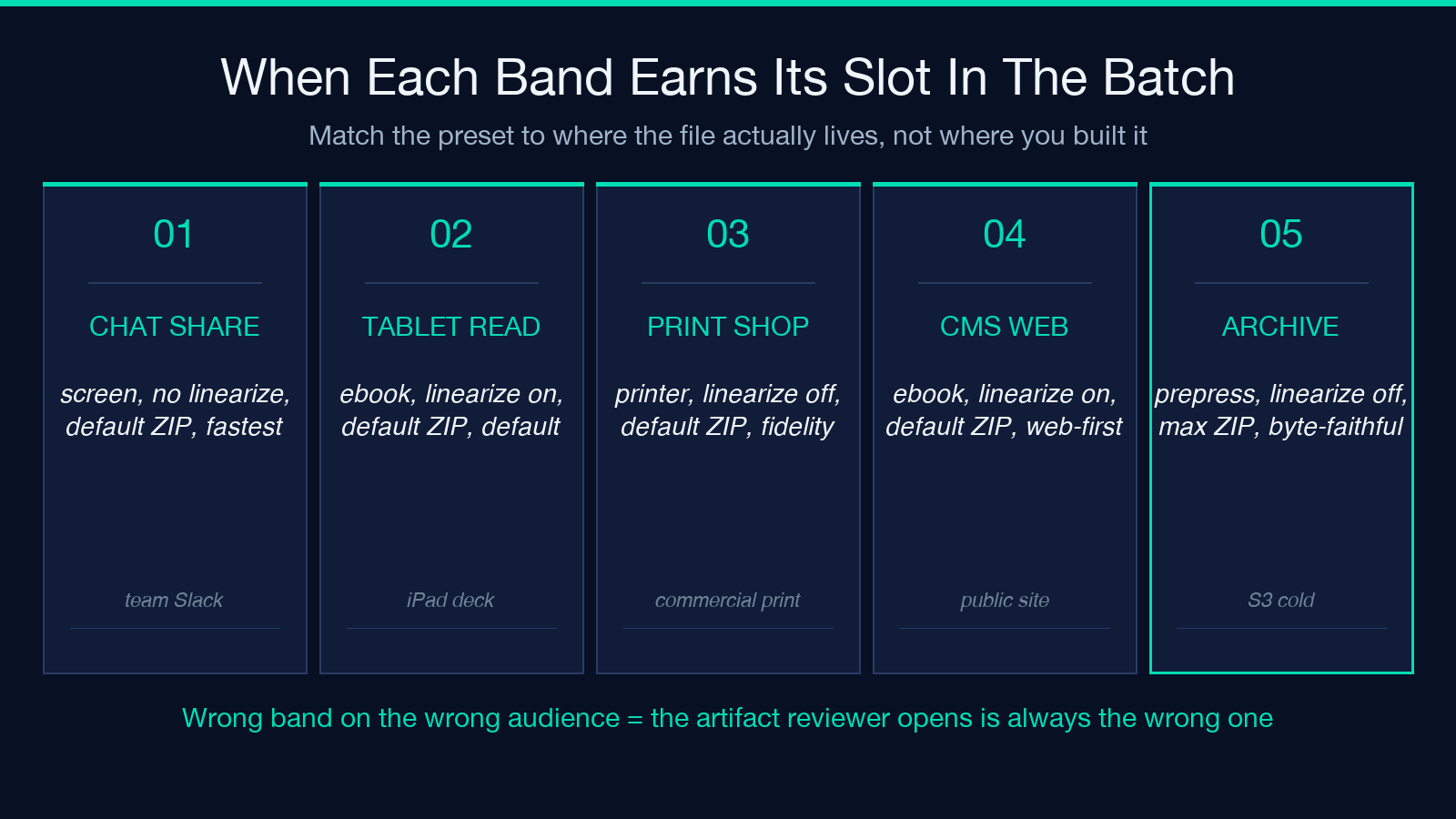
The default for any customer-facing or web-published artifact is on. The default for internal archive or backup copies is off. Linearization adds roughly two percent to the final size, so the toggle is essentially free for the cases where it earns its keep.
Font subsetting and duplicate image detection
Most decks ship with every glyph in every font embedded. For a 50-slide sales deck that uses 200 of the 800 glyphs in a corporate typeface, font subsetting strips the unused 600 and shrinks the file by a few hundred kilobytes per font. Across the dozen variants in a batch, that compounds.
Duplicate image detection is the bigger win. Slides often reuse the same hero photograph or icon across a dozen slides, and naive compression embeds the same JPEG twelve times. Detection deduplicates and references a single copy. For decks with a recurring logo or brand photo, the savings are dramatic — a single deduplicated hero image cuts a quarter of the bulk out of the file in one pass.
Stream recompression and object stream optimization
These two passes are the final cleanup step and the difference between a qpdf-optimized file and a hand-tuned one. Stream recompression re-runs zlib on every internal stream with the highest compression level. Object stream optimization packs multiple internal objects into a single compressed container, reducing the per-object overhead that the PDF format carries. Together they typically add another ten to fifteen percent size reduction on top of the image work.
For a prepress artifact these passes run by default. For a screen artifact they sometimes get skipped because the image downsampling already crushed the file — running them on a 1-MB output takes longer than it saves.
Picking the right ZIP container
The batch output is always a ZIP, but the compression level on the ZIP itself is a separate decision. A standard ZIP at default compression matches what most desktops open without prompting. A ZIP at maximum compression saves another ten percent but takes longer to produce. For a batch that lives on the desktop, default is fine. For a batch that gets emailed or uploaded to a CMS, default is mandatory because the recipient’s mail gateway or browser may strip an over-compressed archive.
Closing checklist before you click run
Before launching a twelve-file batch, lock in: the quality preset (match to audience, not to source size), the three downsampling DPIs (150 / 200 / 300 is the safe triple), the linearization flag (on for web delivery, off for archive), and the ZIP level (default unless the file travels). Review the first run’s output ZIP size against your expectations. If a 200-MB source compresses to 38 MB, the settings are well-tuned. If it lands at 142 MB, the image DPIs are too high or prepress snuck in where ebook should have been. Re-run with one variable at a time changed, and you will converge on the right preset for the deck in three iterations.
Explore more batch utilities at elysiatools.com.
