
A headerless pixel buffer is just bytes in a row, and the converter trusts every number you type. If you have ever extracted a framebuffer dump, a custom sensor stream, a game-engine texture array, or a numeric array written out by NumPy or MATLAB as a flat binary file, you already have a raw pixel buffer. There is no magic number, no EXIF tag, no metadata block to interrogate. The converter asks four questions: how wide is the image, how tall is the image, how many channels per pixel, and how many bits per channel. You supply those four answers, and the byte stream is interpreted strictly against them. One wrong digit and the result is a stripe of color, a doubled image, a vertical mirror, or a green-pink noise field.
The headerless buffer is not the same as a camera RAW file
The first thing to clear up is what this tool does not do. It does not decode DNG, ARW, CR2, NEF, RAF, ORF, RW2, or any other camera RAW container. Those formats embed a TIFF or similar structured container with demosaic metadata, white balance, lens correction tables, and a thumbnail preview. The bytes are not a flat buffer; they are a structured archive. A camera RAW decoder knows how to walk that structure and pull the sensor data plus the metadata.
The raw-to-jpg converter handles the simpler case: bytes laid down in a strict, predictable order. Every row of pixels, from top to bottom. Every pixel in a row, from left to right. Every channel within a pixel, in the order the converter expects. There is no header byte to skip, no offset to find. The byte at position 0 is the first byte of the top-left pixel.
This distinction is the source of ninety percent of the misuse. A photographer who tries to open a CR2 with this tool gets either an error or, worse, a “successful” output that is just a colored noise pattern sized by the dimensions they guessed. A game developer exporting a framebuffer for a debug snapshot is the use case the tool was actually built for.
How the byte order is interpreted once you supply the layout
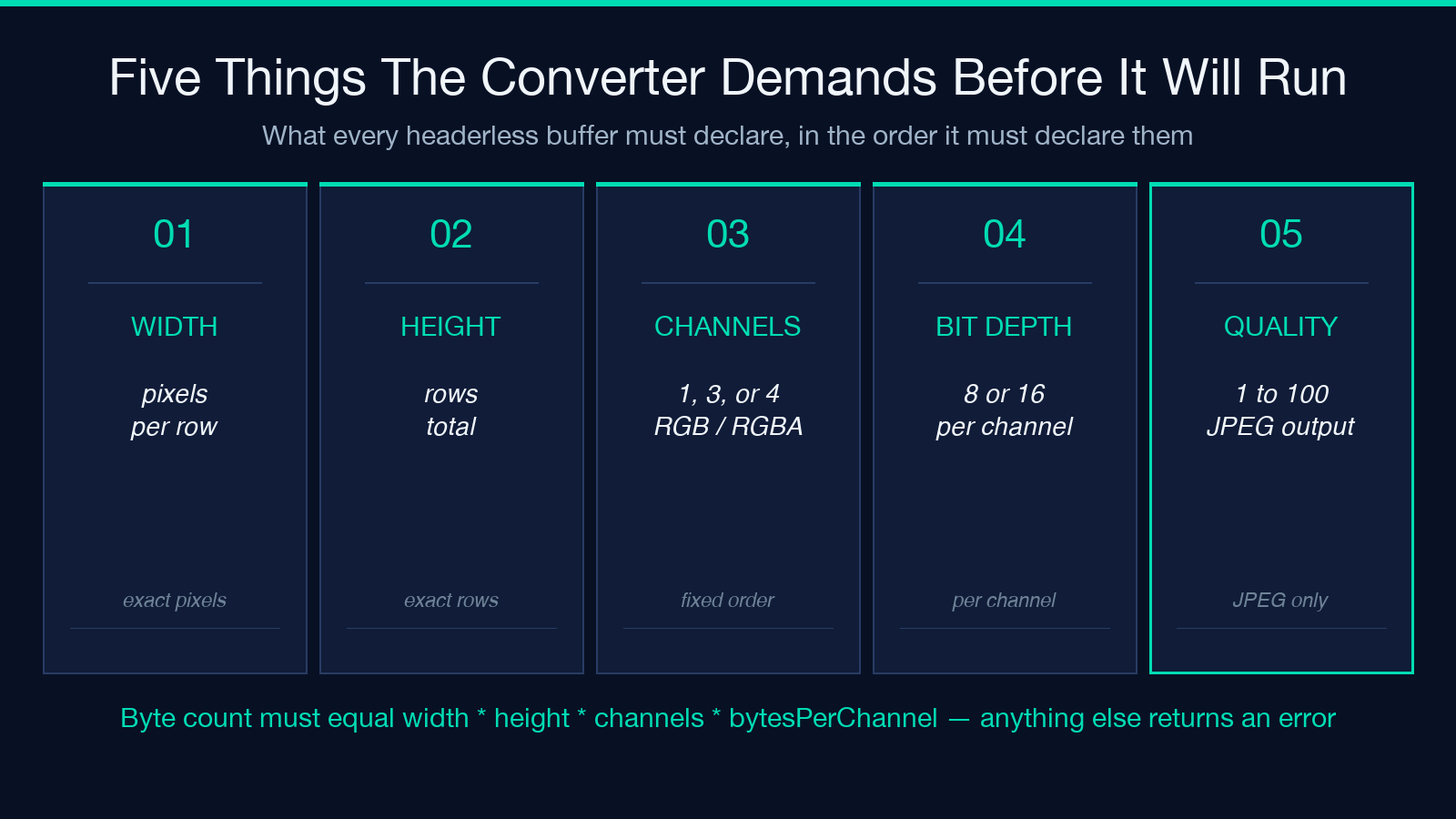
Given width, height, channels, and bit depth, the converter walks the byte stream in a fixed order. For an 8-bit RGB image, every pixel consumes three bytes in order: red byte, green byte, blue byte. The first three bytes of the file are the red, green, and blue of the top-left pixel. Bytes 3 through 5 are the red, green, and blue of the pixel immediately to the right of the top-left pixel. After width pixels, the next byte is the leftmost pixel of the second row. The total byte count must equal width times height times channels times bytes-per-channel, or the converter cannot lay out a complete final row and will refuse to render.
For 16-bit channels, every channel consumes two bytes in little-endian order. The converter reads the low byte first, then the high byte, and combines them into a 16-bit value. If your source is big-endian, every pixel comes out garbled. The bit depth select on the tool offers 8 and 16, and the channel count select offers 1 (grayscale), 3 (RGB), and 4 (RGBA). Together with width and height, that covers the common framebuffer layouts.
The strictness is the point. If the byte count does not match the layout, the converter surfaces that mismatch rather than silently cropping or padding. You get a real error, not a misaligned image you have to spot later.
The five things you must know before you click convert
Five facts separate a successful conversion from a confused mess. (1) The byte count of the file must equal exactly width height channels * (bit_depth / 8). (2) The channel order is fixed: for RGB it is red, green, blue; for RGBA it is red, green, blue, alpha. The converter does not offer a swap. (3) The endianness for 16-bit data is little-endian. If your source is big-endian, byte-swap every pair before upload. (4) There is no padding, no row stride, no alignment. Bytes flow continuously. A source that pads each row to a 4-byte boundary will fail the byte-count check. (5) The bit depth is per channel, not per pixel. A 16-bit RGB image is 6 bytes per pixel, not 2.
Run through those five checks before you upload and you will avoid the stripe patterns, the doubled images, and the green-pink noise fields that come from a wrong layout.
How to extract a raw pixel buffer from common sources
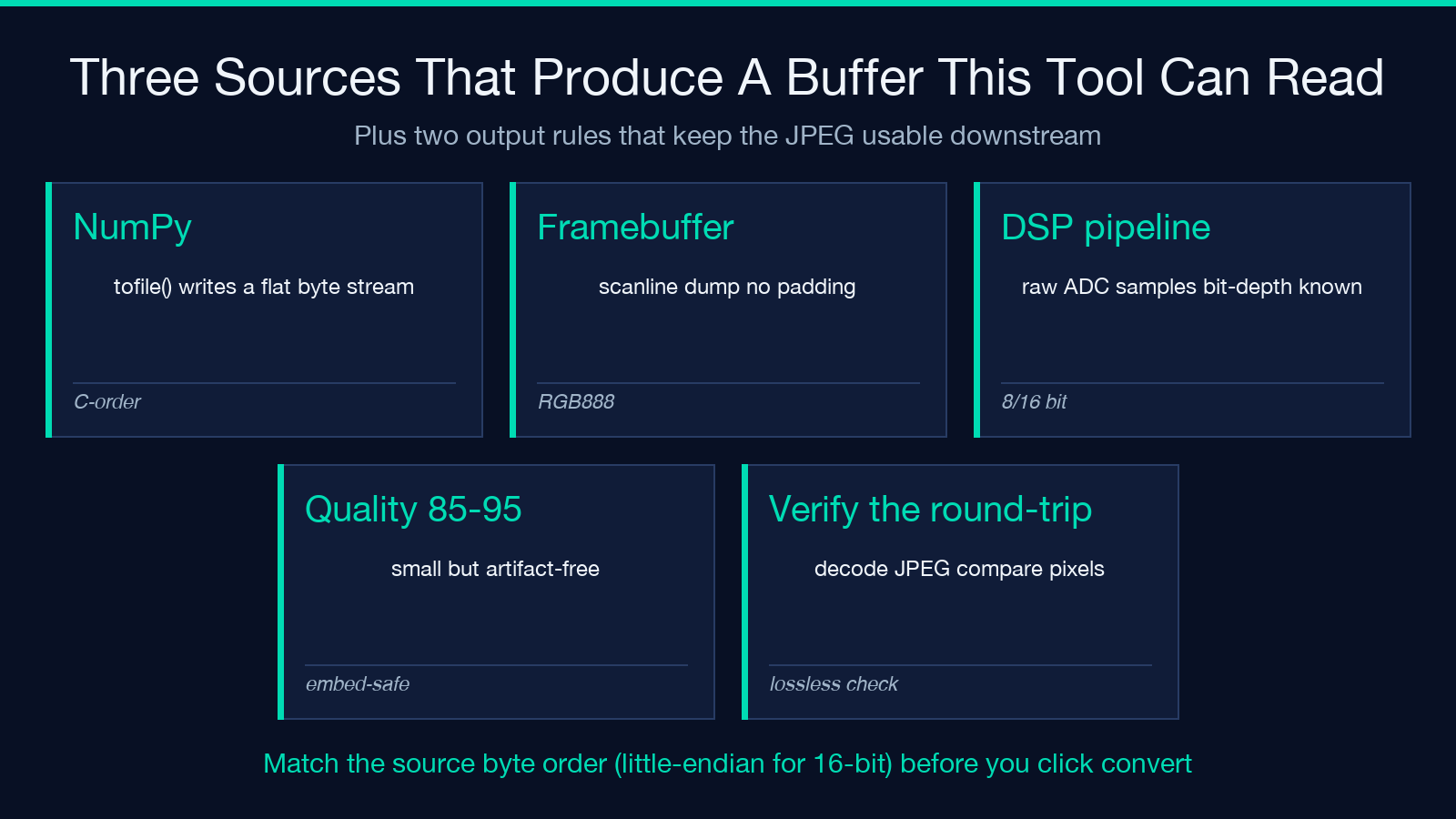
Three sources produce headerless buffers that this tool can ingest. The first is a NumPy array saved with tofile(): the resulting file is exactly array.nbytes bytes, in C-order (row-major), with no header. The second is a framebuffer captured with a graphics library or a game engine in a packed pixel format like RGB888 or RGBA8888; the dump is a flat byte stream in scanline order. The third is a custom sensor or DSP pipeline that emits raw ADC values as a flat file; you control the bit depth and channel count at the source.
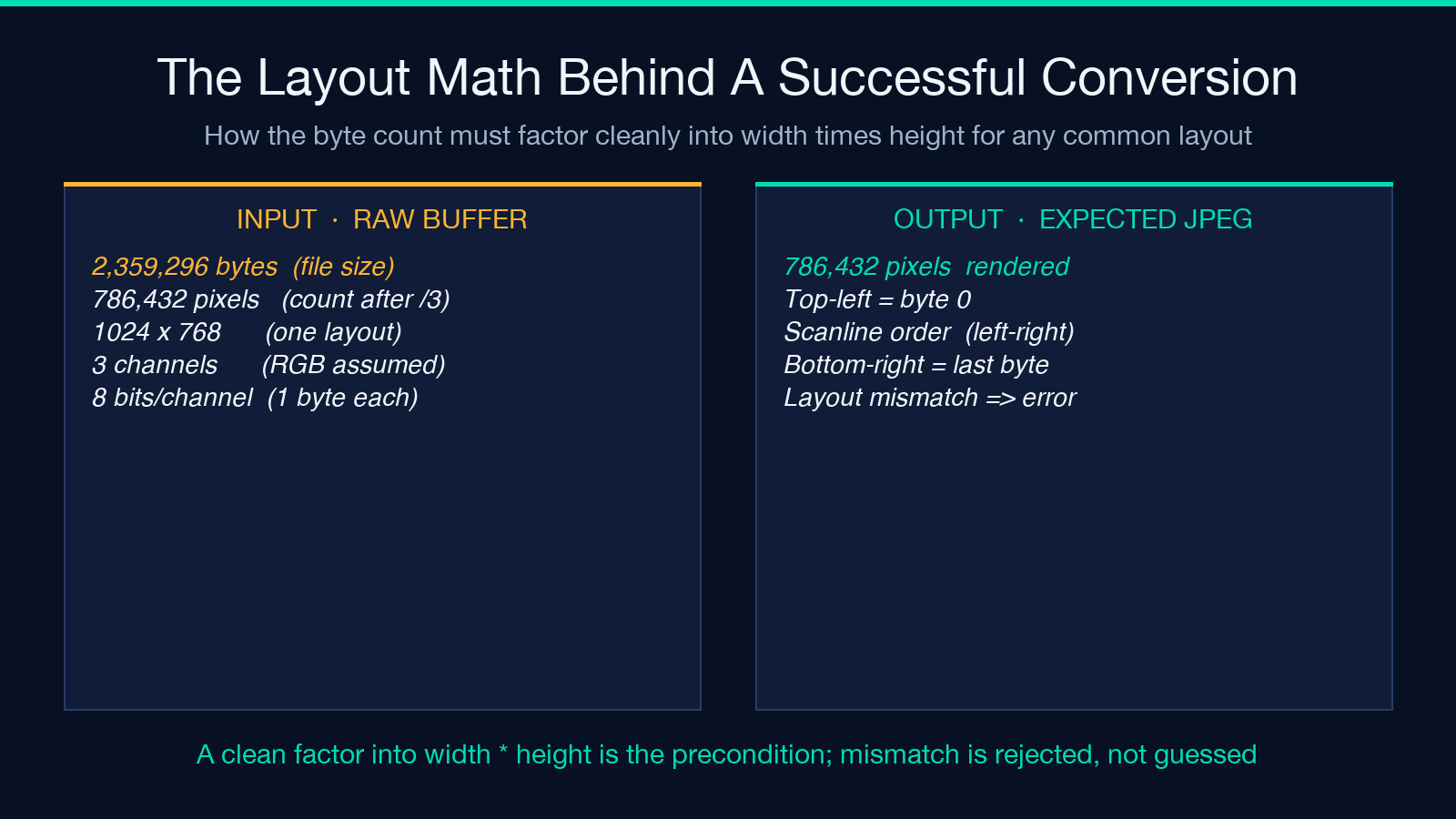
The recipe for verifying the layout: take the file size in bytes, divide by the channel count, divide by the bytes per channel, and check whether the result factors cleanly into a width times a height that makes sense. If the file is 2,359,296 bytes and you know it is 8-bit RGB, that is 786,432 pixels; common dimensions are 1024×768, 1344×585, 1280×614. If you expected 1280×720, the file is short and the layout is wrong.
For NumPy specifically, the inverse path matters too. After conversion, you can read the JPEG back, decode it, and confirm the pixel values match the original buffer. A mismatch means the original was not actually C-order, or the bit depth was wrong, or there was padding you forgot about.
Where strict interpretation catches your mistake early
The strict interpretation is a feature, not a limitation. A converter that “guesses” the layout from the byte stream produces a misaligned image that looks plausible at a glance but is wrong in every pixel. A converter that demands you declare the layout and refuses when the math does not line up tells you immediately that your export pipeline has a bug. The cost of a clear error is a few seconds of debugging; the cost of a silently-misaligned image is hours of debugging later when something downstream assumes the output is correct.
This is also why the converter does not accept “approximately the right size” or “let me try different channel counts.” The contract is exact. If the contract is not met, the conversion does not happen. That is the right behavior for a debug and verification tool, which is the use case this fills.
Why JPEG quality is the only knob on the output side
The output is always JPEG, and the quality slider (1 to 100) is the only control. Below 50, JPEG’s block-DCT artifacts become visible at 8×8 boundaries; below 30, the file shrinks fast but the per-block distortion is severe. For pixel buffers from debug captures or scientific visualizations, 85 to 95 is the practical band: small enough to embed in a doc, large enough that compression artifacts do not mask real signal. For thumbnail-quality previews, 60 to 75 is fine.
There is no option for PNG, WebP, or lossless output. JPEG is lossy, and the converter does not pretend otherwise. If you need lossless, the answer is not this tool; the answer is a PNG encoder that accepts a raw pixel buffer as input, of which there are several.
What happens when the byte count does not match
The converter cannot lay out a complete final row if the file is short, and cannot interpret trailing bytes if the file is long. In both cases, the result is a clear error message, not a partial image. The error tells you the expected byte count and the actual byte count, so the fix is usually one of three things: correct the width, correct the height, or correct the channel count. A wrong bit depth is rarer because it usually produces a factor mismatch you can spot from the byte count.
The common trap is when the file is a few bytes short because of an off-by-one in the source export. The error message names the actual size, so you can divide by your expected channel count and bytes per channel to find the real width-times-height product, then refactor.
Putting it together for a sensor capture pipeline
The end-to-end recipe for a custom sensor or DSP pipeline: emit the pixel data as a flat file in scanline order, with a known channel count and a known bit depth. Track the byte count at write time so you have a ground-truth number. Open the converter, type the width, height, channels, and bit depth. Pick a JPEG quality (85 is a sensible default). Convert. Open the JPEG in any image viewer and confirm the layout. If the result is wrong, the most common cause is channel order: many pipelines emit BGRA rather than RGBA, and the converter expects the latter. Byte-swap the channels in your source, or use a wrapper that reorders.
For the full tool and a try-it-here interface, see the Convert Raw Pixel Buffer to JPEG tool. For related image-format converters in the same catalog, browse the full Elysia Tools library; converters for PNG, WebP, ICO, and BMP all live next to this one.
