8 Ways to Make Excel Spreadsheets Actually Useful (Not Just Organized)
A colleague sends you a spreadsheet. You open it. You scroll right — the column headers disappear. You scroll down — you forget which row is which. You scroll back up. You do this four times before you message them: “Can we just hop on a call?”
This is where spreadsheet workflows fall apart. Not because the data is bad. Because the spreadsheet stopped communicating the moment you moved your cursor.

These eight free browser-based tools handle the formatting, print setup, and reporting work that turns a raw data dump into something a colleague can actually use. They run entirely in the browser — no installs, no Excel license needed.
XLSX Freeze Pane Manager — Stop Losing Your Headers When You Scroll
Wide spreadsheets hit this wall immediately. You freeze row 1 so the headers stay visible — but you also need column A locked because that’s where row labels live. And then you want collapsible row groups so the detail rows fold away and the summary rows stand alone.
The XLSX Freeze Pane Manager handles all three in one pass.
You upload an XLSX file, pick how many rows and columns to freeze, and the tool auto-freezes column A if your sheet is wide enough. You can also define row groups and column groups as JSON — each group becomes a collapsible outline in Excel. When you open the file, the small + and - buttons appear in the gutter. Click - and 50 detail rows fold away. Click + and they come back.
This means the alternative — manually setting freeze panes in Excel on every sheet — does not scale. A 12-tab workbook is 12 manual operations. With the tool, you describe what you want once in JSON and it applies across all sheets.
Try it with: A sales report that has a header row, a row-labels column, and three sections of detail rows. Set row groups per section and all three collapse independently.
XLSX Print Setup Pack — The Version Your Colleagues Can Actually Print
You finish a report. You press Ctrl+P in Excel. The output is wrong: headers missing on page 2, margins off, page orientation wrong, no page numbers. You spend 15 minutes fixing print settings. Your colleague opens the file on their machine and has to do it again.
The XLSX Print Setup Pack applies all print settings in a single configuration.
You pick paper size (A4, Legal, Executive), orientation, margins in inches or centimeters, and whether to fit to one page wide. You can set title rows to repeat on every printed page — so page 2 and page 10 both show the column headers. You can write a header and footer string: something like &LConfidential&CMonthly Report&RPage &P of &N places text on the left, center, and right of every printed page.
The &P and &N codes are native Excel print field codes. The tool writes them into the workbook file directly, so they work in Excel, LibreOffice, and Google Sheets when opened from a browser.
This means every time you send a workbook, it arrives print-ready.
XLSX Conditional Formatting Rule — Find the Problem Before It Finds You
In a dataset of 500 rows, the outlier values are the story. A cell that turns red when revenue drops below a threshold. A data bar that shows relative performance across a column at a glance. A three-color gradient that makes a risk score readable without any number at all.
The XLSX Conditional Formatting Rule applies these visual rules in batch from a JSON description.
You describe rules: a range like H2:H20, a type (cellIs, dataBar, colorScale, or containsText), an operator and threshold value, and a fill and font color. The tool generates an XLSX with all rules embedded. Open it in Excel and the formatting is already live — no manual setup.
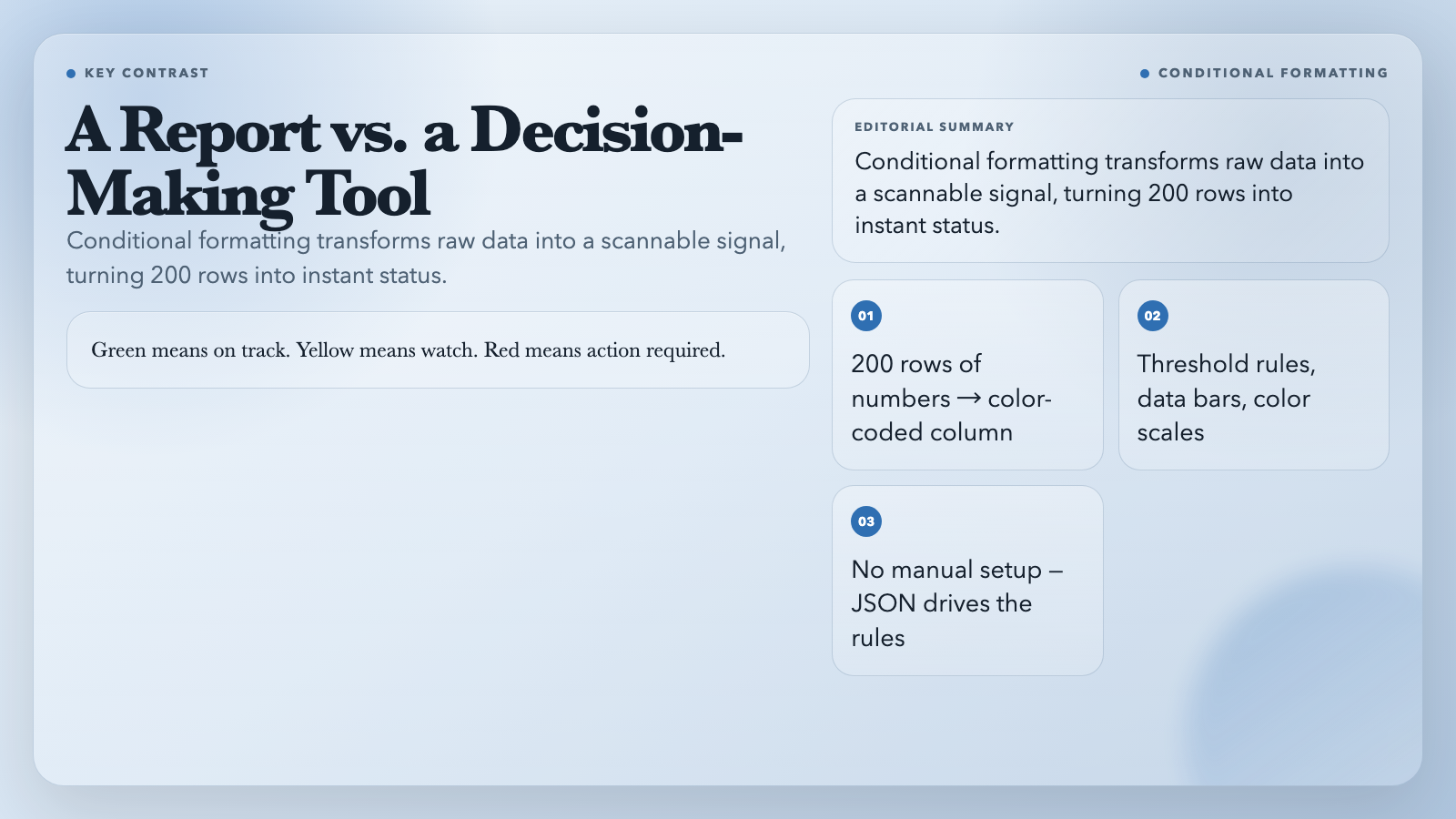
The difference between reading 200 rows of numbers and scanning a column where green means “on track,” yellow means “watch,” and red means “action required” is not cosmetic. It is the difference between a report and a decision-making tool.
Try it with: A metrics column where values above zero are good, and below zero are bad. One rule turns the cell green or red depending on sign and magnitude.
XLSX Sparkline Injector — Trend Lines Inside Your Cells
Sparklines are tiny charts that live inside a single cell. No axes, no labels — just the shape of the data. A column of sparklines in a KPI table tells you at a glance which metrics are trending up, down, or flat.
The XLSX Sparkline Injector writes sparklines into cells from a JSON description.
You specify the sparkline type (line, column, or stacked/win-loss), the data range to draw from, and the target cell. You can color the series, show markers on the first and last points, and highlight the high and low values. The tool injects the sparkline OOXML directly into the worksheet.
This is the difference between a table that lists monthly values and a table that tells a story across a row. One row shows 12450, 12890, 13200, 13900, 14100. The next row shows those same numbers as a line that slopes steadily up. Which one communicates faster?
XLSX Chart Embedder — Charts That Update When Your Data Updates
You have a data table. You want a bar chart and a pie chart alongside it. The standard workflow is: select the data in Excel, insert chart, format, export as image, paste into a report. The problem is that the chart is now a static picture — if the data changes, you redo the whole process.
The XLSX Chart Embedder reads ranges directly from the workbook and generates chart images from them, then embeds those images into target cells.
You point it at a sheet, specify the category and value ranges, pick bar or pie, set an anchor cell, and the chart appears at that position. The data comes from the live worksheet ranges, so regenerating the file with new numbers produces new charts.
For report packs that need to go out on a schedule, this means charts and data stay synchronized without manual intervention.
XLSX Data Validation Dropdown — Build Forms Inside Your Spreadsheet
Someone fills in a spreadsheet wrong. They typed “Open” while the column expects “open” (lowercase). The spreadsheet accepts it silently. You spend the next review meeting cleaning bad data instead of analyzing it.
The XLSX Data Validation Dropdown builds dropdowns and cascading parent-child dropdowns directly into workbook cells.
You describe rules in JSON: a target range, a list of allowed values, an optional input prompt (“Choose a status from the list”), and an optional error message. For cascading dropdowns, you define a mapping: when the parent cell shows “Hardware,” the child cell shows [“Laptop”, “Monitor”, “Keyboard”]. When it shows “Software,” the child shows [“CRM”, “ERP”, “Analytics”]. The tool builds the hidden helper sheets and named ranges that Excel needs to make this work.
The result is a workbook that guides input rather than accepting anything and apologizing later.
XLSX KPI Dashboard Generator — A Dashboard in Under Five Minutes
You have a list of KPIs: Revenue, Gross Margin, CAC, Churn Rate. You want a dashboard that shows current value, target, and a status indicator for each. Green if the metric is on track, yellow if it is within warning tolerance, red if it is not.
The XLSX KPI Dashboard Generator builds this from two JSON inputs: a KPI list with names, values, targets, units, and directions (higher is better or lower is better), and an optional trend table with time series data.
It generates a workbook with a summary card layout and a trend sheet. The conditional formatting applies automatically: revenue above target gets green, revenue within 10% of target gets yellow, below that gets red. CAC below target gets green, above gets red — because for that metric, lower is better.
This replaces the weekly ritual of manually updating a dashboard. Paste in the new numbers. Press generate. The dashboard updates.
XLSX Multi-Tab Report Pack — The handoff-Ready Workbook
Most data work ends with a single sheet of raw data. The next person has to figure out what the columns mean, which rows look suspicious, and what they are supposed to do with it. This is the hidden cost of a data-first culture: nobody built the metadata.
The XLSX Multi-Tab Report Pack generates a four-tab workbook from a single JSON data input:
- Overview: Title, metadata, and a summary table of row counts and anomaly counts
- Details: The raw data with frozen headers
- Anomalies: Rows that violate your defined rules (amount below minimum, value is missing) plus auto-detected extreme values
- Dictionary: Field names, types, and descriptions — so the next person does not have to guess what
amt_usdmeans
The anomaly detection runs in two modes. Rule-based: you define field-level min/max thresholds and it flags violations. Auto-detection: it finds missing values and extreme magnitudes without any rules. Both run automatically on every generation.
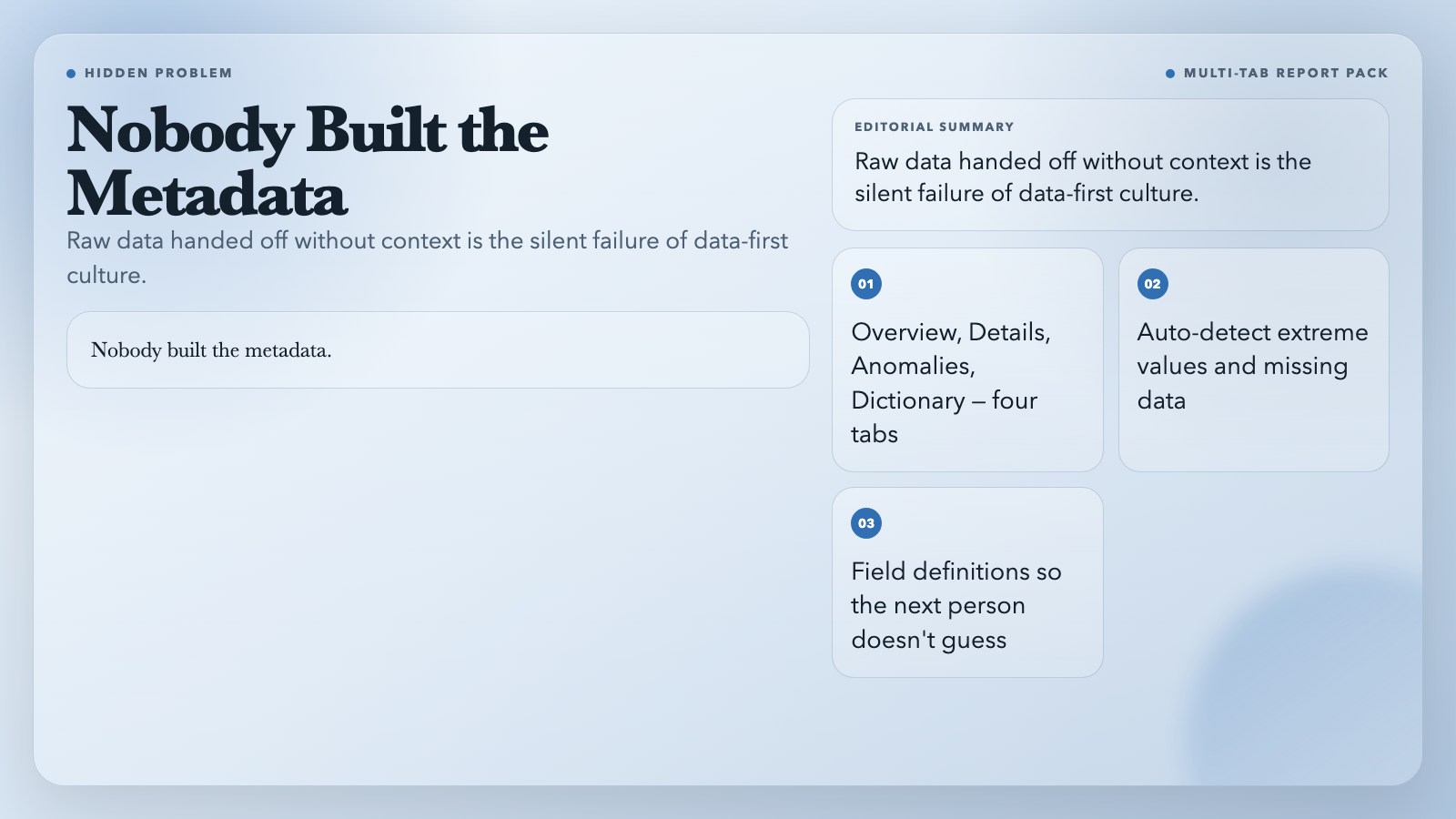
This is the workbook that makes a data analyst look like they thought about the recipient.
The Pattern: Stop Doing Formatting Work Manually

These eight tools share the same logic. They take a description of what you want — JSON for configuration, a file for data — and write the result directly into the XLSX format. No manual setup inside Excel. No repeated work when the data changes.
The spreadsheet was never the bottleneck. The formatting and reporting layer around it was.
Here is the test: send your next spreadsheet to a colleague and watch what they do. If they scroll back and forth three times before they understand it, the data was fine. The presentation failed. These tools fix that layer — once, so you do not have to fix it every time the numbers change.