
A regex that “works” in your editor can quietly do three different things when you run it against production data: match cleanly on a 30-character input, match once and stop because you forgot the g flag, or fall into catastrophic backtracking and freeze the page for 10 ms on every keystroke. The Regex Debugger is built for the moment you need to see which one of those is happening — step by step, position by position, with the engine’s choices surfaced instead of buried under a single yes/no answer.
This field guide walks through the five decisions that determine whether a regex actually works on your real input: how you write the pattern, which flags you enable, how the engine starts its scan, when it commits to a partial match, and when it throws that match away to try something else. We will trace one realistic email-extraction pattern ([w.+-]+@[w-]+.[w.-]+) against the messy text it usually meets, watch it succeed on [email protected], watch it lose [email protected] because of a greedy quantifier, and then rebuild it with the same trace engine to keep both addresses intact.
What the Debugger Actually Shows You
Most regex testers return a single string — the first or last match, plus a count. The Regex Debugger returns a timeline of engine decisions: each step records where the cursor is, what token the engine is currently evaluating, whether the match attempt at this position succeeded or failed, and what the next position would have been if the engine had chosen differently. The same information a regex debugger in an IDE exposes — flattened into a scrollable log you can read left-to-right.
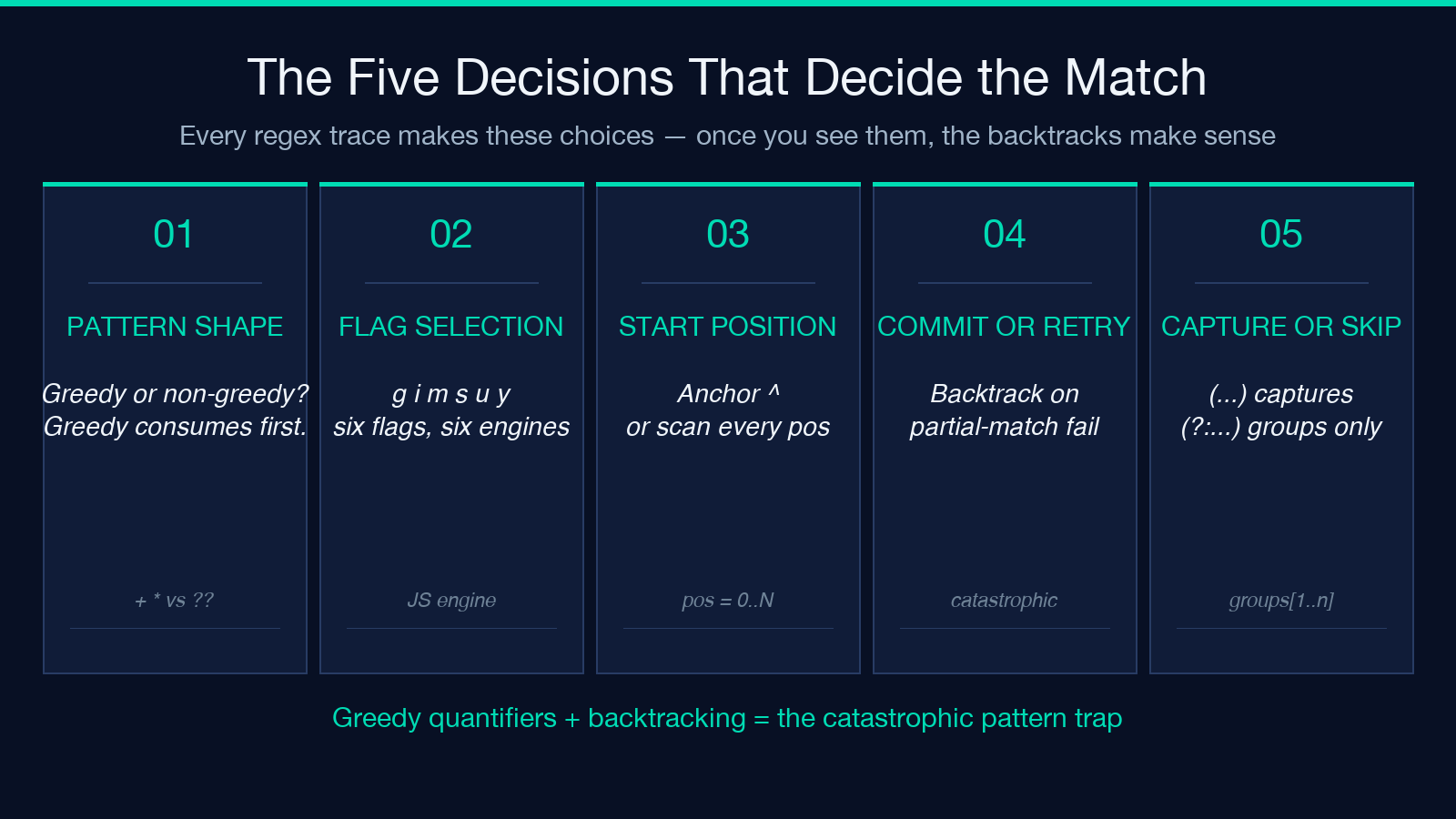
You will see four numbers per step: pos (where the cursor sits in the test text), op (the operation: try, consume, accept, reject, backtrack), token (the current pattern element being evaluated), and result (the outcome of that single step). The engine does not collapse adjacent successful consumes into one record — every character the regex eats is its own step. That detail is what makes the tool useful: when your regex suddenly takes 200 steps to fail, the trace tells you exactly which token was being tested when the engine gave up.
For an email pattern like [w.+-]+@[w-]+.[w.-]+ against the text Contact [email protected] or bob@host, the trace at position 0 reads try [w.+-]+ (consumes “Contact” because w matches letters, then fails because @ is not in the class). At position 8 it reads try [w.+-]+ consume a and walks through alice, accept @, then walks through example, accept ., walks through com, and finally accept end-of-string. Eighteen steps, three accept markers, zero backtracks — the happy path.
The Five Decisions That Decide the Outcome
A regex engine makes the same five kinds of choices on every input, and the trace surfaces all of them. Once you can read the trace, you can predict the trace, and once you can predict the trace, you stop writing patterns that look correct and behave catastrophically.
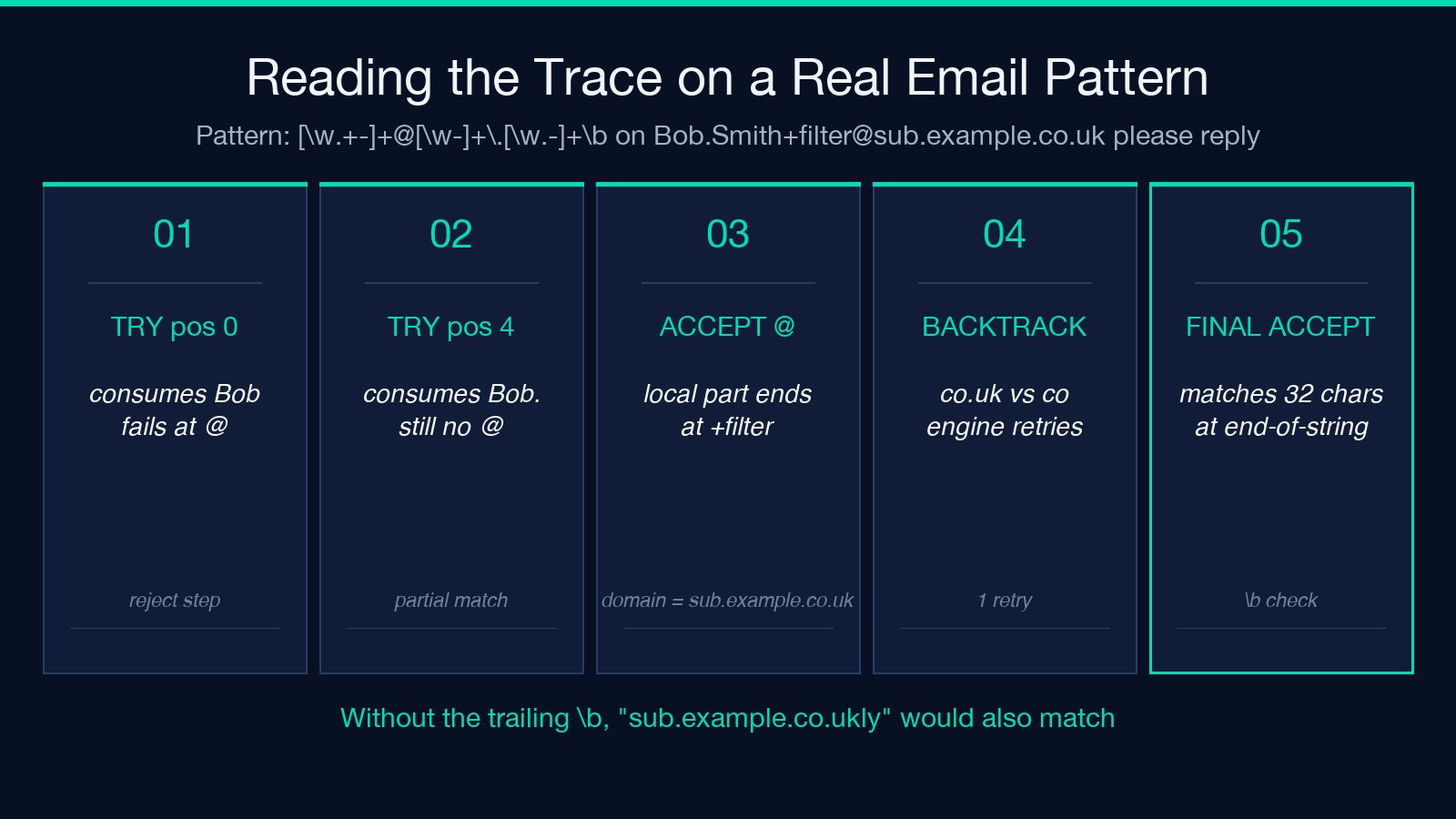
Decision 1: pattern shape — greedy or non-greedy quantifiers. The + and * quantifiers are greedy by default: they consume as many characters as possible before allowing the rest of the pattern to match. [w.+-]+@[w-]+.[w.-]+ looks balanced — name part, @, domain part, ., TLD — but the [w.-]+ at the end will happily consume co.uk and leave nothing for the trailing context if you add one. The trace shows it as a consume step that takes 4 characters in a single decision, then a backtrack step that gives one back when the pattern’s $ anchor fails.
Decision 2: flag selection — what the engine is allowed to do. The default g flag enables global matching (find all matches, not just the first). i enables case-insensitive matching. m enables multiline mode so ^ and $ match line boundaries instead of string boundaries. Each flag changes the engine’s decision tree. A pattern without g stops after the first match; a pattern with i accepts A and a as the same letter; a pattern with m treats Order 42nOrder 7 as two strings instead of one. The Regex Debugger lets you toggle flags inline so you can compare the trace under different rulesets without rewriting the pattern.
Decision 3: start position — anchor or scan. Without anchors, the engine scans from position 0 and tries the pattern at every position until it matches. With ^, the engine only tries position 0. With b, the engine only tries word boundaries. The trace makes this explicit: an unanchored pattern against a 100-character string might show 70 try failures before the first accept. An anchored pattern against the same string shows 1 try and 1 outcome.
Decision 4: commit or backtrack — when the engine gives up a partial match. When the engine has consumed 5 characters of a 10-character match attempt and the next token fails, it does not return failure immediately. It backtracks: releases one or more characters from the partial match and tries the next token again. A pattern with two overlapping quantifiers ([w]+[w]+) can backtrack hundreds of times on a long input. The trace labels these steps backtrack; if you see hundreds of them on a short input, you have a catastrophic backtracking pattern.
Decision 5: capture or non-capture — what the engine keeps. Parentheses in a regex do two things: they group tokens for the quantifier, and they capture the matched substring into a numbered group. (...) captures; (?:...) groups without capturing. The trace does not directly show captures, but the result panel does. A pattern with five capture groups returns five substrings; a pattern with five non-capture groups returns the same match with zero. For an email extractor, you usually want two captures (local part, domain); for a tokenizer, you might want ten.
Reading a Real Trace on a Real Failure
Take the pattern [w.+-]+@[w-]+.[w.-]+ against the text [email protected] please reply. A grep-friendly tool returns one match: [email protected]. The trace, however, shows something more interesting — the engine reaches accept at position 32 (the end of co.uk) without ever evaluating the trailing ” please reply” because the pattern has no $ anchor. The match is correct, but the engine has not verified that nothing comes after.
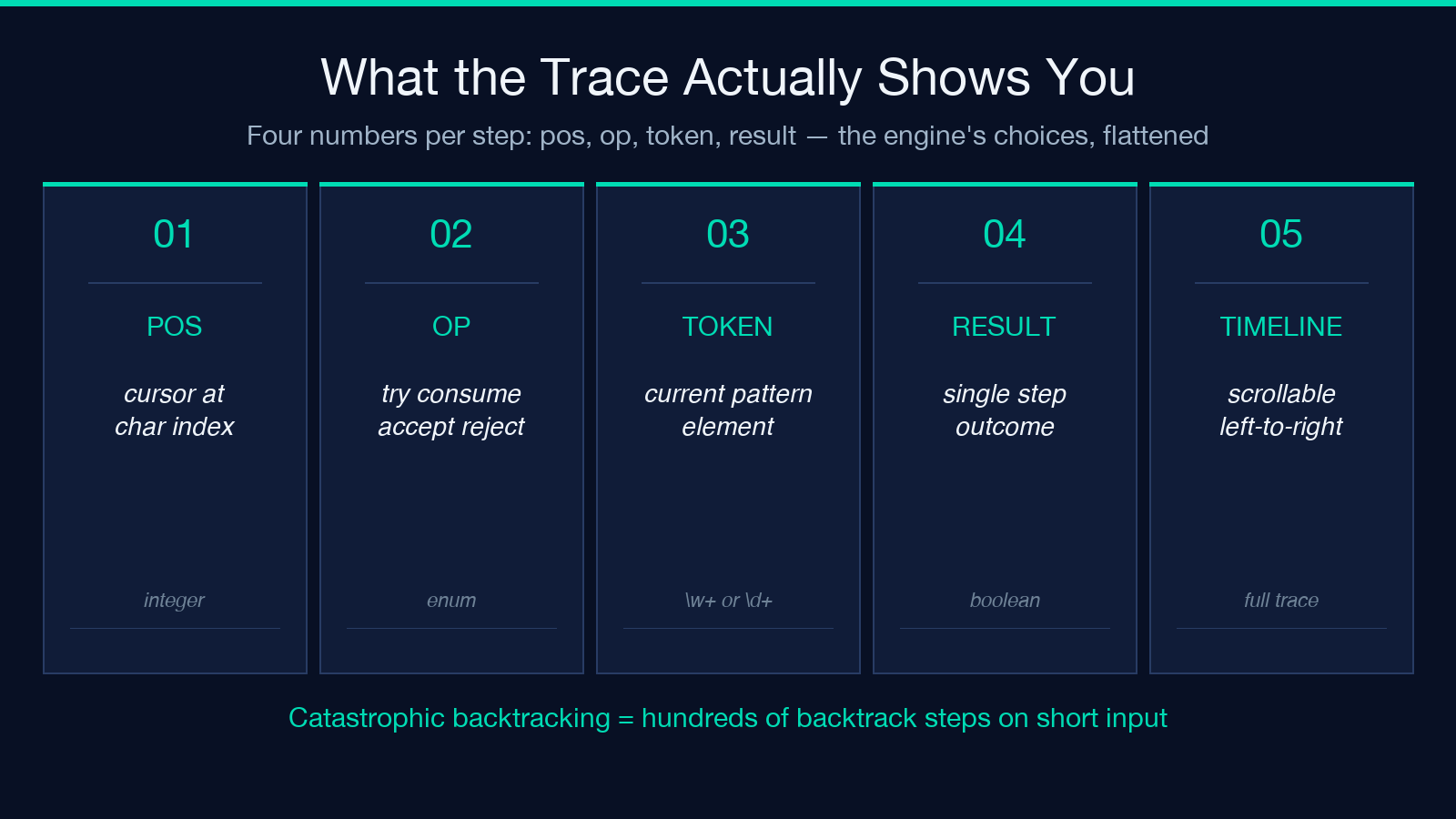
Add the trailing b word boundary ([w.+-]+@[w-]+.[w.-]+b) and the trace adds one final step at the end of the accept: check b — the engine confirms the next character is whitespace or end-of-string before committing. Without that check, a tighter input like [email protected] (note the trailing ly) would also match, because the engine never looks past the TLD. That is the regex equivalent of a missing endsWith() check.
Now tighten the local-part quantifier to [w.+-]{1,64} (RFC 5321 caps local parts at 64 characters) and add a domain cap of [w-]{1,253} (RFC 1035 caps domain labels at 63 characters and full domains at 253). The pattern is now longer but its trace is more honest: every input gets evaluated against the same upper bounds, and the engine fails fast on inputs that would have matched under the looser pattern but violate the spec.
When to Reach for This Tool
The Regex Debugger earns its keep in four situations: when a regex matches on the test cases but fails on production data; when a regex matches correctly but takes 50 ms on a 100-character input (catastrophic backtracking); when you inherit a regex from another developer and need to understand what it actually does without rewriting it; and when you are learning regex and want to see the engine’s decision process instead of memorizing token rules.
For the first case, paste the pattern and the production input, run the trace, look for the reject step that explains why the match fails. For the second, count the backtrack steps — anything over 50 on a short input is a red flag, and the trace will show you exactly which token is forcing the engine to retry. For the third, read the trace top-to-bottom like a sentence; the engine’s choices are deterministic, so the trace reads as a story of what the regex did. For the fourth, run the same pattern against progressively weirder inputs and watch the trace grow from “8 steps” to “200 steps” to “catastrophic” — that progression is the fastest way to internalize how greedy quantifiers, capture groups, and backtracking actually combine.
Pairing the Debugger With the Regex Tester
The trace is the diagnosis; the test is the treatment. Once the Regex Debugger shows you that your pattern backtracks 47 times on Order 42 ships in 7 days, you need a separate tool to verify the fix works on 50 inputs at once. The browser-based workflow is to keep the debugger open in one tab and a regex tester with a saved input set in another, then iterate the pattern in the debugger and copy the cleaned-up version into the tester for batch verification.
A common pipeline: write the pattern, run it through the debugger against a representative input, identify the catastrophic step, rewrite the quantifier to be non-greedy or possessive, re-run the debugger to confirm the backtrack count drops, then run the tester against your full input set to confirm correctness. The two tools answer different questions: the debugger tells you why the regex behaves the way it does; the tester tells you whether the regex is correct. Most regex bugs require both.
Limitations to Keep in Mind
The Regex Debugger implements JavaScript’s regex engine semantics — g, i, m, s, u, y flags, no lookbehind in older engines, no atomic groups, no possessive quantifiers. If your target language is Python, Java, or .NET, the engine will not match: those engines have features JavaScript does not (named backreferences, atomic groups (?>...), possessive quantifiers *+), and JavaScript has features they do not (p{...} Unicode property classes in u mode, sticky y flag). For a Python-targeted pattern, use a Python-aware debugger; for JavaScript, this tool is faithful.
Also note that the trace does not collapse equivalent steps. A pattern that matches aaaaaaa against the text aaaaaaa produces 7 consume steps (one per character) plus 1 accept, not a single “matched 7 characters” line. For very long inputs, the trace can run into thousands of steps and become hard to read. The solution is to anchor your test cases: pick the shortest input that reproduces the bug, and trace against that, not against your entire production corpus.
Closing the Loop
A regex is a small program, and like every small program, its behavior on edge cases is more important than its behavior on the happy path. The Regex Debugger makes the edge cases visible: every reject, every backtrack, every accept is on the page, with the cursor position and the token that was being evaluated. The fastest way to stop writing patterns that surprise you is to read the trace once, and the fastest way to read the trace is to step through a pattern that already surprises you.
A Short Worked Example You Can Replay
Take the input Order 42 ships in 7 days and the pattern \d+ with the g flag. The trace returns 12 steps: try at position 0 (the O of Order, fails), then try at positions 1 through 5 (each fails on a letter), then try at position 6 (the 4 of 42) which begins a successful consume chain: consume 4, consume 2, accept end-of-quantifier at position 8. The engine then continues scanning from position 8 — try at position 8 (the space, fails), try at positions 9 through 16 (letters fail), try at position 17 (7), consume 7, accept at position 18. Final result: two matches (42, 7) and 12 trace steps. Compare that against the same pattern without g: the trace still walks through all 12 steps but only the first match is returned, because the engine stops after the first accept. The flag does not change the trace; it changes the result. Replay the same input against (\w+)\s+(\d+) and watch the trace add capture-group operations between the consume steps — that is the visual difference between a regex that returns substrings and one that returns structured data.
Explore more regex, text-processing, and pattern-matching tools at elysiatools.com/en/tools.
