
AVIF beats every legacy image format on compression, but the rest of your workflow still runs on PDF. That’s the everyday trap: you ship a website that loads in 200 ms because every hero is AVIF, then a stakeholder asks for a printable deck, an archival copy, or a one-page cheat sheet, and you’re suddenly re-encoding, re-fitting, and re-checking page geometry by hand. The fix is a single, deterministic AVIF→PDF converter that preserves your chosen page size, orientation, and quality without a chained JPEG intermediate.
This field guide walks through the four real decisions that determine whether the output PDF is production-ready: the page size selector (A4 vs A3 vs Letter vs Legal vs Tabloid vs the small A5), the orientation toggle, the quality dial, and the file-handling rules around a 50 MB source. Each section pairs the option name with the concrete behavior you’ll see, plus the failure mode you should expect when you pick the wrong combination. The AVIF to PDF converter runs entirely in the browser, so your original AVIF never leaves the page, and the PDF arrives at the same fidelity you’d expect from a desktop tool — except without the desktop install.
What This Tool Actually Does
The converter accepts a single AVIF file (up to 50 MB), reads its native resolution and aspect ratio, and renders one PDF page whose geometry matches your pageSize and orientation selections. There is no batch mode and no multi-page assembly — that’s deliberate. AVIF is overwhelmingly used as a single-frame, high-compression image format for hero shots and product photography, so the conversion target is a one-image-per-PDF artifact, not a stitched catalogue. If you need a deck, run the converter per image and merge the PDFs downstream.
The other deliberate choice is browser-only execution. Your AVIF never round-trips through a remote encoder, which means three things you can rely on: (1) the file stays on your device, (2) the conversion is reproducible (same input, same options, same output every run), and (3) you don’t pay for a server call. For teams handling pre-release product shots or NDA-bound artwork, the on-device guarantee is the feature that makes the tool shippable where a SaaS encoder wouldn’t be.
Picking the Right Page Size
Six page sizes are wired into the tool — A4, A3, A5, Letter, Legal, and Tabloid — and the right pick depends entirely on where the PDF will be consumed.
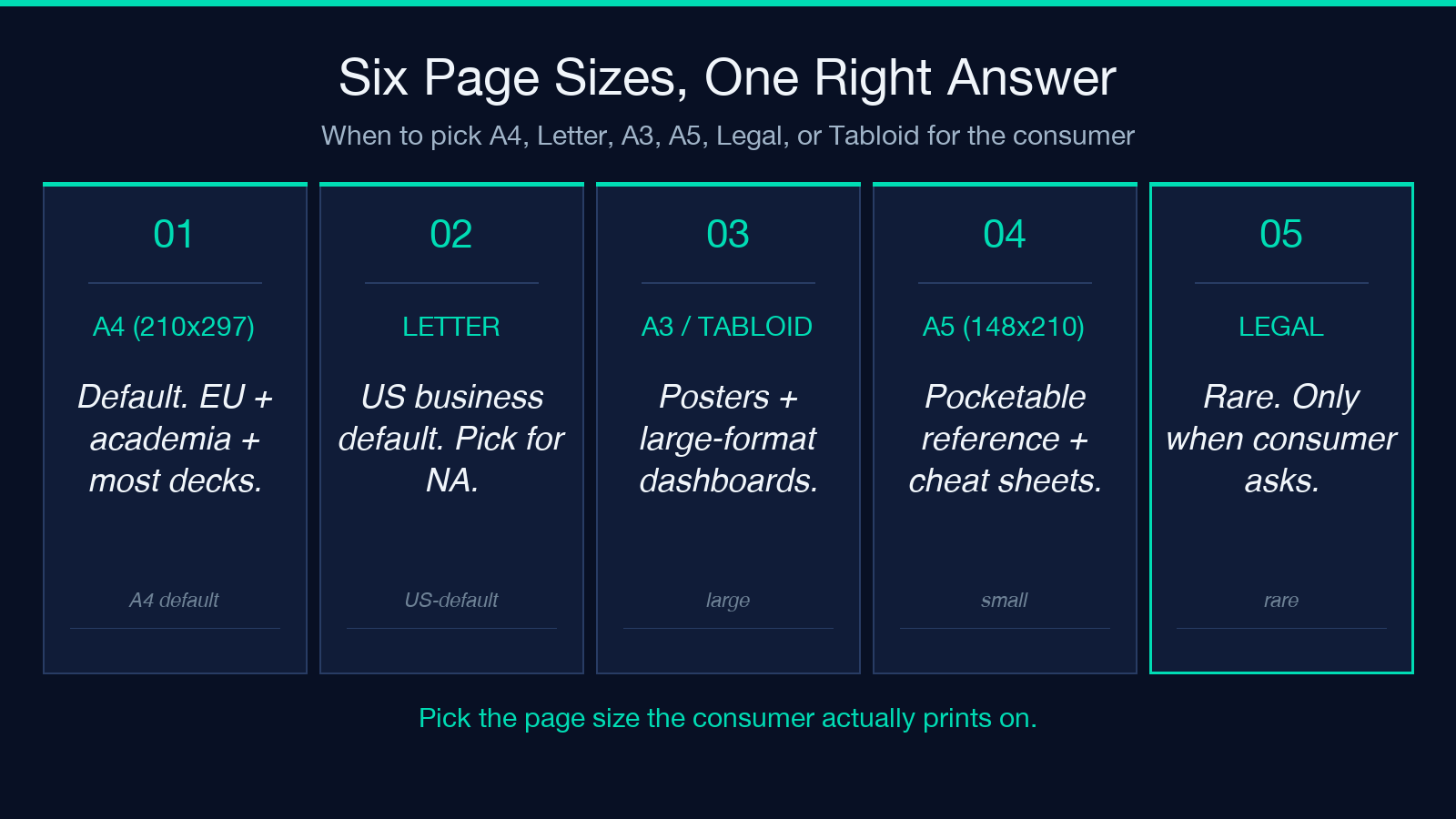
A4 (210×297 mm) is the default and the right answer for 90% of cases. European print, default Excel/Word exports, and most academic submissions are A4. If the AVIF is a 3:2 photograph and you’re embedding it in a slide deck or email, A4 portrait fits with comfortable margins.
Letter (8.5×11 in) is the US-business default. Marketing teams, US government forms, and most North American RFP responses expect Letter. Pick Letter when the consumer is in the US and you’ve never been told otherwise.
A3 (297×420 mm) and Tabloid (11×17 in) exist for posters, large-format printing, and one-page dashboards that need to stay legible from across a room. The conversion preserves the AVIF’s aspect ratio; the larger page just gives the image more room and a wider white margin.
A5 (148×210 mm) is the half-size cheat sheet. If your AVIF is a square logo, infographic, or icon set you want as a printable reference card, A5 in either orientation produces a pocketable artifact.
Legal (8.5×14 in) is the rare one. Pick it only when you’ve been explicitly told the consumer is in a US legal context that requires the longer page.
The trap to avoid: don’t pick A3 because “more space sounds better.” If your consumer prints on Letter, an A3 PDF prints with cropped margins and looks broken.
Orientation Is Not Just a Rotation Toggle
The orientation option is portrait (default) or landscape. Behind the scenes, this does more than rotate the bitmap — it tells the encoder which page dimension is the long edge. An AVIF that’s natively 3:2 lands differently on an A4 portrait (3:2 fits with horizontal margins) versus A4 landscape (3:2 fills the long edge and crops vertically).
If your source AVIF is wider than tall (landscape-native photography), and your consumer prints the PDF, picking landscape makes the image fill the printable area without scaling. If your source is portrait-native (a poster, a vertical infographic), keep portrait for the same reason. The geometry change isn’t aesthetic — it controls whether the encoder fits-to-width or fits-to-height.
Choosing Image Quality Without Burning File Size
The quality selector exposes four bands: Low (smaller file), Medium, High, and Maximum. Each band maps to a JPEG-equivalent quality inside the encoder, and the trade-off is between visual fidelity and the resulting PDF size.
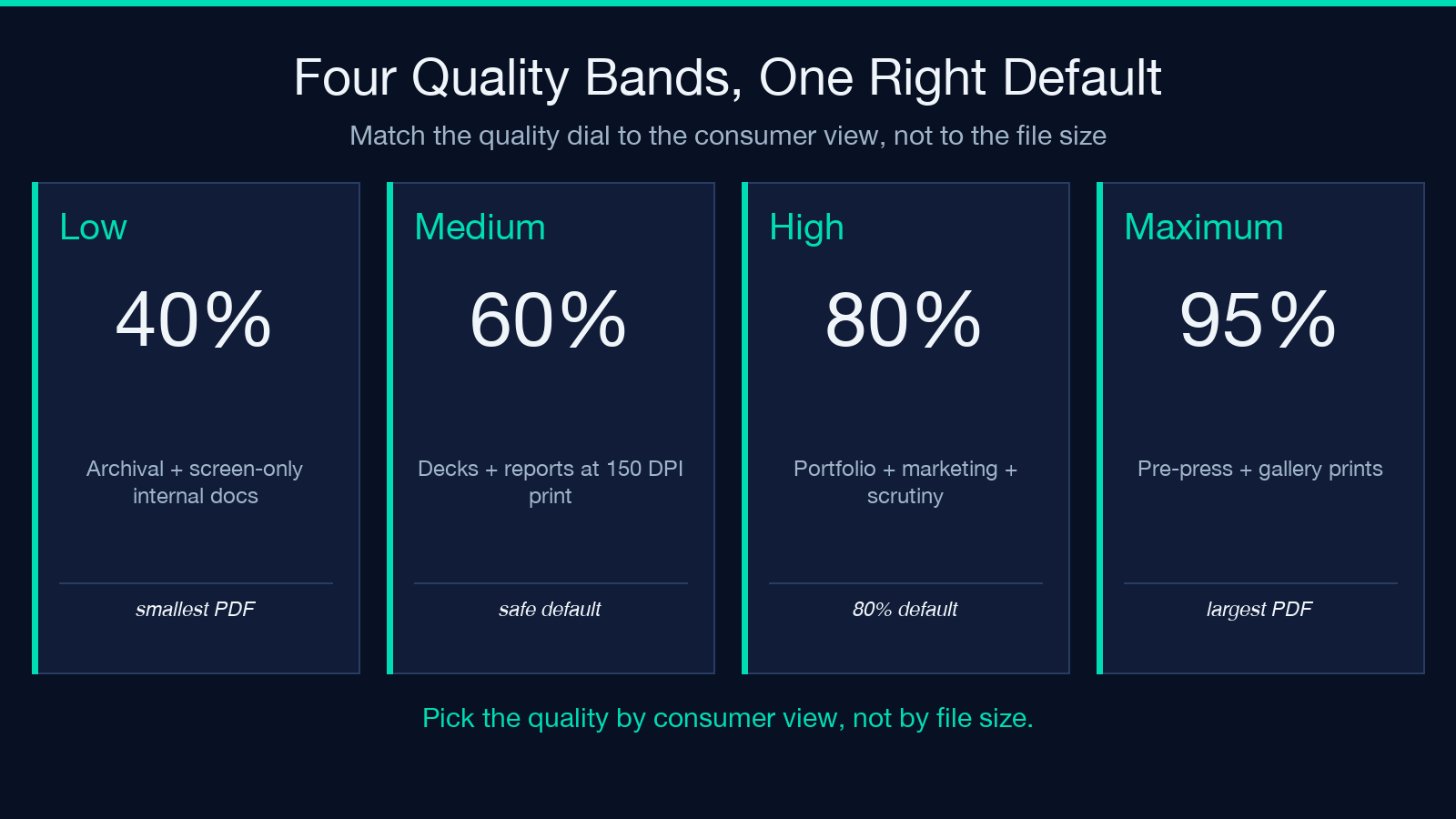
Low is the right pick for archival copies, internal documentation, and any context where the consumer will view on a screen rather than print. The file is dramatically smaller (typically 40-60% of the High version) and the visible difference at screen DPI is often imperceptible.
Medium is the safe default for most decks and reports. Print at 150 DPI looks indistinguishable from High for almost every image type except fine gradients and medical imagery.
High (the default at 80%) is the right answer for portfolio work, marketing assets, and any consumer who will scrutinize the image at print resolution.
Maximum exists for pre-press and gallery prints. The file is large and the visual difference versus High is small unless you’re examining pixels at 100% zoom.
How the 50 MB Limit Protects You
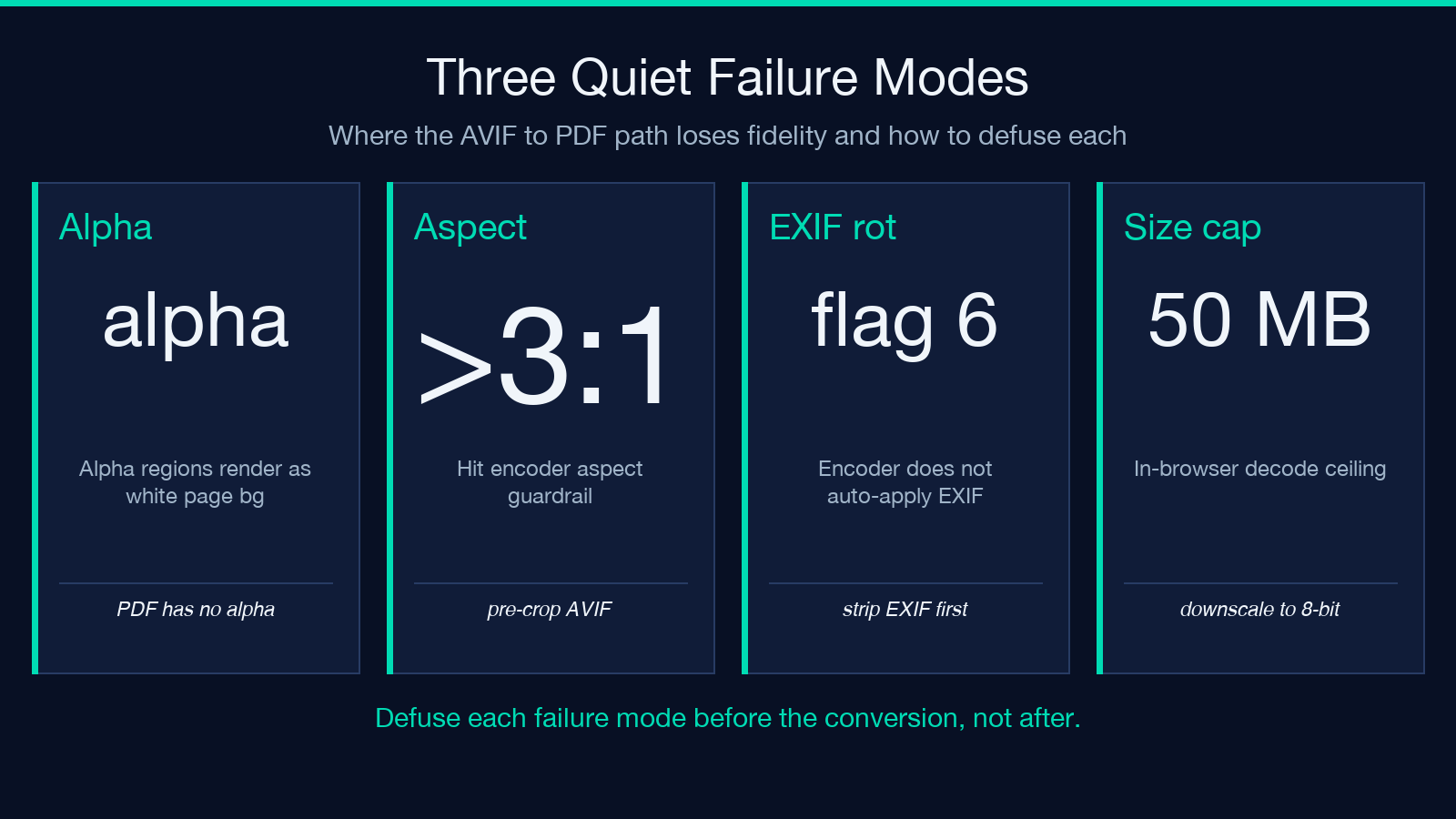
The tool caps source files at 50 MB. That limit isn’t arbitrary — it’s the practical ceiling for an in-browser AVIF decode without exhausting the rendering tab. AVIF files above 50 MB are usually either uncompressed intermediates or 16-bit color grading masters. If your source exceeds the limit, downscale to 8-bit or recompress with a lower-quality intermediate before this step.
When the Conversion Fails Quietly
Three failure modes are worth knowing. First, an AVIF with transparency (alpha channel) renders the transparent regions as white in the PDF — AVIF’s alpha is preserved, but the PDF page background takes over where alpha was zero. If you need the transparency preserved, the AVIF→PDF path isn’t the right tool. Second, very wide panoramic AVIFs (aspect ratios beyond 3:1) hit the encoder’s aspect guardrail; pre-crop the AVIF before converting. Third, EXIF orientation flags in the source are not auto-applied — if the AVIF carries an EXIF orientation of 6 (rotate 90° CW), the converted PDF will show the un-rotated image. Run the AVIF through an EXIF stripper first.
Picking a Real AVIF to Try the Tool On
If you don’t have an AVIF handy, the AVIF samples collection ships a dozen public AVIFs in 2D art, photography, and cinema styles at resolutions up to 2496×1664 and aspect ratios from 1:1 to 21:9. The 2D Art 3:2 sample (91 KB at 2496×1664) is the most useful starting point — it fits cleanly on A4 Letter or A4 portrait with the default High quality setting, and the result is small enough to email.
Putting It All Together
The decision matrix is short. For a 3:2 photograph intended for a US business deck: pick Letter, landscape, High. For a square logo intended as a reference card: pick A5, orientation matching the logo’s native shape, Medium. For a portfolio print: pick A4, orientation matching the image, Maximum. For an archival snapshot: pick A4 portrait, Low.
The same logic generalizes to the rest of the Elysia Tools media converters — the PNG-to-PDF, JPEG-to-PDF, WebP-to-PDF, and TIFF-to-PDF variants follow identical page-size and orientation logic. The AVIF variant is the one that solves the modern-compression-in, modern-format-out gap that legacy converters leave behind.
