
SVG Sprite Sheet Generator: When Thirty Icons Need to Ship as One File, Five Decisions Decide What Your Build Sees
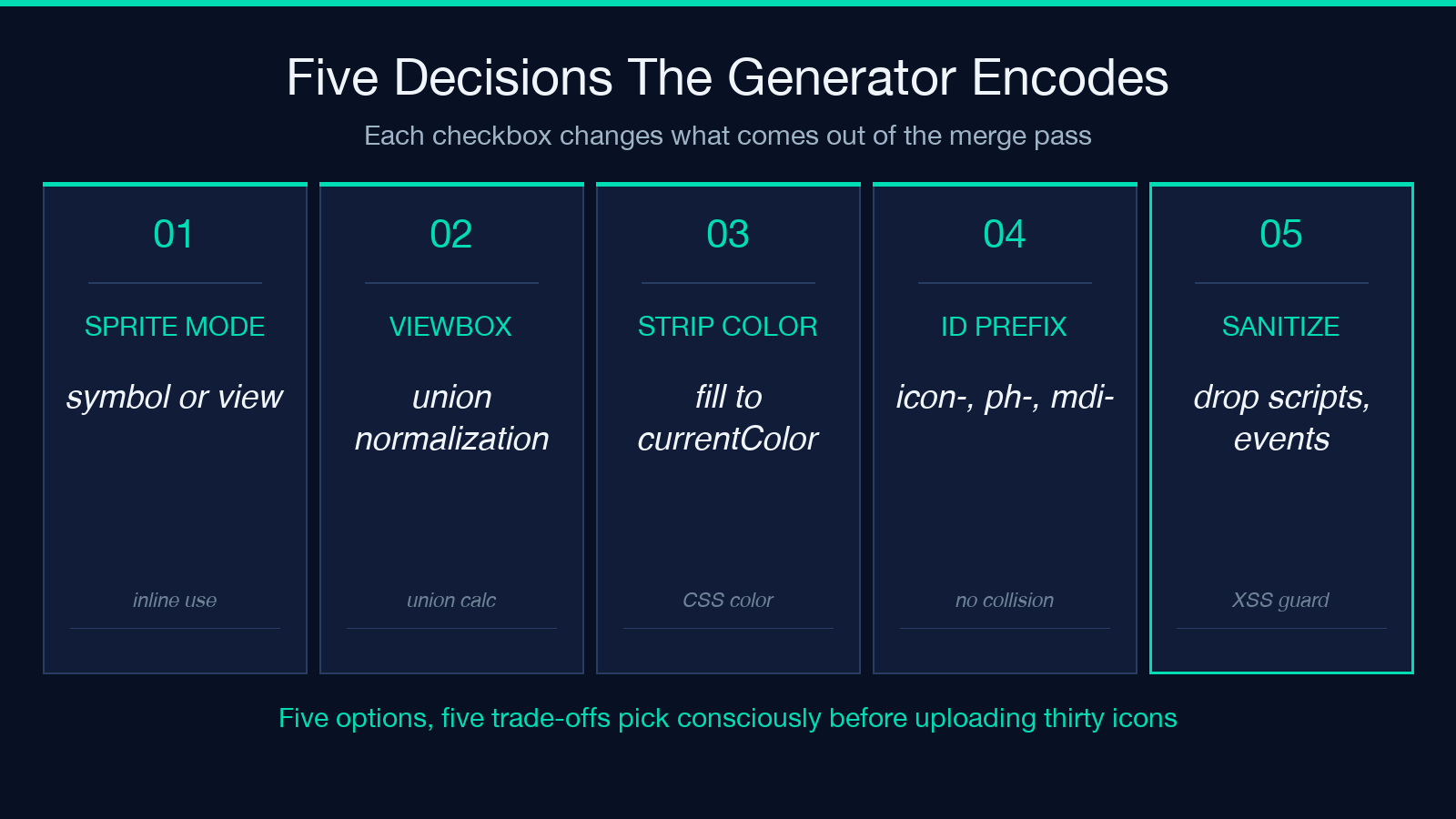
An SVG sprite sheet is the single artifact your build system can <use href="..."> without ever importing thirty separate files. When the icon set you maintain grows past the point where hand-importing each SVG is sustainable, the moment you consider merging them into one sprite is the moment five decisions quietly become irreversible: which sprite mode you commit to, how you normalize viewBoxes, what you strip from each icon’s source, which IDs collide, and which sanitizer pass catches the things your framework does not. Most icon pipelines get this wrong on the first three.
The SVG Sprite Sheet Generator takes up to 30 uploaded .svg files, runs them through one of two sprite assembly passes, and returns a single artifact plus a per-icon preview plus the snippet your framework needs to consume it. The five decisions that shape what comes out are encoded as tool options; the trade-offs between them are what this field guide walks through.
How the two sprite modes split your downstream build
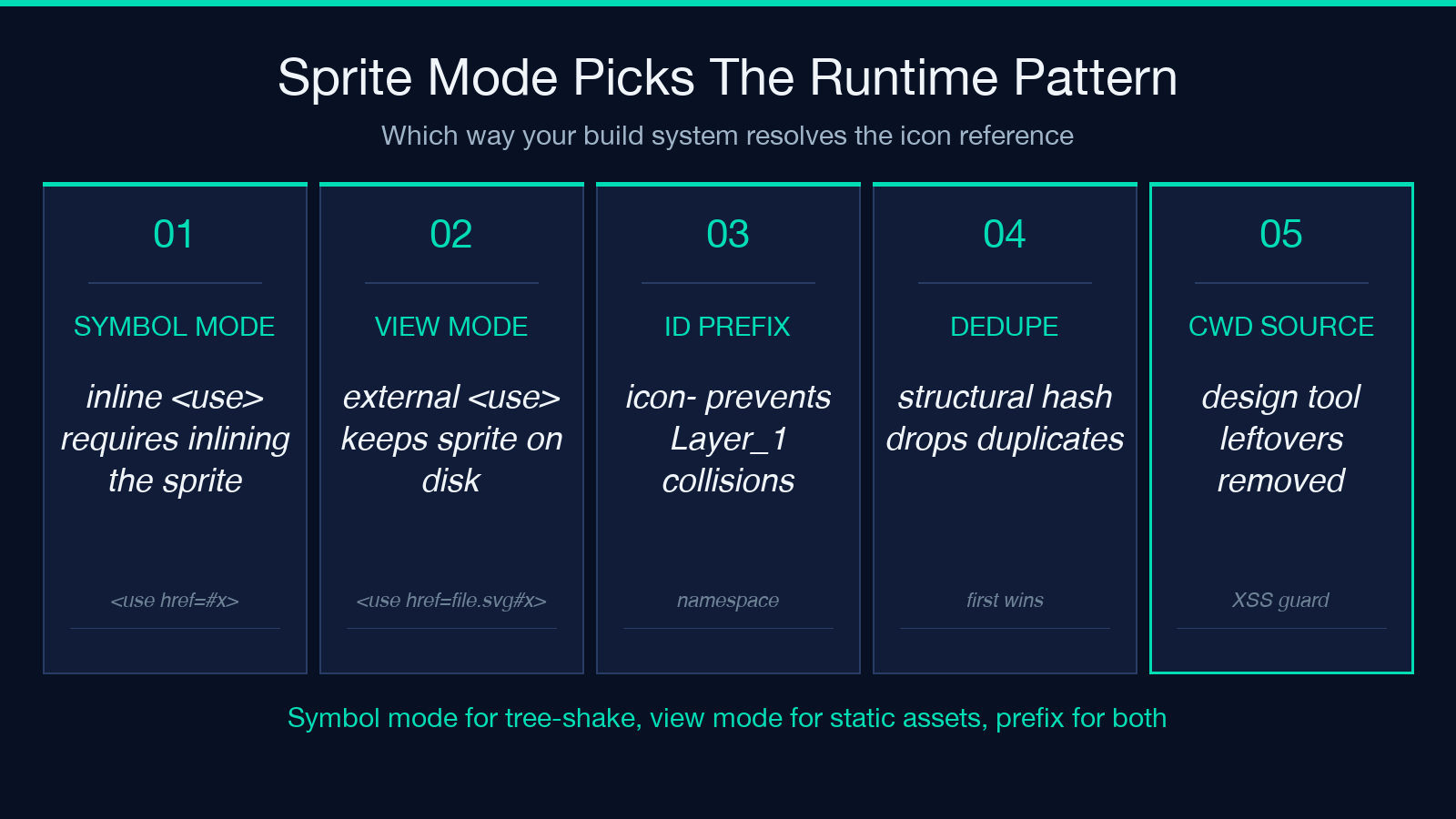
The tool exposes a single spriteType option with two values: symbol (inline <use>) and view (external-file fragment). The choice is not cosmetic — it changes what <use href="..."> resolves to and where the file has to live at runtime.
The symbol mode emits a single SVG document whose body is a stack of <symbol id="...">...</symbol> blocks. Each <symbol> carries the icon’s viewBox and inner geometry. Downstream, the consumer references a symbol by id from any inline <svg><use href="#icon-xyz"/></svg>. The single sprite SVG must be inlined into the page (typically injected by the framework’s bootstrap or a layout component) so the <use href="#icon-xyz"/> reference resolves. This is the pattern that won the React/Vue/icon-system wars — it lets you keep the icon set as a code asset, version it in source control, and tree-shake unused ones if you import individual symbols.
The view mode emits a single SVG document whose body is a stack of <view id="...">...</view> blocks. Each <view> carries the icon’s viewBox but not its geometry; the consumer references the original file by URL via <use href="/icons/sprite.svg#icon-xyz"/>. The sprite SVG stays on disk as a static asset, and each <use> resolves by fragment. This is the pattern that won when your CDN cache key includes the file path — the sprite is fetched once, then <use> lookups hit the browser’s SVG fragment resolver locally.
The decision rule: if you tree-shake or inline your icon set, pick symbol; if you serve the sprite as a single static asset and let <use> carry the file URL, pick view.
Why viewBox normalization is the silent failure mode
Every icon you upload has its own viewBox — typically 0 0 24 24 for Material, 0 0 16 16 for Tailwind-style, or 0 0 32 32 for Phosphor. When you <use> a symbol with id icon-foo and your consuming <svg> carries a viewBox="0 0 24 24", the browser scales the symbol to fit the consumer’s coordinate system. When the consumer’s viewBox is 0 0 16 16 and the symbol’s viewBox is 0 0 32 32, the browser scales by 0.5 — the icon renders at half size with no warning.
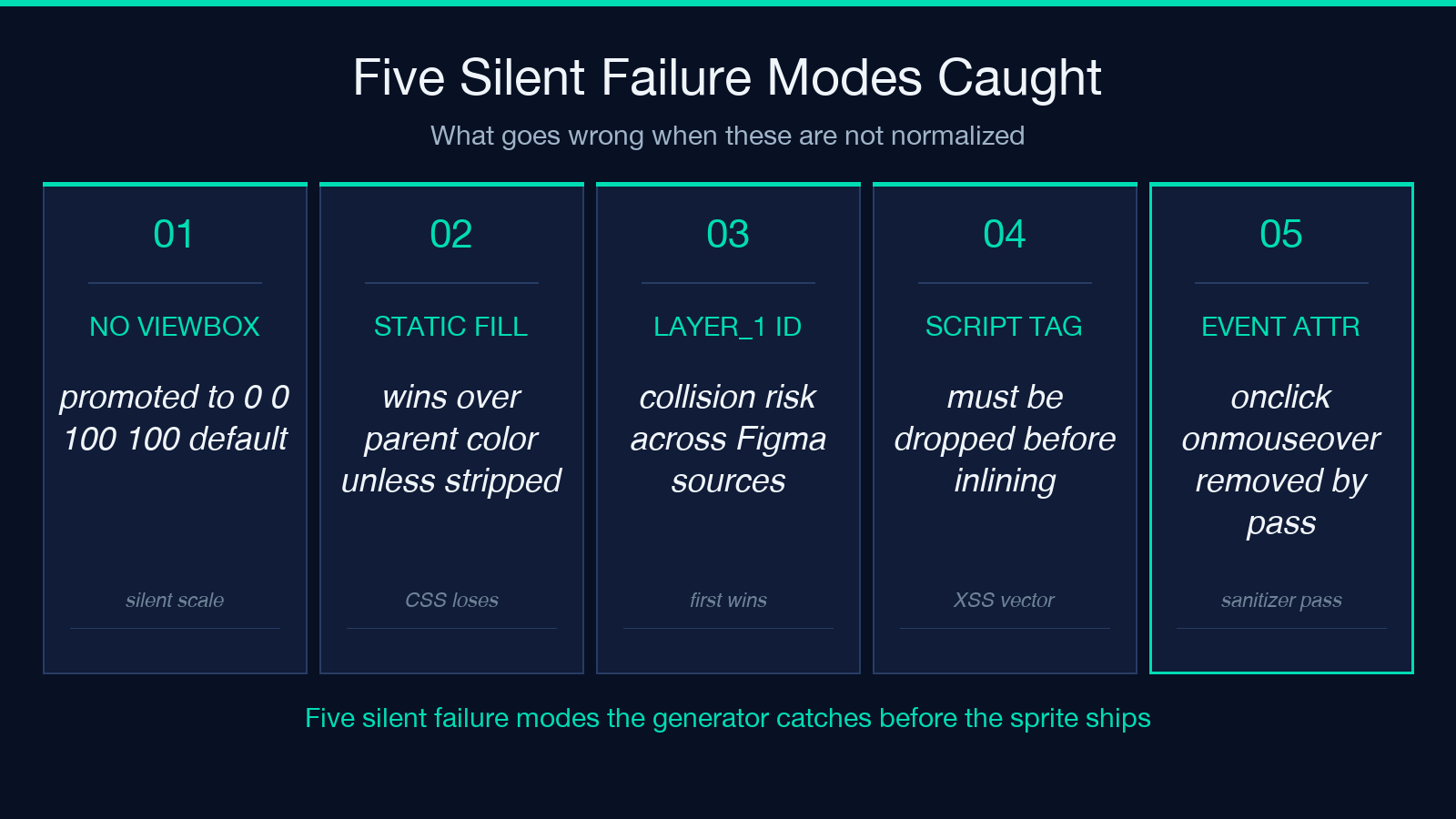
The tool’s viewBox normalization pass rewrites every <symbol> and <view> to a single shared coordinate system (the union of all uploaded viewBoxes), so every downstream <use> resolves against the same baseline. The silent failure case is when an uploaded icon declares a missing or malformed viewBox — <svg> with no viewBox attribute at all. The normalization pass promotes these to 0 0 100 100 (the SVG default) so they participate in the union calculation, but the icon will then render at whatever scale the union pushes it to. Pre-flight check — if any icon’s source XML has no viewBox, normalize its dimensions manually before upload.
What gets stripped when you check Strip fill/stroke
Icons authored in design tools (Figma, Sketch, Illustrator) ship with hard-coded fill="#000000" and stroke="#1f2937" baked into every <path>. The icon renders correctly when the consumer’s CSS does not override it, but when you try to recolor the icon via parent CSS (color: #ff6b35) the icon stays black. The hard-coded color wins.
The stripColor option walks every <path> / <rect> / <circle> / <polygon> element inside each icon and replaces fill="#hex" / stroke="#hex" attributes with fill="currentColor" / stroke="currentColor". After this pass, the icon’s color tracks the parent CSS color property — <svg style="color: red"><use href="#icon-foo"/></svg> renders the icon red. The opt-in matters when you want your icon system to participate in your design tokens via CSS, but it will silently strip brand-specific accents if your icons deliberately carry baked-in hues.
Dedup, ID prefix, and the collision that breaks every tree
Two icons from different sources often share IDs — Layer_1 is the canonical Figma default, and many icon libraries use <g id="icon"> as their root group. When you merge thirty icons into one sprite and the symbols all share the same id, the <use href="#Layer_1"/> reference resolves to whichever symbol wins the document order tiebreak — usually not the icon you wanted.
The idPrefix option lets you set a namespace (icon-, ph-, mdi-).
The dedupe option (default true) computes a structural hash of each icon’s normalized geometry and drops exact duplicates, keeping only the first occurrence. The structural hash ignores <title> / <desc> metadata and <g> wrappers — two icons that are visually identical but wrapped in different <g id="..."> blocks are still deduped. If you have a deliberately redundant icon set where the same glyph appears at multiple sizes, dedupe will collapse them.
What the sanitizer pass actually catches
Uploaded SVGs frequently carry <script> tags, onclick / onload event attributes, and javascript: href targets — leftovers from the design tool’s authoring environment or from a hand-edited icon. When these end up inlined in your page via the symbol mode sprite, they execute in your site’s origin context. This is an XSS vector if your icon source is user-uploaded or third-party curated.
The tool’s sanitization pass removes: every <script> and <foreignObject> element; every event-attribute (onclick, onmouseover, onfocus, etc.); every xlink:href / href starting with javascript:; and external font-face rules from SVG external sources. The pass is non-optional — it runs before the symbol/view emission, not after. If your icon set legitimately uses CSS animations triggered by :hover, those survive (they’re not script-driven); but if the same icon set uses inline <script> to register hover handlers, those do not.
Working with the output
After the merge, the tool returns: the sprite artifact itself (one file, ready to commit); a per-icon preview pane (each thumbnail rendered at its native viewBox so you can visually verify scale); and a usage snippet block with three flavors — raw HTML, React JSX, and Vue template — plus a CSS @import variant for projects that load the sprite as a stylesheet. The snippet block is rendered to match the sprite mode you selected, so the symbol mode snippet inlines the SVG via <svg><use href="#icon-foo"/></svg> while the view mode snippet emits <svg><use href="/path/to/sprite.svg#icon-foo"/></svg>.
The tool also reports which icons were deduped and which were kept verbatim, so you can spot the case where two design sources shipped the same icon under different filenames.
When to reach for the SVG Sprite Sheet Generator
If you maintain a design system with more than ten icons that ship to a single app, this is the build-time step that converts thirty files into one. The five decisions — sprite mode, viewBox handling, color stripping, ID prefixing, sanitization — are the same ones you would write a build script to enforce. The tool encodes them as checkboxes so you can experiment with the trade-offs before committing.
Explore the tool and the full option set at elysiatools.com/en/tools/svg-sprite-generator. For projects that also touch icon-font conversion or inline SVG optimization, the SVG optimization and icon-management category sits alongside it.
Explore more tools at elysiatools.com.
