
You ship the landing page on a Friday afternoon. The marketing team has signed off, the legal copy is in place, and the form is wired to the CRM. Then someone on a Friday-night test pings you: the screen reader on the office tablet reads the headline twice, skips the navigation entirely, and announces the email field as “edit, blank.” A blind user never makes it to the signup button. The page looked fine in every browser preview you opened.
This is the gap that a screen reader simulation tester closes. It does not replace a manual NVDA pass on production hardware, and it does not pretend to be VoiceOver, JAWS, or TalkBack. What it does is deterministic: it extracts the same semantic tree a screen reader would walk, prints the spoken order, and flags the missing labels, empty buttons, skipped heading levels, and unlabeled links that turn a working visual layout into an unusable one. Treat it as the lint step for accessibility that you run before you ship.
What a screen reader actually hears
The mental model most developers carry is wrong. A screen reader does not read the page top-to-bottom in pixel order, and it does not read text in the order it appears in the DOM. It walks the accessibility tree, which is derived from the DOM but rearranged by landmarks, roles, and ARIA attributes. A user tabbing through with NVDA hears the page title first, then a list of landmarks (banner, navigation, main, contentinfo), then the headings inside main in tree order, then the form fields, then the buttons and links in tab order. The visual reading order — the one you see in DevTools — is not the same sequence.
That is why a perfectly fine-looking page can still announce the wrong content first. A <header> element with no role="banner" may be silently demoted to a generic group. A skip-to-content link with no visible focus ring is announced and immediately skipped. A <div> styled like a button with no role="button" and no tabindex="0" is invisible to the tab order entirely. None of these defects show up in a pixel diff.
The five defects the tool catches in seconds
Paste a chunk of HTML or point the tester at a live URL, and the report lists five families of defect that account for the majority of WCAG 2.1 failures on real marketing and SaaS pages.
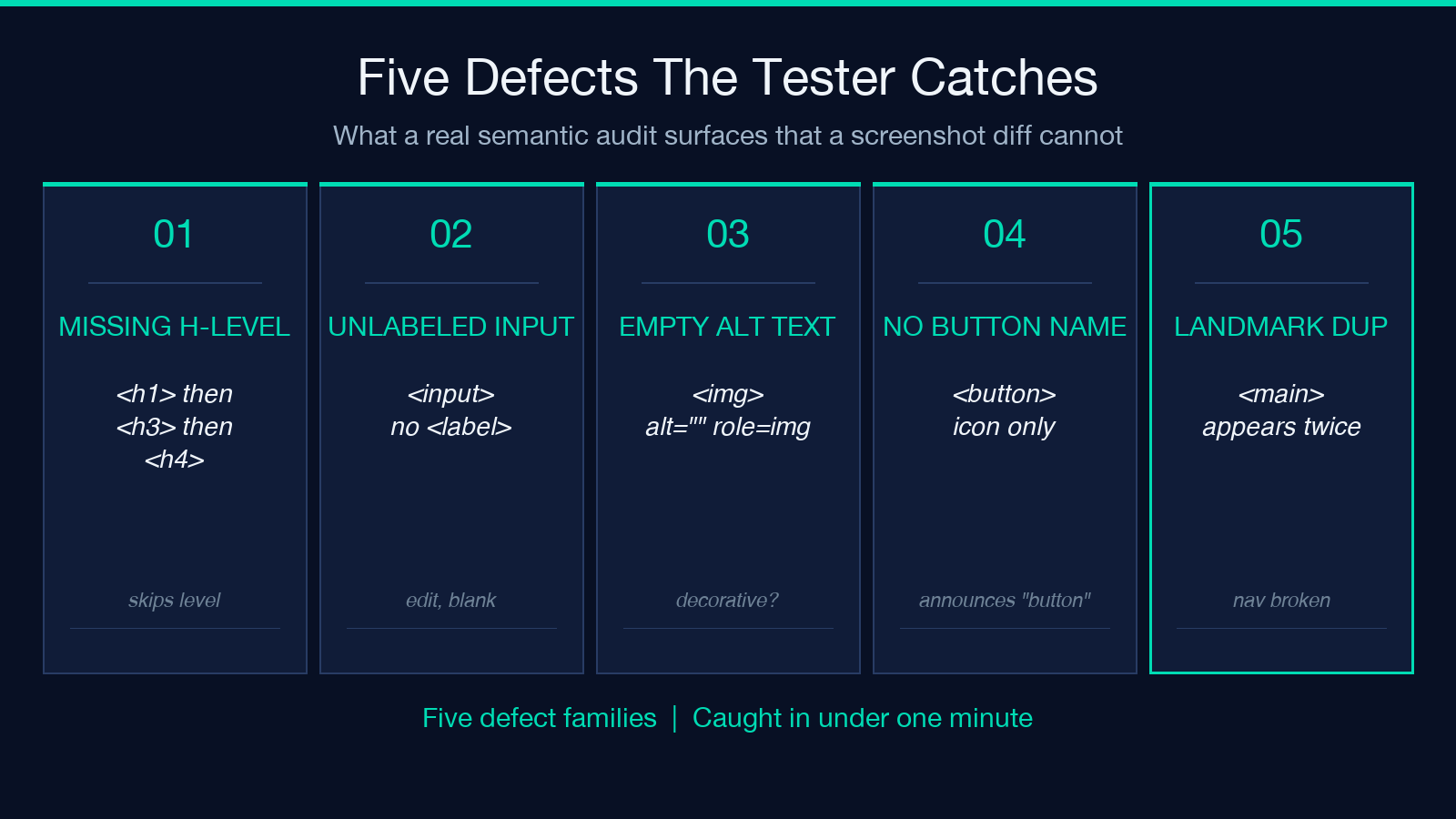
– Missing heading levels. A page that goes <h1> then <h3> then <h4> looks fine in the visual outline but trips an aria-level discontinuity check. The tester prints the heading hierarchy as a tree and flags any skipped level.
– Unlabeled form controls. <input> without an associated <label> or aria-label is announced as “edit, blank” or “edit, has autocomplete.” The tester walks every form control, prints the spoken phrase, and highlights the ones whose text is empty.
– Empty or missing image alt text. Decorative images with no alt and meaningful images with empty alt both surface in the report. The tester distinguishes them by the surrounding context (a figure with a figcaption is treated as decorative; a standalone <img> in a hero is treated as meaningful).
– Buttons and links with no accessible name. A <button> containing only an SVG icon, or an <a> whose text is whitespace, is announced as “button” or “link” with no label. The tester counts them and lists the first 10 by selector.
– Landmark misuse. Multiple <main> elements, <header> outside a <body> boundary, or missing aria-label on a duplicated <nav> all break landmark navigation. The tester prints the landmark tree.
How to use the tool in a real code review
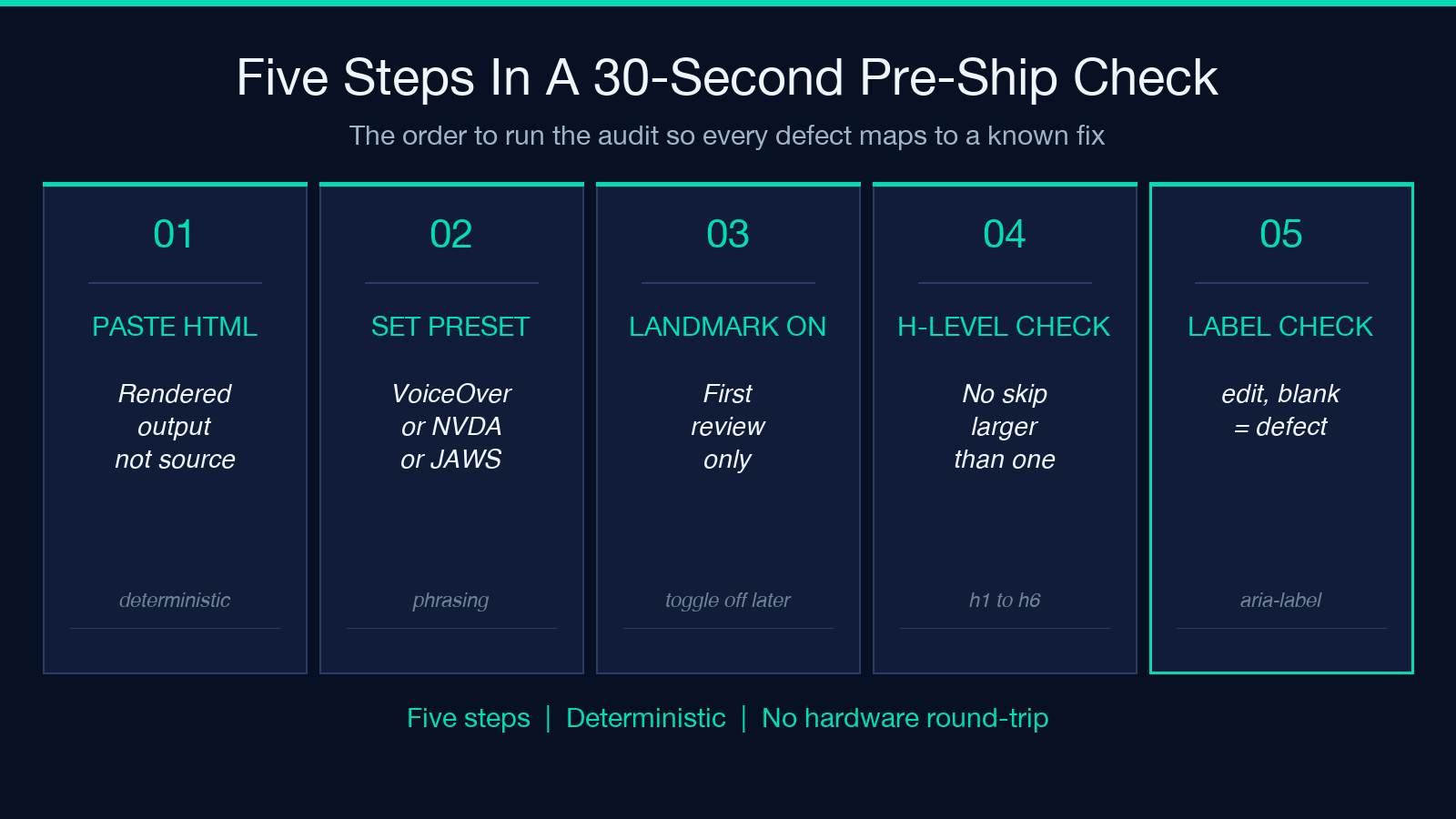
The fastest workflow is to paste the rendered HTML of the page you are reviewing, not the source. Rendered HTML includes the framework-injected wrappers (Next.js <div data-testid> shells, the React hydration markers, the route-segment <main>) that ship to the browser but are easy to miss in source review. Paste into the HTML input, leave the page-URL field empty, and the tester parses the snippet directly.
Set the screen-reader preset to whatever your real users use. The preset is phrasing only — VoiceOver and NVDA announce headings with different punctuation, JAWS uses different verbs for landmark entry — but the semantic analysis is the same regardless of preset. Pick whichever preset your QA team standardizes on so the reports across reviews are directly comparable.
Toggle Include Landmark Summary on for the first review of any page. It adds a one-line summary of every landmark on the page and its child count, which is the fastest way to spot a duplicated <main> or a missing <header role="banner">. Toggle it off for subsequent reviews on the same layout to keep the report focused on heading and label defects.
Reading order vs DOM order
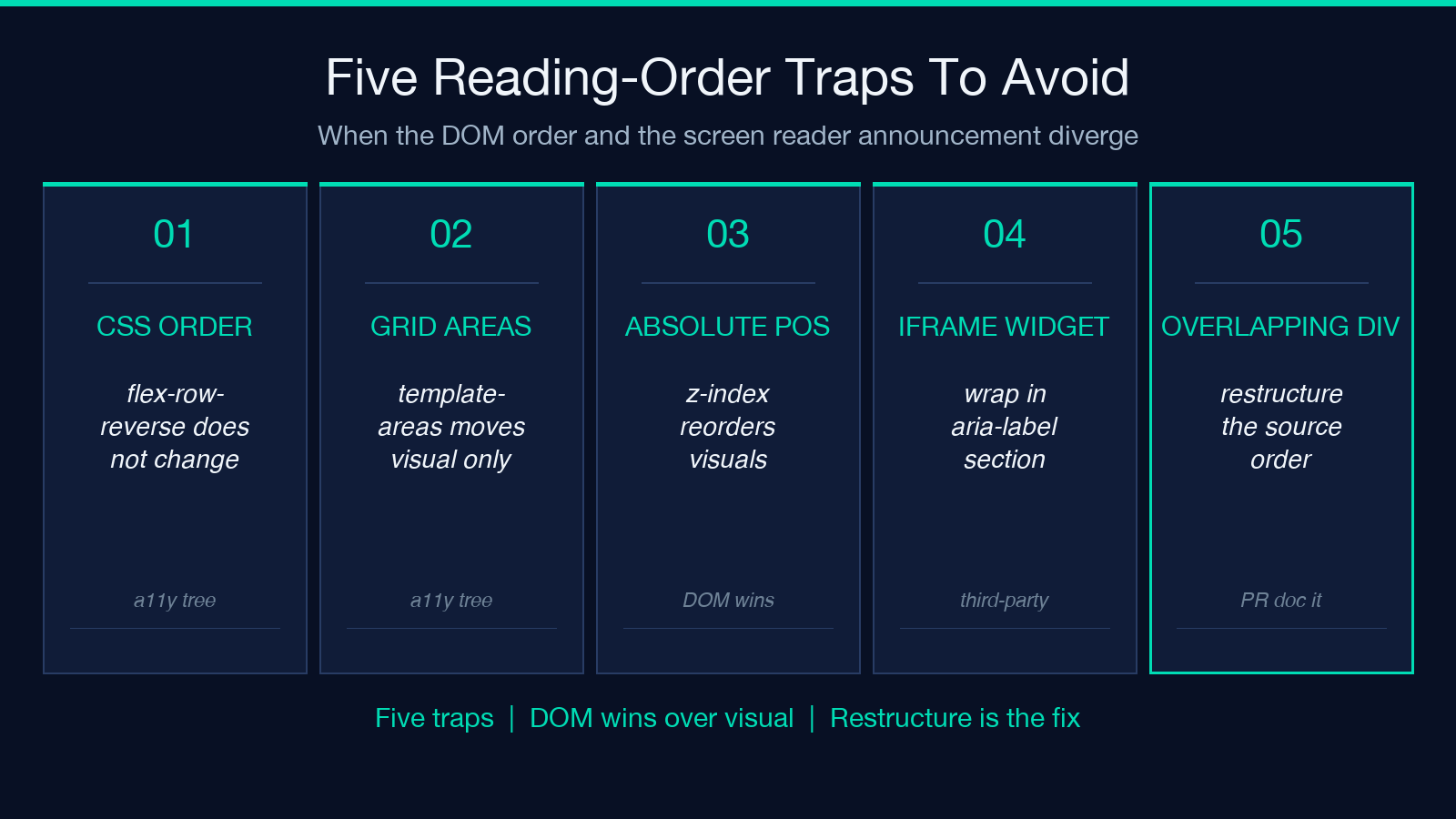
A common source of confusion is the difference between DOM order and reading order. The DOM is the order of elements in the source HTML. The reading order is the order a screen reader announces them, after the accessibility tree has been reorganized by landmarks, roles, and ARIA. CSS order, flex-direction: row-reverse, and absolutely positioned elements do not change DOM order, but they do change the visual order. A screen reader follows the DOM, not the visual flow.
This means a layout that “looks correct” because of grid-template-areas may announce in the wrong order. The tester prints both: the DOM order as a flat list, and the landmark-grouped reading order with the announced phrase beside each element. When the two diverge, the fix is usually to add an explicit tabindex order, an aria-flowto chain, or to restructure the markup so the source order matches the visual order. Restructuring is almost always the right answer; tab-order hacks are fragile.
What the tester is not
The tester is a semantic simulator. It does not run NVDA, JAWS, VoiceOver, TalkBack, or ChromeVox. It does not process JavaScript that runs after page load unless the rendered HTML you paste already includes the post-script output. It does not reproduce platform-specific quirks like NVDA’s browse-mode virtual cursor or VoiceOver’s rotor gestures. Treat the report as the deterministic floor of what any screen reader will announce, then verify the platform-specific behaviors on hardware.
It also does not check color contrast, focus-ring visibility, keyboard trap potential, or motion-reduced-equivalent rendering. Those are separate defect families that need separate tools. The cleanest split: this tester covers the semantic accessibility tree; an axe-core or pa11y run covers contrast and ARIA validity; a manual keyboard walk covers focus order and trap detection.
A 30-second pre-ship check
Before you merge a page-level PR, paste the rendered HTML into the tester, set the preset to match your QA team, and check that the report has zero of these: any heading-level skip larger than one, any form control with an empty announced phrase, any image whose alt text is empty but whose role is img (not presentation), any button or link with no accessible name, and any landmark duplication. If any of these fire, the fix is almost always a small markup change, not a redesign.
If the report is clean, your page will announce in a sensible order to every major screen reader on every major platform. That is the bar. The screen reader simulation tester gets you there in under a minute, every PR, without blocking the release on a hardware round-trip.
When the report flags something you cannot fix immediately
Sometimes the flagged defect is in a third-party widget — an embedded checkout iframe, a marketing-pixel script, a chat widget that injects its own DOM. You cannot rewrite someone else’s markup. The right move is to wrap the embed in a labeled landmark (<section aria-label="Checkout">) so screen-reader users get a clear boundary announcement before the widget content, then file the upstream issue. The tester will still flag the inner defects, but the user experience improves immediately for every assistive-tech visitor.
A second common case is a visually-rich page where the visual reading order genuinely differs from the DOM order — a hero with overlapping absolute-positioned panels, a product card with a “compare” link that visually sits below the price but sits inside the card in the source. The fix is to restructure the markup so the source order matches the visual order, then re-run the tester. If restructuring is genuinely impossible because of a framework constraint, document the deviation in the PR description and accept the defect as a known limitation rather than silently shipping an inaccessible order.
Why semantic simulation beats screenshots
A screenshot-based accessibility check tells you the page looks right to a sighted reviewer. It tells you nothing about what a screen reader announces. The screen reader simulation tester runs the same accessibility-tree extraction a real screen reader does, prints the spoken phrase beside each element, and lets you review the announcement text in plain language. That is the only check that catches a <div> styled like a button, an <a> with no text, or a <form> with no submit button — defects that pass every visual QA gate and break every assistive-tech user.
Run it before the screenshot diff, run it before the axe-core report, and run it before the manual NVDA pass. The defects it catches are the cheapest to fix and the most damaging to ship.
