
When a Markdown file gets long enough, style drift gets expensive. A README that started with one # Title becomes a sprawl of #, ##, and ### at random depths; a tutorial picks up * bullets in one section and - in the next; fenced code blocks lose their language tag and stop highlighting in the renderer. None of those break the file — Markdown still parses — but they make the document harder to read, harder to maintain, and inconsistent across a team.
A linter catches the drift before review does. The Markdown Linter is a zero-dependency rule engine built around twelve rules and three rule sets. It scans a pasted document and returns either a colored text report or a JSON payload with line numbers, rule IDs, and severity — exactly what a CI step or a pre-commit hook would consume.
What the rule engine actually checks
The twelve rules fall into three groups: heading structure, line hygiene, and link/code hygiene. Each rule can be set to error, warn, or off, and the three presets — standard, relaxed, strict — are just different default level maps over the same rule set.
Heading rules dominate the report because heading problems cascade through the document outline. heading-increment fires when a heading skips a level — going from H2 directly to H4 leaves the renderer to invent an empty H3 slot, which breaks table-of-contents generators and screen-reader navigation. first-heading-h1 is the rule that breaks the moment a contributor starts a doc with ## Overview instead of # Overview. no-duplicate-heading catches the same <h2>Installation</h2> appearing twice because someone copy-pasted from the homepage. heading-style flags a mix of ATX (# Heading) and Setext (Headingn=========) styles in the same file — both are valid Markdown, but mixing them in one document is almost always an accident.
Line hygiene rules are quieter and more numerous. no-multiple-blanks rejects consecutive blank lines (Markdown spec allows one, two is a typo, three is a paste artifact). trailing-spaces fires on three or more trailing spaces — the rule intentionally allows two, since two trailing spaces is the spec-defined hard line break, and lopping those off would silently change the rendered output. list-style-consistency walks the file and complains when the same indent level mixes -, *, and + markers; in practice the file renders fine, but mixed markers confuse every other contributor who opens it later. code-block-indent catches the three-space indented code block — the spec calls for four spaces, and three-space blocks render as regular paragraphs in most parsers. no-emphasis-as-heading is the rule that catches This Is Important standing alone on its own line — that is a heading, not bold text, and the document outline should reflect it. line-length is the only rule off by default; the strict preset turns it on with a 120-character threshold.
Link and code hygiene is where the linter earns its keep in pull-request reviews. fenced-code-language fires on every opening triple-backtick fence without a language tag, because untyped fences render as plain monospace and lose syntax highlighting in GitHub, GitLab, and most static-site generators. no-bare-urls is the rule that catches raw https://... links sitting in prose — autolink syntax <https://...> or label is the spec-correct form, and bare URLs survive inconsistently across renderers (some turn them into links, some leave them as text, some escape the period).
The rule engine is zero-dependency — no Node modules, no external schema, no network calls. The complete rule definitions, level mappings, and presets live in a single TypeScript file. That matters because a linter you can audit in one sitting is a linter you can extend in one sitting.
How the three presets behave on the same document
Take a 200-line README and run it through each preset in turn.
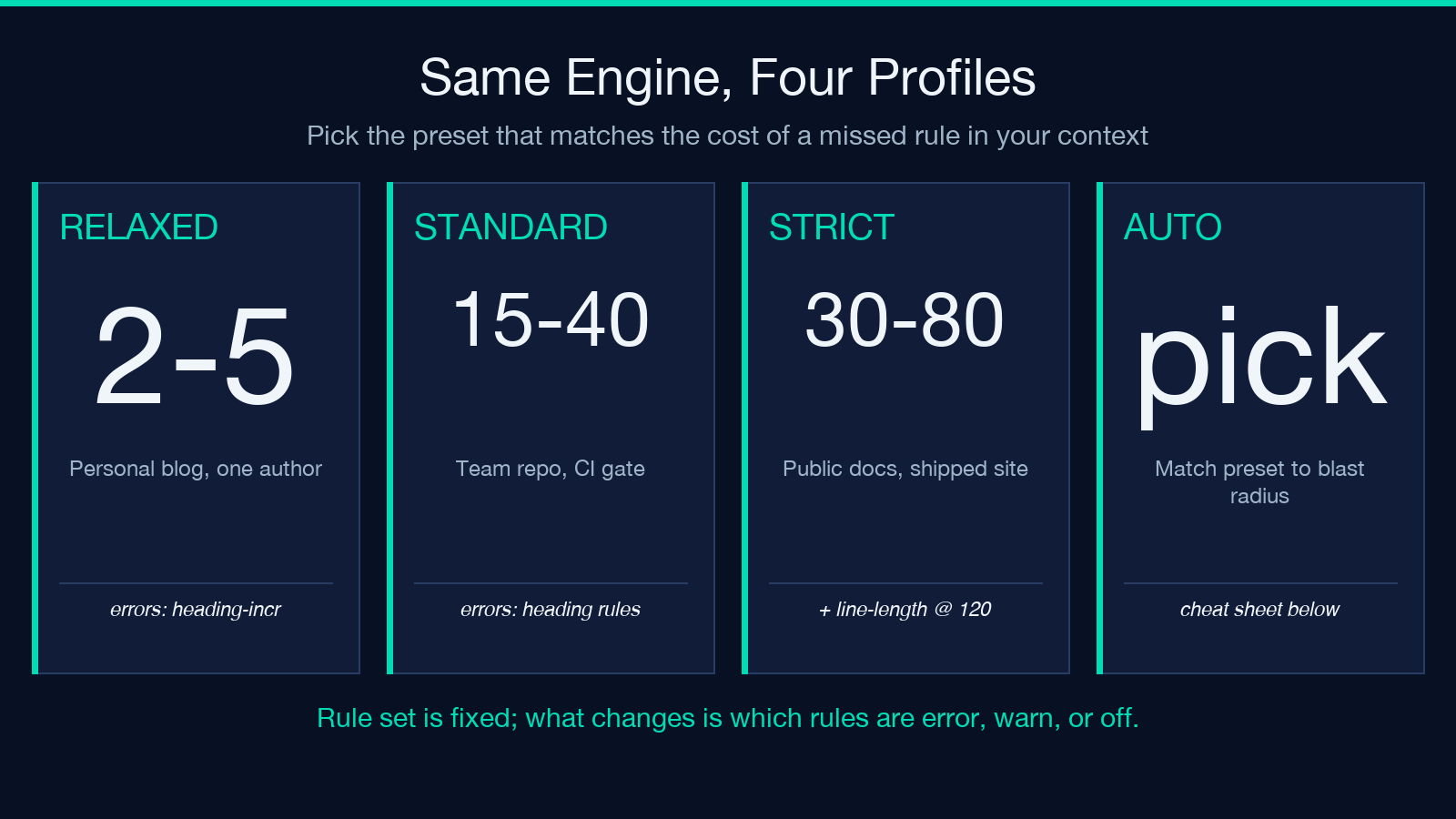
relaxed turns off eight of the twelve rules. Only heading-increment (error), no-multiple-blanks (warn), and the trivial line-length (off) stay on in any meaningful way. Running a typical README through relaxed produces two to five issues — almost all no-multiple-blanks warnings around copy-pasted sections. This is the preset to use on a personal blog or a one-author project where consistency drift is a future problem rather than a current one.
standard adds eight more rules: first-heading-h1, no-duplicate-heading, fenced-code-language, no-bare-urls, trailing-spaces, list-style-consistency, heading-style, no-emphasis-as-heading, code-block-indent. Running the same README through standard typically surfaces fifteen to forty issues — the new ones are dominated by fenced-code-language (every untagged fence) and no-bare-urls (every raw link in prose). This is the preset to use as a CI gate on a team repo: it catches the rules that survive a quick visual review but accumulate in long-lived documents.
strict keeps everything from standard and additionally enables line-length at 120 characters. The same README now reports thirty to eighty issues, the marginal ones being long lines in tables and embedded URLs. This is the preset for documentation that gets rendered to HTML and shipped to readers — a public docs site, an SDK reference, an API guide — where every line-length violation is a horizontal-scroll moment on mobile.
The same engine, the same rules, the same input — three different reports based on which level map is loaded. That is the design payoff of separating rule definitions from rule levels: one rule set, three presets, no copy-paste of rule logic across configurations.
The text report vs the JSON output
The text report is built for human eyes. It opens with a header line — Ruleset: standard | Issues: 17 (🔴 3 error, 🟡 14 warn) — followed by one line per issue formatted as 🔴 L42 heading-increment H2 → H4 (skipped H3). Each line carries the severity icon, a left-padded line number (L0 for global rules like list-style-consistency that don’t pin to a single line), the rule ID, and the human-readable message. The report closes with ✅ Passed rules: 7 of 12 active. That closing line is the one to watch: if the passed-rule count is high and the issue count is low, the document is in good shape; if passed-rule count is low, the document is fighting the rule set, and the right move is usually to switch presets rather than to fix every finding.
The JSON output is built for machines. Each issue becomes a structured object with rule, lineNum, level, and message fields, plus a top-level summary block carrying ruleSet, errors, warnings, totalRules, and activeRules. That shape is what a CI step consumes: pipe the JSON into a script that fails the build when errors > 0, or that annotates the diff in a code-review tool with the rule ID and message. The JSON shape is also stable enough to feed into a tracking spreadsheet — a project can graph errors and warnings over time and watch the numbers move as contributors adopt the rule set.
Both reports come from the same scan. The report-format toggle is a rendering choice, not a separate analysis pass.
A worked example: the rules that fire most often
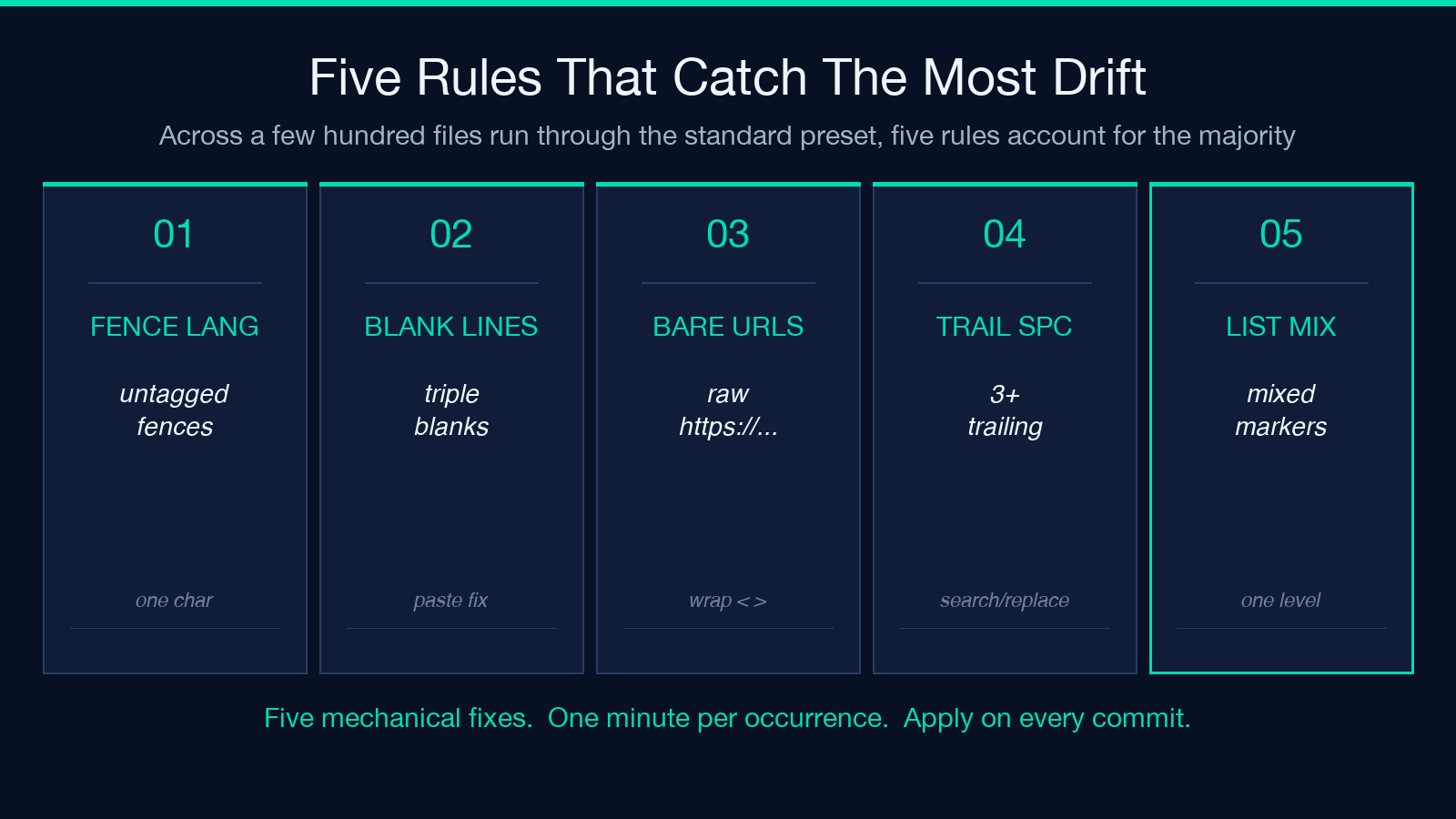
Across a few hundred Markdown files run through the standard preset, four rules account for the majority of findings.
fenced-code-language is the leader. Opening fences without a language tag are everywhere — they survive manual review because the fenced block still highlights to the author (the editor infers a language), but stops highlighting to every other reader (the renderer does not). Fixing this is one character per fence: add text, bash, python, or whatever the language is, right after the opening “ ` `.
no-multiple-blanks is the second most common. The rule fires on consecutive blank lines and is almost always a paste artifact — a code block was copied in, the surrounding blank line was duplicated, and the resulting triple-blank survives because nobody notices it in the rendered output. The fix is mechanical: delete one of the blank lines.
no-bare-urls shows up whenever a contributor pastes a link into prose without wrapping it. The fix is to use the autolink form for links that stand alone, or descriptive text when the link deserves a label. Bare URLs are particularly costly in table cells, where some renderers treat the period in the URL as sentence-end punctuation and break the link at the dot.
trailing-spaces shows up on lines copy-pasted from chat logs and terminals. Three or more trailing spaces is the trigger (two is a spec-defined hard line break, so the rule leaves those alone). The fix is a single search-and-replace in the editor: +$ to empty.
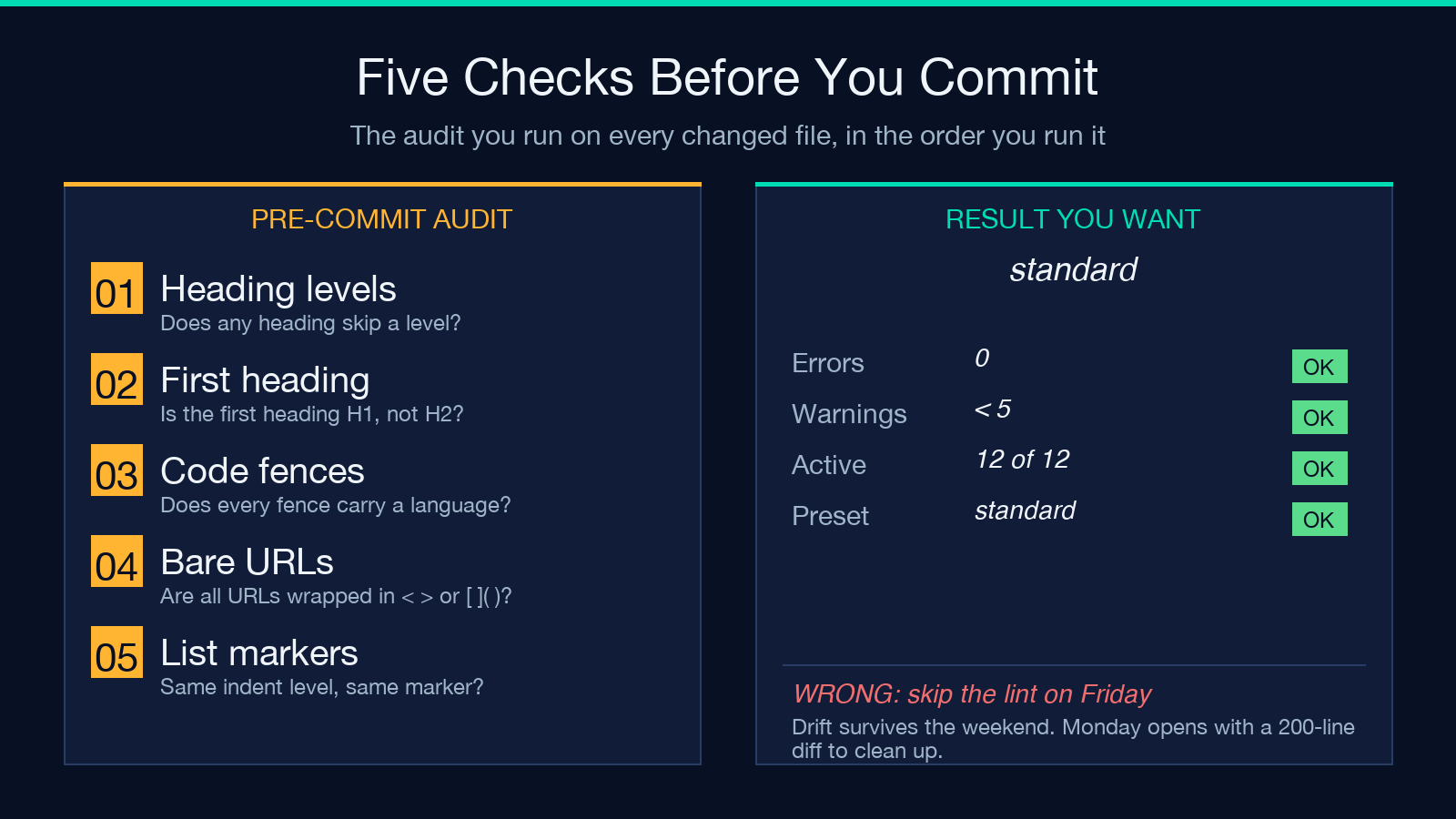
The four leading rules are all line-level, all mechanical, and all fixable in under a minute per occurrence. That is the case for running the linter on every commit: the marginal cost per fix is small, the cumulative drift over a long-lived document is large.
Where the linter fits in a documentation pipeline
Three integration points cover most use cases.
A pre-commit hook runs the linter on staged Markdown files and blocks the commit when errors are present. The hook reads the file, runs the JSON output, parses errors, and exits non-zero if the count is above zero. Warnings stay non-blocking — they show up in the commit message or in the CI log, but they do not gate the commit. This pattern keeps the codebase moving while still applying the rules that matter most.
A CI job runs the linter on every pull request and annotates the diff with rule violations. The job reads changed files, runs the linter on each, and posts a comment listing line, rule, and message for every finding. Reviewers see the linter output alongside the code change and can request fixes before merge. The strict preset is the right level here — the goal is to ship clean docs, and the long-line warnings pay for themselves the first time someone reads the doc on a phone.
A documentation-site build step runs the linter as part of the build and fails the build on errors. The build reads every .md file in the docs/ tree, runs the JSON output on each, and gates the deploy on errors == 0. This is the strictest integration — it catches drift in files that haven't been touched in months, not just files that show up in pull requests.
The linter itself does not know which integration is using it. It just runs and returns a report. The integration is the consumer’s choice.
What the linter deliberately does not check
A few rules are conspicuously absent, and that is by design.
Spelling and grammar are out of scope. The linter does not flag recieve or occured, and it does not propose rewrites. Spelling and grammar belong in a different tool — one tuned for natural language rather than for markup syntax.
Link validity (does the URL actually resolve?) is out of scope. The linter reports that a URL is bare or autolinked; it does not HEAD-check the URL. Link rot detection needs a network round-trip and a different report shape.
Markdown extension syntax beyond CommonMark is out of scope. The linter does not validate GFM tables, footnote syntax, definition lists, or task-list checkboxes. Those extensions are widely supported but not universally portable; the linter stays on the CommonMark core so its output is the same on every renderer.
Accessibility checks (alt-text on images, heading hierarchy for screen readers) are partially covered by first-heading-h1 and heading-increment but the linter does not walk images, ARIA attributes, or skip-link structure. Those checks belong in a renderer-aware tool like axe-core, which can see the rendered DOM.
The narrow scope is the design choice that keeps the rule engine small. Twelve rules, three presets, one report shape. The tool does the markup-style job and stays out of the spelling, link-validity, and accessibility jobs.
A quick walkthrough: linting a real README
To make the report format concrete, here is what the linter does on a fifty-line README that mixes a few common style problems.
The input has an opening # Project Title, then ## Overview, ## Installation, ### Setup, then ## Usage — which is the canonical heading-increment violation (the jump from ## Usage to ### Setup later in the file, or rather from ### Setup straight back to ## Usage without a #### — actually the inverse: starting at ## Installation and dropping to ### Setup is fine, but skipping from ## Installation to a later #### Edge Case without an ### Section in between fires the rule). One fenced block opens with a bare triple-backtick fence and no language tag; another opens with a bash-tagged fence. Two list sections use – markers and one uses *. There are three raw URLs in prose and a single triple-blank line after the closing paragraph of ## Overview.
Running this through the standard preset produces a report with six findings:
– 🔴 L18 heading-increment H2 → H4 (skipped H3) - 🟡 L21 fenced-code-language Fenced code block missing language - 🟡 L34 no-bare-urls Bare URL should be wrapped in <…> - 🟡 L37 no-bare-urls Bare URL should be wrapped in <…> - 🟡 L44 no-bare-urls Bare URL should be wrapped in <…> - 🟡 L48 no-multiple-blanks 3 consecutive blank lines
list-style-consistency does not fire because each marker lives at a different indent level. trailing-spaces does not fire because no line in the file has three or more trailing spaces. first-heading-h1 passes because the first heading is H1`. The six findings clean up in under two minutes of editing, and the next CI run on the same file returns zero errors.
That ratio — six findings, two minutes of fixes, then a clean run — is the steady state for a project that runs the linter on every commit. The tool’s job is to surface the drift at the cheapest possible moment, which is the moment the contributor is still in the file.
Putting it together
A Markdown file’s style is its interface. A reader notices the drift before they notice the content — the inconsistent bullet markers, the untyped code fence, the heading that skipped a level. The Markdown Linter is a small, auditable rule engine that catches the drift at write time, before review. Twelve rules, three presets, two report formats, zero dependencies. For a team that ships Markdown every week, it pays for itself in the first batch of fixes; for a solo author, it pays for itself in the second year of the document when the accumulated drift would otherwise take an afternoon to clean up by hand.
See sample input documents — a basic README, a blog post, a tutorial, a meeting-note template — at Markdown Samples. For broader document-format tooling, browse the complete tool catalog.
