8 Free Video Tools That Replace the Software You’re Still Paying For
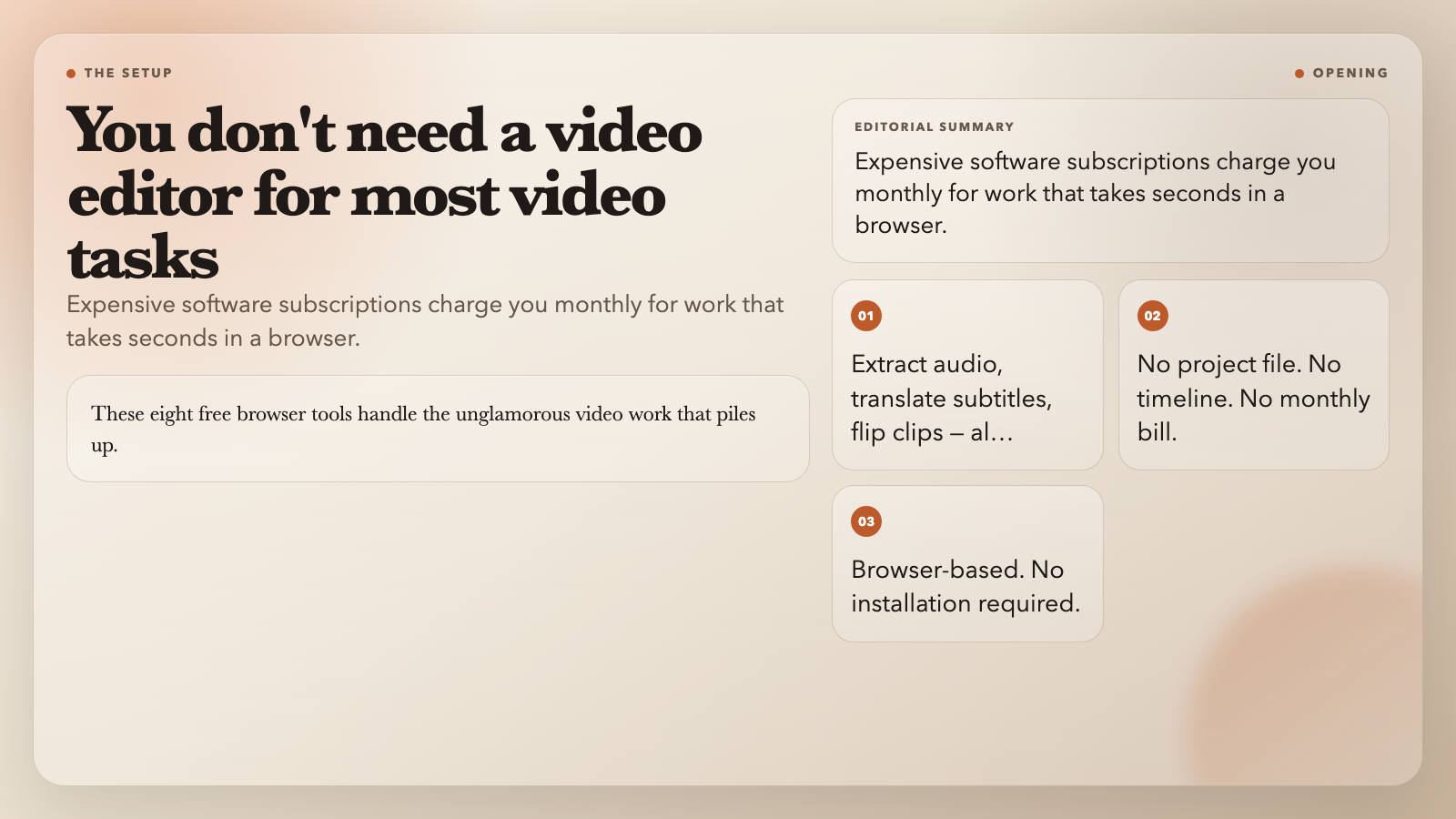
You don’t need a video editor to extract audio from a recording. You don’t need one to translate subtitles either. And you definitely don’t need a monthly subscription to flip a video that’s been filmed backwards.
These eight free browser tools handle the unglamorous video work that piles up — the stuff that either ends up on your to-do list for weeks or gets shoved into an expensive editor just to wait for an export.
Here’s what you can stop paying for.
1. Extract Audio from Any Video as MP3
The most common video task: pull the audio out.
It could be a podcast buried in a Zoom recording. A guitar track from a concert video. Voice-over content you want to republish as a standalone audio file. Most people import the video into an editor, drag it onto a timeline, and export — waiting through a full re-encode for something that was already audio.
Video to MP3 Converter removes that whole workflow. Upload a video (MP4, MOV, MKV, AVI, WebM — up to 100MB), select your bitrate (128 to 320 kbps), choose mono or stereo, and download a clean MP3. It uses FFmpeg’s `libmp3lame` codec, handles sample rate conversion (44.1 kHz or 48 kHz), and preserves ID3 metadata when available.
What you get is a properly encoded audio file — not a degraded re-encode. For creators processing a week’s worth of recorded calls, that means an afternoon’s work becomes five minutes.
2. Extract Lossless Audio — AAC, FLAC, or WAV
MP3 is universal. Lossless formats are for when quality matters.
– Video to AAC Converter — AAC is what YouTube, TikTok, and Spotify use for streaming audio. Better compression than MP3 at equivalent perceived quality.
– Video to FLAC Converter — FLAC is lossless. If you’re editing music or archiving recordings where quality is non-negotiable, this skips the compression penalty entirely.
– Video to WAV Converter — Uncompressed PCM. The raw audio track. No processing, no artifacts, maximum editing flexibility in any DAW.
All three use FFmpeg stream copy when possible — the audio is copied directly from the container without re-encoding, so what you extract is bit-for-bit what was in the original.
3. Pull Specific Streams Without Re-encoding
Sometimes you don’t need format conversion. You need the raw stream.
A MKV with multiple language tracks. A video with a specific audio channel you need for a different project. Video Stream Extractor probes a video file, lists available streams, and extracts audio, video, or both using stream copy — no transcoding, no quality loss.
If you’ve ever spent time re-importing footage because your editor couldn’t find the track you needed, this is the faster path.
4. Build a Preview Reel Without Opening an Editor
You have a 40-minute lecture. You need a 10-second preview for social media.
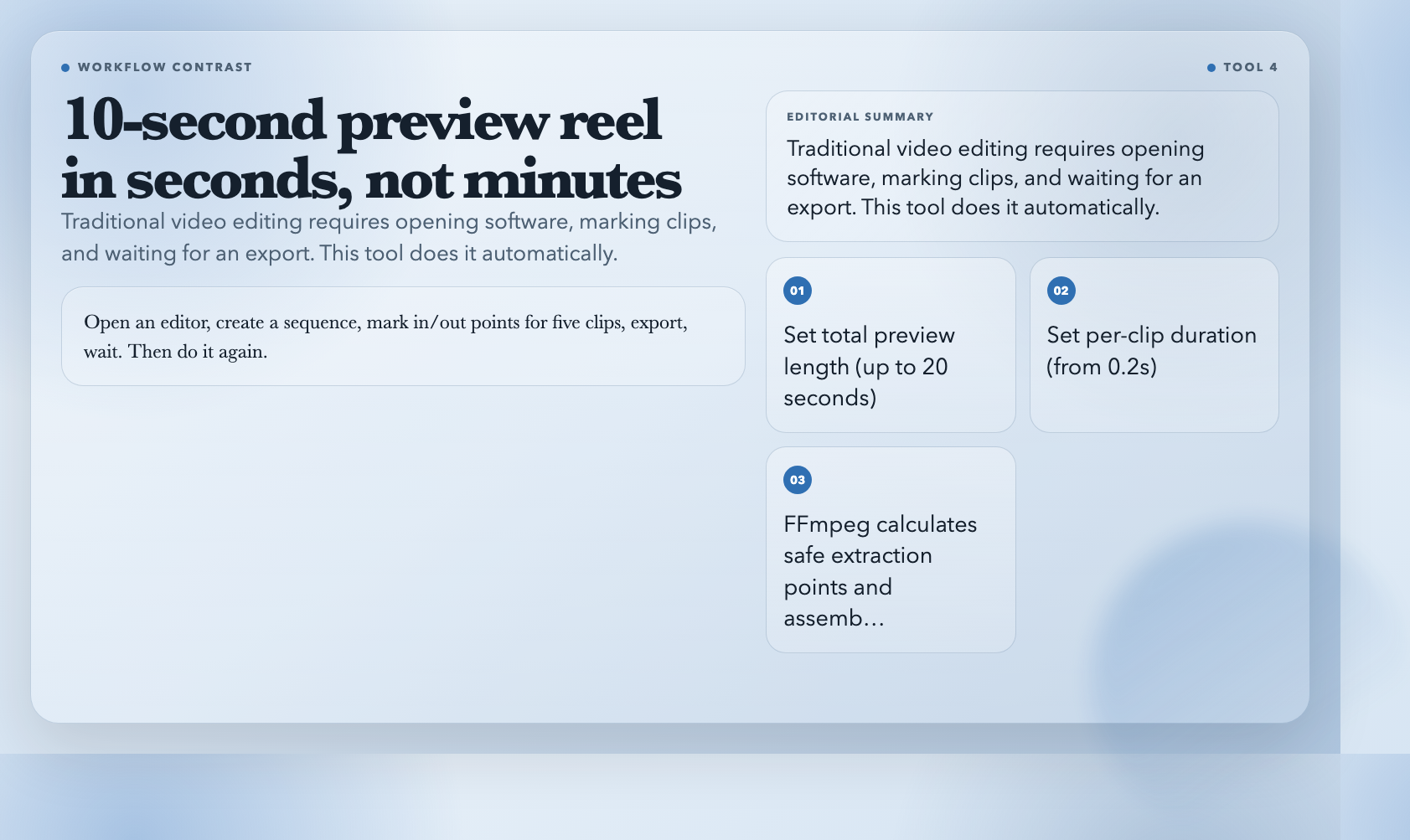
The traditional path: open an editor, create a sequence, mark in/out points for five clips, export, wait. Then do it again because the first cut wasn’t right.
Video Preview Generator replaces that with two numbers — total preview length (up to 20 seconds) and per-clip duration (from 0.2 seconds up). It calculates safe extraction points across the source timeline, clips each segment, and assembles a platform-ready MP4 — automatically.
You control whether audio is kept or stripped. The output works for YouTube Shorts, Instagram Reels, LinkedIn, anywhere. For educators and content teams who produce short-form previews regularly, this saves real time every single week.
5. Translate Subtitles Without Touching the Timing
You’ve found a foreign-language tutorial with subtitles. You want it in English.
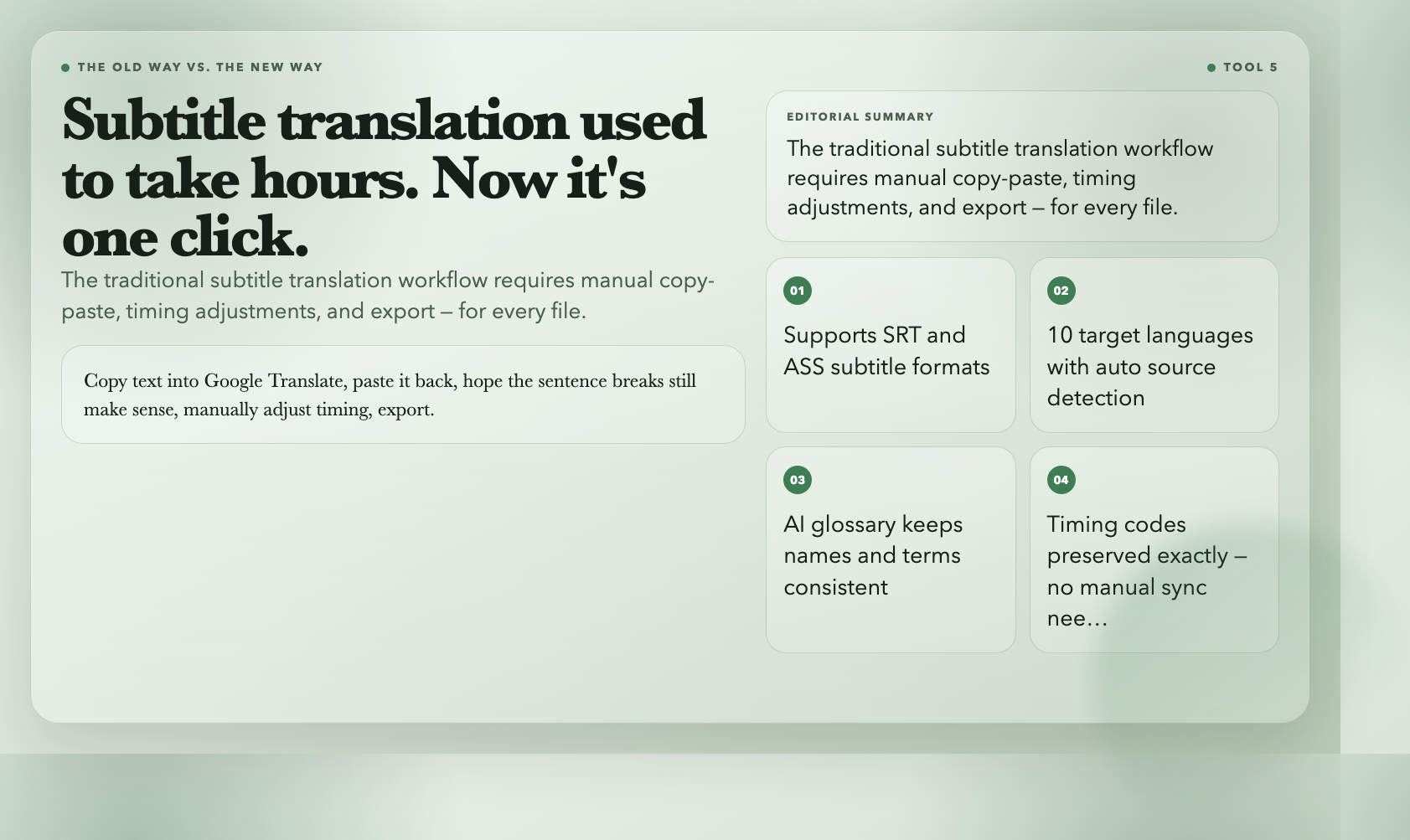
The painful path: copy text into Google Translate, paste it back, hope the sentence breaks still make sense, manually adjust timing, export. Hours of work for a rough result.
Video Subtitle Translator handles the full chain. Feed it an SRT or ASS file (or extract subtitles directly from an embedded video track), pick your target language, and get back a properly timed subtitle file in the same format. Ten languages: English, Chinese, Spanish, French, German, Portuguese, Russian, Japanese, Korean, plus auto-detect for source.
What sets it apart: the AI builds a terminology glossary before translating, so names and domain terms stay consistent across the entire file. ASS style tags (bold, italic, color) carry through unchanged. Timing codes are preserved exactly — the output syncs with your video without any manual adjustment.
This turns a Japanese product demo or French documentary into a localizable asset in one pass.
6. Fix a Flipped Video in One Click
Someone filmed with a camera set to mirrored preview. The footage is backwards.
You could re-import it into your editor, add a flip effect, and re-export — or fix it once, directly.
Video Horizontal Flip mirrors the video left-to-right using FFmpeg’s `hflip` filter, preserves the original container format, and copies the audio stream without re-encoding. Zero quality loss. The output is a corrected video in the same format as the source.
7. Convert GIFs to MP4 — Cut File Size by 50–80%
Animated GIFs are everywhere in product demos and UI documentation. They’re also heavy (often 3–5MB for a few seconds), capped at 256 colors, and load poorly on the web.
GIF to MP4 Converter converts animated GIFs to MP4 with configurable quality and resolution. Same visual content, typically 50–80% smaller. MP4 plays everywhere, has no color limits, and won’t tank your page load times.
For technical writers and web developers who’ve avoided using video because the file sizes felt unmanageable, this is the workaround that actually works.
8. Convert GIFs to WebM for Modern Web Delivery
WebM (VP9 codec) produces smaller files than H.264/MP4 for most animated web content, and it’s supported natively by every major browser without plugins.
GIF to WebM Converter converts animated GIFs to WebM with VP9 compression. Typically 10–20% smaller than the equivalent MP4, with the same visual quality and universal browser support.
For website embeds and interactive documentation where page weight directly affects user experience, WebM is the better choice — and this is the converter.
The Common Thread
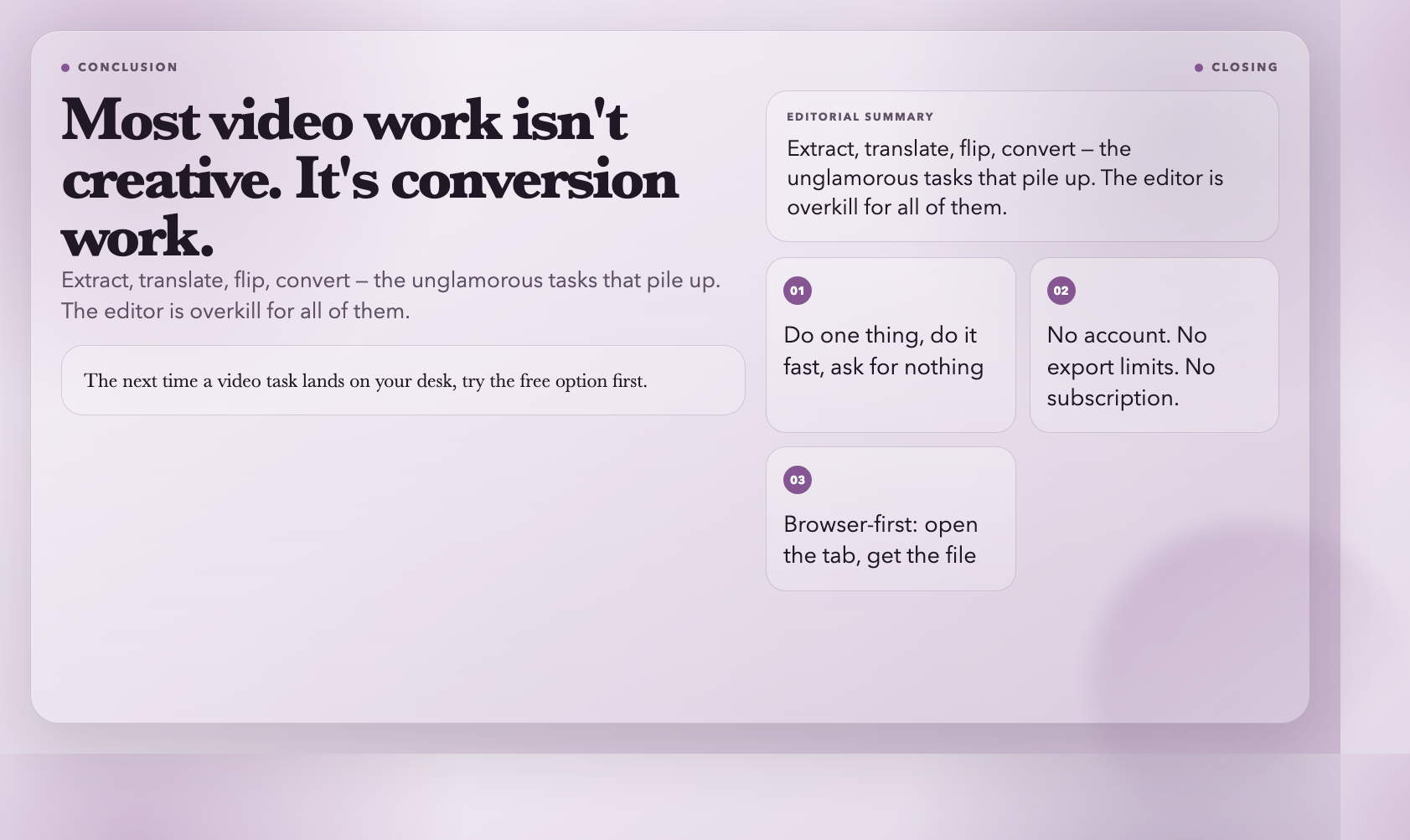
Most video work isn’t creative. It’s conversion work: extract this, translate that, flip this clip, assemble a preview. You don’t need an editor for that. You need tools that do one thing and do it fast.
The next time a video task lands on your desk, try the free option first. You’ll notice when the subscription bill comes due.