
Most CSV pipelines break on the third transformation. A clean rename passes through, a type conversion cleans the next column along, and then an add_column formula pulls in something the previous step just changed the shape of — and the row you were about to ship to the dashboard now has a string where the model expects an integer. The fix is to compose the operations as a single ordered list, not to chase each defect in a separate script. CSV Transformer takes that exact approach: a JSON array of typed operations, executed left-to-right, with handleErrors controlling what happens when an individual row fails to coerce.
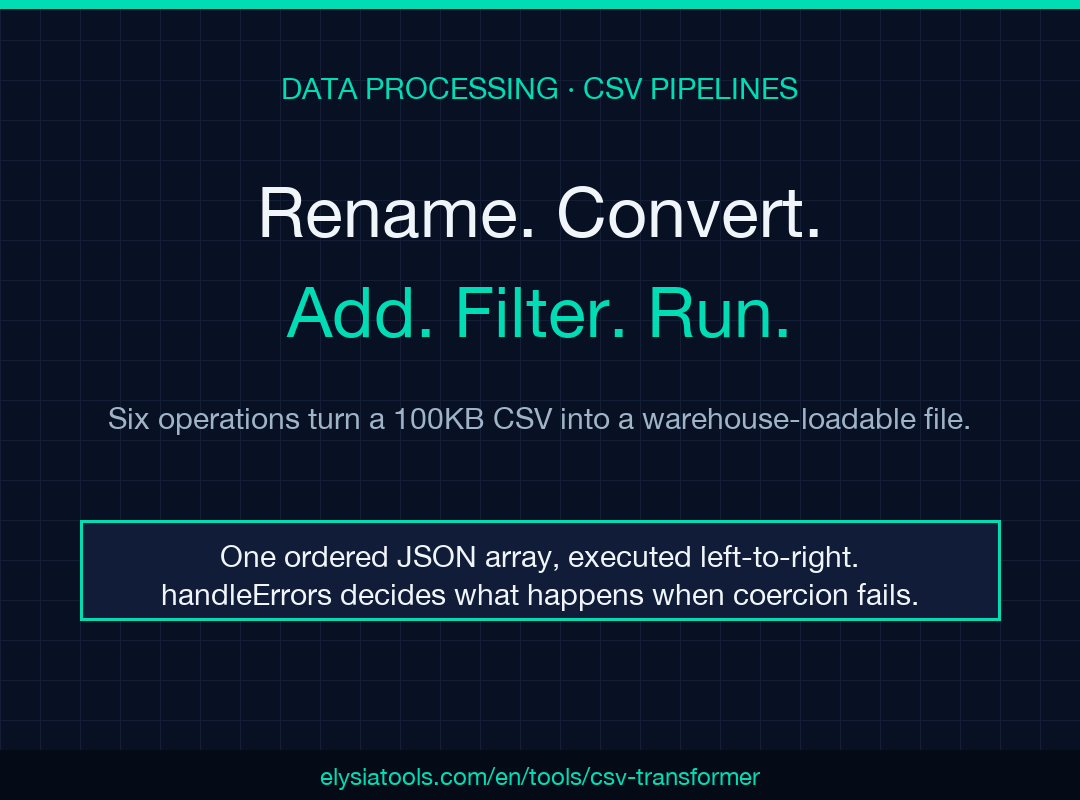
The trick that confuses first-time users is the difference between four operations that sound identical and behave very differently. rename rewrites a header. convert_type rewrites every cell under that header. calculate writes to an existing column, overwriting it. add_column writes to a new column — leaving the source column untouched. Stack those four into one transformation array and you have a working ETL slice without ever leaving the browser tab.
The six operation types, ranked by what you’ll actually need
The CSV Transformer defines exactly six operation types, each a single typed object with at minimum a type field and one or two operands. They are: rename, convert_type, add_column, remove_column, calculate, and filter_values. Three of them — rename, convert_type, and add_column — cover roughly 90 percent of real pipelines. The rest become useful in narrower contexts, which is why we get to them in their own section below.
The three you will use on every file
Renaming headers is the entry point. A Chinese-locale file like 01-simple-students.csv ships with headers 姓名, 年龄, 性别 — readable, but incompatible with downstream models expecting ASCII identifiers. A single rename rewrites them in place: [{"type": "rename", "column": "姓名", "new_name": "name"}, {"type": "rename", "column": "年龄", "new_name": "age"}, {"type": "rename", "column": "性别", "new_name": "gender"}]. The next link in the chain sees name,age,gender and works without translation.
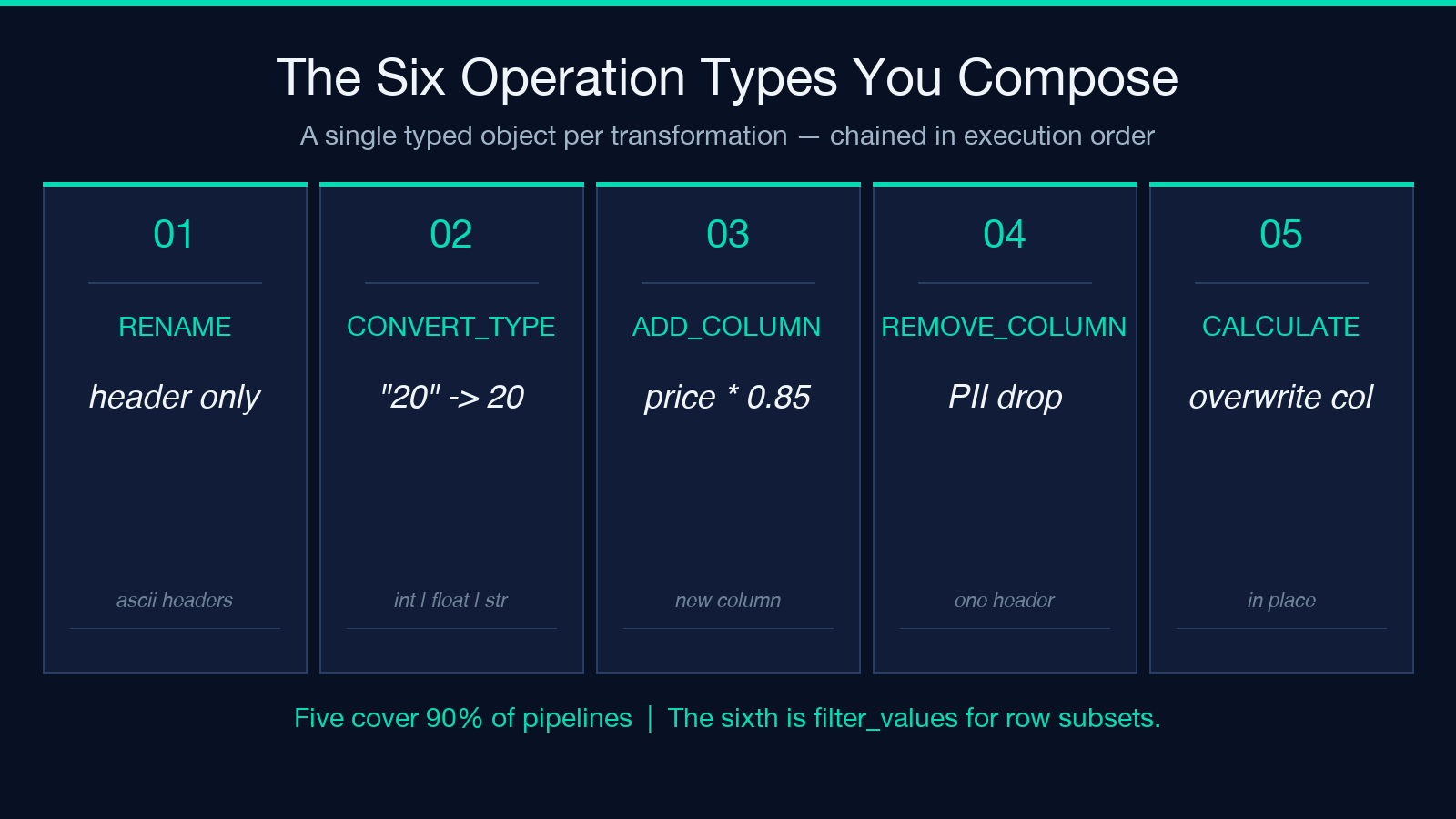
Type conversion is the operation that turns a string-typed column into something SQL or pandas can ingest. For the student file above, 年龄 arrives as a text field — passing "20" into a numeric join silently drops the row. A convert_type with target_type: "integer" rewrites every cell under that header. Output settings matter here: handleErrors: "keep_original" preserves the unparseable value; handleErrors: "drop_row" removes the whole row. For audit logs the first is correct; for warehouse ingestion the second is safer.
Calculated columns are where most pipelines either earn their keep or drown in them. Take a products file with 价格 (price) and want a 折后价格 (discounted price) column. The transformation reads [{"type": "add_column", "new_column": "discounted", "formula": "price * 0.85", "default_value": "0"}] — note the English column name after the rename ran, not the original 价格. If the source column is still in Chinese at this point, the formula will reference a header that no longer exists.
Composing operations: a worked example
The most useful pattern is to bundle a complete pipeline as one ordered array. Using the products file 02-products-price.csv (8 rows, 5 columns: 产品ID,产品名称,价格,库存,分类):
[
  {"type": "rename", "column": "产品ID", "new_name": "product_id"},
  {"type": "rename", "column": "产品名称", "new_name": "name"},
  {"type": "rename", "column": "价格", "new_name": "price"},
  {"type": "rename", "column": "库存", "new_name": "stock"},
  {"type": "rename", "column": "分类", "new_name": "category"},
  {"type": "convert_type", "convert_column": "price", "target_type": "float"},
  {"type": "convert_type", "convert_column": "stock", "target_type": "integer"},
  {"type": "add_column", "new_column": "discounted", "formula": "price * 0.85"},
  {"type": "add_column", "new_column": "stock_value", "formula": "price * stock"}
]
Three things to notice. First, every rename runs before any convert_type does — the column-name argument references the original header, not the renamed one. If you reorder the operations, the formulas targeting price will fail silently when the column is still called 价格. Second, convert_type accepts a Python-ish vocabulary: integer, float, string, boolean. Third, add_column runs on the post-rename dataset — if you need to reference name in a formula, you can.
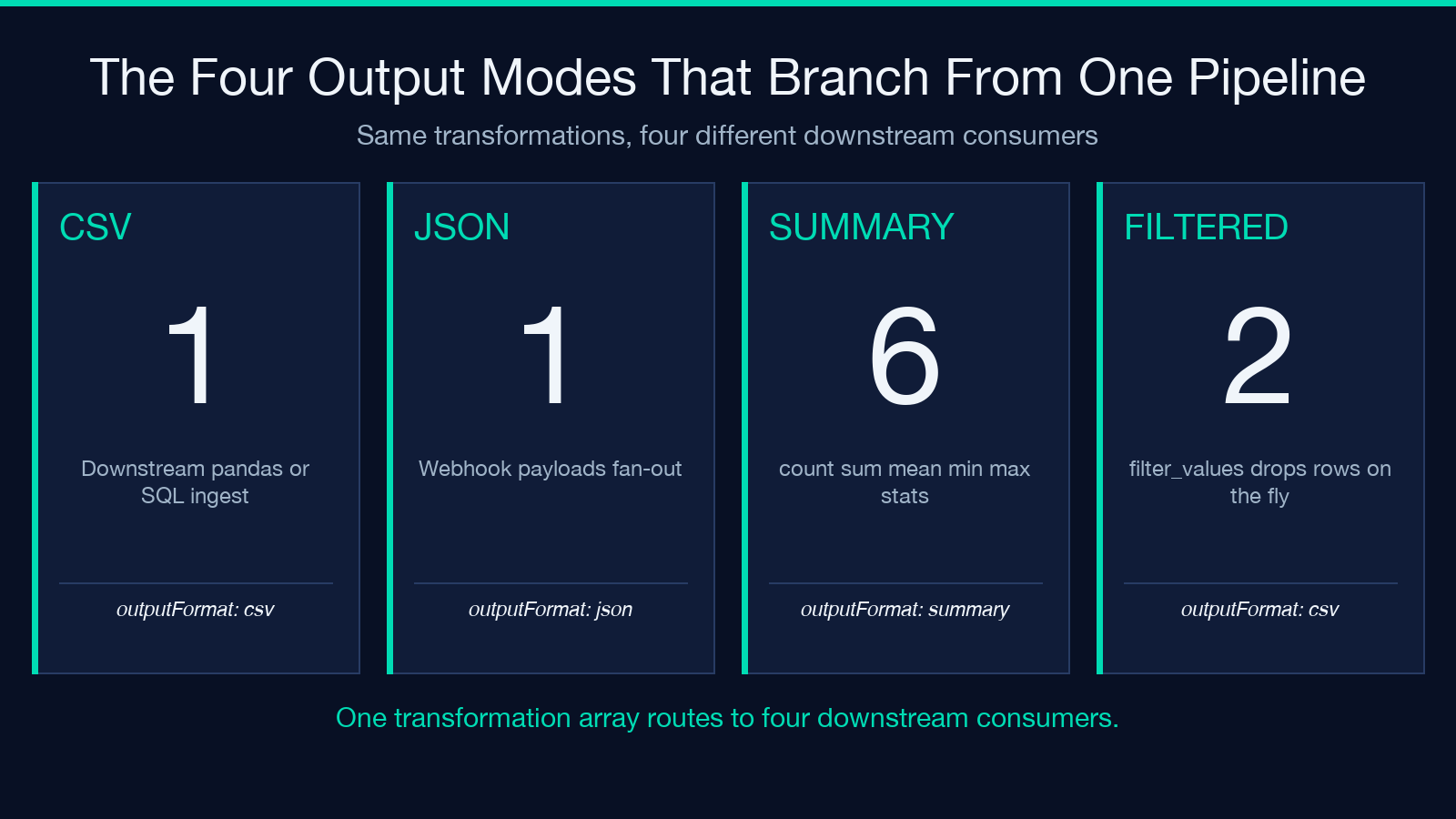
Output format matters. Set outputFormat: "csv" for downstream pipelines, "json" for API payloads, or "summary" for a numeric report. The summary mode is the one most people miss — it gives you count, sum, mean, min, max for numeric columns without writing any aggregation code.
Filtering rows without losing the schema
Most teams default to a separate SQL or pandas step for filter_values, but the CSV Transformer can do it inline. Using 03-employees-info.csv (7 rows), keeping only the engineering team:
[
  {"type": "rename", "column": "员工ID", "new_name": "employee_id"},
  {"type": "rename", "column": "部门", "new_name": "department"},
  {"type": "filter_values", "filter_column": "department", "operator": "equals", "value": "技术部"}
]
Filter operators cover the practical cases: equals, not_equals, contains, starts_with, greater_than, less_than, is_empty, is_not_empty. Combining two filters is supported by chaining two filter_values operations. There is no native AND/OR expression — for that complexity, drop back to pandas — but for the common case of trimming one column down to a single segment, this saves a full scripting pass.
Less-common operations worth knowing
Three operations show up less often but pay for themselves when the situation fits. remove_column deletes an entire header and every cell beneath it — useful when a PII column (email, phone, government ID) needs to drop before the file leaves the staging environment. The operation is a single line: [{"type": "remove_column", "remove_column": "邮箱"}] removes the email column from 03-employees-info.csv without touching the other six.
calculate is the operation that overwrites an existing column with a formula result, in contrast to add_column which adds a new one. The distinction matters in two narrow cases: when the column already exists from a downstream tool and you want to refresh its values, and when you want to replace a string column with a derived numeric without keeping the original. The signature looks like [{"type": "calculate", "target_column": "total", "expression": "price * tax + shipping"}]. Drop calculate into a chain that previously used add_column if the source column was already going to be overwritten anyway — saves a column.
outputFormat is not an operation but the property that switches the output mode. Set outputFormat: "csv" for downstream pipelines, "json" for API payloads, or "summary" for a numeric report. The summary mode is the one most people miss — it gives you count, sum, mean, min, max for numeric columns without writing any aggregation code. Combine it with a filter_values step to get a department-level rollup in two operations.
Error handling and reproducibility
The handleErrors setting is the lever that turns a brittle prototype into a reproducible pipeline. There are three modes:
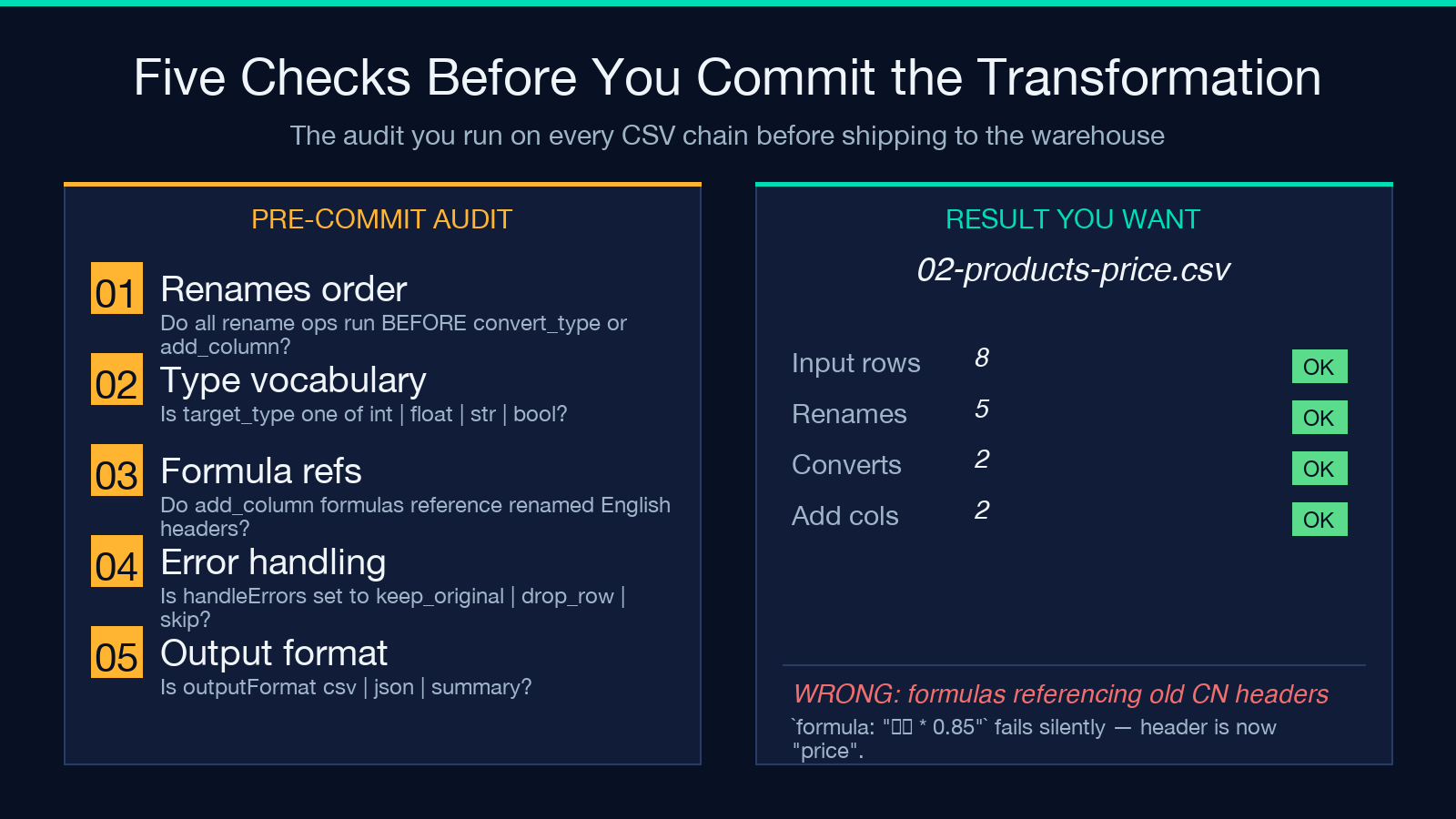
keep_original— leaves the unparseable cell as-is and logs the row number. Use this when you want to inspect the failures afterward and decide manually.drop_row— removes the entire row when one cell fails. Use this for warehouse ingestion where a partial row is worse than no row.skip— discards just the failing operation for that row and continues. Use this for additive columns where missing data is preferable to no row.
Pair it with errorHandling: "log" for a console summary, or "silent" for production runs where the error log is noise. The combination of keep_original + log is the right default during development; flip to drop_row + silent once the source data is known to be clean.
A note on real-world inputs
Two patterns show up over and over. First, files exported from Chinese-language ERP systems often have non-ASCII headers — 姓名, 价格, 部门 — and quoting variants (note the "张三" quoted form in 03-employees-info.csv versus the bare form in 01-simple-students.csv). The CSV Transformer handles both, but the convert_type step needs to know the original header, not the renamed one. Plan your renames first.
Second, the add_column formula language is a restricted subset — +, -, , /, parentheses, and column references. No string concatenation, no conditional expressions, no function calls. For “if price > 100 then discounted = price 0.9 else price” you still need pandas. The transformer covers the 80 percent of arithmetic-only columns and quietly refuses the rest, which is the right trade-off for a tool that runs in the browser.
Where the CSV Transformer fits in a pipeline
It is not a replacement for dplyr, pandas, or a SQL INSERT … SELECT. It is the layer that bridges non-engineers (analysts, ops, sales engineers) to the same data pipeline engineers write. They get a typed schema, a deterministic ordering, and immediate visual feedback on what each transformation does to a small file. Engineers keep their state in version control because every transformation is a JSON array they can paste into a runbook.
The output — a transformed CSV, a JSON list of records, or a numeric summary — feeds into the next stage unchanged. Drop the JSON output straight into a requests.post() and you have a no-code integration layer for the small but ubiquitous ETL jobs that every data team accumulates.
For adjacent tasks in the same Data Processing category — a quick on-the-fly dedup before the transform via Data Deduplicator, a column-level diff between the original and transformed file via CSV / Excel Diff Tool, or a targeted subset pulled with CSV Filter — the umbrella’s browse all tools page groups the rest. The CSV Transformer is the right tool when the work is “I have a CSV and a list of changes” and the wrong tool when the work drifts toward “I need a join, a window function, or a recursive CTE.” Use it accordingly.
