8 Free Excel Tools That Solve Your Data Pipeline Problems
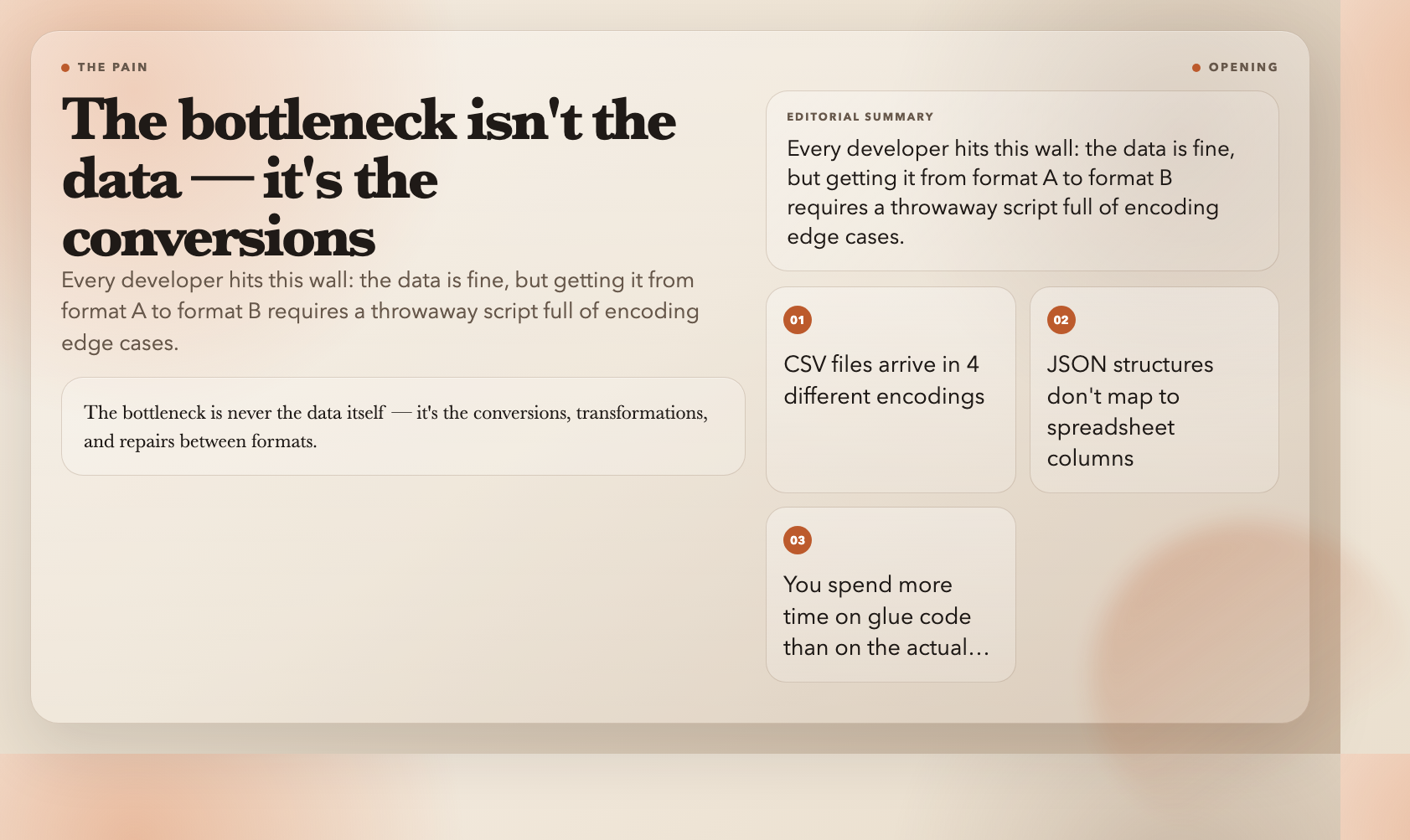
You open a CSV file from a colleague. The Chinese names are garbled: `ä¸æ–‡` instead of `中文`. Your client sent a GBK-encoded file. Python reads it fine, but Excel on your Mac shows question marks. You spend twenty minutes wrestling with encoding arguments before the data is finally readable.
This is the moment you realize: the bottleneck is never the data itself — it’s the conversions, transformations, and repairs between formats.
These eight free tools handle the unglamorous work that every developer, data analyst, and ops person encounters daily when Excel is part of the pipeline.
#
XLSX CSV Batch Converter — The Encoding Fix You Could Never Remember
Every developer knows the pain. You have 12 CSV files from different countries. Some are UTF-8, one is GBK, another is Shift-JIS. Excel on Mac opens them wrong. LibreOffice also chokes on some. The data is fine — the encoding is the problem.
XLSX CSV Batch Converter handles the full conversion pipeline in both directions: CSV and TSV to XLSX, or XLSX back to CSV and TSV. It auto-detects source encoding, handles delimiter ambiguity (comma vs. semicolon vs. tab), and outputs UTF-8 with BOM — which is what Excel actually needs to open international character sets without showing garbage.
Upload 50 files, pick your output format, and it zips everything back. This is the tool that replaces the `iconv` + Python + manual fixing loop you have been running for years.
Try it: XLSX CSV Batch Converter
#
XLSX JSON Transformer — Moving Nested Data Between JSON and Excel
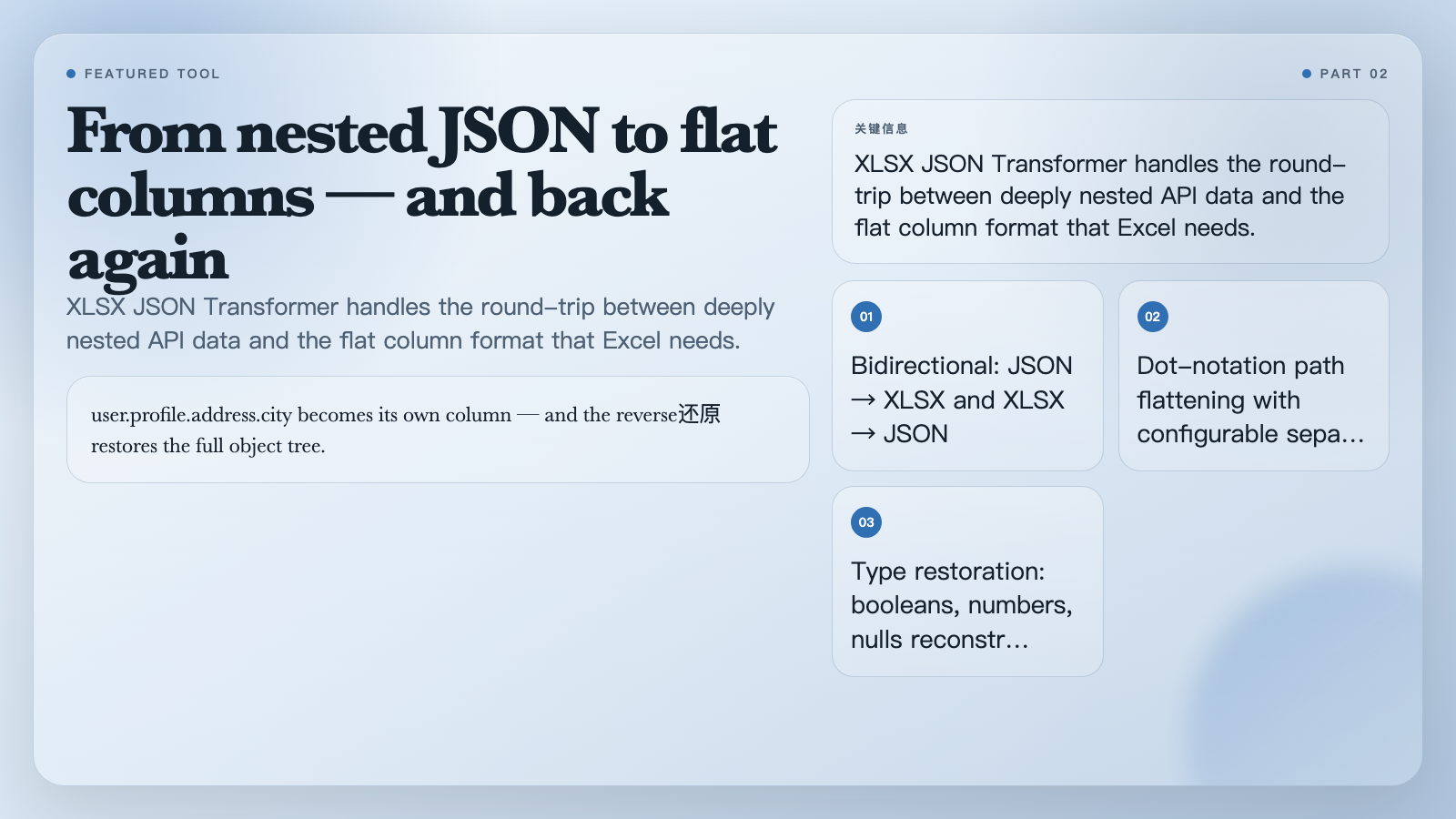
Your API returns deeply nested JSON: `{“user”:{“profile”:{“address”:{“city”:”Berlin”}}}}`. You need this in Excel for a client who refuses to look at JSON. You have been manually flattening it, creating `user.profile.address.city` columns by hand.
XLSX JSON Transformer handles this in both directions. Feed it a JSON array, and it flattens nested paths into column headers using dot notation — `user.profile.address.city` becomes its own column. Send it an Excel file with flattened columns, and it rebuilds the nested JSON structure. This means you can hand a spreadsheet to a non-technical person, let them fill it in, and convert back to structured JSON for your API.
The restore mode is equally useful: paste an XLSX export from a legacy system, and get clean nested JSON back with types preserved — booleans, numbers, and nulls reconstructed, not left as strings.
Try it: XLSX JSON Transformer
#
XLSX Template Filler — Fill Complex Reports Without Breaking Formulas
You have a beautifully designed Excel invoice template with formulas, merged cells, conditional formatting, and your company logo in the header. You need to fill it with customer data programmatically. The old approach: copy the file, open it with a library, hope the styles survive, and manually fix what broke.
XLSX Template Filler takes a different approach. It only touches `{{variable}}` placeholders. Everything else — styles, formulas, merged cells, conditional formatting — stays intact. Pass it a JSON object with your variable names, and it fills the template. If a variable is missing in strict mode, it throws an error instead of silently producing a broken document.
This is what automated report generation actually looks like when the template is designed by someone with taste.
Try it: XLSX Template Filler
#
XLSX SQL Insert Generator — Turn Spreadsheets into Database Imports
Your client emails you a spreadsheet with 3,000 product rows. You need these in PostgreSQL. You could hand-type the INSERT statements, write a Python script, or — actually — just upload the XLSX file and download a properly formatted SQL script.
XLSX SQL Insert Generator reads the header row as column names and generates INSERT statements. You pick the SQL dialect: MySQL, PostgreSQL, or SQLite, and it applies the correct identifier quoting rules for each. Batch insert mode wraps rows into multi-row INSERT statements, which is 10x faster to import than single-row statements.
If you have ever spent an afternoon writing migration scripts for spreadsheet data someone else provided, this tool is the end of that.
Try it: XLSX SQL Insert Generator
#
XLSX API to Sheet — Pull API Data Into Spreadsheets Without Code
You need to get data from a REST or GraphQL API into Excel. The standard approach: write a Python script, handle pagination, deal with nested JSON paths, and hope the field mapping stays correct. Two hours later, you have a working script. Next week the API schema changes and it breaks.
XLSX API to Sheet automates the entire flow. Point it at an API endpoint, describe the JSON path to the records array (e.g. `data.items`), map API fields to spreadsheet columns, and set pagination behavior — page number, offset cursor, or token-based. It fetches the data, flattens the JSON, and writes everything to an Excel sheet. One tool replaces a Python script that would take you half a day to write and test.
Try it: XLSX API To Sheet
#
XLSX Markdown Table Exporter — Put Spreadsheet Data Into README Files
You have a data table in Excel. You need it in a GitHub README, a Notion page, or a Pull Request description. You have been copying cells, wrestling with Markdown table syntax, and getting alignment wrong. Columns never line up in the preview.
XLSX Markdown Table Exporter converts any Excel range or entire sheet into a properly formatted Markdown table. It handles the header row, column alignment, and even wide tables that span the full document width. What used to be a five-minute manual formatting job becomes a paste-and-convert operation.
Try it: XLSX Markdown Table Exporter
#
XLSX Named Range Injector — Give Your Formulas Stable Addresses
In Excel, named ranges like `TaxRate` or `ExchangeRate` let you write `=Price * TaxRate` instead of `=Price * Sheet2!$D$17`. They make formulas readable and sheets maintainable. But when you generate workbooks programmatically, named ranges are tricky to set up correctly — the Excel UI is manual and the library APIs are inconsistent.
XLSX Named Range Injector creates or updates workbook-level named ranges via a simple JSON configuration. Define the range name, the sheet, and the cell range. It sanitizes names, handles sheet name quoting, and replaces or appends ranges depending on your preference. If you maintain Excel templates that rely on named ranges, this tool makes them programmatically updatable.
Try it: XLSX Named Range Injector
#
XLSX Formula Injector — Lock Formulas Without Protecting the Sheet
You build Excel templates for other people. You need formulas in certain cells, but you also need to let users edit the input cells freely. The standard Excel approach: protect the sheet, unlock specific cells, and hope the password survives the round-trip through your automation pipeline.
XLSX Formula Injector fills formulas down columns and optionally locks the formula cells against editing, without requiring full sheet protection. Users can still edit the input cells you marked as unlocked. This is the missing piece for building templates that enforce calculation logic while remaining genuinely usable by non-technical people.
Try it: XLSX Formula Injector
#
The Pattern: Stop Rewriting the Glue Code
Each of these tools replaces a throwaway script you would have written, debugged, and thrown away. The scripts are never interesting — they are the same CSV-encoding fix, the same JSON-flattening logic, the same API-fetch-and-paginate loop that every developer writes six times a year.
The difference is that these tools are already written, tested, and available in your browser. They handle the edge cases you would have forgotten — the quote-escaping in CSV, the type restoration in JSON, the identifier quoting in SQL generation.
The question is not whether these tools exist. They have existed in some form for years. The question is why you keep building the same infrastructure from scratch instead of using what’s already there.

Explore all 1,600+ free tools at elysiatools.com.