8 Free PDF Tools That Do What Adobe Charges $30/Month For
Adobe Acrobat DC costs $30 per month. For what? Mostly to stare at PDF files you could open in a browser for free. The actual tools buried in that subscription — watermarking, compressing, OCR, form filling — are either buried so deep you need a tutorial, or priced so high you just suffer through the manual process instead.
These eight tools do those jobs, free, in your browser.
The open-source and browser-based PDF ecosystem has caught up. Here are eight free tools that handle the tasks Adobe charges premium prices for — and in several cases, do them better.
#
1. Generate Branded Invoices Without Opening a Spreadsheet
Creating a clean, professional invoice usually means opening a template, plugging in numbers, fighting with column widths, and exporting something that looks slightly off on every other page.
The PDF Invoice Generator takes structured JSON data instead. Drop in line items, company info, customer details, and a logo — it renders a properly formatted A4 or Letter PDF using a real browser engine under the hood. Subtotal, tax rate, and total are calculated automatically. The output looks like something designed, not assembled.
This matters because invoices are a form of communication. A PDF that looks sloppy tells your client something about how you run your business. A clean one with consistent typography and proper alignment says the opposite.
Use it when: You need to send more than two invoices a month and want them to look consistent without paying for a SaaS subscription or maintaining a Word template.
#
2. Watermark PDFs Without Paying for Adobe’s “Advanced” Tier
Adobe hides watermarking behind its paid tier and then charges you for the privilege of placing text over your own documents. The PDF Watermark Tool does the same thing, free, in your browser.
You can apply text watermarks (CONFIDENTIAL, DRAFT, your company name) with control over rotation, opacity, font size, and color. It supports tiling across the page or a single centered stamp. Shape watermarks — rectangles or circles with borders — are also available. You can target all pages or specific page numbers.
The use cases are wider than they first appear. Design agencies watermark mockups before client review. Legal teams stamp DRAFT across every page before finalization. HR departments watermark offer letters before countersigning.
Use it when: You need to mark a document before it leaves your hands, and you don’t want to open Adobe to do it.
#
3. Compress PDFs to Half the Size Without Losing Readable Quality
Large PDFs are a daily frustration — scanned reports, exported presentations, anything with embedded images. Adobe offers compression, but only at certain subscription tiers, and the interface makes it unclear whether you’re getting quality loss or not.
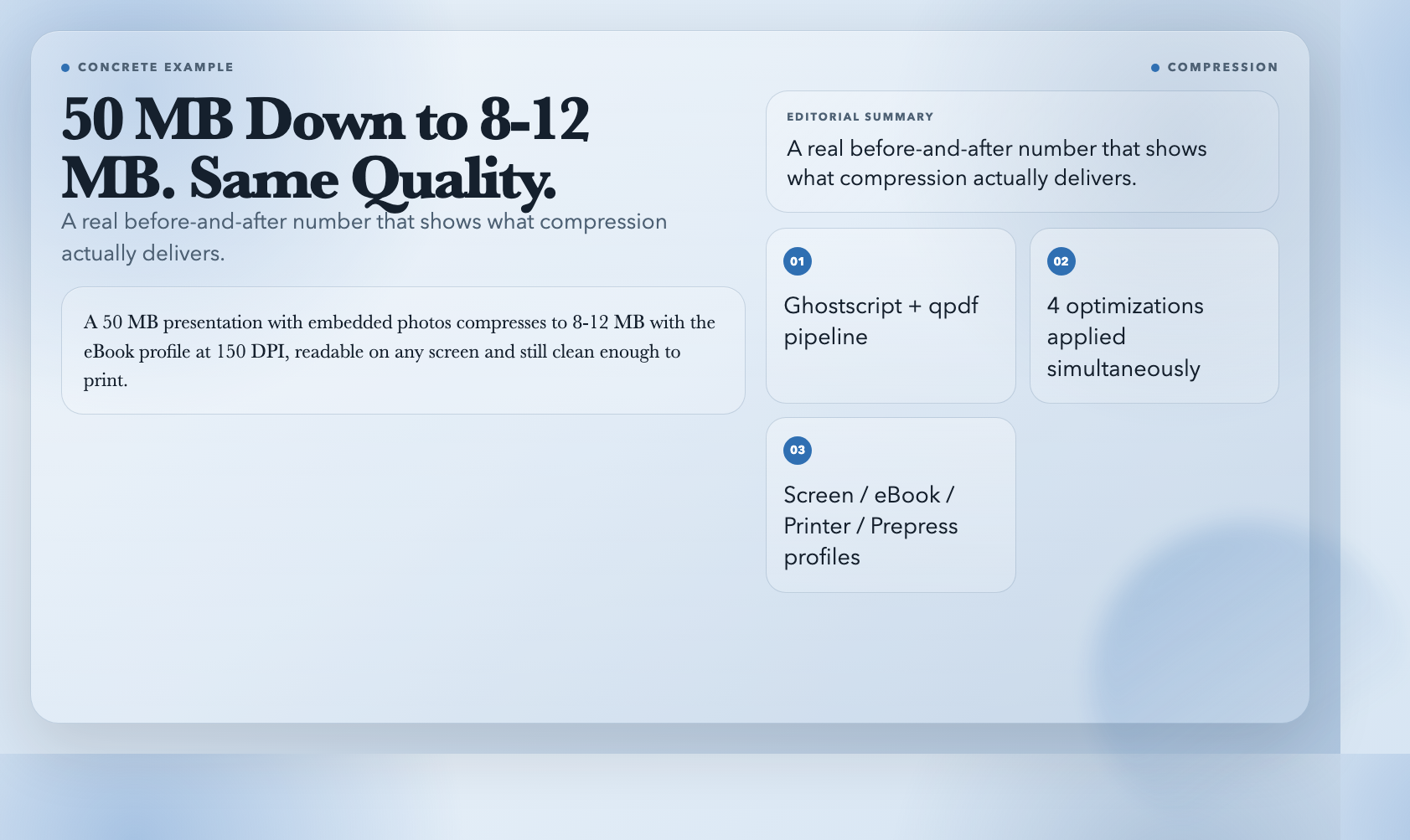
The PDF Compress Optimize tool uses Ghostscript and qpdf under the hood. It applies four optimizations at once: image downsampling (color, grayscale, and monochrome images are each handled separately), font subsetting, stream recompression, and object stream optimization. You can choose a compression profile — Screen for maximum size reduction, eBook for balanced, Printer for high quality, or Prepress for the best output.
Results are concrete. A 50 MB presentation with embedded photos compresses to 8-12 MB with the eBook profile at 150 DPI, readable on any screen and still clean enough to print.
Use it when: You need to email a file that’s over the attachment limit, prepare documents for a web download, or reduce storage bloat from archived reports.
#
4. Add a Searchable Text Layer to Any Scanned PDF
This is the tool that surprises people most. Scanned documents look like PDFs but they’re actually images — you can’t search them, copy text, or use Ctrl+F. Adobe charges $20/month just for OCR in its subscription.
The PDF OCR Text Layer tool uses Tesseract, the open-source OCR engine, to add a real text layer to scanned PDFs. The output is a fully searchable, copyable document. You can choose OCR language packs (English is default, but others are supported), set the input DPI (300 is the sweet spot between accuracy and speed), and choose page segmentation modes depending on your document’s layout.
A 20-page scanned contract becomes a document where you can search for any clause in seconds. A printed report converted to PDF becomes a file you can quote from directly. The difference in workflow is significant.
Use it when: You’re working with scanned contracts, printed reports, or any document that was converted to PDF by taking a picture of the pages.
#
5. Redact Sensitive Information Automatically Before Sharing Documents
Redaction sounds like a legal department concern, but it comes up constantly in everyday work. You need to share a report with an external stakeholder but strip out internal emails embedded in the PDF. You need to share a support ticket export but remove customer phone numbers and emails. You need to anonymize a dataset export before submitting it to a regulator.
The PDF Anonymizer Report tool automates this. It detects and masks three types of personally identifiable information: email addresses, phone numbers, and names from common labeled fields (Name, Contact, Applicant, Recipient — in English and Chinese). You can choose between two mask styles: a replacement label ([EMAIL_REDACTED]) or a blur block. Each processed page gets an anonymized badge in the corner showing the timestamp.
The metadata output tells you exactly how many of each type were detected and masked — useful for audit trails.
Use it when: You need to share internal documents externally, prepare case files for legal review, or anonymize datasets for compliance.
#
6. Fill PDF Forms Programmatically With JSON Data
Acrobat’s form-filling feature is one of its more genuinely useful capabilities — but you still pay $30/month for it. The PDF AcroForm Filler handles the same task with a JSON payload.
You upload the PDF form, pass in field data as JSON — text fields, checkboxes, radio buttons, dropdowns, and list selections — and it generates a filled, flattened PDF. The tool also handles hybrid PDFs that contain XFA forms by stripping the XFA packet before filling the AcroForm fallback fields.
This is the tool for anyone doing batch document processing. An HR team onboarding 30 employees can pre-fill a standard onboarding form with each person’s data from a spreadsheet in one pass. A legal team can pre-populate an NDA with client details before sending it out.
Use it when: You have a PDF form that needs to be filled repeatedly with the same template but different data.
#
7. Password-Protect PDFs With 256-bit Encryption
Adobe’s permission controls are buried in menus and designed to upsell you at every step. The PDF Password Protector gives you the same controls — open password, optional owner password, printing and copy permissions — with a straightforward interface.
It uses qpdf under the hood, supporting both 128-bit and 256-bit AES encryption. You can allow or block printing, allow or block text extraction, and the tool generates an owner password automatically if you leave it blank.
For teams sharing sensitive documents externally — financial reports, employment records, contracts — a password-protected PDF is the lowest-friction way to add a layer of access control without setting up a secure file sharing platform.
Use it when: You need to send a sensitive document to someone and want to ensure that even if the email is forwarded, the file can’t be opened without a password.
#
8. Merge Multiple PDFs Into One Document With a Table of Contents
Adobe’s combine PDFs feature works but produces a shapeless stack of pages. The PDF Merge Documents tool goes further: it merges multiple PDFs, generates a table of contents showing each source document and its starting page, and can insert separator pages between each merged document.
The table of contents is automatically generated from the filenames — clean, page-numbered, and ready to use. This sounds minor until you’ve tried to find something in a merged document and had no idea which section was from which file.
For anyone assembling proposals from multiple contributors, combining research from different sources, or bundling deliverables, this replaces a manual process that usually involves renumbering pages in the wrong order at least twice.
Use it when: You need to combine PDFs from different people or sources into a single coherent document.
#
The Pattern
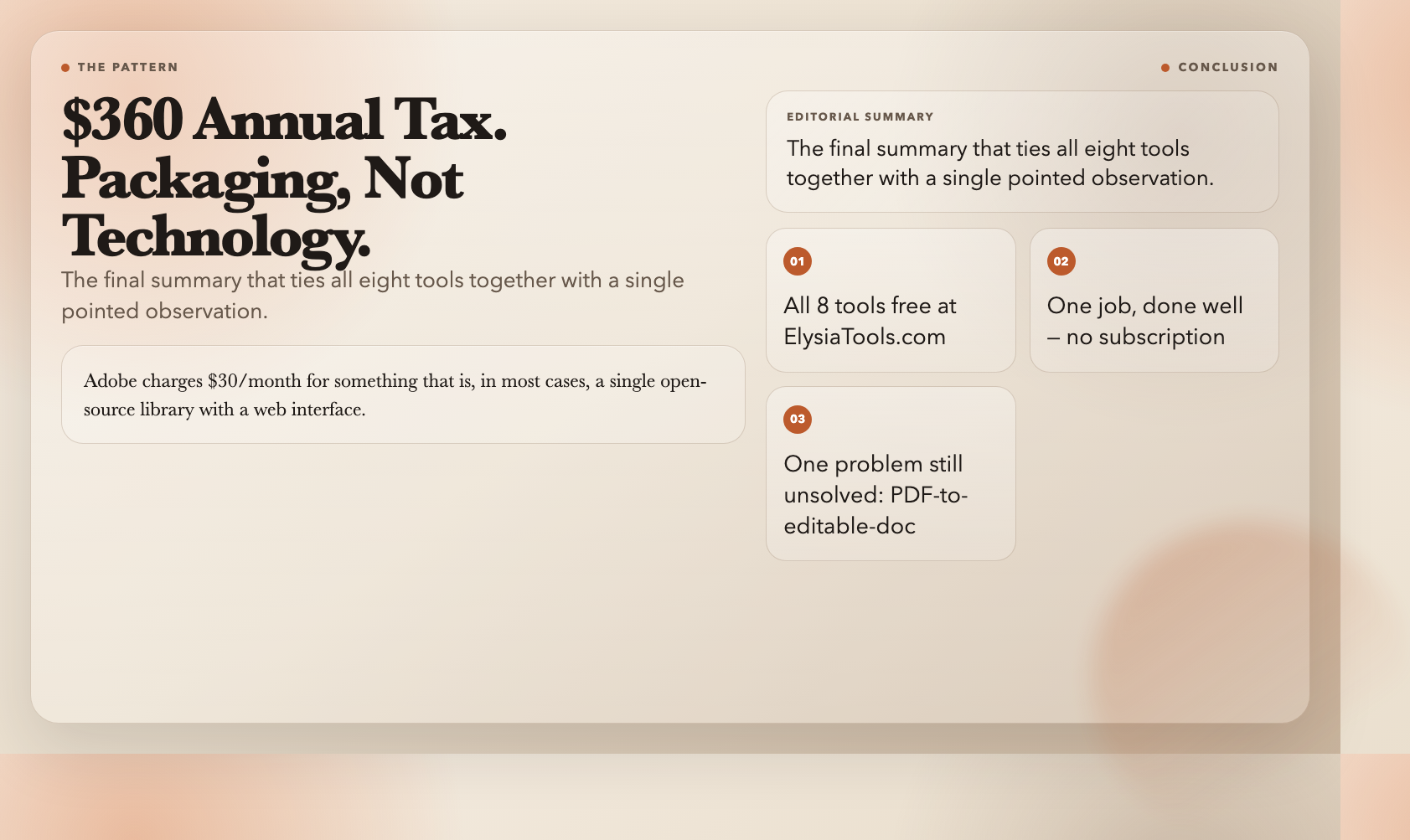
Adobe charges $30/month for something that is, in most cases, a single open-source library with a web interface. The $360 annual tax buys you packaging, not technology.
All eight tools are available free at ElysiaTools.com. Each one does one job well. That’s the design philosophy — and it happens to be a better deal than a subscription.
One thing still unsolved: a PDF-to-editable-document converter that doesn’t destroy the formatting. Every tool in this space either produces garbage or charges for the privilege. If you know one that works, the market is waiting.