# 8 Free Audio Analysis Tools Every Music Producer Needs in 2026
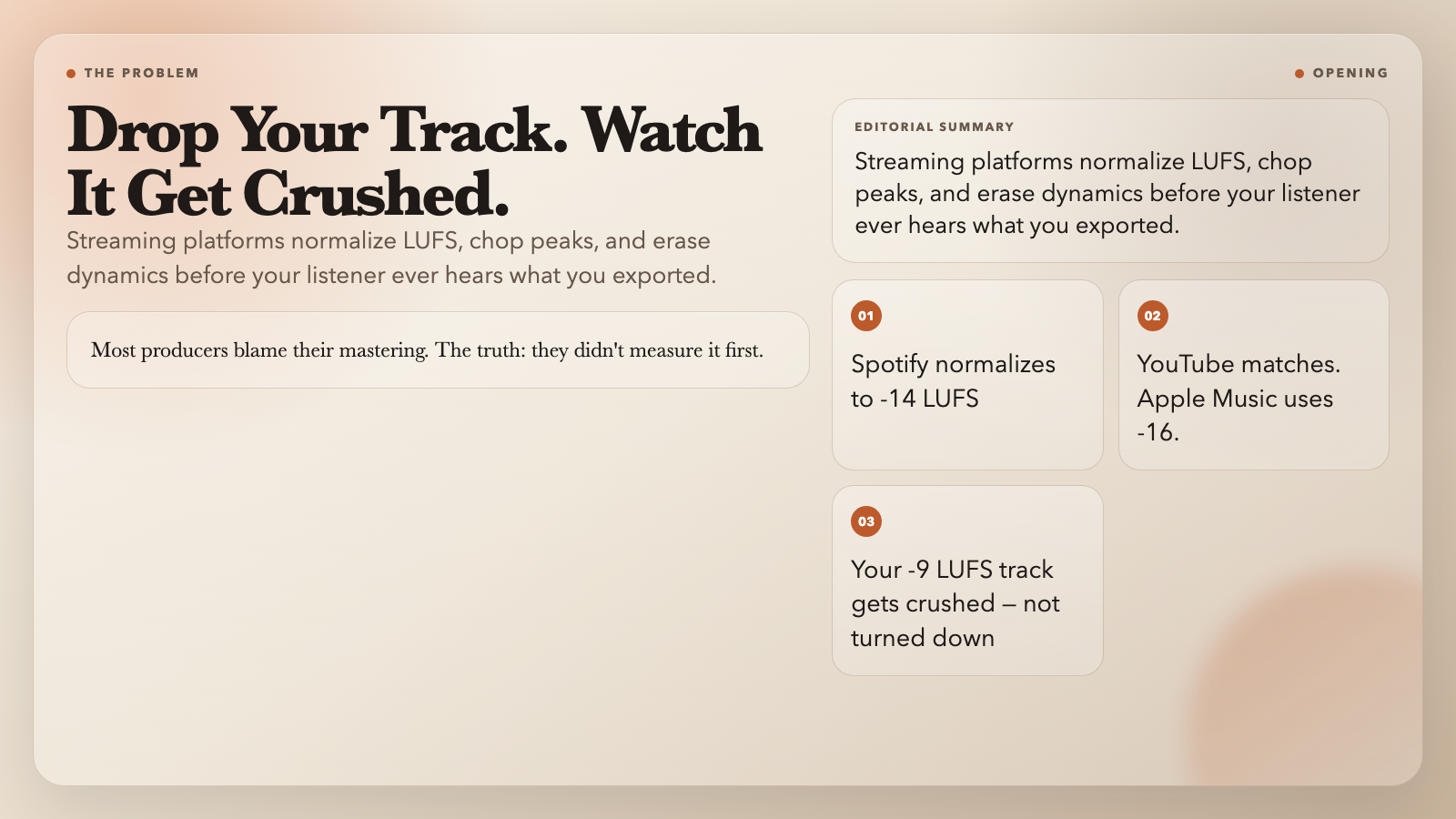
Drop your track into Spotify and watch it get quietly crushed — LUFS normalized, peaks chopped, dynamics erased. Most producers blame their mastering. The truth is simpler: they didn’t measure it first.
Audio analysis tools are the difference between “I think this sounds right” and “I know this measures right.” They catch what ears miss: inter-sample clipping your DAW hides, phase problems that kill mono compatibility, keys that clash in a DJ set.
Here are 8 free tools from ElysiaTools.com that cut through the guesswork — from LUFS meters to BPM detectors, stereo goniometers to key finders. All free. No sign-up required.
—
1. Audio LUFS Meter — Know Your Loudness Before Platforms Do It For You
LUFS (Loudness Units Full Scale) is the unit streaming platforms actually care about. Spotify normalizes to -14 LUFS. YouTube to -14 LUFS. Apple Music to -16. If your track hits -9 LUFS, you’re getting slammed by the platform’s own processor — not your mastering.
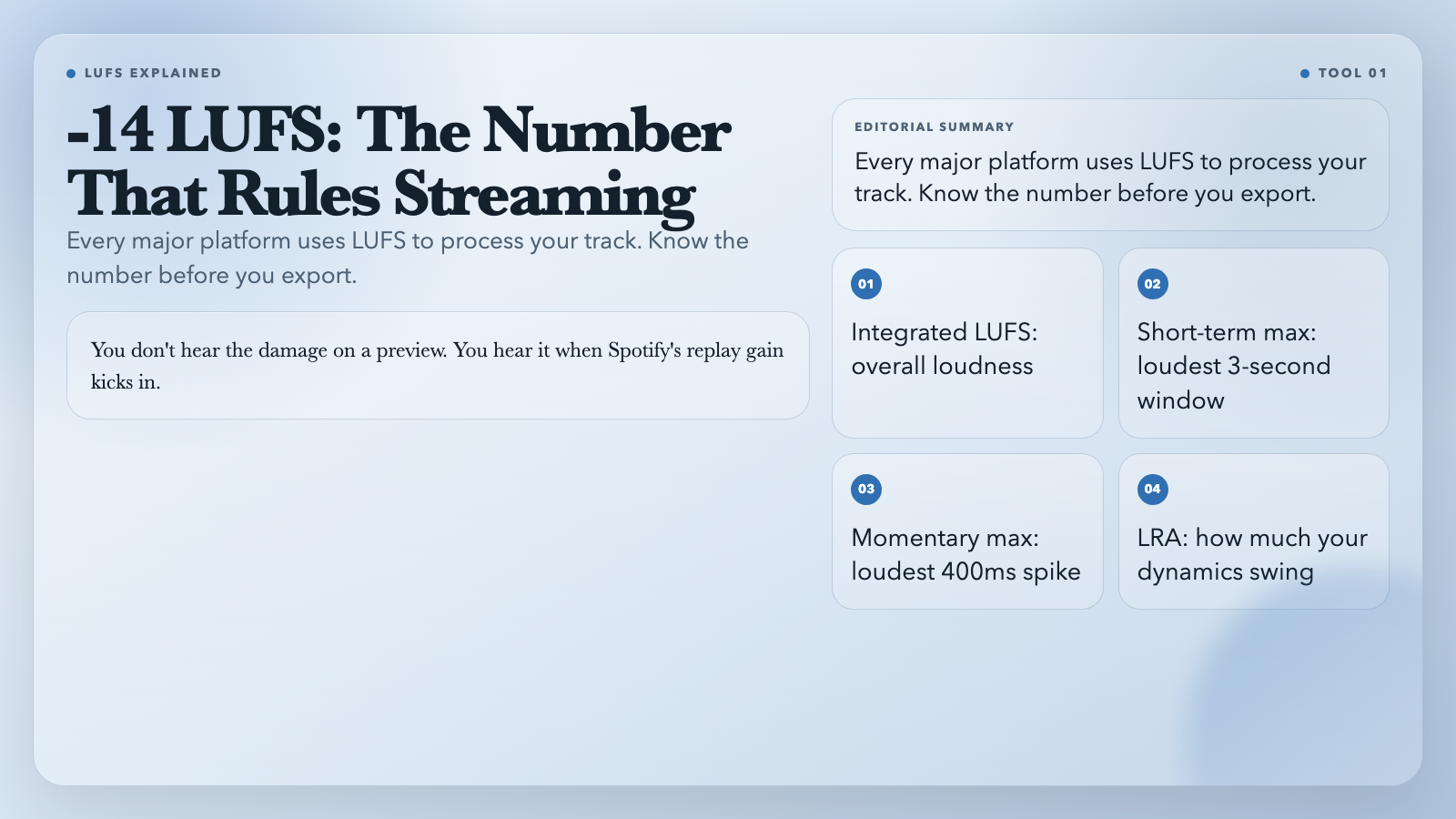
This tool runs FFmpeg’s ebur128 algorithm — the same standard broadcast networks use — and gives you four numbers that matter:
- Short-term max: the loudest 3-second window
- Momentary max: the loudest 400ms spike
- LRA (Loudness Range): how much your dynamics swing
Most mastering engineers target -14 LUFS integrated for streaming delivery. This tool tells you exactly where you stand before you upload — so you’re not guessing what will happen to your mix.
—
2. Audio True Peak Meter — Catch the Clipping Your DAW Can’t See
Inter-sample peaks are real. A digital-to-analog conversion can overshoot the nominal 0 dB ceiling by 1–3 dB, even when your DAW shows peaks at -0.3 dB. That’s called clipping — and it sounds like distortion on your mastered track.
The True Peak Meter uses FFmpeg’s loudnorm in measurement mode to find these hidden peaks. Set your ceiling (default is -1 dBTP, the broadcast standard) and the tool tells you whether your audio is actually clean or secretly clipping.
Broadcast standards (EBU R128, ATSC A/85) specify a true peak ceiling of -1 dBTP. If you’re mastering for TV, radio, or any platform with strict limits, this is your pre-upload checklist.
—
3. Audio Loudness Report — Your Complete LUFS Health Check
If the LUFS Meter is a snapshot, this is your full diagnostic. Drop in any audio file and it runs FFmpeg’s loudnorm in measurement mode to return: integrated loudness, true peak, LRA, and the threshold separating signal from silence.
Why it matters: the difference between -14 LUFS and -11 LUFS sounds subtle on paper, but -11 LUFS will be noticeably compressed and turned down by Spotify. The real power: these numbers feed directly into your DAW’s loudnorm filter for a two-pass loudness normalization workflow.
—
4. Audio Dynamic Range Meter — Is Your Mix Punchy or Pancaked?
Dynamic range is the difference between your quietest and loudest moments. Too little range and your mix sounds flat, fatiguing, “loudness-warred.” Too much and it feels weak next to commercial releases.
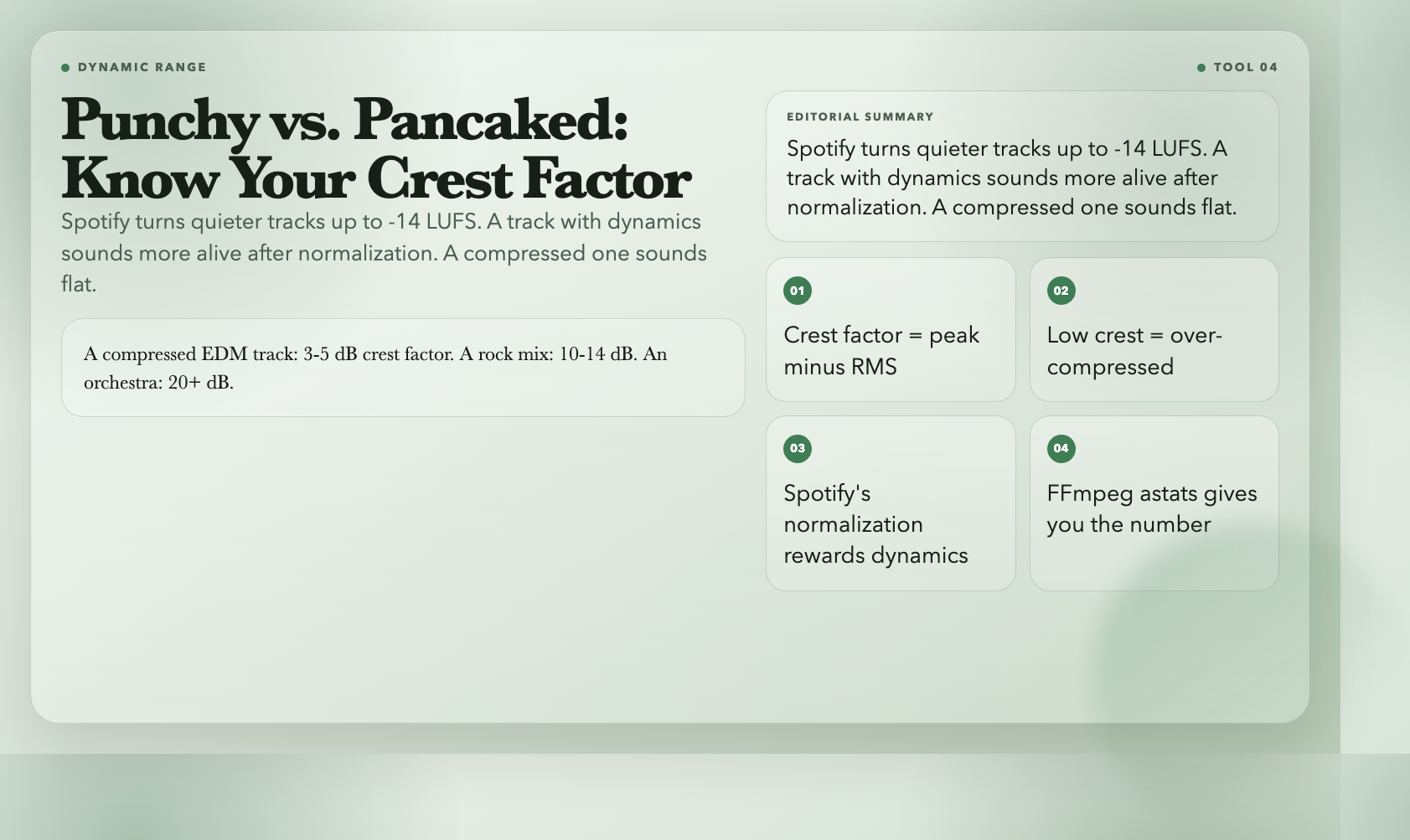
The Dynamic Range Meter calculates your crest factor — peak level minus RMS level. A high crest factor means lots of dynamics (good for orchestral, classical). A low crest factor means a compressed, “in-your-face” sound. A compressed EDM track might sit at 3–5 dB. A rock mix at 10–14 dB. An orchestral recording at 20+ dB.
Most streaming platforms target 9–12 dB of dynamic range for pop/rock. If you’re sitting at 4 dB, you’re probably over-compressed. This tool gives you the number, not just the feeling.
—
5. Audio BPM Detector — Find Your Tempo Without Counting
Every DJ, beatmaker, and live performer has tapped the wrong tempo at least once. Audio BPM Detector analyzes your track using beat-tracking algorithms and returns the exact BPM — with beat count verification.
What makes it useful beyond “just read the metadata”: it actually analyzes the audio signal, not the file header. So if your track was time-stretched, pitch-shifted, or has an unusual time signature, the detector reads the actual audio rather than trusting embedded tags.
You can limit the analysis window (10–300 seconds) so it doesn’t chug through a 7-minute ambient track when 30 seconds is enough to find the pulse.
—
6. Audio Key Detector — Don’t Mix in the Wrong Key
Harmonic mixing sounds great. Mixing in conflicting keys sounds like a car crash. The Audio Key Detector analyzes chroma energy across your track — which notes are present, in what proportions — and matches it against standard major and minor key profiles.
It returns the best match (e.g., “C minor”) with a confidence score, plus the top 5 candidates. So if your track is ambiguous, you see all the options.
For DJs: Camelot notation (used in DJ software) maps directly from the results. C minor is 5A. D minor is 2A. Two tracks in the same Camelot slot harmonically coexist. Knowing the key means knowing how to sequence tracks without killing the energy.
—
7. Audio Goniometer — See Your Stereo Field
A goniometer is a polar display that maps your stereo image — L on one axis, R on the other. It’s the same tool mastering engineers use on studio monitors. You can’t hear a goniometer, but once you see your mix’s stereo field, you’ll understand why it sounds the way it does.
Audio Goniometer renders a PNG using FFmpeg’s avectorscope in polar mode. It shows you: how wide your stereo image actually is, where the center energy (mono content) sits, and whether hard-panned elements are stable or drifting.
A narrow, vertical display means a tight center and clean mono compatibility. A wide, horizontal display means a wide, lush stereo image. Points scattered all over the place mean possible phase issues.
—
8. Audio Stereo Correlation Meter — Catch Phase Problems Before They Kill Your Mix
Mono speakers are still everywhere — car stereos, phone speakers, club sound systems. If your mix has phase problems, it will sound thin or hollow on anything playing in mono. The Stereo Correlation Meter visualizes phase relationship between left and right channels.
Correlation values range from +1 (identical channels, perfectly mono-safe) to -1 (completely out of phase, which sounds like garbage in mono). Most well-balanced mixes sit between +0.5 and +1.0.
The tool renders a phase correlation image and also has a phase detection overlay mode that flags specific moments where channels are fighting each other — so you know exactly where to look in your DAW.
Below +0.3? Don’t export yet. Find and fix the phase issue first.
—
The Numbers Don’t Lie. Neither Should Your Mix.
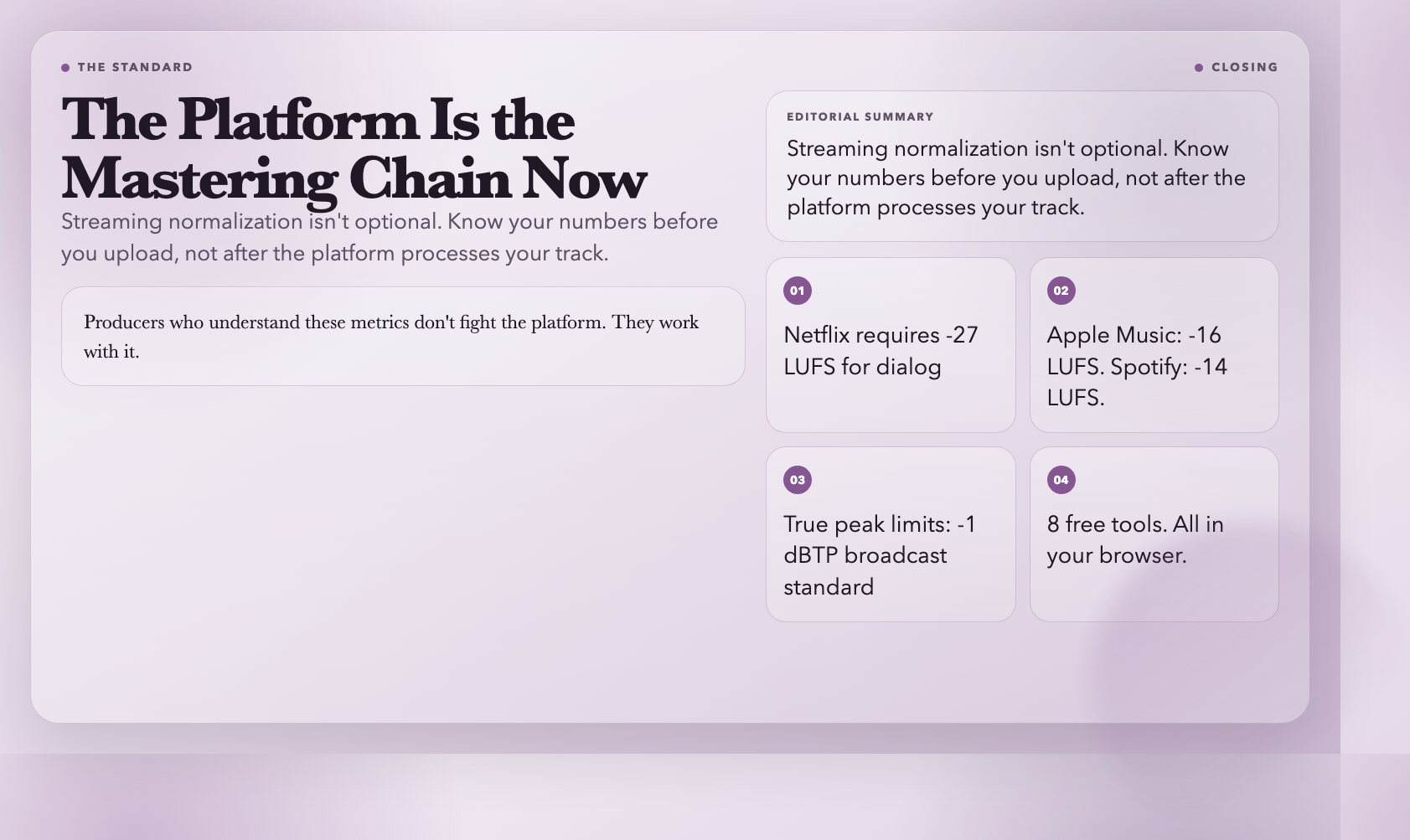
Streaming platforms normalize everything — LUFS, true peaks, dynamics. Netflix requires -27 LUFS for dialog. Apple Music targets -16 LUFS. Spotify normalizes to -14 LUFS. These aren’t rumors. They’re the infrastructure your track gets processed through.
Producers who understand these metrics work *with* the platform. Those who don’t fight a battle they’re already losing before they press export.
These eight tools give you the truth about your mix. They don’t make your mix better. They tell you the truth so you can make it better yourself.
Bookmark this list. Every time you’re about to export a master, run these checks first.