8 Free PDF Tools That Do What Adobe Charges $30/Month For
It’s 11pm. You need to split a 30-page contract in half, add a watermark with your name and the current date, compress a 40MB file to 4MB for email, and password-protect it before sending. Adobe Acrobat handles all of this — for $30 a month. The problem isn’t the price. The problem is you needed those features for three days, and now you’re paying for the rest of the month, and the month after that.
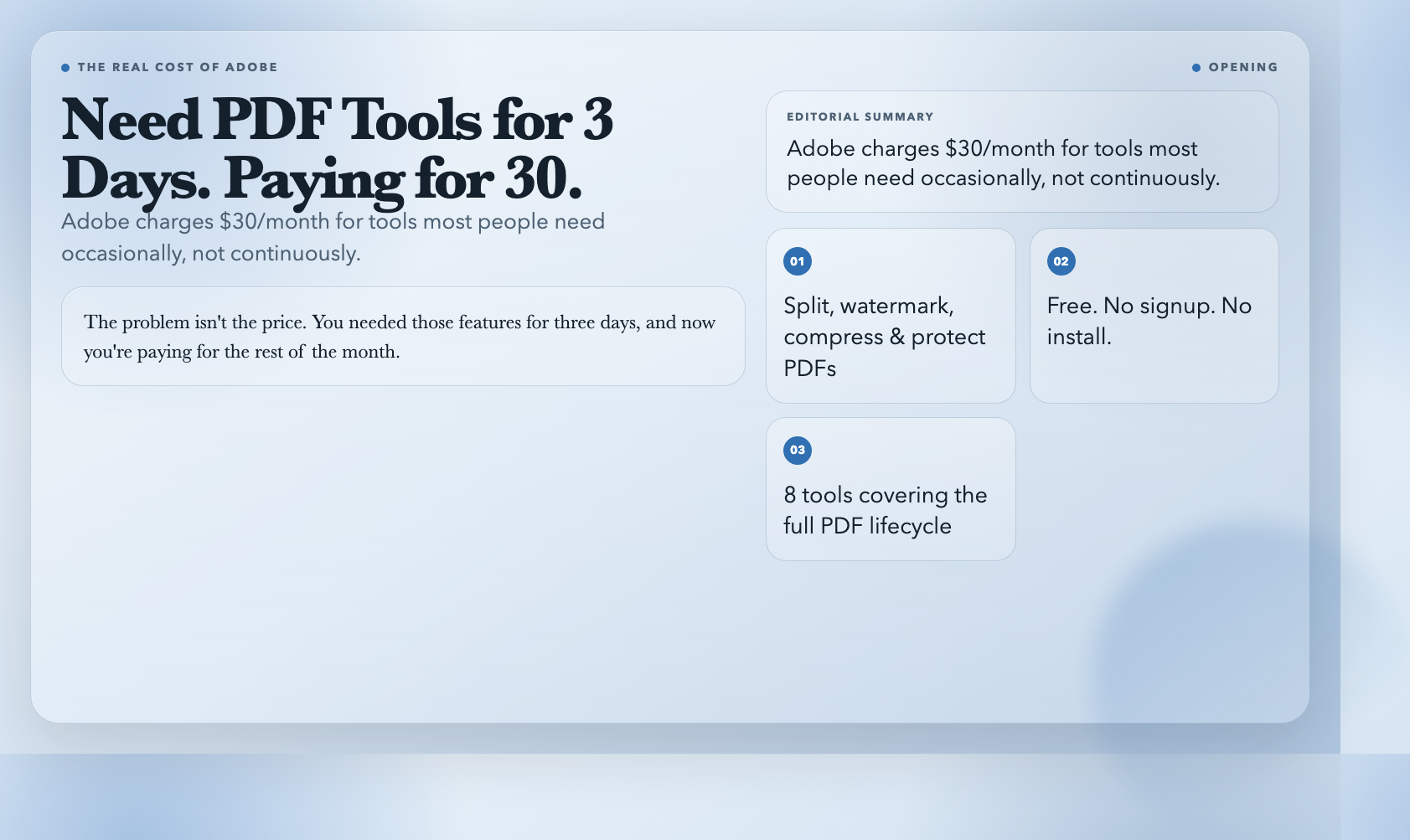
ElysiaTools has over 1,600 free tools, including eight dedicated to PDF work that covers exactly the jobs Adobe locks behind a subscription. Here’s what they do and when to use each one.
1. Merge Multiple PDFs Into One
Most free browser tools re-encode your files when merging, which degrades image quality. This one doesn’t.
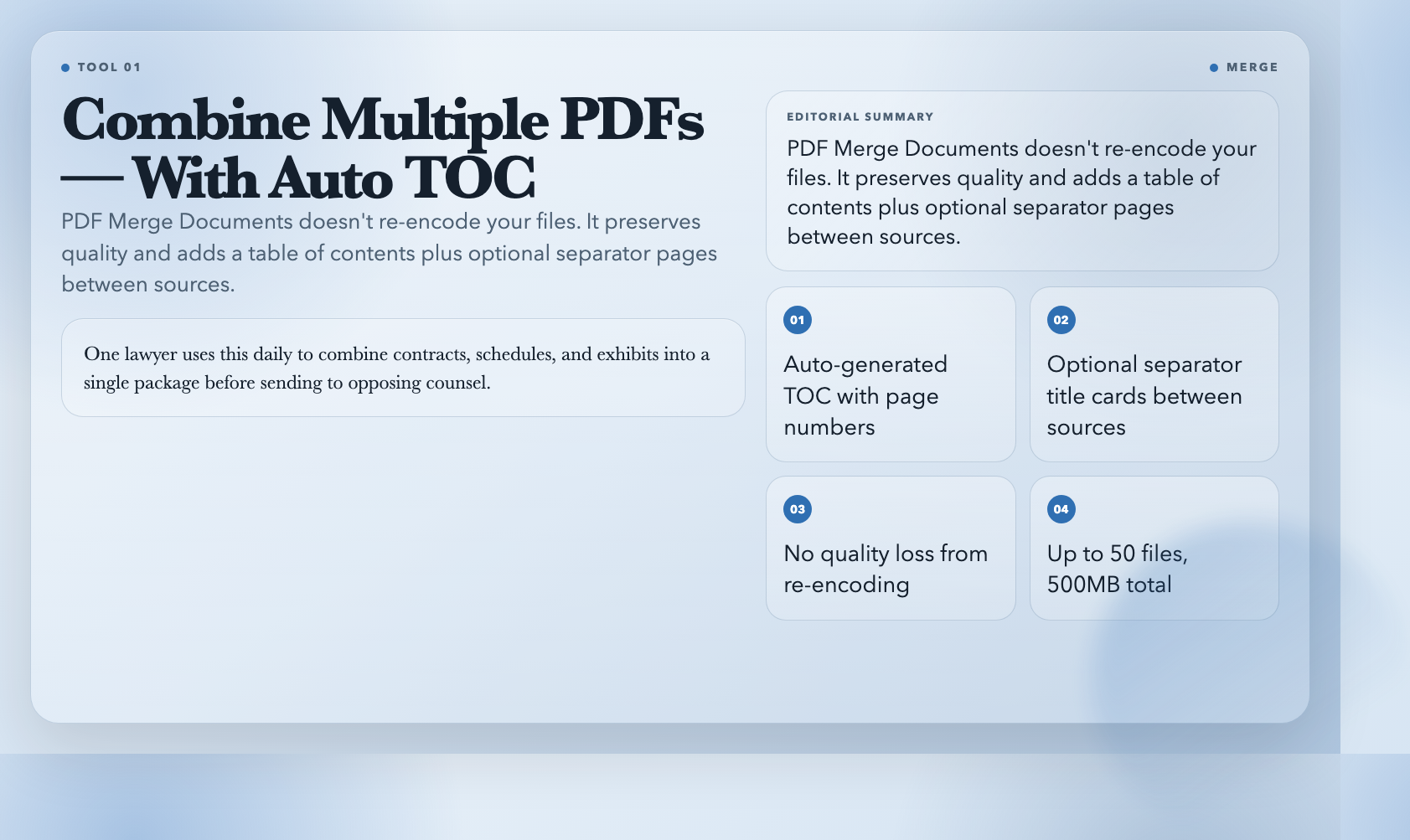
PDF Merge Documents combines multiple PDFs and adds two useful extras: an auto-generated table of contents listing every merged file with its starting page, and optional separator pages between each source document. Separator pages give each source its own title card — useful when the output goes to someone who needs to know where one chapter ends and another begins.
A lawyer at a mid-size firm told me they use a merge tool daily for combining contracts, schedules, and exhibits into a single package before sending to opposing counsel.
Use it: PDF Merge Documents
2. Split a PDF by Page Range
One PDF needs to become several. Maybe you need pages 1 and 10 from a 200-page document for a cover and summary. Maybe you need every page as its own file.
PDF Split by Pages handles both. Specify ranges like `1-3, 4-6, 9`, or switch to single-page mode and get one PDF per page. Multiple outputs zip together automatically. One file in, however many files you need out.
A freelance consultant uses this weekly to extract billing pages from financial statements before sending invoices to clients. Court reporters use it to break depositions into per-witness files for attorneys.
Use it: PDF Split by Pages
3. Extract Exactly the Pages You Need
PDF Extract Selected Pages pulls specific, non-contiguous pages in their original order. Type `1,3,5,7` and get back only those four pages in that exact sequence. Duplicates are removed automatically — type `1,1,3` and it quietly returns just `1, 3`.
Use this when you’re building a presentation from source material, or assembling a brief that draws from different sections of a larger document. A project manager can build a complete executive summary from three quarterly reports in under a minute.
Use it: PDF Extract Selected Pages
4. Password-Protect Any PDF
Sometimes a PDF needs to travel before it’s ready. Send it now, but protect it so it isn’t readable by everyone who might intercept it.
PDF Password Protector encrypts any PDF with an open password — required to even view the document. You can also set an owner password controlling whether printing and text extraction are allowed after the file is open. The tool supports 128-bit and 256-bit encryption via qpdf.
The most useful configuration: allow printing for a meeting, but block text extraction for a document not yet cleared for wider distribution. A law firm handling M&A due diligence uses exactly this when sharing sensitive documents with external advisors before signing.
Use it: PDF Password Protector
5. Watermark PDFs With Your Name and the Current Timestamp
A watermark makes a document identify its owner. “Internal Use Only — alice.wang — 2026-04-07T14:10:00Z” is a paper trail. It doesn’t block access — it tells every reader exactly where the document came from and who is accountable for it leaving.
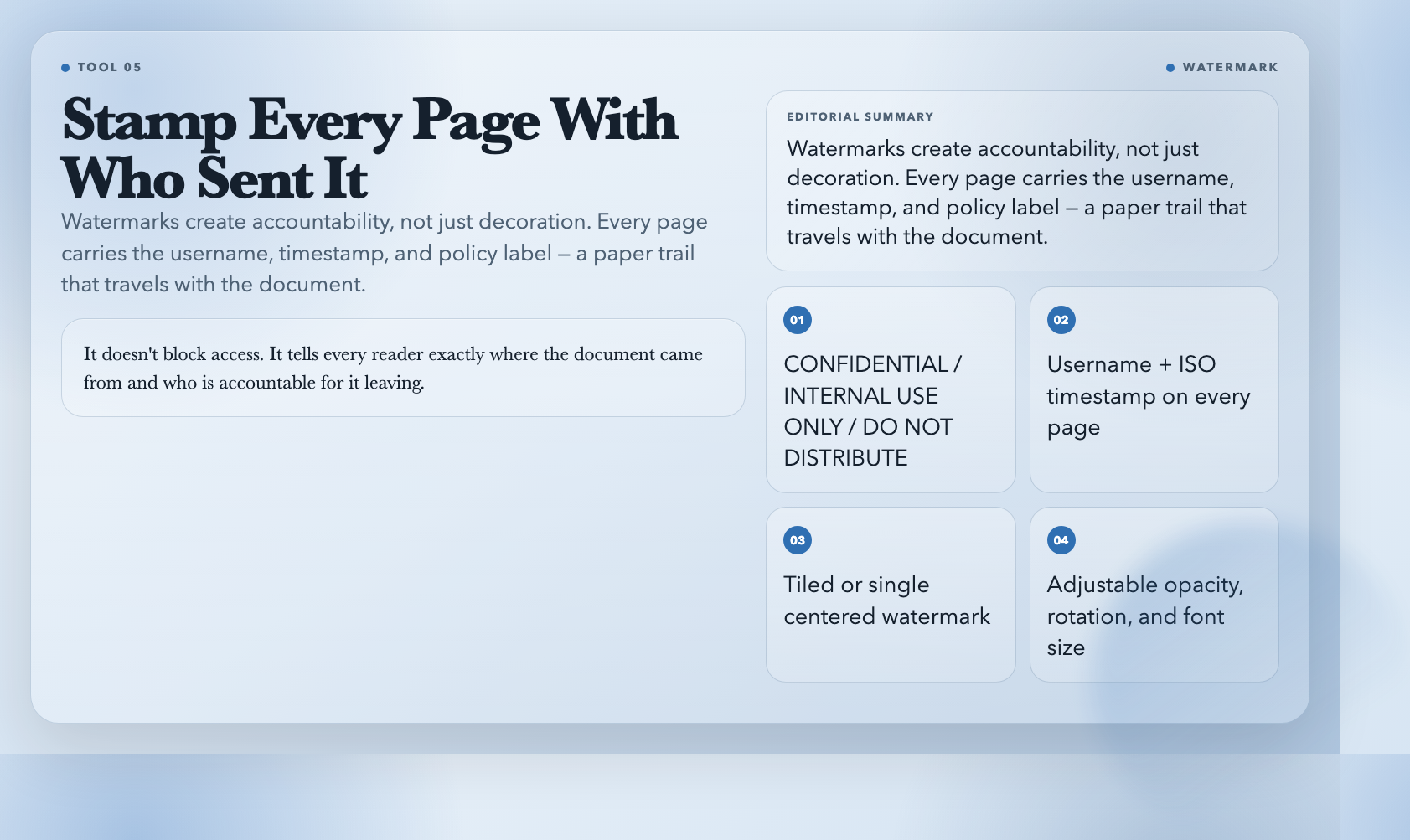
PDF Watermark Confidential generates dynamic watermarks with three replaceable parts: a policy label (CONFIDENTIAL, INTERNAL USE ONLY, or DO NOT DISTRIBUTE), the username, and a timestamp. The watermark tiles across every page at an angle you control, with adjustable opacity and font size. Or use a single centered watermark for a cleaner audit-copy look.
Legal teams use this for pre-release contracts. HR uses it for performance reviews. Anyone who needs a document to carry its identity past the sender’s desk uses this.
Use it: PDF Watermark Confidential
6. Compress PDFs Without Ruining Them
A 40MB PDF won’t go through most email providers. Compress it to “screen” quality and it renders illegible. The eBook preset finds the actual balance.
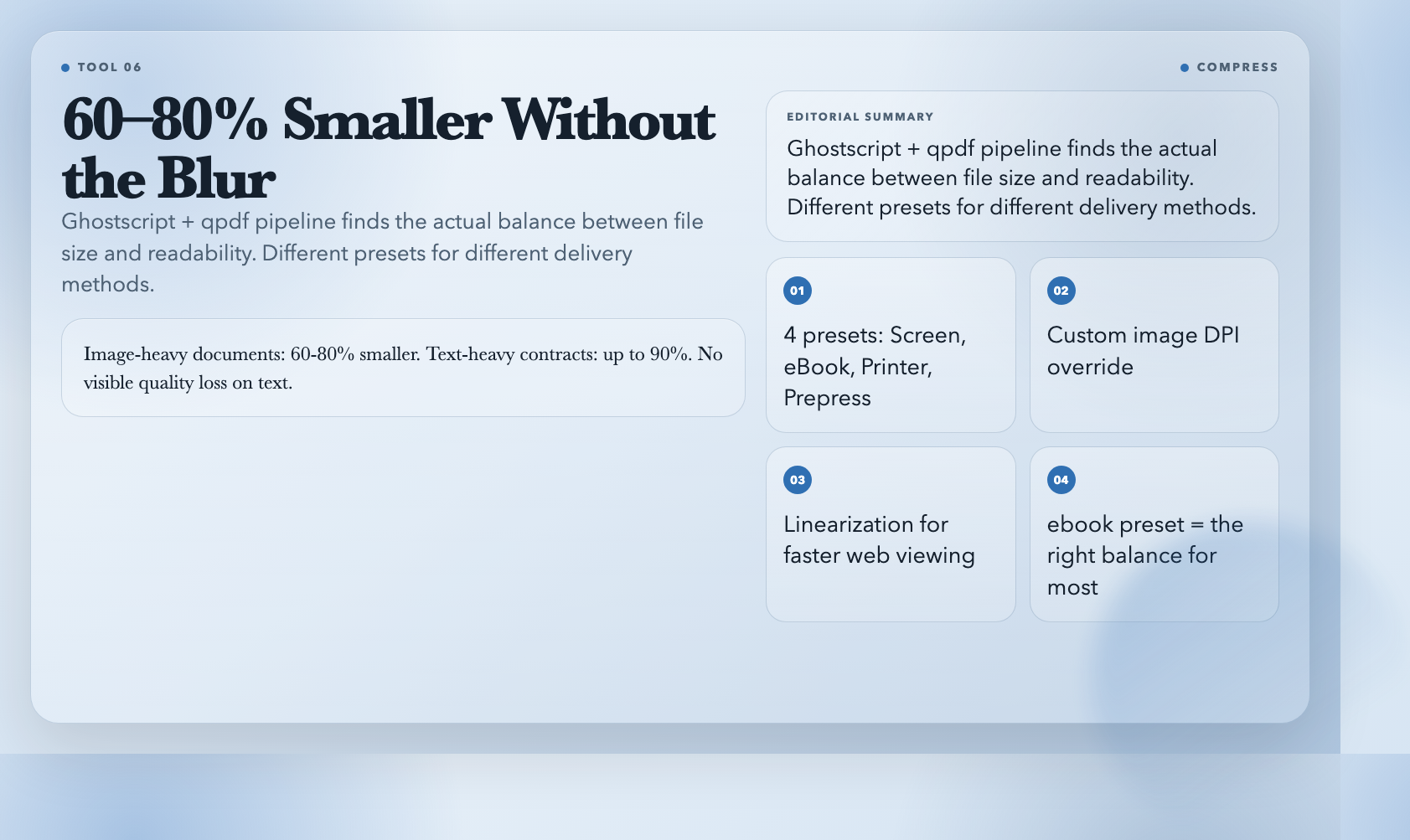
PDF Compress Optimize runs your PDF through a Ghostscript and qpdf pipeline with four quality presets: Screen, eBook, Printer, and Prepress. Image DPI can be overridden directly. Linearization for faster web loading is a single checkbox.
On image-heavy documents, eBook mode typically achieves 60-80% size reduction without visible text quality loss. On text-heavy contracts, results hit 90% smaller with no visual impact. A researcher uses this to compress datasets before sharing via WeTransfer, which has a 2GB file limit.
Use it: PDF Compress Optimize
7. Auto-Redact Names, Emails, and Phone Numbers
GDPR requests. Legal discovery. HR audits. There are legitimate reasons a document needs to leave your organization with certain fields removed. Doing it manually means one typo away from accidentally exposing someone.
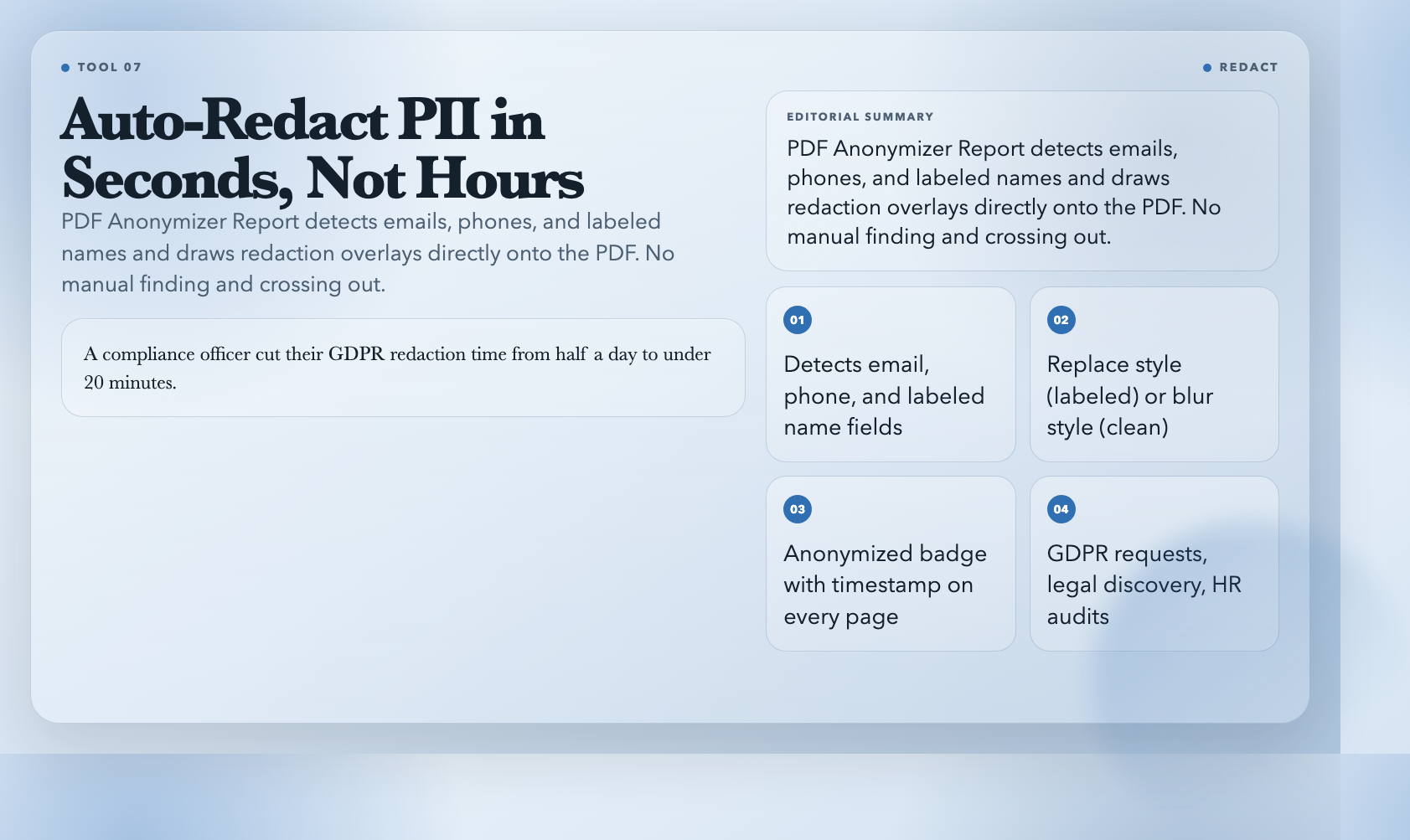
PDF Anonymizer Report detects and masks email addresses, phone numbers, and names from labeled fields like “Name:”, “Contact:”, or “Applicant:”. It draws redaction overlays directly onto PDF pages at the exact location of detected content. Choose a replace style (white box with `[EMAIL_REDACTED]`) or a blur style (grey block, no labels) for cleaner output. An anonymized badge with timestamp stamps every page.
A compliance officer told me this tool cut their document redaction time from half a day to under 20 minutes for a typical GDPR request. Law firms use it to prepare discovery documents. Researchers use it to share datasets without PII.
Use it: PDF Anonymizer Report
8. Repair a Corrupt PDF
PDFs fail in specific ways. A missing header. A broken cross-reference table. The file opens in one viewer and fails in another — and you’re left wondering if the data is gone.
PDF Repair Corrupt attempts recovery through a four-stage pipeline: header normalization, qpdf rebuild, pdf-lib rewrite, and Ghostscript fallback. Not every severely corrupted file recovers, but it tries multiple engines before giving up and reports which strategy worked.
A journalist used this after a corrupted file arrived from a government FOIA office. The document opened in Preview but failed in every PDF parser until this tool rebuilt the xref table and made it processable.
Use it: PDF Repair Corrupt
The Subscription Question
These eight tools cover the full PDF lifecycle: assembly, extraction, protection, distribution, and repair. They don’t require a subscription, an account, or installation. Open the tool, upload your file, download the result.
They don’t edit existing PDF content — if you need to change text inside a document, you still need Adobe Acrobat or a similar editor. But for merging, splitting, securing, compressing, redacting, and repairing, the $30/month subscription does nothing these tools can’t do faster and for free.
Before you renew next month, ask yourself: what am I actually paying for?