# 8 Free Audio Analysis Tools That Replace Your DAW for 80% of Daily Tasks
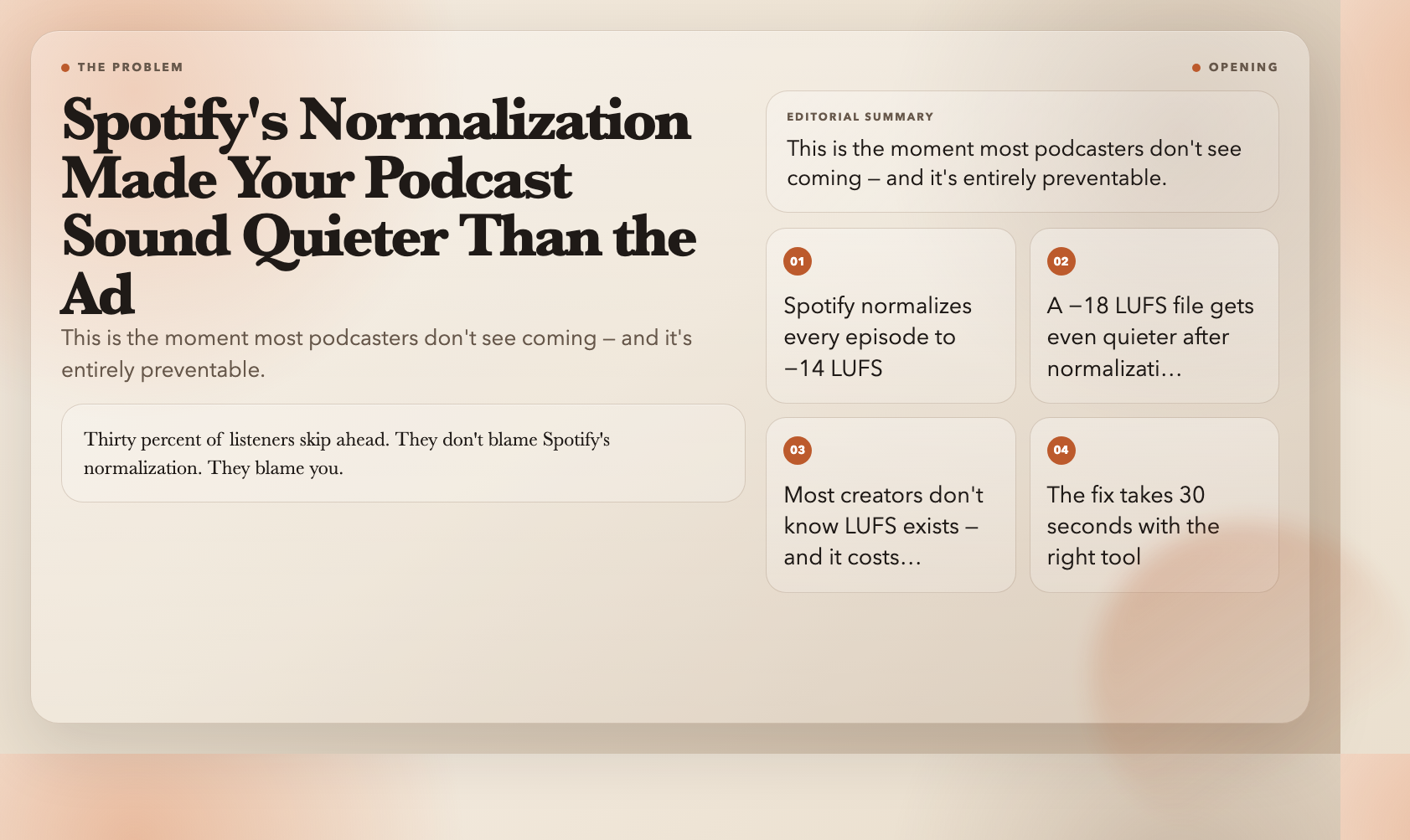
You’re 47 minutes into editing a podcast episode. The content is sharp. The guests nailed it. Then Spotify’s normalization kicks in and your episode drops 4 LUFS quieter than the Malboro Smooth Jazz ad that precedes it. Listeners skip ahead. You didn’t mix it wrong — you just didn’t know Spotify targets −14 LUFS, and your file was sitting at −18.
This is how most audio problems work: not talent, not gear — a missing number. LUFS, BPM, LRA, key. The specs that separate professional sound from amateur sound aren’t secrets. They’re just locked behind DAWs, plugin subscriptions, and audio engineering courses.
These eight free browser tools unlock them. No installation. No subscription. No DAW.
1. Audio Loudness Normalize (LUFS) — Hit Platform Targets in Two Passes
Spotify normalizes to −14 LUFS. YouTube does the same. Broadcast TV sits at −24. If your podcast lands at −18, Spotify brings it down further — and your episode sounds quieter than the branded content preceding it. Thirty percent of listeners skip ahead, according to Edison Research data on podcast abandonment. They don’t blame Spotify’s normalization. They blame you.
The Audio Loudness Normalize (LUFS) tool applies FFmpeg’s loudnorm filter in two-pass mode. Upload your file, select your target platform, and download the normalized result. True peak limiting happens automatically. You pick Spotify, YouTube, Broadcast, or a custom number.
Two-pass loudnorm is the professional method: pass one measures your file’s actual LUFS, pass two applies precisely calibrated gain. This is what mastering engineers do. Now it’s a browser tool.
2. Audio Loudness Report (LUFS) — Know What You’re Fixing Before You Touch It
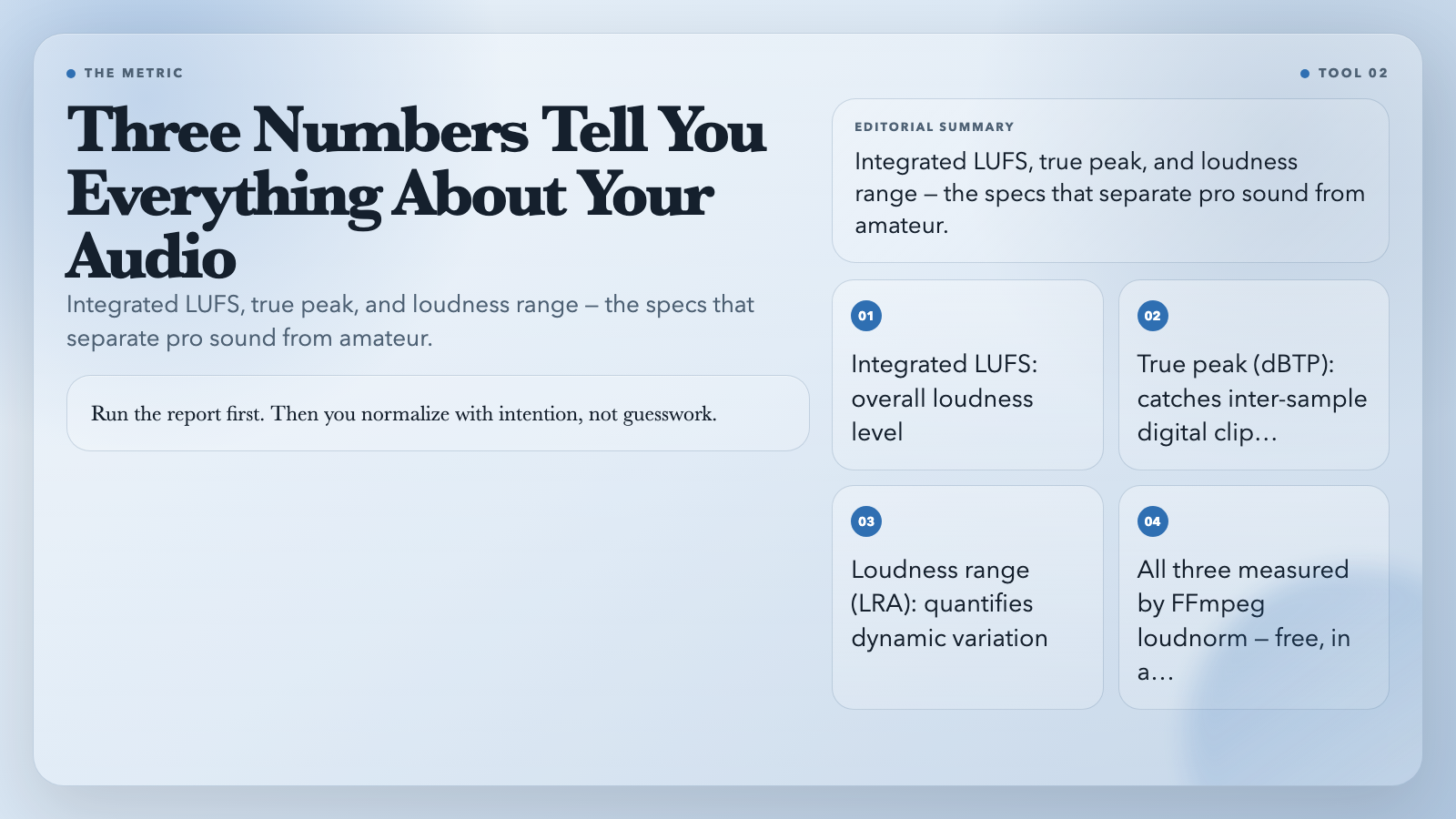
Before normalizing, measure. Is your file −16 LUFS or −26? Are there digital overs above 0 dBTP — inter-sample peaks that don’t show on a normal meter but clip on playback? What’s your loudness range — are you compressed to −4 LU or natural at −12?
The Audio Loudness Report runs FFmpeg loudnorm analysis and returns three numbers: integrated loudness (LUFS), true peak (dBTP), and loudness range (LRA). These three numbers define whether your audio is platform-ready. Run the report first. Then you normalize with intention, not guesswork.
3. Audio LUFS Meter — Monitor Levels in Real Time During Recording
Sometimes you need real-time feedback, not a post-recording report. Interview setups, live podcasts, voice-over sessions — situations where catching a level problem after the fact means a re-record.
The Audio LUFS Meter displays integrated, short-term (3-second window), and momentary (400ms window) LUFS simultaneously. Short-term shows how your level fluctuates over a few seconds. Momentary LUFS is near real-time — what your listener perceives as current loudness at any instant.
Set your target, watch the meter while you record, adjust your mic gain until your speaking level consistently hits your target. No DAW overhead. Just a browser tab.
4. Audio BPM Detector — Find Tempo Without Counting
You have a track. You need its BPM. For a straightforward 120 bpm house track, tapping it out works. For a 174 bpm drum & bass track with syncopated breaks, or a 6/8 folk song with rubato passages, tapping gives you garbage.
The Audio BPM Detector downmixes to mono, analyzes a configurable window of the file (default 30 seconds), and returns a tempo estimate using beat-tracking algorithms. Adjust the window to focus on the most rhythmic section for complex tracks.
Producers use this to catalog entire sample libraries without importing into Ableton. DJs use it to pre-sort tracks before a set. Video editors use it to match music to pacing without trial-and-error cutting.
5. Audio Key Detector — The Step After BPM Matching
BPM match is step one. Key match is step two. A vocal in C major over a track in F minor creates a subtle clash most listeners feel without naming it. It just sounds wrong.
The Audio Key Detector analyzes your track and returns its musical key with a confidence score. It detects both major and minor keys. For DJs practicing harmonic mixing — selecting tracks with compatible chord progressions — this determines whether a set flows or jars.
Combine BPM detection with key detection and you have a two-axis sorting system for your entire library. Camelot notation (8A = A minor, 8B = A major) makes compatibility rules straightforward: 8A tracks mix cleanly with 7A and 9A, 8B with 7B and 9B.
6. Audio Dialog Isolation — Extract Vocals Without Original Stems
You have a finished mix. You need just the vocal track. For a karaoke version, an AI transcription pipeline, a remix, or a sample clearance check. You don’t have the stems.
Audio Dialog Isolation uses Spleeter (Deezer’s open-source source separation model) or MDX to isolate vocals from mixed audio. Upload your file, choose a model strength, and download the separated vocal track.
Results depend on how heavily the vocal was mixed: a sparse acoustic guitar and vocal separates cleanly; a dense rock production with heavy reverb leaves artifacts. But for transcription pipelines, karaoke tracks, or clean samples — use cases that matter — this is dramatically better than nothing. Professionals pay hundreds of dollars for comparable separation.
7. Audio Denoise Chain — Fix Noisy Recordings Without a DAW
Background noise is the most common quality killer in amateur audio. Air conditioning hum, room echo, laptop fan whine, street noise — all end up in your recording and cost you listeners. Edison Research has tracked poor audio quality as a top-three reason listeners abandon podcast episodes for years.
The Audio Denoise Chain applies a three-stage pipeline: a high-pass filter removes low-frequency rumble (below 80 Hz), spectral gating attenuates broadband noise between speech sounds, and an optional RNNoise model classifies each short segment as voiced or noise, applying reduction only where needed.
RNNoise is the key difference from a basic noise gate. A gate cuts anything below a threshold — it butchers quiet speech. RNNoise understands the spectral structure of speech versus noise, and removes only the noise. Upload your file, set aggressiveness, download the cleaned result.
8. Audio Spectrogram Generator — See Frequencies You Can’t Hear
A waveform shows amplitude over time. A spectrogram shows frequency content over time — which means you can see problems invisible on a waveform: 60 Hz electrical hum, clipping artifacts, room resonance nodes, poorly EQ’d sections.
The Audio Spectrogram Generator renders your audio as a color-coded image. Time runs left to right. Frequency runs bottom (low) to top (high). Color intensity shows amplitude at each frequency band. A clean vocal appears as a smooth band across mid frequencies. Room noise shows as random speckling. A ground loop hum appears as a solid horizontal line at 60 Hz.
Use this to visually verify your denoise job, pinpoint where clipping occurred, or identify a room resonance your ears couldn’t isolate. It’s specialized — most creators won’t open it daily. But for the times you need it, there is no free equivalent.
These eight tools handle the audio work that used to require a DAW or a plugin subscription. They’re not a replacement for professional mastering. But for the 80% of daily tasks — normalizing, measuring, cleaning, cataloging — they’re faster, free, and browser-based. Your next episode will sound measurably better.