
# 6 Free Audio & Image Cleanup Tools That Actually Work in 2026
You just finished a two-hour podcast recording session. The content is solid. Your voice is warm, your guest is articulate, and the conversation flows naturally.
Then you play it back. The laptop fan is audible in every quiet moment. The intro music is blasting; the interview guest sounds like they’re on a phone call from another room. And your product photo? Shot on a white desk, against a white wall, with no way to separate the two.
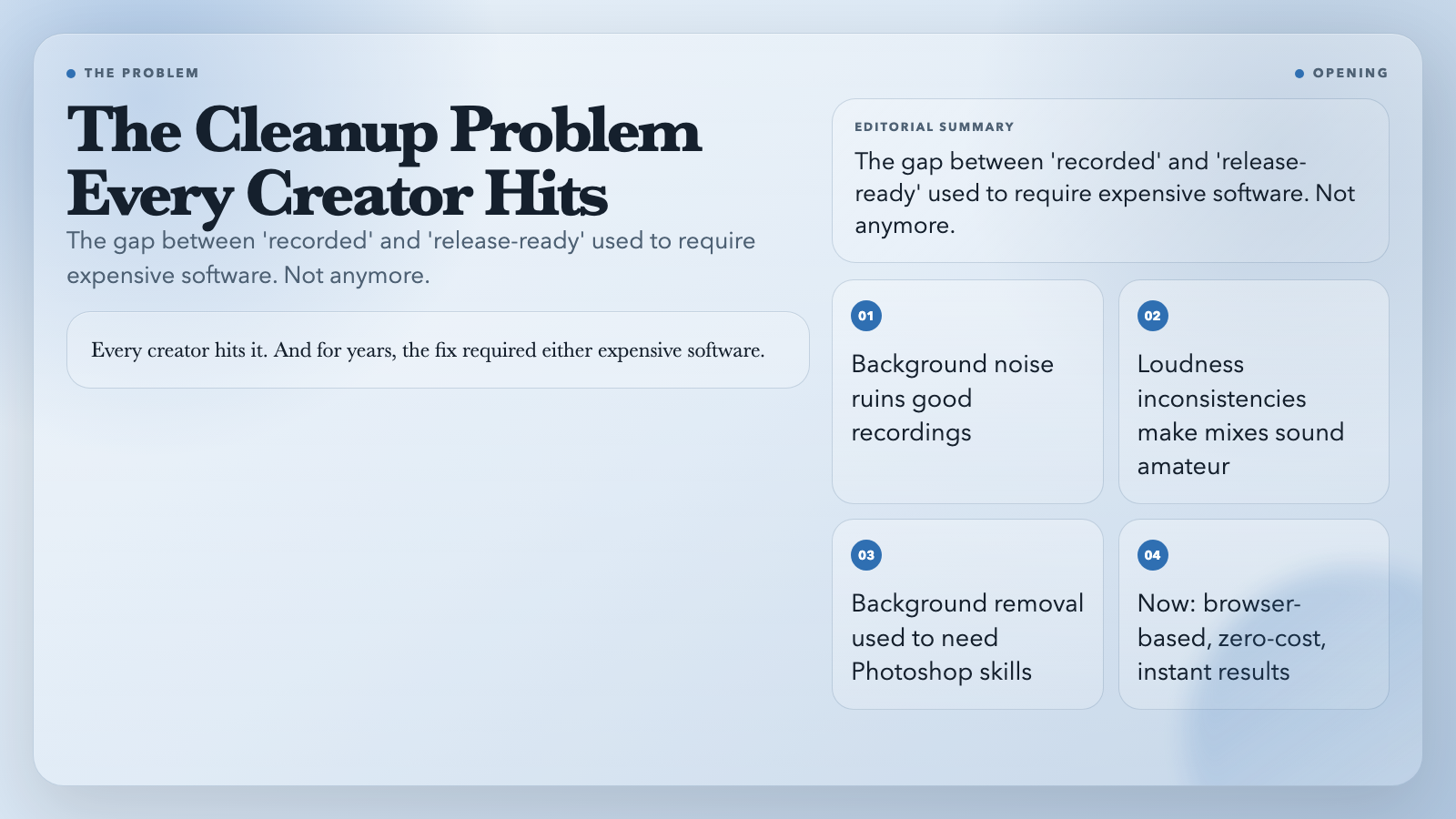
This is the cleanup problem. Every creator hits it. And for years, the fix required either expensive software or professional knowledge that most of us don’t have time to acquire.
That’s changing. Here are six genuinely useful, zero-cost tools that close the gap between “recorded” and “release-ready.”
1. Audio Noise Reduction — Kill the Hiss Without Killing Your Voice
Every home studio has an enemy: background noise. HVAC systems, laptop fans, street sounds — they all end up in your recording. Audio Noise Reduction uses either FFT denoising (afftdn) or non-local means (anlmdn) to separate your signal from the noise floor.
Set a noise floor threshold (default: -25 dB), choose your frequency band, and the tool does the rest. FFT mode targets frequency-domain noise. NLM mode handles sustained hum. You can also fine-tune strength for the NLM approach if the automatic level isn’t quite right.
Real scenario: You recorded a tutorial on a budget lapel mic. Your USB hub is three feet away. Without denoising, every pause sounds like static. With it, the pauses are just silence.
2. Audio Loudness Normalize (LUFS) — The Broadcast Standard, Explained
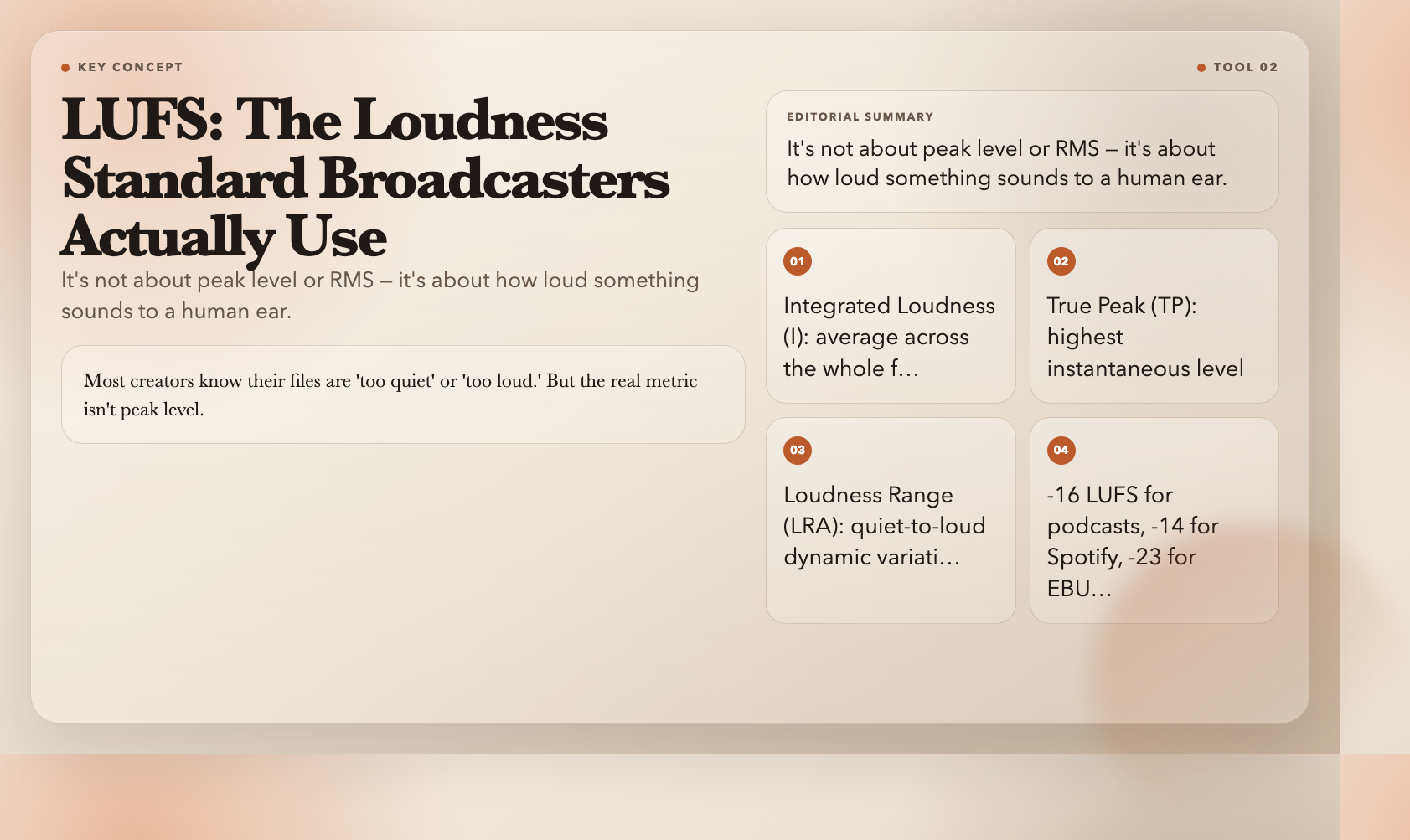
Most creators know their files are “too quiet” or “too loud” in parts. But the real metric in professional audio isn’t peak level — it’s LUFS (Loudness Units Full Scale). It’s a measure of perceived loudness, accounting for how human ears actually process sound.
This tool uses FFmpeg’s loudnorm filter to normalize audio to a target LUFS. You can control three parameters:
– Integrated Loudness (I): the average loudness across the whole file
– True Peak (TP): the highest instantaneous level, including inter-sample peaks
– Loudness Range (LRA): the dynamic variation between quiet and loud sections
Common targets: -16 LUFS for podcasts, -14 LUFS for Spotify and YouTube, -23 LUFS for European broadcast (EBU R128).
Real scenario: Your intro music sits at -18 LUFS. Your interview guest is at -28 LUFS. Listeners are constantly reaching for the volume knob. One loudness pass fixes the whole file.
Try Audio Loudness Normalize →
3. Audio LUFS Normalizer — One-Click Presets for Platform Standards
If the above feels like dialing in a mixing console, this is the preset button. Audio LUFS Normalizer gives you three platform-specific presets:
– Podcast (-16 LUFS): Apple Podcasts, most independent shows
– Streaming (-14 LUFS): YouTube, Spotify, TikTok audio
– Broadcast (-23 LUFS): EBU R128 for European TV and radio
Upload, select, export. It handles the loudnorm parameters automatically and outputs in MP3, AAC, FLAC, WAV, OGG, or Opus.
Real scenario: You’re publishing weekly episodes and don’t want to remember the difference between I, TP, and LRA every Tuesday morning.
4. Audio Denoise Chain — Multi-Pass Cleanup for Complex Noise
Single-pass denoising handles single-source noise well. But what if your recording has a noisy fan *and* electrical hum *and* room echo? Audio Denoise Chain applies a multi-step sequence: gate first to cut below-threshold content, then RNNoise-based denoising, then compression to even out any processing artifacts.
This is the tool for field recordings, Zoom calls, archival audio, or anything with layered noise problems.
Real scenario: A historian recorded an oral history on a tape deck in the 1990s. The tape hiss is layered over a mechanical hum from the recorder itself. One pass doesn’t cut it. The denoise chain does.
5. Remove Image Background — AI Matting, One Upload, Transparent PNG
Product photography without a photo studio is a nightmare. You need your hoodie on a dark gradient for your Shopify store. Your subject is on a white wall with no separation. Remove Image Background uses AI matting to cut out the foreground and export a transparent PNG.
Upload any JPEG, PNG, WebP, or HEIC. It handles hair, fur, and fine edges — the parts where most background removal tools fall apart. No selection tools. No layer masks. No subscriptions.
Real scenario: You’re selling handmade jewelry on Etsy. Your ring is on a white desk. You need it on a dark velvet background for the listing photos. One upload, one download.
6. Audio Dynamic Range Report — Know Before You Submit
Platforms reject audio for loudness compliance reasons all the time. Spotify, YouTube, and broadcast networks have hard LUFS requirements. If you’ve ever been rejected and didn’t understand why, you probably weren’t measuring the right thing.
Audio Dynamic Range Report generates a full technical breakdown: crest factor, true peak levels, and dynamic range ratings. It produces a compliance report you can review before you upload — or attach to a submission if a platform questions your levels.
Real scenario: You submitted a podcast episode and got flagged for “excessive dynamic range.” You had no idea your quiet sections were too quiet. The report showed your LRA was 18 when the platform max was 12.
Try Audio Dynamic Range Report →
The Order Matters More Than You Think
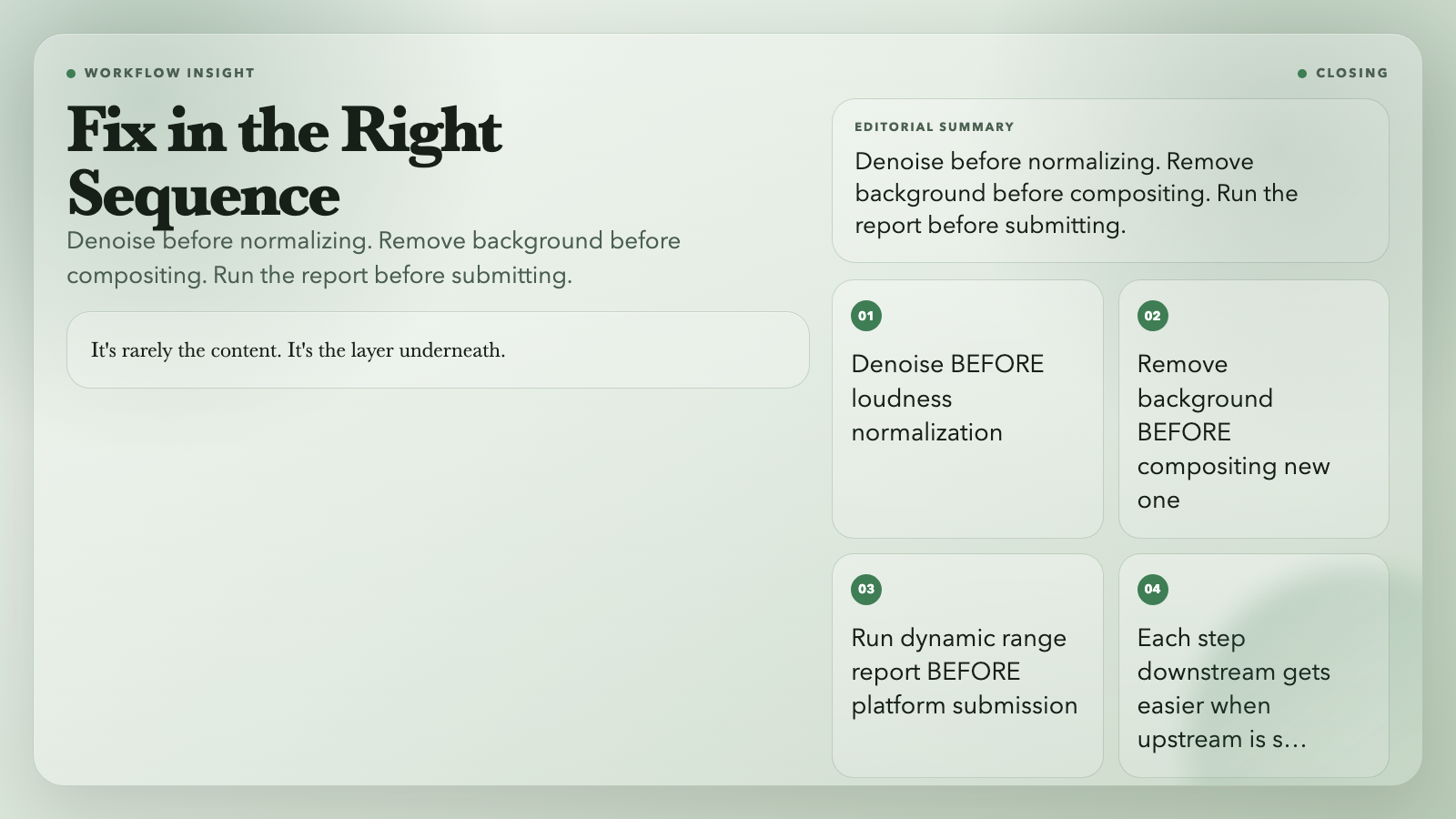
These six tools share a hidden principle: fix in the right sequence.
Denoise *before* loudness normalization. Remove the background *before* you composite a new one. Run the dynamic range report *before* you submit to a platform.
Each step downstream becomes easier when the upstream problem is solved. Noise at -25 dB floor is far cleaner to remove after a gate has already cut the obvious silent sections. A transparent PNG composites better when the original background was cleanly extracted — not guessed at.
Here’s the uncomfortable truth: most creators skip the cleanup step entirely and wonder why their final mix sounds “off.” It’s rarely the content. It’s the layer underneath.
These tools are free. The order of operations is the part nobody teaches you.
Browse all 1,600+ free tools at ElysiaTools.com →
