Stop Guessing Colors: 6 Free Design Tools That Handle the Math for You
A developer I know spent three hours building a design system last month. Two of those hours went to color work: picking tones, checking contrast ratios, naming CSS variables, testing pairs on white and black backgrounds. The actual frontend took one hour.
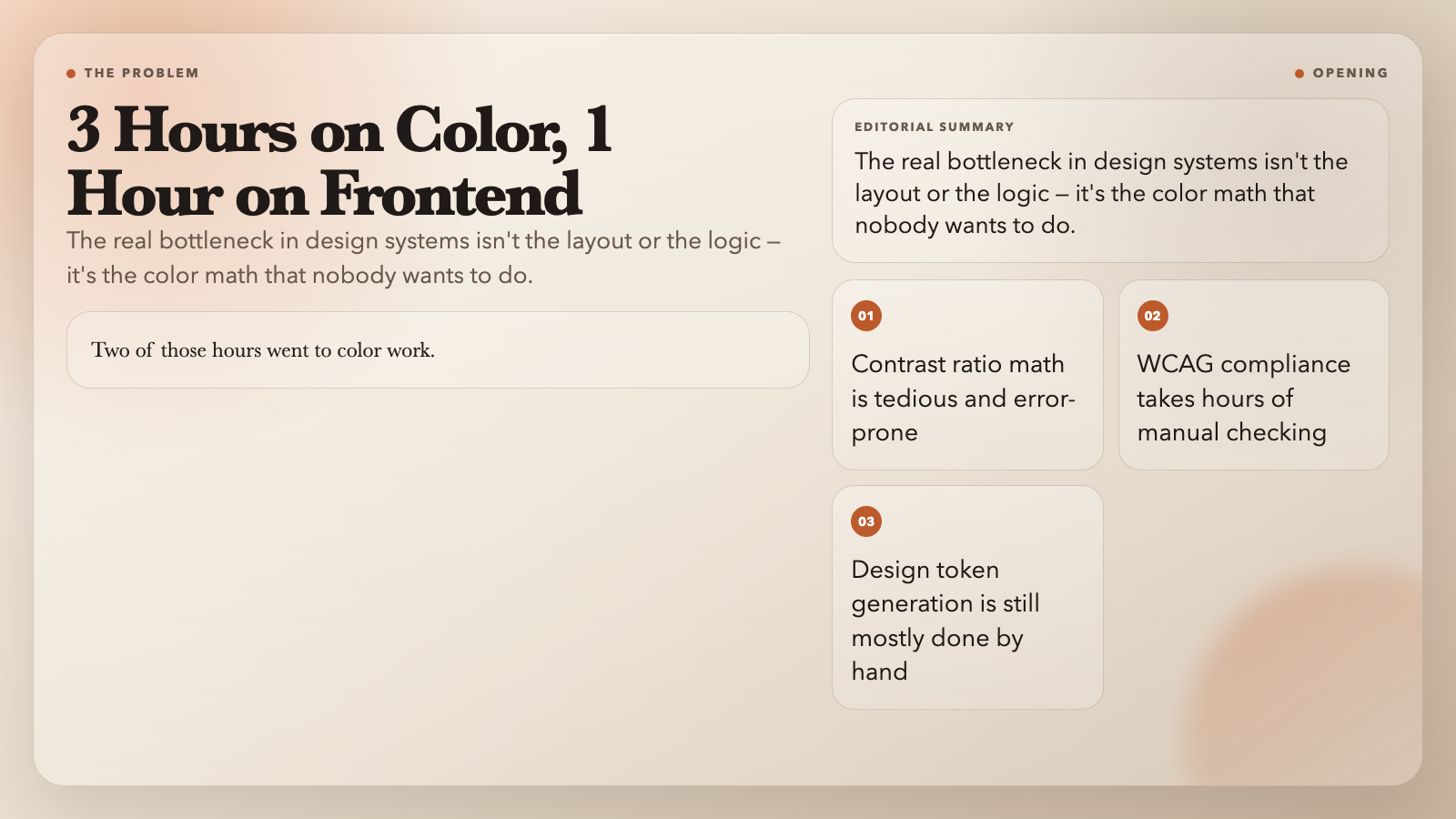
The math of color — contrast ratios, WCAG thresholds, token scales, format conversions — is tedious. It’s also error-prone. A single color pair that fails WCAG can take an accessibility complaint all the way to a legal filing. The ElysiaTools suite has six free tools that handle this math automatically, so you can spend your time on the decisions that actually need a human.
#
1. Extract a Production-Ready Palette from Any Image
Drop a screenshot into the Image Color Palette Extractor and it samples dominant colors — 5 to 10 tones — and returns HEX codes, contrast ratios against white and black, and a downloadable ZIP with CSS variables, Tailwind config, ASE (Adobe Swatch Exchange), and ACO (Adobe Color) files.
A real workflow: a developer extracted the palette from their client’s existing marketing site in two minutes, pasted the CSS variables into their component library, and shipped the first design system version the same afternoon. No color picker. No manual HEX typing. The contrast badge on each swatch shows instantly whether that tone passes WCAG AA on white or black backgrounds — no toggling between dev tools.
Use it when: You need to bootstrap a design system from existing branding, reverse-engineer a competitor’s palette, or turn a product screenshot into a set of production-ready tokens.
#
2. Audit Your Entire Palette Against WCAG in One Pass
Most contrast checkers test one pair at a time. But a real design system might have 12 brand colors used against 5 backgrounds — that’s 60 combinations. Checking them by hand is how things get missed.
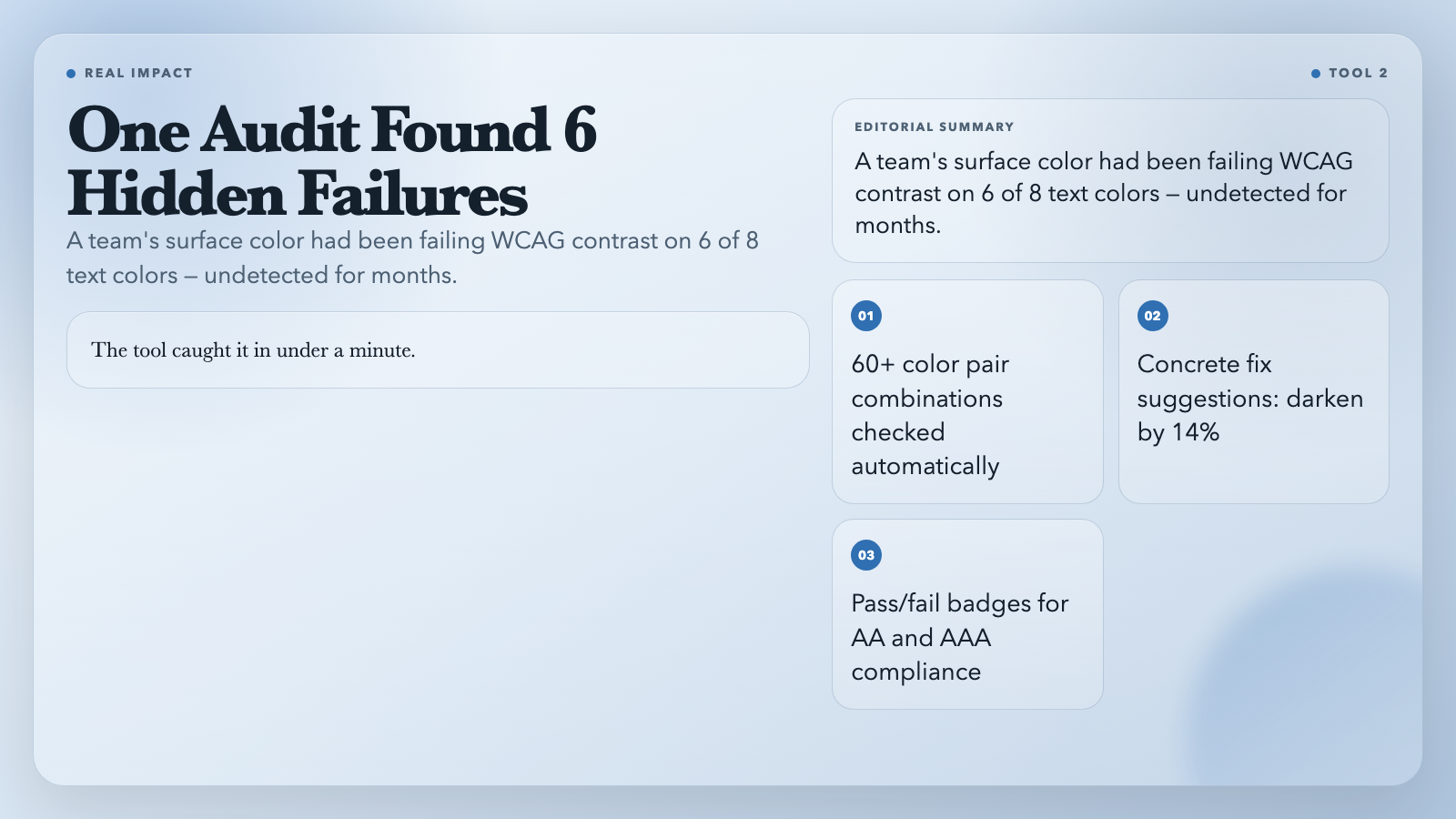
The Accessible Color Palette Contrast Checker takes your full palette as a simple list — `brand-primary: #2563EB` format — and checks every foreground/background combination at once. Pick your target level (AA Normal 4.5:1, AA Large 3:1, AAA Normal 7:1, AAA Large 4.5:1), and it returns a full matrix with pass/fail badges plus concrete fix suggestions: “darken foreground by 14%.”
One team found that their `surface-100` color failed contrast on 6 of their 8 text colors — an issue that had lived undetected through months of manual review. The tool caught it in under a minute.
Use it when: You’re preparing a design system for accessibility compliance, doing a brand palette audit, or handing off to engineering and want to catch issues before they reach code review.
#
3. See Your UI Through the Eyes of 8% of Your Male Users
Red-green color blindness affects roughly 1 in 12 men. Blue-yellow deficiency is rarer but still impacts about 1 in 10,000 people. If your error states, data visualizations, or status indicators rely on color alone, some users literally cannot read them.
The Color Vision Accessibility Checker simulates five vision modes — normal, protanopia, deuteranopia, tritanopia, and achromatopsia — for any color pair. It recalculates the contrast ratio under each simulation, showing whether a pair that looks fine to you becomes invisible to someone with protanopia.
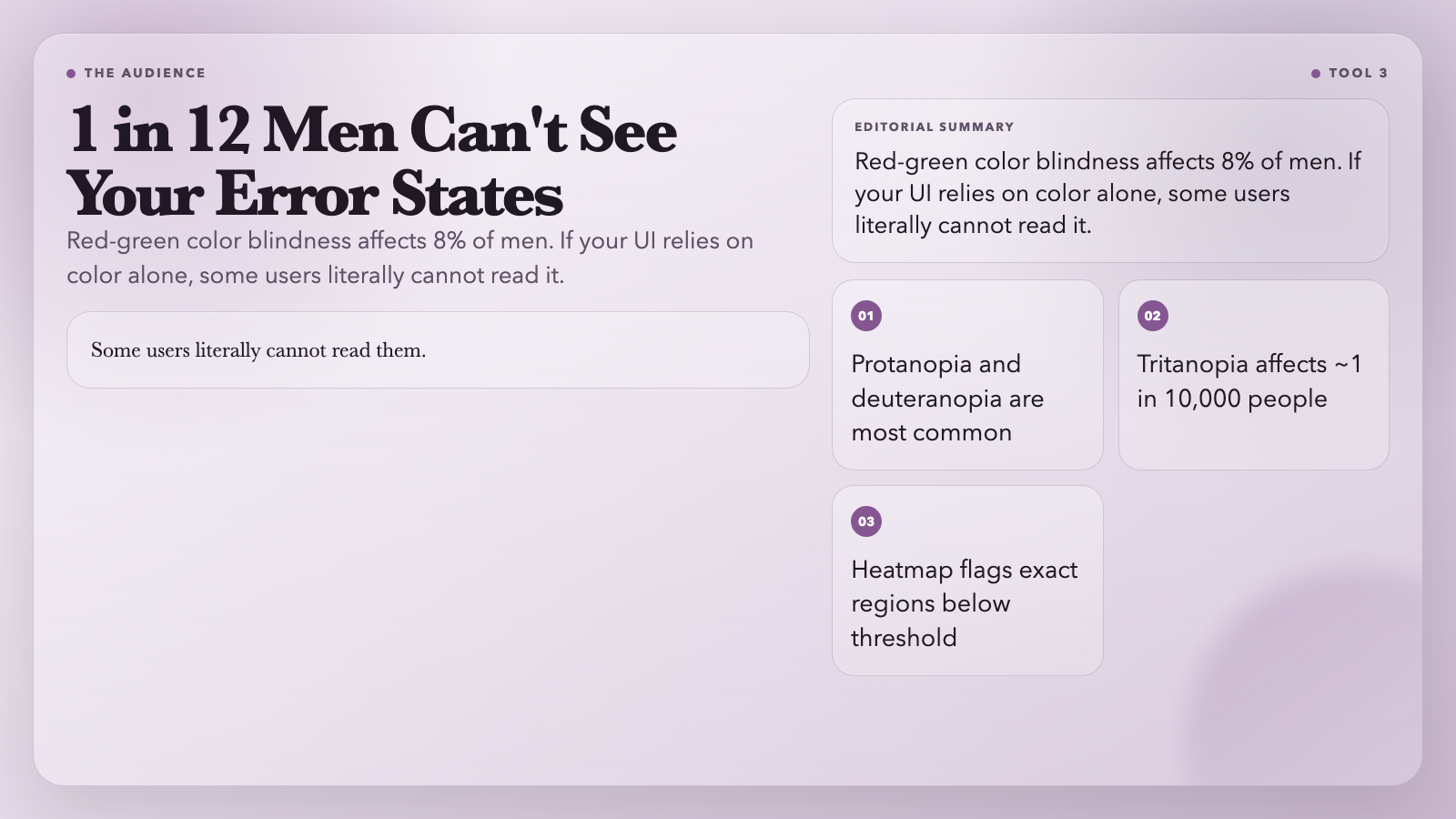
Upload a UI screenshot and it tiles the image, samples local contrast in each tile, and overlays red flags on every region below your chosen WCAG threshold. The result is an actionable heatmap — not just “this might be a problem” but “here, specifically, is where the problem is.”
Use it when: You’re building data dashboards, form validation states, charts, or any UI where color carries information rather than just decoration.
#
4. Turn One Brand Hex into a Full Design Token System
Design tokens power modern frontends. Tailwind, Style Dictionary, CSS Custom Properties — they all need the same thing: a consistent scale of primary, accent, neutral, and semantic colors. Building that manually takes an hour. Getting it systematically right — with proper contrast ratios at each step — takes even longer.
The Color Token Cascade Generator starts with a single hex. Choose your accent strategy — complementary (180° opposite), analogous (28° adjacent), or split-complementary (150° off) — and the tool derives a full scale from `primary-50` to `primary-900`, plus accent and neutral equivalents. It generates semantic tokens: `primary`, `primary-hover`, `primary-soft`, `text-muted`, `bg-canvas`, `border-subtle`.
Output is CSS variables (paste into `:root`) and a Style Dictionary JSON (ready for a multi-platform build). Each swatch in the output shows its contrast ratio against white and black, so you know which steps work for text and which are decoration-only — without running a separate contrast check.
Use it when: You’re starting a new design system, migrating off hardcoded hex values, or need to generate a consistent palette across web, mobile, and email from a single source color.
#
5. Generate a Complete Favicon Pack from Any Logo File
Every site needs at least seven files: `favicon.ico`, multiple PNG sizes, an Apple touch icon, Android Chrome icons, and a web app manifest. Exporting these by hand means opening Figma, setting dimensions for each size, converting formats, writing the manifest JSON, and writing the HTML snippet.
The SVG Favicon Generator automates the full export from a single source file — SVG, PNG, JPG, or WebP. You control the fit mode (`contain` keeps your logo visible with padding; `cover` fills the tile), padding percentage, background color, site name, and theme color.
The delivered ZIP includes `favicon.ico`, three PNG sizes, Apple touch icon, Android Chrome icons, `site.webmanifest`, and a ready-to-paste HTML snippet. No more broken favicons showing as blank squares in Safari.
Use it when: You’re launching a new site, setting up a progressive web app, or migrating from a raster favicon to a proper vector one.
#
6. Validate Color Codes Before They Break Your Build
`#ZZGG99` does not render. `rgb(300, -5, 260)` does not render. These errors slip into stylesheets through copy-paste mistakes, design handoffs, or user-generated input. They don’t always fail loudly — sometimes they get silently ignored, leaving invisible text or broken UI.
The Color Code Validator checks syntax for HEX (3-digit, 6-digit, 8-digit with alpha), RGB/RGBA, and HSL/HSLA. It returns validation status and the corrected value, so you know not just that something is wrong but exactly what to write instead.
This is the tool for debugging mysterious CSS issues, cleaning up legacy stylesheets, or validating color input from a form before it reaches your database.
Use it when: Auditing a codebase, processing user-submitted color values, or doing a pre-launch sweep of your design tokens.
They are all deterministic. You put something in, you get a correct answer out. No approximation, no “close enough.” A contrast ratio is either 4.5:1 or it isn’t. A HEX code is either valid or it isn’t.
That matters because the manual version of this work is where errors compound. One bad contrast ratio makes it past code review. One invalid HEX gets committed to the design system. One missed color-blind pair reaches production users. These tools close those gaps — not by replacing design judgment, but by handling the math so designers and developers can focus on the decisions that actually require taste.
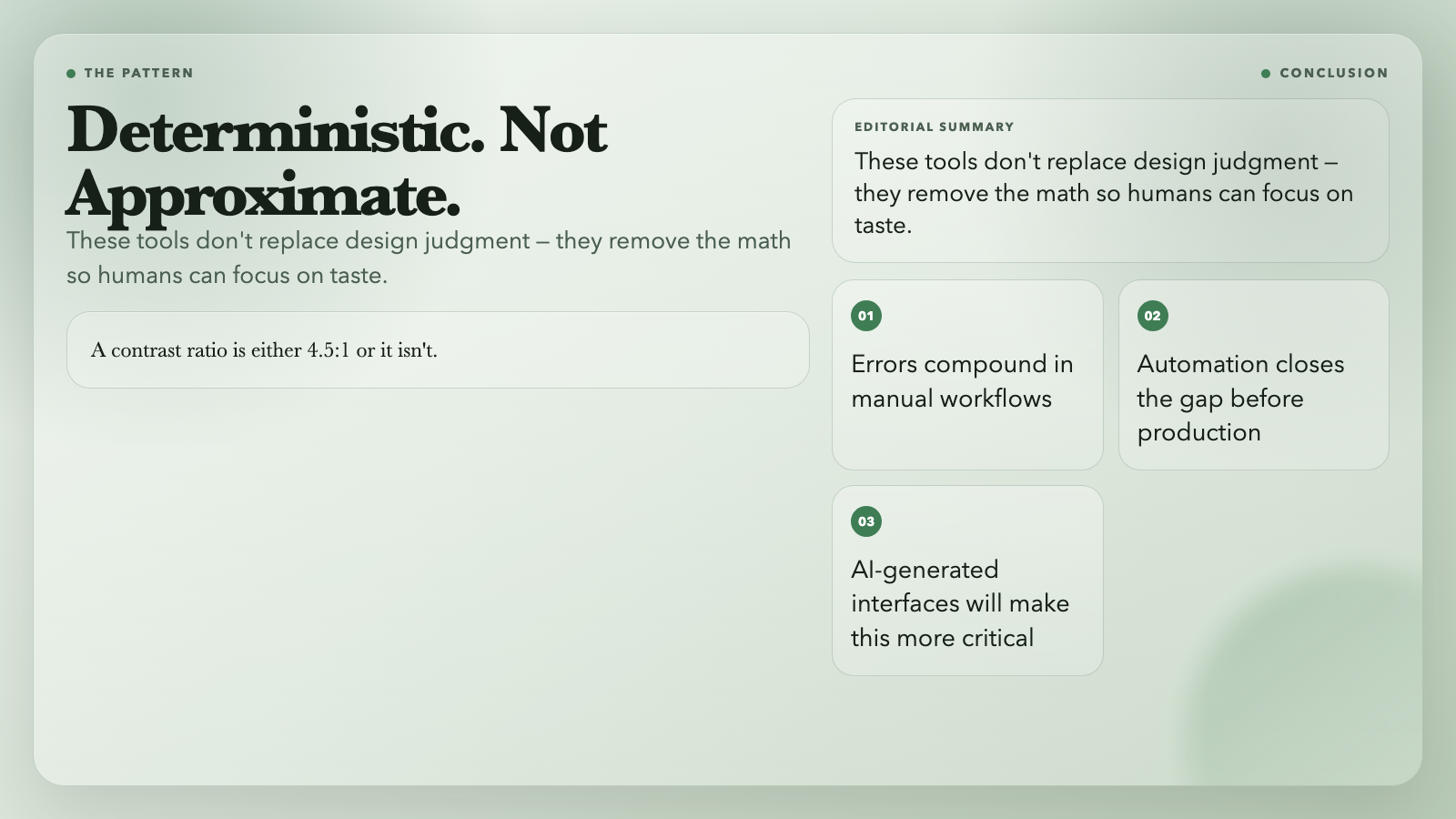
The question worth sitting with: As AI-generated interfaces become the norm, will accessible color systems become a commodity — something handled automatically beneath the prompt? For now, the answer is no. Understanding these tools means you’re ahead of the curve when it does become yes.