5 PDF Tools Every Developer Should Have Bookmarked in 2026
Here’s a scenario that plays out in every engineering team that works with documents: a PDF arrives — a contract, a research paper, a spec sheet — and someone needs to extract data from it. They spend an hour writing a script. It works on page one. It breaks on page two. They spend another two hours debugging. The pipeline ships, silently wrong in ways nobody catches until a customer notices.
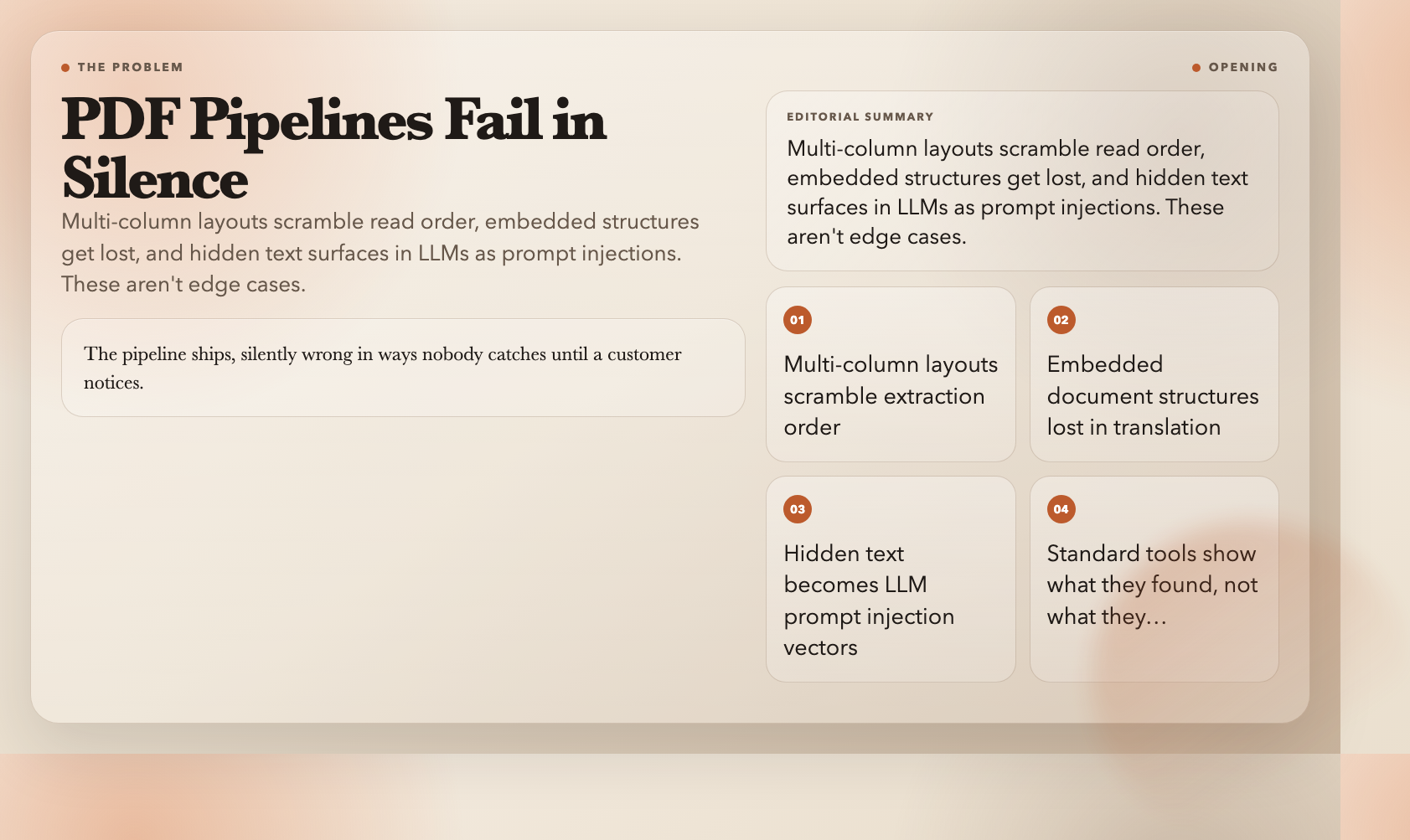
PDFs resist clean extraction. Multi-column layouts scramble read order. Embedded structures get lost in translation. Hidden text sits invisibly in a file, only to surface in an LLM’s context window as a prompt injection. These aren’t edge cases — they’re the default state of any serious PDF workflow.
1. PDF RAG Chunker & Citation Pack
If you’re building anything that uses PDFs as a knowledge source — a RAG pipeline, a document Q&A system, even a PDF-grounded chatbot — you’ve probably wrestled with chunking. Do you split by page? By paragraph? How do you preserve context so answers cite the right section?
PDF RAG Chunker & Citation Pack takes a different approach. Upload a PDF and it outputs retrieval-ready JSON chunks with page numbers, bounding boxes, and heading path context included.
The key feature is the heading-aware chunk mode. Instead of slicing a document into fixed-size chunks that arbitrarily split sentences, it groups content under the nearest heading. Each chunk carries its section path — so when an answer is generated, you can cite not just the page but the specific section heading. That means your citations actually make sense to a human reading them.
For tagged PDFs with embedded structure, there’s a useStructTree option that reads the PDF’s semantic tree directly, which tends to produce cleaner chunk boundaries than blind splitting.
If your pipeline involves PDF ingestion, this one saves a few dozen lines of post-processing code per document.
Try it: PDF RAG Chunker & Citation Pack
2. PDF to Structured Markdown Converter
Not every PDF needs to go into a vector store. Sometimes you just want the text — cleanly, with structure preserved — so you can edit it, version it in Git, or convert it into something else.
PDF to Structured Markdown Converter extracts a PDF and produces a Markdown file. But unlike a raw text dump, it respects the document structure: headings become Markdown headers, lists become list syntax, tables get proper formatting. For technical documentation that was originally authored in a word processor and exported to PDF, this often produces output that’s almost indistinguishable from the original source.
The options matter here. Keep Line Breaks preserves source formatting for content where line wrapping carries meaning — legal clauses, poetry, code-adjacent text. Include Page Separators adds --- Page N --- markers between extracted sections, which is useful when you need to track where content came from physically. Use Struct Tree pulls from the PDF’s embedded structure when available, which typically gives better results than inferring structure from visual layout.
The output is a real .md file saved to /public/processing/, so you can inspect or commit it directly.
Try it: PDF to Structured Markdown Converter
3. PDF Strikethrough Review Extractor
This one solves a problem you probably didn’t know you had until it landed on your desk: reviewed documents where text has been deleted but the deletion is part of the record. Contracts with removed clauses. Legal drafts where you need to track what changed. Policy documents where the redline matters as much as the final version.
PDF Strikethrough Review Extractor detects strikethrough-marked text using OpenDataLoader’s strikethrough detection, then compares the JSON extraction against the Markdown output to surface candidates. It generates an HTML report showing how many strikethrough nodes were found in each format, which makes manual review faster than reading through the full document.
The tool has a specific use case — it’s not a general diff tool, it’s for documents where strikethrough is the format used to mark deletions. If that sounds like your workflow, it saves the step of writing a custom detection script.
Try it: PDF Strikethrough Review Extractor
4. PDF Reading Order Debugger
Here’s a problem that takes a while to notice: some PDFs have multi-column layouts, floating captions, or text blocks that appear visually in one order but are stored in a different order in the raw file. If you extract text using simple draw order, you get garbled output even though the PDF looks fine when opened in a reader.
PDF Reading Order Debugger compares two extraction runs on the same document: one with raw draw order and one with XY-Cut++ reading order. It generates a side-by-side report showing which pages changed between the two modes, with previews of both outputs.
This is primarily useful as a diagnostic step before building a pipeline. Run the debugger on your target document class, see how many pages differ, and decide whether layout-aware extraction should be your default. For scientific papers, multi-column reports, and brochures, this often reveals surprises.
Try it: PDF Reading Order Debugger
5. PDF Prompt Injection Scanner
If you’re sending PDFs to an LLM — for summarization, Q&A, or any pipeline where the model reads document content — there’s a risk that wasn’t widely discussed a year ago: prompt injection via PDF content. Attackers can embed hidden text in PDFs that is invisible in normal rendering but gets extracted by text parsers. A carefully crafted PDF could include instructions that are invisible to a human but affect how an LLM interprets the document.
PDF Prompt Injection Scanner runs differential analysis: it extracts text with safety filters enabled, then re-extracts with specific filters disabled. If additional text appears only when a filter is removed, that text is flagged for manual review.
The categories scanned are hidden-text, off-page content, tiny text, and hidden layers. Each is a known vector for embedding content that’s invisible in normal rendering but extracted by parsers.
Before feeding any third-party PDF into an LLM pipeline, this is the step that catches the things your pipeline otherwise wouldn’t notice.
Try it: PDF Prompt Injection Scanner
The Pattern Across These Tools
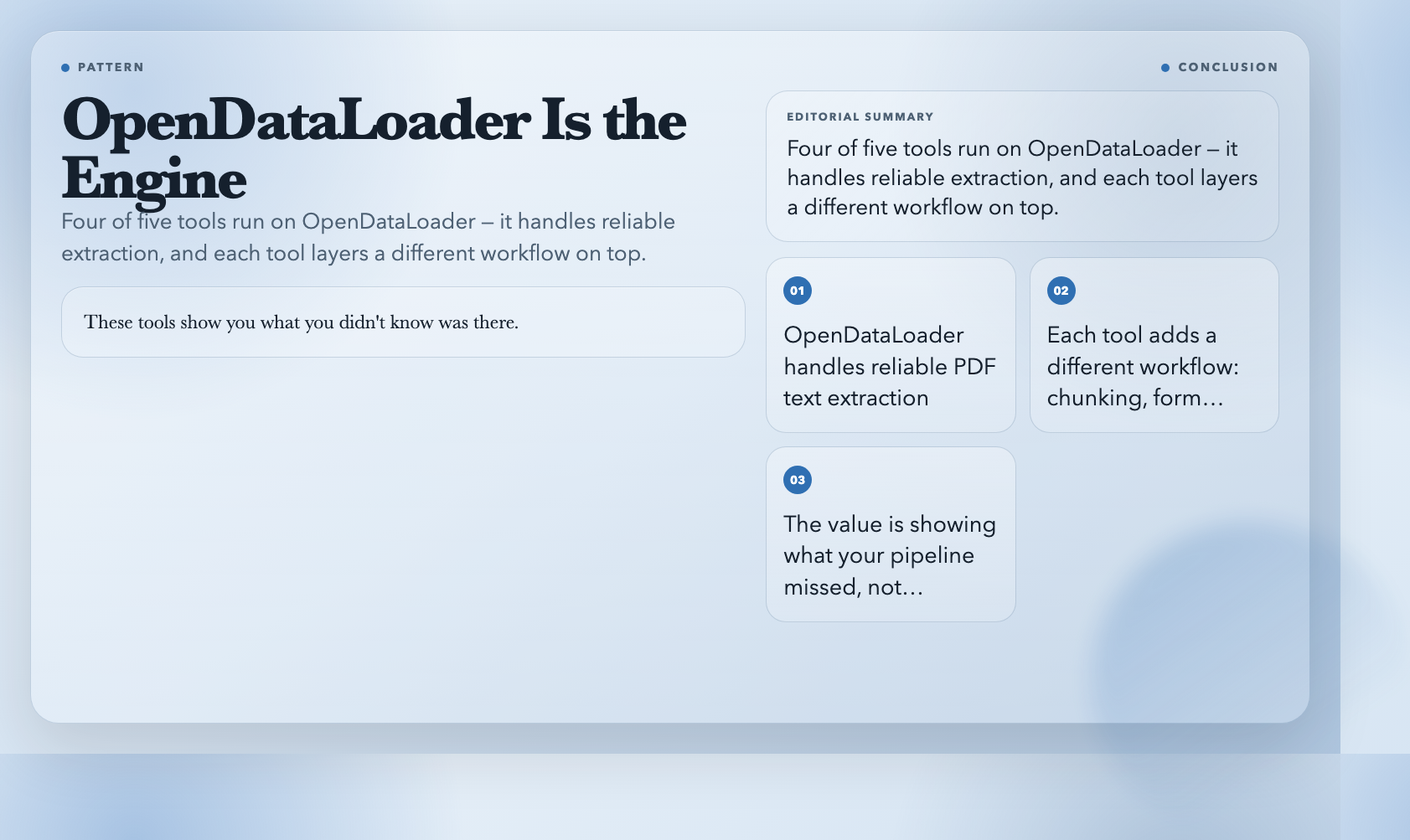
Five tools, and four of them run on OpenDataLoader as the extraction engine. That’s the key: OpenDataLoader handles getting text and structure out of a PDF reliably, and these tools layer different workflows on top — chunking for RAG, formatting for Markdown output, detection for review documents, comparison for debugging, and differential analysis for security. Instead of writing custom scripts for each pipeline stage, you swap in one of these and move on.
The question worth asking is what your PDF pipeline is actually doing to every document it touches. Most extraction tools show you the text they found. These tools show you what you didn’t know was there — structure, hidden content, ordering differences, injection vectors. That’s the difference between a pipeline that works and one that silently fails on the documents you didn’t examine closely.
Try the full tool directory: PDF Tools on ElysiaTools