If you’ve ever recorded in 24-bit and needed to deliver in 16-bit for CD mastering or a legacy platform, you know the frustration: most DAWs make this feel like a technical ritual involving dithering checkboxes, export settings buried three menus deep, and the constant nagging worry that you’re doing it wrong.
There’s a simpler way.
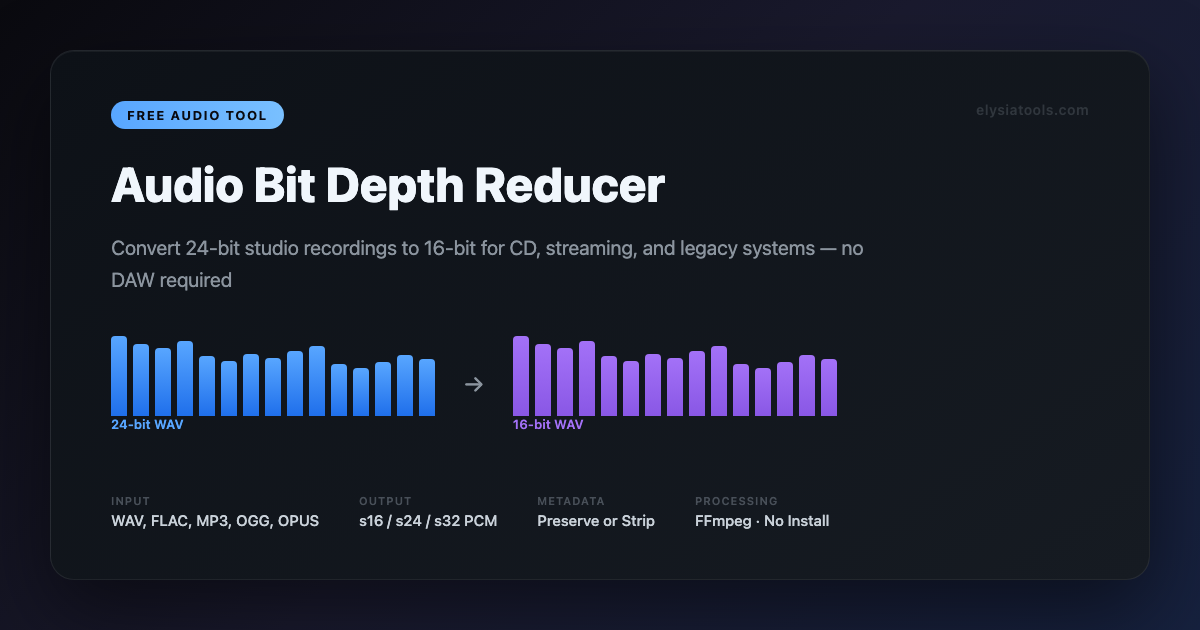
The Audio Bit Depth Reducer on ElysiaTools handles this in seconds — no DAW required, no export wizard, just a clean conversion from 24-bit to 16-bit (or 24-bit to anything). It’s one of those tools that quietly solves a real problem that most people end up over-engineering.
What Is Bit Depth, Really?
Bit depth determines how precisely each audio sample is stored. Think of it like the difference between measuring a table with a rough ruler versus a micrometer:
- 16-bit audio (CD standard): 65,536 possible values per sample — the baseline for consumer audio
- 24-bit audio: 16,777,216 possible values — what most engineers record and mix at
- 32-bit audio: 4,294,967,296 possible values — used in specialized workflows
The human ear can’t directly hear the difference between 16-bit and 24-bit in a finished mix under normal listening conditions. The extra headroom in 24-bit is valuable during production — it gives you more dynamic range to work with before quantization noise becomes an issue — but once you’re done mixing and ready to export, that precision doesn’t need to follow the file to its destination.
The problem is when you reduce bit depth without understanding what’s happening. A naive reduction just truncates the lower bits. The more sophisticated approach applies dithering — adding a tiny amount of noise to randomize the quantization error before truncation, which actually preserves the perceived dynamic range better.
How the Tool Works
The Audio Bit Depth Reducer accepts WAV, FLAC, MP3, OGG, and OPUS inputs. When you feed it a lossless format like WAV or FLAC, it keeps the output in the same container with the target bit depth applied via PCM encoding (pcm_s16le for 16-bit, pcm_s24le for 24-bit, pcm_s32le for 32-bit).
For lossy inputs like MP3 or OGG, the tool first decodes to PCM and then re-encodes to WAV at the target bit depth — this is standard practice and exactly what any professional encoder does internally.
You choose your target: s16 (16-bit), s24 (24-bit), or s32 (32-bit). There’s also a “Keep Metadata” toggle that preserves ID3 tags and other audio metadata through the conversion — a surprisingly useful option when you’re processing a batch and don’t want to rebuild your metadata manually.
Why This Tool Is Worth Knowing
Most of the time, you’ll export directly from your DAW and never think about it. But there are situations where a dedicated tool is genuinely better:
Batch processing: Need to convert 40 audio files from a 24-bit library to 16-bit for a podcast archive? A DAW export is one at a time. This tool can be part of an automated pipeline.
Format flexibility: FLAC files from a high-resolution archive need to become WAV for a legacy video editing system. The tool handles the container transition cleanly.
Verification: When you’re handed a file and aren’t sure what bit depth it actually is, running it through the tool and checking the output confirms what you’re working with — with full codec transparency.
No install barrier: Your collaborator is on a different OS and doesn’t have your DAW. Send them a link to the tool. Done.
The Dithering Question
Professional audio engineers will tell you that dithering matters when reducing bit depth — and they’re right, in mastering contexts. The tool’s design prioritizes clean, straightforward conversion. For most consumer and prosumer use cases (CD audio, streaming delivery, video sync), the difference between a truncated conversion and a dithered one is below the threshold of practical hearing.
If you’re preparing a final commercial release and want dithering applied, you’d typically use a dedicated mastering suite. For everything else — archival preparation, format standardization, delivery prep — this tool does the job without ceremony.
What You Can Do With It
Here are a few scenarios where this fits naturally into a workflow:
Prepare audio for CD burning: Most CD authoring software expects 16-bit, 44.1kHz WAV files. Convert your 24-bit studio sessions in bulk before import.
Reduce file sizes for sending: A 24-bit WAV file is roughly 50% larger than its 16-bit equivalent. If you’re emailing audio or uploading to a platform with file size limits, dropping to 16-bit is the standard move.
Standardize a mixed-source library: You’ve got recordings from three different sessions — one at 24-bit, one at 32-bit float, one at 16-bit — and need them all at a common format for a playlist or installation.
Create stems for video: Video editors often need 16-bit audio. The tool converts cleanly without re-encoding the audio data itself (when using lossless input), preserving the quality of your source.
Key Features at a Glance
| Feature | Detail |
|---|---|
| Input formats | WAV, FLAC, MP3, OGG, OPUS |
| Output bit depths | 16-bit (s16), 24-bit (s24), 32-bit (s32) |
| Metadata handling | Optional preserve or strip |
| Processing | Server-side FFmpeg, no local install |
| Output container | WAV (lossy input) or original (lossless input) |
The Bigger Picture
ElysiaTools has over 1,600 free tools across categories like audio processing, PDF generation, image manipulation, developer utilities, and data visualization. The Audio Bit Depth Reducer is part of a broader audio toolkit that includes bitrate changers, sample rate converters, loudness normalizers, and spectral analyzers — tools that individually solve small problems and collectively replace an expensive plugin subscription.
The audio section alone covers everything from basic format conversion to advanced dynamics processing. If you work with audio files at any frequency, it’s worth bookmarking.