Ending (written first)
Every accessibility audit eventually produces a screenshot, a Spreadsheet, and a fight. The screenshot is the page in question, the spreadsheet is the contrast ratios that failed, and the fight is the one where the design team swears the colors in the Figma file are accessible while the engineering team swears the rendered page is not. Both teams are usually right about their own piece, and the heatmap is the only artifact that resolves the argument. It tells you, for every region of a screenshot, whether the foreground and background meet the WCAG ratio you asked for, and — this is the part most tools skip — it tells you what color to change the offending pixel to in order to pass. If you are going to fix a real audit, you need a tool that takes a real UI screenshot or a snippet of HTML, returns a heatmap of where contrast fails, and hands you a concrete patch color per region. You can run the full audit at Elysia Tools.
Body
Most contrast tools give you a number. A few of them give you a number and a pass/fail label. The really useful ones give you a number, a label, and a third column: a suggested color. The Accessibility Heatmap Generator does all three, and it does them at the level of regions of a screenshot rather than pixel-by-pixel, which is what makes it usable in a design review.
The standard accessibility workflow goes like this. You take a screenshot of the page, you open the axe DevTools panel, you read the list of failures, and you try to figure out from the selector which pixel on the screenshot the failure is talking about. The mapping back to the design file is always the part that breaks. The engineer reads “color contrast on .hero-cta is 3.8:1″ and the designer reads “I gave you Figma token text/inverse/strong which is supposed to be AA”. Nobody knows who is wrong until someone re-renders the page with a different theme.
The heatmap skips the entire round-trip. You upload a screenshot or paste an HTML snippet, you pick a WCAG level (AA body, AA large, AAA body, AAA large), and you get back an image with a colored overlay on every region whose contrast fails. The colors are not decorative: they encode the magnitude of the failure. A light overlay means the ratio is close to passing; a heavy overlay means the ratio is below half of what is required. You can scan a 1080-wide page in three seconds and know exactly which call to action button is the problem.
What the heatmap actually measures
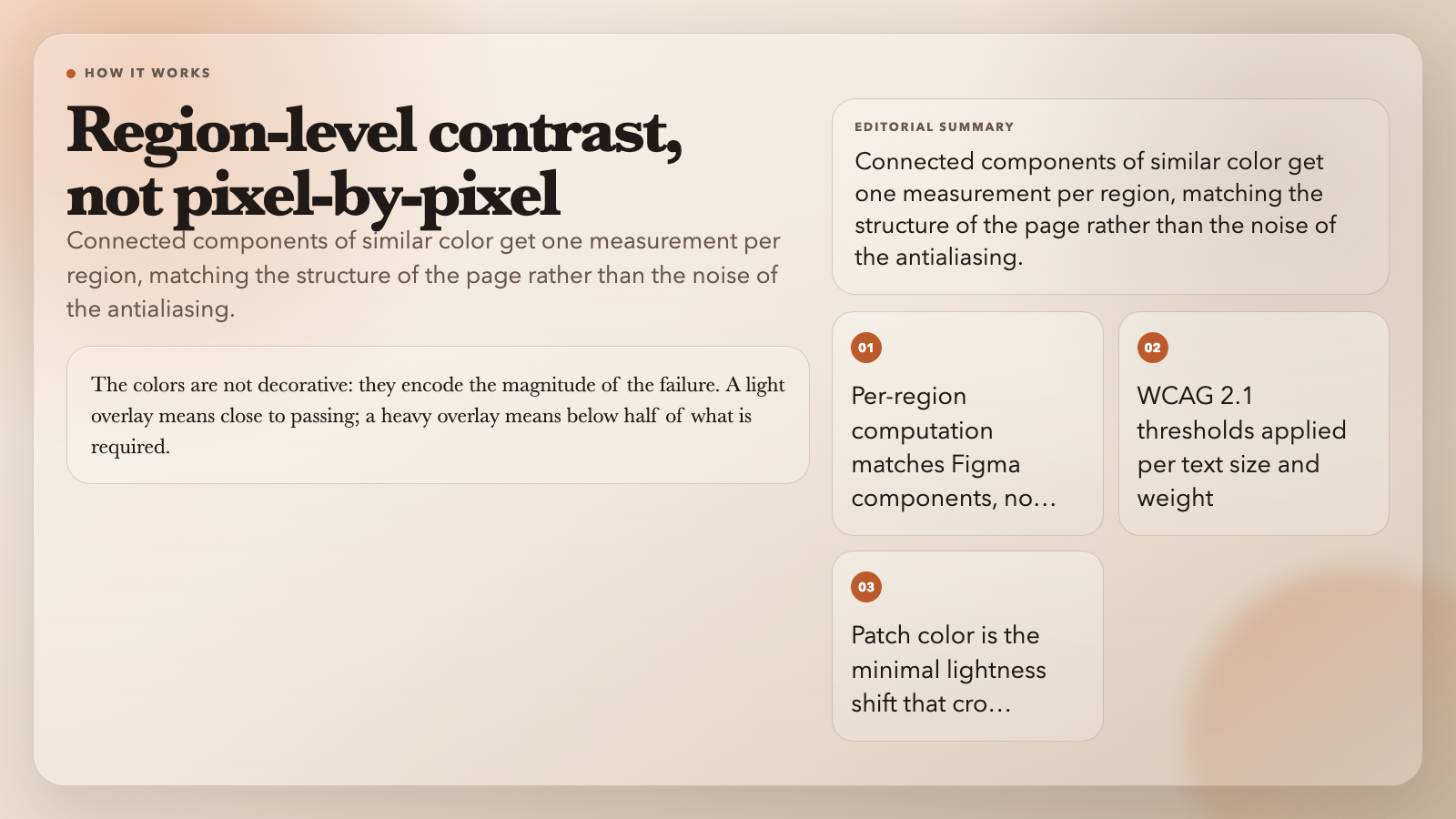
The tool computes the relative luminance of the foreground and the background of every region, then divides the lighter by the darker plus a small fudge factor for ambient light, and compares that ratio to the WCAG threshold for the size and weight of the text. The interesting design choice is that the regions are not pixels but connected components of similar color, so a single contrast measurement is taken per button background, per heading text block, and per input border, not once per pixel. The result is a heatmap that visually matches the structure of the page rather than the noise of the antialiasing.
The thresholds follow the WCAG 2.1 spec exactly. AA body text is 4.5:1. AA large text is 3:1. AAA body text is 7:1. AAA large text is 4.5:1. The tool defaults to AA body, which is what the audit asks for in most jurisdictions, and the dropdown lets you re-run the analysis at any other level without re-uploading the image.
The patch color suggestion is computed by holding the foreground constant and walking the background lightness up or down — whichever direction is shorter — until the ratio crosses the threshold. This is the minimal color shift that fixes the region. It is not always a great-looking shift (sometimes the fix is to change the foreground, sometimes the right answer is a thicker font weight), but it is a correct starting point, and it gives the designer a specific token to argue about instead of a vague “make it darker”.
The three failure modes it catches
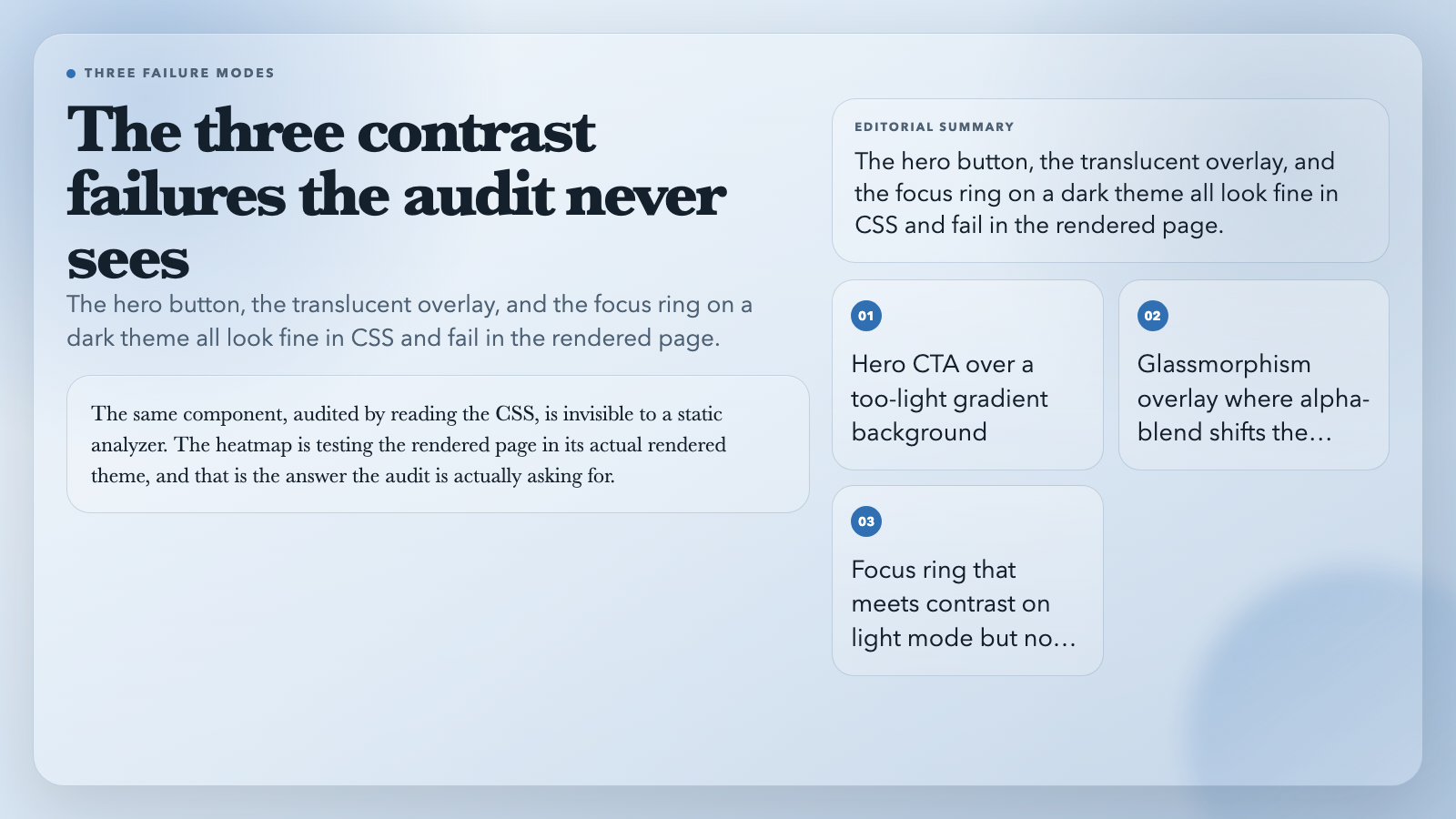
The first failure mode is the obvious one: a single button on a hero image where the gradient background is too light for the white text. The heatmap lights up that button, the patch color comes back as a slightly darker tint of the gradient, and the design system gets a new token. This is the easy case. Designers can fix it in five minutes and the audit passes on the next run.
The second failure mode is the one nobody is looking for: a card that uses a translucent overlay on a colored background. The pixel color of the text is whatever the browser computed after the alpha-blend, and that color is often outside the design system. The contrast check sees the actual rendered color, not the token the designer thought they were using. The heatmap correctly flags these as failures, and the patch color is computed against the actual rendered background, not the token. This is where most teams discover that their glassmorphism components have been failing audit for two years.
The third failure mode is the one that breaks code review: a focus ring that meets contrast on white backgrounds but not on the dark-mode variant. The heatmap, applied to a screenshot of the dark-mode page, catches it. The same component, audited by reading the CSS, is invisible to a static analyzer. The heatmap is doing what static analysis cannot: it is testing the rendered page in its actual rendered theme, and the result is the answer that the audit is actually asking for.
How to use it in a real audit
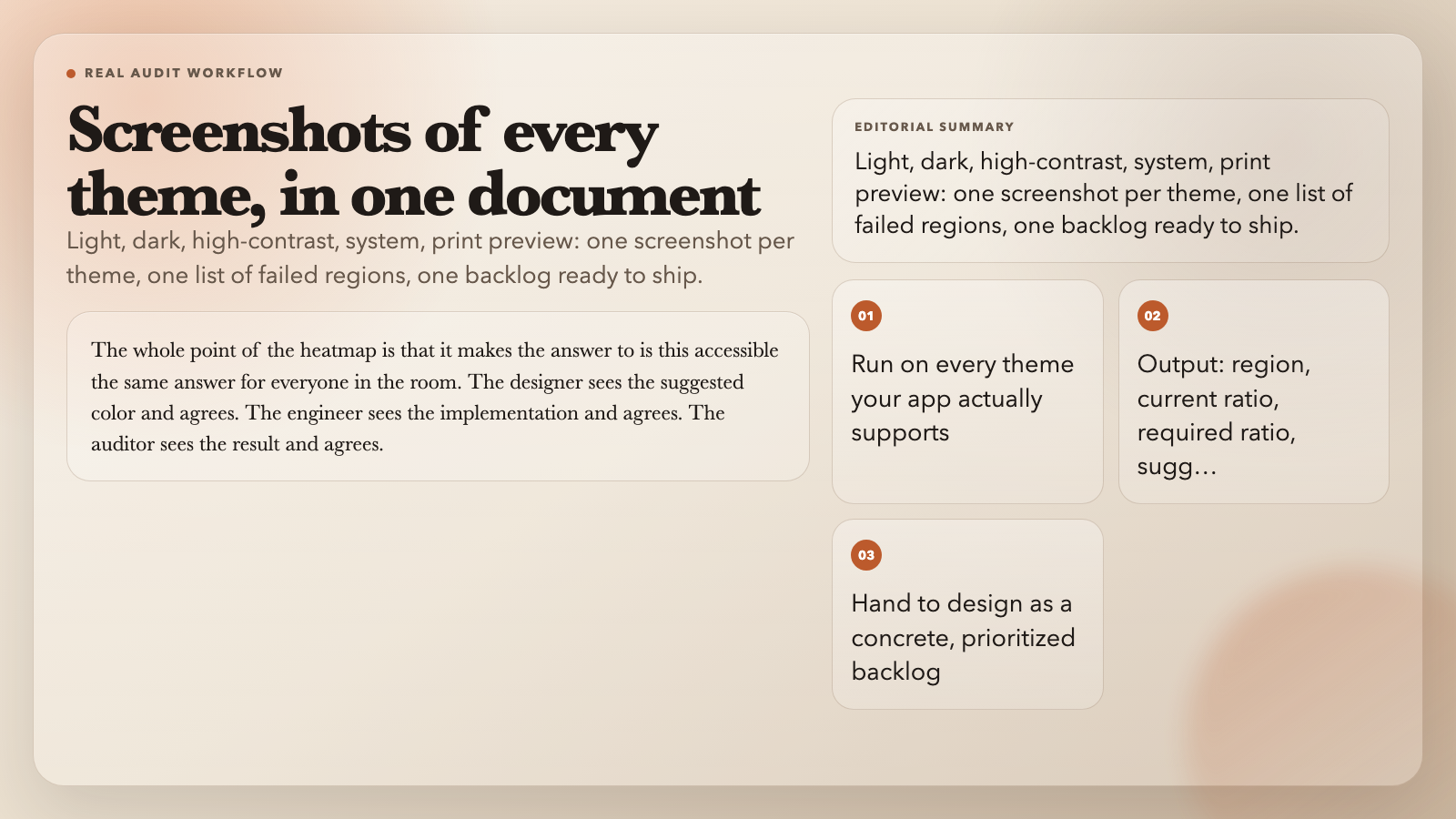
The workflow that works in practice is: take screenshots of every distinct theme your app supports (light, dark, high-contrast, system, print preview), run the heatmap on each one, and gather all the failed regions into a single document. The output is a list of (region, current ratio, required ratio, suggested background color) tuples. Hand that list to the design team, and you have a backlog that is concrete, prioritized, and ready to ship.
For HTML input, the same workflow applies but without the screenshot step. You paste a snippet, the tool parses it, finds every text-and-background pair, and runs the analysis against the computed colors. This is faster for unit-level audits (a single component, a single page) and slower for full-app audits (every theme × every page). The screenshot path is what you want for full-app work; the HTML path is what you want for component-library audits.
If you want to play with it, the Accessibility Heatmap Generator accepts both image and HTML input and runs the analysis client-side, so screenshots never leave your browser. For a quick demo on a single component, the sample inputs are useful starting points; for a real audit, the screenshot path on a rendered page is what actually resolves the design-vs-engineering argument.
The whole point of the heatmap is that it makes the answer to “is this accessible” the same answer for everyone in the room. The designer sees the heatmap and agrees that the patch color is acceptable. The engineer sees the heatmap and agrees that the implementation is correct. The auditor sees the heatmap and agrees that the audit is complete. The number on the spreadsheet is the same number, and the suggested color is the bridge between the design system and the rendered page. That is the part that is hard to do by hand, and that is the part the tool does for you.
Explore more tools at elysiatools.com.