You ran a correlation matrix on your customer dataset. The top-left cell says 0.87. You put it in the slide deck. Three weeks later, the team lead pulls you aside and asks, in the gentle voice reserved for people who are about to be embarrassed, which correlation method you used. You freeze. The truth is you used the default. You do not actually know which default. And the 0.87 you have been quoting is not the same number the data team gets when they re-run the same matrix with the right method.
Most spreadsheet functions, most BI dashboards, and most “give me a quick correlation” tutorials default to one thing: Pearson. Pearson is fine for two roughly normal variables that move together linearly. The moment you have ranks, ordinal scales, ranked revenue buckets, or a single fat-tailed outlier, Pearson starts lying — and it lies with a straight face, in the same decimal places a real relationship would use.
The three methods, in plain English
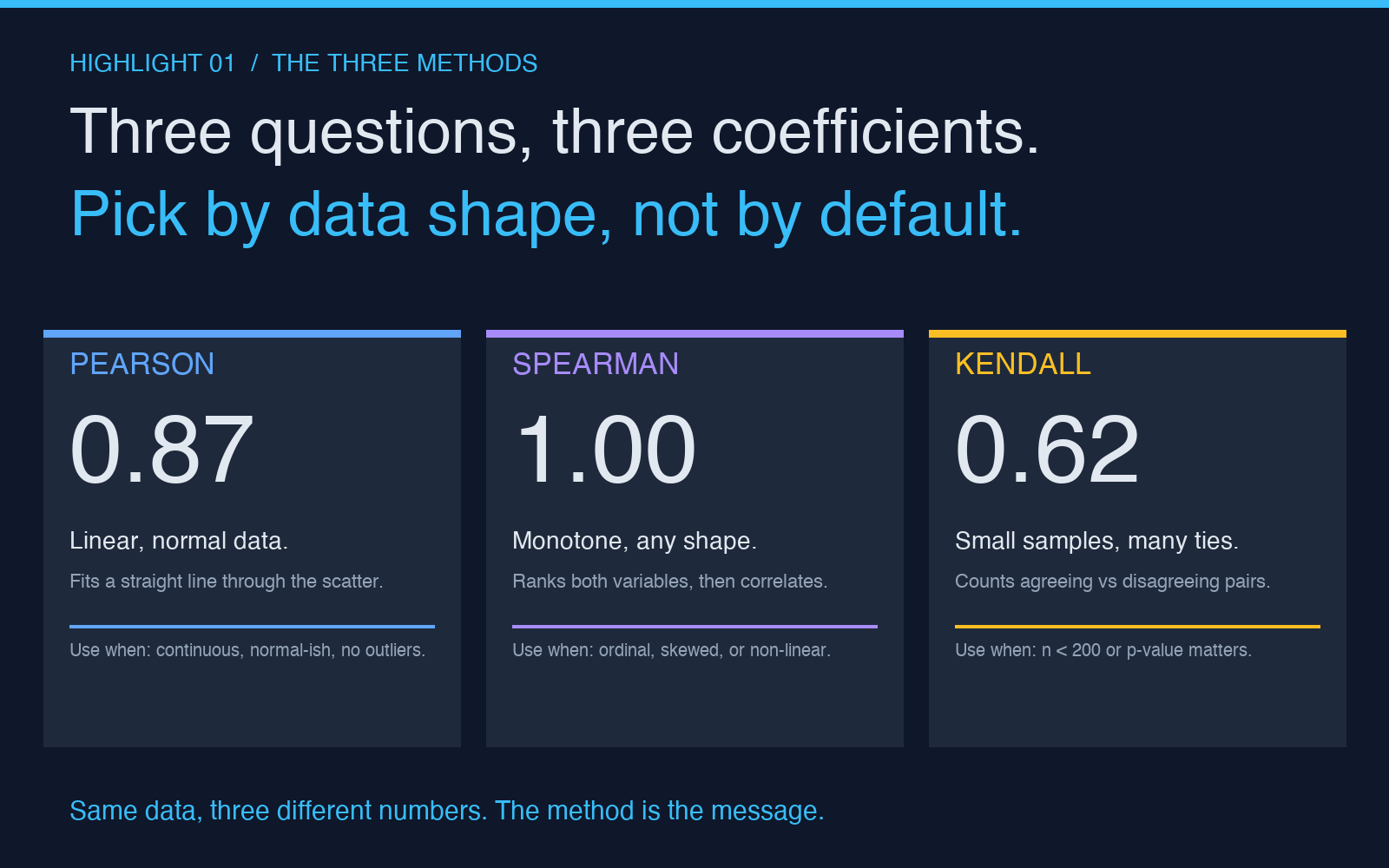
The Correlation Analyzer offers three correlation methods because they answer three different questions, and the question you should be asking is not always “how strongly do these two variables move together.”
Pearson asks: if I fit a straight line through these two variables, how tight is the scatter around it. It assumes both variables are roughly normal, on a continuous scale, and free of monotone transformations that would change the relationship’s shape. If your data is clean and linear, Pearson is the most powerful choice — it uses all the information in the numbers. If your data is not clean, Pearson is the most dangerous choice — it amplifies outliers and punishes you for non-linearity.
Spearman asks: if I rank both variables and then look at the rank scatter, how tight is it. It is Pearson applied to ranks, which means it is sensitive only to monotone relationships — anything that goes up while the other goes up, regardless of curvature. A perfect Spearman of 1.0 means the variables move together in a strictly increasing way; it does not mean they are linear. Spearman is the right default when you do not know the distribution of your data, when you have ordinal scales (Likert scores, customer tiers, satisfaction buckets), or when the relationship is plausibly non-linear but still monotone.
Kendall asks: of all the pairs of observations, what fraction agree on the ordering. It is slower to compute on large datasets and less intuitive to read, but it has a cleaner statistical interpretation than Spearman when samples are small or have many ties. Researchers reach for Kendall when they need the p-value to be defensible in a paper; analysts rarely need it on a dashboard. If your dataset has fewer than a few hundred rows, Kendall’s tau is often a more honest answer than Spearman’s rho.
The four inputs that quietly break your matrix
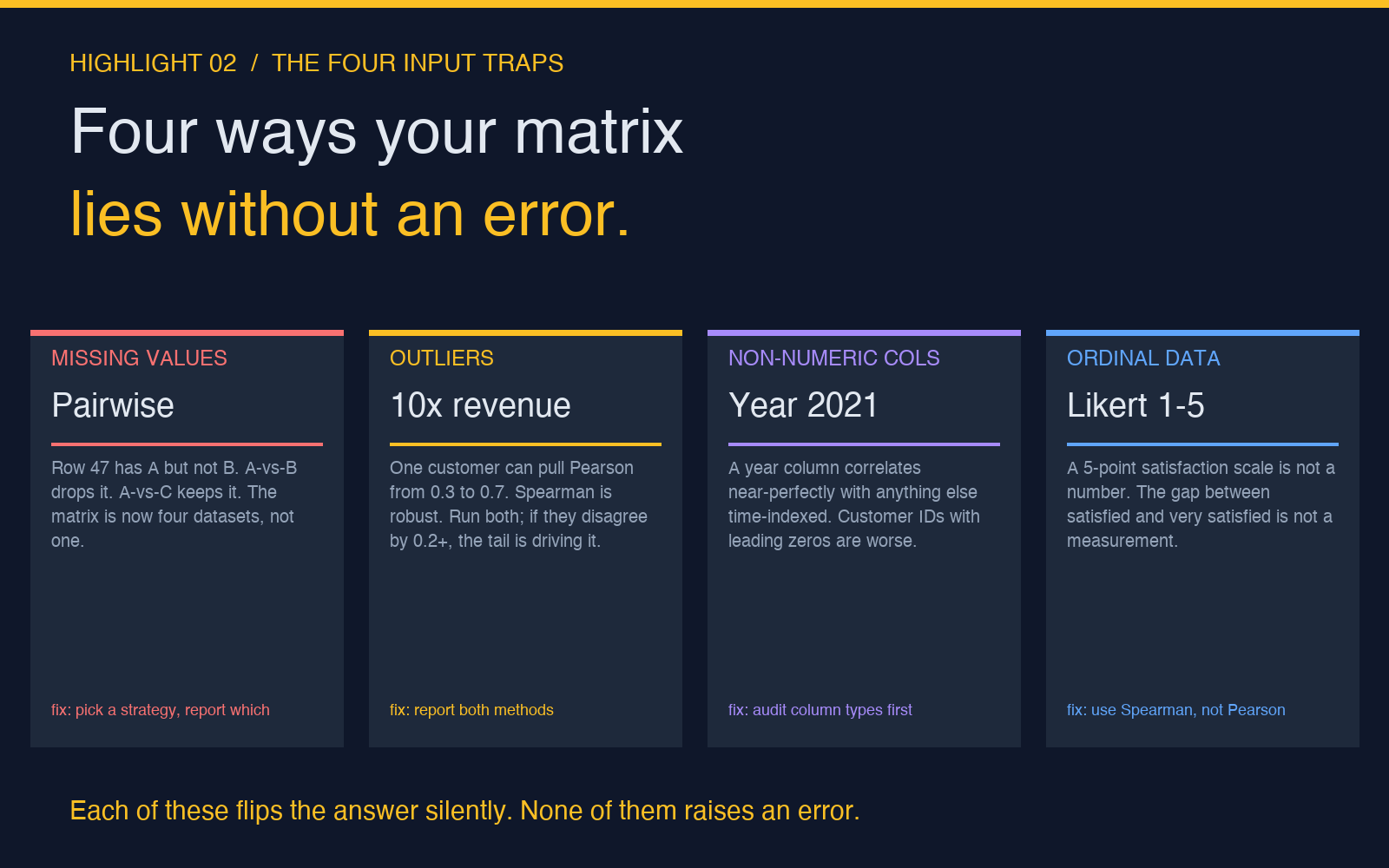
Method choice is the loud variable. The quiet ones are the inputs. Each of these can flip a meaningful correlation into noise or vice versa, and none of them produces an error message.
Missing values. The default behavior of most correlation functions is pairwise deletion: if row 47 has a value for column A but not column B, that row is dropped from the A-vs-B correlation but kept in the A-vs-C correlation. Your matrix is then computed on four different datasets, and you are comparing correlations that have different sample sizes, different missing-data patterns, and different effective power. The Correlation Analyzer exposes a “missing value strategy” option for exactly this reason — listwise deletion, mean imputation, or pairwise with explicit reporting. Pick one and report which.
Outliers. A single 10x revenue customer can pull a Pearson correlation from 0.3 to 0.7 without changing any other data point. Spearman is robust to this because the rank of the outlier is the same as its value, so a single point can only move the rank by one position. If your data has heavy tails — revenue, transaction counts, session durations — run Pearson and Spearman. If they disagree by more than 0.2, the Pearson number is being driven by the tail.
Non-numeric columns you did not realize were being read as numeric. A “year” column stored as 2021, 2022, 2023 will correlate with anything else time-indexed at near-perfect values that mean nothing. A “customer ID” column with leading zeros will be silently dropped or worse, treated as a number and dominate the matrix. Audit your column types before you trust the matrix.
Ordinal data treated as continuous. A 5-point Likert scale is not a number. The difference between “satisfied” and “very satisfied” is not the same as the difference between “very satisfied” and “extremely satisfied.” Pearson does not know that. Spearman does, because Spearman is ranks, and the rank order is all you have.
What the p-value actually buys you
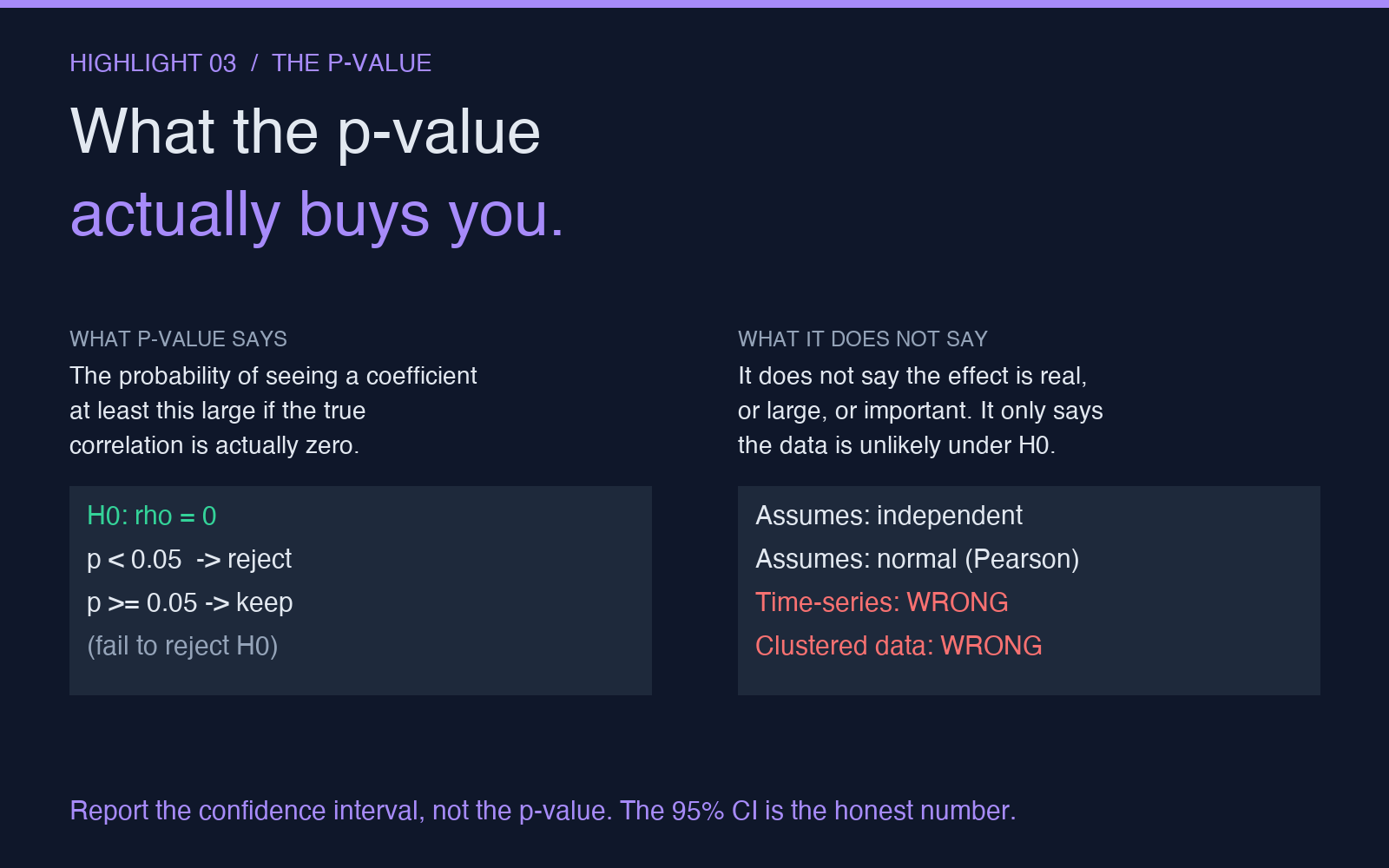
The p-value next to a correlation coefficient is the probability of seeing a coefficient at least this large under the null hypothesis that the true correlation is zero. That sentence carries two assumptions you have to check before the p-value means anything: that the observations are independent, and that the variables are roughly normal (for Pearson) or that the ranking is meaningful (for Spearman and Kendall).
If your data is time-indexed and autocorrelated — daily revenue, hourly traffic, monthly churn — the p-value is wrong. The effective sample size is much smaller than the row count, and the p-value will under-report uncertainty. If your data has any clustering structure (users nested in accounts, transactions nested in days), the p-value is wrong in the same direction. The Correlation Analyzer’s confidence interval option is more useful than the p-value here, because the confidence interval shows you the range of plausible correlations given your data, which is what you actually need to make a decision.
For an executive summary, report the correlation coefficient, the method, the sample size for that specific pair, and the confidence interval. Skip the p-value unless someone specifically asked for hypothesis testing. The 95% confidence interval for a Pearson of 0.3 on n=50 is roughly -0.05 to 0.55 — that is the number to put in the slide, because it tells the audience how much they should actually trust the 0.3.
When to reach for the analyzer instead of the spreadsheet
The built-in CORREL function in a spreadsheet gives you Pearson and only Pearson, with no missing-value strategy, no outlier flagging, and no confidence interval. It is fine for a one-off check between two clean columns. It is wrong for the matrix view you are about to put in a deck and defend in a review.
Open the Correlation Analyzer when you have three or more numeric columns, when you have missing data, when you need to defend the number to a non-technical audience, or when you suspect the relationship is non-linear. The heatmap view and the scatter plot matrix are the parts of the output that catch the cases where the correlation coefficient alone is misleading — a high r with a clear non-linear pattern, or a low r hiding a tight cluster with one outlier, is the kind of thing the eye catches in 2 seconds and the number hides indefinitely.
For more on related statistical work, the Regression Analyzer covers the next step beyond correlation — once you know two variables move together, regression tells you the shape of the relationship. The Dataset Quality Profiler catches the missing-value and outlier patterns before they quietly warp your matrix.
Pick the method first, audit the inputs second, and report the confidence interval instead of the point estimate. The 0.87 in your slide is only honest if those three things are true at the same time.