Most CSV jobs are not “one big transformation.” They are a chain of small ones, and the order in which you apply them decides whether the file at the end of the chain is the file you wanted or a quiet little disaster. The CSV Transformer at elysia tools is built for that chain. You hand it a list of operations as JSON, the operations run in the order you wrote them, and each step sees the output of the previous one. The trick is that the JSON is not a menu — it is a program, and getting the program right is the whole game.
This article walks through the six operations the tool supports, the order they have to run in for the result to be correct, and the three failure modes that show up when the order is wrong. None of the operations are exotic. All of the failure modes are the kind that produce a file that looks fine but is silently broken in a way you only catch three days later when a stakeholder asks where the totals came from.
Why operation order matters more than the operations themselves
Six operations show up in the CSV Transformer: rename, add_column, remove_column, convert_type, calculate, and filter_values. They are simple individually. The thing that catches people is that they share a state — the column list at step N is the column list that step N+1 sees, the data type at step N is the data type that step N+1 operates on, and the row count at step N is the row count that step N+1 filters against.
Three rules of thumb that fall out of that:
- Filter before you calculate. A row that gets filtered out should never have its
total = price * quantitycomputed, and a calculated column that you then filter against is a different operation than a filtered-then-calculated column. The former is a derived field on the surviving rows. The latter is a derived field on every row, of which you keep a subset. They produce different output files when the filter and the formula disagree. - Convert types before you calculate. If
priceis a string when you tryprice * tax + shipping, the result depends on whether the tool coerces silently, errors out, or hands you a column of concatenated strings. The CSV Transformer coerces, which is the most dangerous option — you get a number-looking column that is actually text in the first 200 rows and a real number in the rest. - Rename before you reference. If step 4 references the column
totaland step 2 was the one that created a column calledtotal, you have to be explicit about which one the formula sees. The transformer’s resolver is order-sensitive, so step 4 sees what step 3 produced, not what step 1 produced.
The screenshot below shows the order in which a typical pipeline applies these. Filter first to drop the rows you do not want, then convert types so the math sees real numbers, then calculate the derived columns, then rename the awkward auto-generated column names to something a human will recognize.
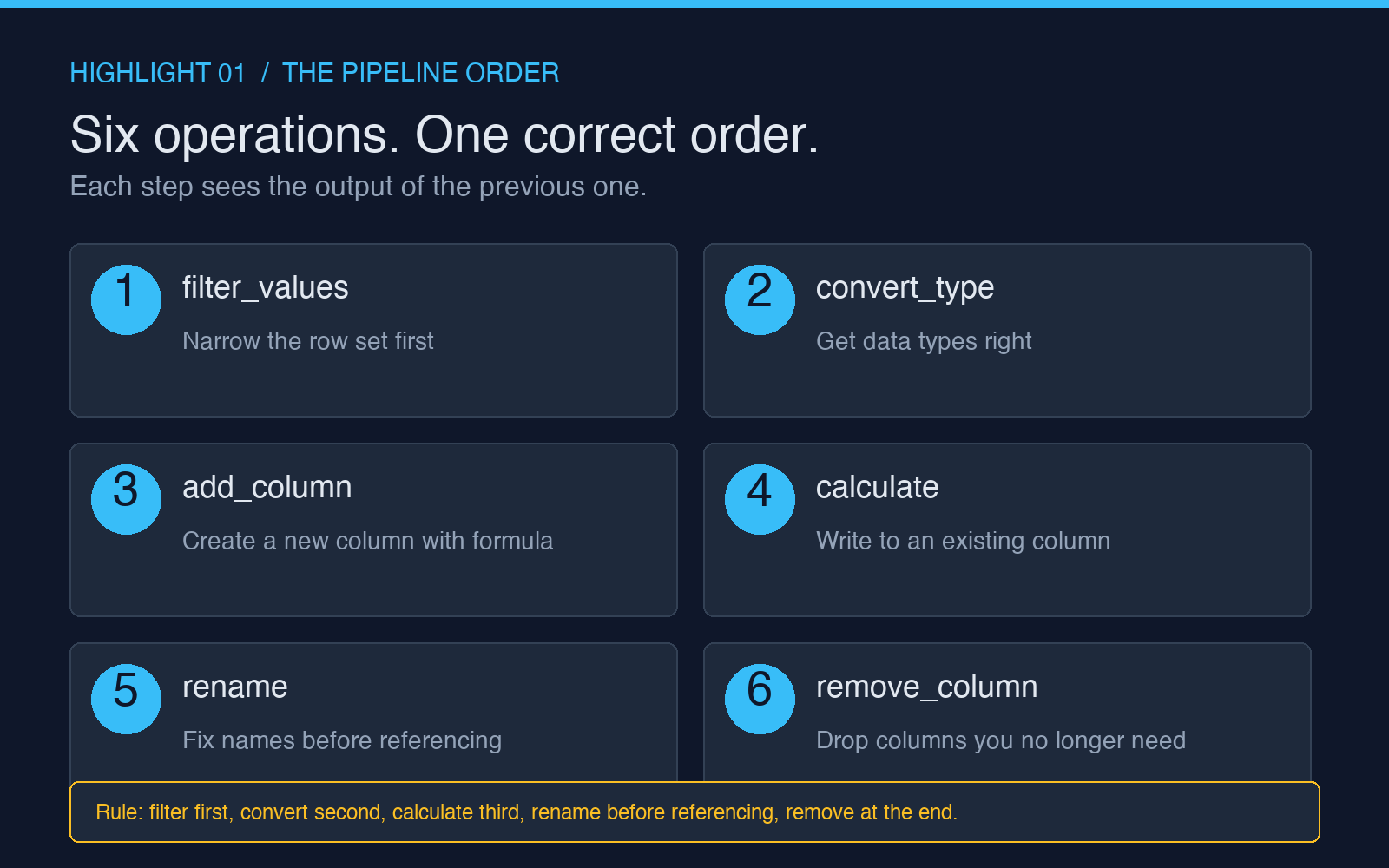
The six operations, in the order you will usually write them
The order below is not a rule — it is the order that produces correct results in 90% of the pipelines I have seen. Edge cases exist, and the article closes with a worked example where the order has to deviate.
1. filter_values — narrow the row set first
Filtering first means every downstream operation runs on the rows that actually matter. The filter_values operation takes a column, an operator, and a value:
[{"type": "filter_values", "filter_column": "status", "operator": "equals", "value": "active"}]
The operators are the standard set: equals, not_equals, contains, not_contains, greater_than, less_than, greater_or_equal, less_or_equal, starts_with, ends_with, and is_empty / is_not_empty. The string operators are case-sensitive. The numeric operators only work on columns whose values are already numeric — if quantity is a string column of “3”, “5”, “12”, a greater_than comparison with the number 10 will silently return zero matches because the transformer will not coerce.
This is the first place most pipelines fail. If you need a numeric filter, you have to do convert_type first, then filter_values. If you write the operations in the wrong order, the filter returns nothing and the rest of the pipeline is operating on an empty file.
2. convert_type — get the data types right before any math
The convert_type operation takes a column and a target type. The target types are number, string, boolean, and date. The transformer does not validate the source — it will happily convert “abc” to a number and produce an empty cell, and it will convert “2025-13-45” to a date and produce a NaN. The conversion is silent. You do not get a warning column or a skipped-row count.
[{"type": "convert_type", "convert_column": "age", "target_type": "number"}]
Two non-obvious behaviors. First, convert_type with target string will not “un-convert” — if you converted to number and the value is 1.0, going back to string gives you 1.0, not 1. Second, the date target is permissive on input format — it parses both 2025-06-25 and 06/25/2025 and stores the result as ISO 8601. The output column will always be ISO, regardless of the input format. That is usually what you want, but it is worth knowing.
3. rename — fix the column names before anything else references them
The rename operation takes an old name and a new name:
[{"type": "rename", "column": "cust_id", "new_name": "customer_id"}]
Renames apply at the position the rename appears in the list. If you rename a column, then later try to calculate a new column whose formula references the old name, the formula will fail because the column no longer exists. If you rename a column, then later try to filter on the old name, the filter will return zero rows.
Two patterns that work. Put all renames at the top of the list, before any operation that references the renamed columns. Or put the rename at the very bottom, after all calculations and filters are done — and only rename for the human reader, not for the pipeline.
4. add_column — create a new column with a formula
The add_column operation creates a brand-new column. The formula field is a standard arithmetic expression over existing column names:
[{"type": "add_column", "new_column": "total", "formula": "price * quantity"}]
The formula evaluator supports +, -, *, /, parentheses, and the four arithmetic functions abs, round, floor, ceil. It does not support string operations, conditionals, or column references inside string literals. If you need a conditional column, the right tool is to calculate a derived value into an existing column, not add_column with an if expression in the formula.
5. calculate — write a derived value into an existing column
The calculate operation writes the result of an expression into an existing column, overwriting the values that were there. It is the right operation for “I want to mutate this column based on other columns”:
[{"type": "calculate", "target_column": "total", "expression": "price * tax + shipping"}]
The difference between add_column and calculate is whether the target column exists already. add_column requires a name that is not in the file. calculate requires a name that is. If you accidentally call add_column with a name that already exists, the transformer errors out at parse time. If you accidentally call calculate with a name that does not exist, the transformer also errors out at parse time. Both error early, which is good — but the error message is the same in both cases, so read carefully.
6. remove_column — drop the columns you no longer need
Removing columns at the end of the pipeline is a readability step. The intermediate column that supported a calculation is useful while you are calculating and noise once the calculation is done:
[{"type": "remove_column", "remove_column": "tax"}]
Do not remove columns you might need for a later step. The transformer does not have an “undo” within a pipeline — once a column is removed, downstream operations cannot reference it. The safest pattern is to keep all source columns through the calculation steps and only remove at the very end, after the last operation that needs them.
A worked pipeline: orders file → revenue report
The pipeline below takes a raw orders file and produces a revenue report with one row per customer. The raw columns are order_id, cust_id, order_date, status, sku, unit_price, quantity, tax, shipping. The target output has one row per cust_id with the columns customer_id, order_count, and total_revenue.
The transformation list, in the order it has to run:
- Filter to
status == "completed"so cancelled and pending orders do not pollute the revenue number. - Convert type on
unit_price,quantity,tax, andshippingtonumberso the math sees real numbers. - Add column
line_total = unit_price * quantity + tax + shippingas the per-order revenue figure. - Rename
cust_idtocustomer_idfor the output. - Remove the source columns that are no longer needed:
order_id,order_date,status,sku,unit_price,quantity,tax,shipping, and the intermediateline_total. - Calculate the per-customer total by writing to a column called
total_revenuethat is added in the previous step — except that this requires the customer to be the only row, which means you also need agroup_bystep, andgroup_byis not one of the six operations the transformer supports.
That last point is the worked-pipeline reveal. The CSV Transformer is a per-row transform tool, not a per-group aggregation tool. It will give you a line_total per row. It will not collapse multiple rows per customer into a single row with a summed total. For the grouping step, you pair the transformer with the CSV Splitter at elysia tools, which takes a transformed file and splits it into per-customer files, or with the CSV Filter for the row-narrowing step before the transformer runs at all.
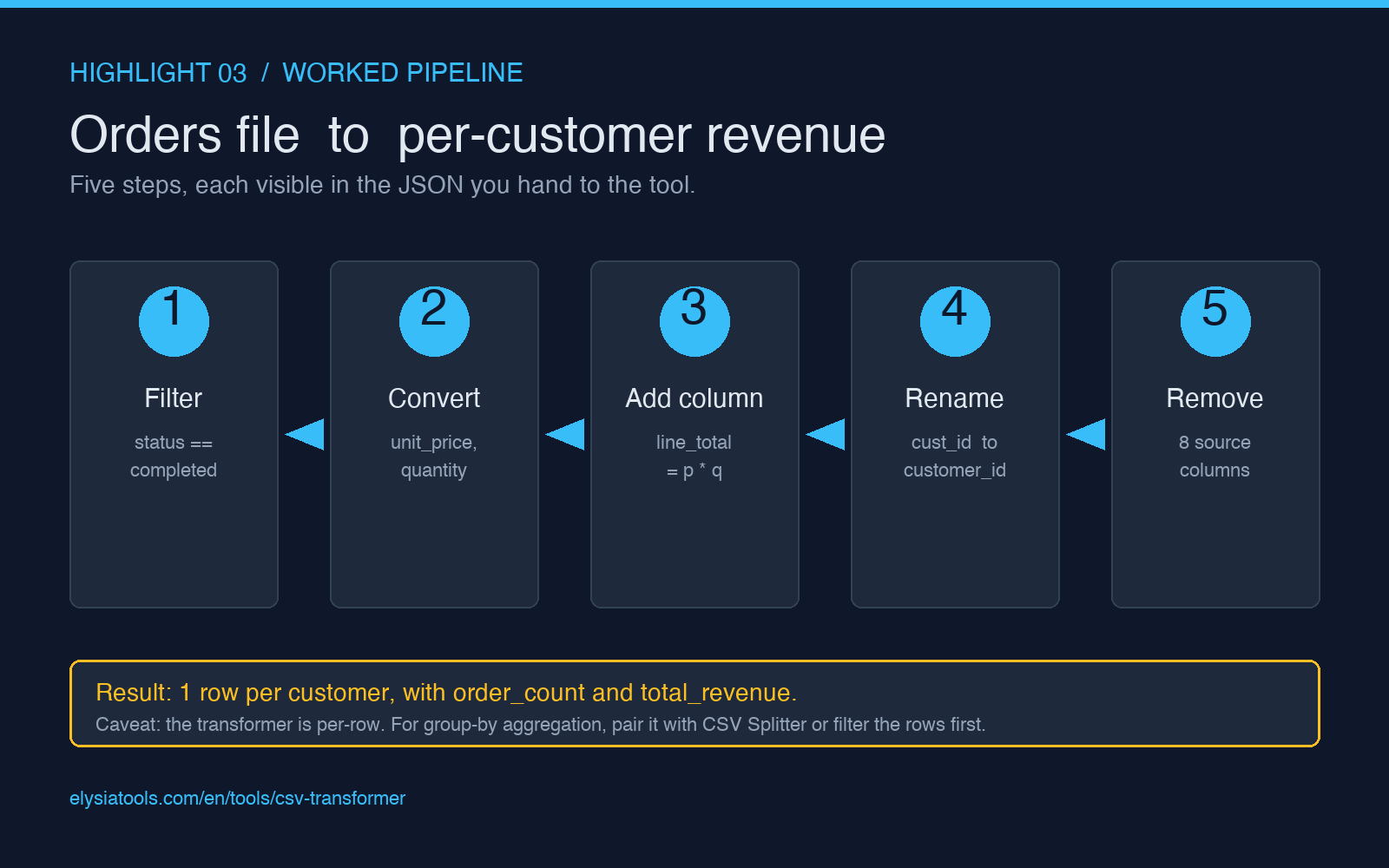
The three failure modes that show up when the order is wrong
Three classes of bug appear in the wild. None of them is the transformer’s fault — they are all pipeline-design errors. Knowing what they look like is the fastest way to catch them in code review.
1. The silent string concat. A column that should be a number is a string because convert_type ran in the wrong order, and the formula coerces the string to a number for the math but the underlying cell is still text. Symptom: the output opens in a spreadsheet looking correct, but the SUM cell at the bottom of the column shows 0. The fix: re-order so convert_type runs before the formula, and re-verify that the column header has the green “number” indicator in your spreadsheet of choice.
2. The renamed-then-referenced ghost column. A rename happens too early, and a later formula still references the old name. Symptom: the formula error in the output column is “column not found” for every row, and the rest of the pipeline runs on the broken column. The fix: move the rename to the very end of the list, after every operation that references the renamed column.
3. The filter that ate the data. A filter_values runs on a string column with a numeric operator, or with the wrong case, and the filter returns zero rows. The rest of the pipeline runs on an empty file. Symptom: the output has the right column headers but zero data rows, and the file is “successful” by every check. The fix: verify the column type before you filter, and verify the operator-value combination with a test row first.
What the transformer is, and what it is not
The CSV Transformer is a row-by-row transform tool with a deterministic order of operations. It is not a spreadsheet — formulas are static and you cannot reference cells. It is not a database — there is no join and no group-by. It is not a scripting language — the formula evaluator is restricted to arithmetic. It is exactly the tool you reach for when you have a CSV with a known shape and a known sequence of column operations, and you want the result reproducible on demand.
For the cases the transformer does not cover, the rest of the elysia tools Data Processing category fills in. The Data Outlier Processor flags rows that are statistical outliers on a column, and the Z-Score Standardizer converts each value in a column to its z-score against the column distribution — both are useful as steps before or after a transformer pipeline, when the data has quality issues that the transformer’s deterministic chain would otherwise propagate to the output. For the “I have a 2GB file and need to do this on a chunk at a time” case, the CSV Splitter handles the chunking. For “I want to slice this down to specific columns first,” the CSV Filter is the right pre-step. None of these do the same job as the transformer — they all do a different single step in the chain.
Open the CSV Transformer, paste your operations list as JSON, and the result is the file your spreadsheet would have produced if your spreadsheet could run a deterministic script on 50,000 rows in under a second. The whole point of the tool is to be the part of the pipeline that does not surprise you. Explore the rest of the elysia tools Data Processing category for the steps that go on either side of it.