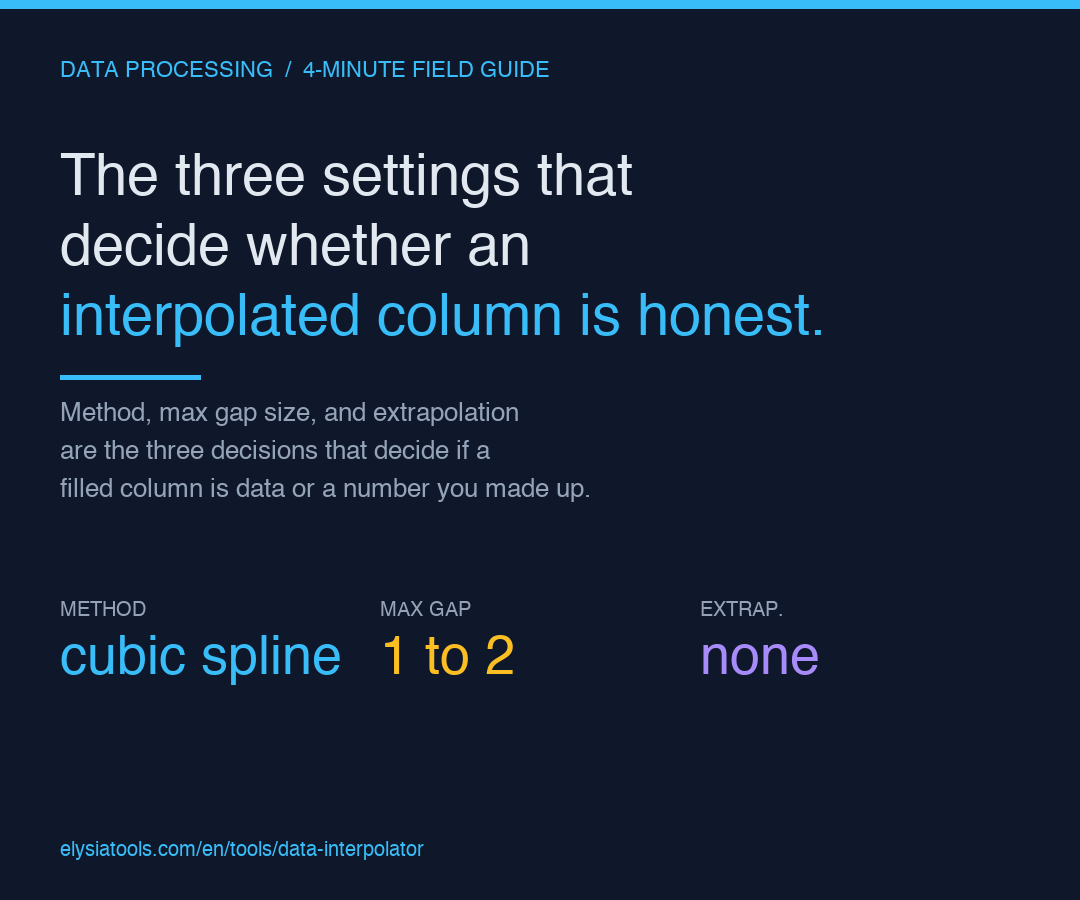
You paste a CSV into a tool, leave one field on “auto,” and get a clean column back. Then someone asks whether the filled values are real measurements or guesses, and the answer is the same number either way. The Data Interpolator on Elysia Tools has ten interpolation methods behind that one dropdown, and the column you get out is honest only if three decisions were made deliberately before you clicked run.
The method dropdown is not a “best one” choice
Linear interpolation draws a straight line between the two valid points on either side of the gap. Spline and cubic methods draw smooth curves that respect the slope of the surrounding data. Nearest neighbor copies the closest valid value forward. Forward fill and backward fill do the same thing, only with explicit names. Mean and median replace every missing value in the column with the column’s own average. Custom lets you type a number in.
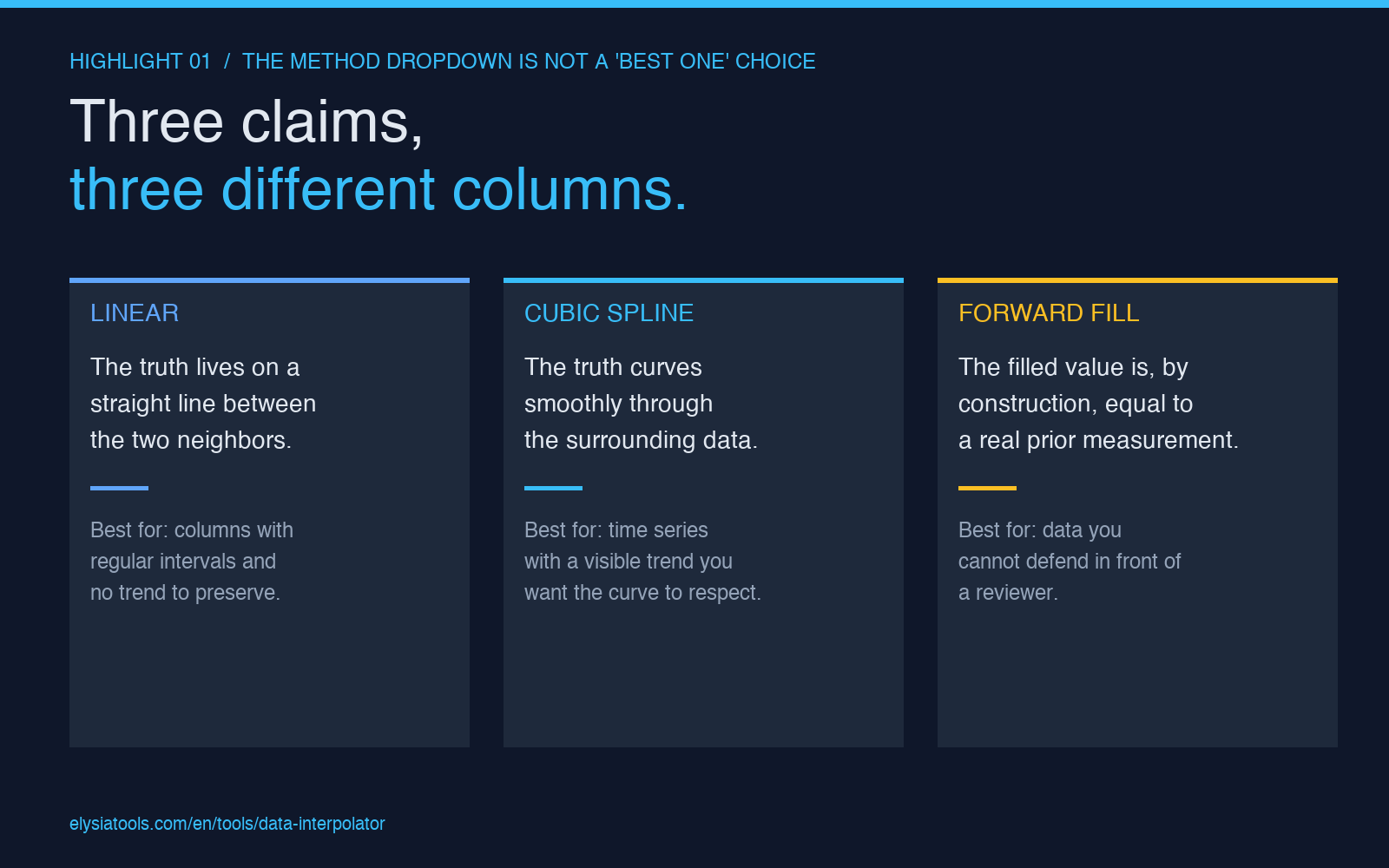
The reason this is a decision and not a default is that each method makes a different claim about what the missing values “should” be. Linear claims the truth lives on a straight line between the two neighbors. Spline claims the truth curves smoothly. Mean claims the truth is the average of everything you have. Those three claims are not compatible, and the column you get out is only as honest as the claim you meant to make. A sensor log with one missing humidity reading at 2:14 AM is a different problem from a sales spreadsheet with sixty missing values across a quarter, and the method that is right for the first is wrong for the second.
A reasonable default for a time series with regular intervals is cubic spline, because the curve respects the trend of the surrounding data without overshooting. For a column where the truth is plausibly constant between samples, linear is the right pick and is also the cheapest to reason about. For data you cannot defend in front of a reviewer, forward fill is the most conservative choice, because the filled values are by construction equal to a real measurement that already existed.
Max gap size is the safety cap most people leave on default
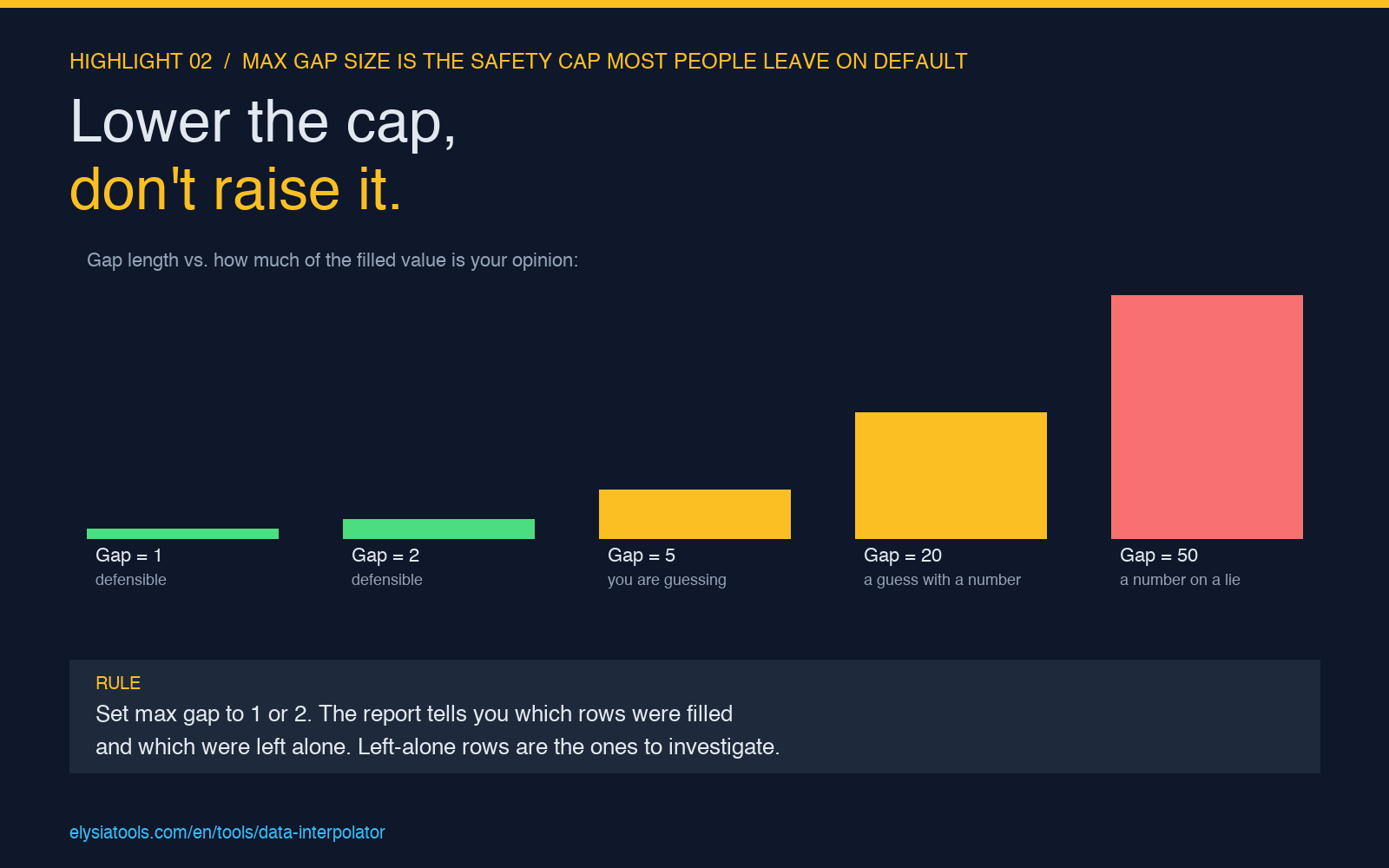
The interpolator has a setting called Maximum Gap Size that defaults to 5. It means: if the run of missing values in a row is longer than 5, leave it alone and report it. That default is the right default for a reason. Interpolation is a local claim. The longer the gap, the more the line you are drawing is your own opinion about what the data should look like, expressed as math. A gap of 2 between valid values at 100 and 102 is a defensible estimate. A gap of 50 between 100 and 200 is a guess with a number on it.
The right way to use this setting is to lower it before raising it. If your time series has occasional single-point dropouts from a flaky sensor, set max gap to 1 or 2 and let the longer gaps stay missing. The report the tool generates will tell you exactly which rows were filled and which were left alone, and the left-alone rows are the ones you actually need to investigate. Setting max gap to 100 and getting a clean column back is not a sign the data is clean. It is a sign you told the tool to lie on your behalf.
The companion move is to run the Data Outlier Processor first. If the values you are about to interpolate over are themselves outliers, the interpolated line will be pulled toward them and the filled values will be wrong in a way that is hard to spot. Outlier removal is a 30-second step that makes the rest of the pipeline honest.
Fill direction and extrapolation are the edges no one tests
Two settings sit at the bottom of the form and are easy to skip. Fill direction says whether to look forward only, backward only, or both. Extrapolation method says what to do at the very first or very last row of the column, where there is no neighbor on one side to interpolate from.
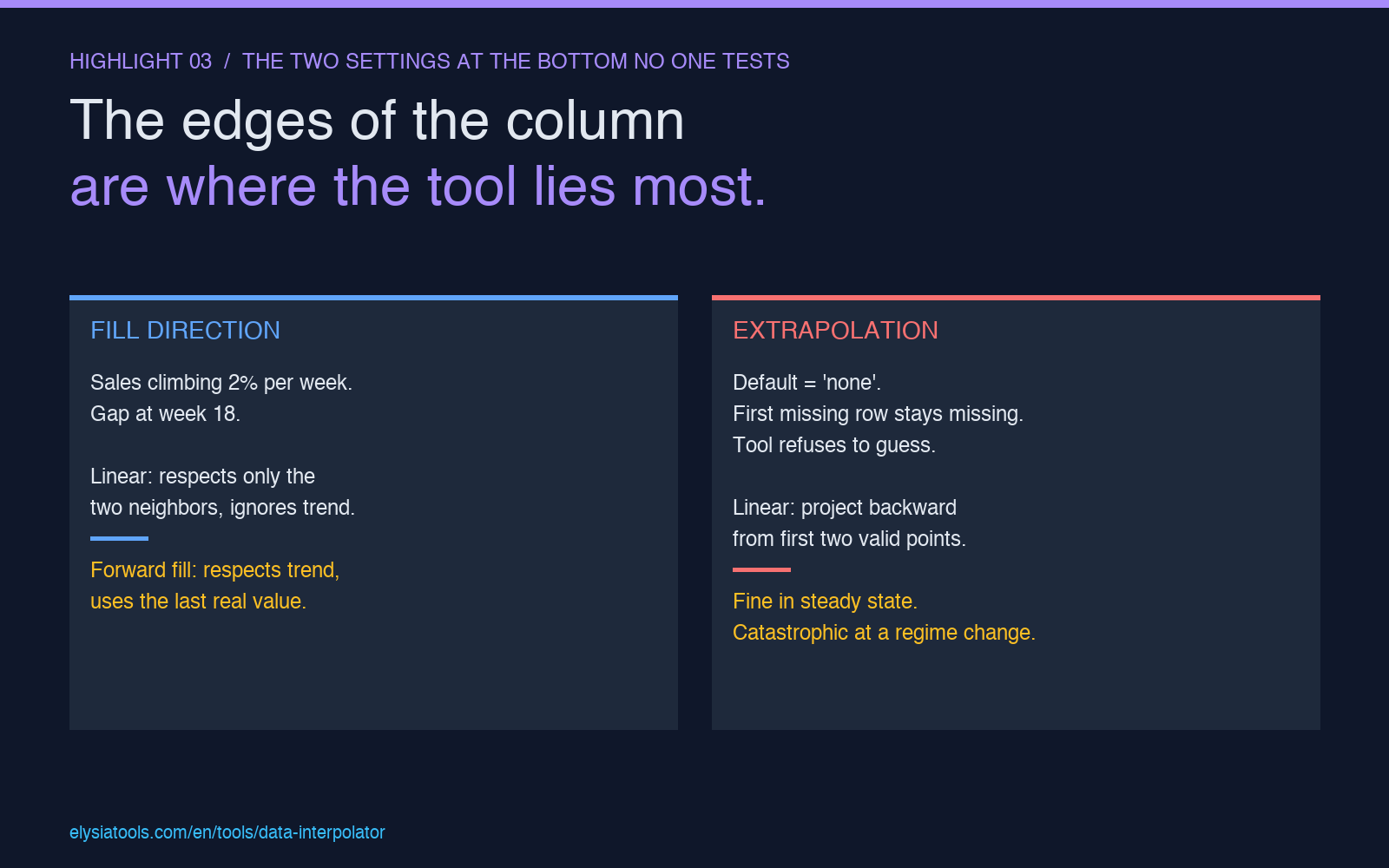
Fill direction matters when your column has a real trend. If sales are climbing by 2% per week and you have a gap at week 18, linear interpolation between week 17 and week 19 will give you a value that ignores the trend. Forward fill from week 17 will give you a value that respects the trend, and the difference between the two answers is the difference between “the data is climbing” and “the data is flat.” If you have good reason to believe the trend holds, forward fill is the more honest answer. If you do not, linear is. There is no setting that picks for you.
Extrapolation is the silent one. With the default “none,” the first row of a column that starts with a missing value stays missing. The tool refuses to guess, which is the right behavior, but it means you have to know that the first and last few rows of your output may be NaN even though the rest of the column is filled. If you turn extrapolation on with linear, the first missing value is set to a line projected backward from the first two valid points, which is fine in a steady-state series and catastrophic in one with a regime change at the start.
For the same reason, if you are normalizing a column after interpolation, the Z-Score Normalizer is a useful second step, because it gives you a unit-free view of which filled values are far from the rest of the column. A filled value that is more than 3 standard deviations from the mean after interpolation is the one that is most likely to be the interpolator’s invention, not the data’s signal.
The three settings that decide whether the column is honest
Method, max gap size, and extrapolation. That is it. The other seven settings in the form are conveniences: target columns, index column, date format, decimal places, the preserve-original flag, the mark-interpolated flag, the report flag. None of them change what the filled values are. They only change what the output looks like and what the report tells you about it.
The honest workflow is: method = linear (or cubic spline if you have shown yourself a smooth curve is plausible), max gap = 1 or 2, extrapolation = none, fill direction = both, mark interpolated = on, generate report = on. Run that once. Read the report. If the number of filled values is small and the gaps are short, the column is honest. If the number of filled values is large, you have a data collection problem, not a tool problem, and the right next step is to fix the upstream pipeline so the gaps stop happening, not to make the interpolator more aggressive.
For data you intend to cross-tabulate, run the filled column through the Data Crosstab Generator to see how the filled values cluster against the categories. If a category’s mean shifts by more than a few percent after interpolation, the fill is doing more work than it should. For data exported from a system that adds a BOM, the BOM Character Remover is the right first step before the column ever reaches the interpolator, because a stray byte-order mark in the first cell is the kind of thing that survives linear interpolation as a constant offset and quietly skews every downstream calculation.
The Data Interpolator is one of the tools that rewards reading the report. Most tools on Elysia Tools are deterministic enough that the output is right or wrong regardless of what you do; the interpolator is honest only if you told it what to claim, and the report is how you check whether the claim you made is the one you meant. Explore more tools at elysiatools.com.