Most accessibility audits fail not because teams don’t care, but because the report that comes back is unreadable. A 47-page PDF full of aria- warnings, contrast ratios to four decimal places, and zero prioritisation lands in a Jira ticket, gets triaged past the next sprint planning, and quietly dies. The audit was real. The remediation never happened.
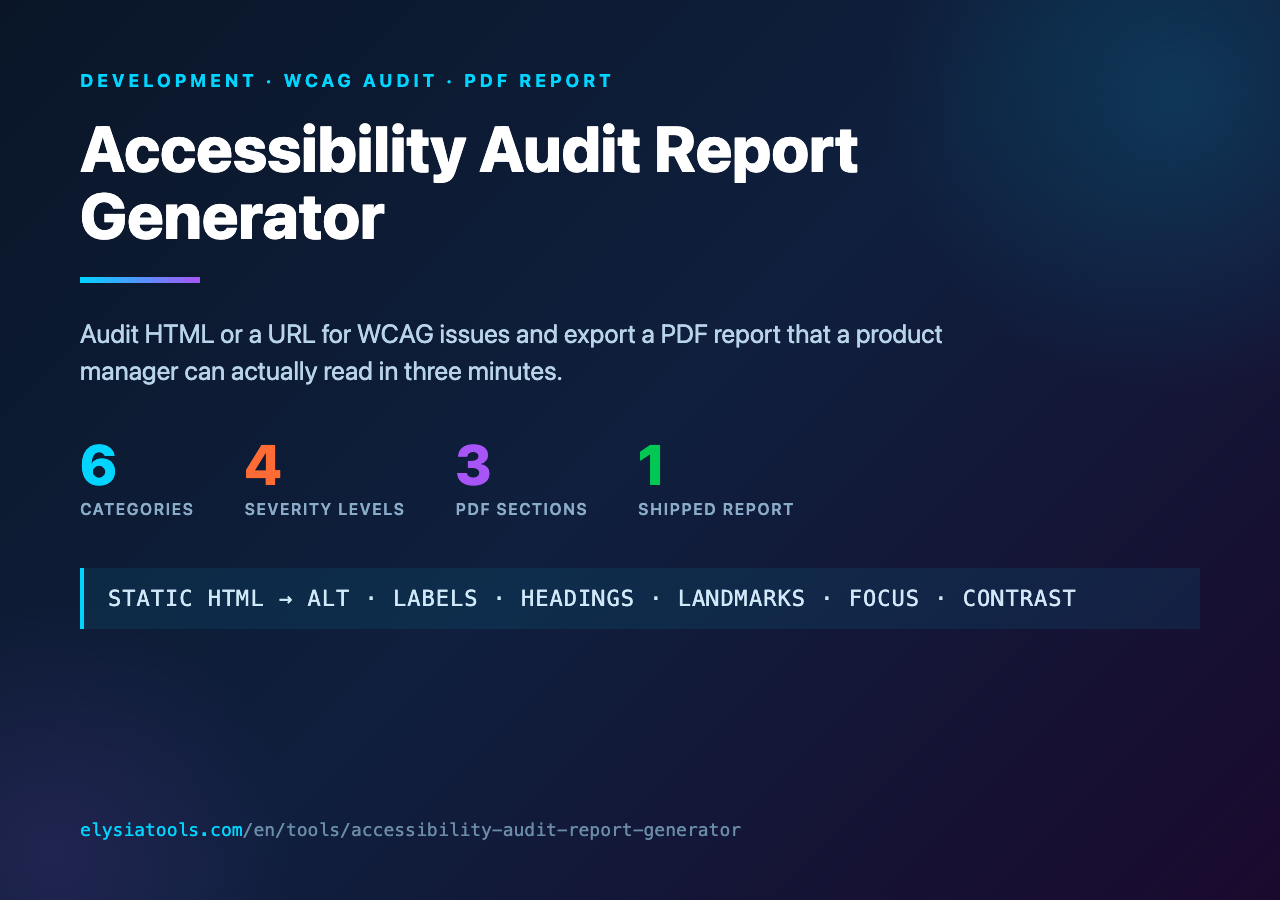
The fix is structural, not heroic. A good audit tool groups findings by severity, shows exactly which element failed and which rule it failed, and — most importantly — exports a PDF that a product manager can read in three minutes and walk into a standup with a concrete list of “these 4 things ship this sprint.” That is the bar the Accessibility Audit Report Generator on Elysia Tools tries to clear. The rest of this article is what “structural fix” looks like in practice: what the tool checks, how the report is organised, and how to use it without becoming the person who audits the same page forty times.
The 6 Categories the Audit Groups Around
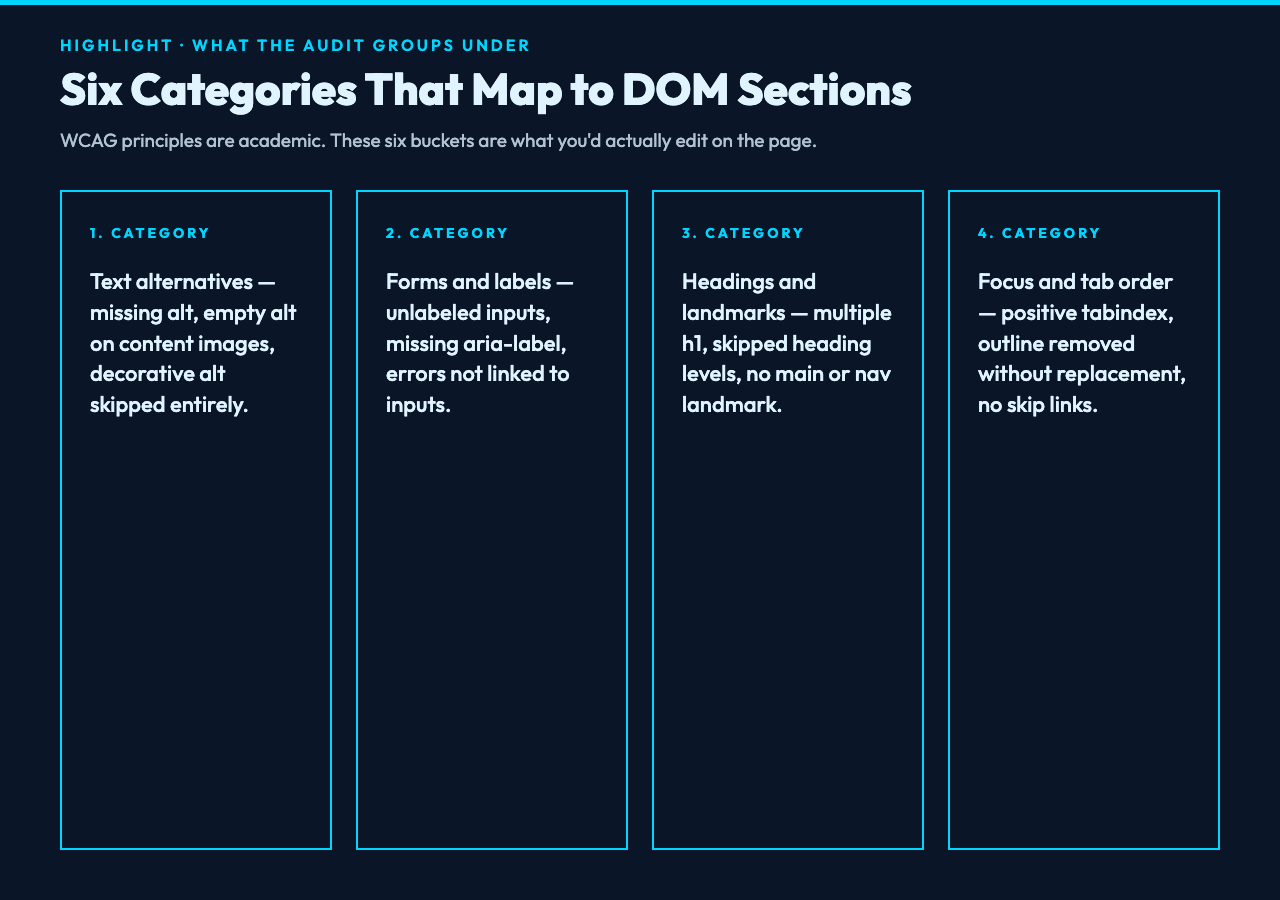
WCAG 2.2 is organised around four principles (perceivable, operable, understandable, robust), but a developer scanning a report wants categories they can act on, not principles they can quote at a conference. The generator collapses WCAG into six buckets that line up with the parts of the DOM you’d actually edit:
- Text alternatives — missing
alt, emptyalton content images, decorativealt=""skipped entirely. - Forms and labels —
<input>with no associated<label>, missingaria-label, missing required attribute, error messages not linked viaaria-describedby. - Headings and landmarks — multiple
<h1>, heading levels skipped, no<main>landmark, no<nav>landmark. - Frames and iframes —
<iframe>with no title, sandbox attributes missing, same-origin iframes with confusing names. - Focus and tab order — positive
tabindexvalues, focus removed withoutline: noneand no replacement, skip links missing. - Inline color contrast — pulled from inline
styleattributes only (computed-style contrast against stylesheets is a much bigger problem and a different tool).
That last category deserves a callout: the audit walks inline styles because static HTML analysis can see them. Stylesheet rules require rendering the page, which means Playwright/Puppeteer or a browser-driven tool like the Accessibility Heatmap Generator (separate tool, different mode of operation). Combining the two — static HTML audit for structure, rendered audit for visual contrast — gives you full coverage without a single line of code in your app. If you want a worked example of static HTML inputs you can drop in, the HTML Viewer Samples hub has a semantic page, a form, and a landing page wired up.
How Severity Is Assigned (and Why “Critical” Is Rare)
The generator ships four severity levels, calibrated against what blocks a user, not how technical the fix is:
- Critical — a screen reader user literally cannot use the page. Missing form labels on a required field.
<html>with nolangattribute. Images of text with no fallback. - Major — a screen reader user can use the page but with friction. Heading hierarchy skipped by two levels.
<iframe>with no title. Positivetabindexvalues that confuse tab order. - Minor — improvements that don’t block anyone but matter at scale. Missing landmark roles, redundant links, slightly low contrast in non-critical UI.
- Info — observations, not failures. Decorative image with empty alt (correct usage, just noted). Inline event handlers on interactive elements (works but should be reviewed).
The reason Critical is rare is intentional: most pages that ship have already had the obvious stuff — missing alt on the hero image, no form labels — caught in code review or by an obvious test. What remains is Major and Minor, and those are the categories where the report earns its keep. A team that ships a sprint with zero new Criticals and three fewer Majors is a team that is closing the long tail of accessibility debt without disrupting the roadmap.
What the PDF Report Looks Like
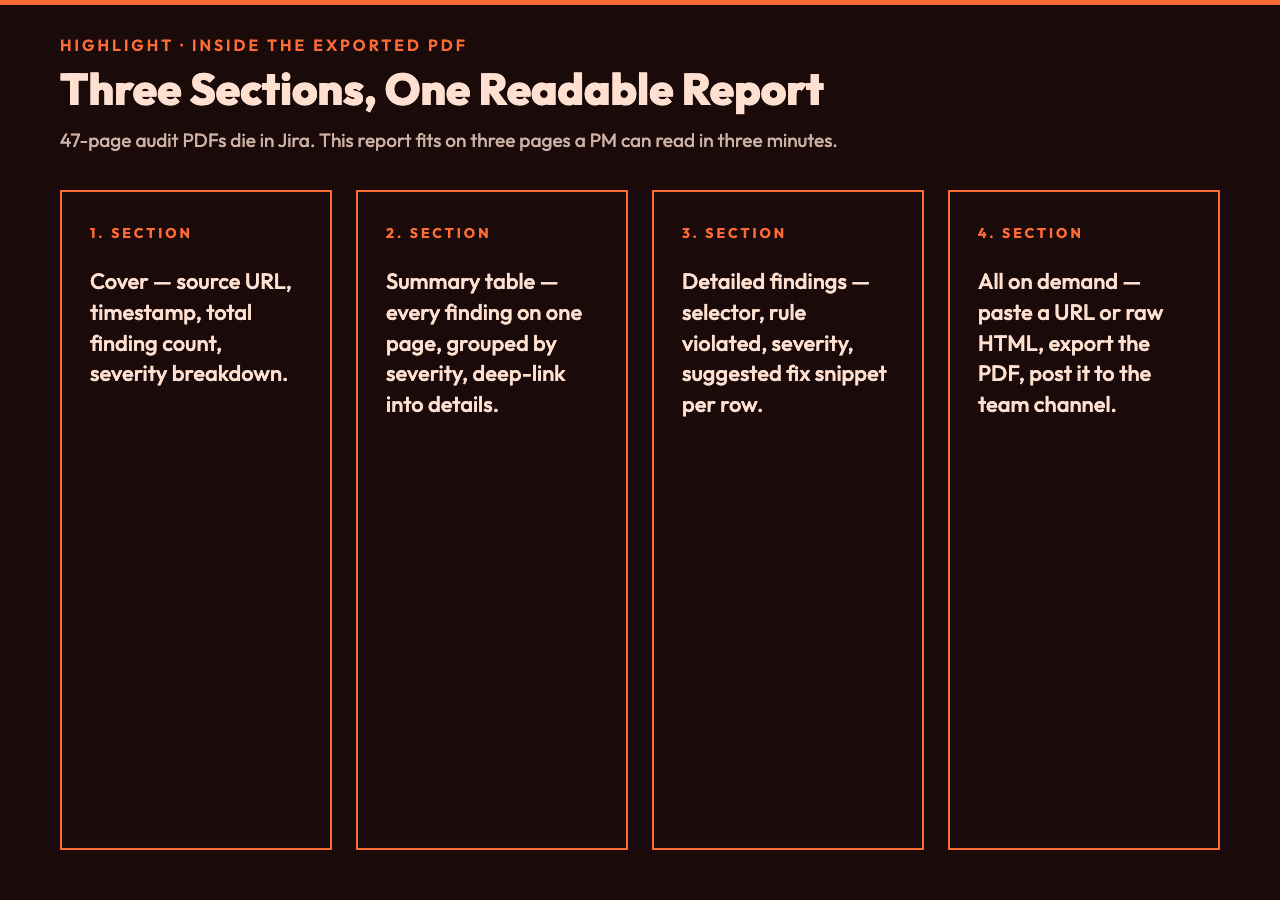
The exported PDF has three sections, in this order:
- Cover — source URL or uploaded HTML, scan timestamp, total finding count, count by severity.
- Summary table — every finding on one page, grouped by severity, with a one-line description and a link into the detailed section.
- Detailed findings — one finding per row: page section, element selector, rule violated, severity, suggested fix snippet.
The summary table is the page that matters. It is the page a product manager reads. It is the page you screenshot into the standup deck. It is the page that turns a 47-page inaccessible report into a one-page conversation.
The detailed findings section is for the engineer who fixes it. Each row includes the element selector (e.g. form.checkout > fieldset:nth-of-type(2) > input[name="cvv"]), the rule violated (e.g. WCAG 1.3.1, 4.1.2), and a suggested fix snippet you can paste. None of this is magic — it’s the same lint a developer with axe-core would run, but pre-grouped and pre-formatted so the output is shareable rather than tooling-internal.
Three Things That Are Not in the Report (and Why That’s Fine)
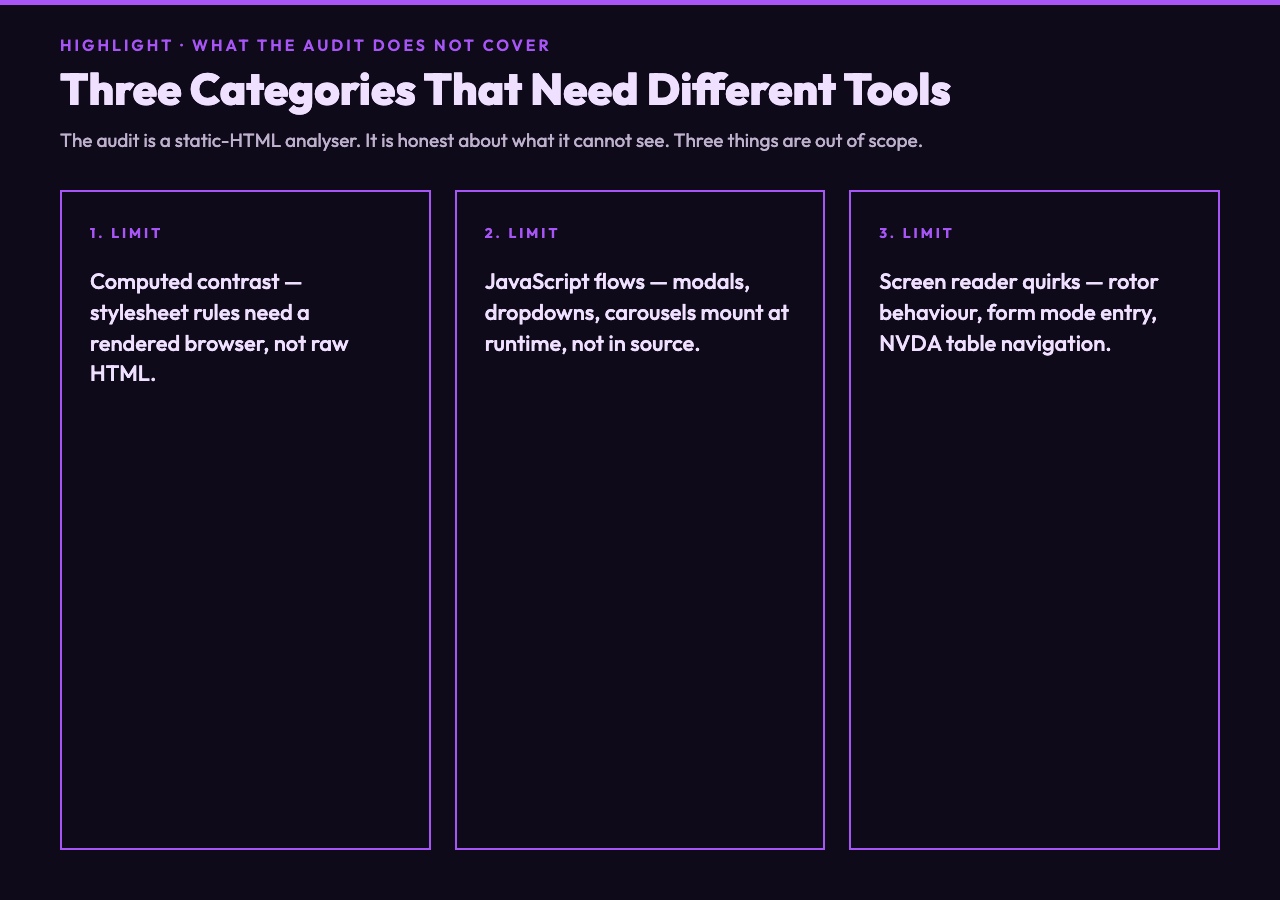
The audit is honest about what it does not check. Three categories are deliberately out of scope:
- Computed-style contrast from stylesheets. Inline
styleattributes are visible in raw HTML; stylesheet rules are not. For visual contrast across a real design system, use the Color Contrast Checker or render the page in a headless browser. - JavaScript-driven flows. A modal that mounts on click, a dropdown that lazy-loads options, a carousel that swaps slides every 5 seconds — none of these are in the static HTML, so the audit cannot see them. They need a separate Playwright-driven audit with interaction steps.
- Screen reader-specific quirks. VoiceOver’s rotor behaviour, NVDA’s table navigation, JAWS’s form mode entry — these are runtime user-agent behaviours, not parseable from source. The audit can tell you what assistive tech might do; it cannot tell you what it actually does. For that you need real users.
This is not a weakness — it is a definition. The audit is a static-HTML analyser. Trying to make it cover the rendered layer, the interaction layer, and the runtime layer in one tool would turn it into something slower, more brittle, and less honest about what it actually checked. Three tools, each with a clear contract, beats one mega-tool that lies. If you want raw HTML source to test against, the HTML with Images Samples hub has pages with mixed image / heading / link structures that exercise the most common finding categories.
Using the Tool Without Becoming a Loop
The single biggest mistake teams make with accessibility audits is running them continuously and never acting on the report. A common pattern: a developer installs the tool in CI, every PR adds five new findings, the count climbs forever, the count becomes meaningless, the count gets ignored.
Better pattern: run the audit once per release branch, post the PDF to the team channel, fix the Criticals and Majors before merge, accept the Minor and Info findings as backlog. The audit is a checkpoint, not a monitor. If you want a continuous signal, use it as a release gate — fail the build on any new Critical — and skip the day-to-day noise.
A useful framing: the audit is to accessibility what a linter is to code style. You don’t lint on every keystroke; you lint on commit. You don’t audit on every save; you audit on release. The role of the report is to be the artefact that makes the conversation tractable, not the conversation itself.
Where the Tool Sits Next to Other Audits
The Development category on Elysia Tools has a few audit-flavoured tools that pair well together. For checking a single page’s rendered contrast — the kind of check the audit report explicitly excludes — the Accessibility Heatmap Generator overlays WCAG violations directly onto a screenshot, which is the fastest way to convince a designer that the grey-on-grey card they shipped is unreadable. For checking that contrast ratios as numbers meet AA or AAA, the Color Contrast Checker takes two hex values and returns the ratio against either threshold. For PDF export of any report shape — not just a11y — the PDF Samples hub shows what the underlying pipeline produces on real documents.
Together those four tools cover roughly 80% of what an accessibility-conscious frontend team needs without leaving the browser. The remaining 20% — keyboard-only walkthroughs, screen reader sessions, real users with disabilities — is the part that has to be human, and no static analyser can replace it.
Putting It Together
An accessibility audit report is not the deliverable. The deliverable is a PDF that a non-engineer can read in three minutes and walk into a standup with a prioritised list. The audit on Elysia Tools produces that PDF from a URL or raw HTML, groups findings by severity, and tells you — for each finding — which element, which rule, which fix. It does not check rendered contrast, JavaScript flows, or screen reader quirks; it is honest about that. Use it at release time, not on every save. Pair it with the rendered-contrast tools for visual coverage. Let real users cover the rest.
If you have a page you’ve been meaning to audit and a team channel that has been tolerating an a11y backlog for a quarter, this is the lowest-friction way to start: open the Accessibility Audit Report Generator, paste in the URL, export the PDF, post it. The first audit always returns more findings than expected. That is not the tool’s failure; it is the audit working.