Most producers blame their monitors when the low end turns to mud. We blamed ours for years before realizing the master bus was clipping at -3 dBFS on every kick. The monitors were fine. The bass was already broken, and a bass-boost tool just made the breakage louder. That is the question this article answers: what does a bass-boost actually change in a WAV file, and where is the line between warmth and wreckage?
An audio bass boost is not a single knob. Under the hood it is a low-shelf filter centered somewhere between 60 Hz and 120 Hz, paired with a soft-knee compressor to keep the boosted energy from clipping the master. The result is a curve that raises a chosen band of the spectrum while leaving the rest of the file untouched. Whether that helps or hurts depends on three things you can measure before you press play.
The 80 Hz tipping point: where ears stop hearing pitch
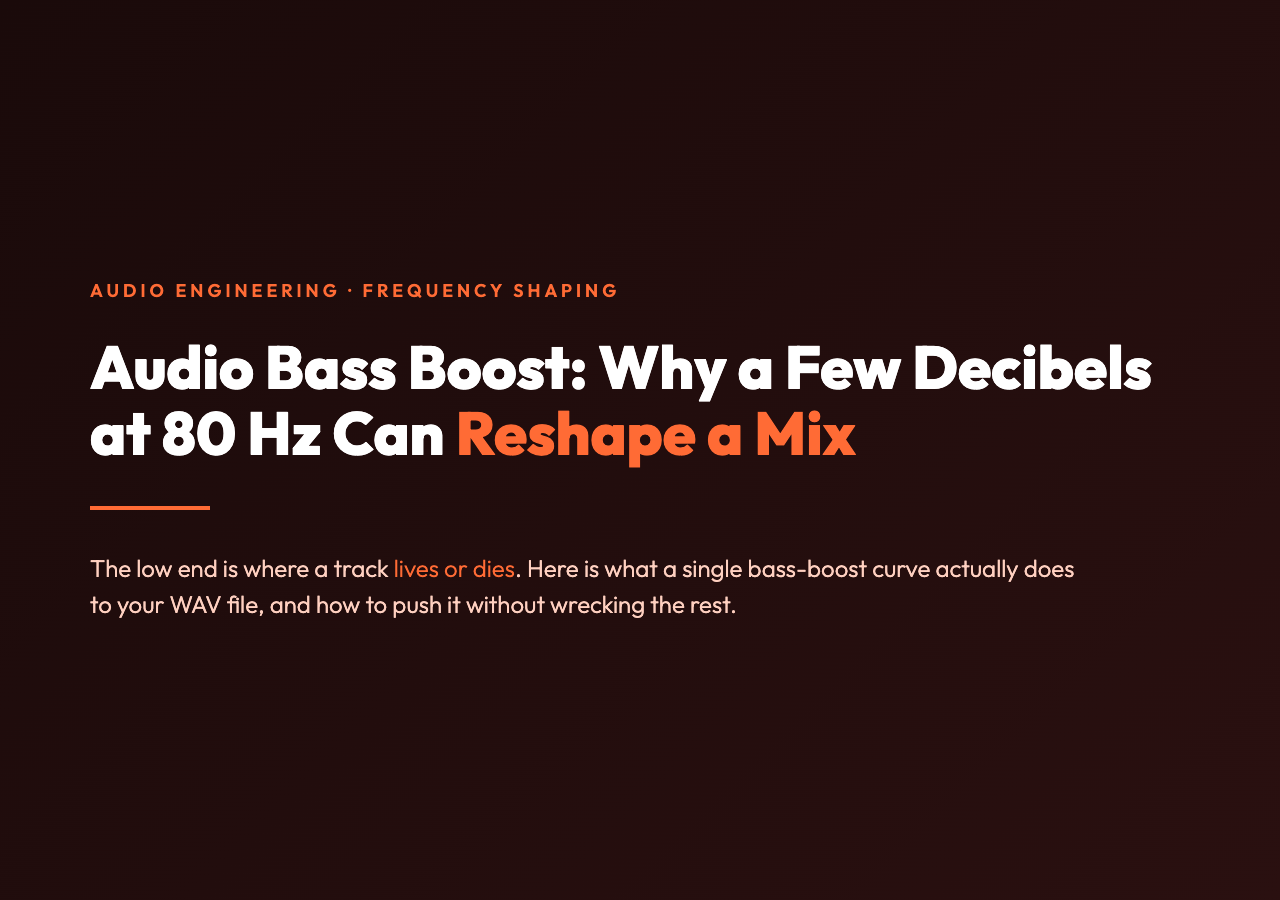
Human hearing is logarithmic, but perception of bass is more complex than a flat curve. Below about 80 Hz, the ear gives up trying to identify a note and starts reporting pressure instead. The 60 Hz fundamental on a kick drum is felt in the chest, not heard as a note. Above 250 Hz, we are no longer talking about bass at all — we are talking about the low-mids, which is where mud lives.
This is why a flat “+6 dB at 80 Hz” boost sounds warm on one track and muddy on another. If the source already has heavy content between 120 Hz and 250 Hz, a wide low-shelf curve lifts that mud too, and the result is exactly the kind of clogged mix a bass-boost is supposed to fix. The narrower the Q on the boost, the less collateral damage.
Five checks before you nudge the low end
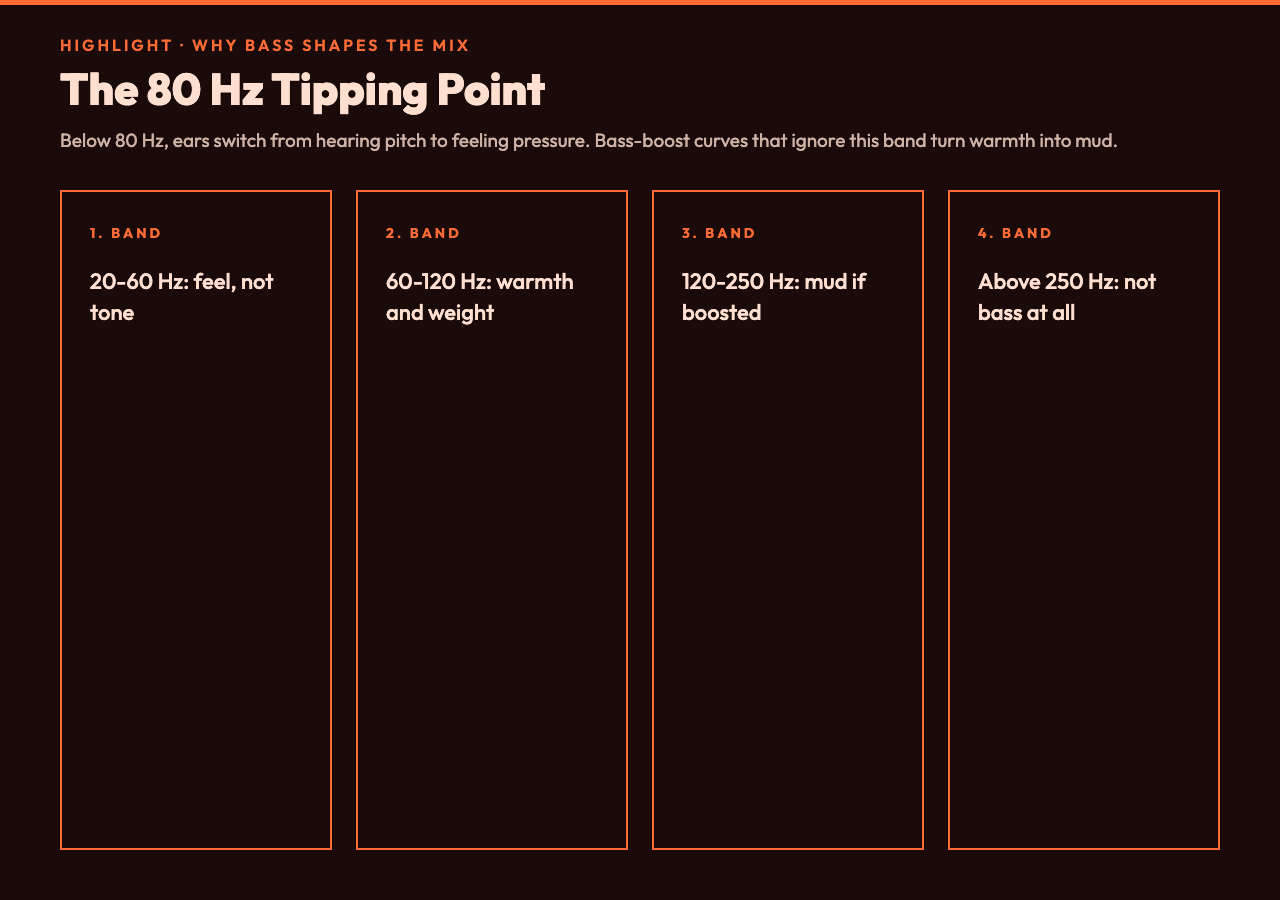
Before you commit a bass-boost to a final render, run these five checks. Each one takes under a minute and turns a guess into a measurement.
- Headroom at the master bus. If your master is peaking above -3 dBFS, a bass-boost will push it into the red. Pull the master down by the same amount you intend to boost. This is the single biggest reason home-studio bass-boosts sound broken: there was no headroom to begin with.
- Sample rate is 44.1 kHz or 48 kHz. Anything below 32 kHz has already lost information above 16 kHz, and a low-shelf filter is going to behave differently than the math suggests. Anything above 48 kHz is overkill for the boosted band and just slows down processing.
- The source has real low-frequency content. Open the file in a spectrum analyzer. If there is nothing below 80 Hz, a bass-boost is just amplifying noise and hum. There is no low end to recover because none was recorded.
- Boost level stays under +6 dB. Anything beyond +6 dB on a low-shelf curve will push the master bus into limiting on most consumer playback systems. The listener will hear compression artifacts, not bass.
- Listen on both earbuds and speakers. Bass behaves very differently across playback systems. A boost that sounds correct on near-field monitors can disappear entirely on laptop speakers, and vice versa. The version that survives both is the one to ship.
If any of these checks fail, fix the underlying issue first. A bass-boost is a finishing tool, not a repair tool. We learned this the hard way after boosting a podcast intro for two hours before noticing the source file had been rendered with a high-pass at 120 Hz by mistake. The boost was real. The bass was not.
What the tool actually does under the hood
The Audio Bass Boost tool on Elysia Tools applies a low-shelf EQ curve with an adjustable center frequency and gain, then runs the output through a soft-knee limiter to keep peak levels safe. The default is +4 dB at 80 Hz, which is conservative enough that it will not break a mix that already had decent headroom. Drop the file in, listen, and adjust the gain in 1 dB steps until the low end reads correctly on a spectrum analyzer and your ear.
What we like about the implementation is that the processing is offline. You upload the WAV, the server applies the filter, you download the result. There is no streaming, no real-time API to debug, and no plugin compatibility matrix. The same operation a DAW plugin performs, but with no install and no per-host CPU hit. That is the kind of tool we keep coming back to: one job, one file in, one file out, no surprises.
When to skip the boost entirely
Sometimes the right answer is no boost at all. If the source was already mixed with a low-shelf curve — which is true of most professionally mastered pop and electronic music — adding more low end is going to fight the engineer’s intent. The same is true for any track that was mixed for vinyl or club playback. The low end was tuned for a specific system, and a generic +4 dB curve will not match that tuning.
For voice-only podcasts, we recommend skipping bass-boost entirely. A high-pass at 80 Hz cleans up plosives and HVAC rumble better than any bass-boost, and the boost will not add audible bass to a voice that does not contain low frequencies to begin with. Use the right tool for the source.
Putting it all together
A bass-boost is one of the simplest audio operations in theory: lift a band of frequencies, write the file. In practice, it is a chain of decisions: headroom first, sample rate second, source content third, boost level fourth, playback system fifth. Skip any one of those and the result is mud. Run them in order and the result is warmth that survives the trip from studio to earbuds.
The next question is whether to use a real-time plugin or an offline tool, and the answer depends on whether you are mixing or mastering. During mixdown, a plugin is faster because you are iterating. During mastering, an offline tool is safer because the result is exactly what gets shipped. For one-off podcast or video work where there is no DAW in the loop, the offline Audio Bass Boost on Elysia Tools is a clean default. That is why we keep it bookmarked.
Explore more tools at elysiatools.com.