An email signature can look perfect in 1 browser preview and arrive broken in Outlook 30 seconds later. Why? We keep building it like a tiny website, but email clients do not agree on the same CSS rules. The reliable signature is not the cleverest one. It is the one that accepts the medium: tables, inline styles, public image URLs, restrained typography, and a deliberate fallback when dark mode disappears.
The browser preview is the wrong judge
A normal web page has a cooperative renderer. An email passes through an editor, a sending service, a recipient’s client, security filters, image proxies, and sometimes an engine that treats modern CSS as a rumor. A signature that survives Chrome has only passed the easiest test.
That is why the Email Signature HTML Builder produces a table-based layout with inline styles instead of a responsive component tree. The implementation wraps the signature in a table capped at 520 pixels, uses nested tables for contact rows, and places visual rules directly on each element. Those choices may look conservative to a frontend developer. In an inbox, conservative is another word for portable.
The practical lesson is simple: test the artifact that will be pasted into the mail client, not the polished preview around it. Email compatibility is decided by the raw signature HTML after every helpful editor has had a chance to rewrite it.
Tables are not nostalgia here
On the modern web, tables are the wrong tool for page layout. In email, they remain a useful compatibility contract because cells preserve side-by-side relationships in clients that ignore or alter flexbox and grid. The builder offers two explicit structures: a side-by-side signature with a photo on the left, and a stacked text-only version.
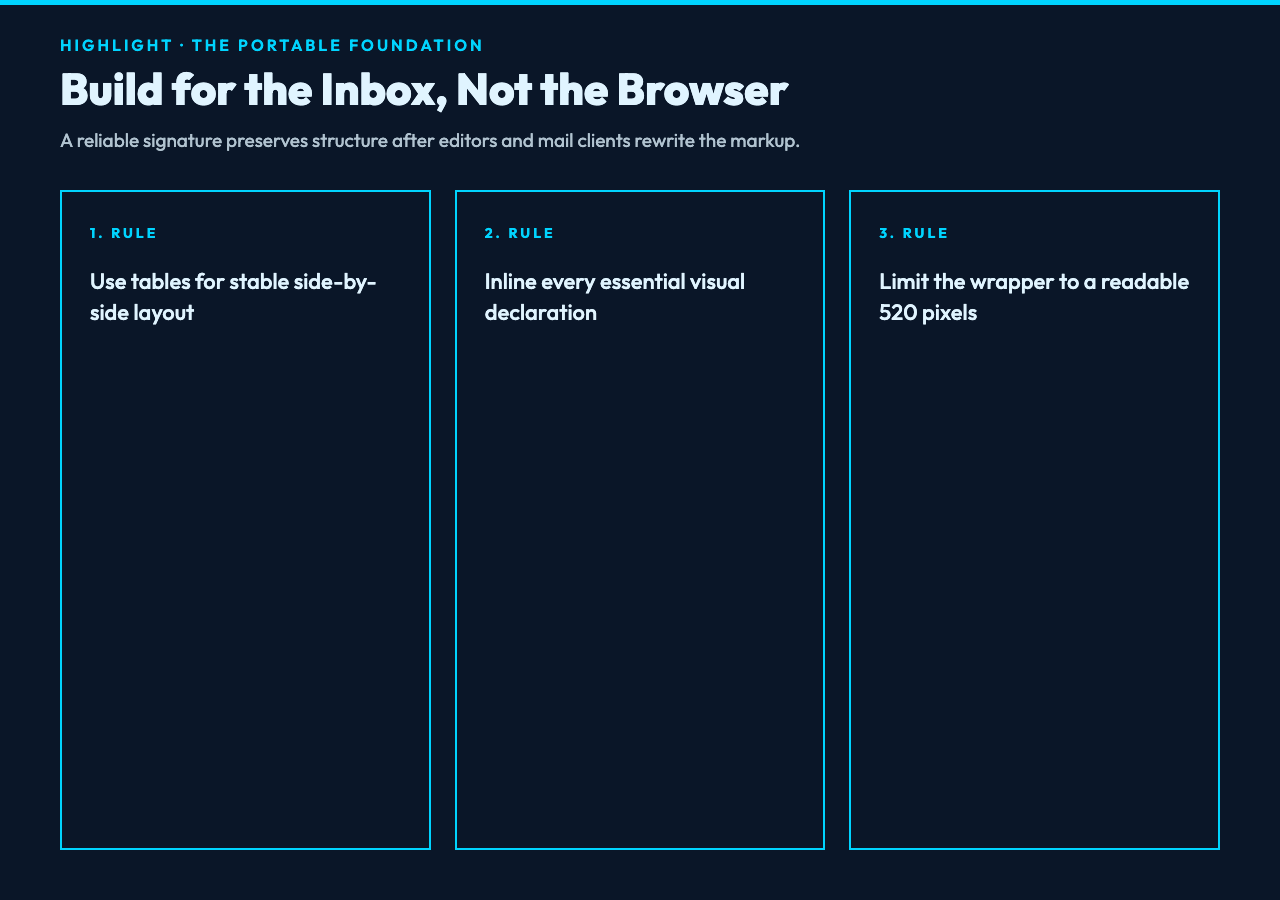
The side-by-side pattern uses a 72-by-72-pixel image, a 3-pixel accent divider, and a compact contact block. If no valid public photo URL is supplied, the photo cell disappears and the content falls back to the simpler stacked structure. That fallback matters because a missing portrait should not leave an empty column or a broken-image icon beside your name.
Inline styling follows the same logic. A class can vanish when a client strips a style block; a declaration attached to the element has a better chance of surviving. The builder inlines font family, colors, spacing, borders, and link decoration. It also escapes names, addresses, links, and other user-provided values before placing them in the output. Reliability and basic output hygiene are designed together rather than bolted on later.
Compatibility is a hierarchy, not a checkbox
“Works in Gmail, Outlook, and Apple Mail” does not mean all three clients render every feature identically. It means the essential identity and contact information remain legible, while enhancements degrade without damaging the structure.
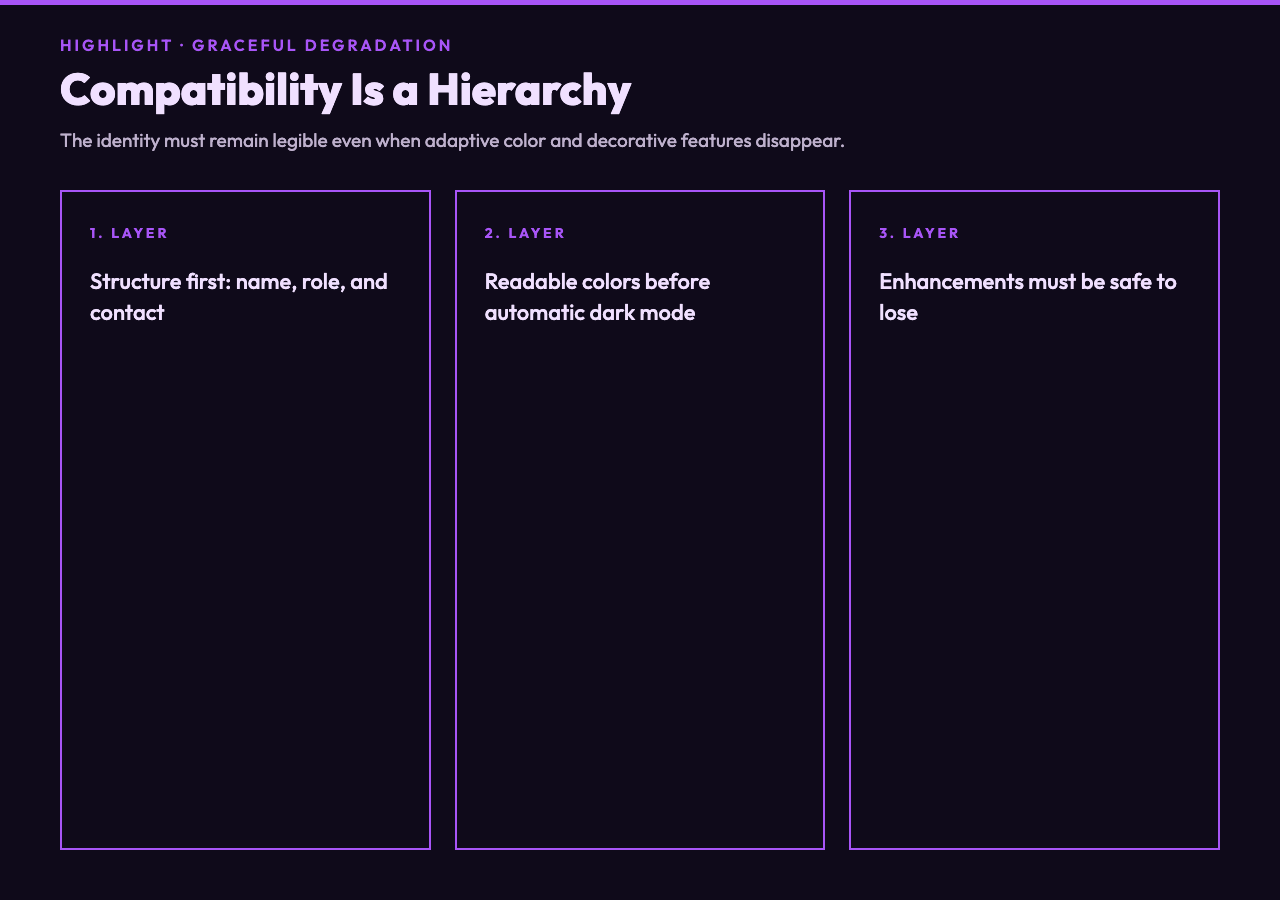
Gmail is comfortable with the table and inline-style foundation. Outlook desktop supports that same foundation but uses a Word-based rendering path that ignores the builder’s prefers-color-scheme block. Apple Mail can honor the automatic dark-mode media query. The correct hierarchy is therefore structure first, readable colors second, and adaptive appearance third.
This is where many dark signatures fail. A designer optimizes a black card for one screenshot, then a recipient’s client changes the background without changing every text color. The result is gray-on-gray contact information or a logo that disappears. The builder separates light, dark, and automatic themes so the author must choose the intended behavior instead of assuming universal dark-mode support.
A signature should fail softly. If the enhancement disappears, the identity must remain.
Social icons should not become tracking liabilities
A row of social icons looks small, but it can create several external requests and several new failure points. The source implementation recognizes 6 networks from pasted links: LinkedIn, X, GitHub, Instagram, Facebook, and YouTube. It keeps the first link detected for each network and renders compact glyphs as inline SVG data URIs.
That choice removes a dependency on a third-party icon host. It also means the basic icon badge does not wait for another domain to respond. The recipient still chooses whether to follow the social link, but the signature does not need to fetch each decorative image from a remote asset server merely to reveal which network it represents.
A portrait or company logo is different. The builder accepts a public HTTP or HTTPS URL and recommends HTTPS. Gmail may proxy that image when the message is sent, so the URL has to be reachable without authentication. The sensible operational test is to open the image in a private browser window before installing the signature. If the asset cannot load there, it is not ready for an inbox.
Two real signatures expose the trade-off
The tool’s first included example is a full business signature for Jane Doe, a product manager at Acme Inc. It combines a photo, phone, address, website, blue accent, and 3 detected social links in the side-by-side layout. The smoke case verifies the name, role, mail link, table markup, light theme, photo presence, and social count. This is the high-information version: useful when a recipient may need several ways to verify or contact the sender.
The second example deliberately removes most of that surface area. Alex Chen, a staff engineer at Nullcorp, gets a stacked dark signature with no photo, a green accent, Georgia type, a website, and 1 GitHub link. The corresponding smoke case verifies the dark background, text-only layout, missing-photo fallback, and single detected network. This is not a lesser signature. It is a different decision about attention.
Both examples prove the same design rule: include the fields that help the recipient act. A legal address may matter for a sales team. Three social profiles may be noise in an incident-response thread. Branding is not the number of elements you can fit beneath a message; it is the consistency of the few elements you keep.
A five-minute signature workflow
Start by deciding what the recipient needs to do next. Usually that means recognizing your name, understanding your role, and having one dependable way to reply or visit your company. Add a phone number, address, portrait, or social link only when it serves a recurring use case.
Then open the builder, enter the identity fields, and choose side-by-side or stacked. Pick a web-safe font and an accent with enough contrast in the selected theme. If you use a photo, confirm that its public URL loads anonymously. Paste social URLs one per line or separated by commas, then check which networks the preview detected.
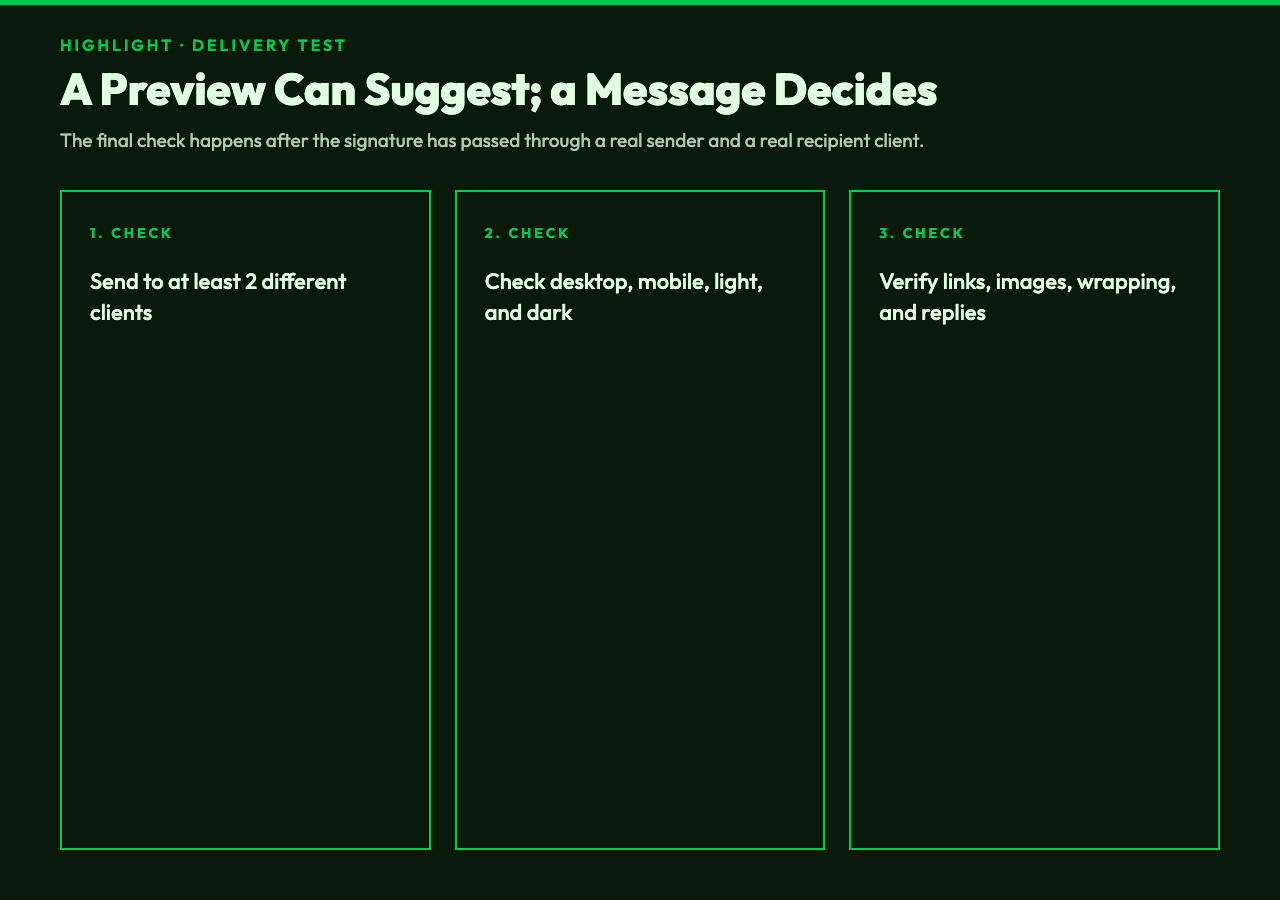
Copy the generated HTML without simplifying its tables. Install it in Gmail under the signature settings, in Outlook under Compose and reply, or in Apple Mail under Signatures. Send a real message to accounts you can open in at least two different clients. Check desktop and mobile, light and dark appearance, links, wrapping, and the message-reply chain. A preview can suggest; a delivered message decides.
The tool performs its generation locally, so the identity fields do not need to leave the browser to build the HTML. That makes it practical to revise several versions for different roles or addresses. If you need adjacent utilities for cleaning markup or checking generated content, the broader Elysia Tools collection keeps those workflows in the same browser-first style.
The smallest reliable system wins
An email signature is not a miniature homepage. It is a tiny compatibility system that travels through software you do not control. The point is to preserve identity and one useful next action when optional styling is stripped away. Build the table, inline the essentials, test a delivered message, and let decoration fail softly. The next question is not whether you can add another icon or effect, but whether the signature is still unmistakably yours when that effect disappears. If it is, what else does the recipient truly need?