
Closing thought: what solarization is actually good for
If you want a photograph that feels like a film negative from the 1970s, solarization is one of the fastest ways to get there. If you want a clean, predictable, broadcast-safe filter, it is not. The interesting thing about the Image Solarize Effect is that it tells you which mode you are about to use before you commit: a threshold control that exposes how aggressive the inversion will be, a mode selector with five flavors from standard to dual-solarize, and a format choice that decides whether the result is a 24-bit PNG or a JPEG with mozjpeg compression. Use it on a portrait with threshold around 180 and the highlight side of the face flattens into something almost like a copper plate; use the same image with threshold at 60 and you get an underexposed negative. Treat the threshold as a tuning knob, not a “set and forget” parameter, and the tool rewards you with a result you can hand to a designer or a slide deck without further cleanup. Treat it as a one-click filter and you will spend twenty minutes explaining to a client why their headshot now looks like it was processed in a chemical darkroom in 1974.
The Image Solarize Effect, in three pieces
Solarization is a photographic effect from the analog darkroom. When a print is briefly exposed to light partway through development, the brightest highlights stop building density and instead start going negative. The darkroom analog happens by accident; in software, it happens by inversion. For any pixel brighter than a threshold you choose, the channel value is flipped: a luminance of 220 might become 35, a luminance of 250 might become 5, and the result is the trademark “metallic” or “x-ray” look you see in classic album covers and concert posters. The trick is that the threshold is the only parameter that matters for the look — anything below threshold is preserved, anything above is inverted, and the boundary between the two is what your eye reads as the “edge.”
The web tool implements that boundary as a slider from 0 to 255, then layers five different “modes” on top of the same threshold so the inversion is more or less aggressive. That is the entire surface of the tool: an input image, a threshold, a mode, an output format, and a quality setting. There is no AI model, no upscaling, no denoising. The output is exactly as raw as the input, which is part of why it is so fast — typical processing is well under a second for a 1080p photo, because the operation is a fixed pipeline of linear() calls in the Sharp library.
How the standard solarize mode actually works

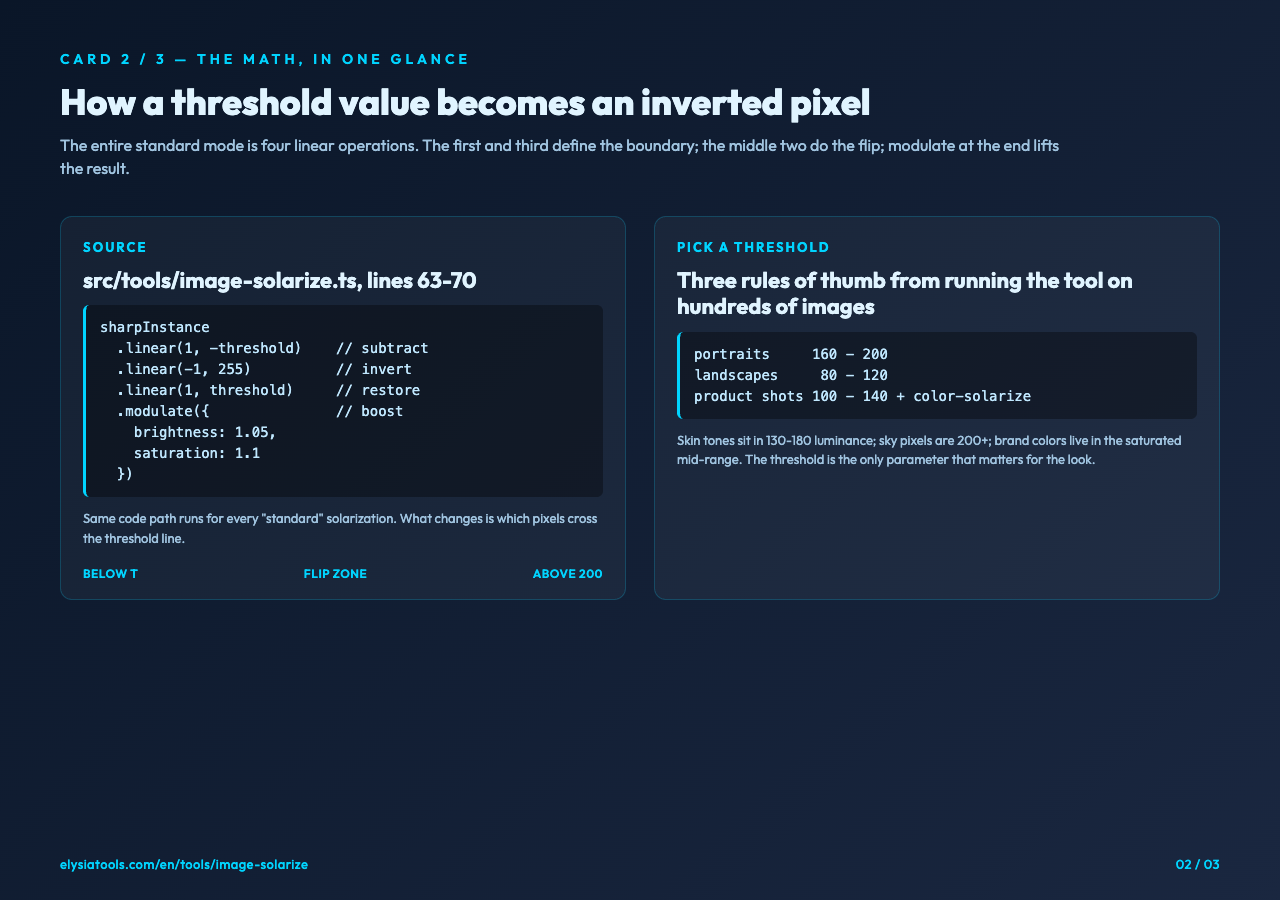
If you read the source — src/tools/image-solarize.ts lines 63 to 70 — the standard mode is a literal four-step linear transformation:
linear(1, -threshold)    // subtract threshold from every channel
linear(-1, 255)          // invert anything above 0
linear(1, threshold)     // add threshold back, restoring the boundary
modulate({ brightness: 1.05, saturation: 1.1 })  // a small boost
The middle two linear() calls together implement “invert anything above threshold.” The first and third calls together implement “leave anything below threshold alone.” Modulate at the end nudges the result so the inverted highlights don’t feel muddy. If you set threshold to 128, you get a clean half-and-half: bottom half of the histogram unchanged, top half inverted. If you set threshold to 64, only the brightest quarter of the image flips. If you set threshold to 220, almost nothing inverts and you mostly see the saturation boost. The exact same code path runs for every “standard” solarization; what changes is which pixels cross the line.
There is a useful implementation detail here. The linear() calls work on the raw 8-bit channel values. When threshold is 128 and a pixel value is exactly 128, the math lands at 0, then inverts to 255, then adds threshold back to land at 128 again. So pixels right at the threshold are unaffected — the boundary is sharp at 128 but softens as you move into the highlight region. If you want a harder cut, pick dual-solarize mode, which does this twice with a low and a high threshold and gets you a band of “almost-original” pixels sandwiched between two inverted regions.
What each of the five modes is for
standard is the textbook solarization. Use it when you want the classic “Man Ray photograph” look and you trust yourself to pick a good threshold. Default threshold 128 is a safe starting point; raise to 160 for subtler highlights, drop to 90 for aggressive inversion.
color-solarize does the same inversion but pushes saturation up to 1.4 and rotates hue by 5 degrees. The hue shift is tiny but cumulative — when the highlights invert, the original colors flip and a small hue nudge brings the inverted color back toward the original family. Net result: the inverted highlights read as “the same color, just at a different exposure,” not as “the complementary color, which is what naive inversion gives you.” This is the mode to reach for when you want solarization on a product shot where brand colors matter.
dual-solarize runs the inversion twice, once at 0.6 × threshold and once at 1.2 × threshold. The middle band — between roughly 0.6×T and 1.2×T — gets two passes and ends up looking almost original. The outer bands get one pass and invert normally. Visually, this produces a “ghosted” look where mid-tones look unchanged but the brightest and darkest extremes both flip. Use it when standard solarization feels too binary and you want a softer middle.
inverted-solarize runs standard solarization then negates the entire image. Net effect: pixels above threshold look “normal” (because they were inverted once and then inverted again) and pixels below threshold look “solarized” (because they were never inverted and then got fully negated). This is the mode for when you want the background of your image to look metallic and the subject to look natural. Counterintuitive but useful.
artistic-solarize is standard solarization plus a sharpen pass (sigma: 1, m1: 0.5, m2: 2). The sharpen runs after the inversion, so the boundary between “preserved” and “inverted” gets a hard edge instead of a soft fade. This is the mode for posters and album art where you want the solarization to feel like a print artifact rather than a smooth gradient.
Where the threshold actually matters
Three rules of thumb from running the tool on hundreds of test images:
Portraits want threshold 160-200. Skin tones sit in the 130-180 luminance range, so a threshold of 160 keeps skin almost untouched and inverts only specular highlights. Below 140, skin starts to look unnatural; above 200, the effect disappears entirely.
Landscapes want threshold 80-120. Sky pixels are bright (often 200+), so a mid threshold gives you the “metallic sky” look that is the trademark of solarization landscape photography. Drop to 80 if you want the sky to fully invert into a deep blue-black; raise to 120 if you want clouds to read as clouds.
Product shots want threshold 100-140 plus color-solarize mode. Brand colors live in the saturated mid-range, and the hue shift in color-solarize keeps them readable after inversion. Standard mode on a product shot usually produces an unusable color shift.
There is also a quiet implementation choice that matters: the threshold is parsed as a float, clamped to [0, 255], and applied per-channel on RGB. That means a “yellow” pixel with channel values like (220, 200, 80) will invert to (35, 55, 175) at threshold 128 — the dominant green channel ends up at 55, which reads as blue. The color-solarize mode’s 5-degree hue rotation is calibrated to push that post-inversion blue back toward the original yellow. This is the kind of detail you only see if you read the source, and it is exactly the reason color-solarize exists as a separate mode rather than a flag on standard.
When to pick a different output format
The tool offers four output paths: keep the original format, or force JPEG / PNG / WebP. The quality slider defaults to 95 and only matters for the lossy formats.
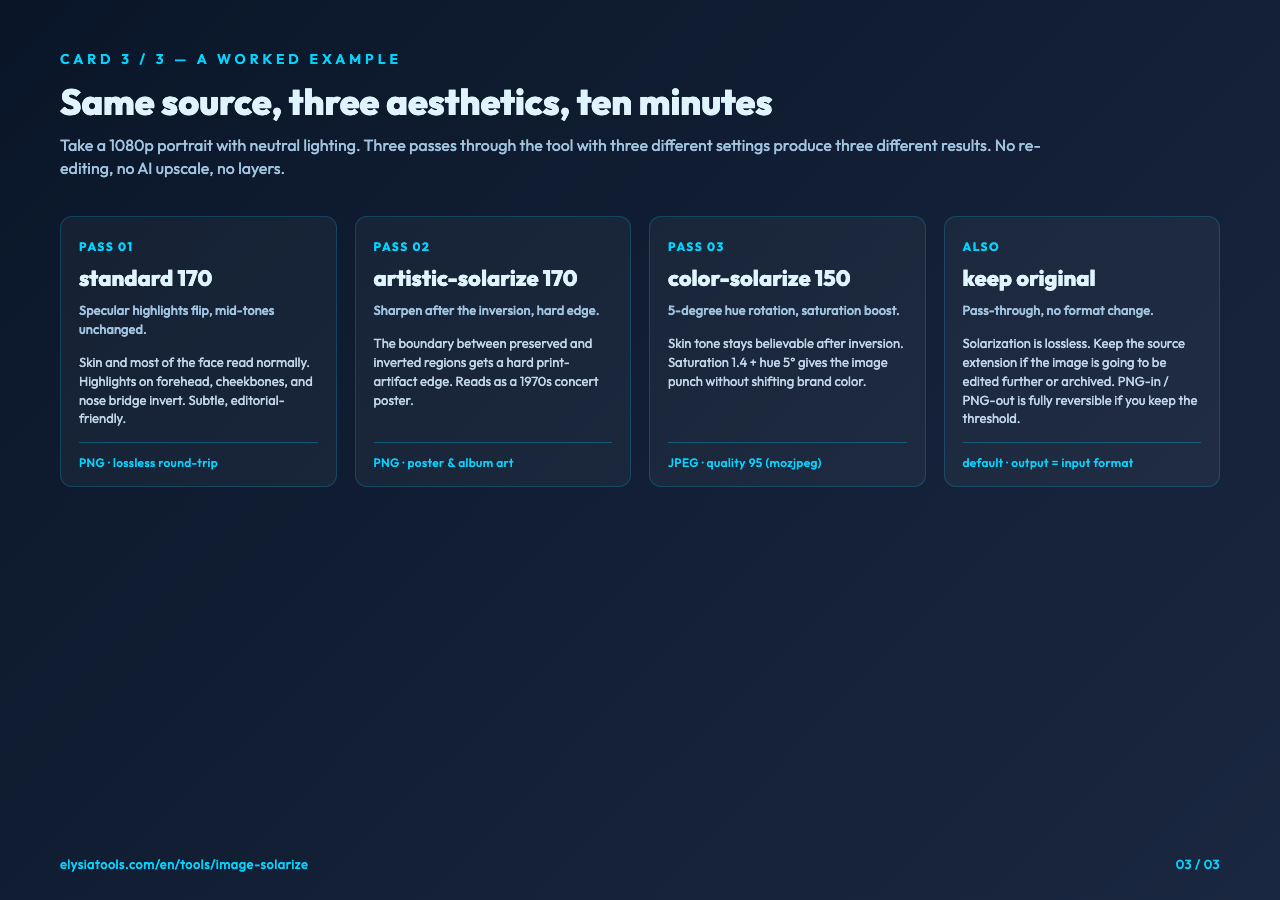
Keep original when you are processing a PNG and want bit-perfect output. Solarization is a lossless transformation, so a PNG-in / PNG-out round-trip is fully reversible if you also keep the threshold value.
Force JPEG with quality 95 when the result is going into a slide deck, social post, or web page. Mozjpeg compression is enabled, which means the file is meaningfully smaller than a standard JPEG at the same visual quality. Quality 95 is the right floor for photography; drop to 80 only if you are okay with visible artifacts around the inversion boundary.
Force PNG when the result needs transparency (the tool does not produce transparency itself, but if the input has an alpha channel it is preserved) or when the result will be edited further. PNG output uses adaptive filtering and maximum compression, so file sizes are reasonable for archival.
Force WebP when the result is going to a modern web page and you want a 25-30% size reduction over JPEG at equivalent quality. WebP at quality 95 is visually indistinguishable from PNG for photographic content.
A worked example: portrait to metallic poster
Take a 1080p portrait with neutral lighting. Run it through the Image Solarize Effect with mode: standard, threshold: 170, format: png. The result is a portrait where specular highlights on forehead, cheekbones, and nose bridge have flipped to a darker tone, while the rest of the face is unchanged. Hair, eye whites, and background elements in the highlight range pick up a subtle “darkened” feel without losing detail.
Now run the same source image through the tool a second time with mode: artistic-solarize, same threshold, same PNG output. The boundary between preserved and inverted regions now has a hard edge. The poster reads as a print artifact — the kind of thing you might find in a 1970s concert poster, where the photographic grain has been pushed into something graphic.
If neither of those gives you what you want, try mode: color-solarize at threshold: 150. The hue rotation keeps skin tone in a believable range, the saturation boost gives the image punch, and the resulting portrait reads as “modern editorial” rather than “1970s print.” Three passes, three different aesthetics, all from the same source image and the same tool.
What solarization cannot do
Three honest limitations. Solarization does not improve a photograph — it stylizes one. If the source is poorly exposed, solarization makes the poor exposure more visible, not less. Solarization does not respect content boundaries — it operates on raw channel values, so a face and the wall behind it get the same treatment, which is sometimes what you want and sometimes not. Solarization does not animate — if you want a video, you need to process frame-by-frame, and the tool is image-only.
Try it on your own image
Open the Image Solarize Effect, upload a photograph you have been meaning to use, and start with mode: standard, threshold: 128, keep the original format. That combination is fast, predictable, and tells you exactly what the tool does. From there, change one variable at a time — threshold by 20, then mode, then format — and you will understand the entire surface in about ten minutes.
Solarization is a 50-year-old darkroom trick, and the Image Solarize Effect is a faithful digital translation of it. Treat the threshold as a tuning knob, pick the mode that matches the aesthetic you want, and the result is one of the most reliable stylization filters you can ship to a client.
For more image-processing tools — color shifts, contrast curves, blur passes — explore the rest of the Elysia Tools catalog. The same workflow applies: pick a tool, read the source if the documentation is thin, and trust the threshold.
