
Inspect first, extract later. A large archive can hide the one file you need, and extracting it just to read its directory is wasteful. The 7Z Archive Preview tool from Elysia Tools lists an archive’s contents without extraction, giving you a fast, low-risk way to understand what is inside before choosing the next operation.
Why archive inspection deserves its own step
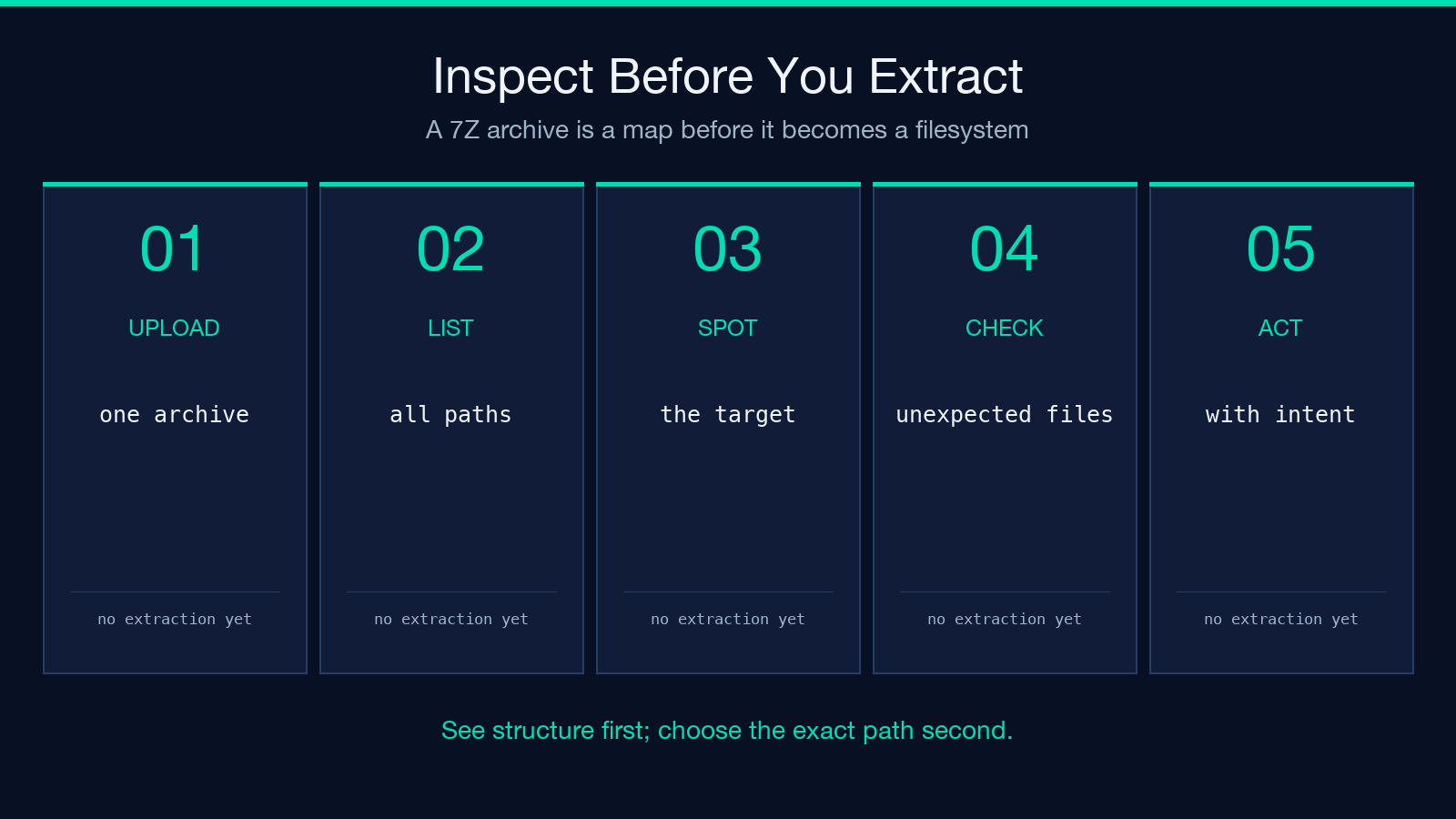
Archive work is often treated as a single action: upload a file and unpack everything. That approach is convenient until an archive is large, contains unfamiliar paths, or includes material you do not want to copy onto disk. Previewing turns the process into two deliberate stages: discover the structure, then act on a known target.
The 7Z Archive Preview tool is designed for the discovery stage. Its manifest describes it precisely: it previews the contents of a 7Z archive without extraction and requires the 7zip command. The result is JSON, which makes the listing easier to pass into another workflow than a purely visual file browser.
What the tool actually needs
The interface keeps the input narrow: one required file field labelled 7Z Archive File. Accepted file types include common 7Z MIME types, octet-stream uploads, and the .7z extension. The declared file limit is 100 MB, so it is suitable for ordinary project bundles and transfer packages while still placing a clear boundary around the browser operation.
There is no path field, extraction destination, or compression setting to confuse the inspection step. You provide the archive, run the preview, and receive a structured inventory. That simplicity is useful when the next decision depends on names and paths rather than on rewriting archive data.
Read the listing as a map
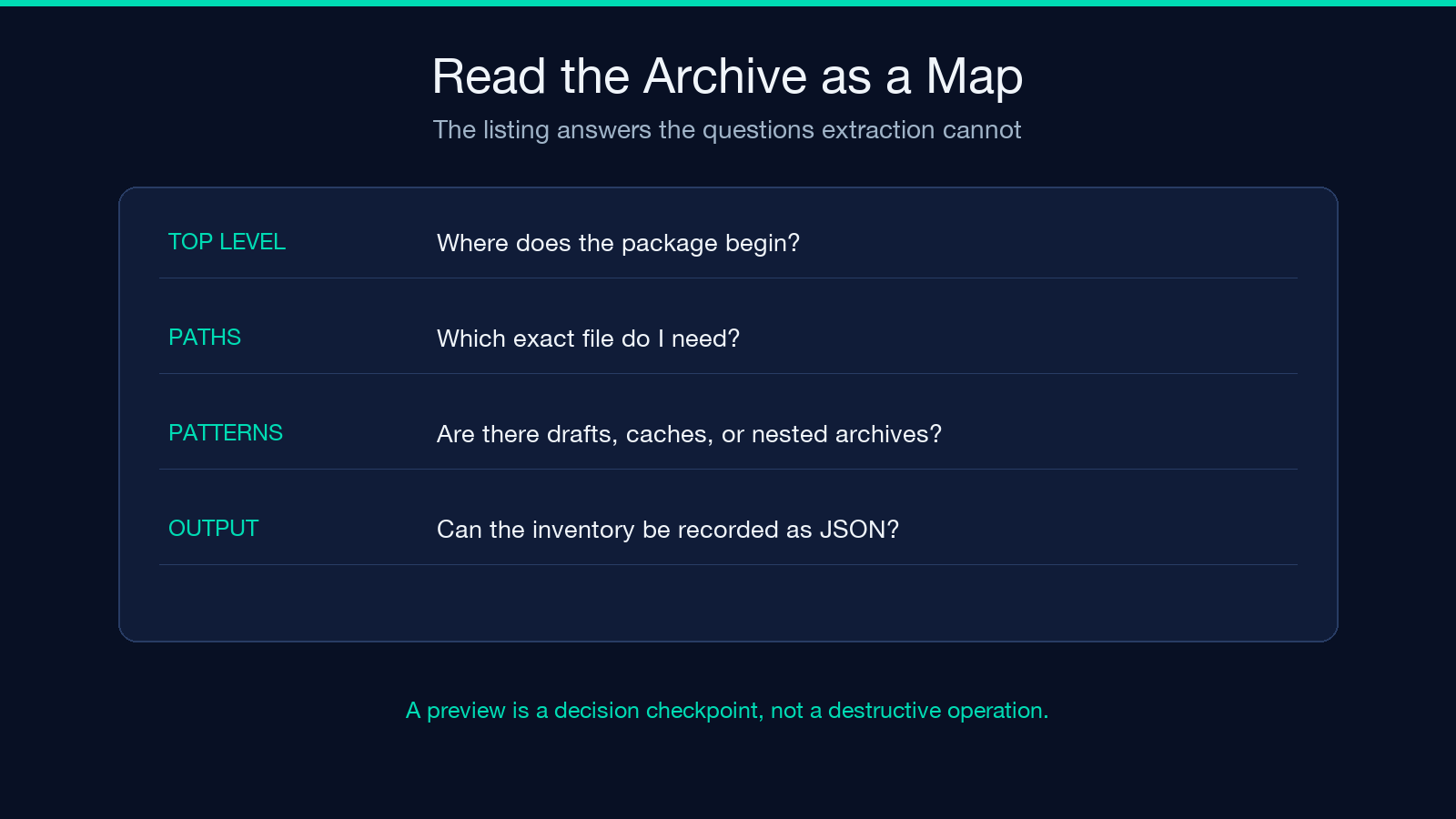
A content listing is more than a pile of filenames. Look for top-level directories, repeated extensions, configuration files, and unusually deep paths. A bundle such as release/app/, release/docs/, and release/config/ tells you how the author organized the package. Repeated assets may reveal whether you are looking at a source tree, a deployment artifact, or a backup.
Pay attention to exact spelling and case. Archive paths are often case-sensitive, and the preview gives you the canonical path to use later. It can also expose surprising nested archives, generated folders, or temporary files before they become part of an extraction directory.
Preview before selective extraction
When you only need one file, previewing pairs naturally with a selective extractor. First use the listing to identify the exact path; then choose the corresponding file deliberately rather than guessing. This is especially helpful for packages containing several files with similar names, such as multiple environment templates or versioned reports.
The preview output does not modify the source archive. That makes it a safe checkpoint for scripts, support tickets, and review workflows. You can record the inventory, confirm the intended path, and postpone any write operation until the target is unambiguous.
Where previews prevent mistakes
Consider a handoff archive from a colleague. You expect a single report, but the listing shows a draft/ directory, a final/ directory, and an old export at the root. Without inspection, a broad extraction may overwrite or circulate the wrong version. With inspection, you can select the final path and leave everything else untouched.
The same reasoning applies to backups and downloaded releases. A preview can reveal whether an archive includes credentials, build caches, or platform-specific binaries. It does not replace a security review, but it gives that review a concrete inventory to work from.
Designing a dependable workflow
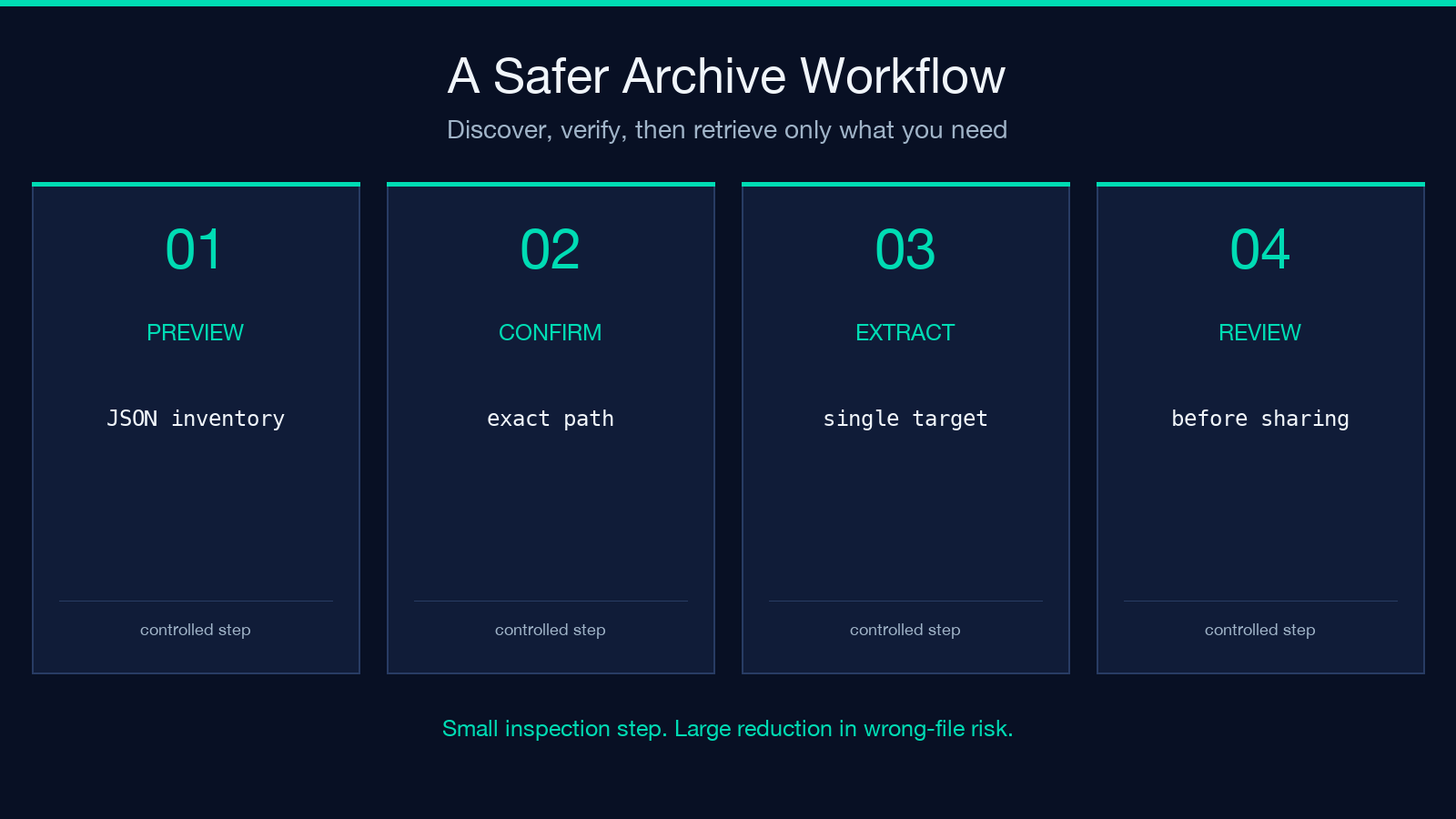
A practical sequence is short:
- Upload the archive and confirm it is the intended 7Z file.
- Preview the contents and save the JSON result when the inventory matters.
- Identify the exact path needed by the next tool or script.
- Extract or process selectively only after the target is confirmed.
This separation also makes failures easier to diagnose. If the preview cannot run, investigate the archive or 7zip availability before troubleshooting extraction logic. If the listing is correct but a later operation fails, you have already ruled out a wrong-path assumption.
Limits and responsible use
Previewing is not extraction, malware scanning, or format repair. A valid listing does not guarantee that every payload is safe to open. Treat archives from unknown sources cautiously, keep the 100 MB limit in mind, and avoid assuming that a filename describes trustworthy content.
It is also worth distinguishing archive metadata from file contents. The preview tells you what is named and where it is placed; it does not read every document or validate every binary. Use it as a low-cost structural check before applying the more privileged operation your workflow actually requires.
A small tool with a large payoff
The 7Z Archive Preview tool addresses a simple but recurring problem: making an informed choice before touching a bundle. Its one-file input, JSON result, and no-extraction behavior make it a useful first move for archive inspection, selective retrieval, and reproducible handoffs.
If your process regularly handles compressed project files, add previewing as a standard checkpoint. Explore the tool at Elysia Tools, then browse the broader tool collection when the next step calls for a different format or workflow.
